How to Embed a Google Form on a Website or Blog

Embedding a Google Form on your website or blog allows you to collect responses directly from visitors without redirecting them to an external page. This approach streamlines data collection and improves user experience by keeping respondents on your site.
Quick summary
In this tutorial, you'll learn how to create a Google Form and embed it seamlessly into your website or blog. You'll discover how to generate embed code, customize form appearance, and configure settings to ensure smooth integration with your existing content.
Why this matters
Embedding forms directly on your site increases completion rates by reducing friction in the user journey. This method is essential for collecting leads, feedback, registrations, and survey data while maintaining brand consistency and keeping visitors engaged on your platform.
Step-by-step guide
- 1
Open Google Forms
Navigate to forms.google.com and sign in with your Google account. You'll see your existing forms or the option to create a new form.
- 2
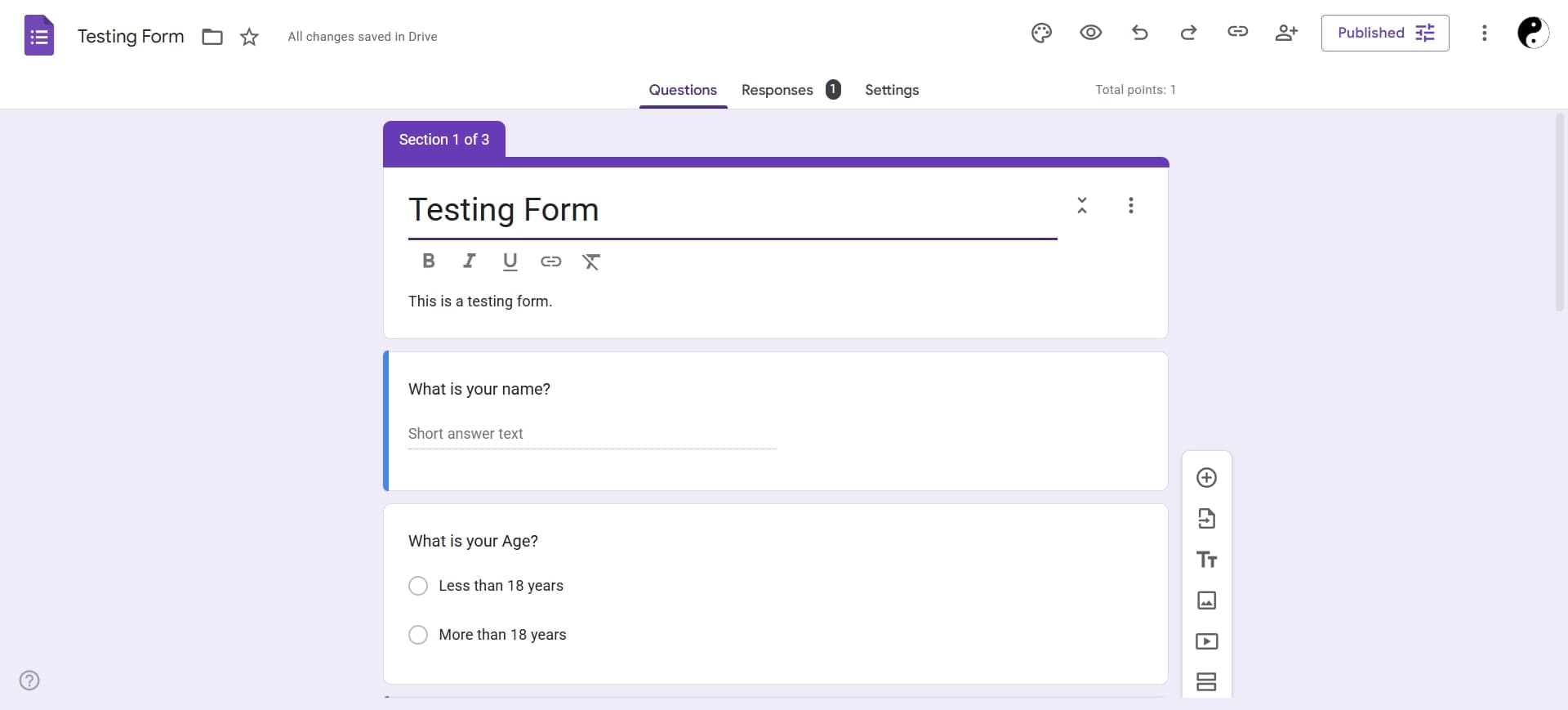
Create or select your form
Click the plus icon to create a new form, or select an existing form you want to embed. Give your form a title and description if creating a new one.
- 3
Add form fields and questions
Click the plus icon on the right side to add questions, multiple choice options, text fields, or other form elements. Customize each field according to your data collection needs.
- 4
Configure form settings
Click the settings gear icon to adjust options like requiring sign-in, allowing one response per user, or collecting email addresses. Adjust these based on your form's purpose.
- 5
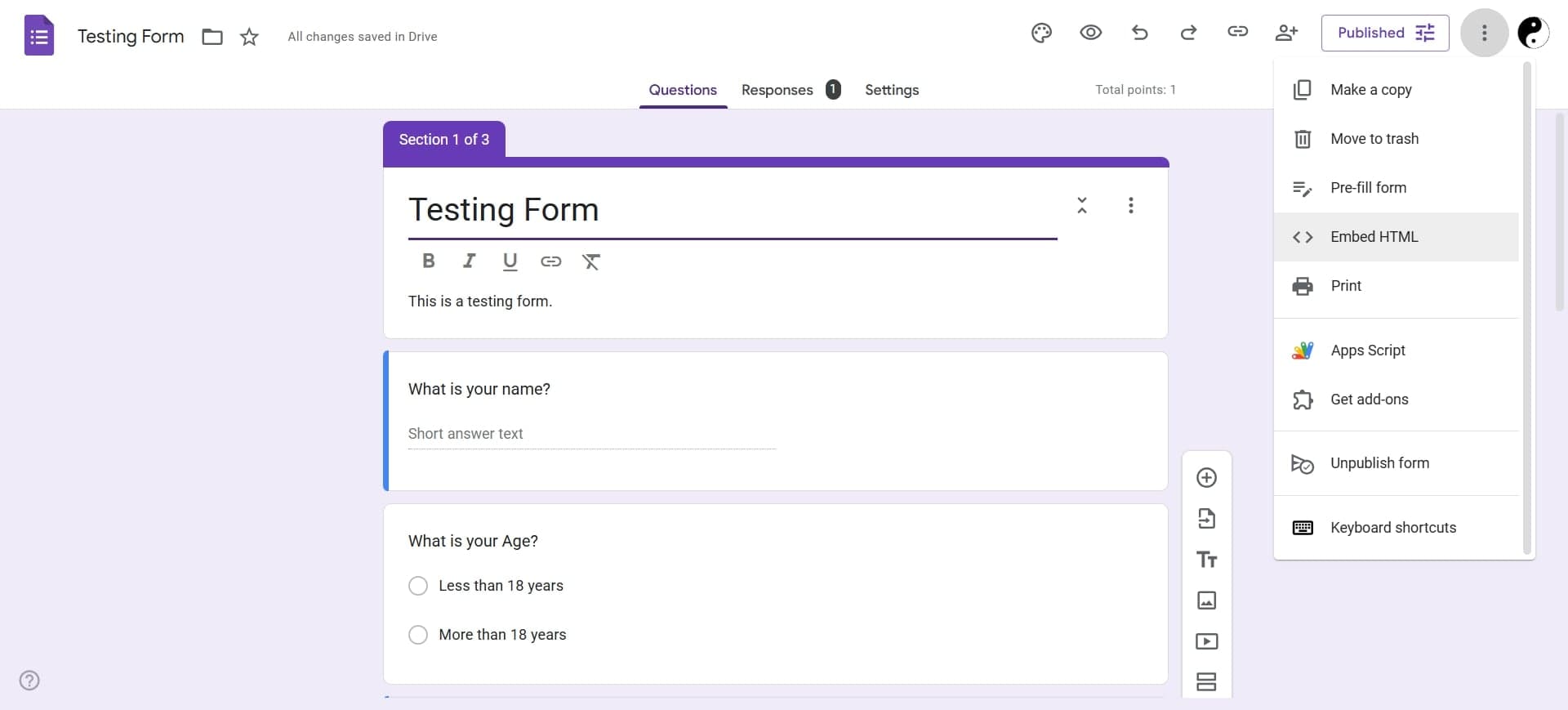
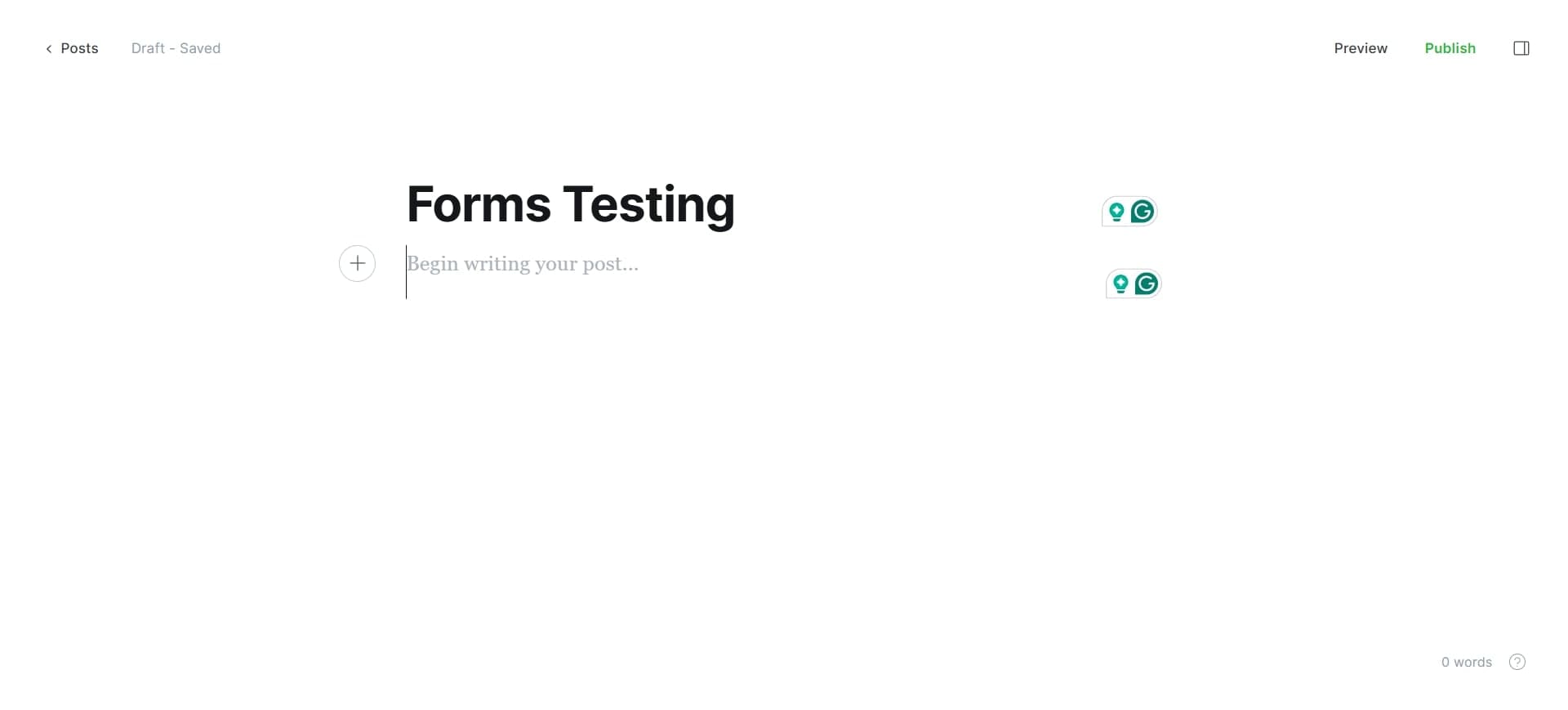
Generate the embed code
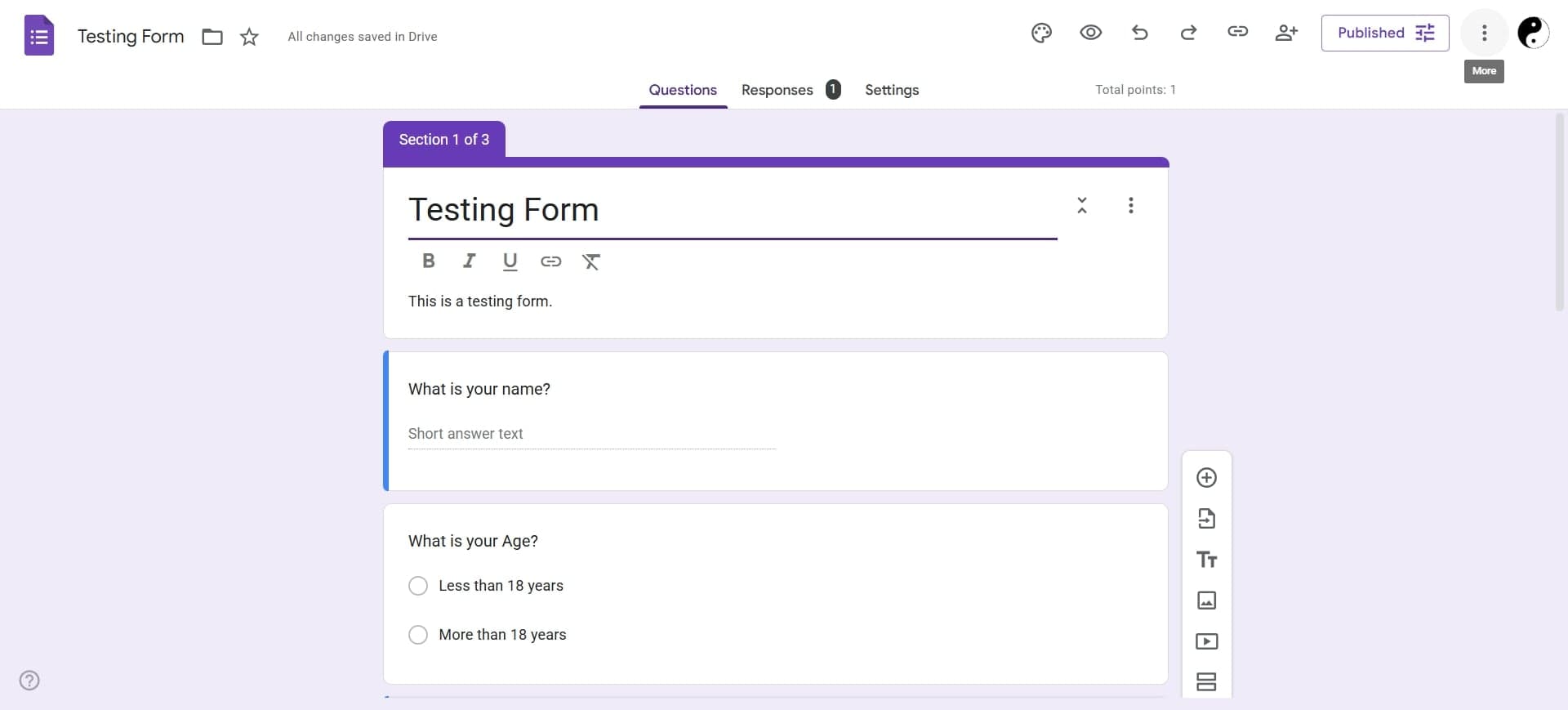
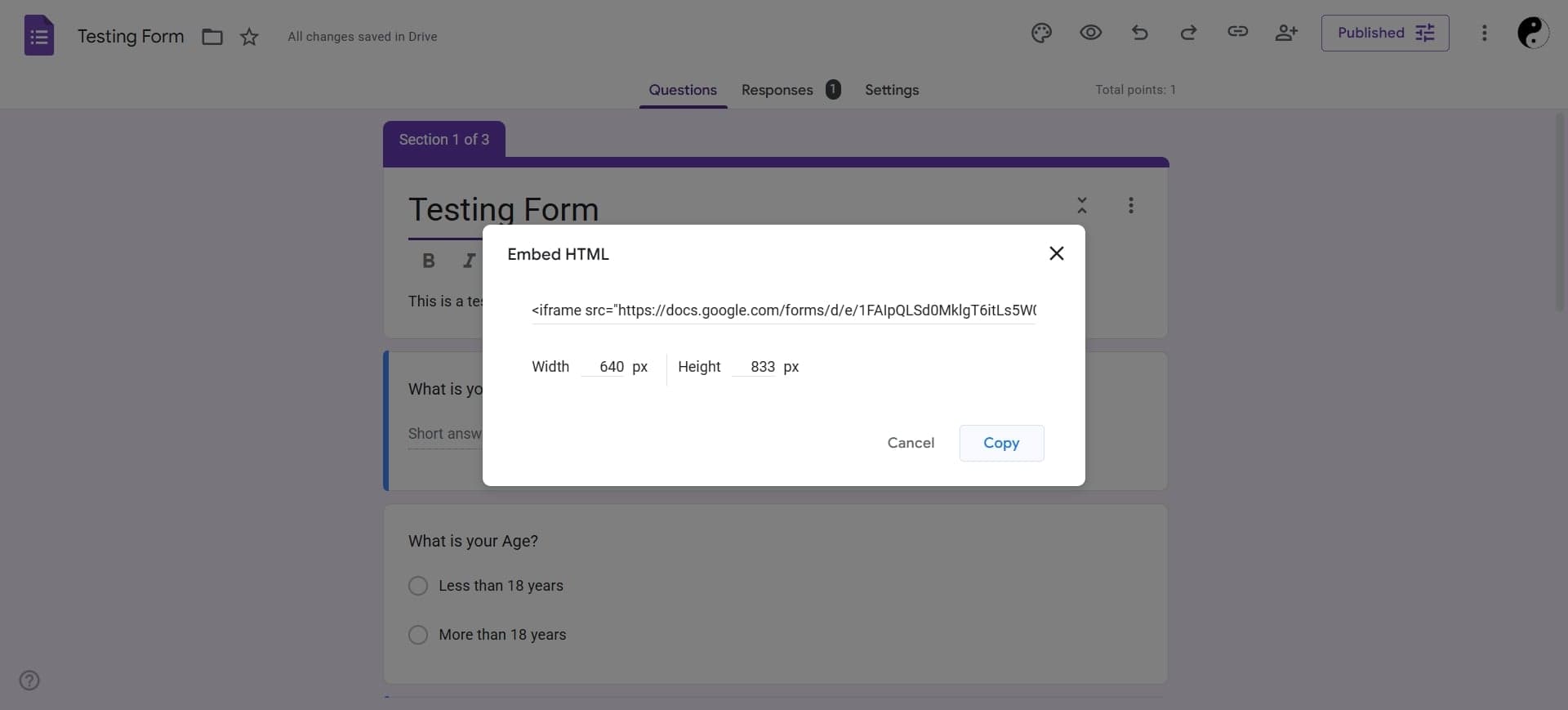
Click the send button (arrow icon), then select the embed option (the code brackets icon). A code snippet will appear that you can copy to embed the form.
- 6
Copy the embed code
Select and copy the entire iframe code provided by Google Forms. This code contains all the necessary information to display your form on your website.
- 7
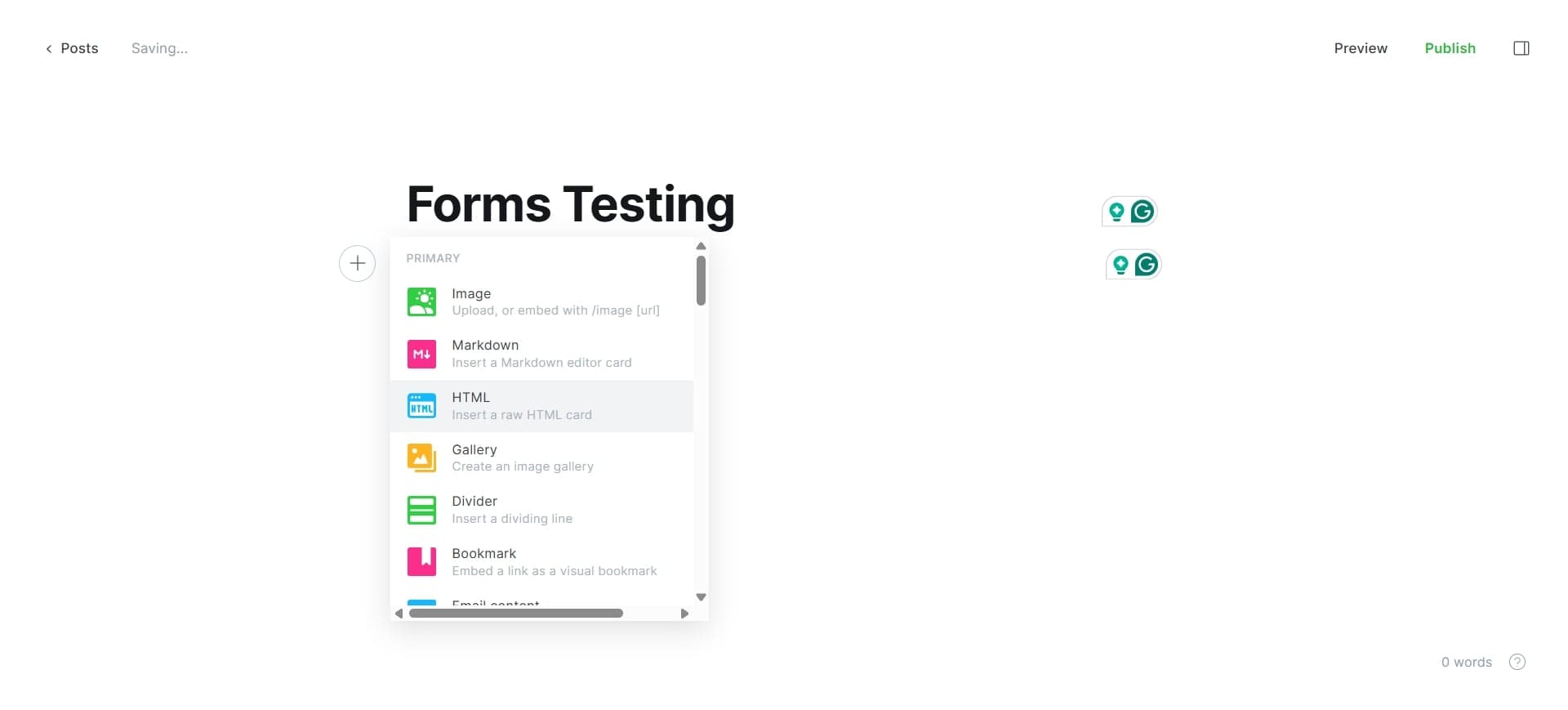
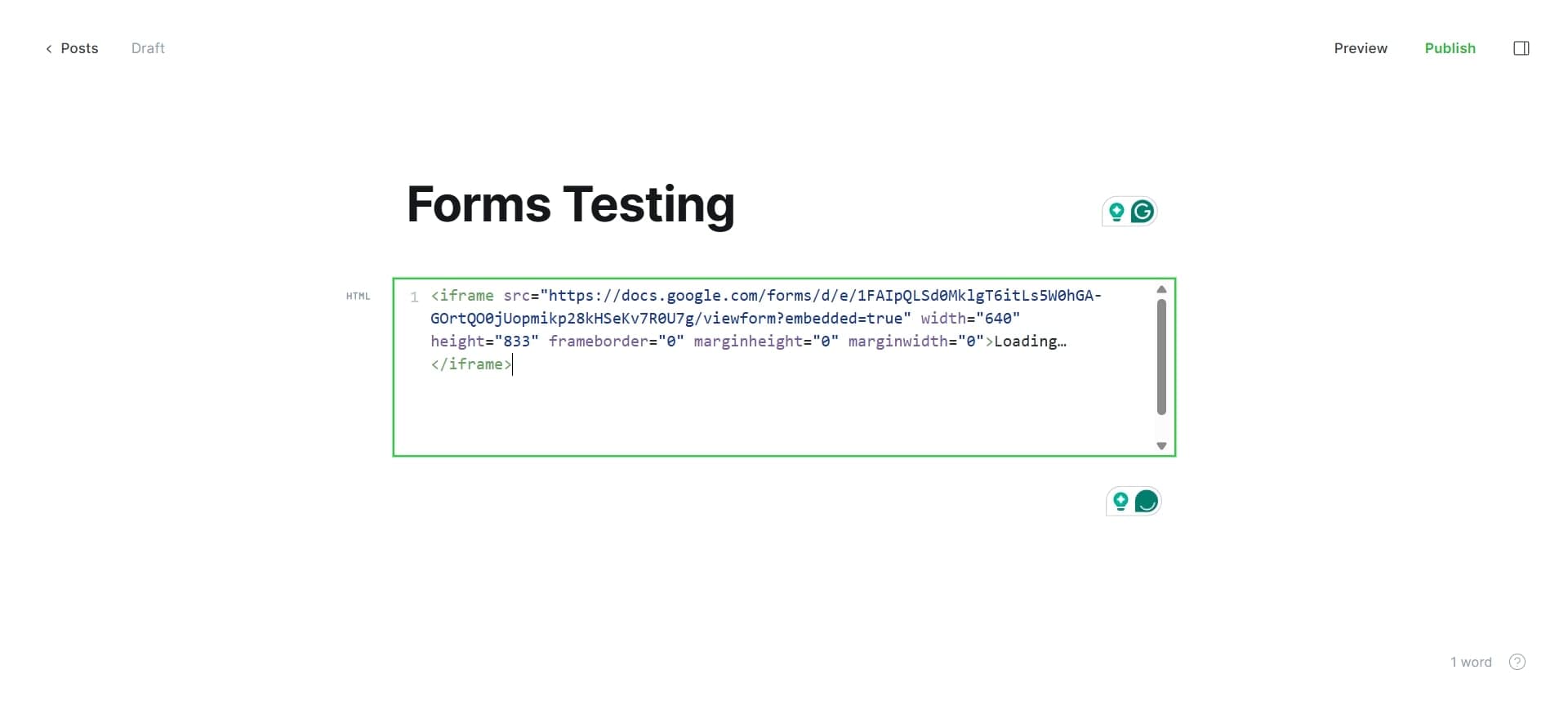
Paste code into your website
Navigate to your website's HTML editor or blog platform's embed section, and paste the code where you want the form to appear. Save your changes to publish the form.
Frequently asked questions
Common questions about how to embed a google form on a website or blog.
Google Forms offers limited styling options for embedded forms. You can adjust colors, fonts, and layout within Google Forms itself, but the embedded version will maintain Google's default styling. For more advanced customization, consider using third-party form embedding services that offer additional design flexibility.
Yes, Google Forms automatically collects all responses and stores them in a linked Google Sheet. You can access response data through the Responses tab in your form or view detailed analytics about submission patterns and individual answers.
Sharing a form link redirects users to Google Forms' interface, while embedding keeps the form on your website. Embedded forms provide better user experience by maintaining your site's context and branding, and they typically have higher completion rates.
Yes, most website platforms including WordPress, Wix, Squarespace, and Shopify allow you to embed Google Forms using their custom code or HTML blocks. Simply paste the embed code into the appropriate custom code section of your platform.
Open your Google Form and click the Responses tab to see the total number of submissions and view individual responses. You can also create charts and summaries to analyze response patterns and data from your embedded form.