How to Convert PowerPoint to Google Slides

Converting a PowerPoint presentation to Google Slides allows you to collaborate in the cloud, access your deck from any device, and leverage Google's suite of integrated tools. This guide walks you through the entire import process, from uploading your file to finalizing the conversion in Google Slides.
Quick summary
In this tutorial, you'll learn how to import a PowerPoint file directly into Google Slides, including accessing the import feature, selecting your file, and completing the conversion. By the end, your presentation will be ready for collaborative editing in Google's cloud-based platform.
Why this matters
Converting PowerPoint to Google Slides eliminates version control issues, enables real-time team collaboration, and ensures your presentations are accessible from any browser or device. This workflow is essential for remote teams and organizations looking to streamline their presentation workflow.
Step-by-step guide
- 1
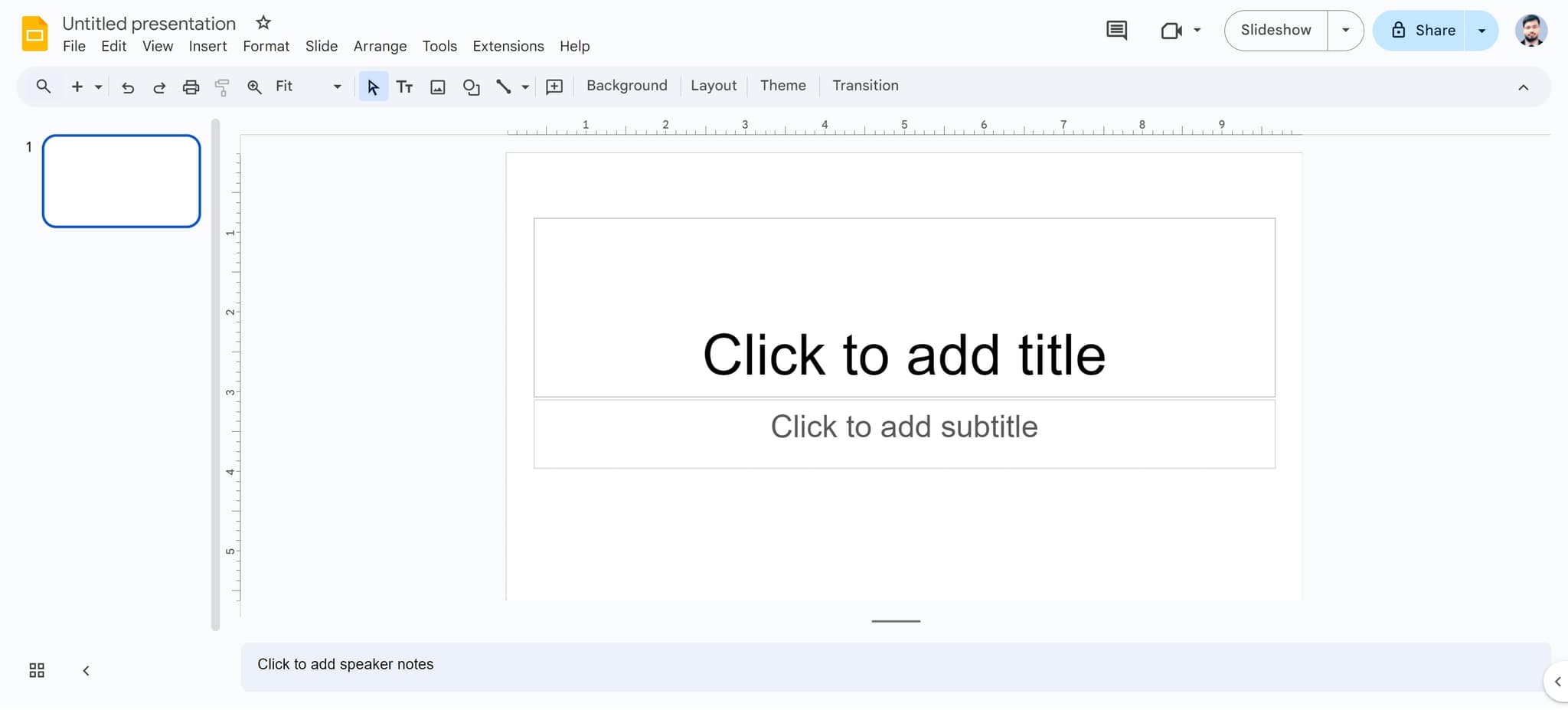
Click on the presentation title
Start by clicking on 'Untitled presentation' at the top of your Google Slides interface. This is where you'll begin the import process and prepare your workspace for the incoming PowerPoint file.
- 2
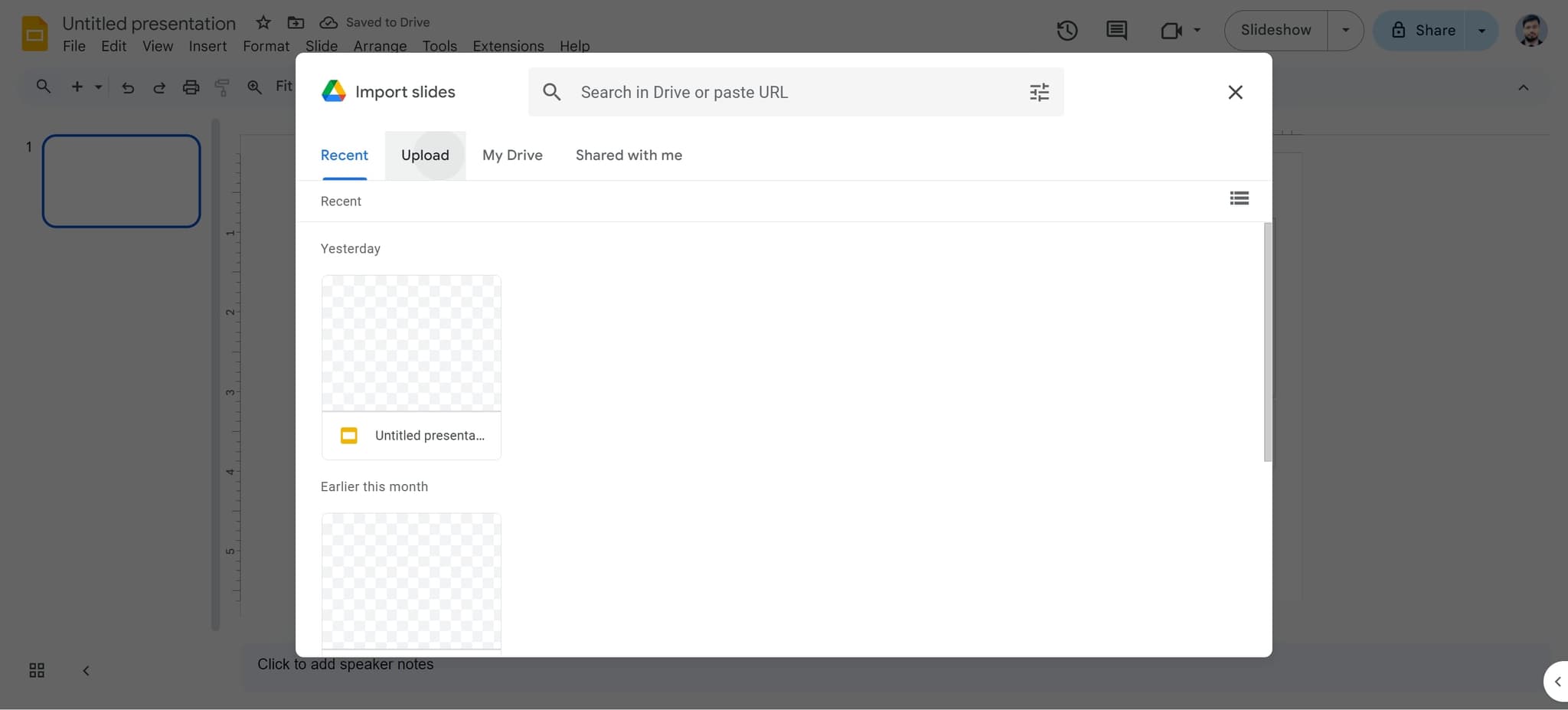
Access the upload option
Look for and click on the 'Upload' button in the menu. This will open the import dialog where you can select your PowerPoint file from your computer.
- 3
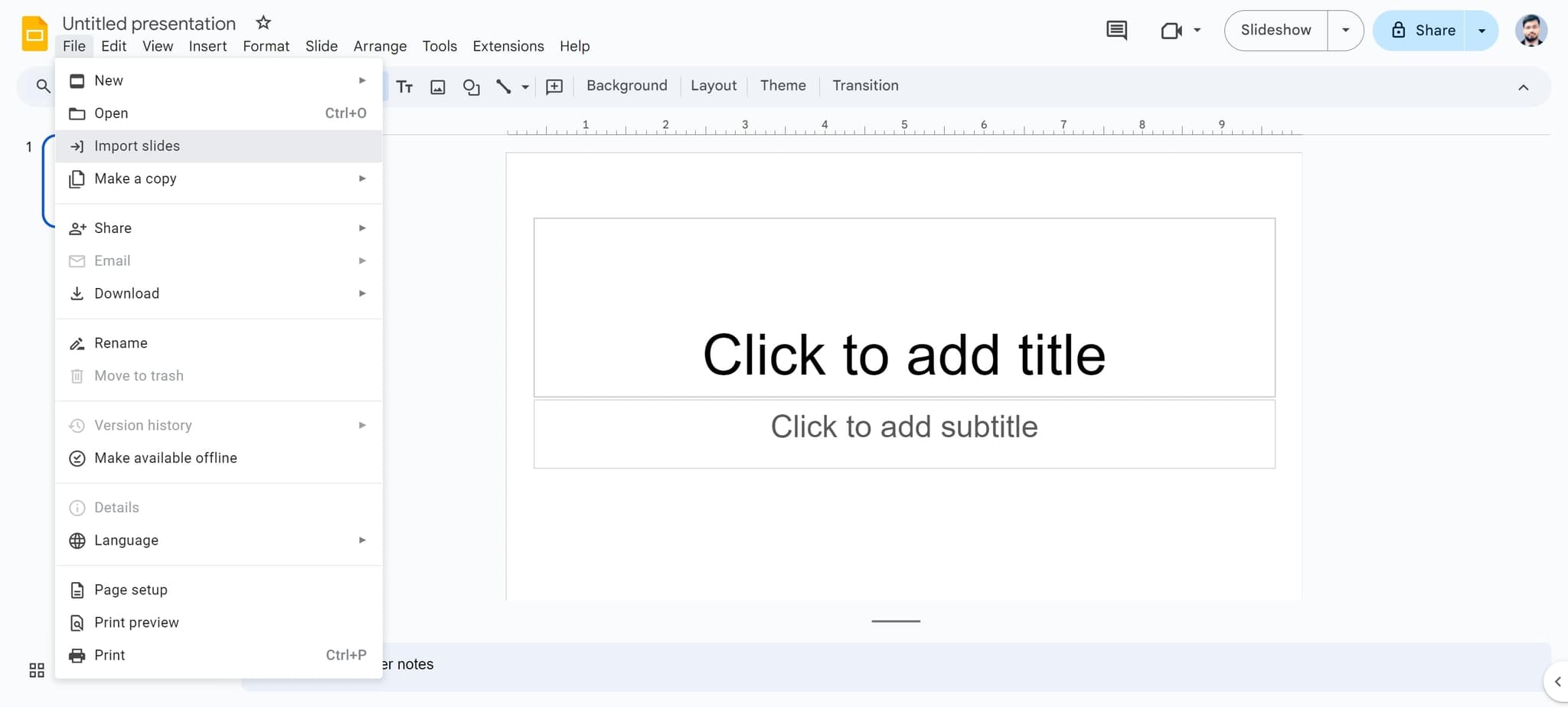
Click on Import Slides
Click the 'Import slides' button to proceed with importing your presentation. This action will activate the file selection dialog.
- 4
Select the target element
Click on the element indicated in the interface to specify where your imported slides should be placed. This ensures your slides are organized correctly within your presentation.
- 5
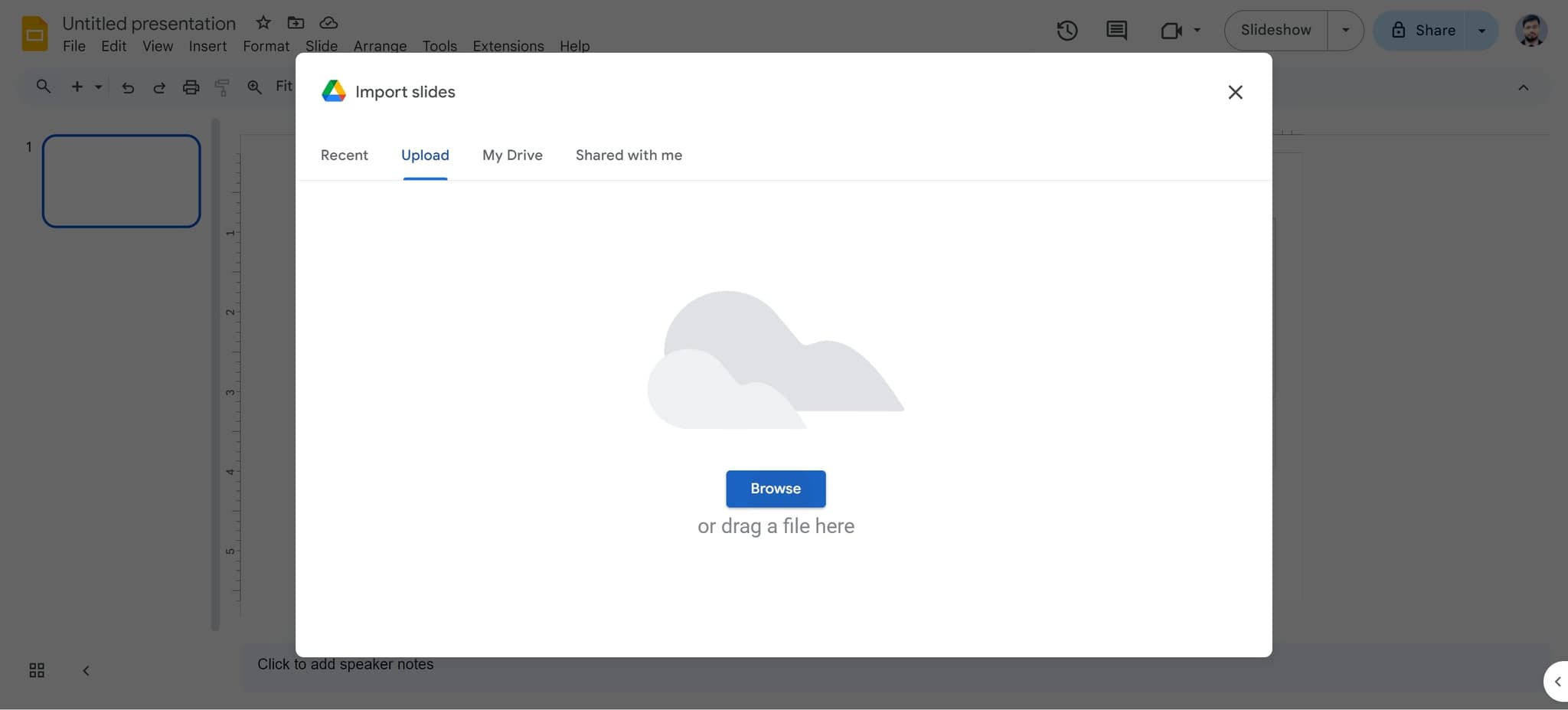
Browse or drag your file
Click on 'or drag a file here Browse' to open the file browser. You can either click to browse your computer or drag and drop your PowerPoint file directly into this area.
- 6
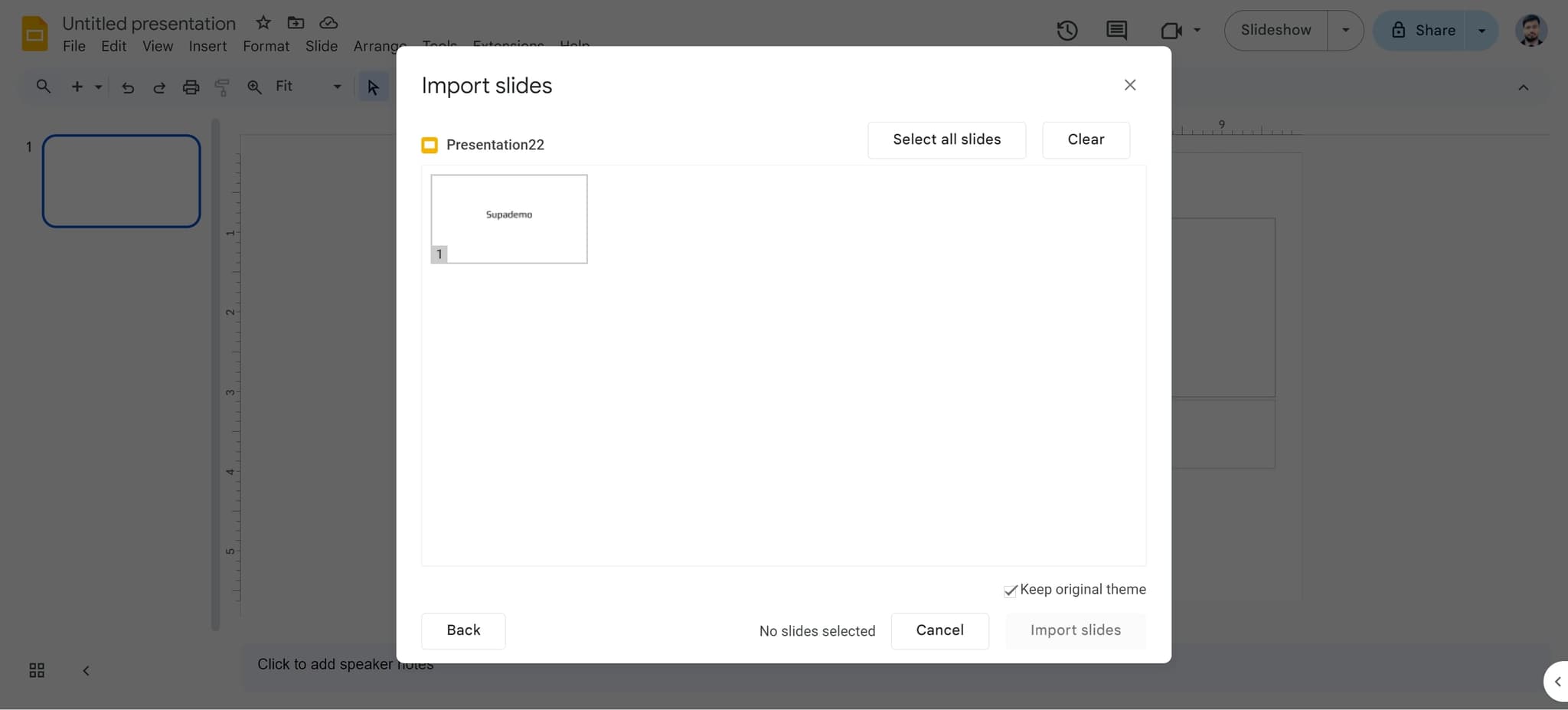
Confirm file selection
After selecting your PowerPoint file, click the confirmation button to proceed. Google Slides will begin processing your file for import.
- 7
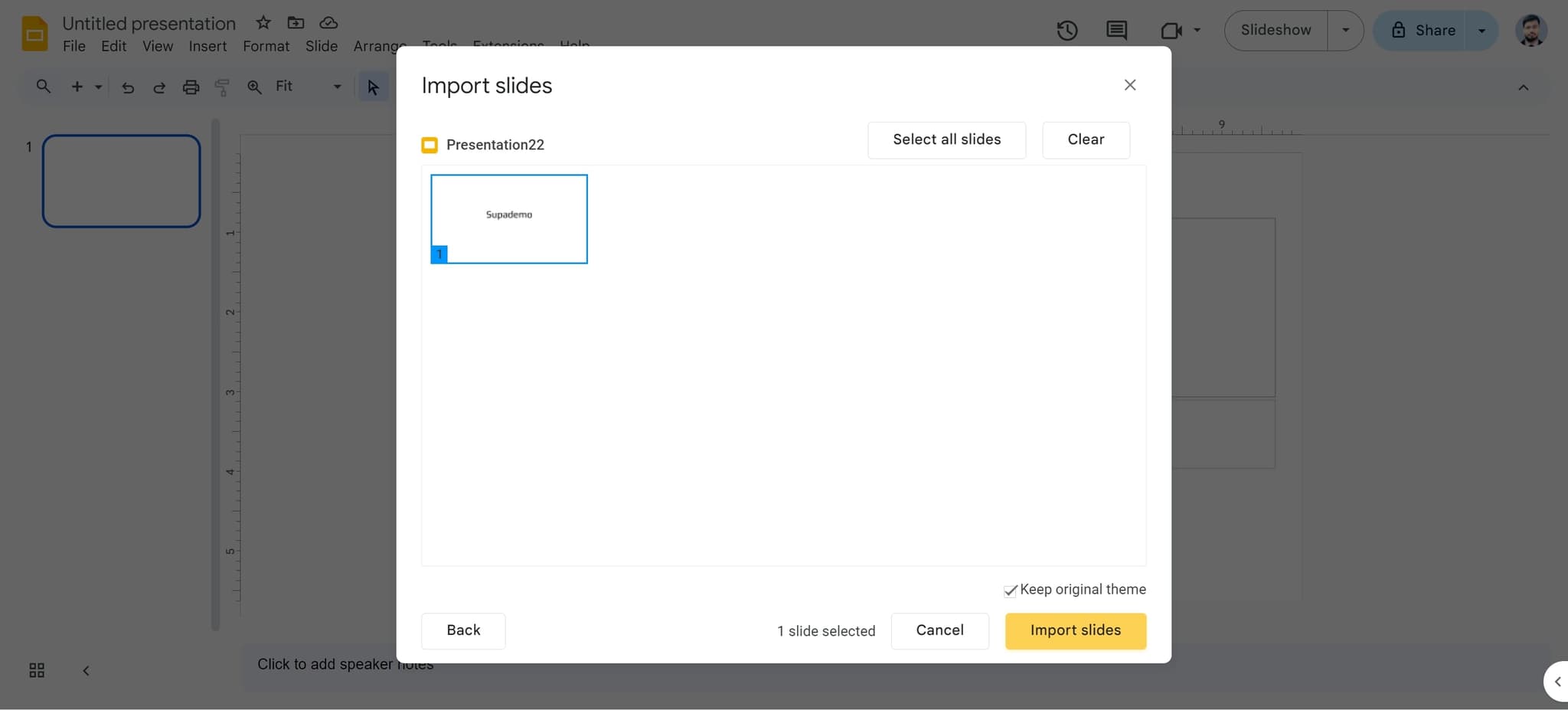
Complete the import process
Click on 'Import slides' to finalize the conversion of your PowerPoint presentation into Google Slides. The platform will now convert and import all your slides.
- 8
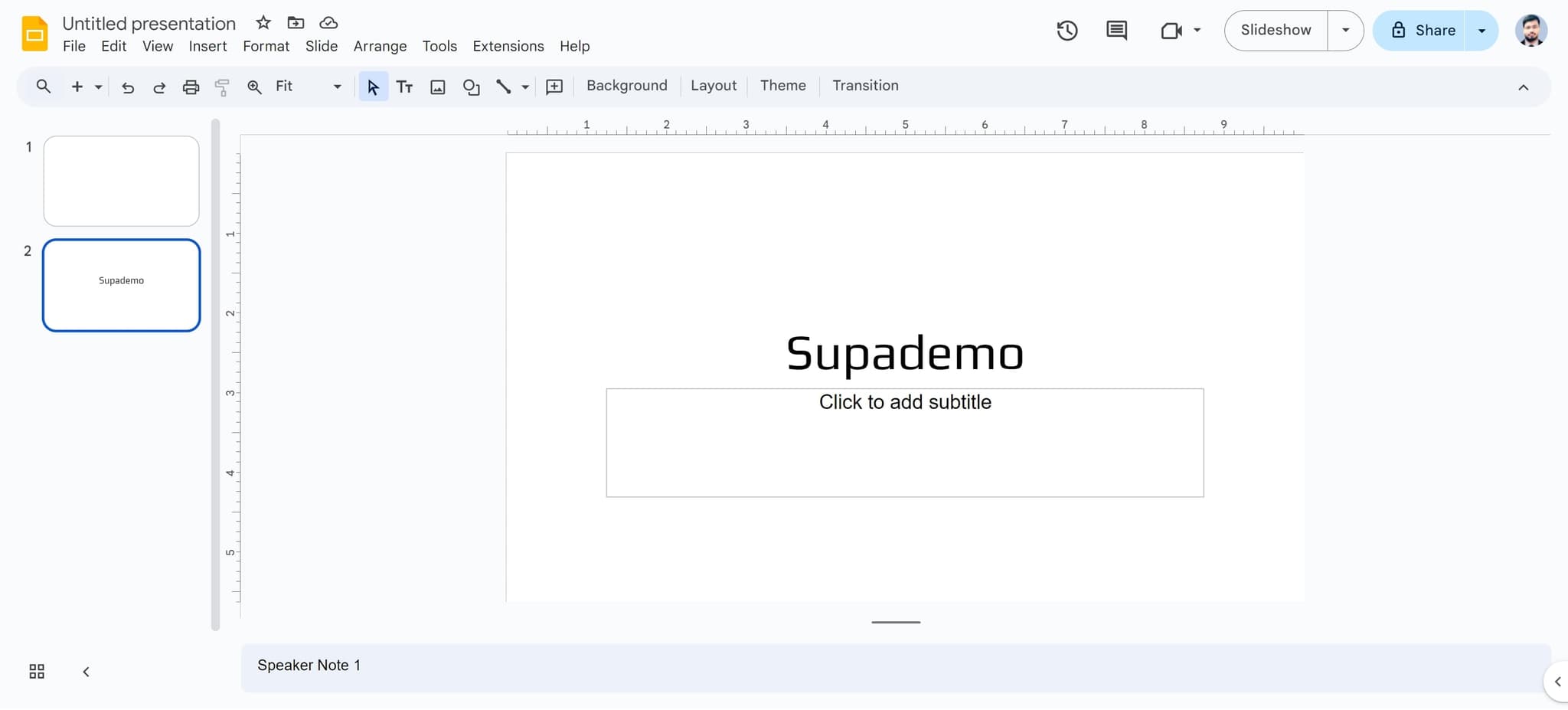
Finalize and verify
Click the final confirmation button to complete the import. Your PowerPoint presentation is now converted to Google Slides and ready for editing and collaboration.
Frequently asked questions
Common questions about how to convert powerpoint to google slides.
Most formatting will transfer over, including text, images, and basic layouts. However, some advanced PowerPoint features like complex animations or custom fonts may need adjustment in Google Slides. It's recommended to review your slides after import to ensure everything appears as intended.
Yes, you can download the file first and then upload it through Google Slides, or if it's accessible via a direct link, you may be able to import it directly. The exact process depends on your file's location and access permissions.
Google Slides primarily accepts .ppt, .pptx, and .odp file formats. Make sure your PowerPoint file is saved in one of these standard formats before attempting to import.
No, you can choose where to import your slides. You can either import into a new presentation or add the slides to an existing one, depending on your preference and the import options available.
The conversion time depends on the file size and complexity of your presentation. Most presentations convert within a few seconds to a couple of minutes. Larger files with many slides or embedded media may take slightly longer.