How to Convert Google Slides to PowerPoint

Converting Google Slides presentations to PowerPoint format expands your collaboration options and ensures compatibility across different tools and teams. Whether you need to share files with PowerPoint-only users or work in an environment that standardizes on Microsoft Office, this process is straightforward and takes just a few clicks.
Quick summary
In this tutorial, you'll learn how to export a Google Slides presentation as a Microsoft PowerPoint file. We'll walk you through accessing the File menu, navigating the download options, and selecting the PowerPoint format to complete the conversion.
Why this matters
Many organizations rely on PowerPoint as their standard presentation tool, and converting your Google Slides ensures seamless sharing and editing across teams. This workflow is essential when collaborating with colleagues who don't use Google Workspace or when you need to archive presentations in a universally compatible format.
Step-by-step guide
- 1
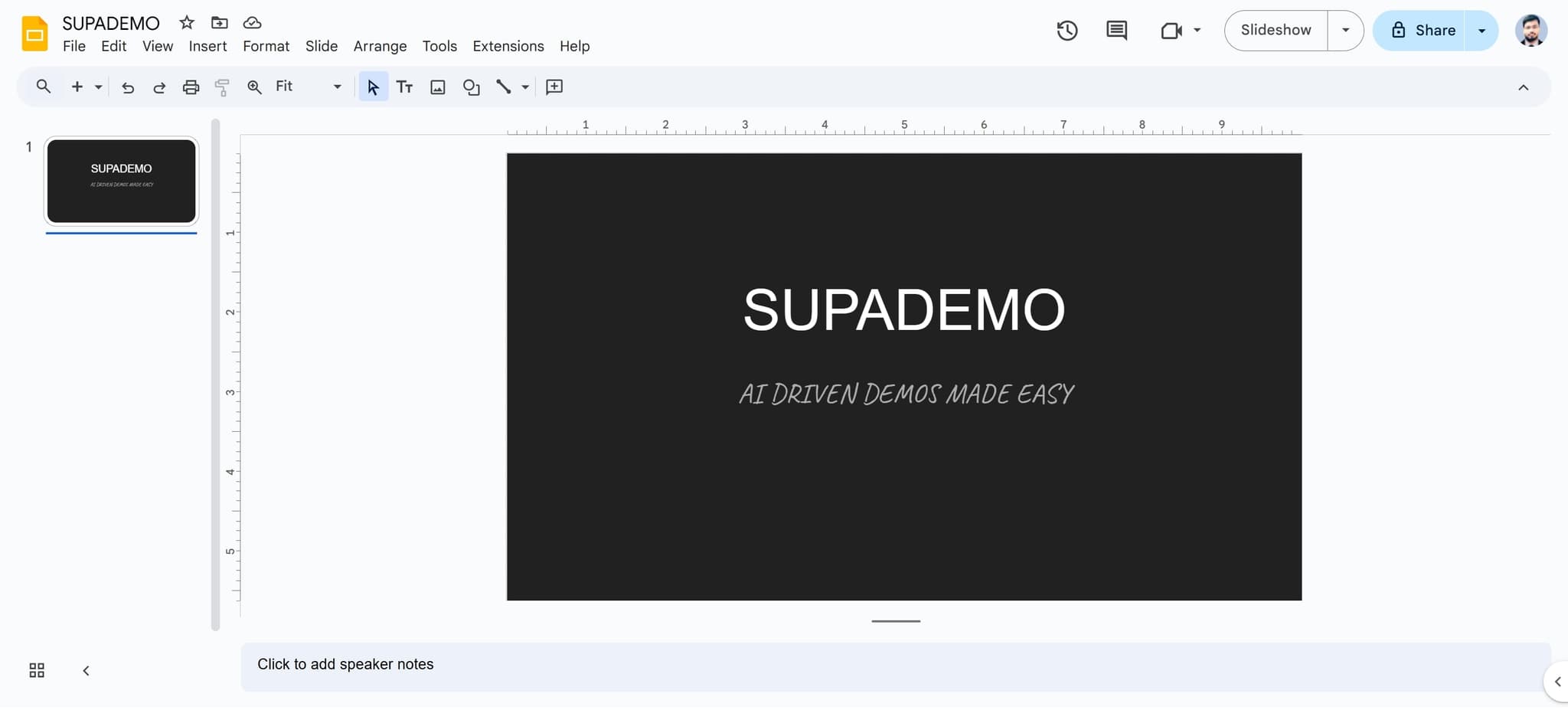
Click on File menu
Open your Google Slides presentation and locate the File menu in the top left corner. Click on it to reveal the dropdown menu with export and download options.
- 2
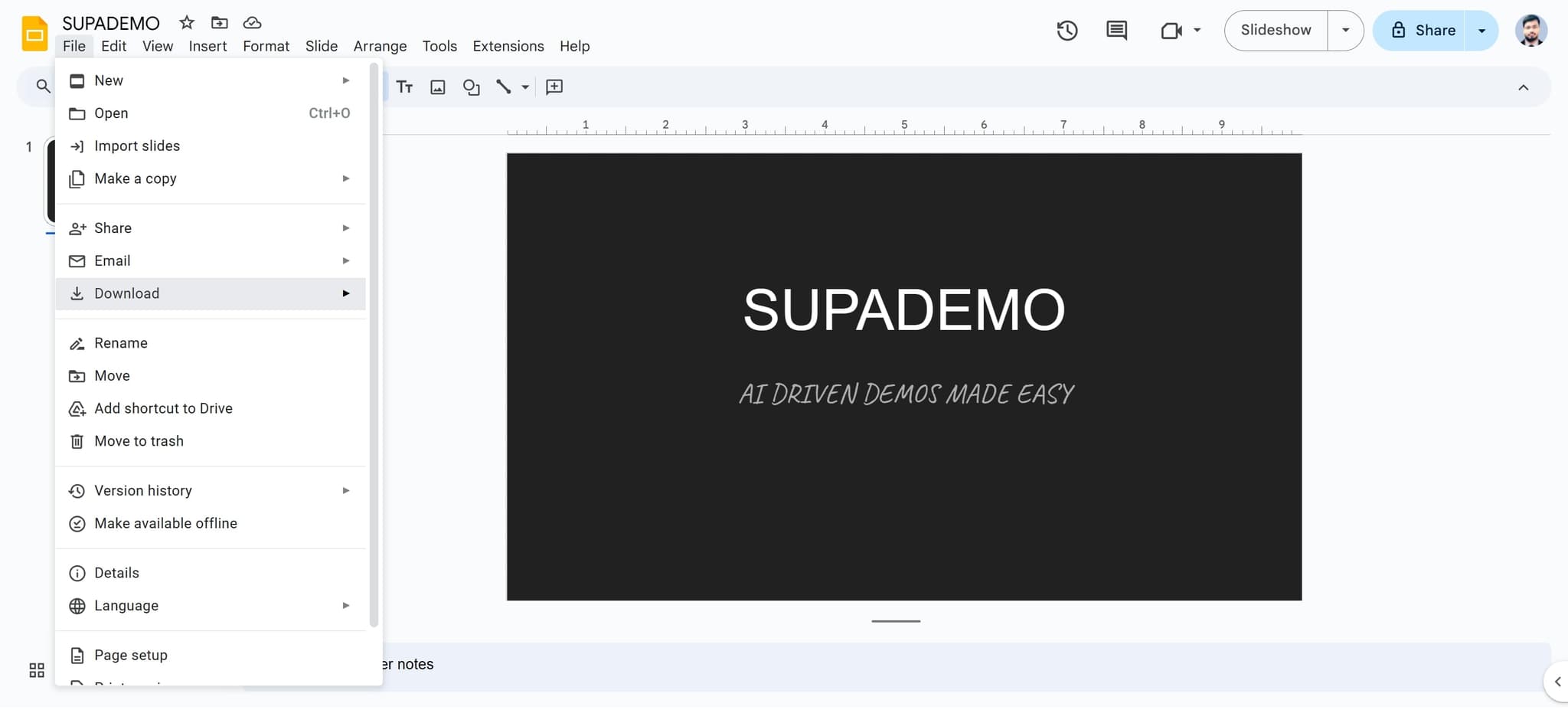
Select Download option
From the File dropdown menu, look for and click on the Download option. This will show you available file format choices for exporting your presentation.
- 3
Choose the format element
Click on the format selection element that appears in the dropdown. This displays the list of compatible file formats you can export to.
- 4
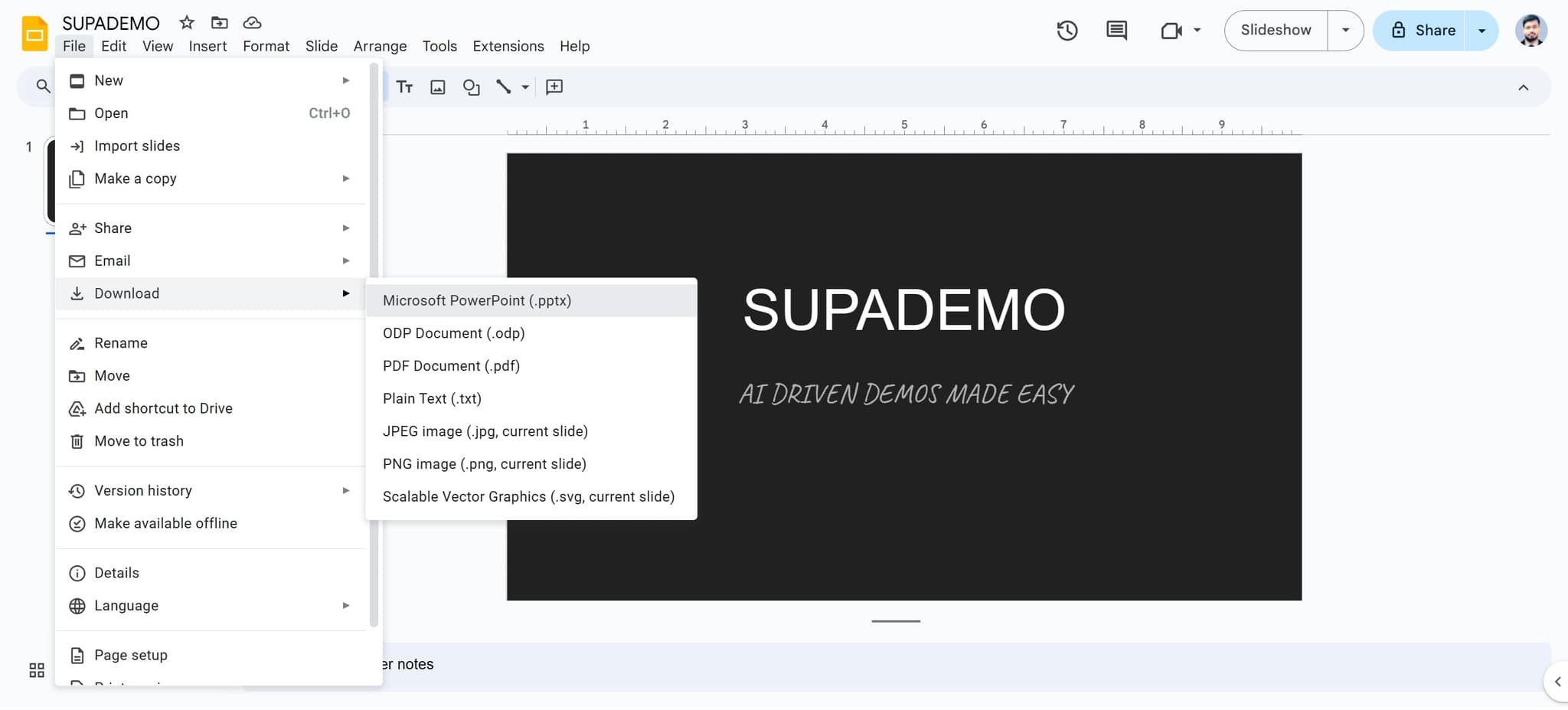
Select PowerPoint format
Click on 'Microsoft PowerPoint (.pptx)' from the available format options. Your presentation will automatically download as a .pptx file to your computer.
Frequently asked questions
Common questions about how to convert google slides to powerpoint.
Most formatting, fonts, and layouts will transfer to PowerPoint, but some Google Slides-specific features like certain animations or collaborative elements may not convert perfectly. It's worth opening the .pptx file to verify that your design looks as intended before sharing.
Google Slides doesn't offer batch conversion, so you'll need to download each presentation individually using the File menu. If you have many presentations to convert, you may want to consider using a third-party automation tool to streamline the process.
The .pptx format (which Google Slides exports to) is the modern Microsoft PowerPoint standard and offers better compatibility, smaller file sizes, and improved features compared to the older .ppt format. Most users and organizations now use .pptx, so this is the safest choice for sharing.
Yes, once you download the .pptx file, you can share it with anyone who has Microsoft PowerPoint or compatible software. They'll be able to edit and modify the presentation just as they would any other PowerPoint file.
You need at least editor access to the Google Slides presentation to download it. If you only have viewer access, you won't see the download option in the File menu.