How to Convert Canva to Google Slides

Converting a Canva design to Google Slides allows you to leverage your existing Canva work while gaining access to collaborative editing and presentation features in Google Slides. This workflow streamlines the process of transforming static designs into editable, shareable presentations.
Quick summary
In this tutorial, you'll learn how to export your Canva design and import it into Google Slides using Google Drive integration. By following these step-by-step instructions, you'll be able to move your Canva content seamlessly into a format that supports real-time collaboration and advanced presentation tools.
Why this matters
Converting Canva designs to Google Slides is essential when you need to add interactive elements, share presentations with a team for live editing, or integrate your design into a broader Google Workspace workflow. This approach preserves your design work while unlocking the collaborative and presentation capabilities that Google Slides offers.
Step-by-step guide
- 1
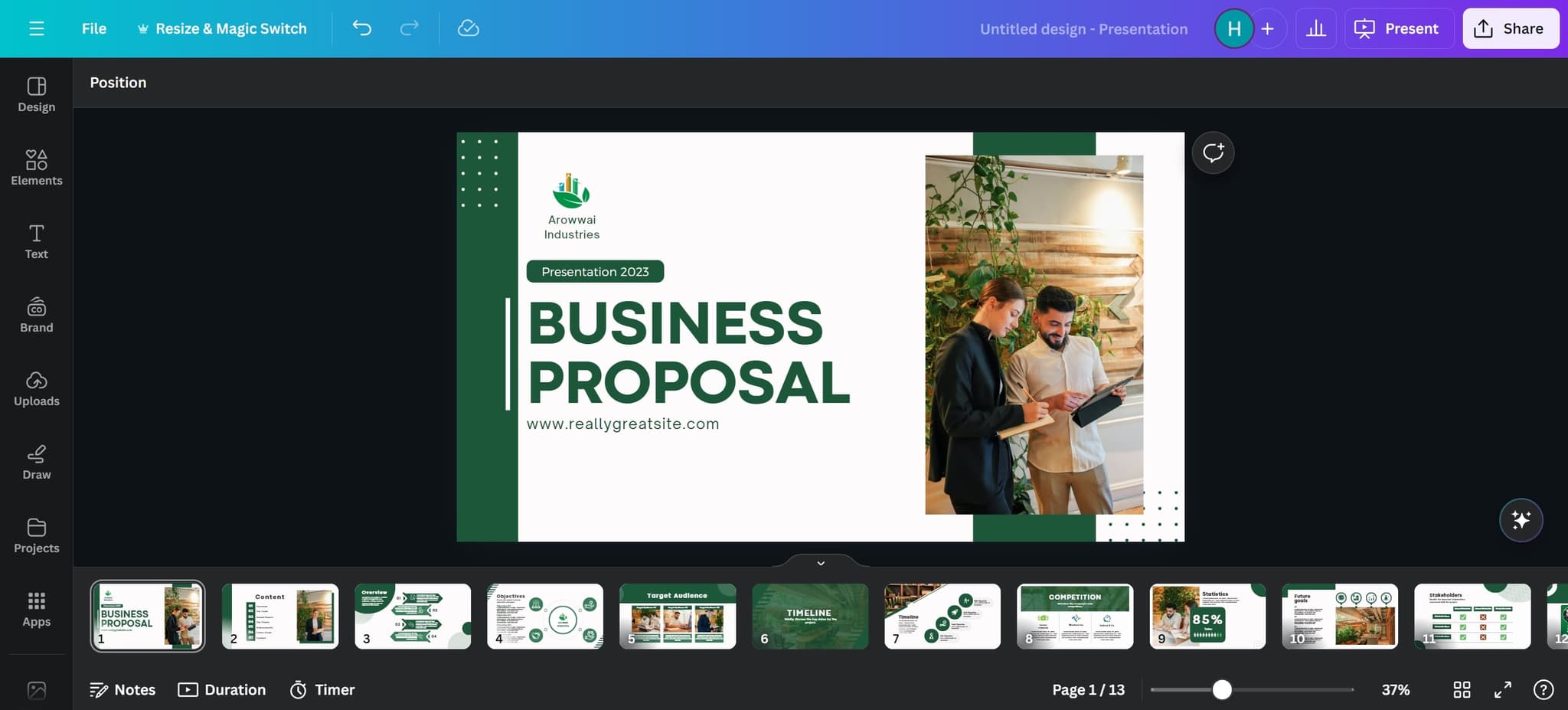
Select the design element
Start by clicking on the main design or document element you want to convert. This action initiates the export process from Canva.
- 2
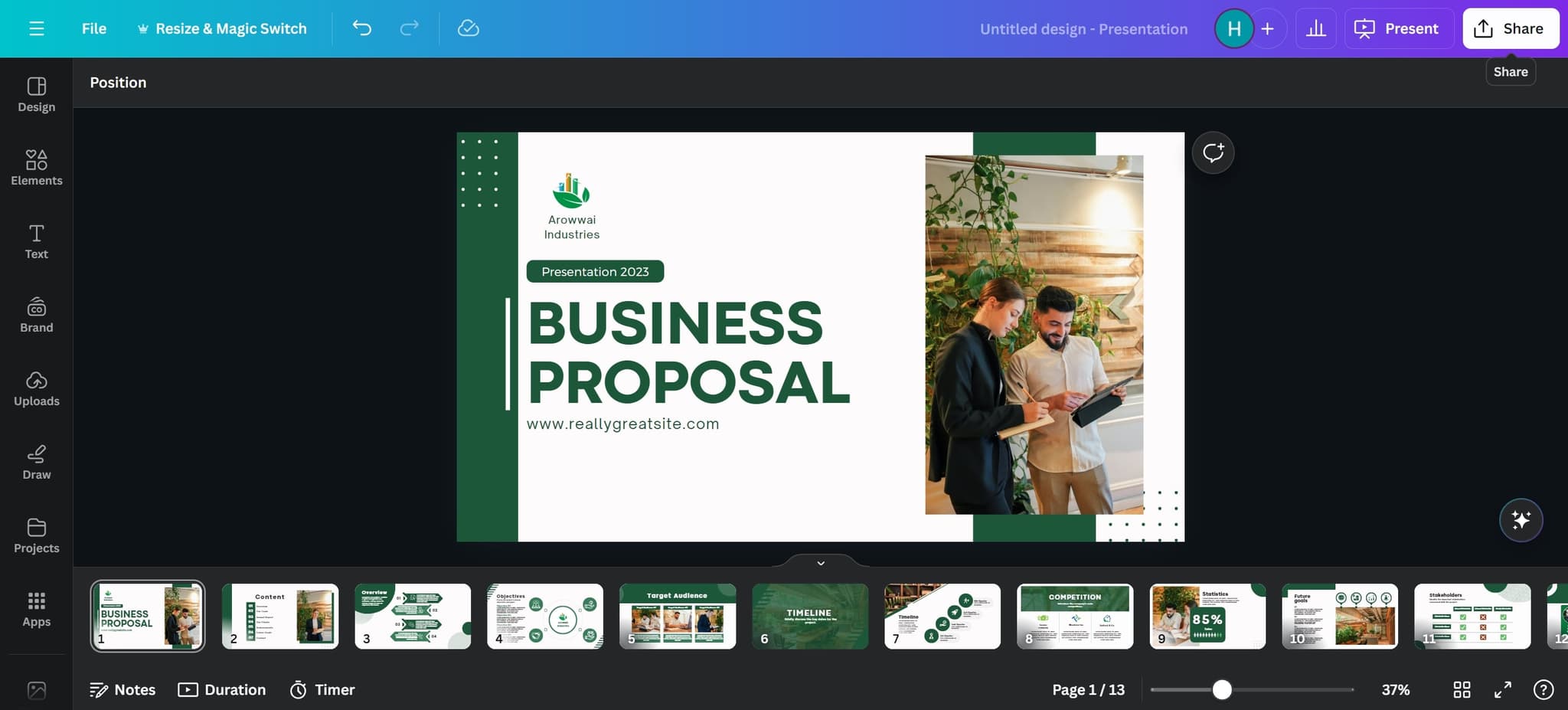
Click Share option
Locate and click the Share button to access sharing and export options. This opens the dialog where you can configure how your design will be shared or exported.
- 3
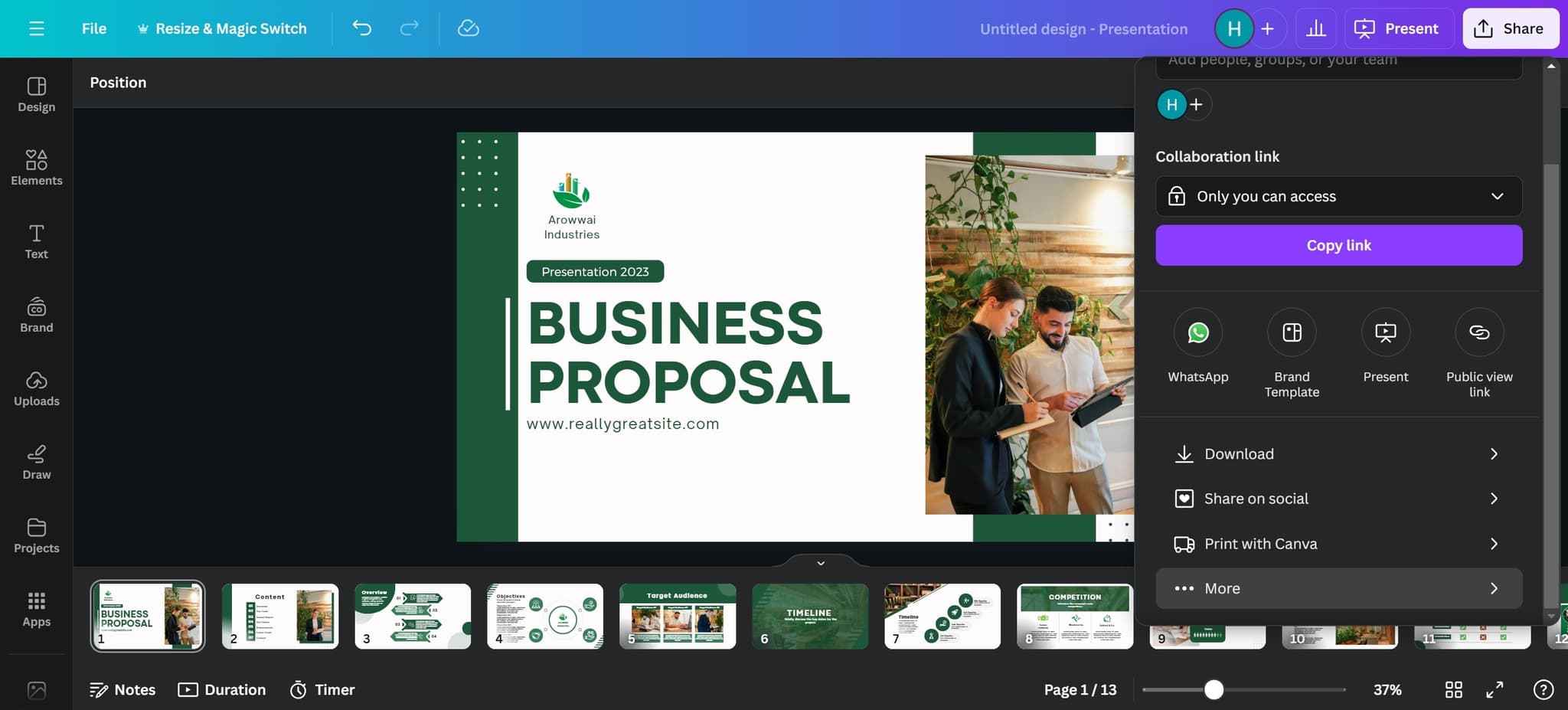
Access More options
Click on More to reveal additional export formats and advanced sharing settings. This expands your options beyond standard sharing to include direct format conversions.
- 4
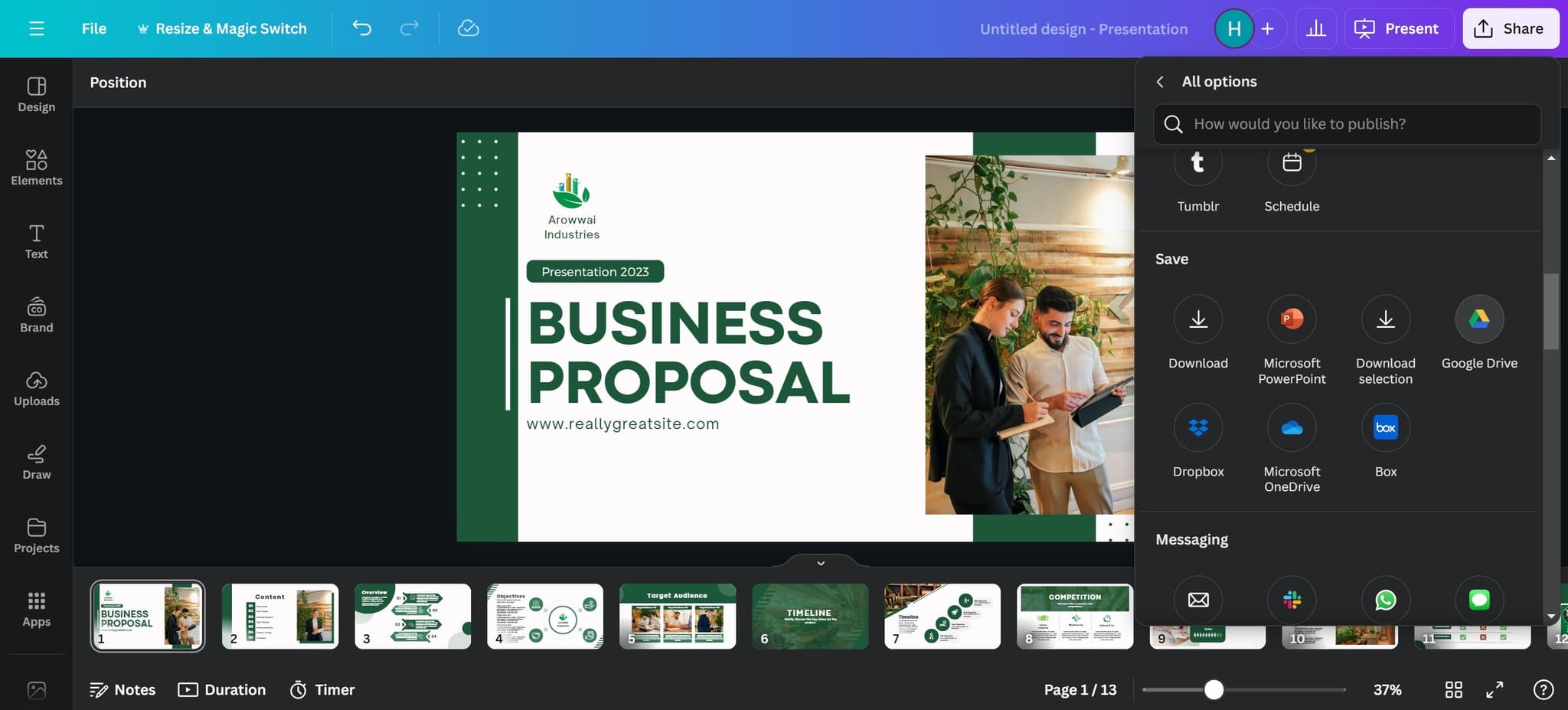
Select export destination
Click on the element that allows you to choose your export destination. This determines where your file will be saved or how it will be transferred.
- 5
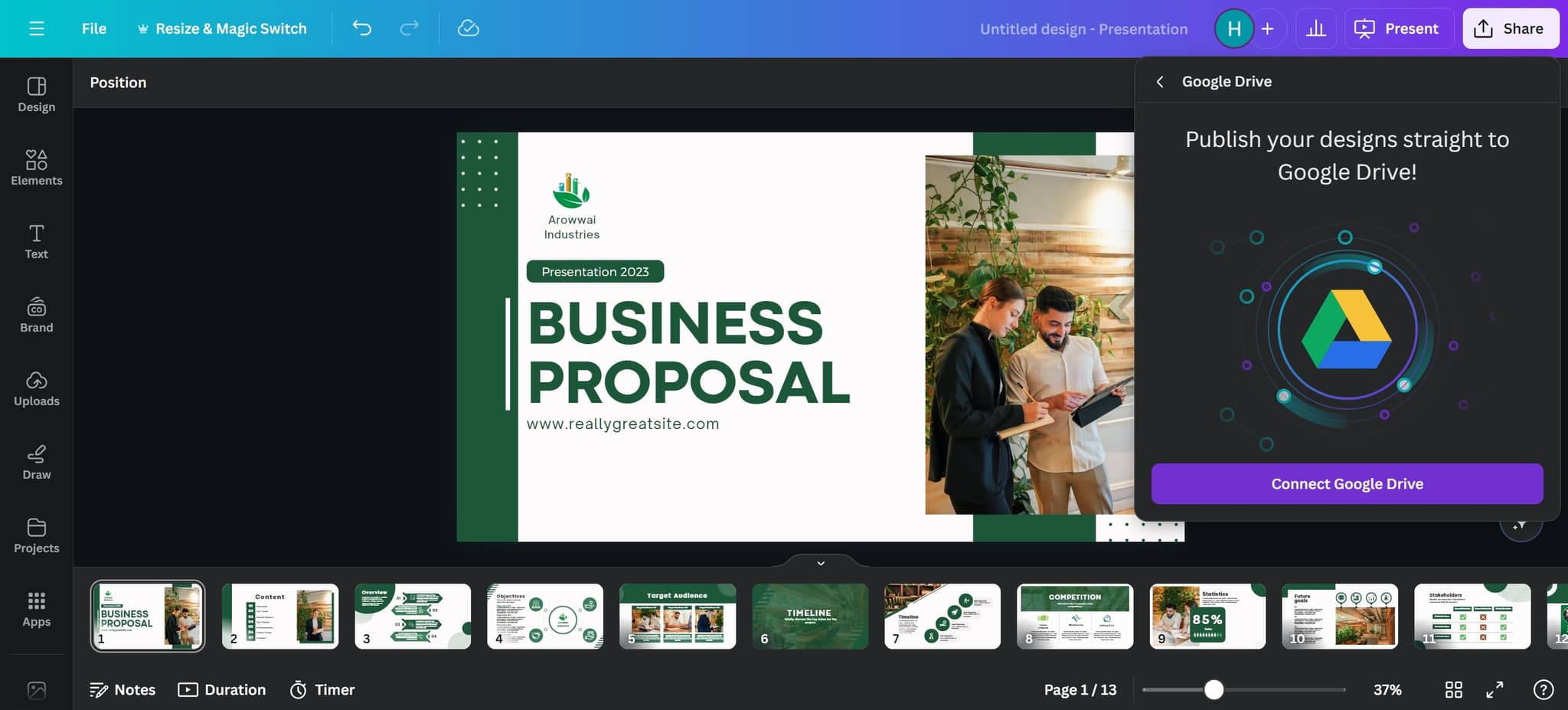
Connect Google Drive integration
Click on Connect Google Drive to link your Canva account with your Google Drive. This enables direct export from Canva to your Google account.
- 6
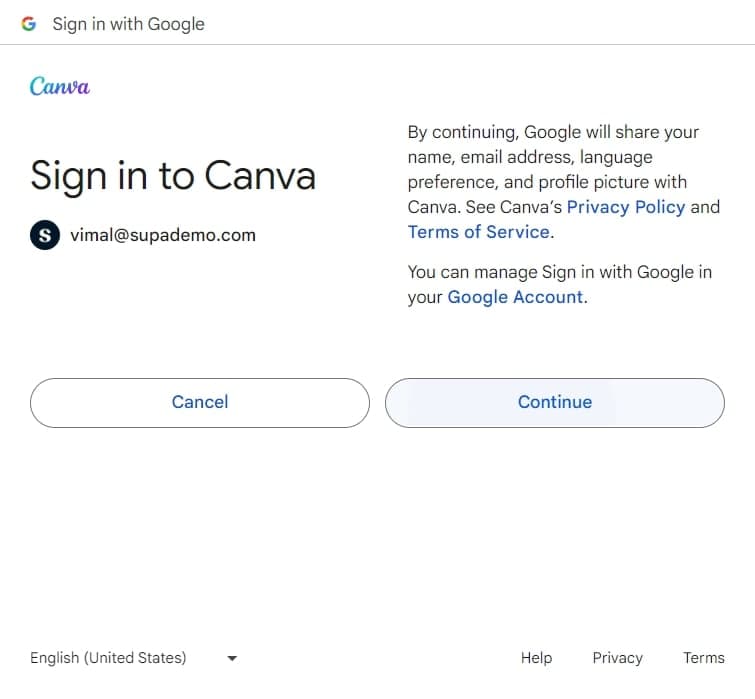
Authorize the connection
Click on the element to proceed with account authorization. You may be prompted to grant permissions for Canva to access your Google Drive.
- 7
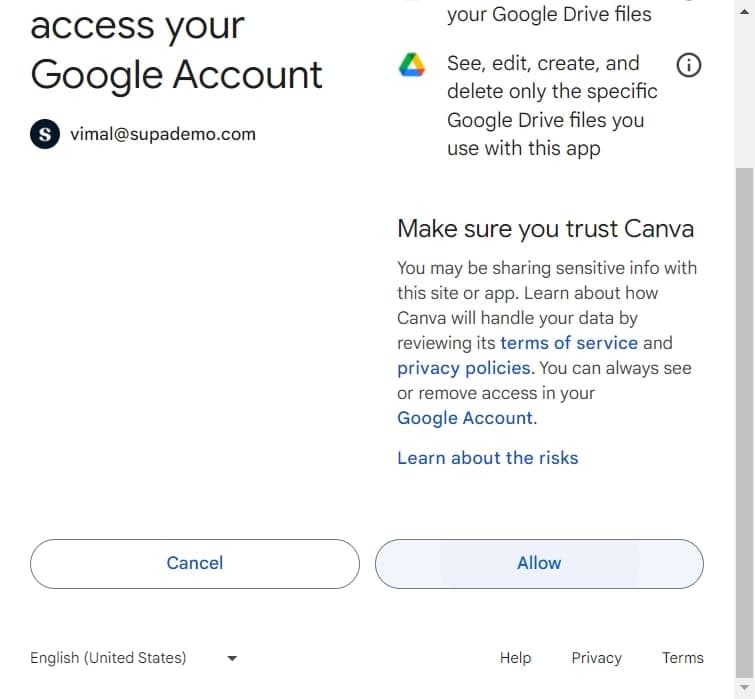
Grant access permissions
Click Allow to authorize Canva to export files to your Google Drive. This permission is required to complete the integration between the two platforms.
- 8
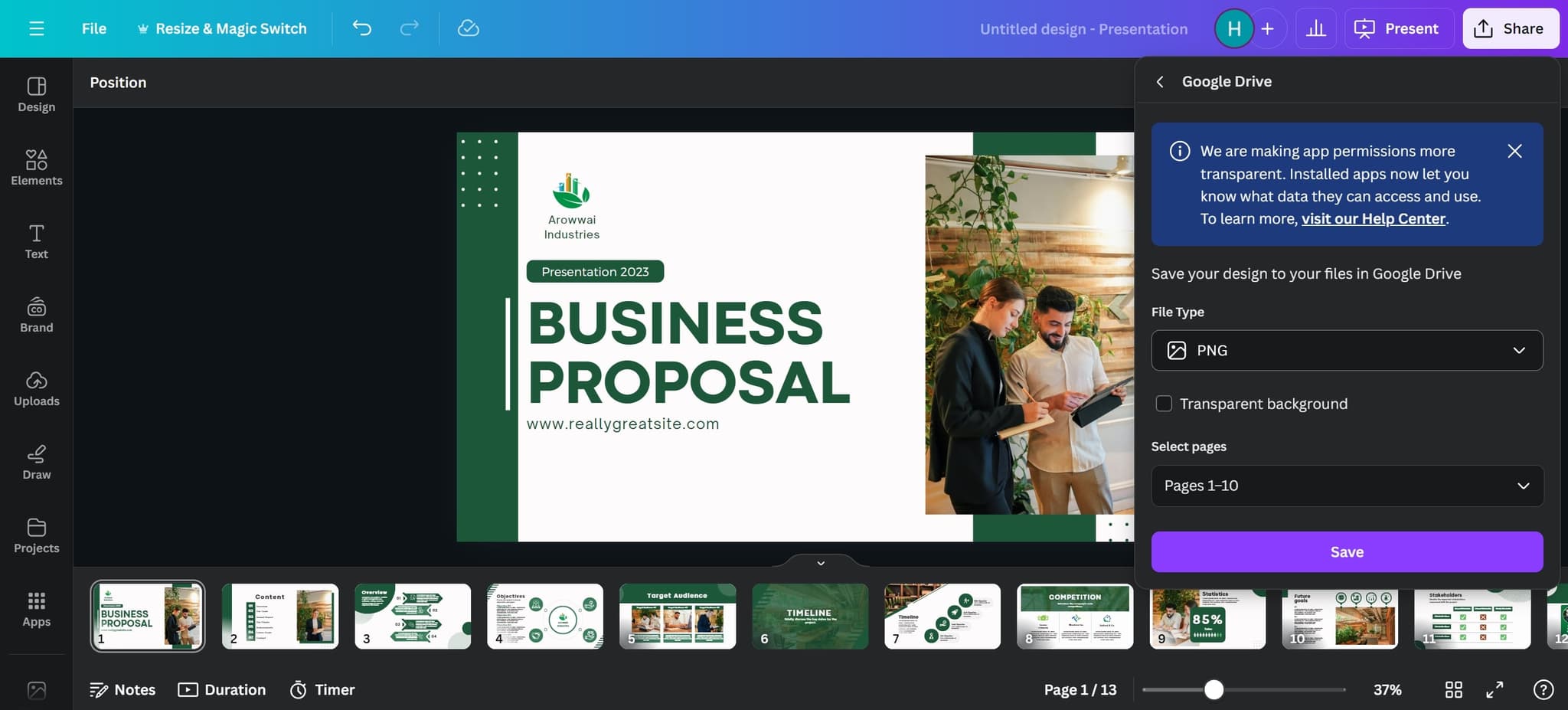
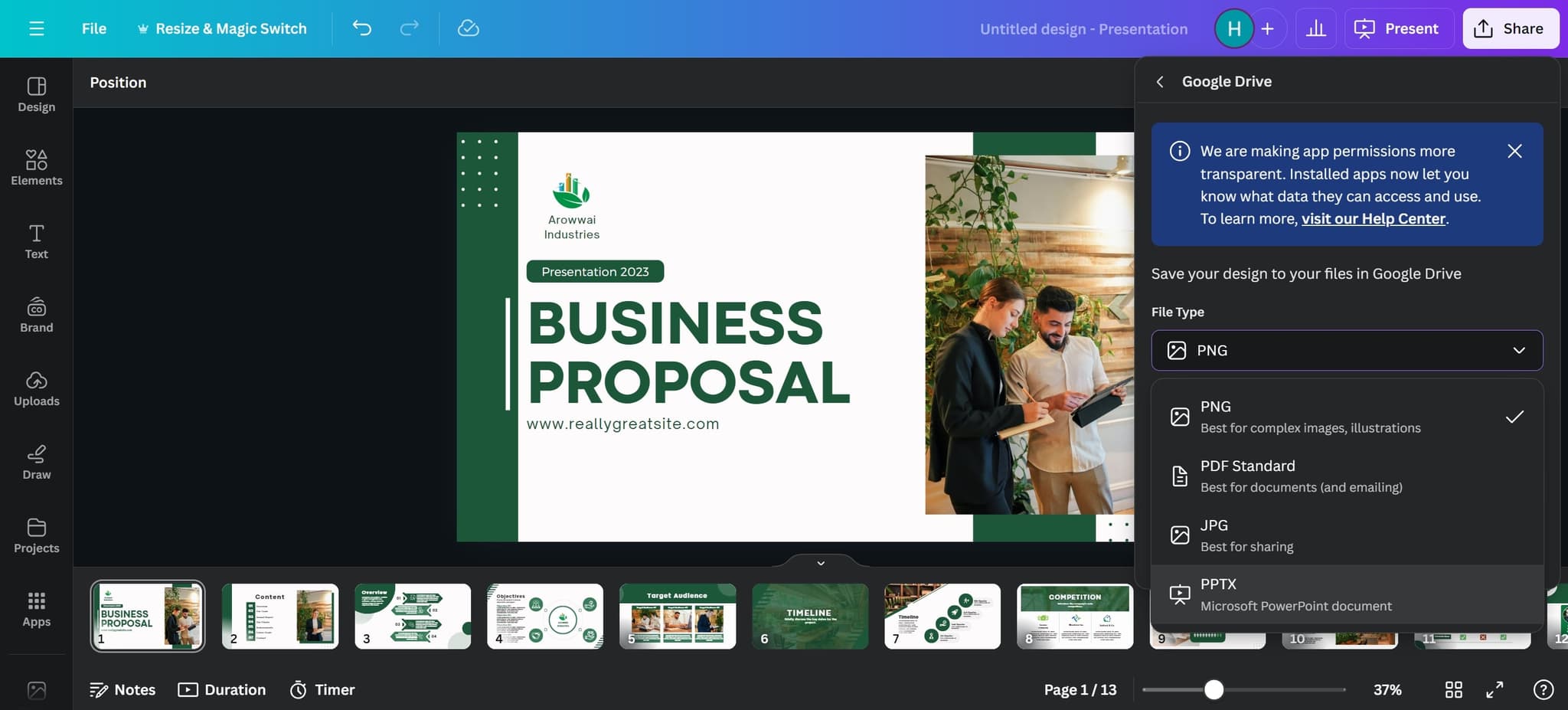
Select PNG format
Click on PNG to export your design as a PNG image file. This format preserves your design quality and can be imported into Google Slides.
- 9
Choose PPTX format
Click on PPTX to convert your design into PowerPoint format, which is compatible with Google Slides. This ensures your design maintains its structure when imported.
- 10
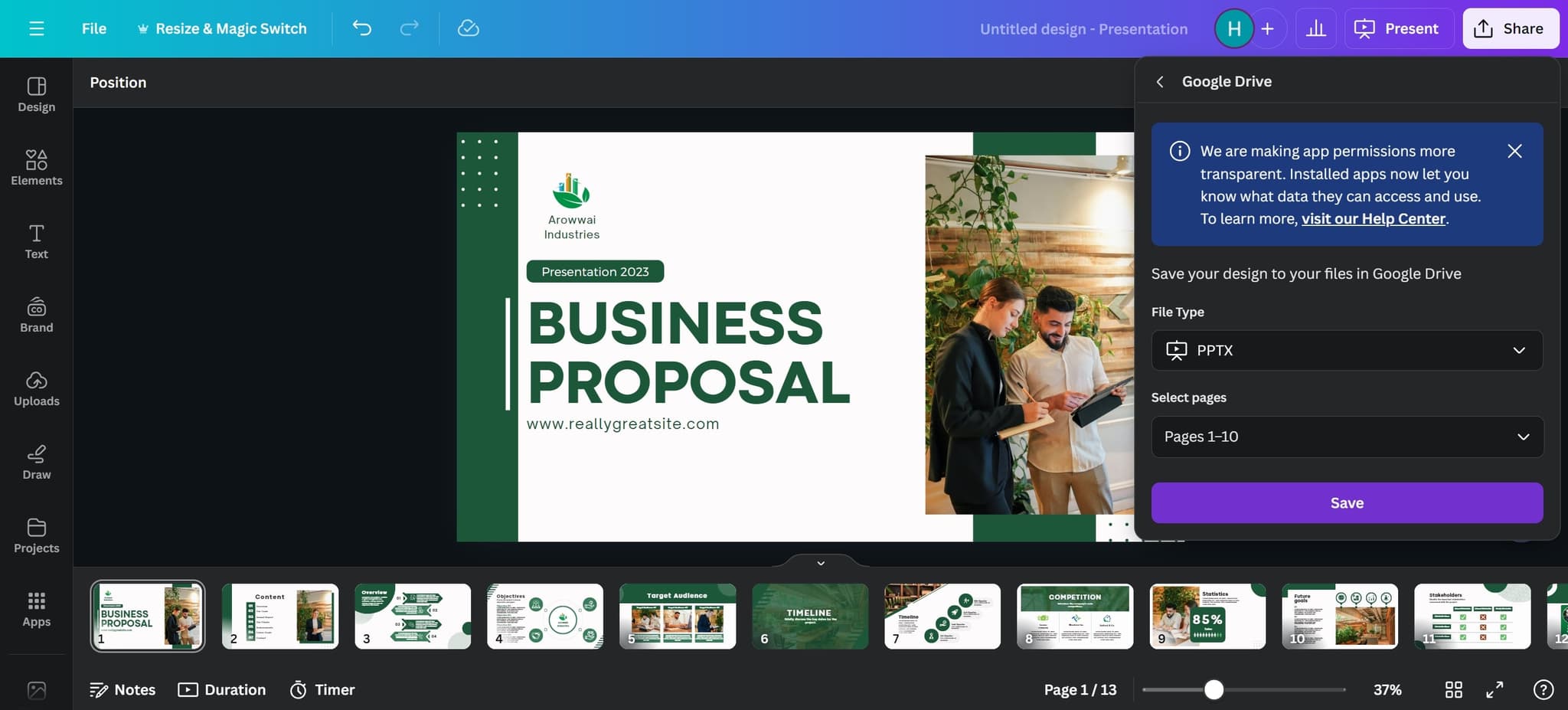
Save the exported file
Click Save to finalize the export process and save your converted file. Your design will now be available in the selected format and location.
- 11
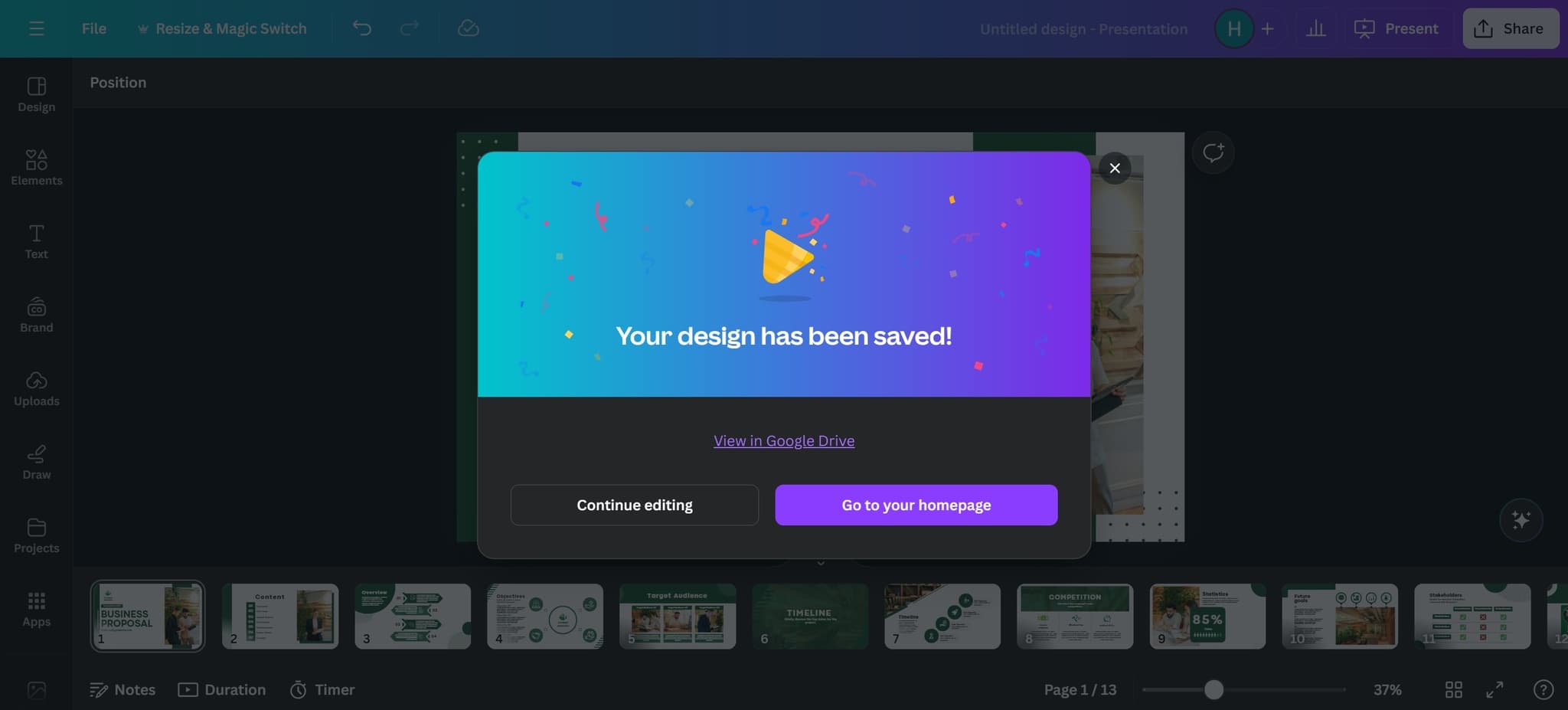
Complete the conversion
Click to confirm the final step and complete the conversion process. Your Canva design is now ready to be opened and edited in Google Slides.
Frequently asked questions
Common questions about how to convert canva to google slides.
Most formatting elements will transfer, though some advanced Canva features may require manual adjustment in Google Slides. It's recommended to review your presentation after import and make any necessary edits to ensure the layout matches your original design. Complex animations or custom fonts may need to be recreated in Google Slides.
Yes, once your Canva design is imported into Google Slides, you can fully edit and modify it using Google Slides' editing tools. You can add new slides, adjust text, insert additional elements, and collaborate with others in real-time.
PPTX format is generally recommended as it preserves slide structure and transitions better than PNG. PNG files will import as images, which limits editability but ensures visual fidelity. Choose PPTX if you need to edit content and PNG if you want to preserve exact visual appearance.
No, once you've connected and authorized Canva to access your Google Drive, the connection remains active for future exports. You won't need to re-authorize unless you revoke the permissions in your Google Account settings.
By default, your exported file will be saved to your Google Drive's root folder or a designated Canva folder. You can move it to a specific folder after export or check your Google Drive settings to specify a default location for Canva exports.