How to add header in Google Slides

Adding a header to your Google Slides presentation helps establish consistent branding and provides context across all slides. Headers can include your company logo, presentation title, or other key information that appears on every slide. This tutorial walks you through the process of customizing your slide theme to include a professional header.
Quick summary
In this tutorial, you'll learn how to add a header to your Google Slides by accessing the theme editor and inserting a custom header element. You'll navigate through the theme settings, access the slide layout options, and add a text box that will serve as your header. By the end, you'll have a consistent, branded header across your presentation.
Why this matters
Headers are essential for maintaining visual consistency and professionalism throughout your presentation. They help reinforce your brand identity and make it easy for viewers to understand the context of each slide at a glance. Adding headers through the theme editor ensures they appear automatically on all slides, saving time and maintaining uniformity.
Step-by-step guide
- 1
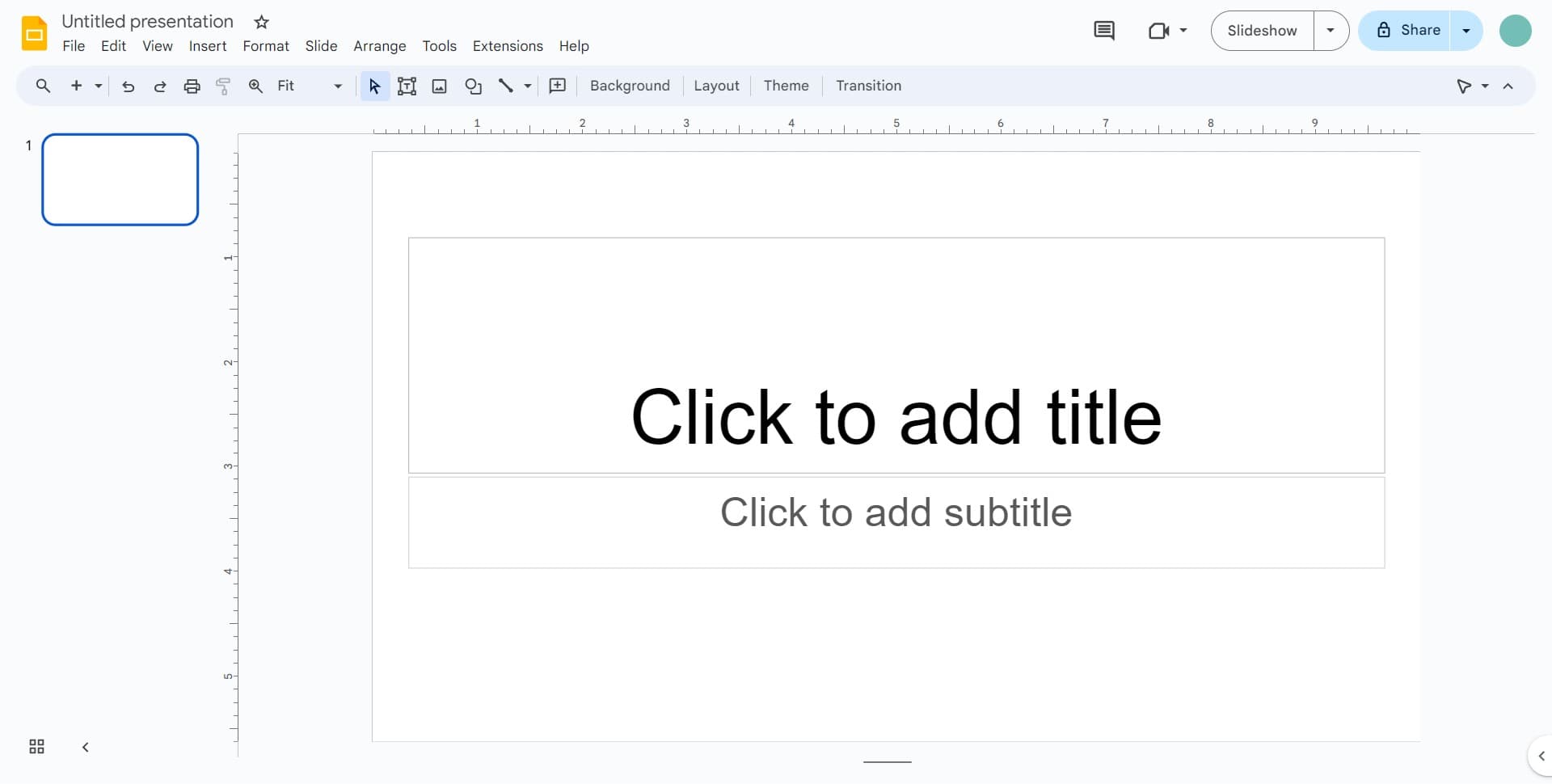
Access the theme menu
Start by clicking to open the theme options. This will give you access to all the customization tools needed to modify your slide layout.
- 2
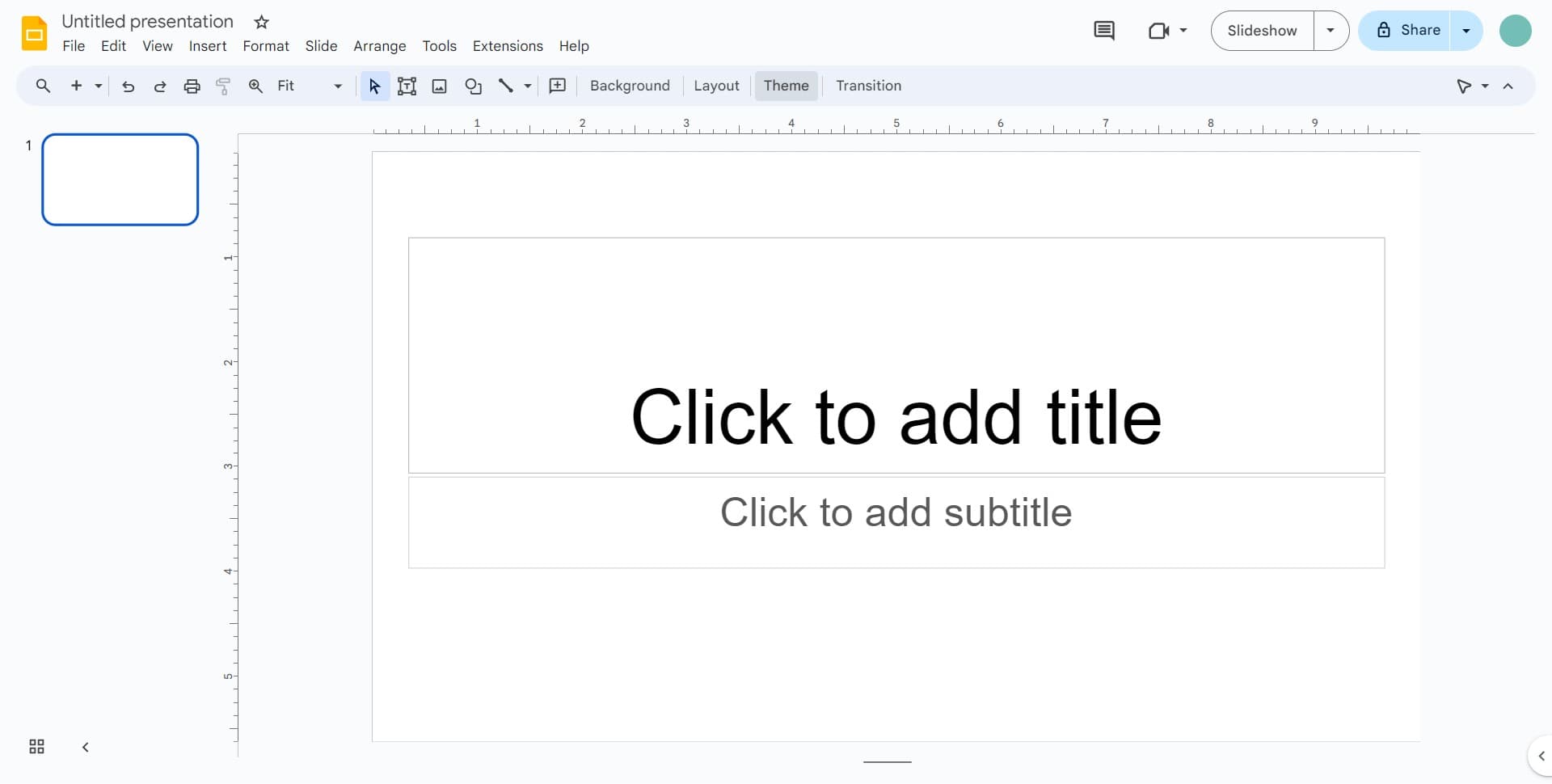
Click on Theme option
Select the Theme option from the menu. This will allow you to access the overall design and layout settings for your presentation.
- 3
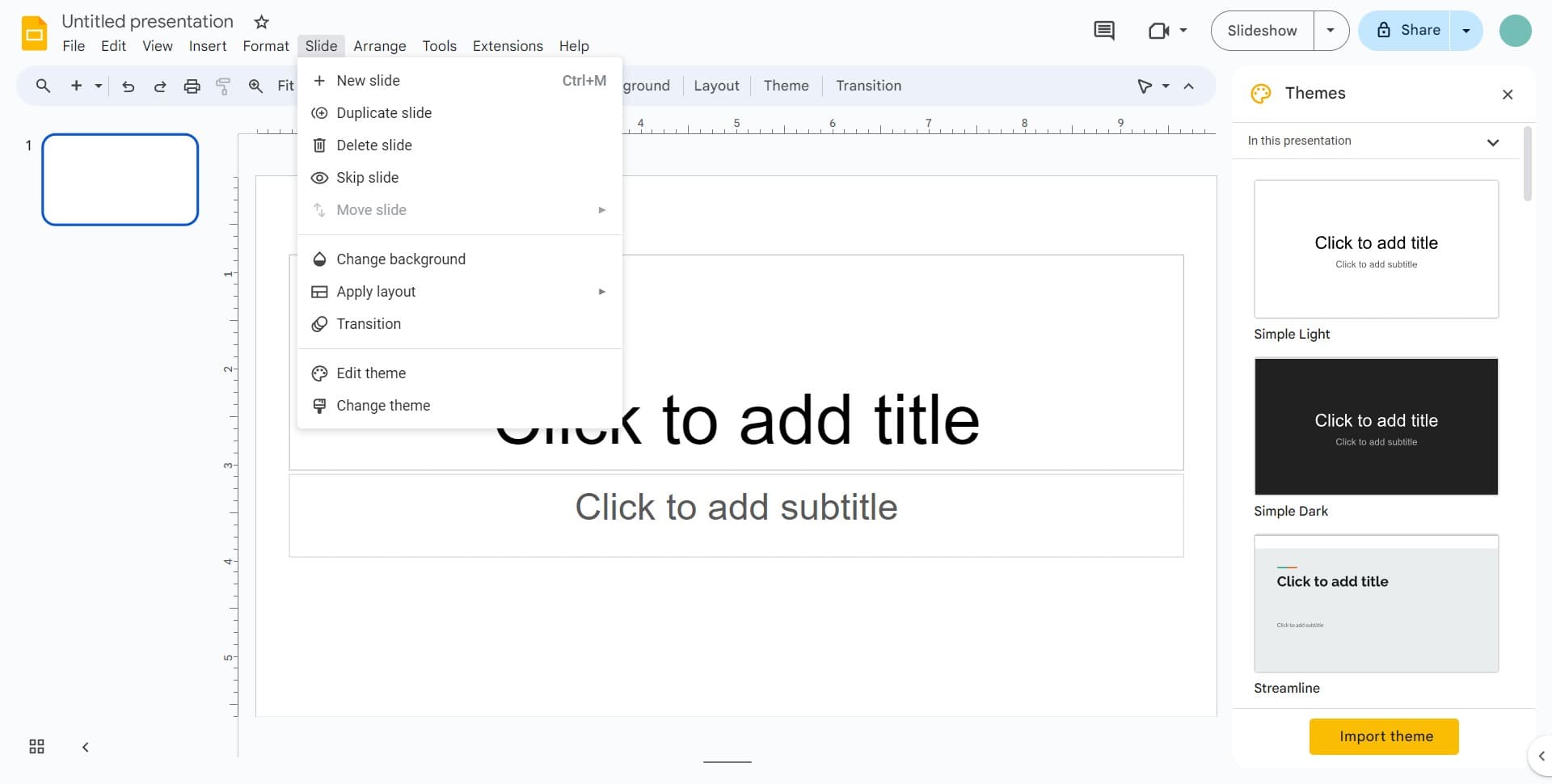
Navigate to Slide settings
Click on Slide to access the specific slide layout and customization options. This is where you can make changes that affect your slide design.
- 4
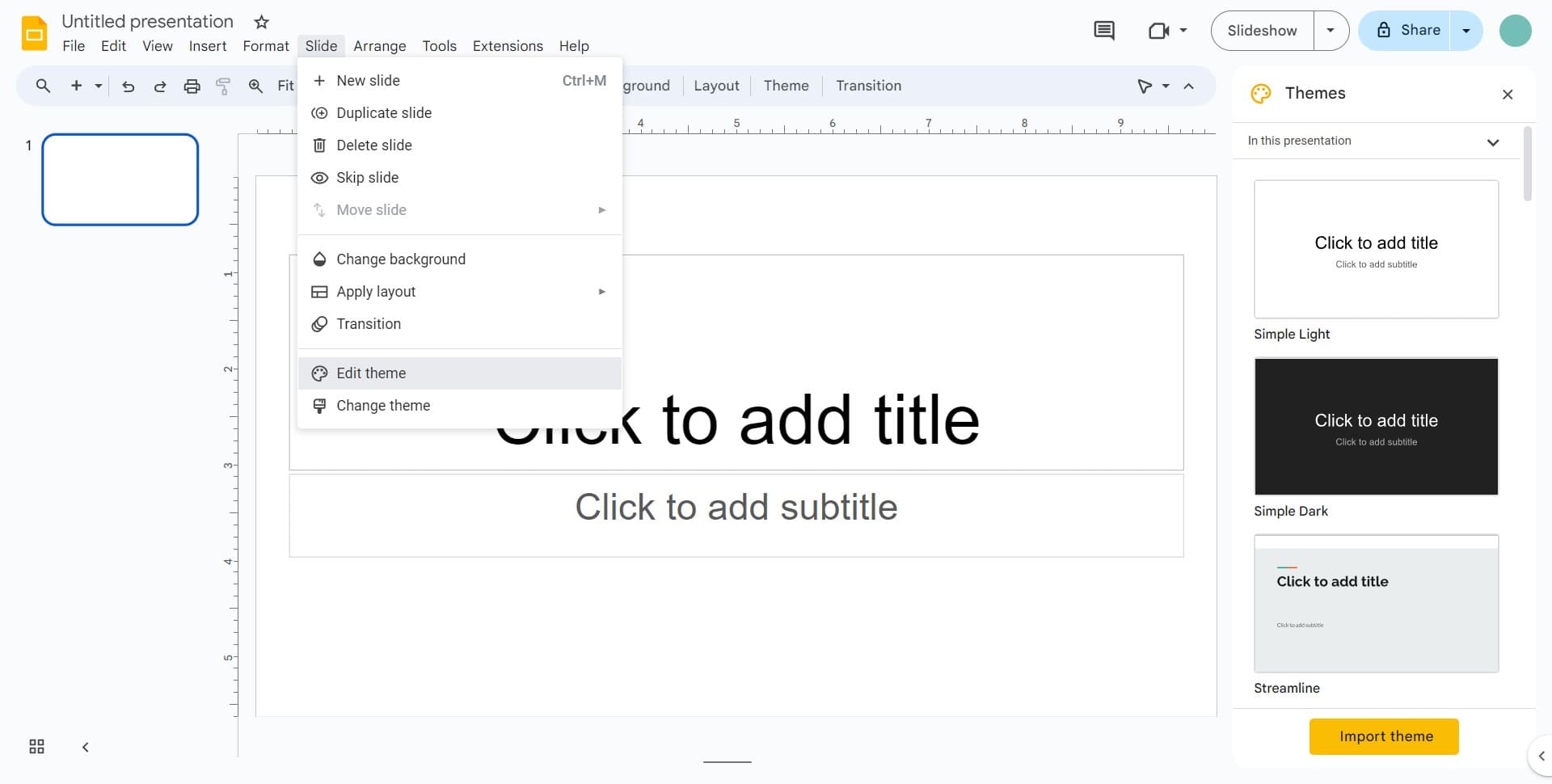
Open Edit theme panel
Select Edit theme to enter the theme customization editor. Here you can make detailed changes to your slide layout and add elements like headers.
- 5
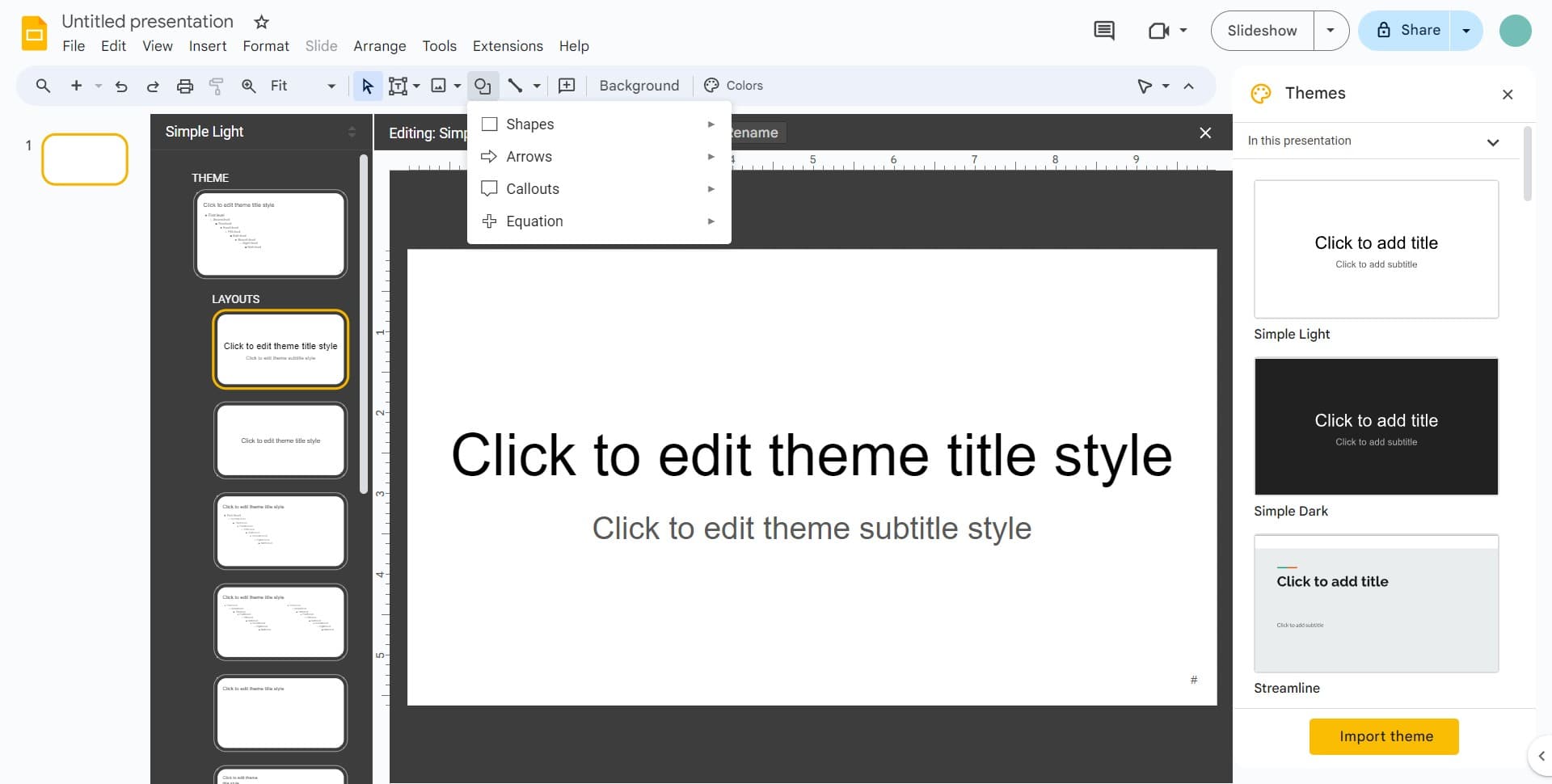
Access the shapes menu
Click to open the shapes selection menu. This will allow you to insert shape elements into your header area.
- 6
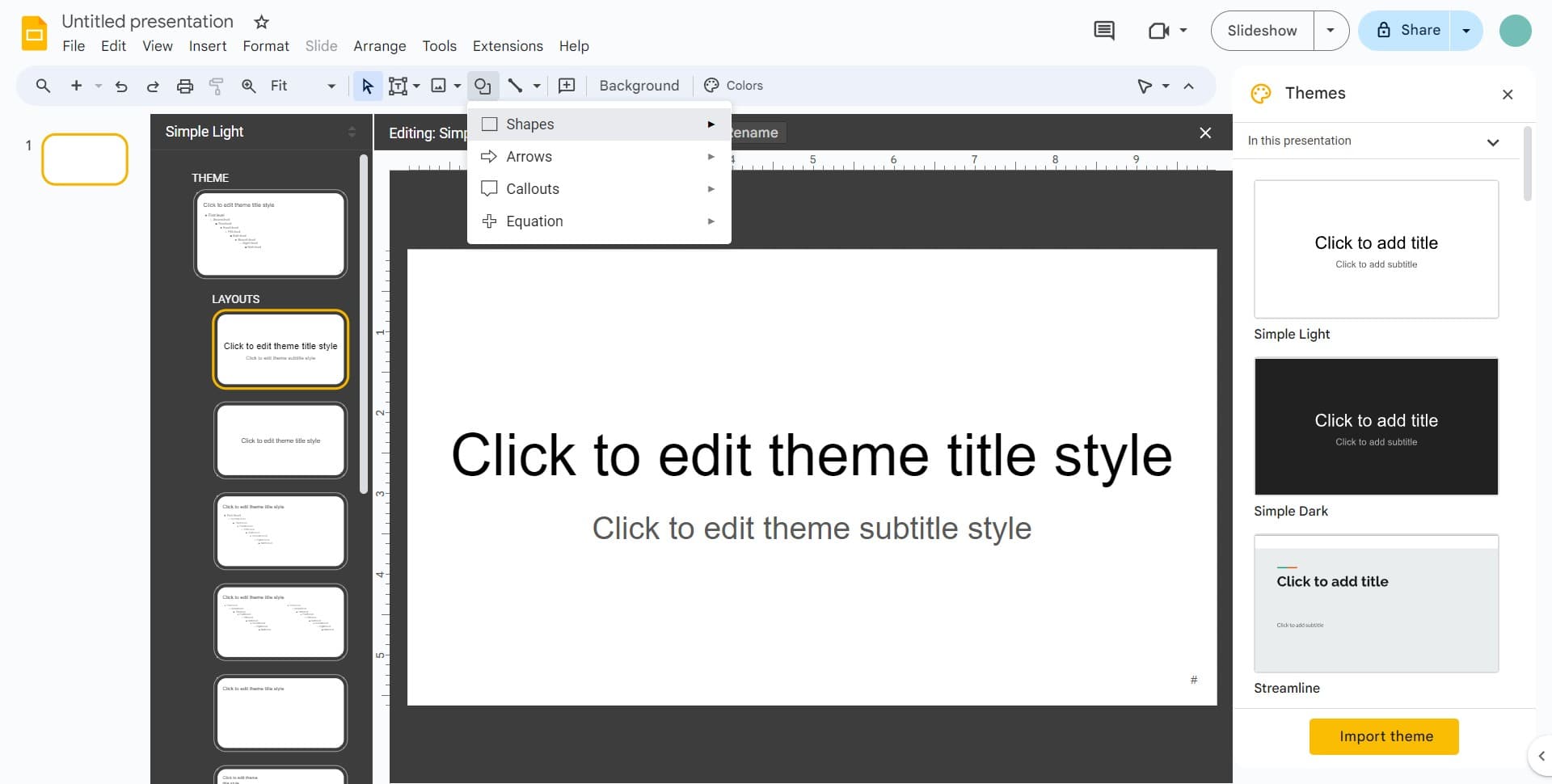
Choose Shapes option
Select Shapes from the menu to view the available shape options. You can use shapes as design elements to enhance your header.
- 7
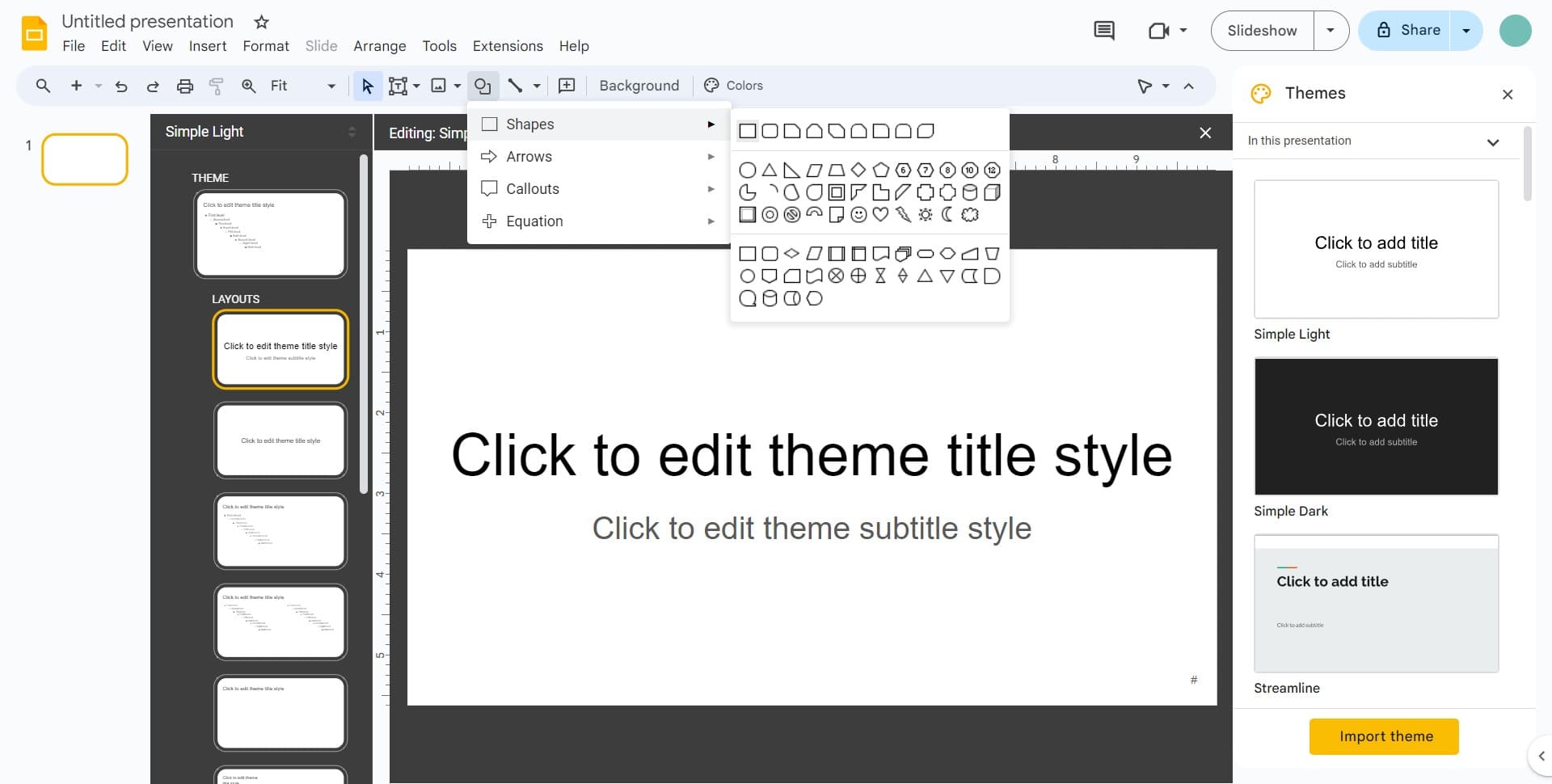
Select your preferred shape
Click on the shape you want to use in your header. This shape will serve as a background or design element for your header area.
- 8
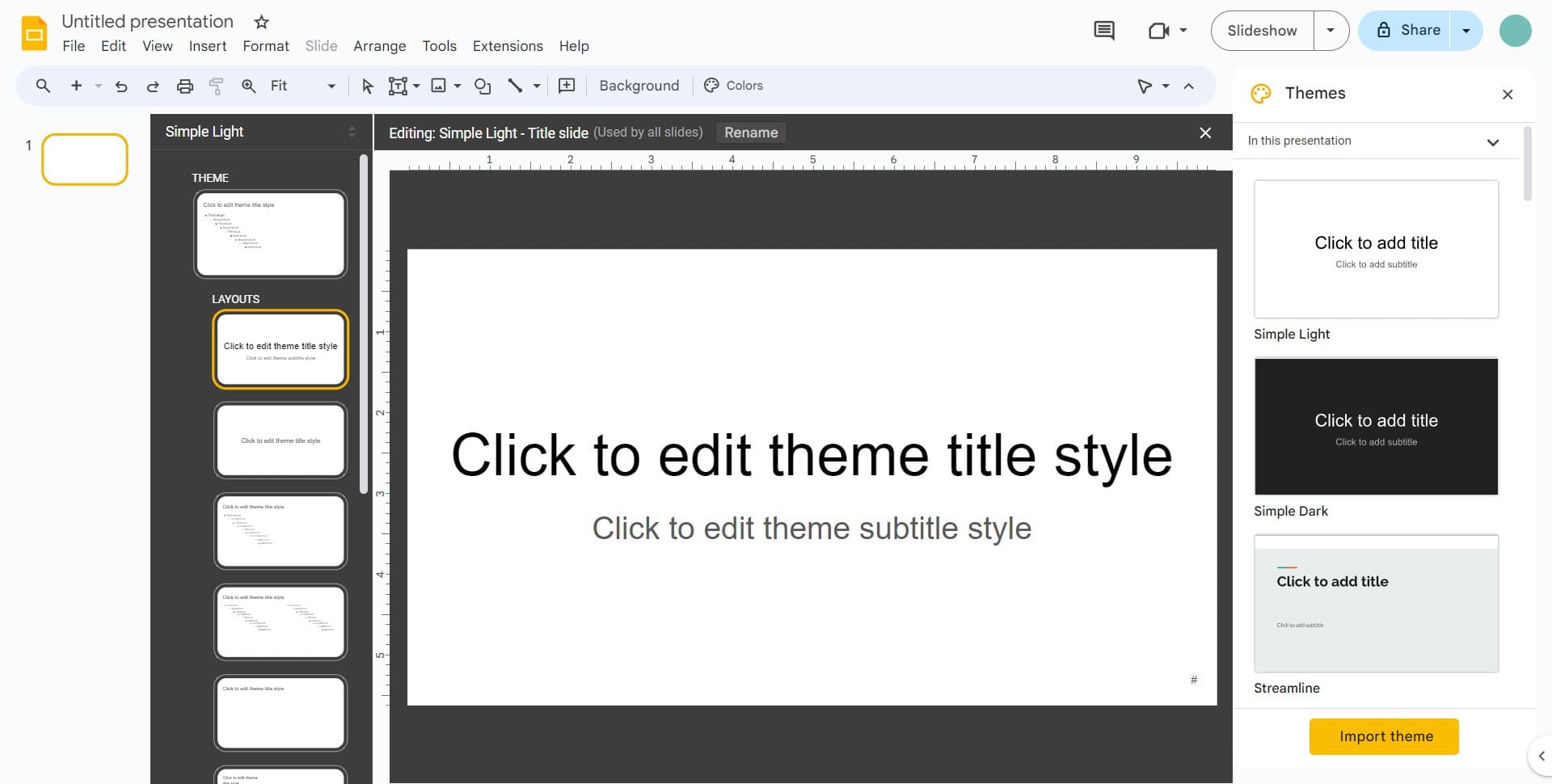
Position the shape element
Click to place the shape on your slide. You can adjust its size and position to fit your header design.
- 9
Refine shape placement
Click again to finalize the shape position or make additional adjustments. Ensure the shape is appropriately sized for your header area.
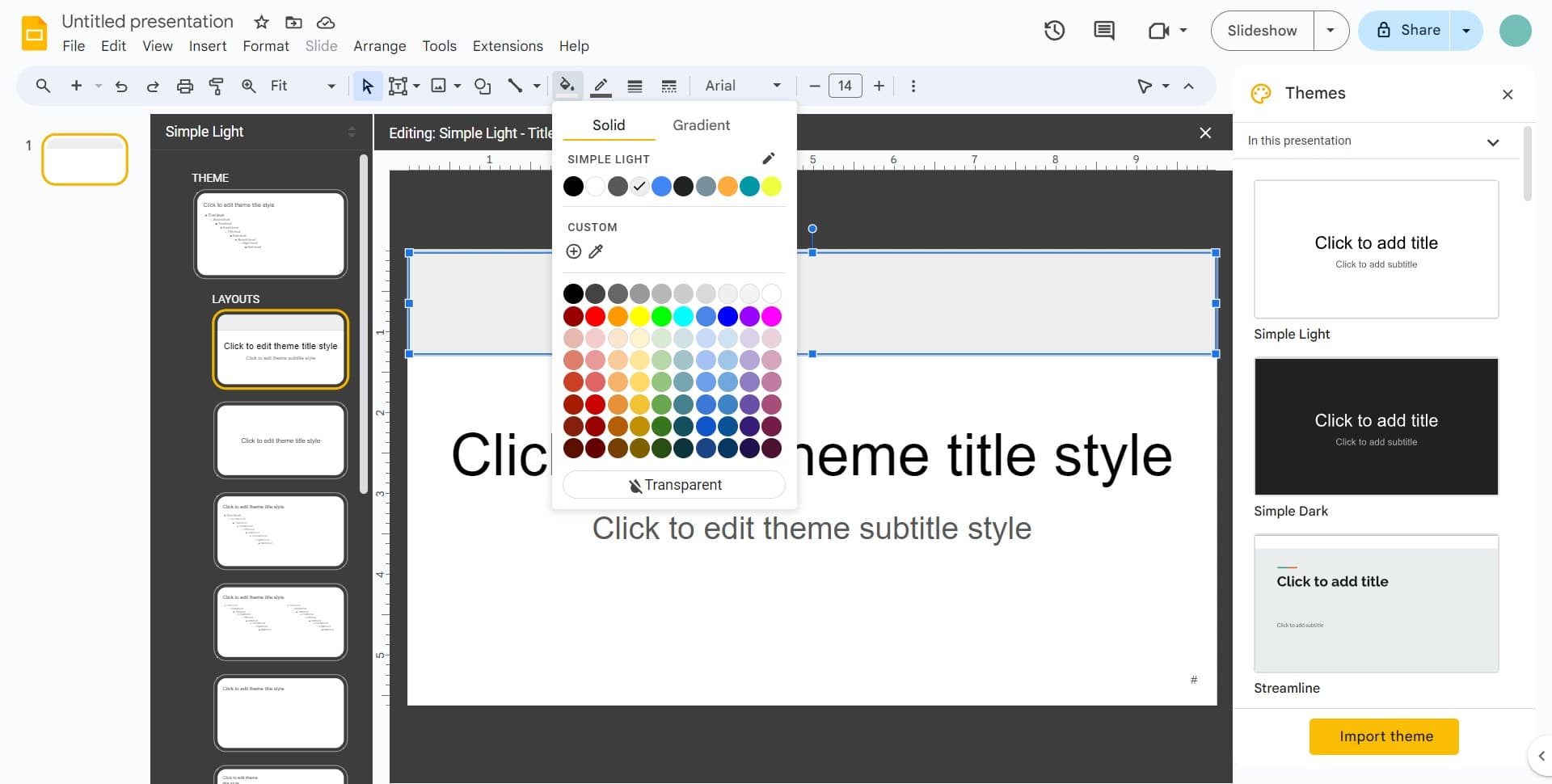
- 10
Complete shape positioning
Click to confirm the shape is correctly placed. The shape is now ready to be part of your header design.
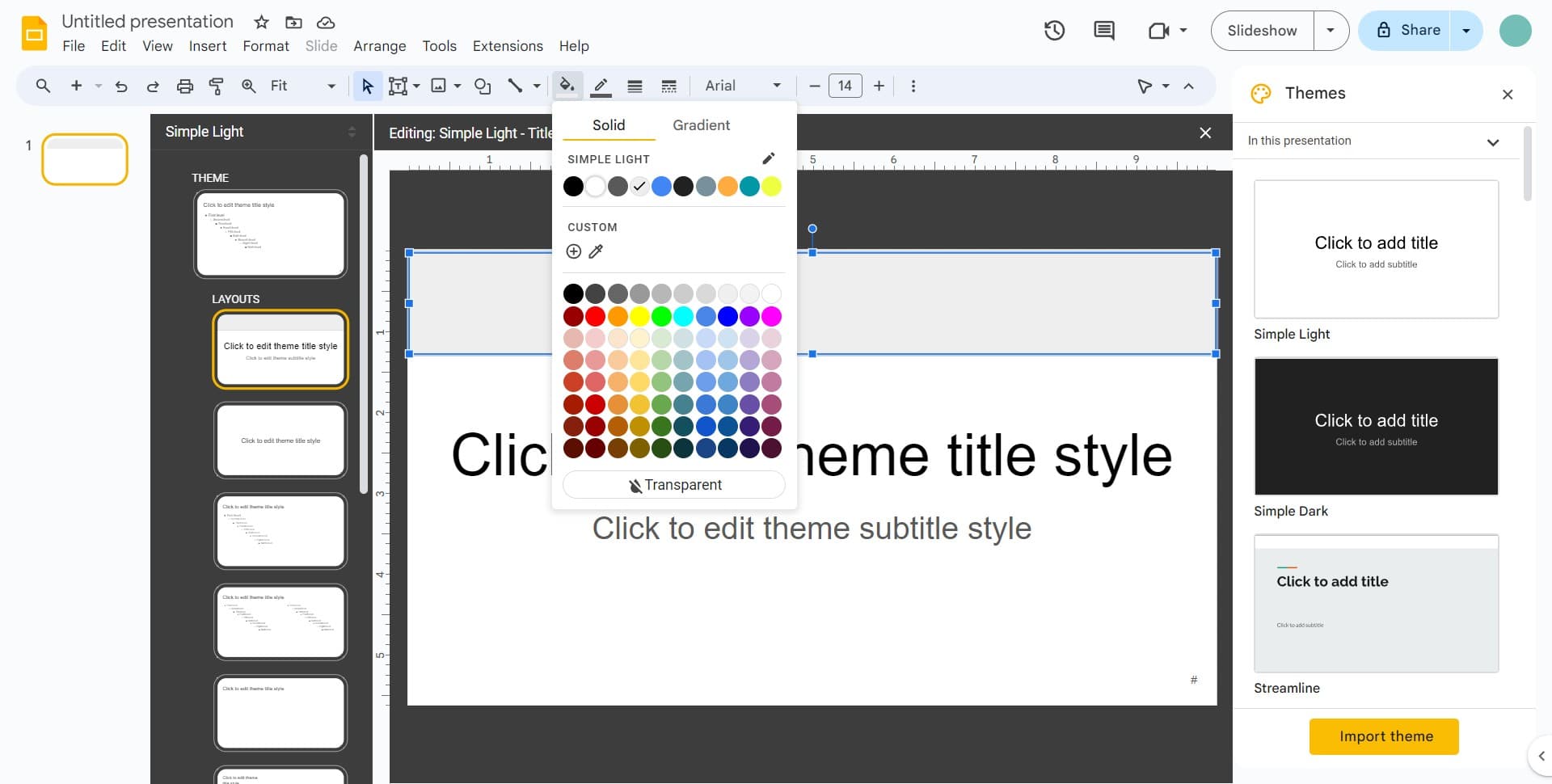
- 11
Prepare for text addition
Click to prepare the header area for adding text content. This readies the space for your header text element.
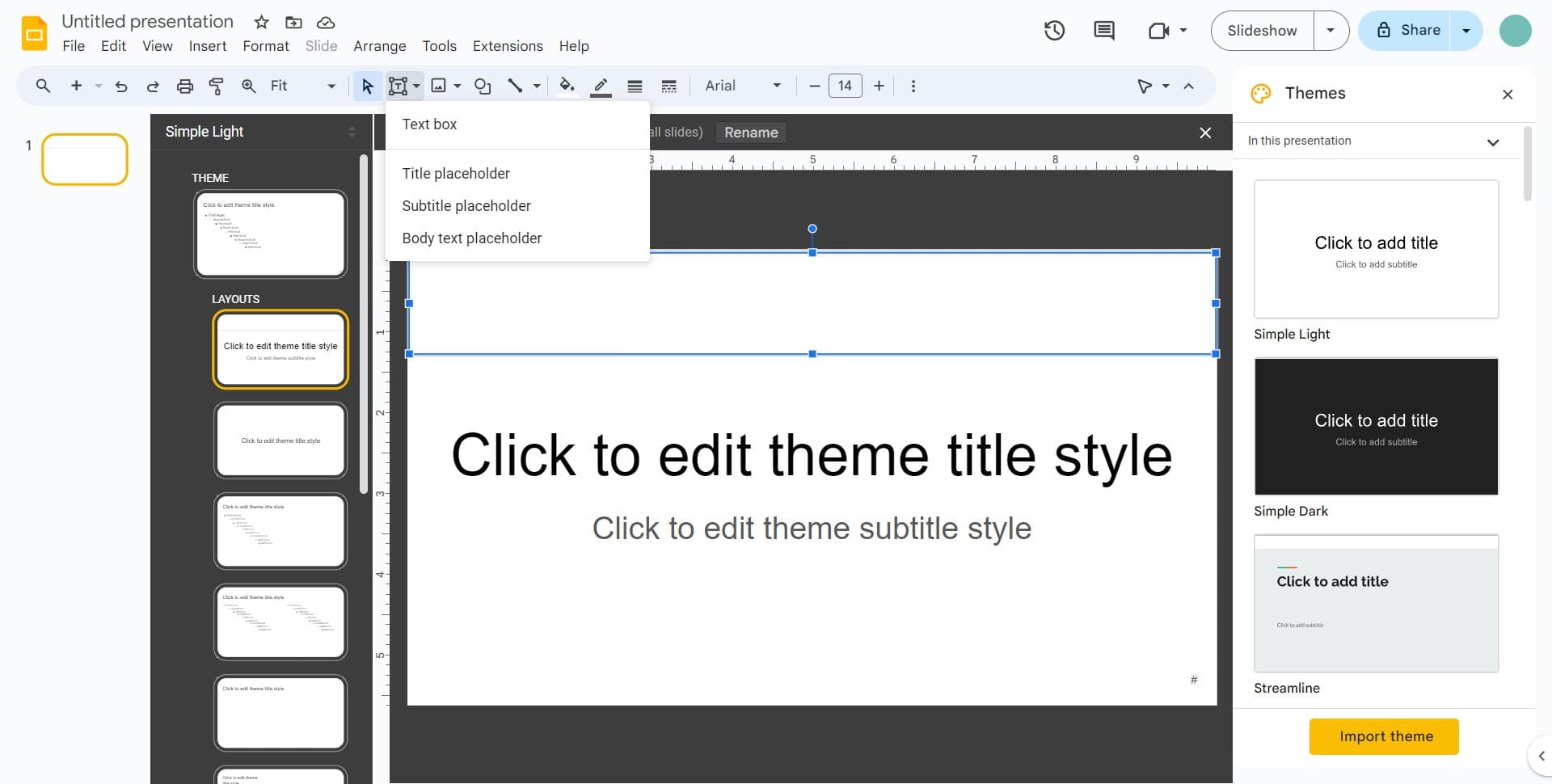
- 12
Add Text box element
Select Text box to insert a text element into your header. This text box will contain your header text, such as your title or company name.
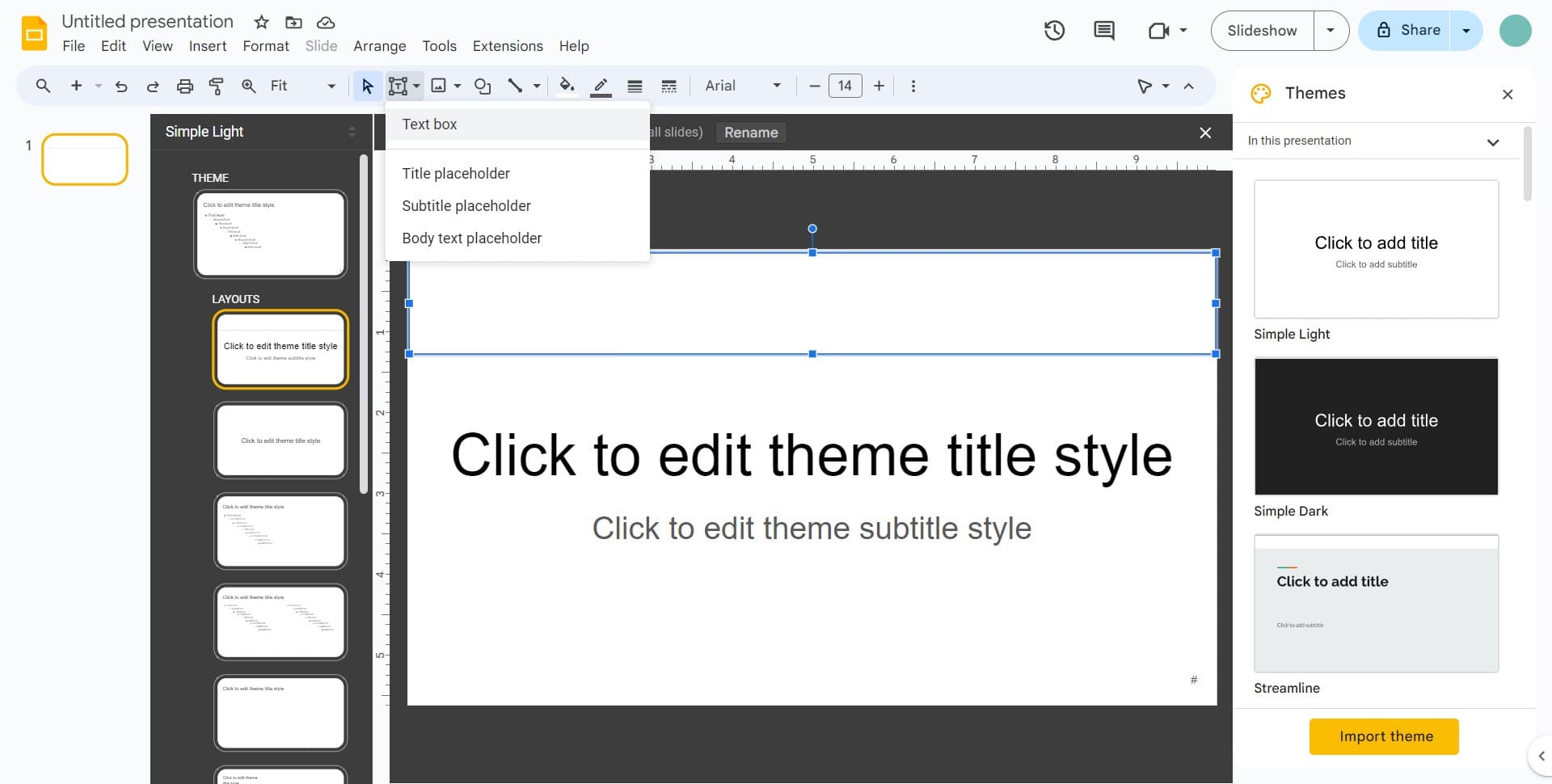
Frequently asked questions
Common questions about how to add header in google slides.
Yes, when you add a header through the theme editor, it will automatically appear on all slides that use that theme. Any text or elements you add to the header in the theme editor will be consistent across your entire presentation.
The header added through the theme editor applies to all slides uniformly. If you need different headers on specific slides, you can add individual text boxes to those slides instead of using the theme header feature.
Adding a header through the theme editor applies it globally to all slides and is more efficient for presentations with many slides. Adding elements directly to individual slides gives you more flexibility but requires manual addition to each slide.
Yes, you can add images and logos to your header through the theme editor by using the insert options. Shapes, text boxes, and image elements can all be combined to create a professional header design.
To edit your header, return to the Edit theme panel and modify the header elements directly. To remove it, delete the header elements from the theme editor, and the changes will apply to all slides using that theme.