How to Create an Email Template in HubSpot

Email templates in HubSpot save time and ensure consistency across your marketing campaigns. This guide walks you through creating and saving a reusable email template that you can deploy to segmented audiences.
Quick summary
In this tutorial, you'll learn how to navigate HubSpot's email editor, design a personalized email, and save it as a template for future use. You'll move from the Marketing hub through the email creation interface and finalize your template with a few simple clicks.
Why this matters
Email templates streamline your marketing workflow by eliminating repetitive design work and maintaining brand consistency. Saved templates allow your team to quickly launch campaigns to different segments without rebuilding emails from scratch, improving efficiency and reducing errors.
Step-by-step guide
- 1
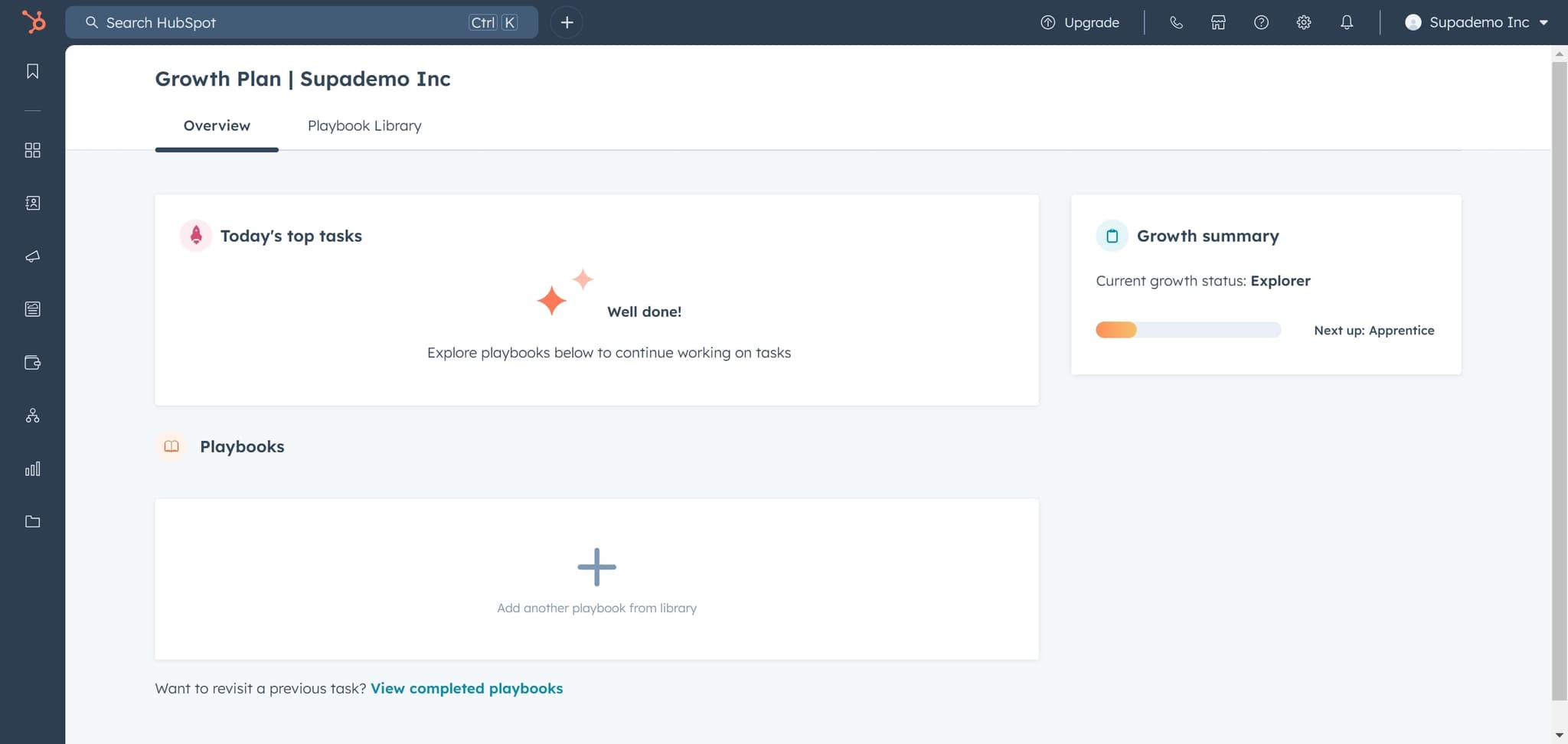
Access the HubSpot dashboard
Start by clicking on the designated area to enter your HubSpot account. This takes you to the main dashboard where you can navigate to different marketing tools.
- 2
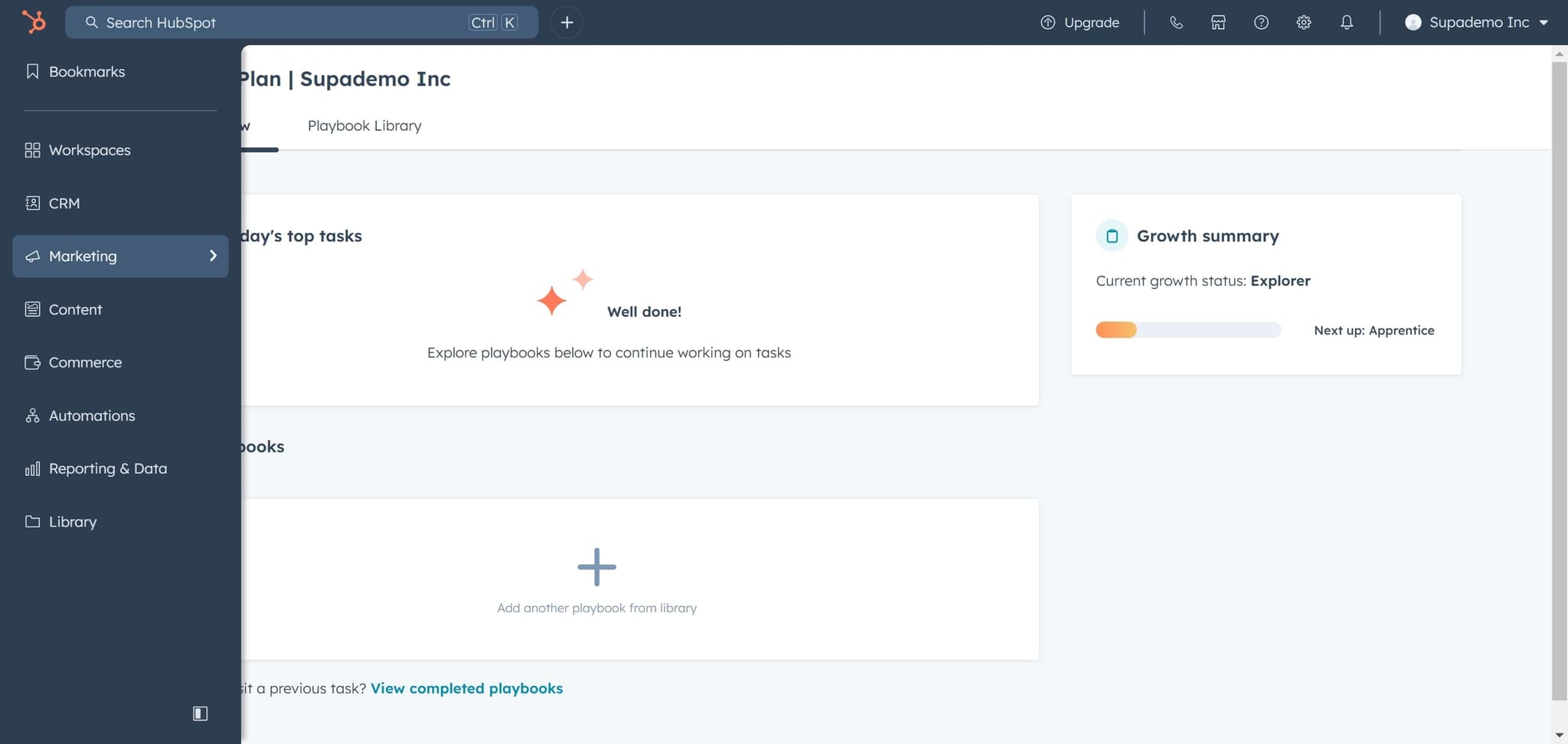
Click on Marketing
In the main navigation menu, select the Marketing option. This opens the marketing hub where all email and campaign tools are located.
- 3
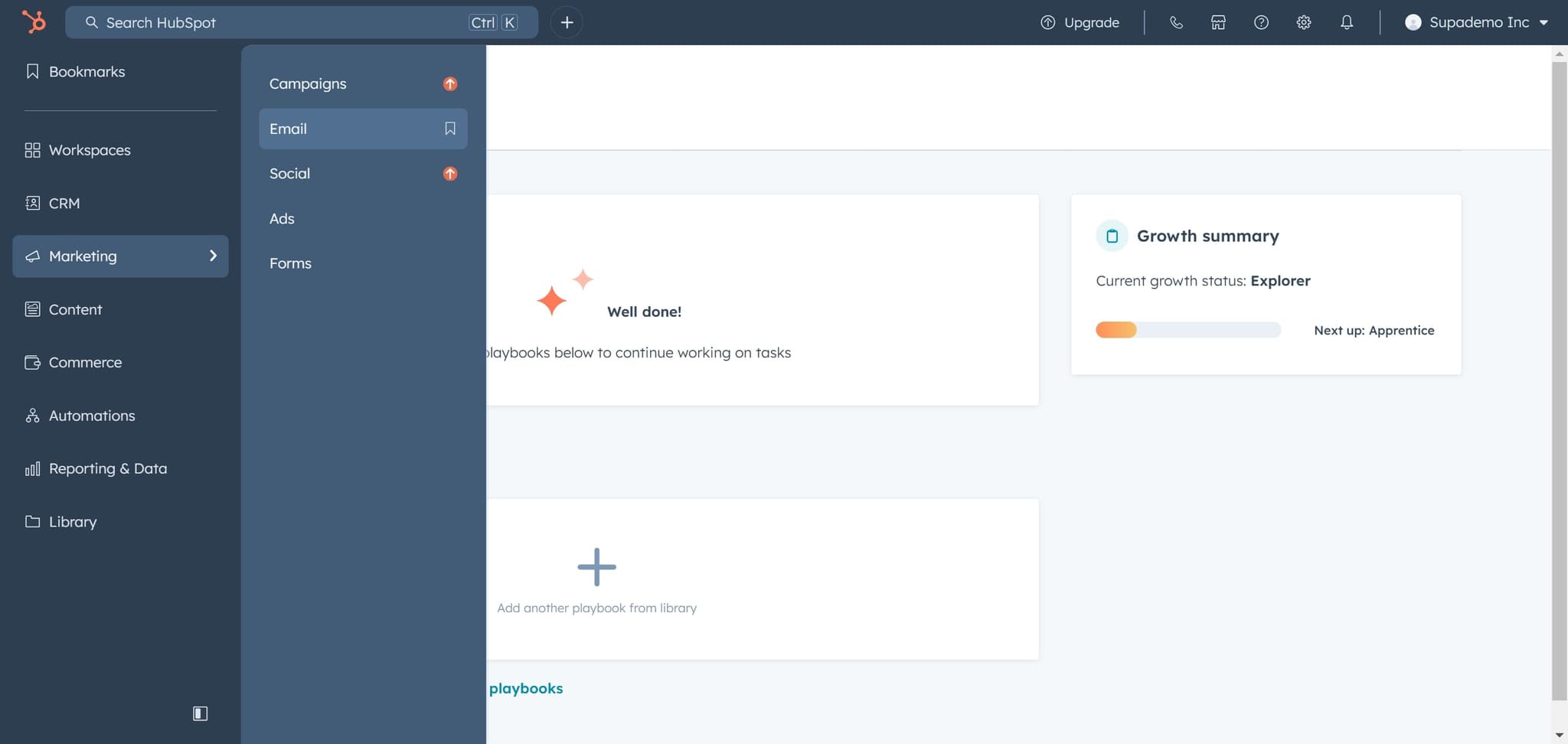
Select Email
Within the Marketing section, click on Email to access your email management tools. This is where you'll create and manage all your email campaigns and templates.
- 4
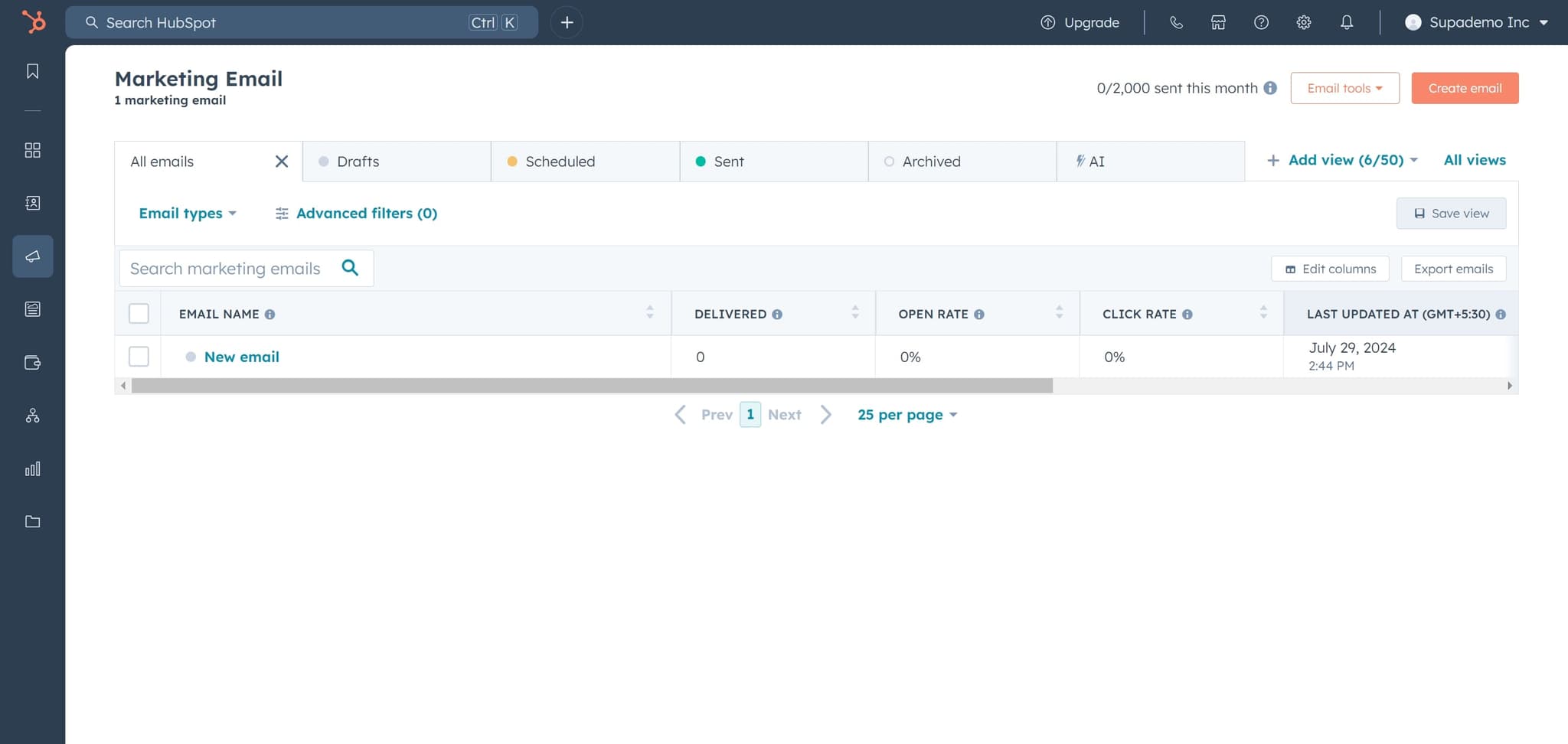
Create a new email
Click the Create email button to start building a new email. HubSpot will open the email editor where you can design your message.
- 5
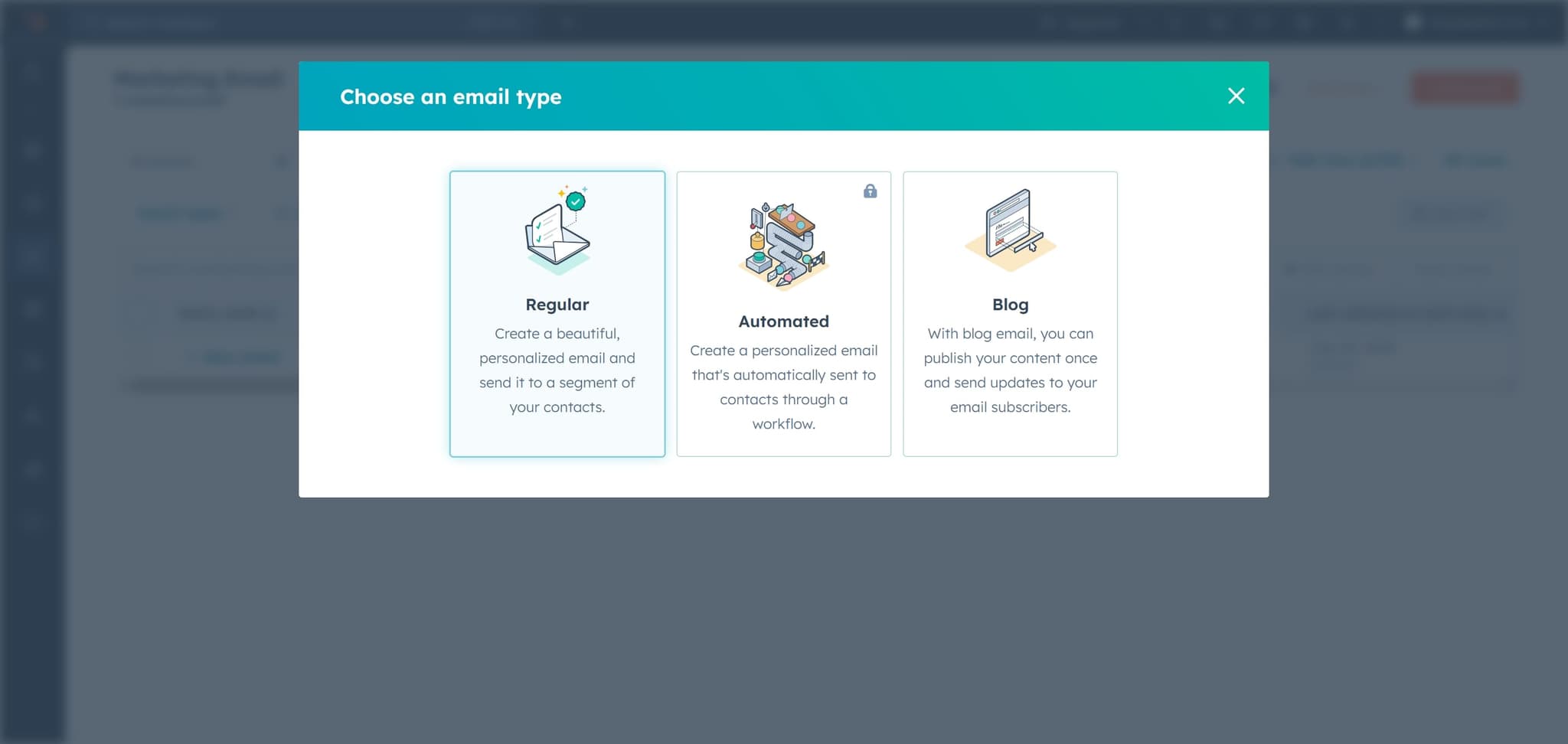
Choose the email type
Select the option to create a beautiful, personalized email and send it to a segmented audience. This template type allows you to design a professional email with personalization features for targeted distribution.
- 6
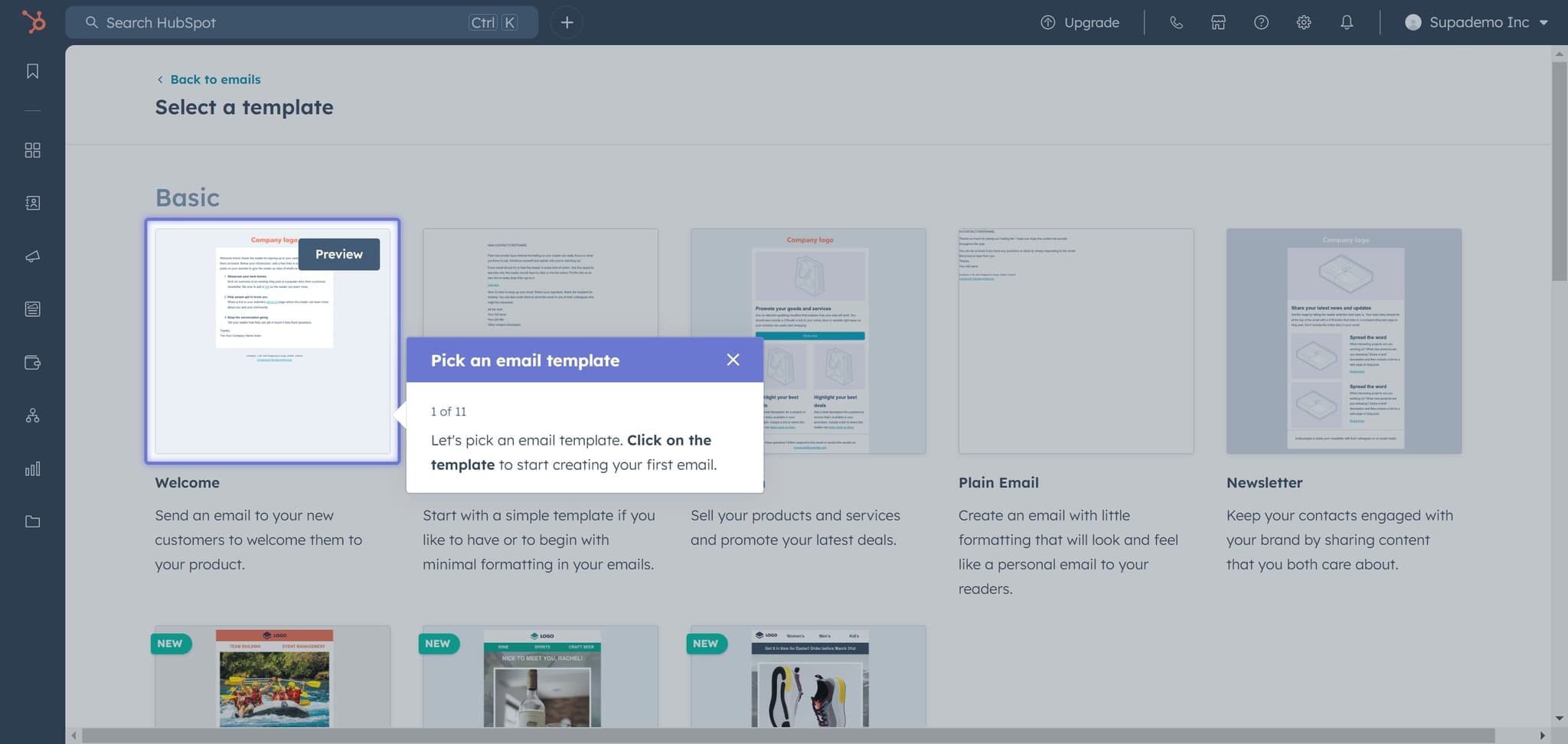
Proceed to the editor
Click on the indicated area to move to the email editing interface. You'll now have access to design tools and content options to build your email.
- 7
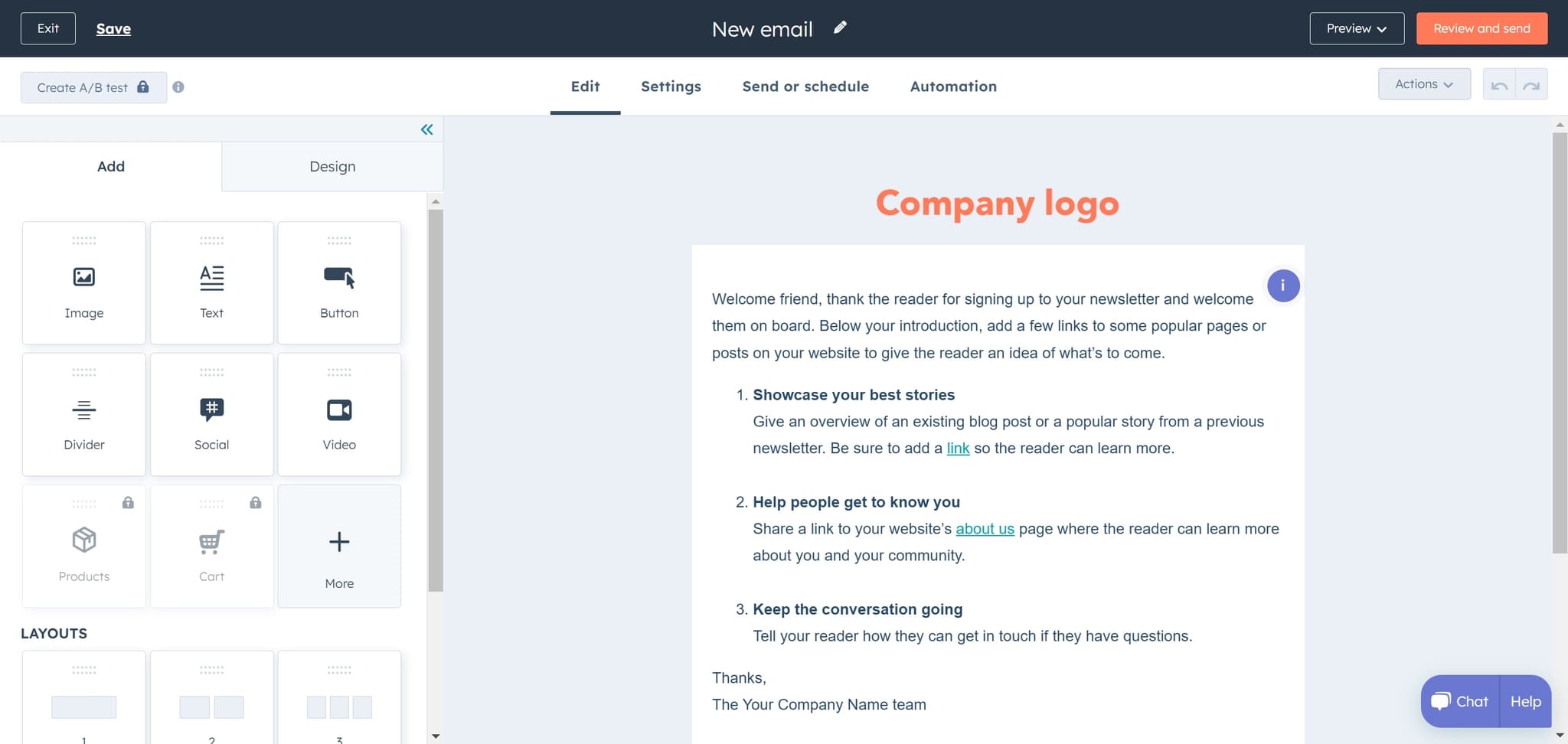
Open Actions menu
Click on the Actions dropdown or menu option within the editor. This reveals additional options for managing your email, including save and template functions.
- 8
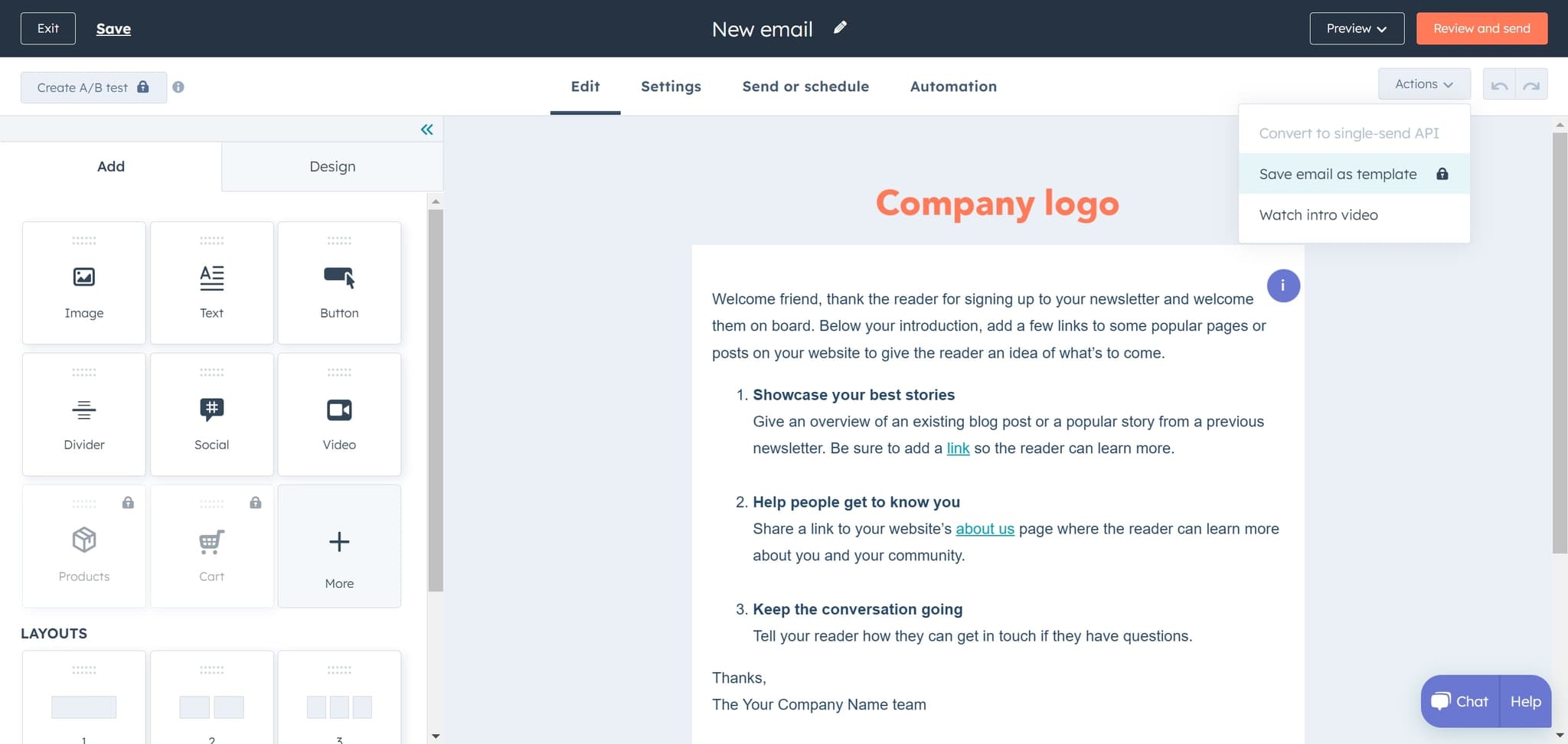
Save as template
Select Save email as template from the Actions menu. HubSpot will prompt you to name and configure your template for future use.
- 9
Upload and finalize
Complete the upload process to save your email template. Your template is now available in HubSpot's template library for future campaigns.
Frequently asked questions
Common questions about how to create an email template in hubspot.
Yes, you can edit saved templates at any time from your template library. Simply locate the template, open it, make your changes, and save the updates. Any new campaigns using the updated template will reflect these changes.
HubSpot allows you to create an unlimited number of email templates. You can organize them by campaign type, team, or any other system that works for your business needs.
Yes, HubSpot supports dynamic personalization tokens in templates. These tokens automatically pull contact data like first name, company, or custom fields when the email is sent to each recipient.
A template is a reusable design you save for future campaigns, while a regular email is a one-time message. Templates save time when you need to send similar emails repeatedly.
Yes, saved templates in HubSpot are accessible to all team members with the appropriate permissions. This ensures your entire team can use brand-approved templates for consistency across campaigns.