How to add a subtask in Jira

Subtasks in Jira help you break down complex issues into smaller, manageable components that can be tracked and assigned independently. Adding subtasks improves project organization and makes it easier to monitor progress on individual work items. This guide walks you through the process step by step.
Quick summary
In this tutorial, you'll learn how to add a subtask in Jira by navigating to the Create menu, configuring the subtask type, and saving your changes. You'll discover how to access the subtask creation workflow and understand where to manage issue types to enable subtasks for your project.
Why this matters
Subtasks are essential for breaking down large, complex work into trackable pieces that team members can own individually. They provide visibility into sprint progress and help prevent bottlenecks by clarifying dependencies and ownership. Using subtasks effectively improves team collaboration and ensures nothing falls through the cracks.
Step-by-step guide
- 1
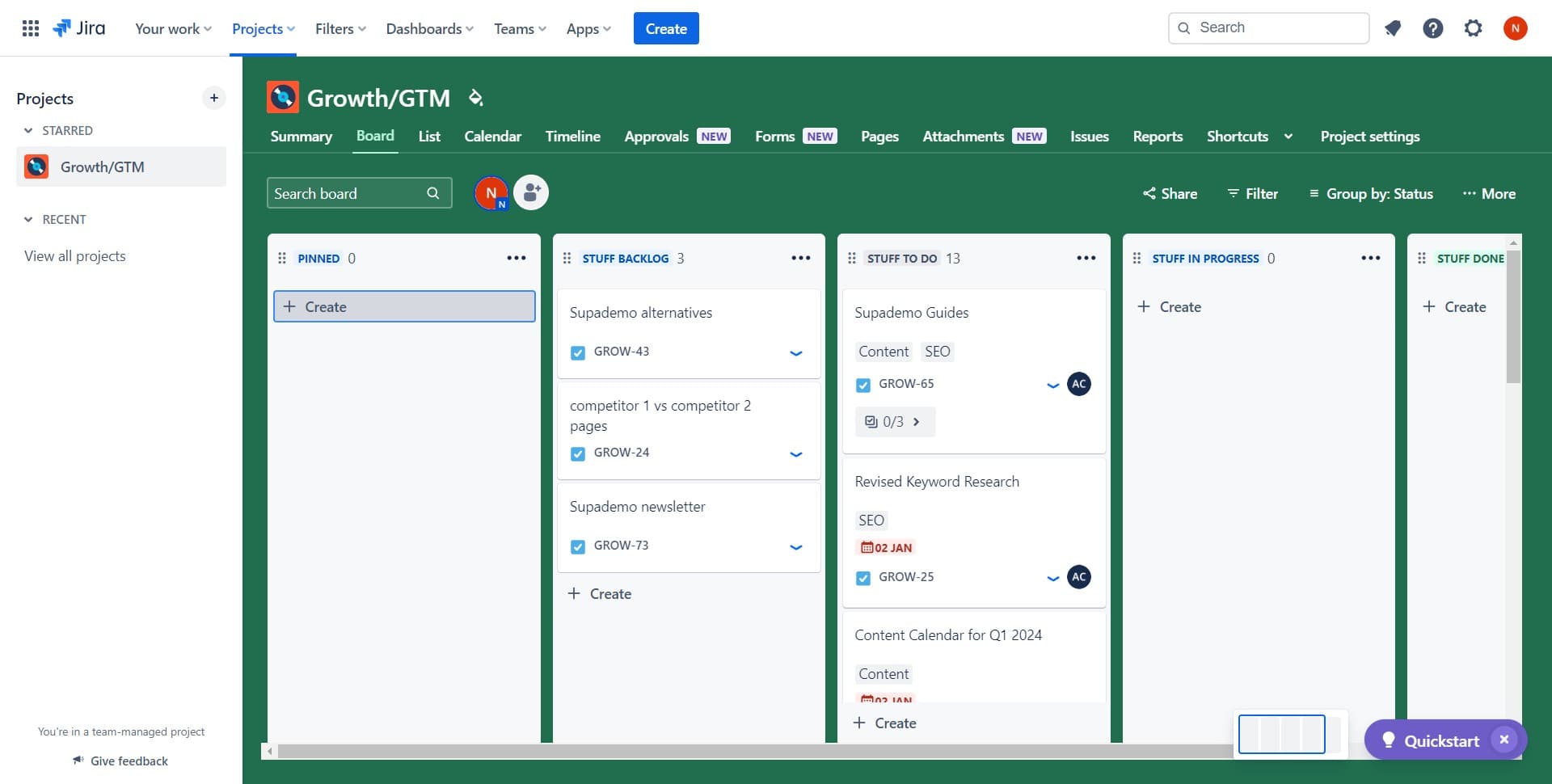
Click on Create
Navigate to the Create button, typically located in the top navigation bar of your Jira interface. This opens the issue creation workflow where you can initiate the process of adding a new subtask to your project.
- 2
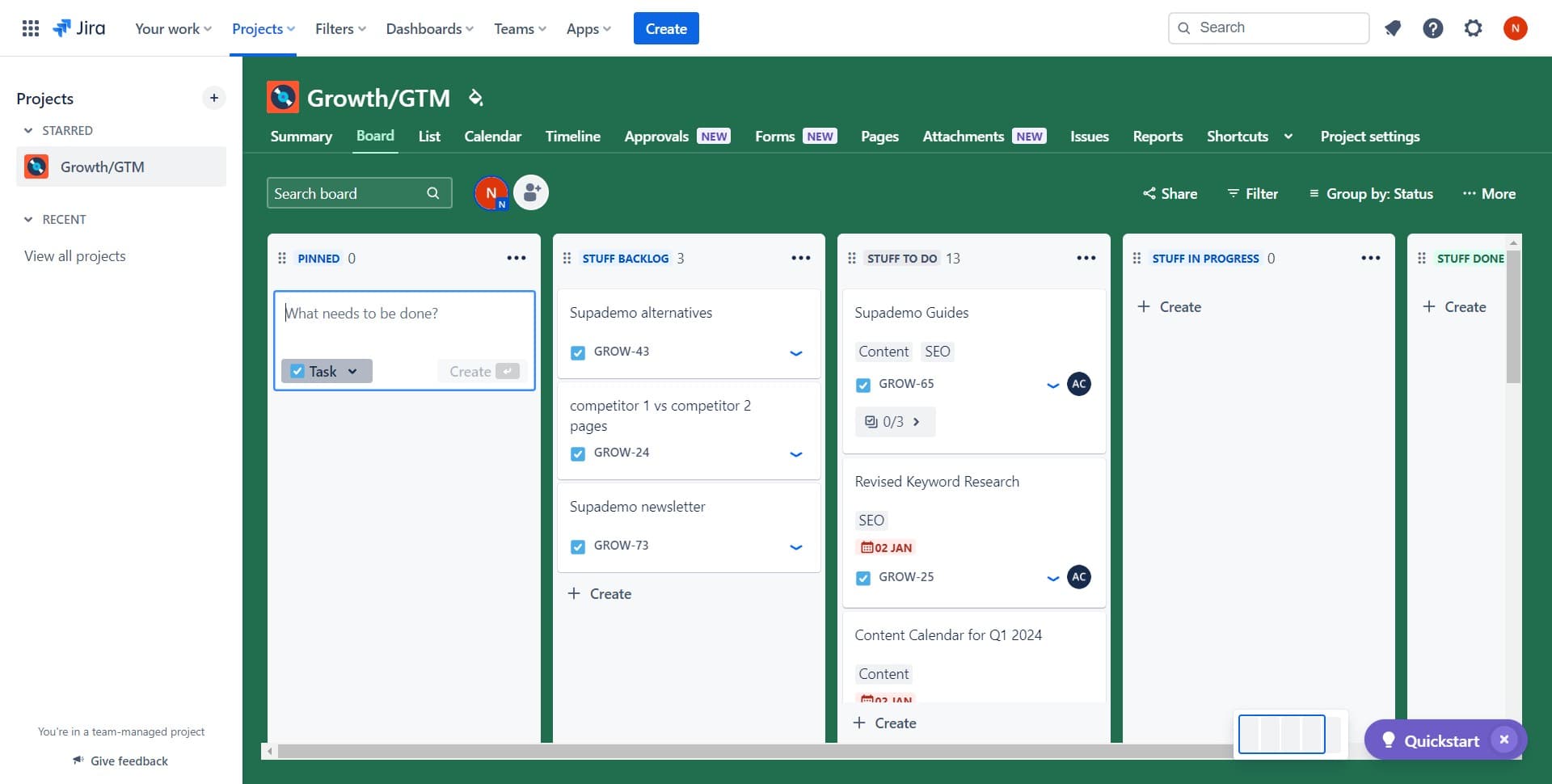
Select the subtask option
Look for and click the subtask option from the available choices in the creation menu. This directs Jira to set up the new item as a subtask linked to a parent issue rather than a standalone issue.
- 3
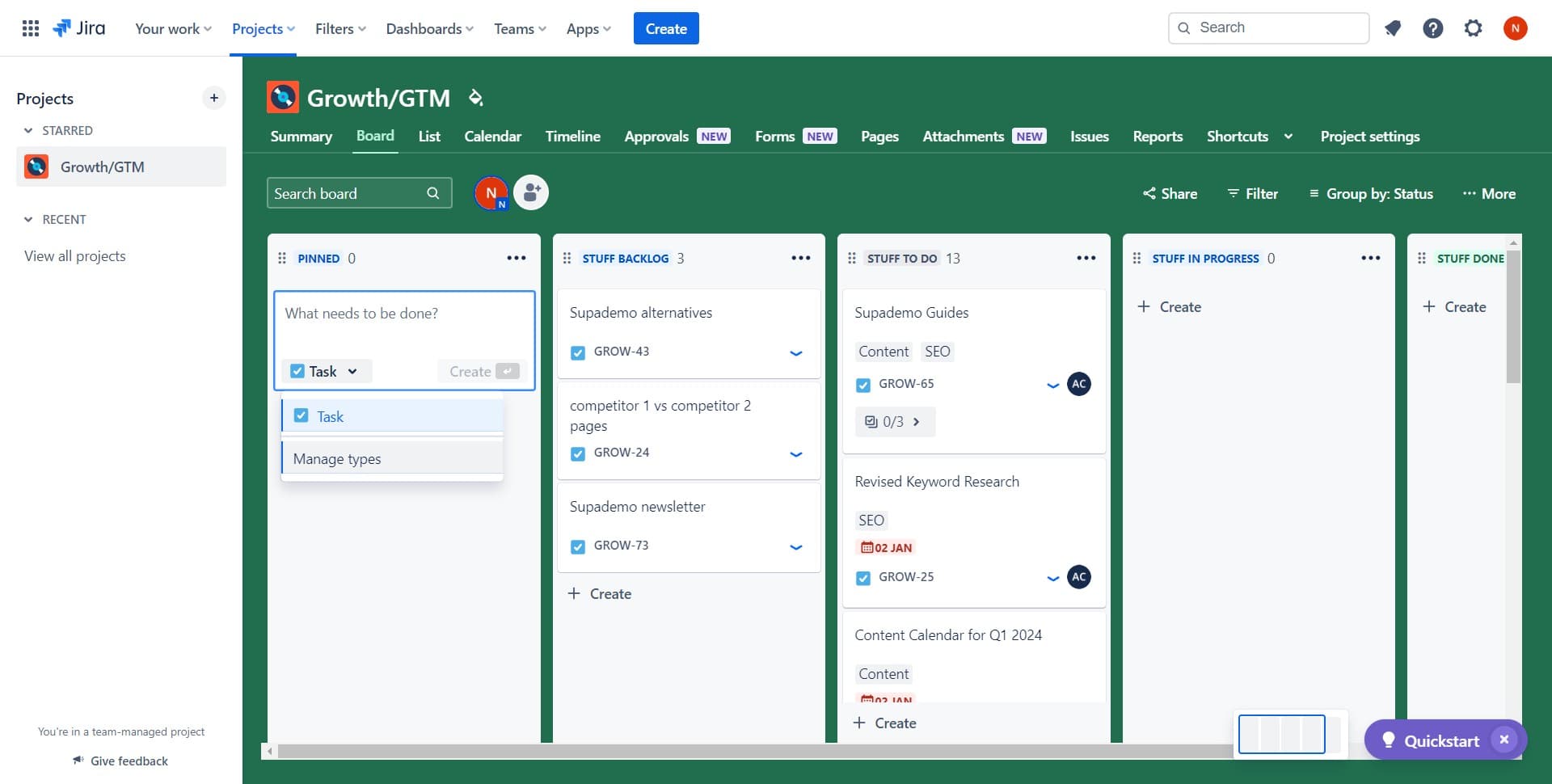
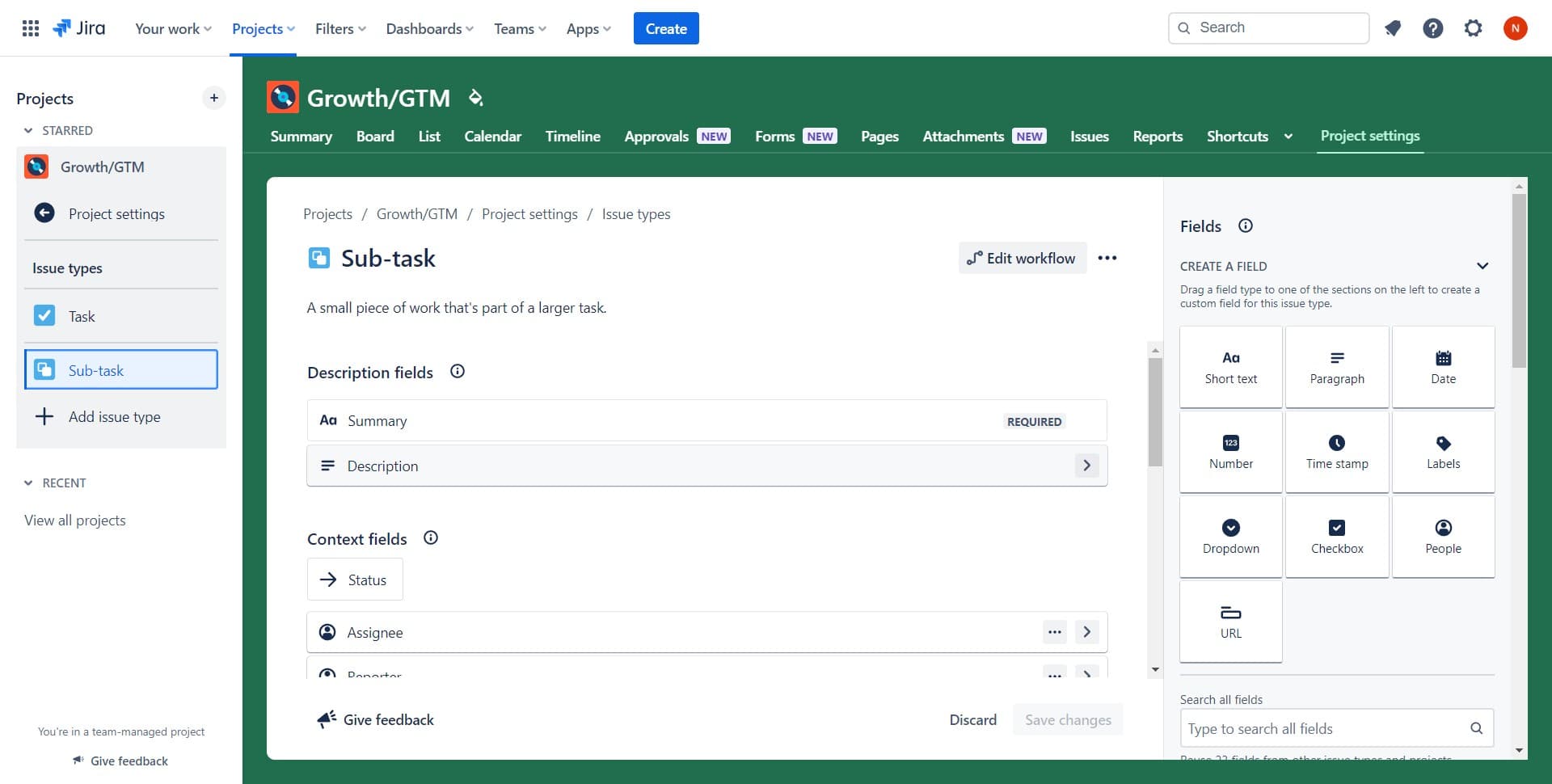
Click on Manage types
Access the Manage types section to configure which issue types are available in your Jira project. This allows you to customize and enable subtask functionality for your specific workflow needs.
- 4
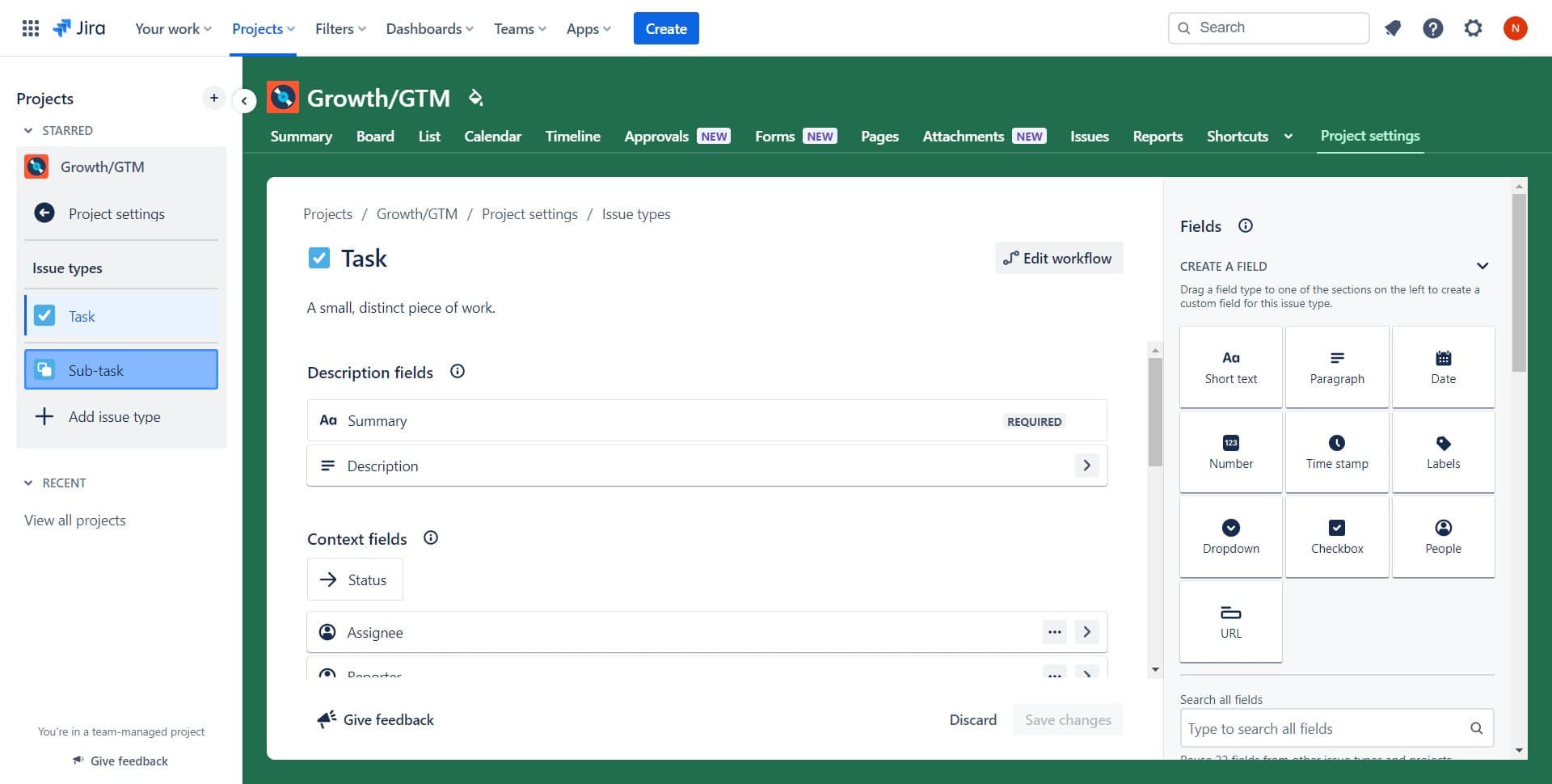
Select Sub-task
Choose the Sub-task option from the list of available issue types. Ensure that this type is enabled in your project configuration so that team members can create subtasks when needed.
- 5
Add description and save
Fill in the Description field with relevant details about the subtask, such as what work needs to be completed and any important context. Once you've entered all necessary information, click Save changes to finalize the subtask creation.
Frequently asked questions
Common questions about how to add a subtask in jira.
No, subtasks in Jira cannot have their own subtasks. They are a single level below the parent issue. If you need further breakdown, you should structure your parent issue differently or use a different organizational approach for your workflow.
When you delete a parent issue in Jira, all associated subtasks are also deleted. Make sure to export or archive any important information from subtasks before deleting the parent issue to avoid losing critical task data.
Yes, you can convert a subtask to a regular issue by editing the issue and changing its type. However, you'll lose the hierarchical relationship with the parent issue, so ensure this change aligns with your project structure before making it.
When creating or editing a subtask, you'll find an Assignee field where you can search for and select a team member. The assignee will receive notifications about the subtask and can track it in their personal workload and filters.
Subtask story points are typically counted as part of the parent issue's story points in sprint velocity calculations. Check your Jira project's configuration to confirm how subtasks are weighted in your specific velocity tracking setup.