How to Create a Kanban Board in Jira

A Kanban board in Jira helps teams visualize their workflow by organizing tasks into columns that represent different stages of work. This tutorial walks you through creating a Kanban board from scratch, enabling you to manage your team's projects with greater clarity and efficiency.
Quick summary
In this tutorial, you'll learn how to create a Kanban board in Jira by navigating through the Projects menu, accessing the Boards section, and configuring your new board. By the end, you'll have a fully functional Kanban board ready to track your team's work.
Why this matters
Kanban boards are essential for agile teams because they provide real-time visibility into task progress and help prevent work bottlenecks. Creating a dedicated Kanban board in Jira streamlines collaboration, makes handoffs between team members clearer, and allows your team to respond quickly to changing priorities.
Step-by-step guide
- 1
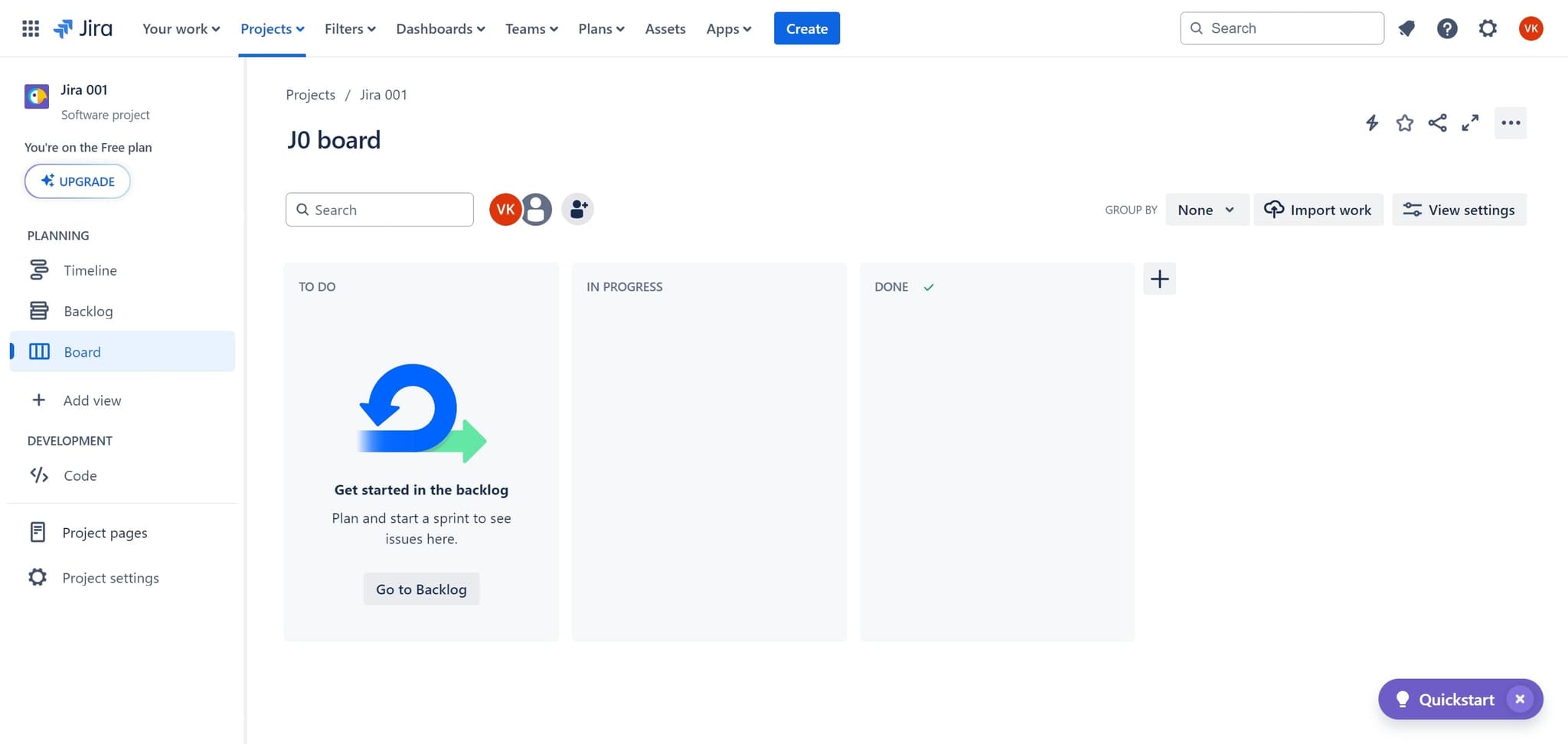
Click on Projects
Start by clicking the Projects menu option from your Jira dashboard. This will give you access to all project-related features and management options.
- 2
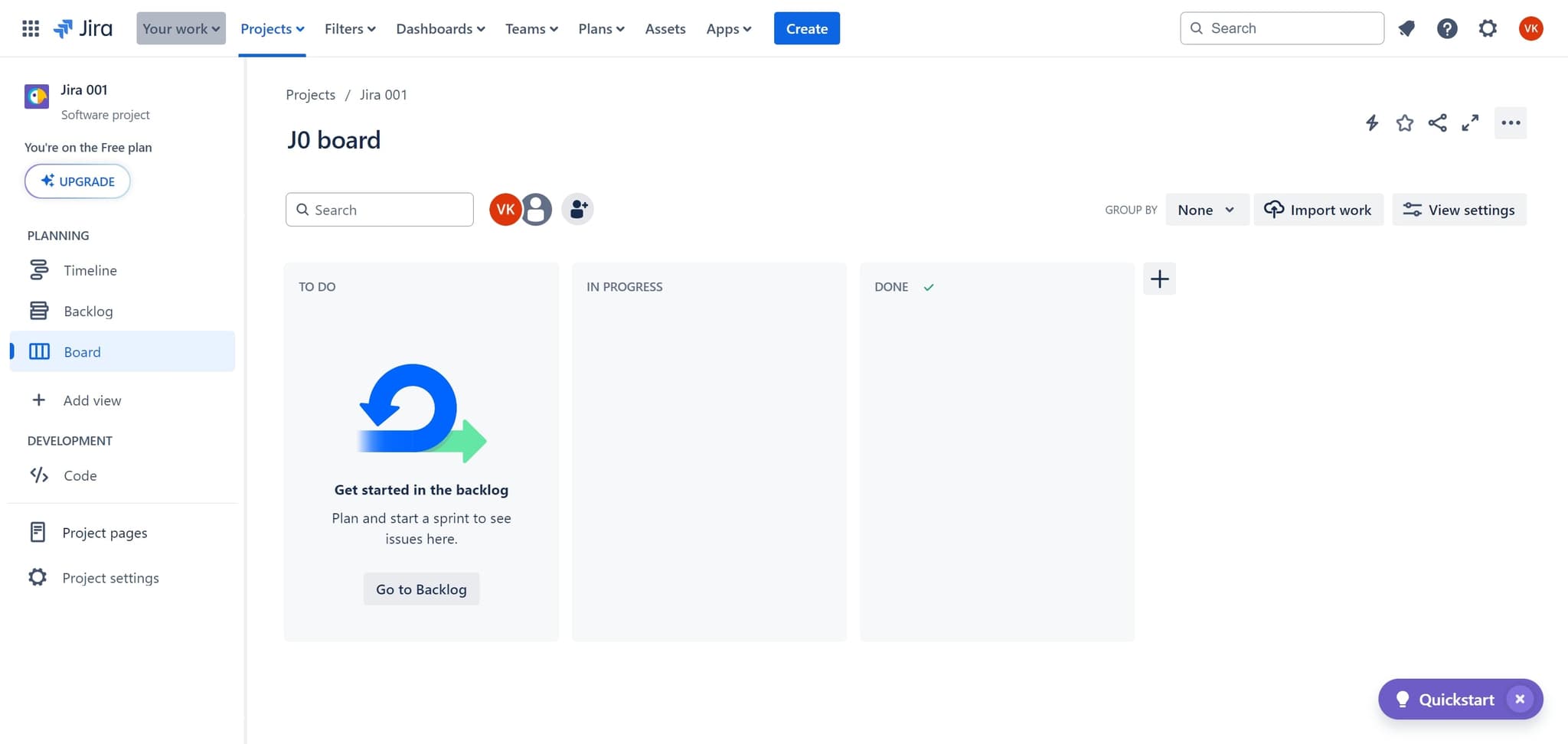
Click on Your Work
Next, select Your Work to view your personal workspace and active projects. This section shows you tasks assigned to you and projects you're involved with.
- 3
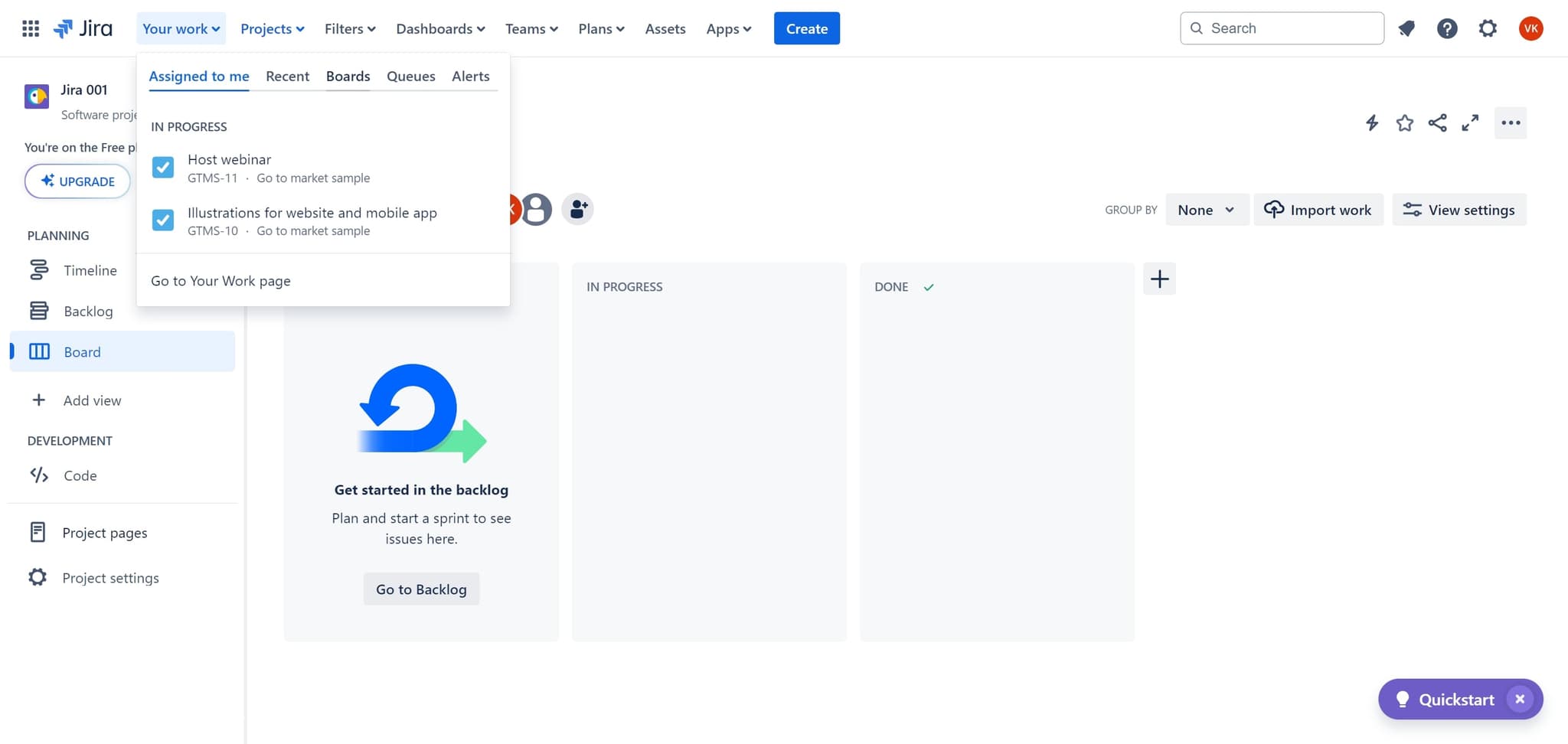
Navigate to Boards
Click on the Boards option to access all boards associated with your projects. This page displays any existing boards you've created or have access to.
- 4
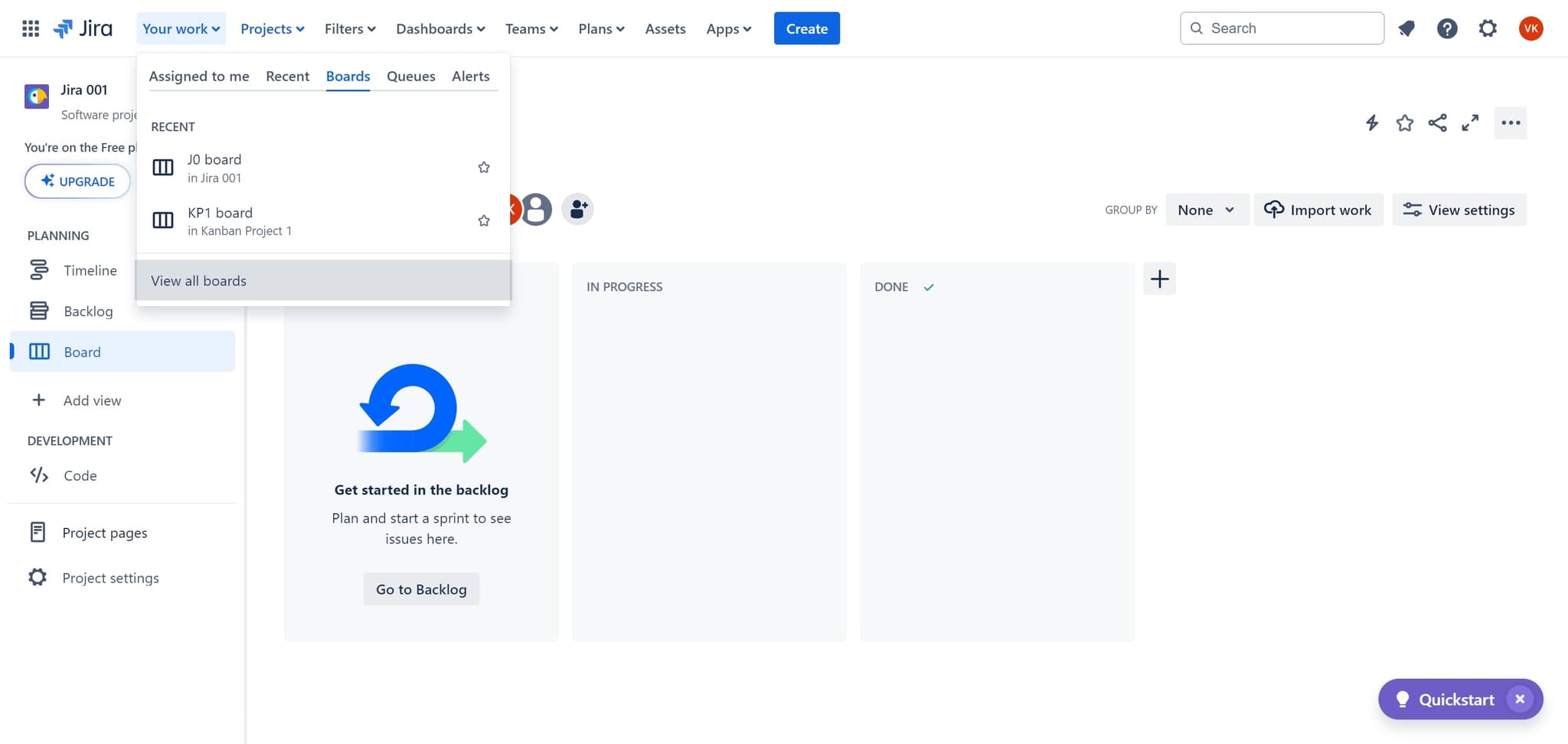
Click View All Boards
Select View all boards to see the complete list of available boards across your Jira instance. This gives you an overview of all existing boards and the option to create a new one.
- 5
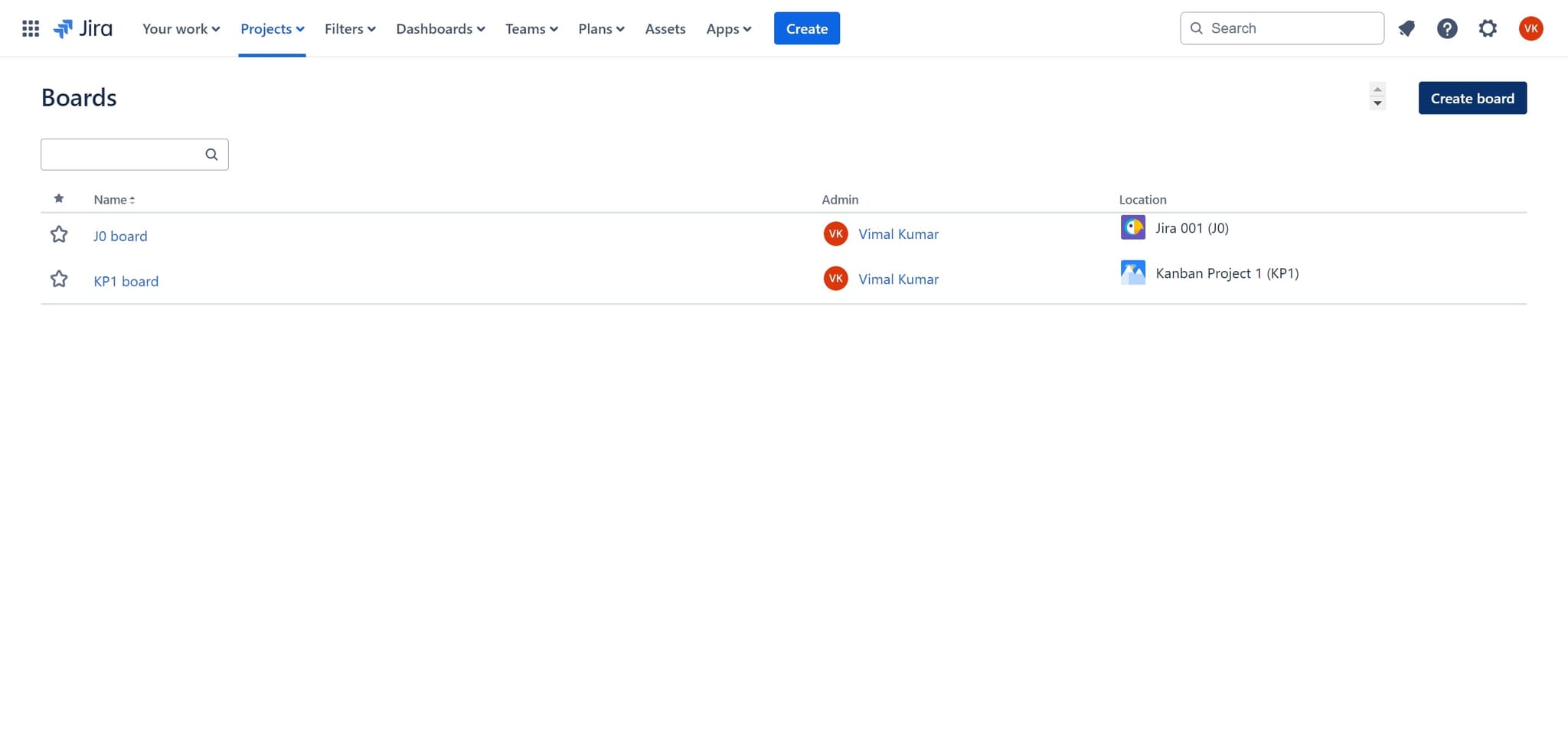
Click Create Board
Click the Create board button to begin the setup process for your new board. You'll be presented with options for the type of board you want to create.
- 6
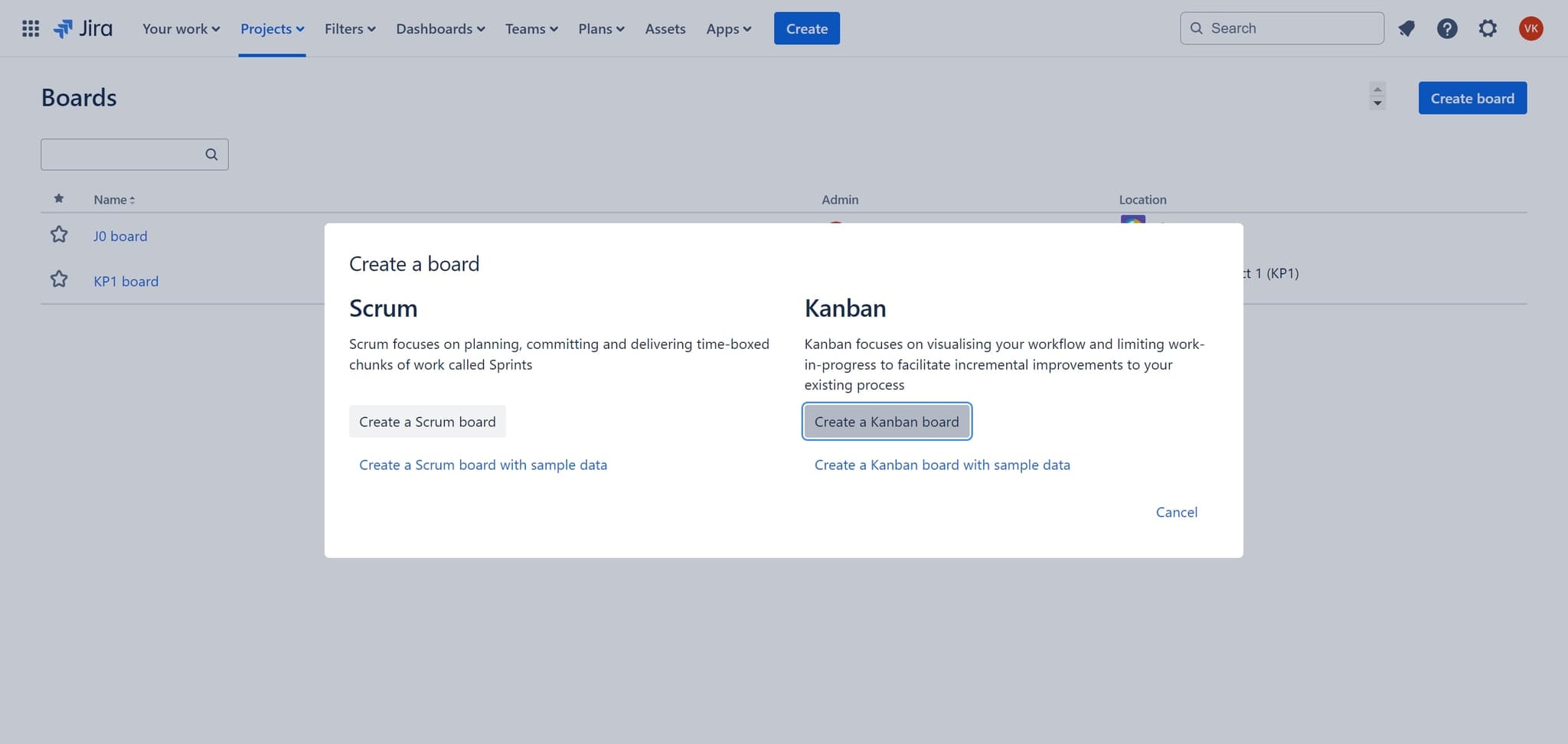
Select Kanban Board Type
Choose Create a Kanban board from the available board templates. Kanban boards are ideal for continuous flow teams and visualizing work in progress.
- 7
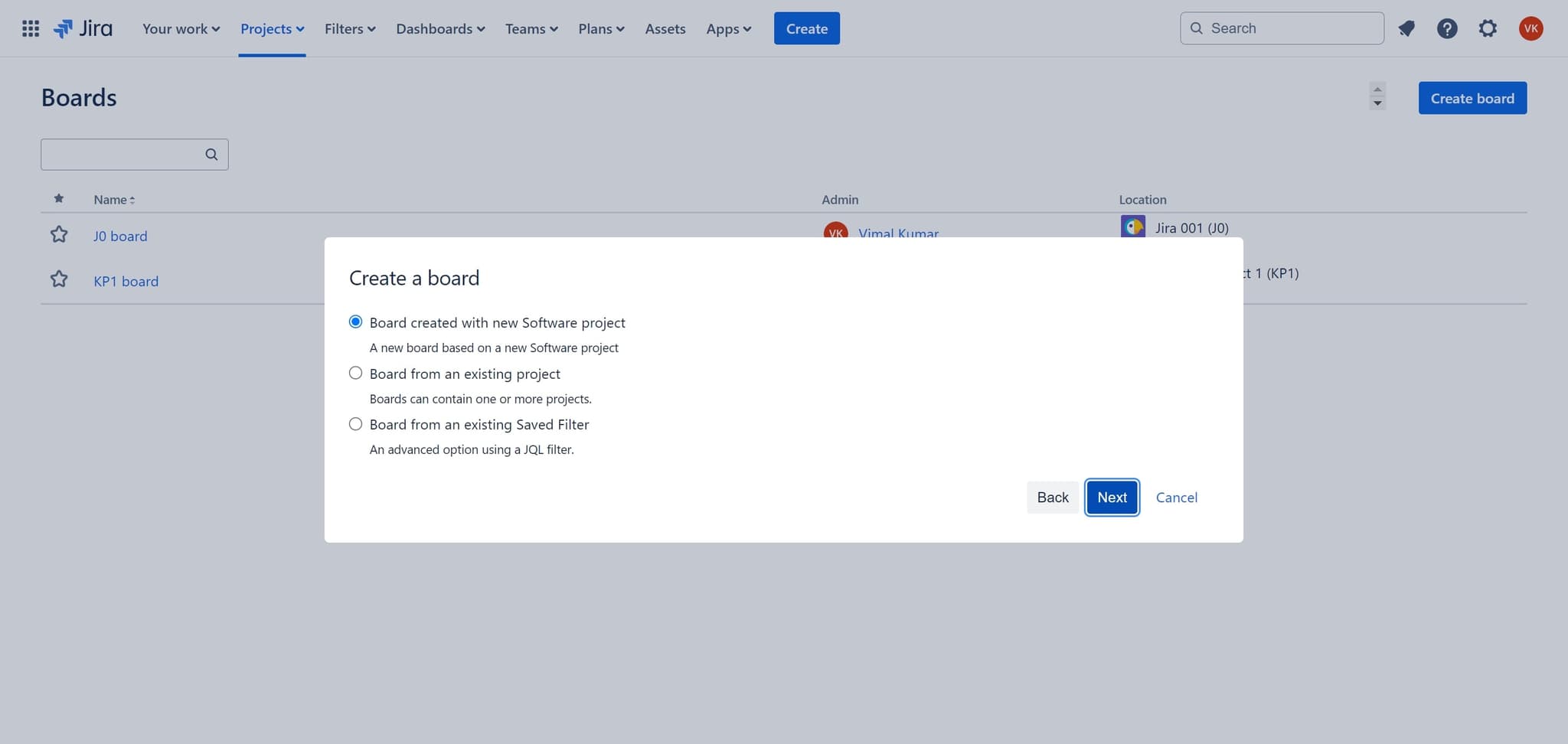
Click Next to Continue
Click the Next button to proceed to the board configuration screen. This step allows you to customize settings for your new Kanban board.
- 8
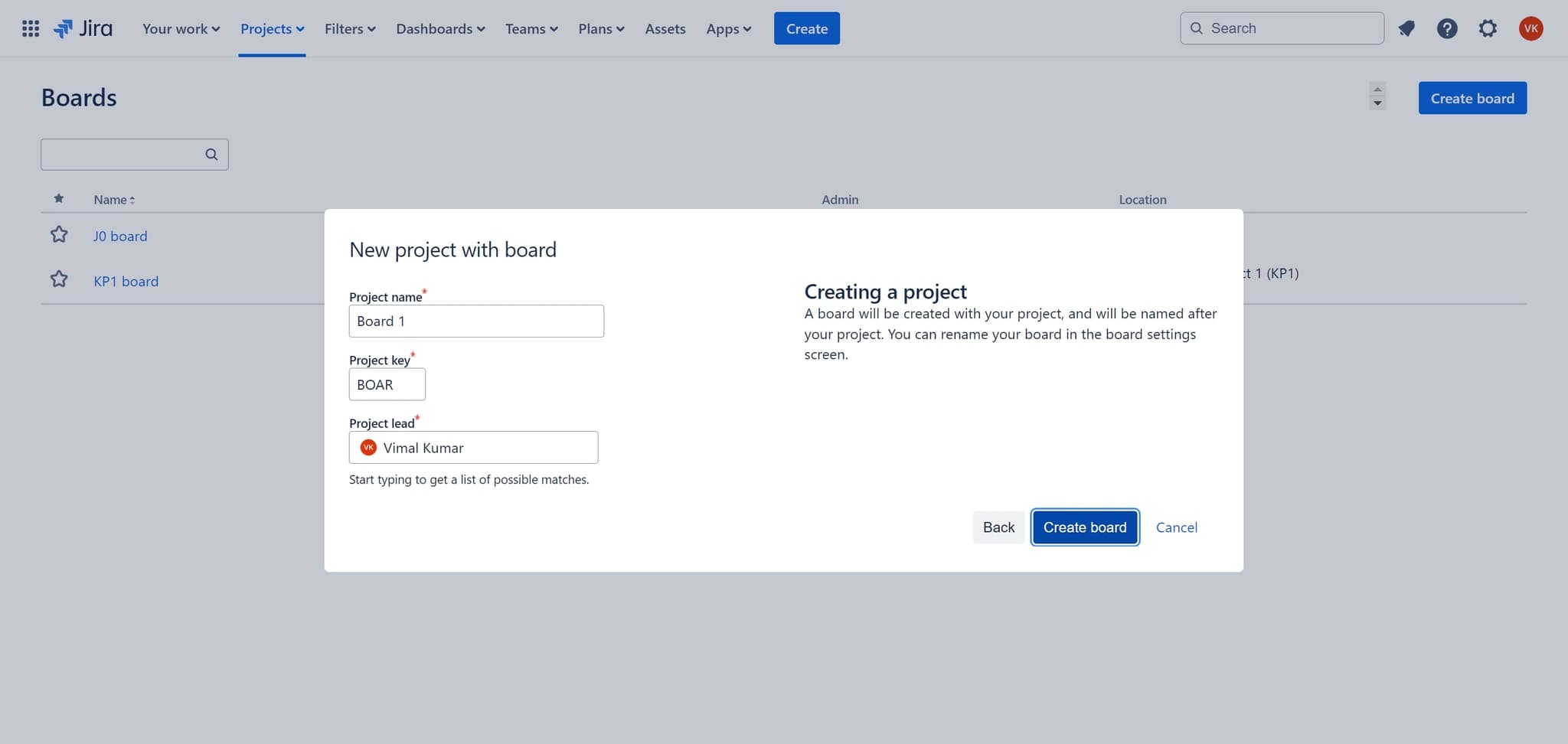
Finalize Board Creation
Click the Create board button to finalize and launch your new Kanban board. Your board will be created with default settings and ready for use.
- 9
Access Your New Board
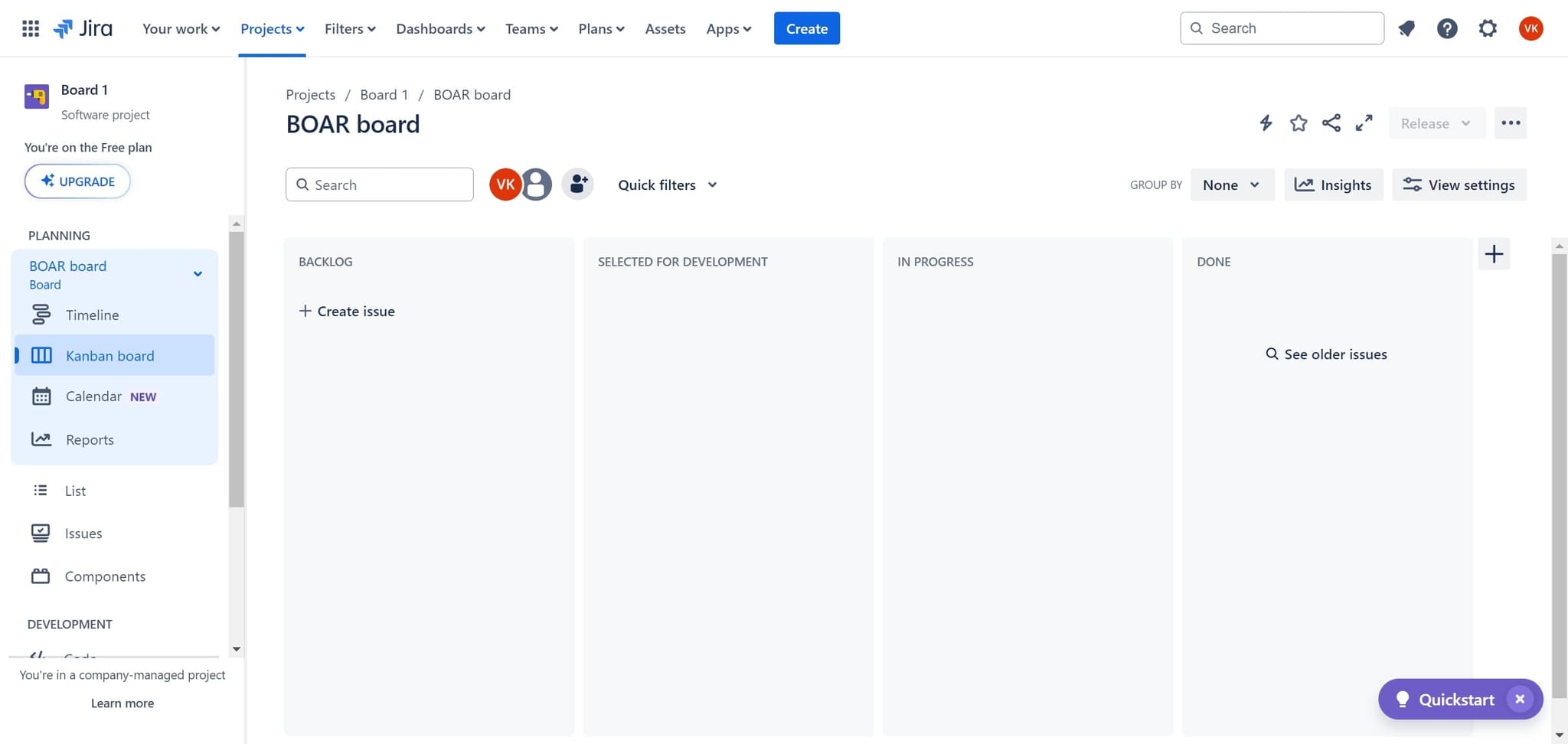
Click on the BOAR board (or your board's name) to open it and begin using your new Kanban board. You can now start adding issues and organizing them by workflow status.
Frequently asked questions
Common questions about how to create a kanban board in jira.
Kanban boards are designed for continuous flow work without fixed iterations, while Scrum boards organize work into sprints with defined start and end dates. Kanban is better for teams with ongoing, unpredictable work, whereas Scrum suits teams with regular release cycles. You can create either type depending on your team's workflow needs.
Yes, you can customize columns after creating your board by clicking Board settings. You can add, remove, or rename columns to match your team's specific workflow stages such as To Do, In Progress, In Review, and Done.
After creating your board, you can add issues by clicking the Create issue button directly on the board or by linking existing issues from your project. You can then drag issues between columns as work progresses through your workflow.
Yes, your Kanban board must be associated with a Jira project. If you don't have a project yet, you can create one before creating the board, or Jira may prompt you to create a project during the board creation process.
Yes, multiple team members can access and work on the same Kanban board if they have the appropriate project permissions. You can manage access and permissions through your project settings to control who can view and edit the board.