How to embed Supademo on Journey.io

Embedding interactive demos on Journey.io enhances your customer onboarding and product education by showcasing features directly within your platform. This guide walks you through the process of integrating a demo into Journey.io using their native embedding capabilities.
Quick summary
In this tutorial, you'll learn how to embed an interactive demo on Journey.io by navigating to post-meeting settings, uploading your demo content, and configuring the URL to display your product walkthrough. By following these steps, you'll be able to seamlessly integrate product demonstrations into your Journey.io workflow.
Why this matters
Embedding demos directly in Journey.io reduces friction in the customer journey by eliminating the need for external links or separate tools. This approach keeps users engaged within your platform while providing them with hands-on product education at critical moments in their onboarding.
Step-by-step guide
- 1
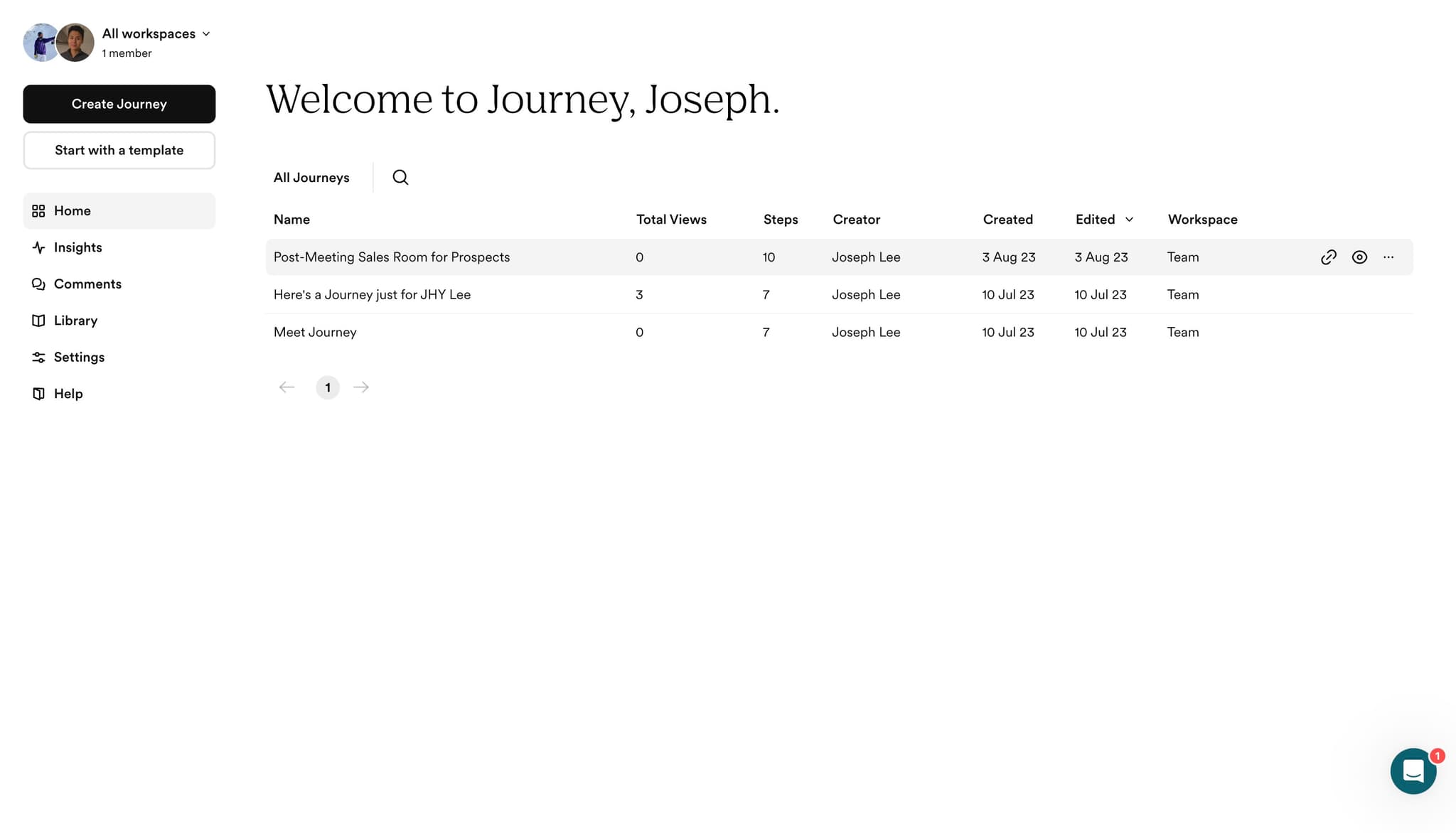
Access post-meeting settings
Click on the 'Post-Meeting Sa...' option in your Journey.io dashboard. This opens the settings panel where you can configure content to display after customer meetings.
- 2
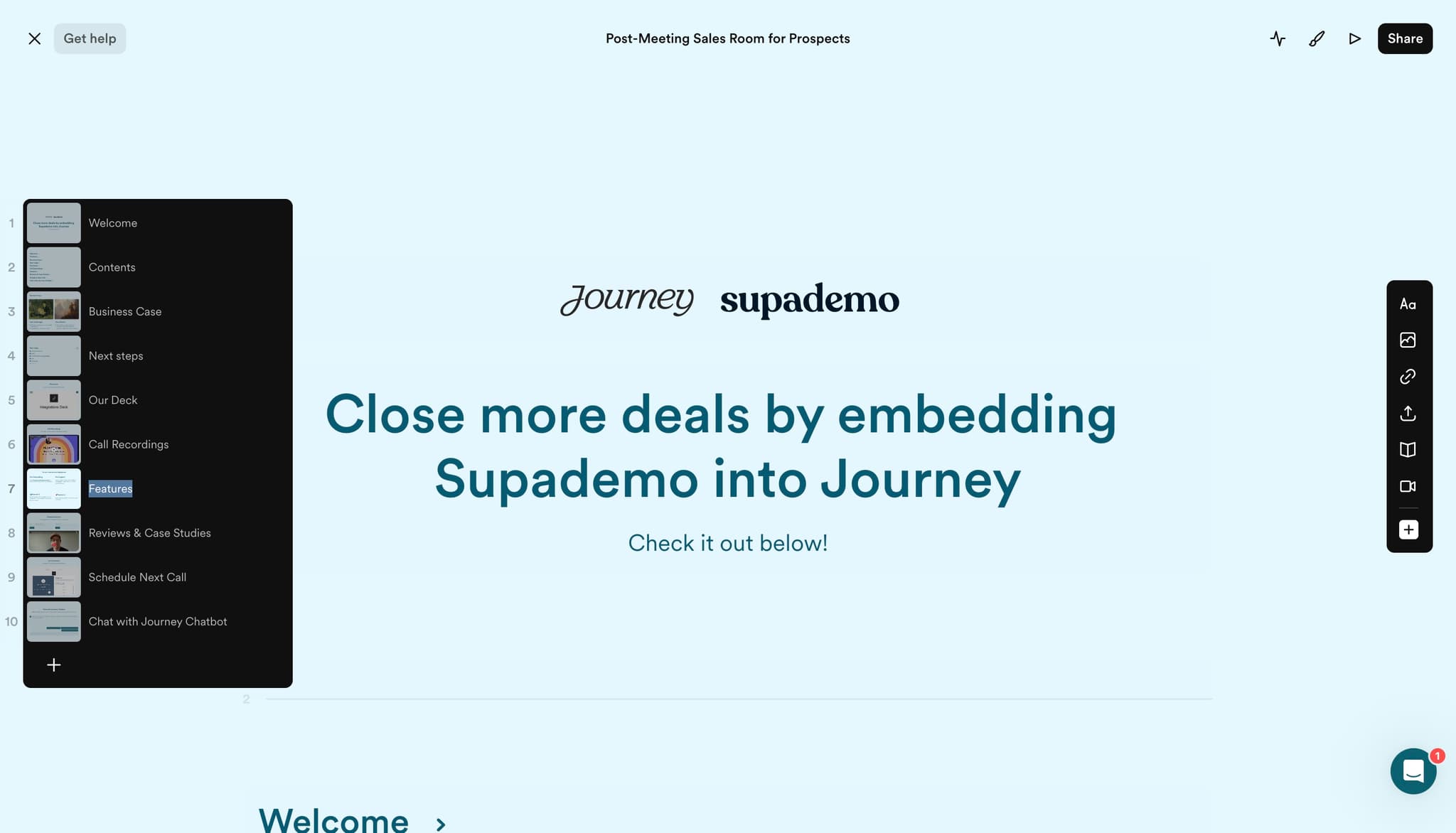
Select the interactive content option
Click on '7 Try our inter...' to access the interactive content section. This area allows you to choose what type of enriched content you want to embed in the meeting follow-up.
- 3
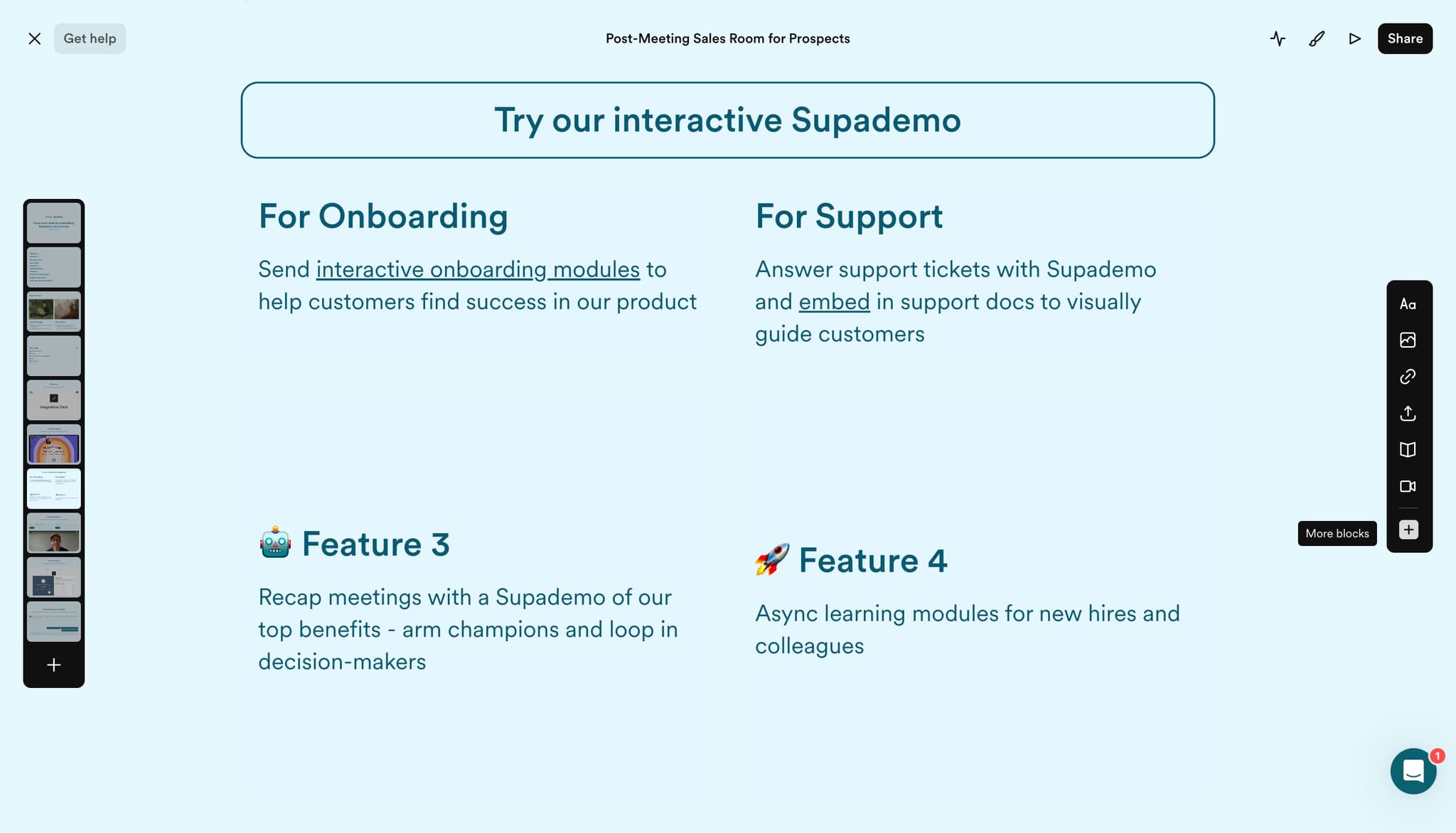
Initiate the embedding process
Click the designated button to begin setting up your embedded content. This action prepares Journey.io to accept the content you want to integrate.
- 4
Upload your demo file
Select and upload your demo file using the upload interface. Journey.io will process your file and prepare it for embedding.
- 5
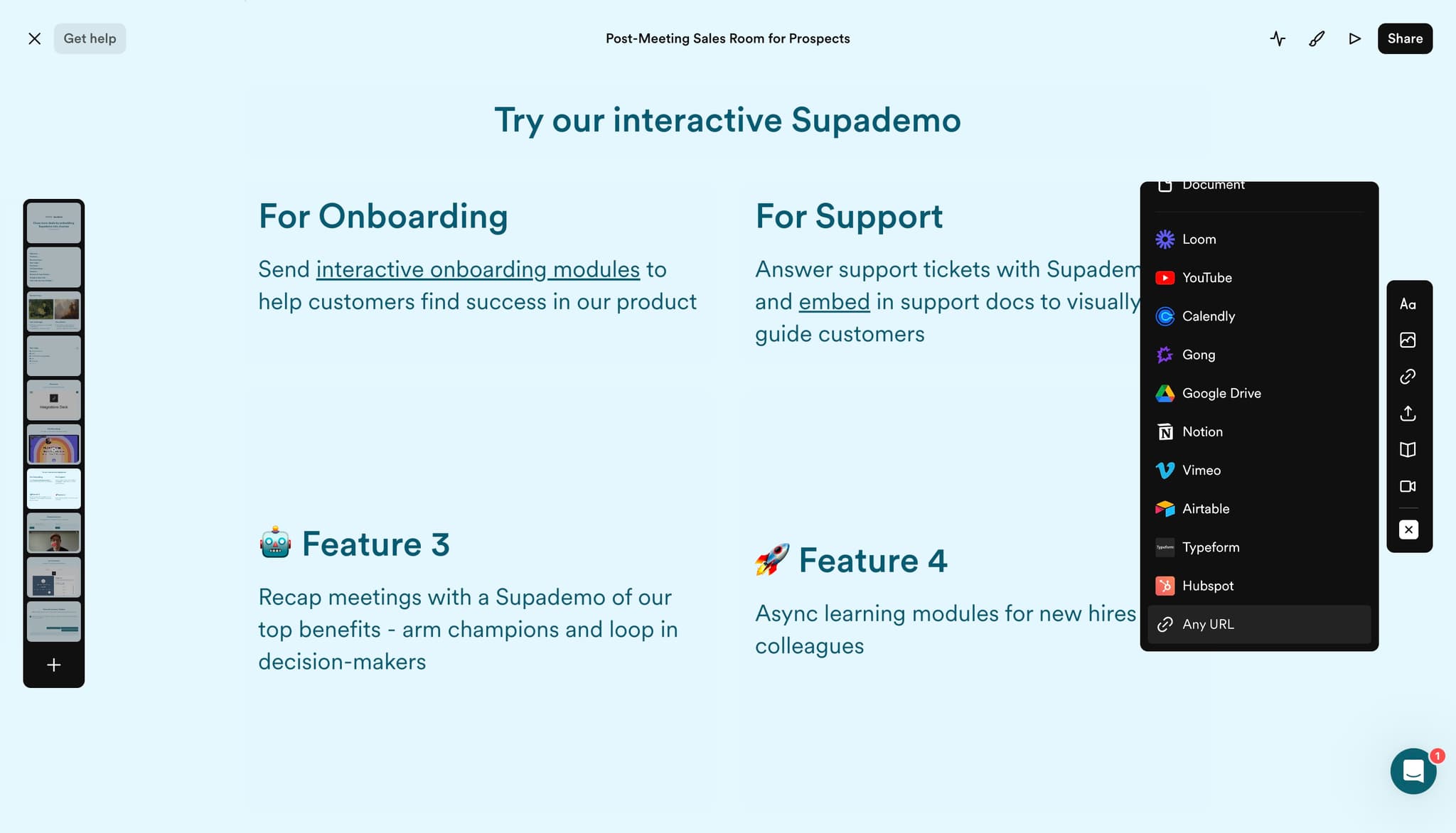
Select URL input method
Click on 'Any URL' to choose the option for providing a direct link to your demo content. This method allows you to reference external hosted content.
- 6
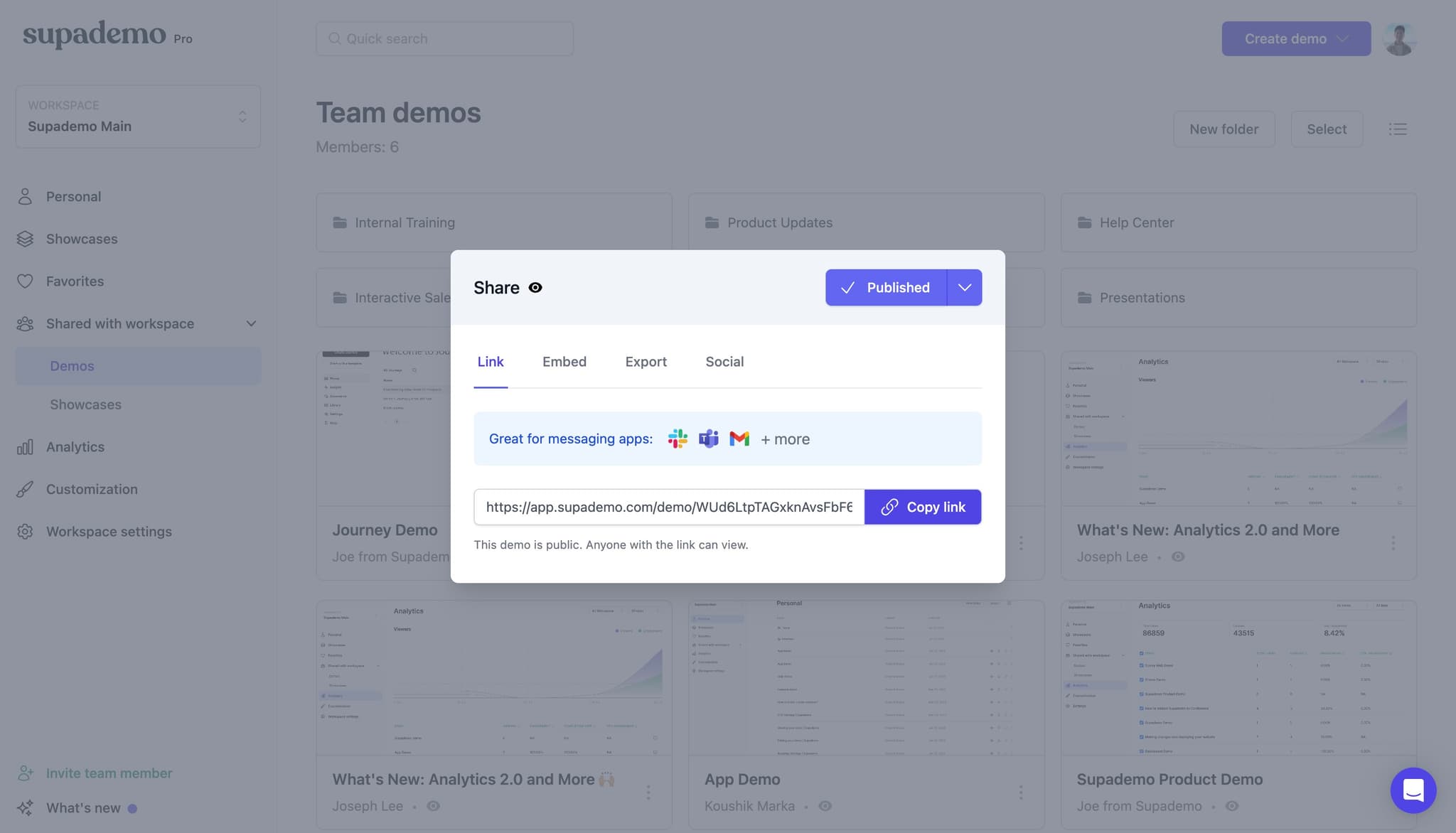
Provide your demo URL
Click in the designated field and paste the URL of your demo content. Ensure the URL is accurate and accessible from Journey.io.
- 7
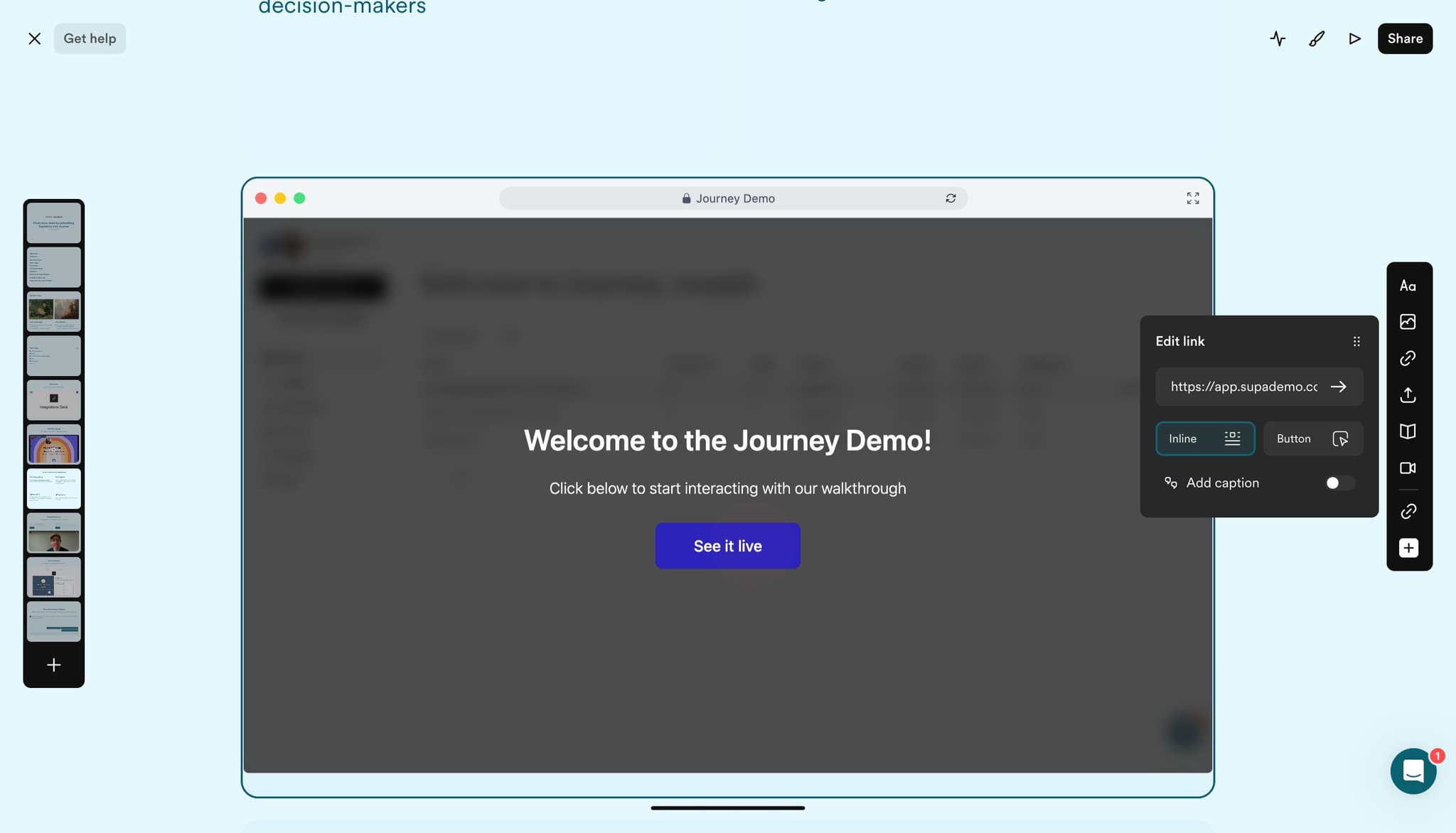
Confirm your content settings
Click on 'Welcome to the ...' to review and confirm the content you've configured. This step verifies that your demo is properly set up for embedding.
- 8
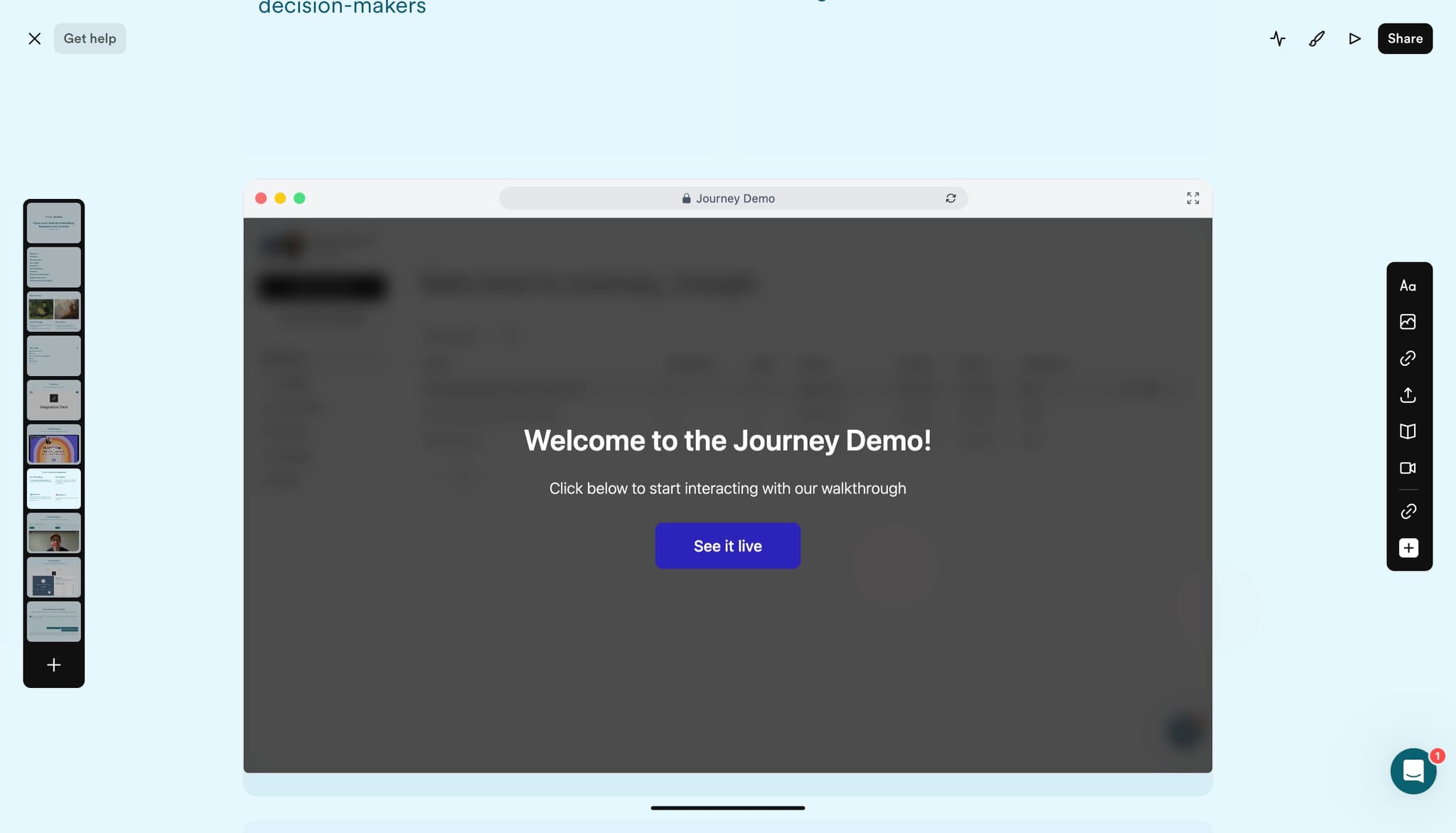
Finalize the embedding configuration
Click the confirmation button to complete the embedding setup. Your demo is now configured to appear in the specified Journey.io location.
- 9
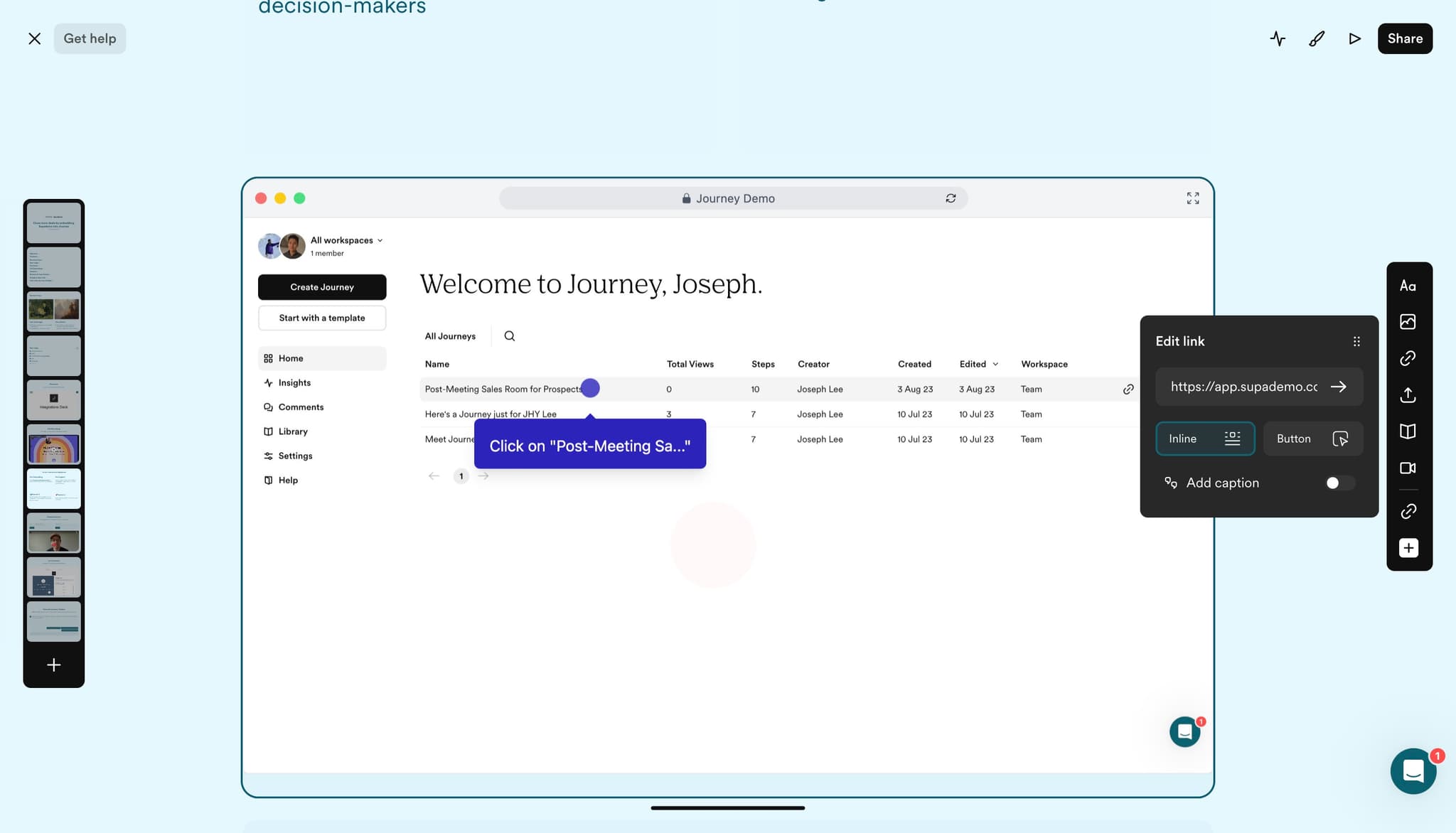
Verify the post-meeting integration
Click on the 'Post-Meeting Sa...' option once more to confirm that your embedded content appears correctly in the workflow. This ensures your demo is visible to customers after their meetings conclude.
Frequently asked questions
Common questions about how to embed supademo on journey.io.
Journey.io supports embedding various content types including video walkthroughs, product demos, and interactive guides. You can upload files directly or provide a URL link to externally hosted content. Check your Journey.io documentation for specific file format and size requirements.
Yes, Journey.io allows you to configure when embedded content displays within the customer journey. The post-meeting settings let you specify that the demo appears after customer meetings or at other key touchpoints. Consult your Journey.io settings to explore other timing options available.
First, verify that the URL is correct and accessible from a web browser outside of Journey.io. Ensure your hosting service allows embedding from third-party platforms. If issues persist, check with your demo platform's support team to confirm CORS settings and embedding permissions are properly configured.
Journey.io typically provides analytics for embedded content, allowing you to see whether customers view the demo after meetings. Review your Journey.io analytics dashboard to monitor engagement metrics and gather insights about which demos drive the most interaction.
The number of demos you can embed depends on your Journey.io plan and account configuration. Review your Journey.io subscription details or contact their support team to understand any limits that may apply to your account level.