How to Generate an Audio Overview in NotebookLM

NotebookLM's Audio Overview feature transforms your research documents into engaging audio conversations. This guide walks you through the process of generating high-quality audio summaries of your notebook sources.
Quick summary
In this tutorial, you'll learn how to access NotebookLM's Audio Overview feature, select your sources, and generate an audio discussion that synthesizes your research materials. By the end, you'll have a polished audio summary ready to share or listen to on demand.
Why this matters
Audio overviews are valuable for consuming research content while multitasking, sharing insights with colleagues who prefer listening, and quickly understanding the key points from multiple documents. This workflow saves time by automating the synthesis of complex information into conversational audio format.
Step-by-step guide
- 1
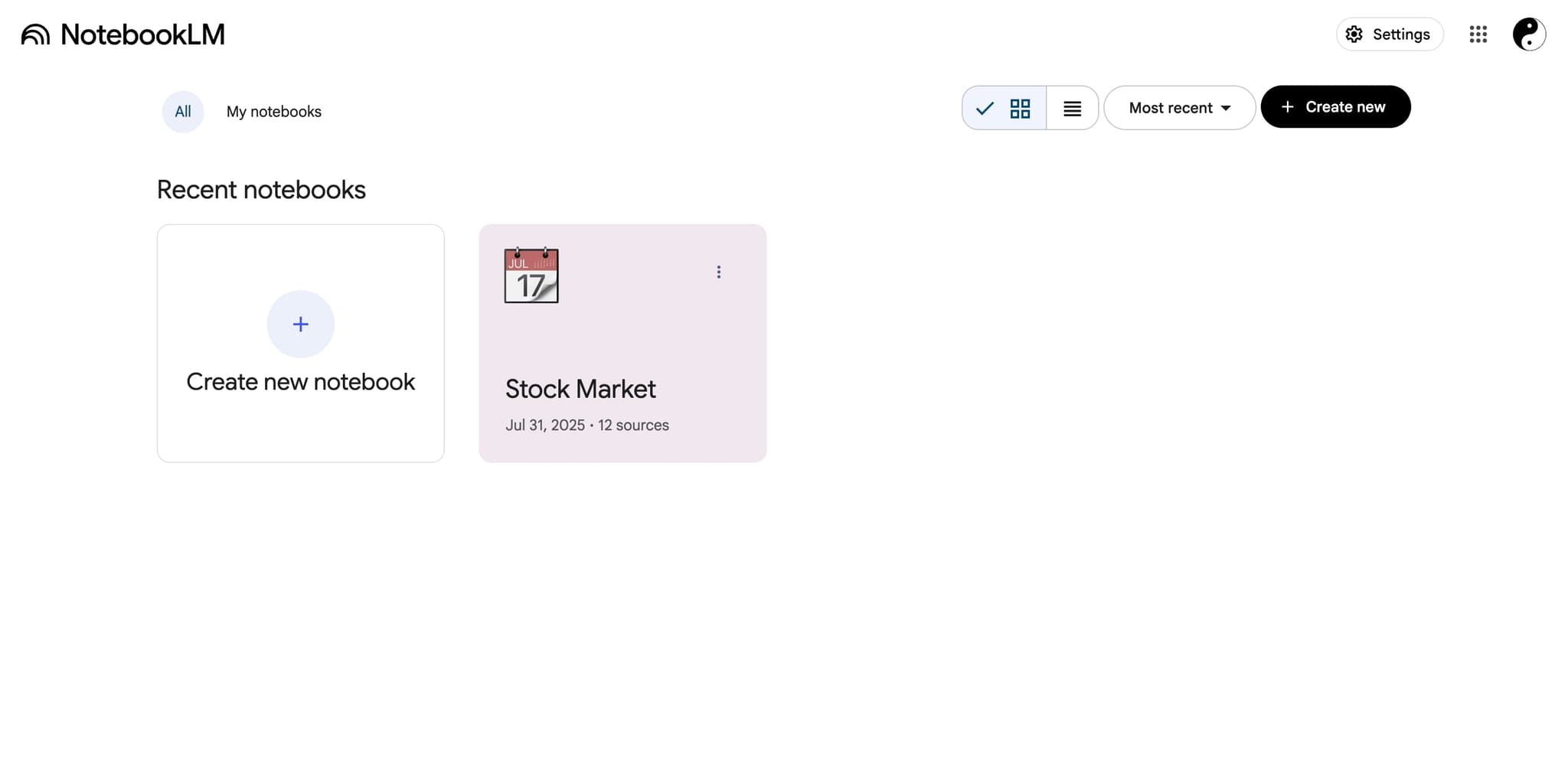
Open NotebookLM and access your notebook
Navigate to NotebookLM and select the notebook containing the sources you want to convert to audio. Ensure all relevant documents or sources are already added to your notebook.
- 2
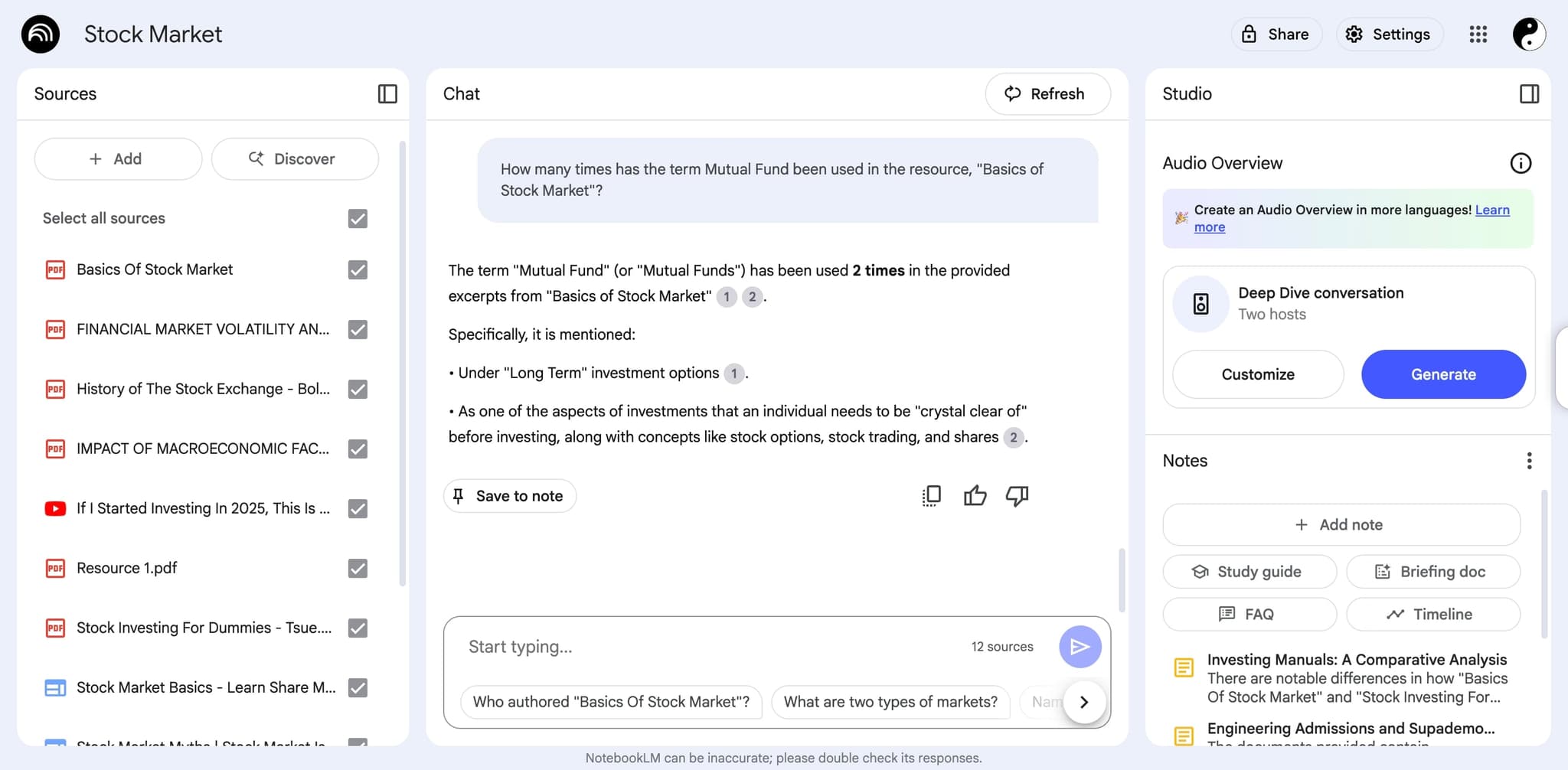
Locate the Audio Overview button
Look for the Audio Overview option in your notebook's main interface, typically found in the toolbar or menu area. This button gives you access to the audio generation features.
- 3
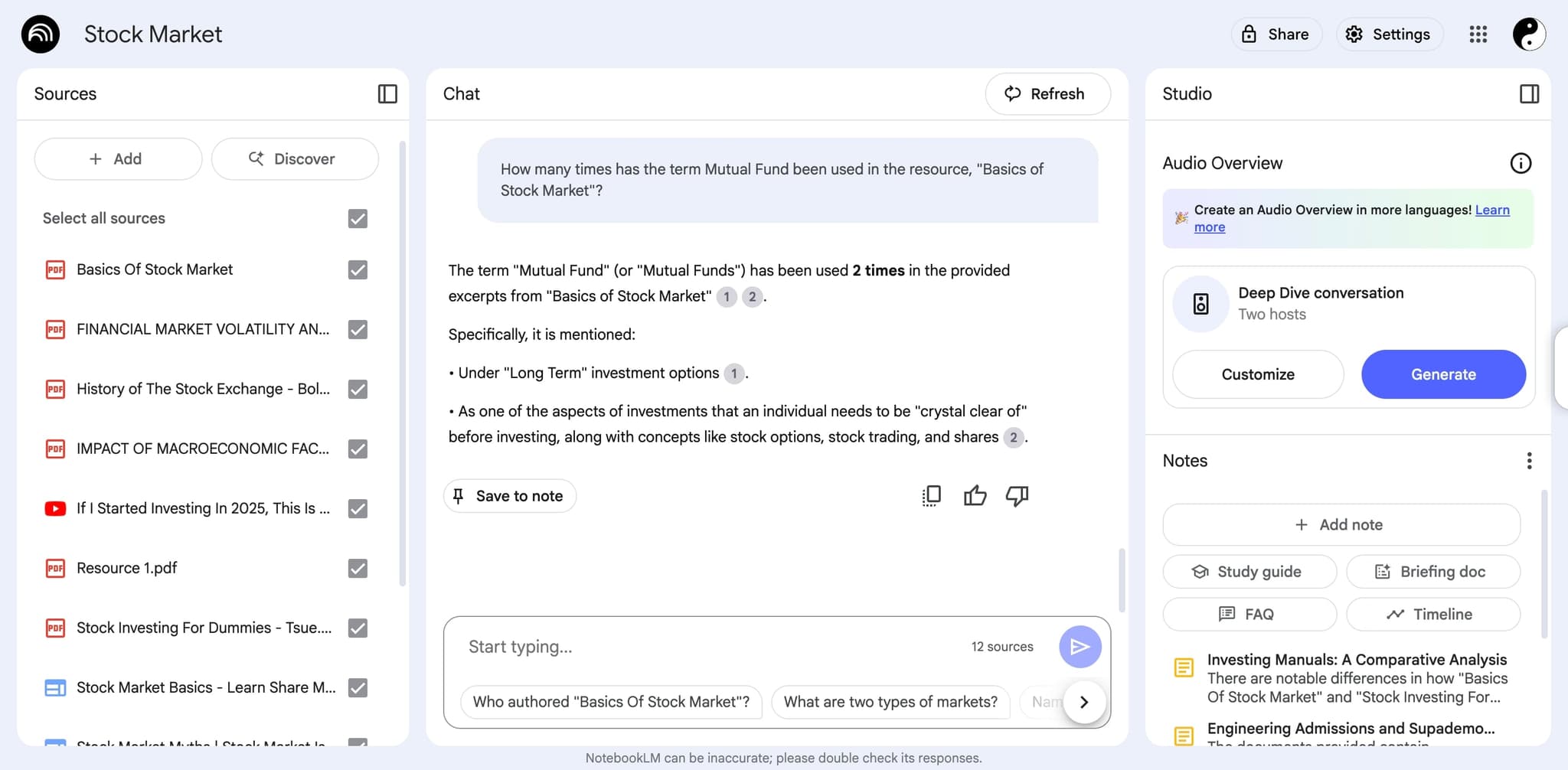
Select sources for audio generation
Choose which sources or sections from your notebook you want included in the audio overview. You can select all sources or specify particular documents to focus the audio content.
- 4
Configure audio settings
Review and adjust any available settings such as audio length, tone, or focus areas. These options let you customize how NotebookLM will structure and present the audio conversation.
- 5
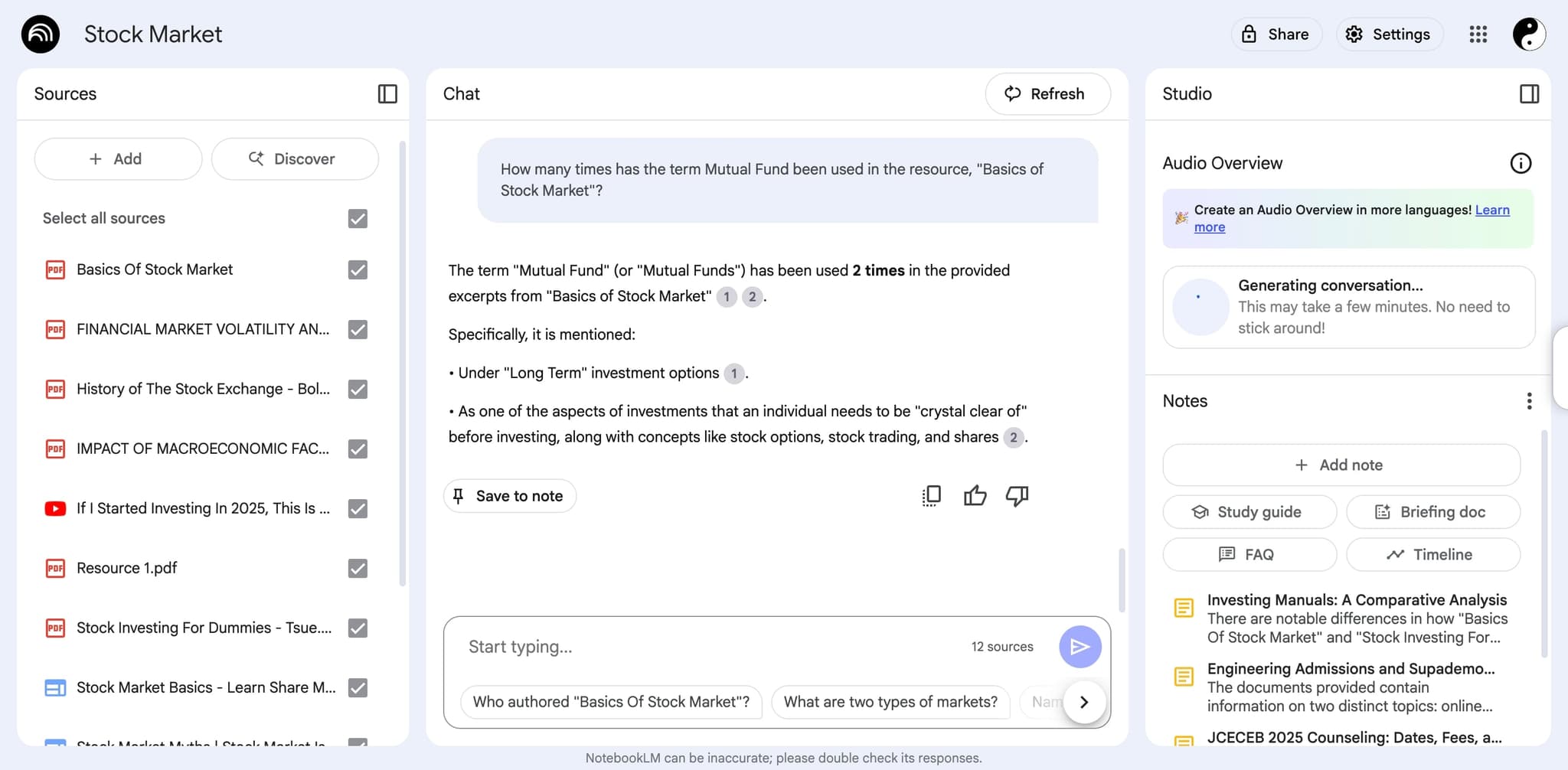
Generate the audio overview
Click the Generate button to start processing your sources into audio format. NotebookLM will create a dynamic audio discussion synthesizing your research materials.
- 6
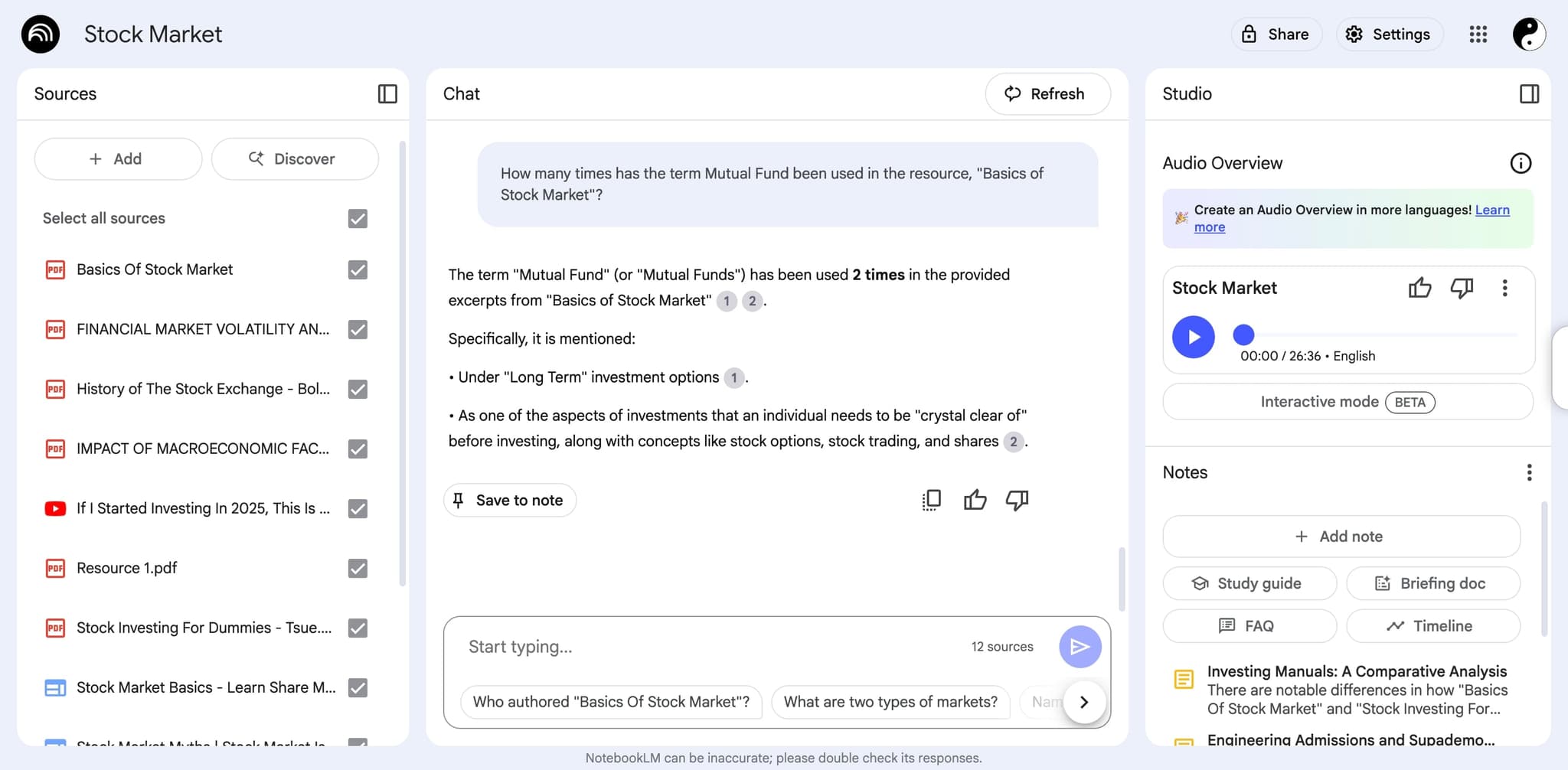
Preview and listen to the audio
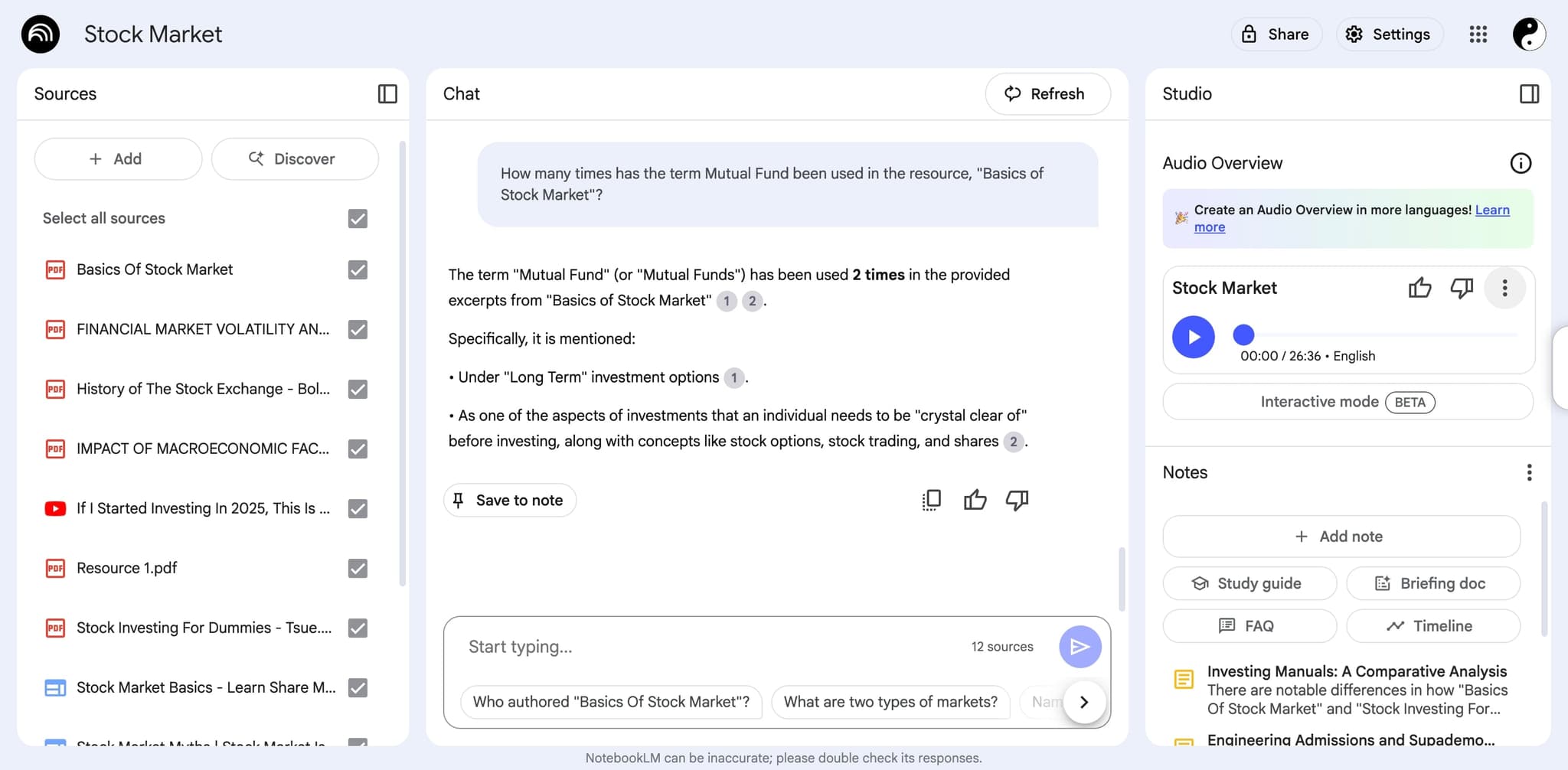
Once generation completes, listen to the audio overview to verify it covers your key points accurately. The playback interface allows you to pause, adjust speed, and review the content.
- 7
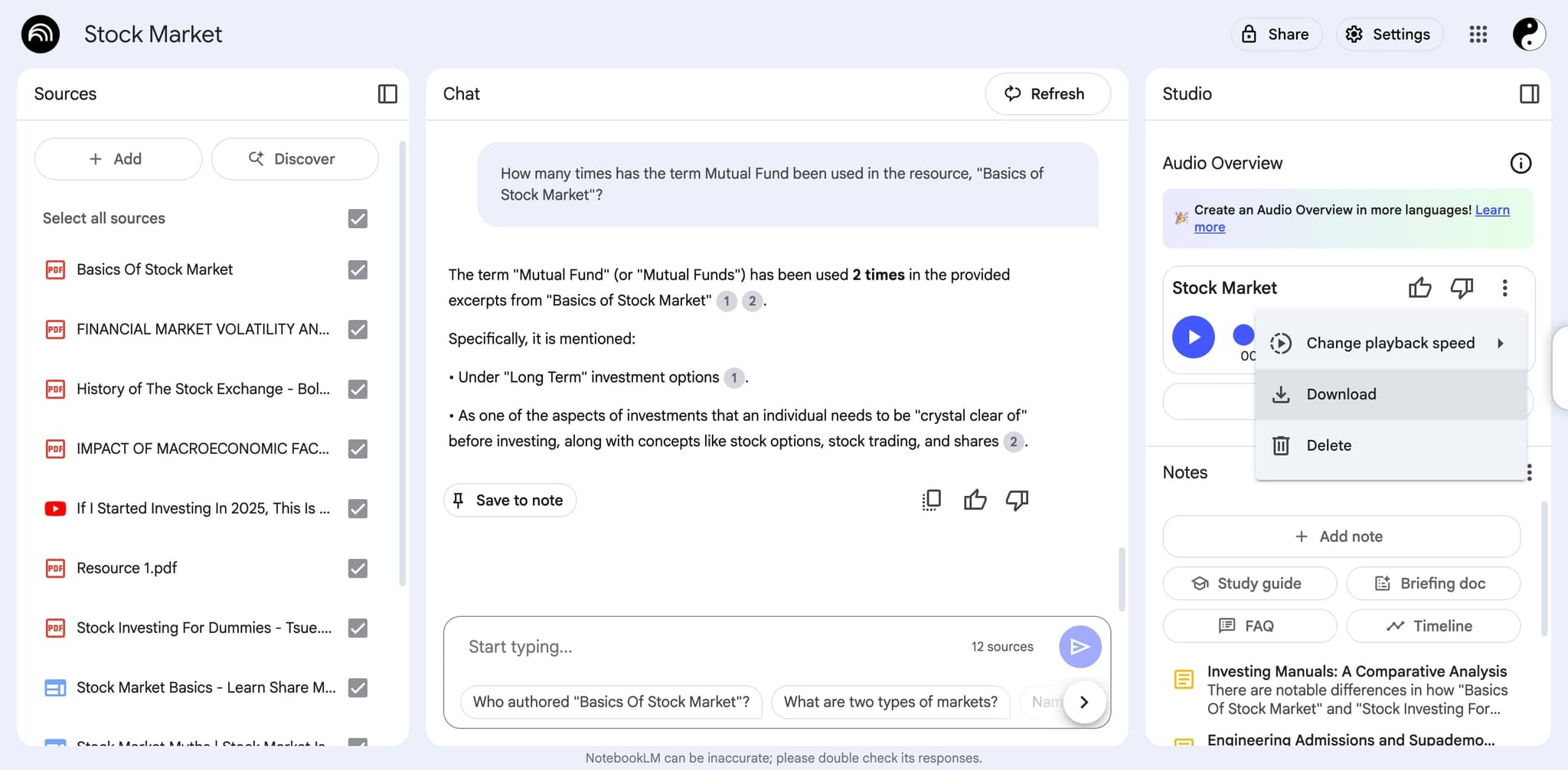
Download or share your audio
Export the audio file to your device or share it directly with colleagues using the sharing options. Your audio overview is now ready for distribution or personal reference.
Frequently asked questions
Common questions about how to generate an audio overview in notebooklm.
Generation time depends on the size and complexity of your sources, typically ranging from a few seconds to a few minutes. NotebookLM will display a progress indicator while processing your audio overview.
NotebookLM's audio overviews are generated synthetically and cannot be edited directly. If you need changes, you can regenerate the overview with different source selections or settings.
NotebookLM typically supports common audio formats like MP3. Check the export options in your notebook to see all available download formats for your audio overview.
NotebookLM can process multiple sources, though very large amounts of content may affect audio generation time. For optimal results, focus your sources on the most relevant materials.
Yes, you can generate multiple audio overviews from the same sources with different configurations. This allows you to experiment with various settings to find the format that works best for your needs.