How to Change the Font in Notion

Changing fonts in Notion allows you to customize the appearance of your workspace and make your content more visually distinct. Whether you want to emphasize headings, adjust body text, or create a unique aesthetic, Notion's font options give you control over typography. This guide walks you through the process step by step.
Quick summary
In this tutorial, you'll learn how to change fonts in Notion by selecting text elements and accessing the font menu. You'll discover where the typography controls are located and how to apply different font styles to your content. By the end, you'll be able to customize fonts throughout your Notion workspace.
Why this matters
Customizing fonts in Notion improves readability, visual hierarchy, and overall design consistency across your pages. Clear typography helps readers navigate your content and makes important information stand out. Mastering font changes enables you to create professional-looking databases, wikis, and documentation.
Step-by-step guide
- 1
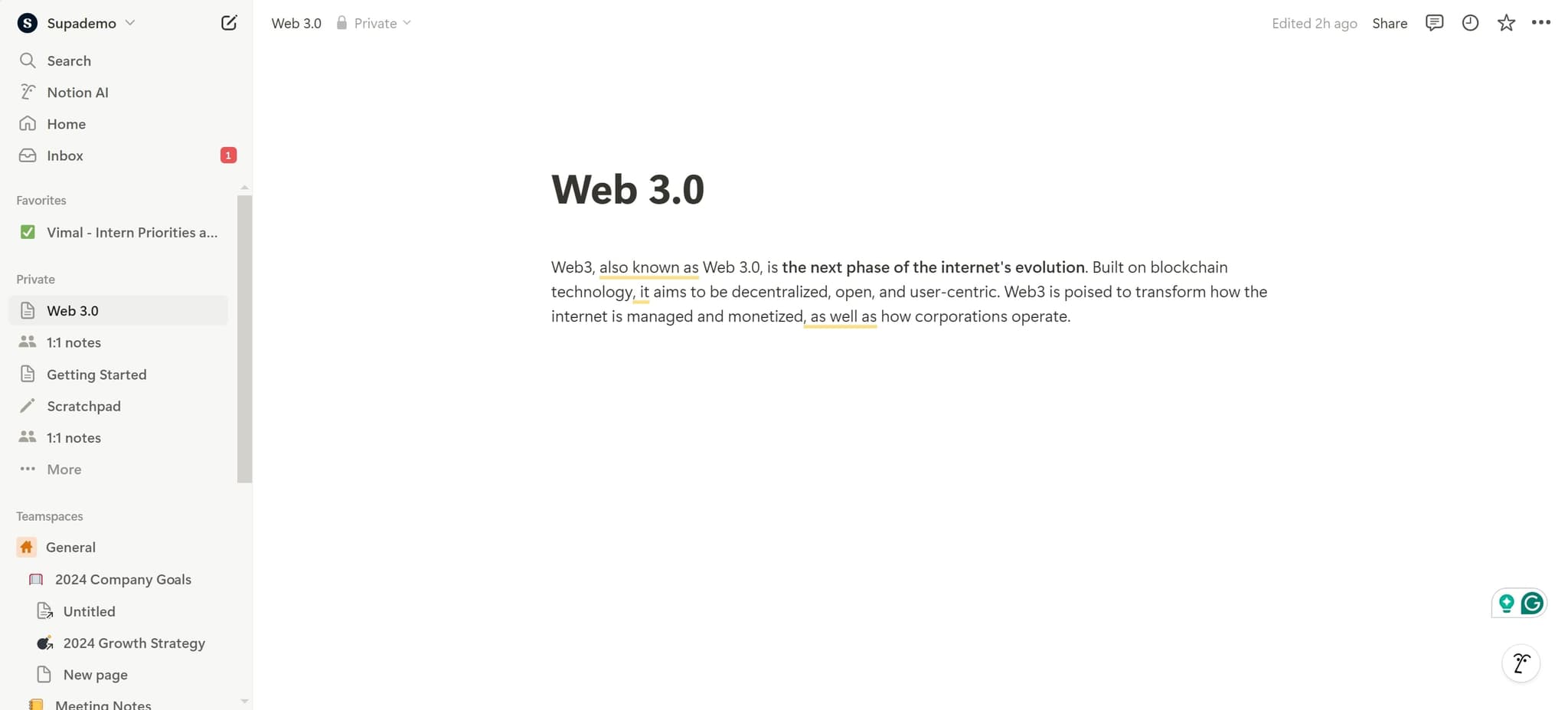
Click on the text element
Select the text or content block you want to modify by clicking on it directly. This highlights the element and prepares it for editing.
- 2
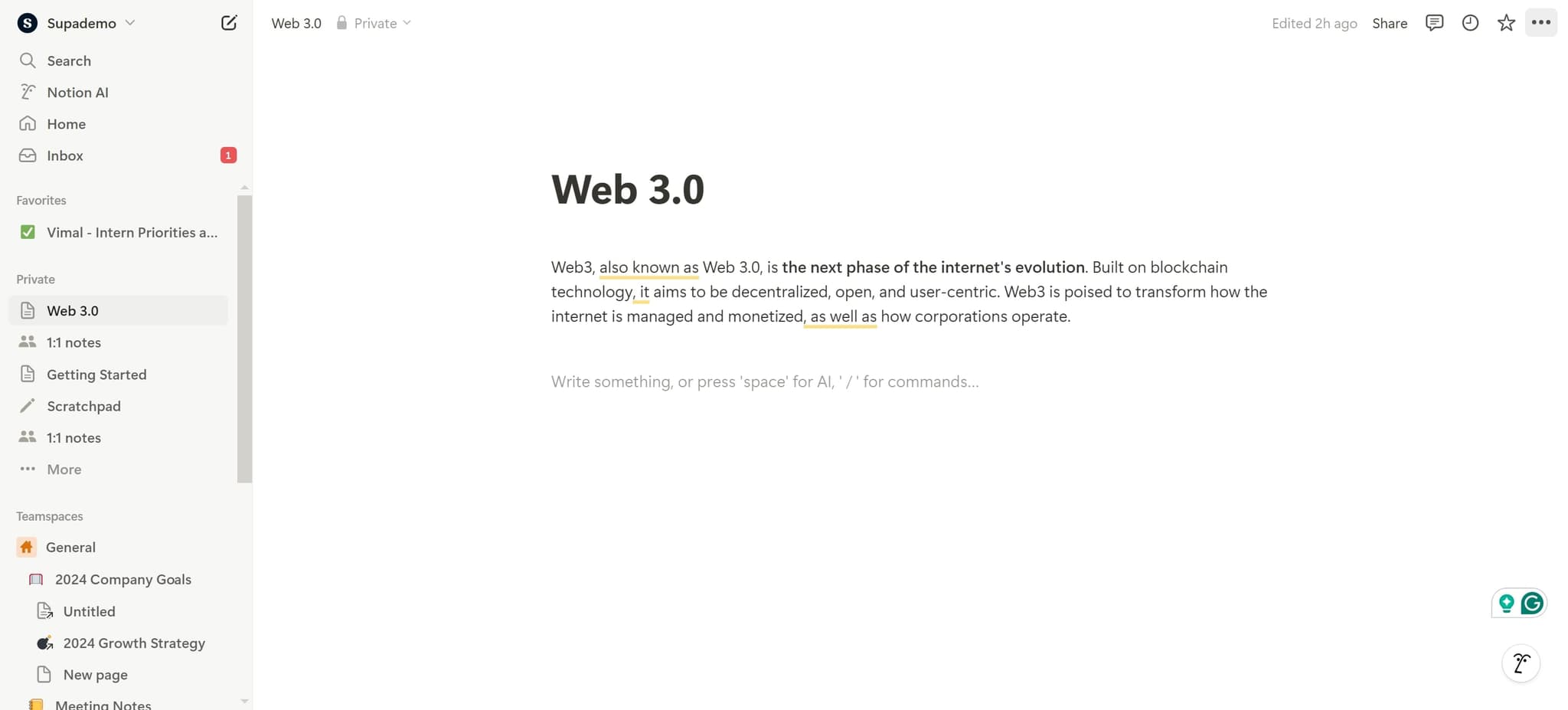
Access the formatting menu
Click on the relevant menu option that appears after selecting your element. This opens the formatting toolbar where additional options become available.
- 3
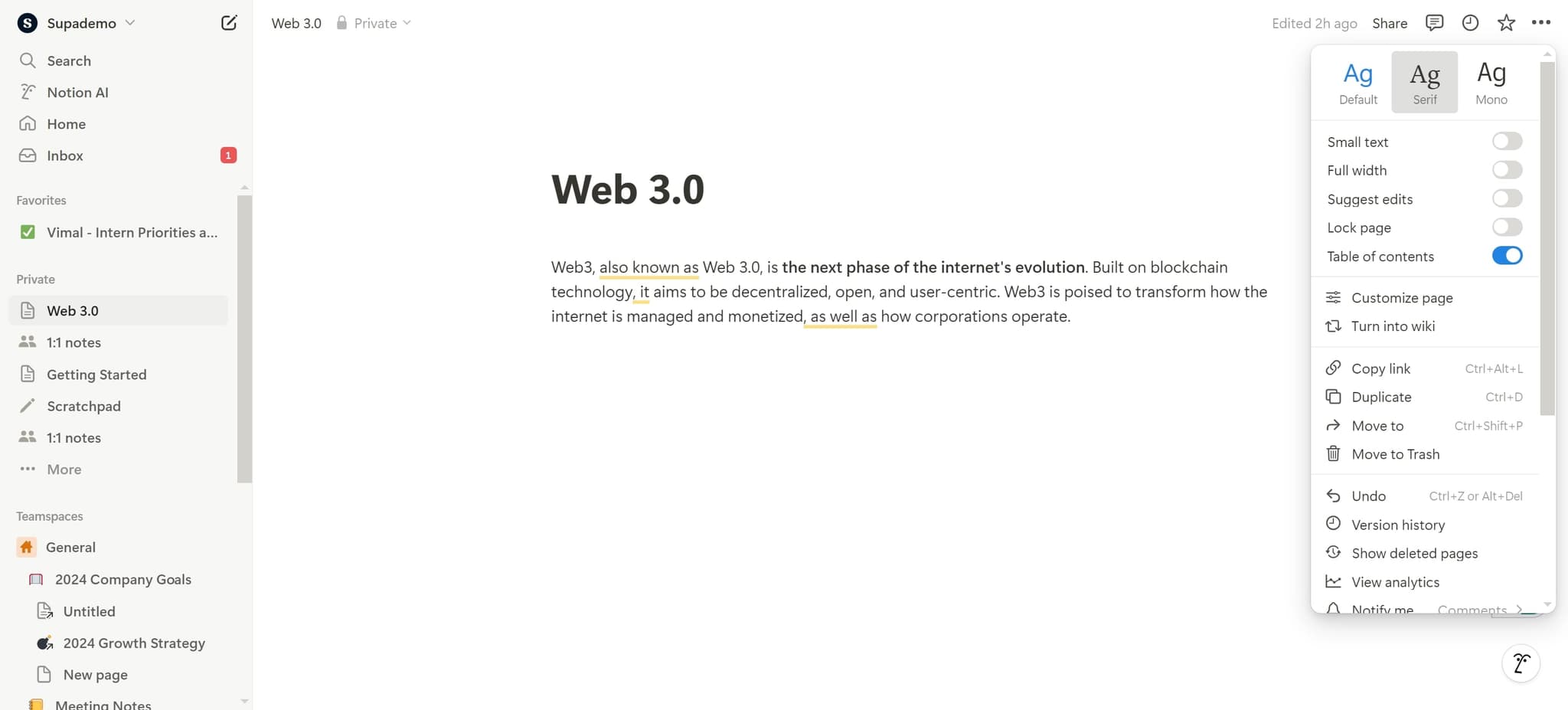
Select the font controls
Click on the "Ag" icon to open the font and typography settings. This button represents text formatting and gives you access to all available font options.
- 4
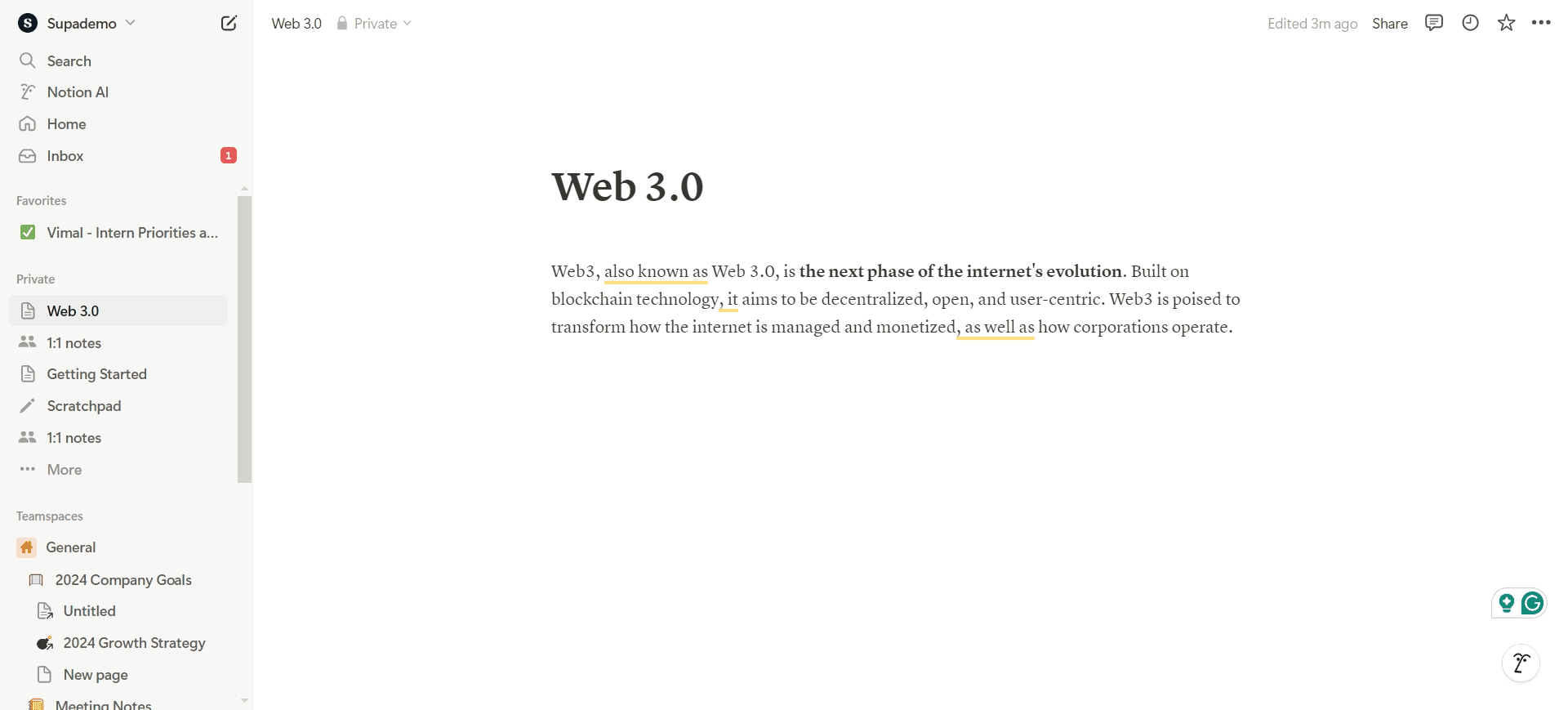
Choose your desired font
Browse through the available font options and select the one that matches your preferences. The font will be applied immediately to your selected text.
Frequently asked questions
Common questions about how to change the font in notion.
You can select all content on a page using keyboard shortcuts (Ctrl+A or Cmd+A) and then apply font changes to the entire selection. Alternatively, you can set default fonts for specific content types like headings or body text through Notion's settings. However, changing individual elements gives you more granular control over your design.
Notion offers a variety of fonts including serif, sans-serif, and monospace options. The available fonts include classics like Segoe UI, Helvetica, Georgia, and Courier New. You can preview how each font looks before applying it to your content.
Notion provides a curated selection of fonts, but you cannot upload or import completely custom fonts. You're limited to the font library Notion offers, though this includes popular options suitable for most use cases. For unique branding, you might consider using text formatting and sizing to differentiate your content.
Yes, font changes in Notion are saved to your workspace and sync automatically across all devices where you access your Notion account. Whether you're on desktop, mobile, or web, your font selections will remain consistent. This ensures your workspace maintains a unified appearance everywhere.
You can use the undo function (Ctrl+Z or Cmd+Z) immediately after making unwanted changes to revert your font selection. If you need to restore previous formatting later, you can manually reselect the text and choose a different font. Notion also keeps a version history for most pages if you need to recover earlier versions.