How to embed Spotify on Notion

Embedding Spotify content directly into your Notion workspace enriches your notes and databases with music, podcasts, and shows. This integration lets you reference audio content without leaving Notion, creating a seamless workspace for media-rich documentation.
Quick summary
In this tutorial, you'll learn how to find a Spotify podcast episode, copy its embed link, and paste it into a Notion page using Notion's native embed feature. By the end, you'll be able to add any Spotify content to your Notion workspace in just a few clicks.
Why this matters
Embedding Spotify in Notion is particularly useful for researchers, students, and content creators who want to keep audio references organized alongside their notes. This workflow eliminates the need to switch between apps and keeps your entire knowledge base in one centralized location.
Step-by-step guide
- 1
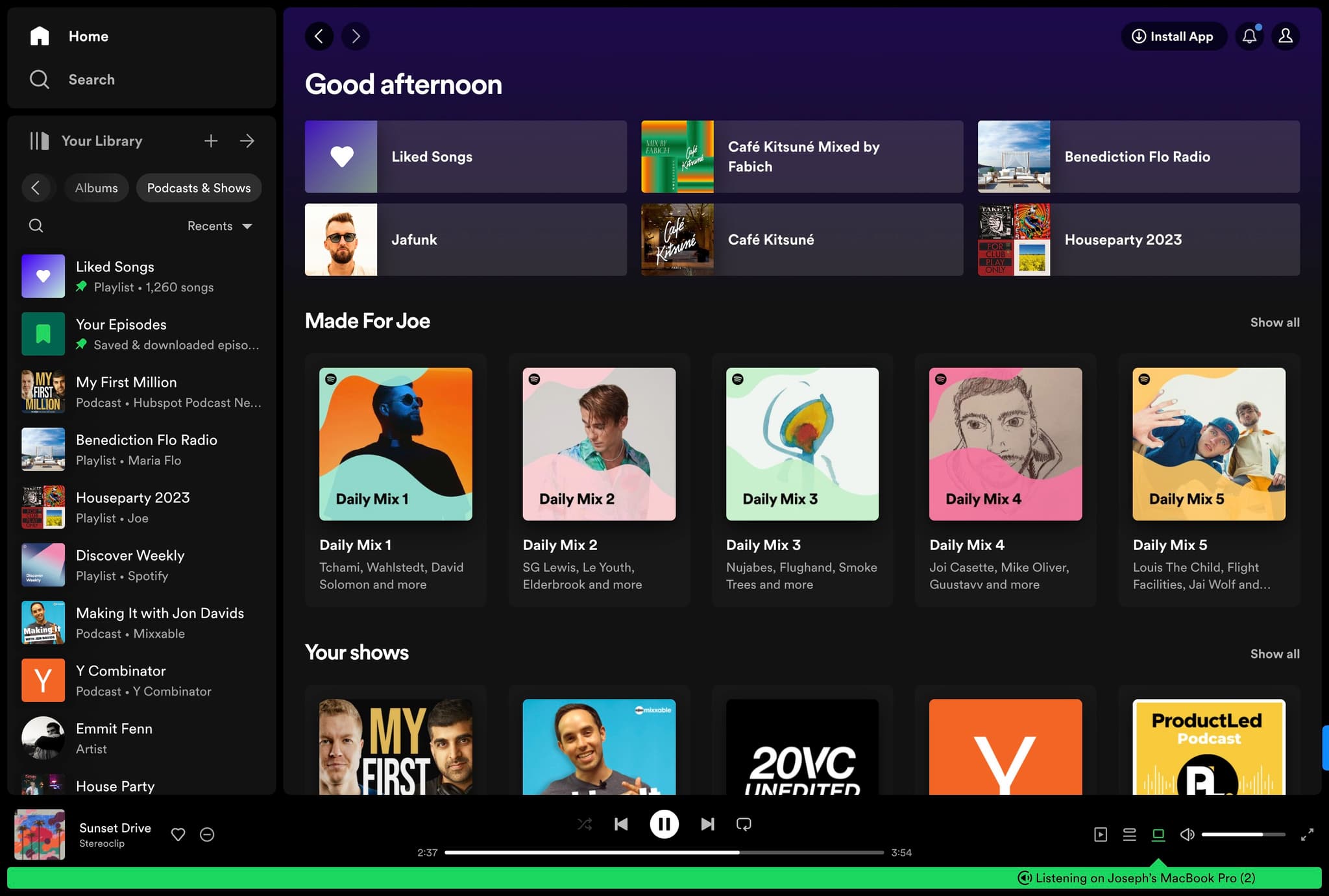
Navigate to Podcasts & Shows
Open Spotify and click on the "Podcasts & Shows" section to browse available content. This is where you'll find the podcast or show you want to embed into Notion.
- 2
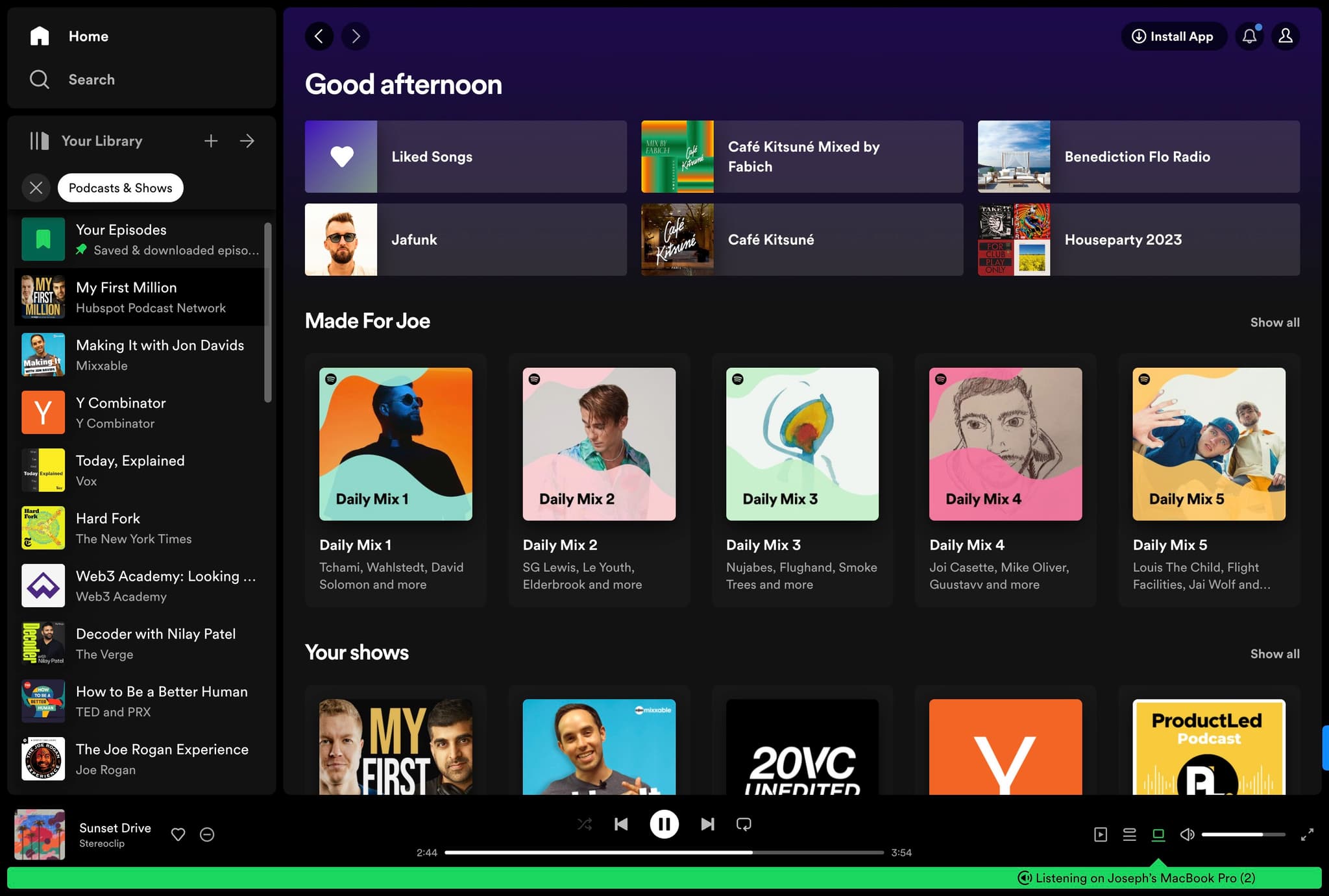
Select your podcast source
Click on the designated area to proceed to the next step in locating your desired content. This will help you navigate to specific podcasts or shows.
- 3
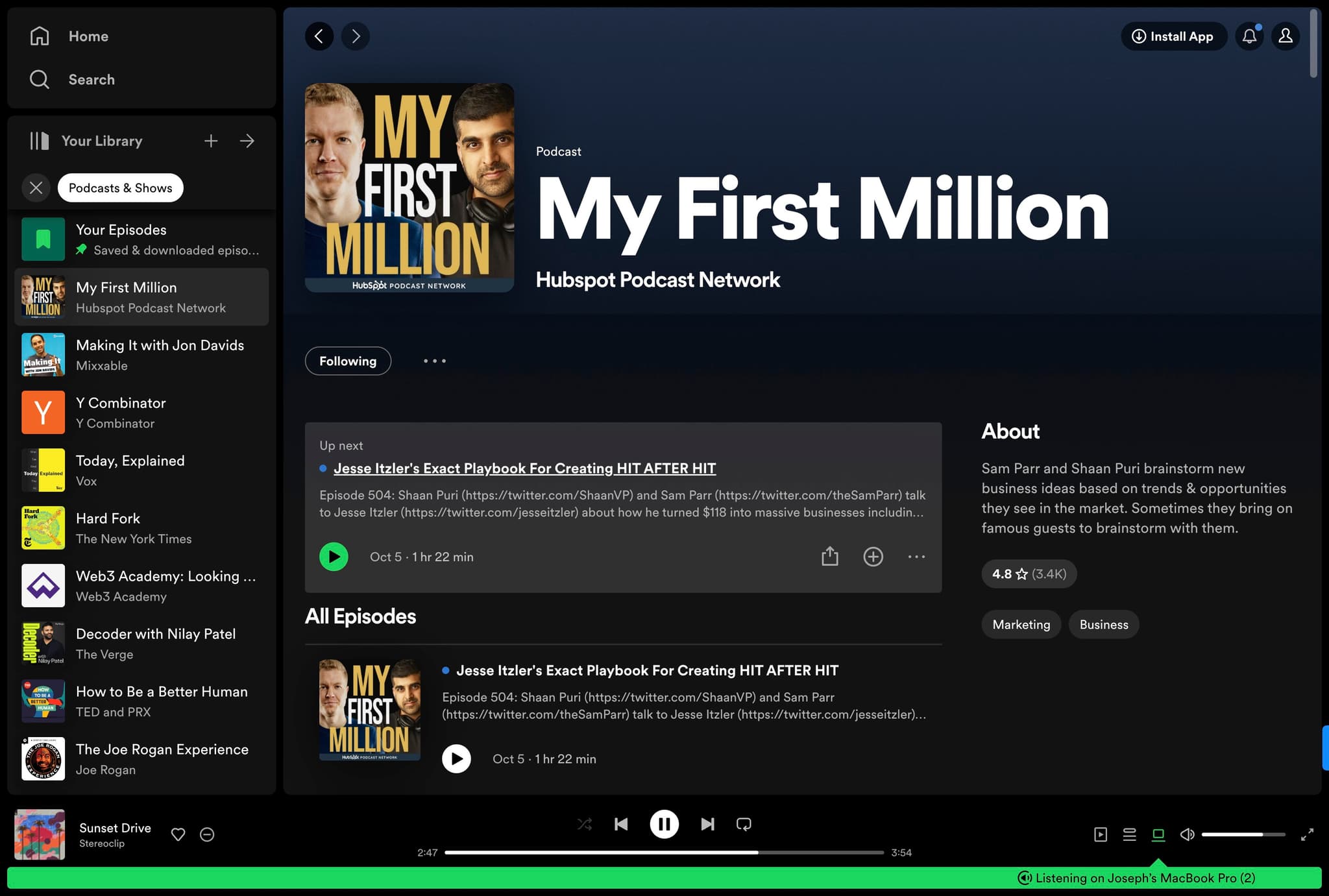
Choose a specific episode
Click on the episode you want to embed, such as "Jesse Itzler's..." or any episode title that interests you. This selects the exact audio content you'll embed.
- 4
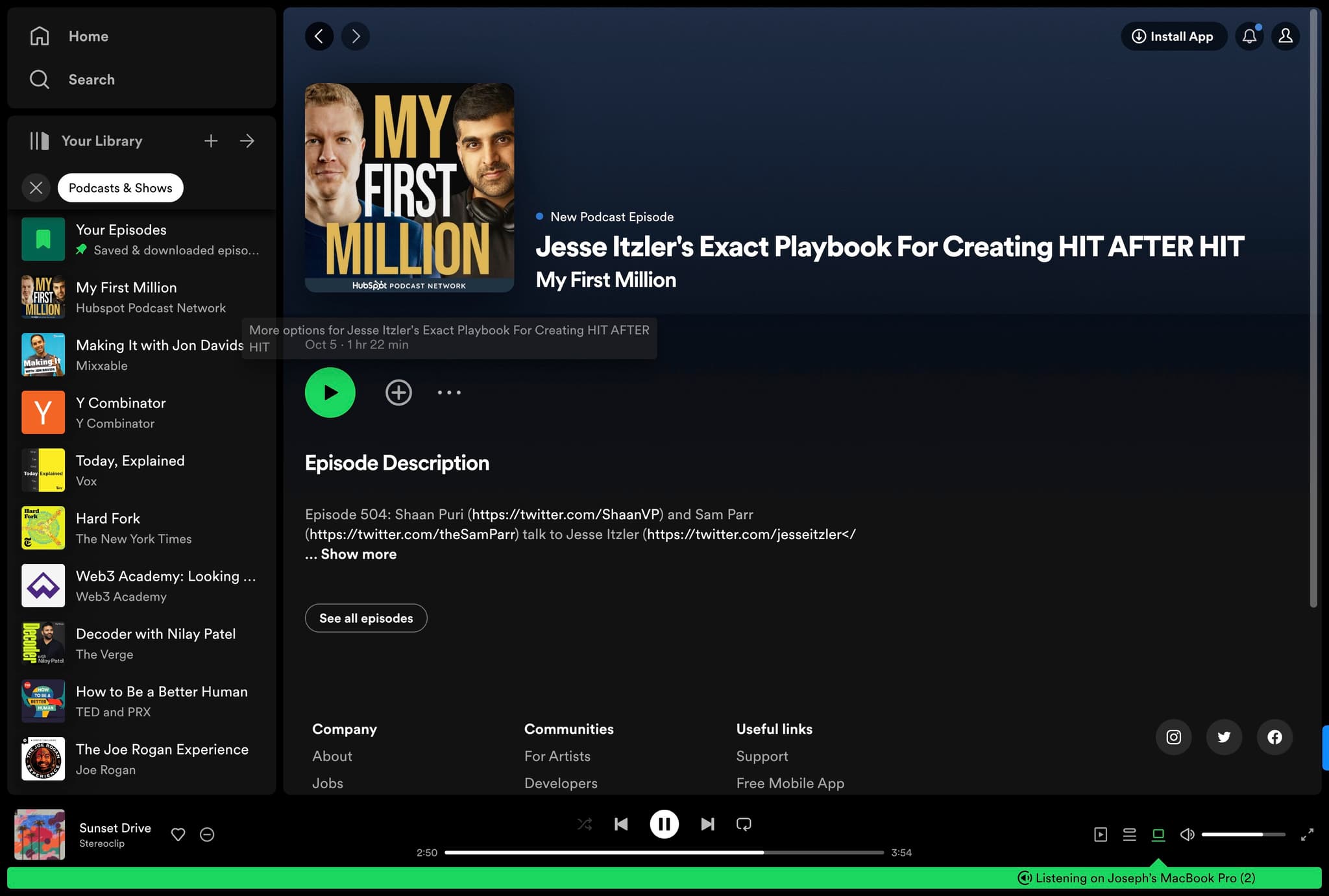
Access the episode details
Click the designated button to view full episode information and access embedding options. You're now one step away from getting the embed link.
- 5
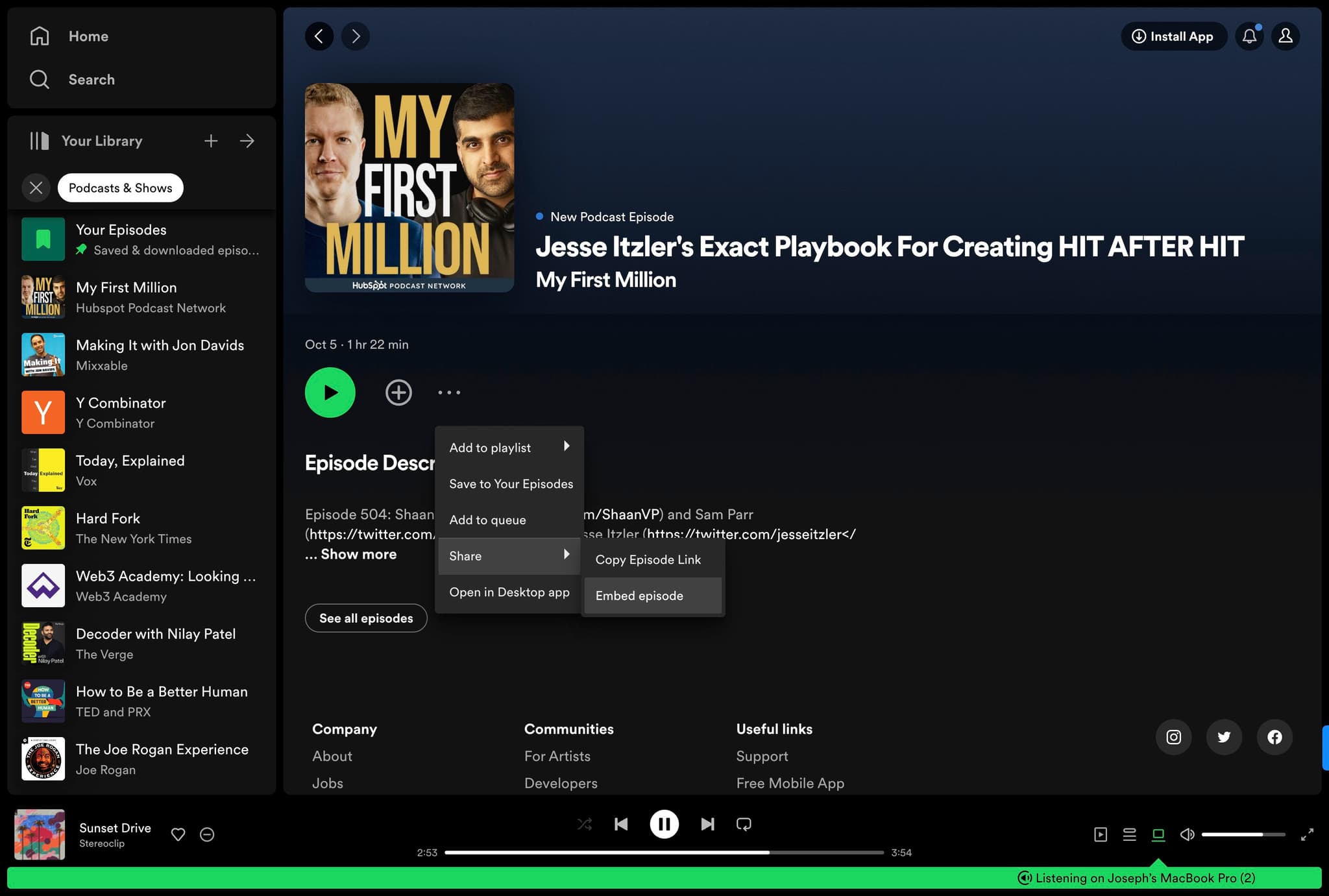
Select Embed Episode option
Click on "Embed episode" to generate the embed code or link for this specific episode. Spotify will prepare the content for sharing.
- 6
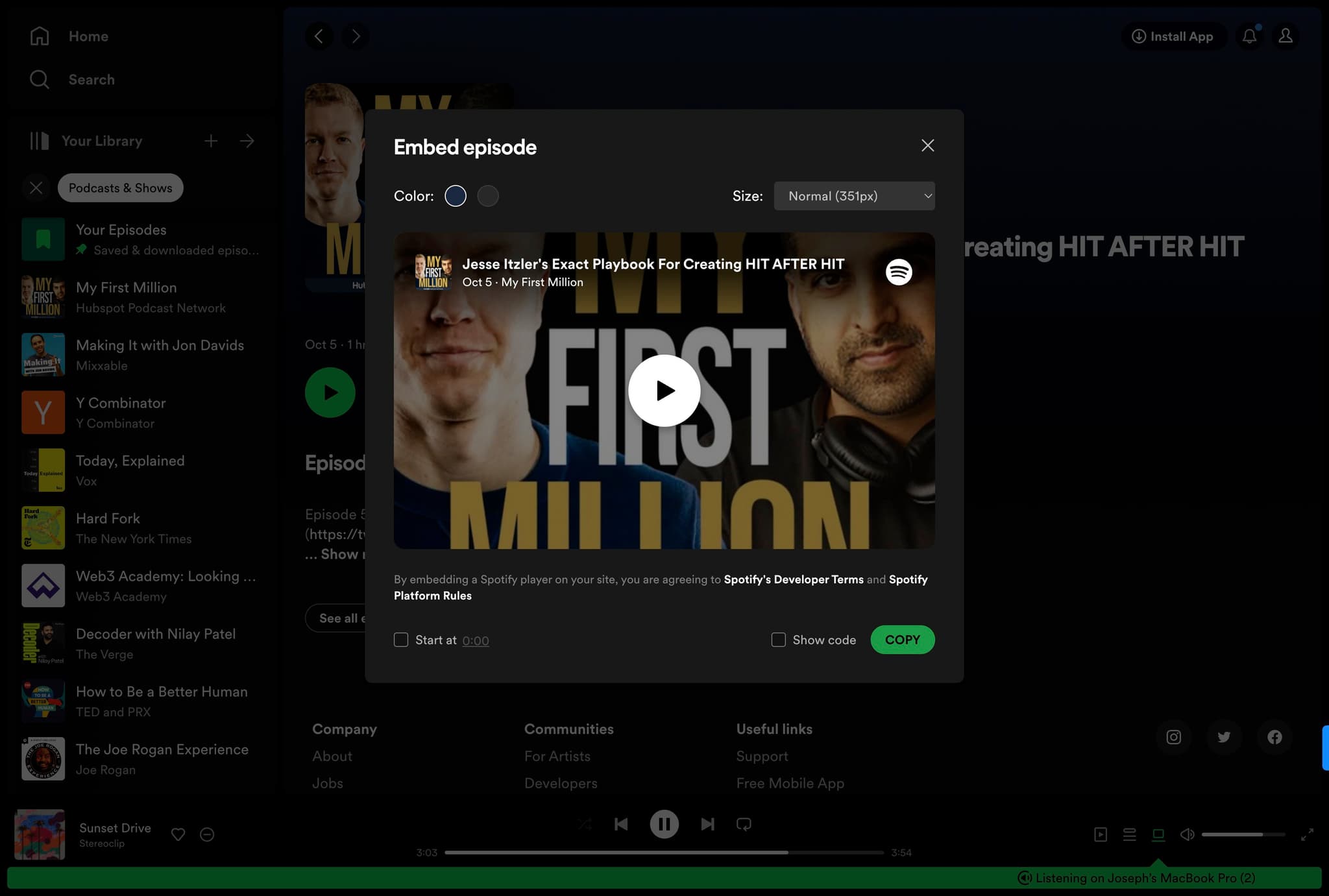
Copy the embed link
Click on "COPY" to copy the Spotify embed link to your clipboard. This link is what you'll paste into Notion.
- 7
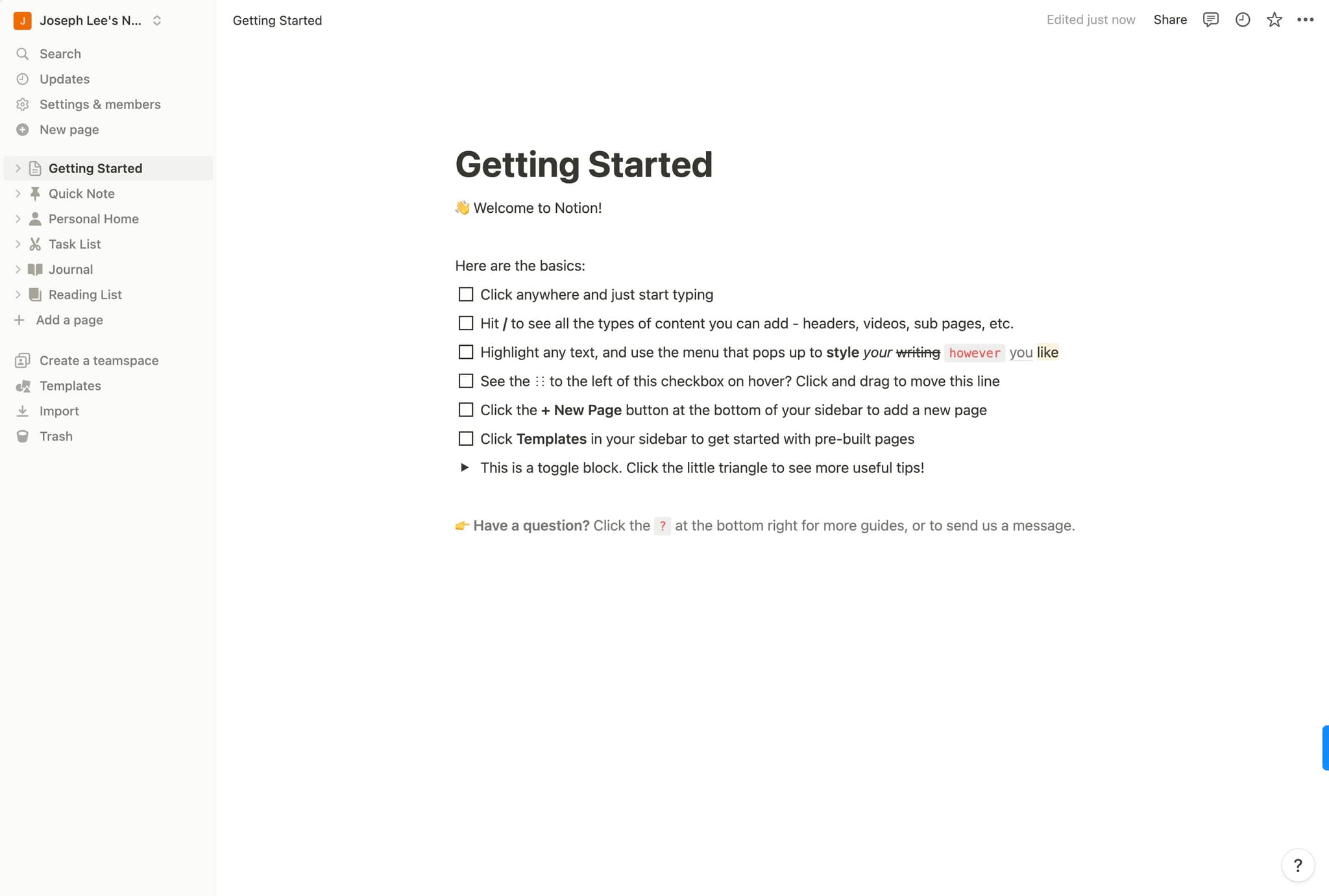
Open your Notion page
Click on the "👋 Welcome to N..." page or any Notion page where you want to add the Spotify embed. Make sure you have edit permissions on this page.
- 8
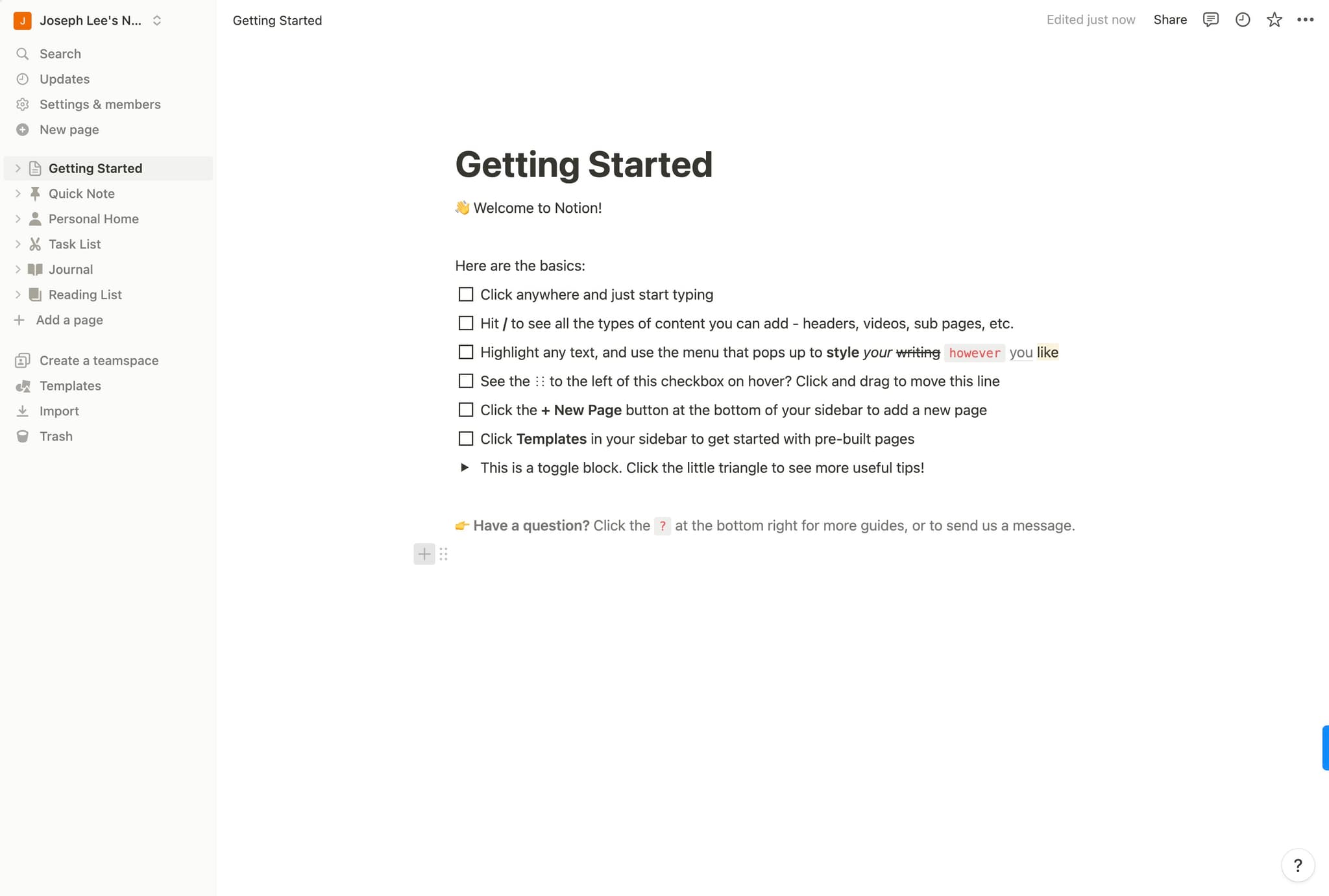
Position your cursor for embedding
Click at the location in your Notion page where you want the embed to appear. This determines where the Spotify player will display.
- 9
Initiate the embed function
Click on "Embed" from Notion's content menu or block options. This opens the embed dialog where you'll paste your Spotify link.
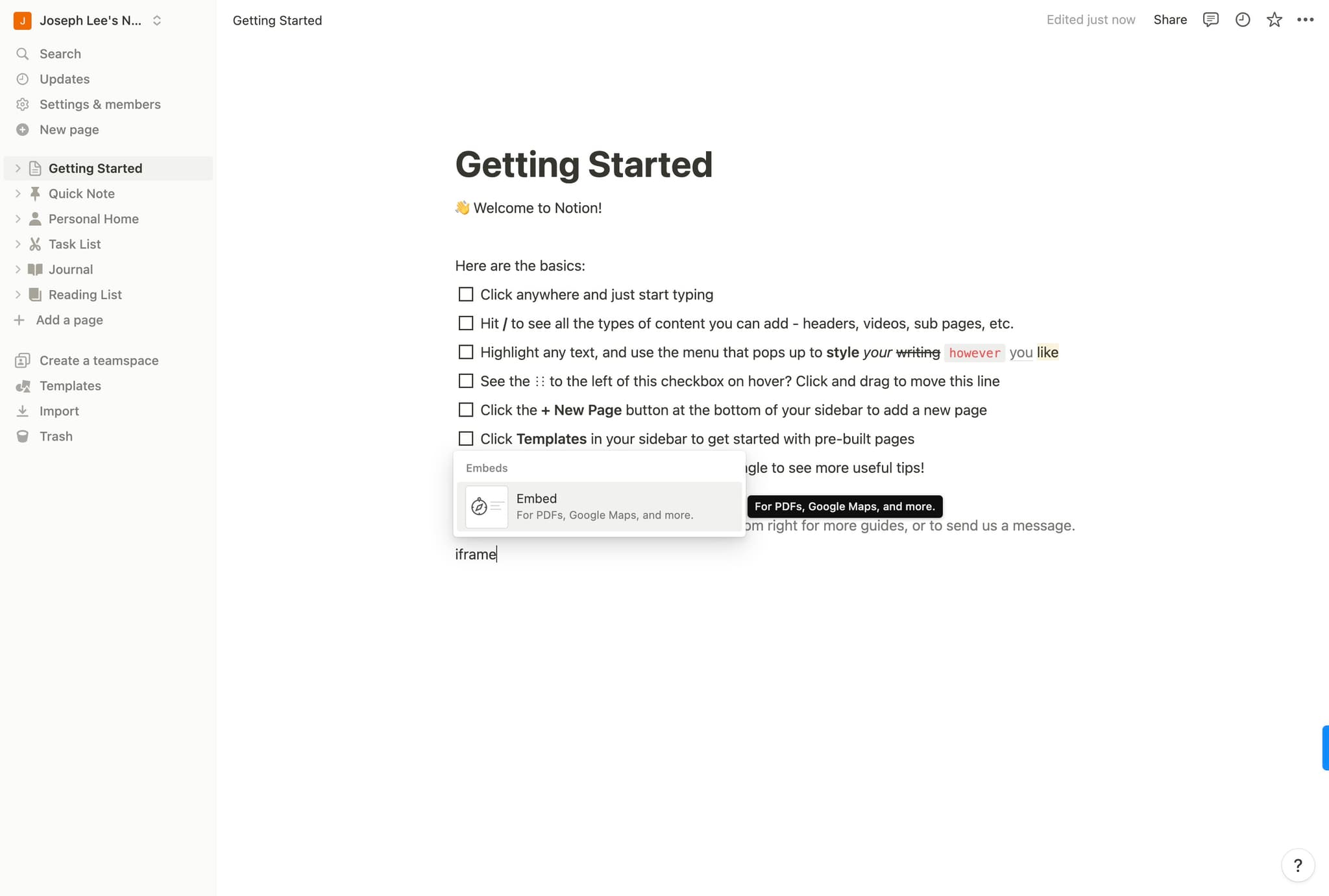
- 10
Confirm embed action
Click the designated button to proceed with embedding. Notion will now prepare to accept your Spotify link.
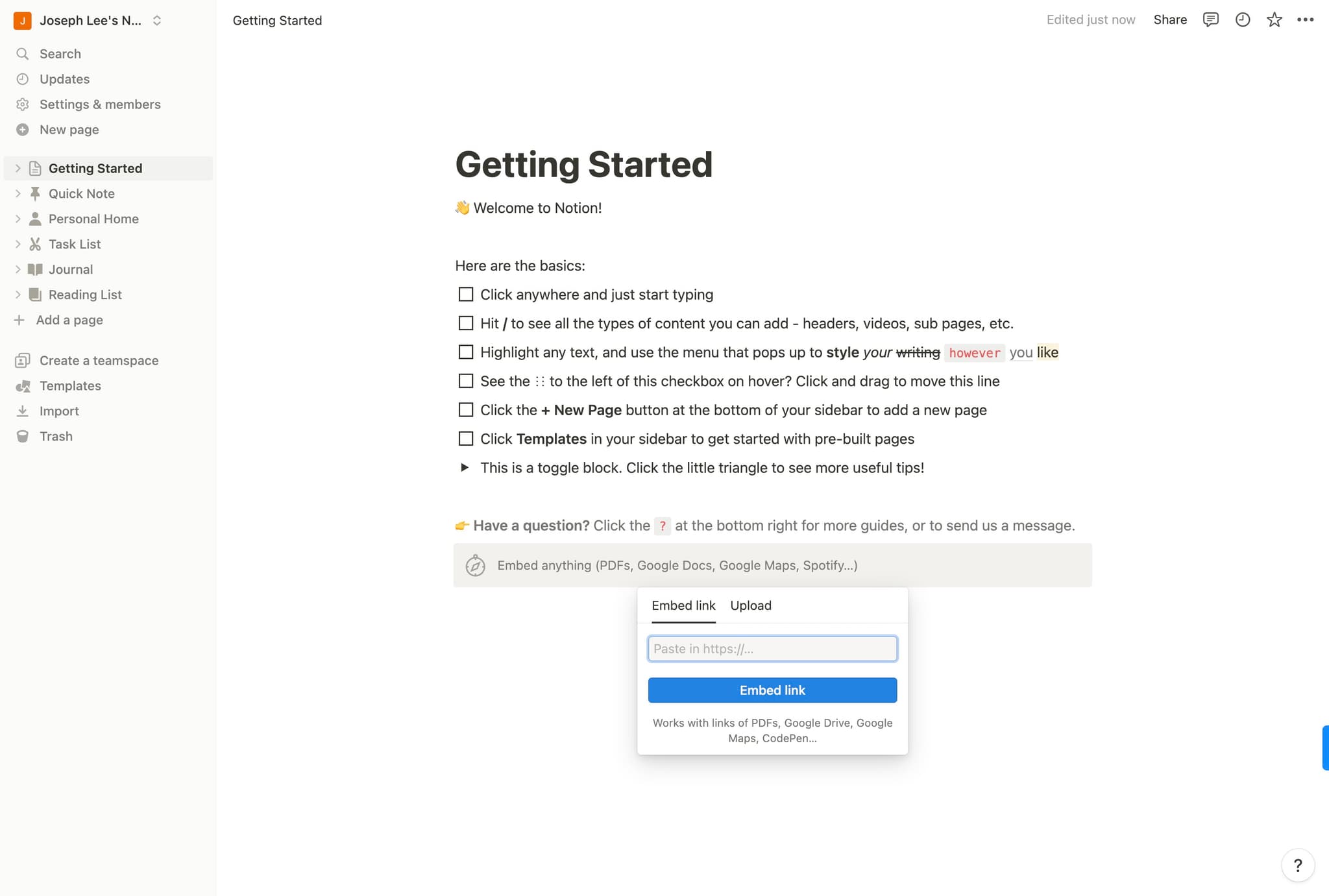
- 11
Select Embed Link option
Click on "Embed link" to specify that you're embedding via a URL rather than other methods. This ensures Notion processes your Spotify link correctly.
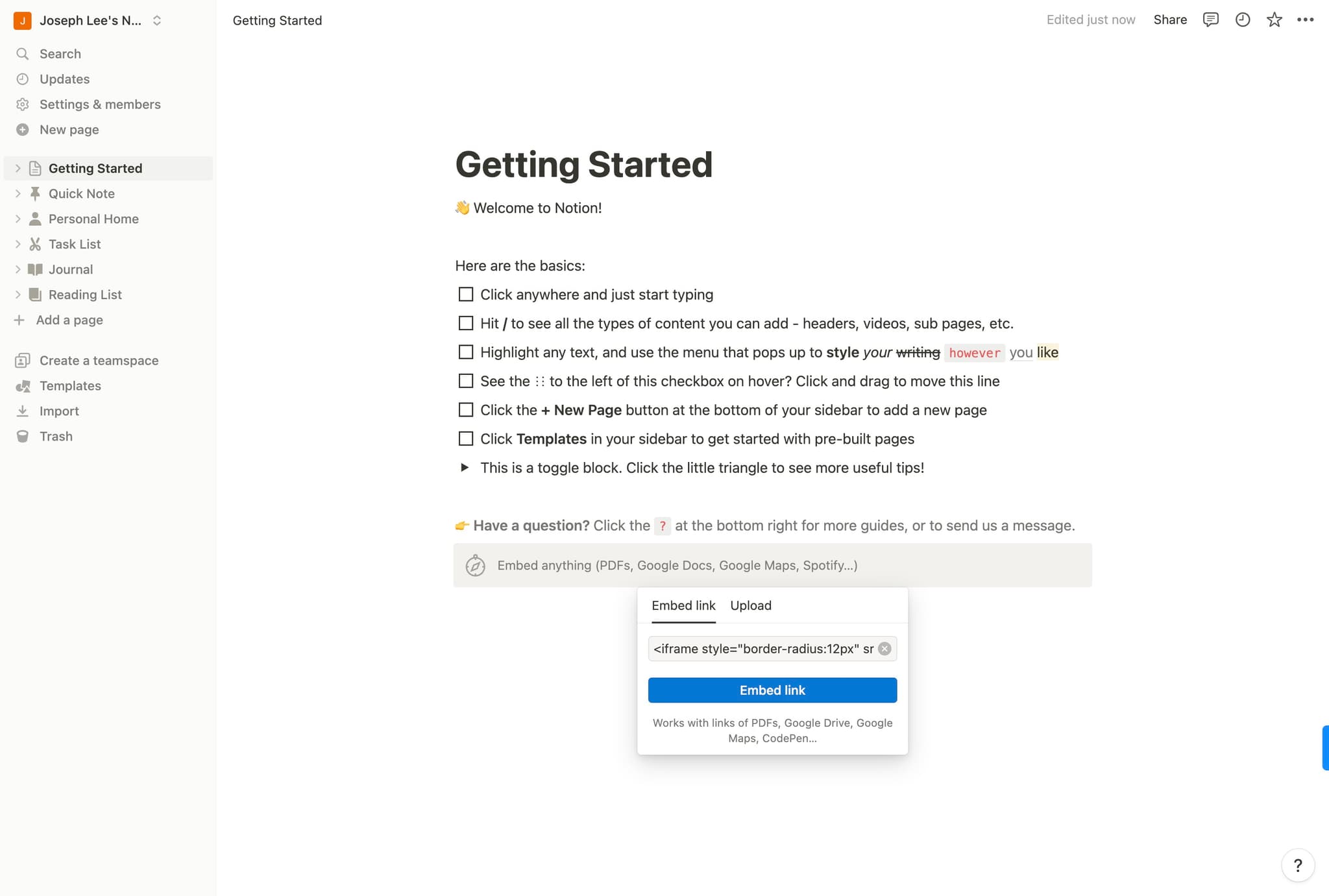
- 12
Paste the Spotify link
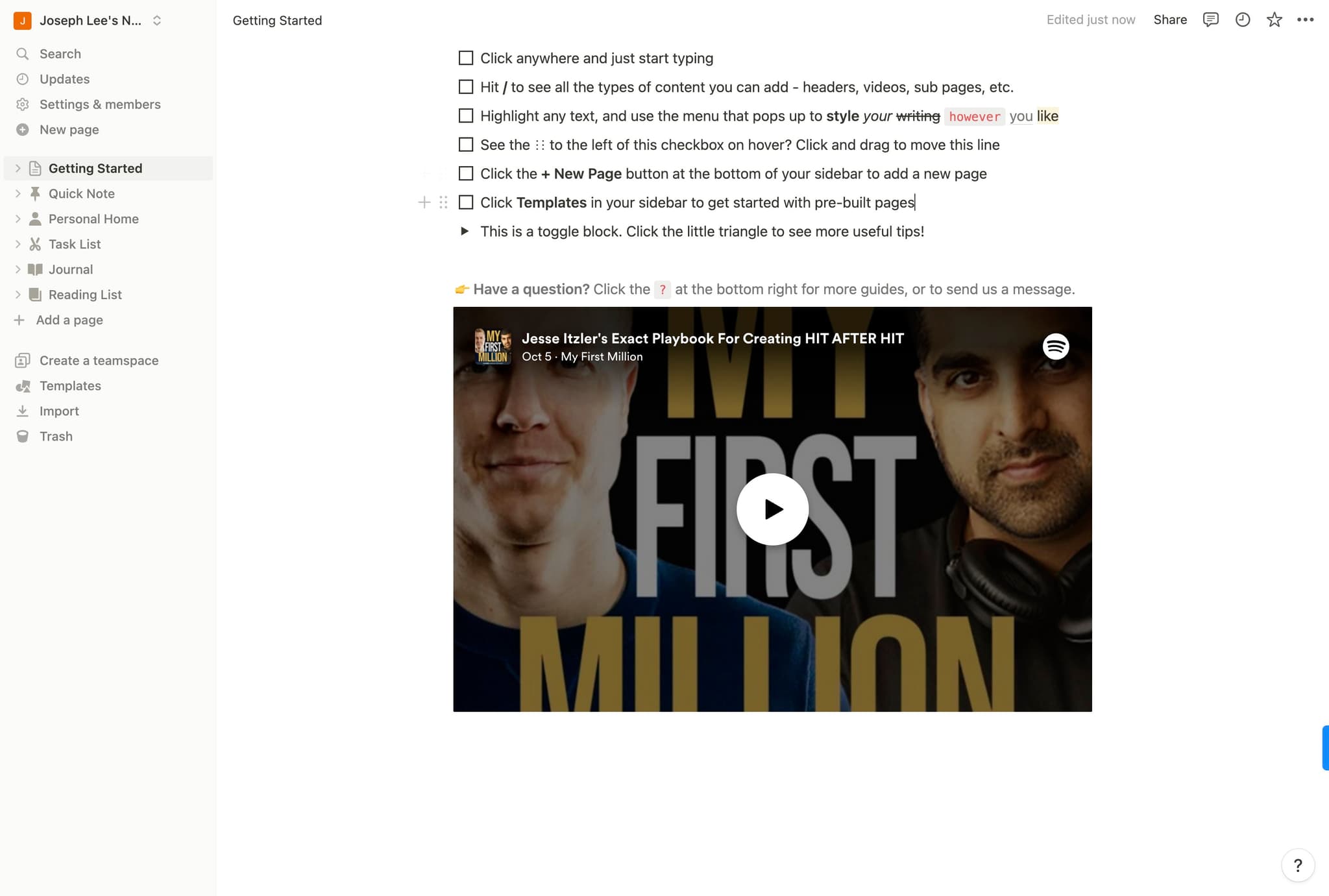
Click in the text field and paste the Spotify embed link you copied earlier. Press Enter or click confirm to complete the embedding.
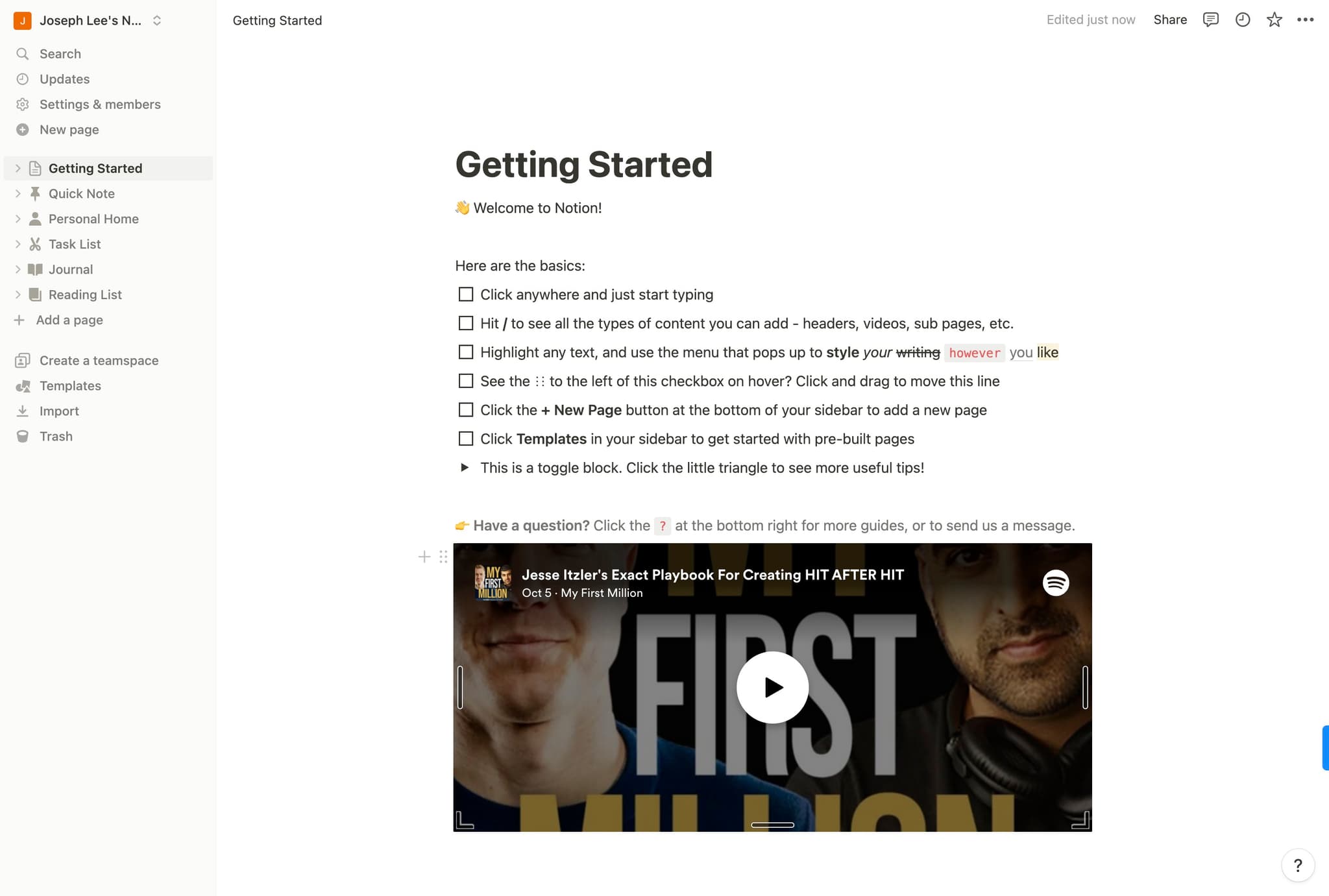
- 13
Finalize and view your embed
Click "Templates..." or the final confirmation button to complete the embedding process. Your Spotify episode player should now appear on your Notion page.
Frequently asked questions
Common questions about how to embed spotify on notion.
You can embed various Spotify content including podcasts, shows, episodes, and playlists. The embed feature works with most audio content, though some restrictions may apply based on licensing agreements. For best results, use publicly available episodes and shows.
Visitors viewing your Notion page can listen to embedded Spotify content without logging in, though some features may be limited. Having a Spotify account yourself makes it easier to find and copy embed links. Free Spotify accounts can embed content just as easily as premium accounts.
If the content is removed from Spotify, the embed will likely display an error or blank player on your Notion page. It's a good practice to note the episode details in text form as a backup reference. Consider using screenshots or descriptions alongside embeds for important content.
Notion displays the Spotify player with Spotify's default styling, and customization options are limited. You can resize the embed block within Notion by dragging its edges, but the player itself maintains Spotify's standard appearance. The player will always include standard playback controls and episode information.
Notion doesn't impose a strict limit on the number of embeds per page, but adding many large embeds may affect page loading performance. It's best practice to use embeds strategically and consider organizing multiple audio references into separate pages if needed. Test your page's performance if you're adding numerous embeds.