How to add members to your Notion workspace

Adding members to your Notion workspace is essential for collaboration and expanding your team's access to shared documents and databases. This guide walks you through the process of inviting new members and managing workspace permissions in Notion.
Quick summary
In this tutorial, you'll learn how to navigate to your workspace settings, initiate member invitations, and send requests to add new collaborators to your Notion workspace. By the end, you'll be able to seamlessly expand your team and control who has access to your workspace.
Why this matters
Managing workspace membership is critical for maintaining security and ensuring the right people have access to your shared projects. Adding members efficiently helps your team stay connected and keeps everyone aligned on shared work within Notion.
Step-by-step guide
- 1
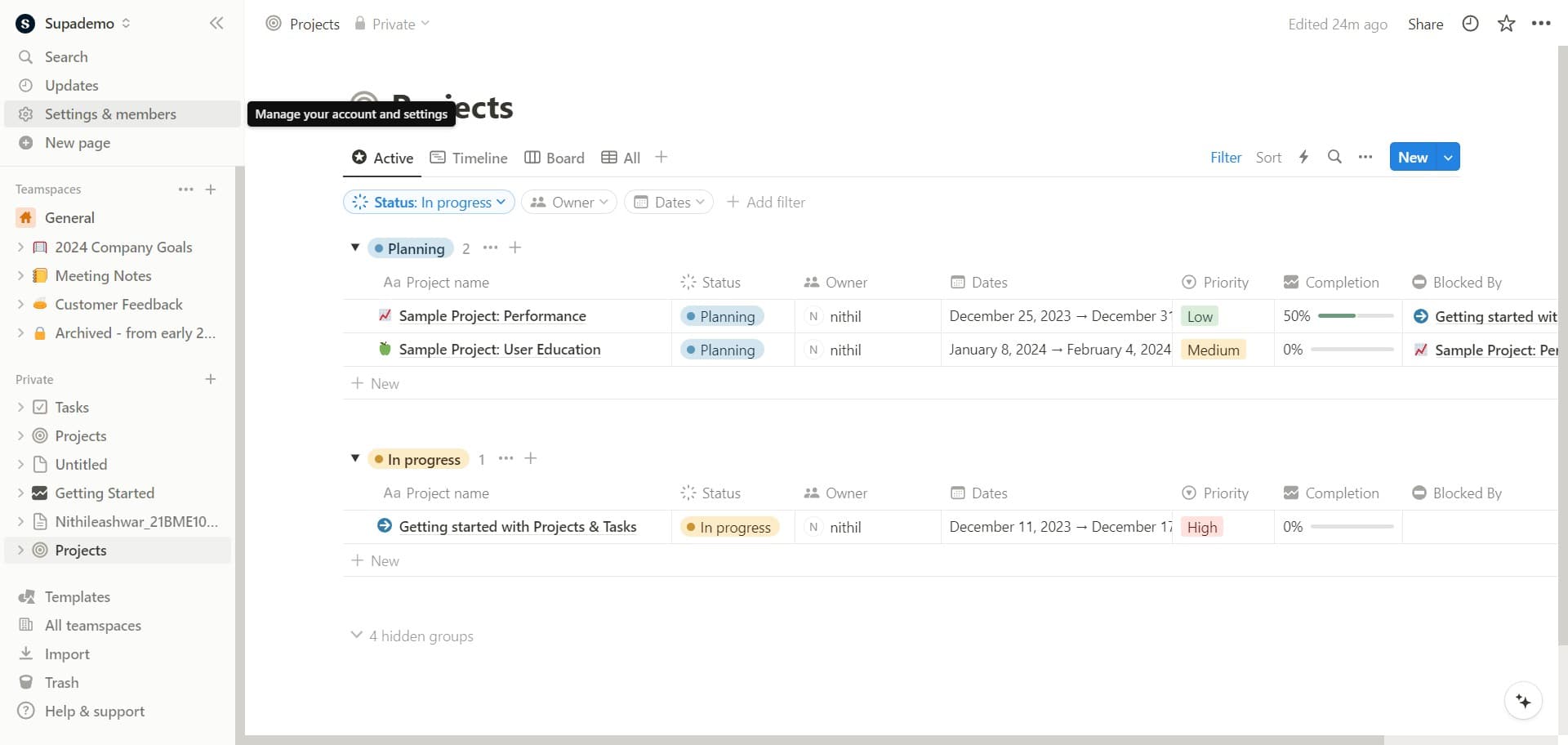
Open Settings & members
Click on the "Settings & members" option in your Notion workspace. This will open the control panel where you can manage workspace settings and member access.
- 2
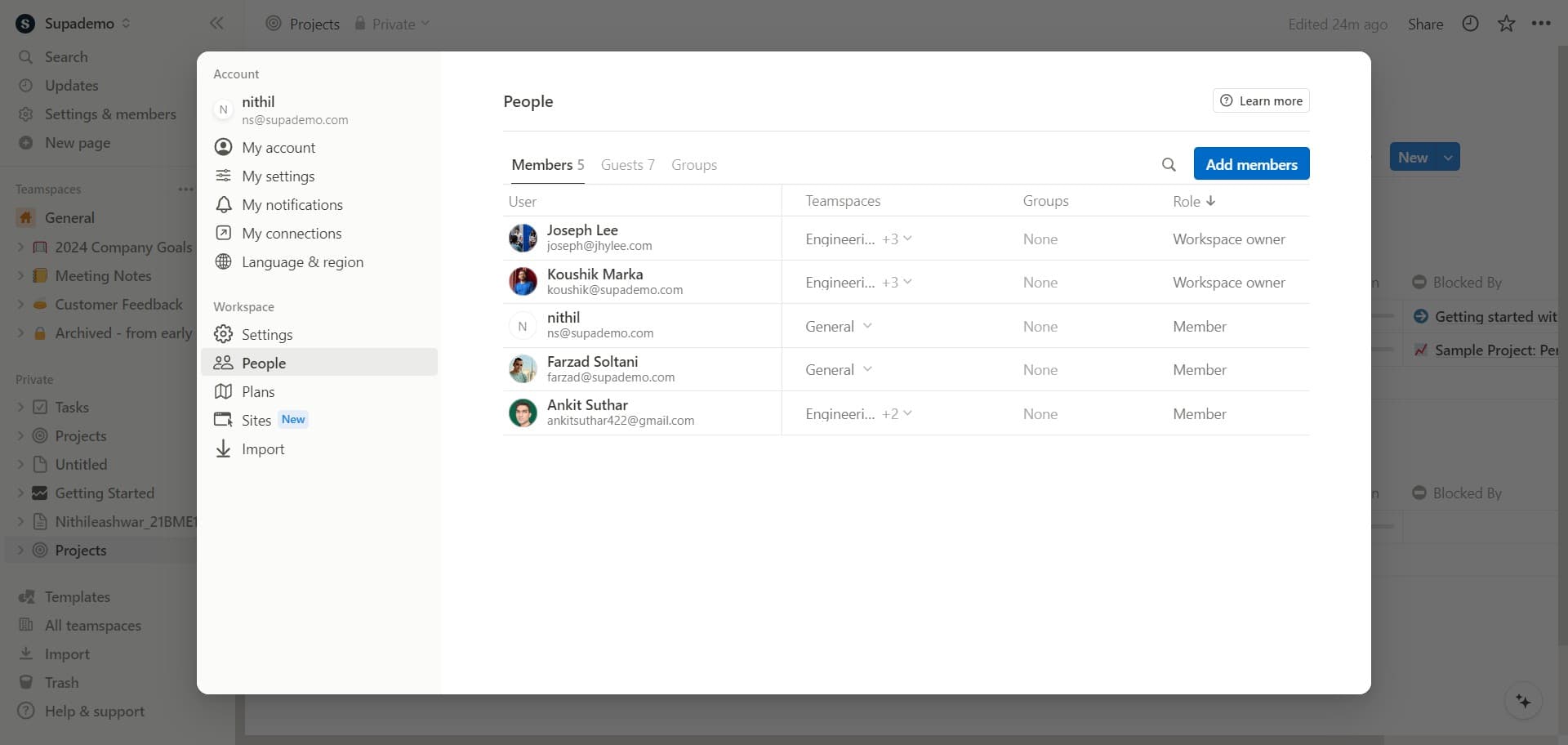
Click Add members
Look for and click the "Add members" button. This will initiate the process of inviting new people to your workspace.
- 3
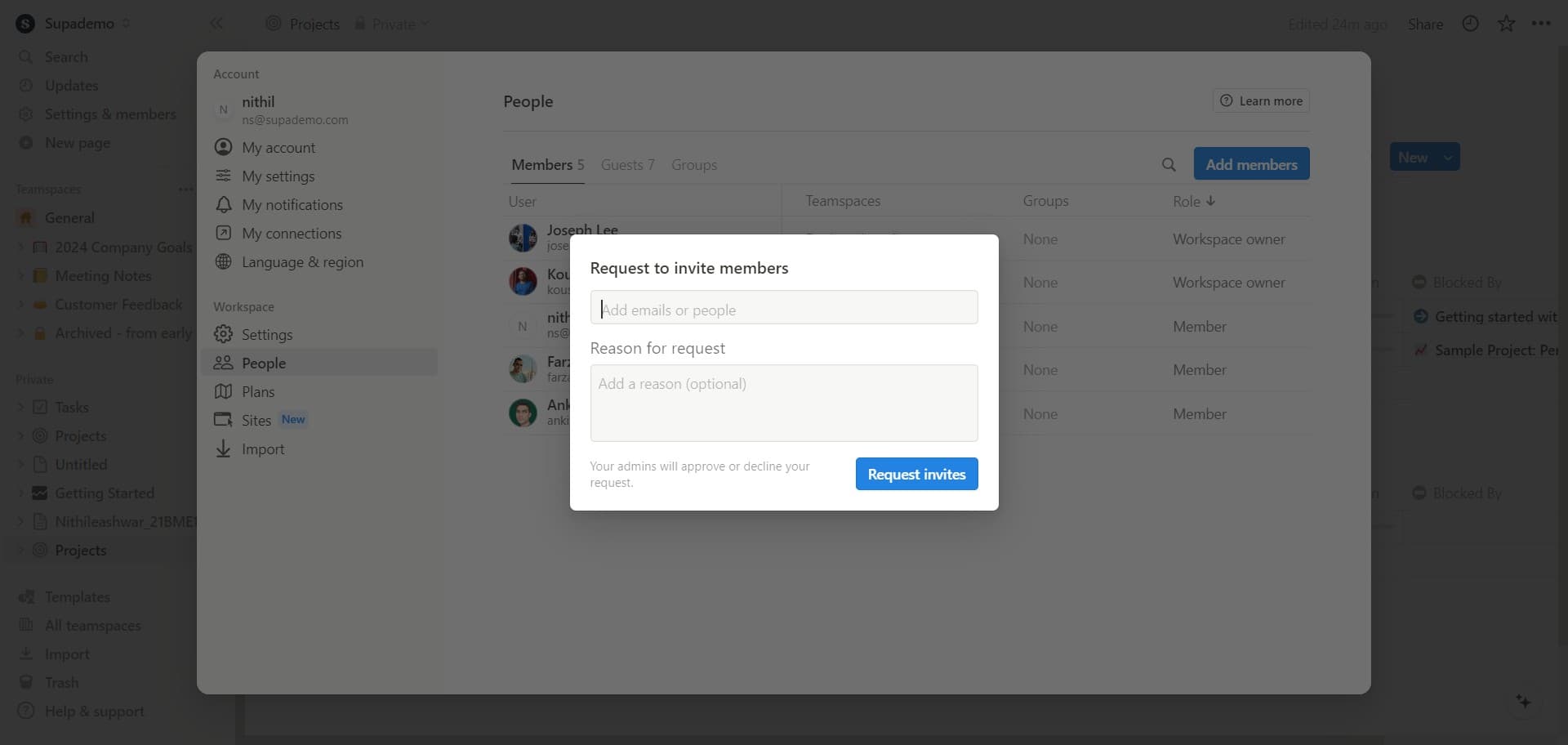
Enter member information
Click in the input field to begin entering the details of the person you want to add. You'll need to provide their information to proceed with the invitation.
- 4
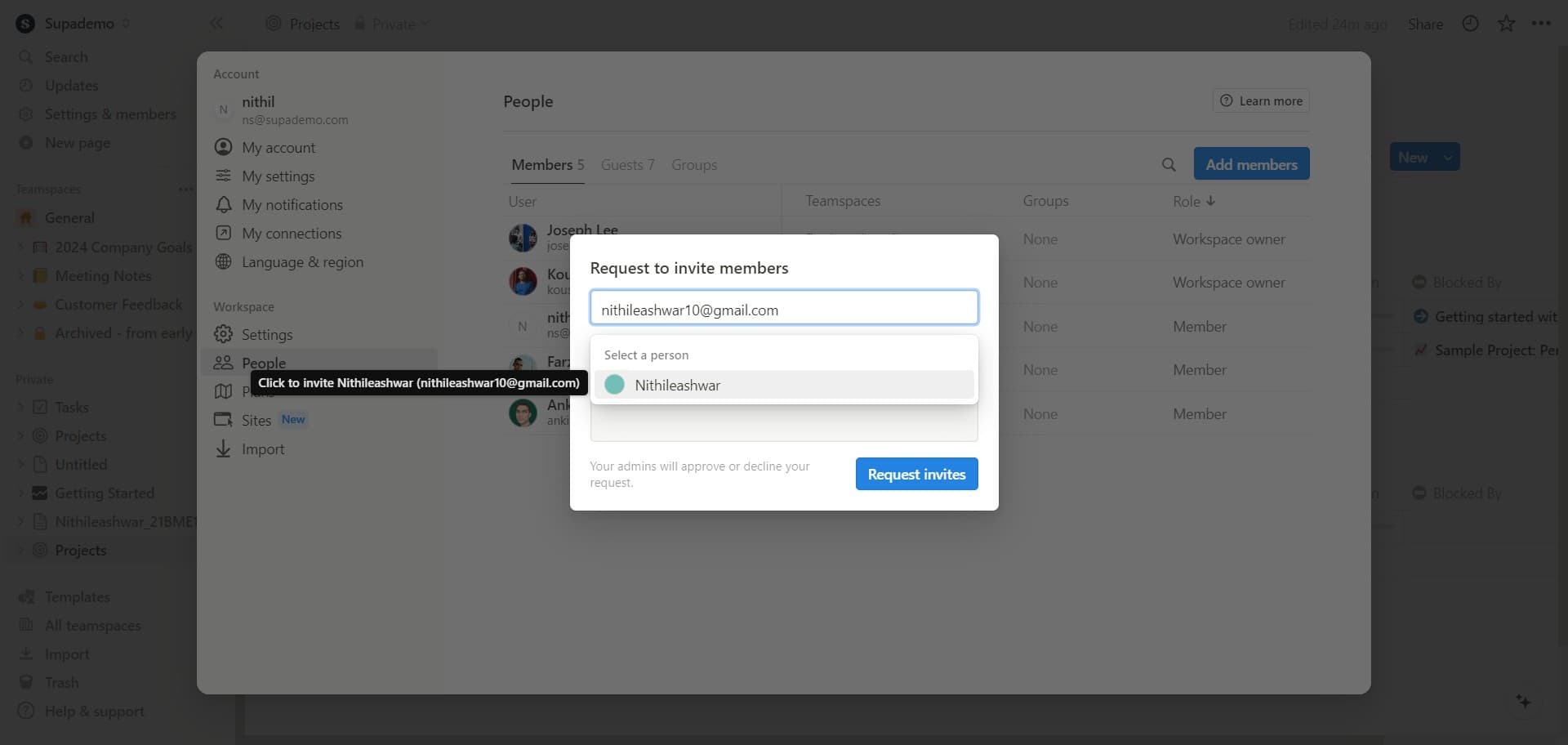
Select the member from the list
Click on "Nithileashwar" (or the relevant member name) from the dropdown or list that appears. This confirms the person you want to invite to your workspace.
- 5
Confirm the selection
Click the confirmation button or field to proceed. This action will prepare the invitation for the selected member.
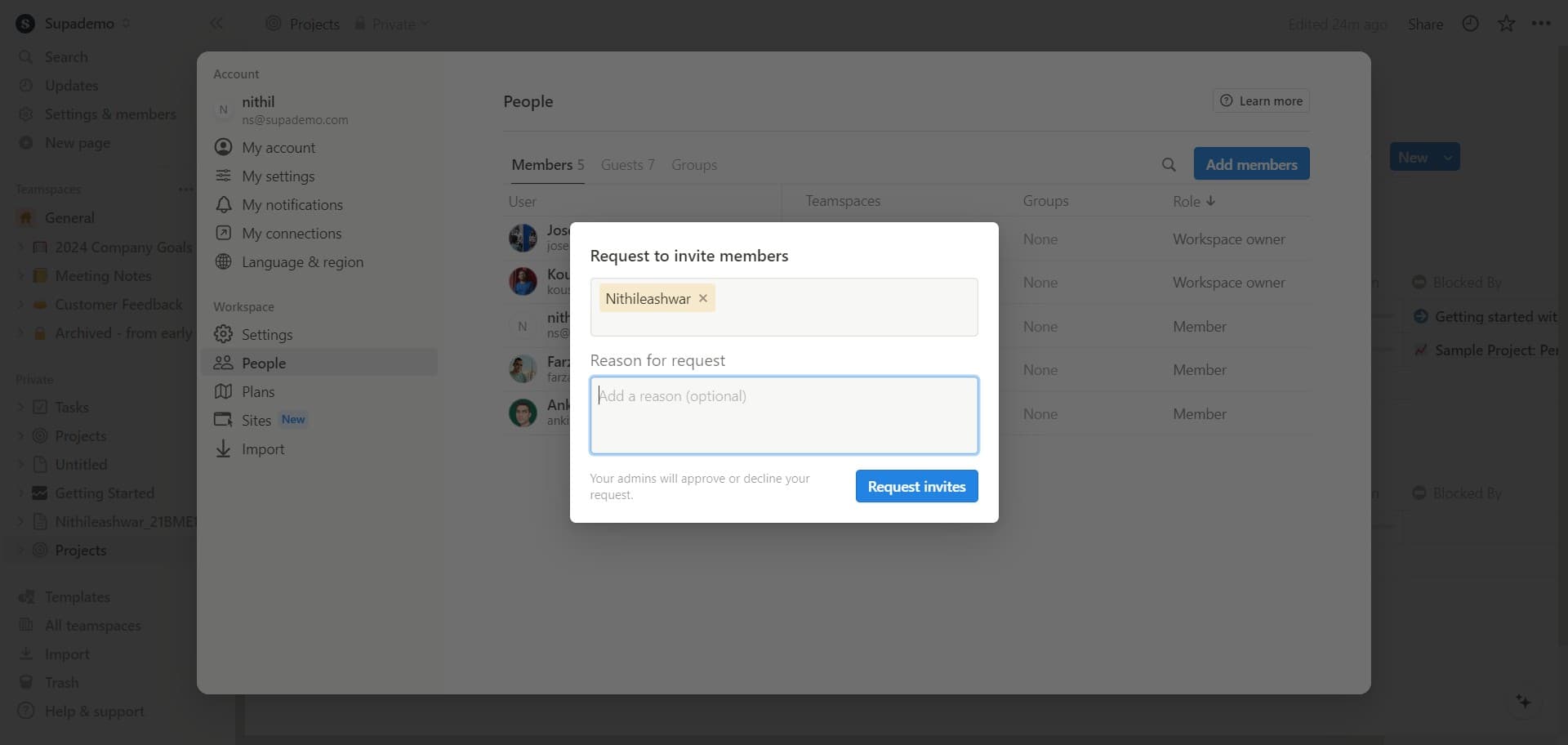
- 6
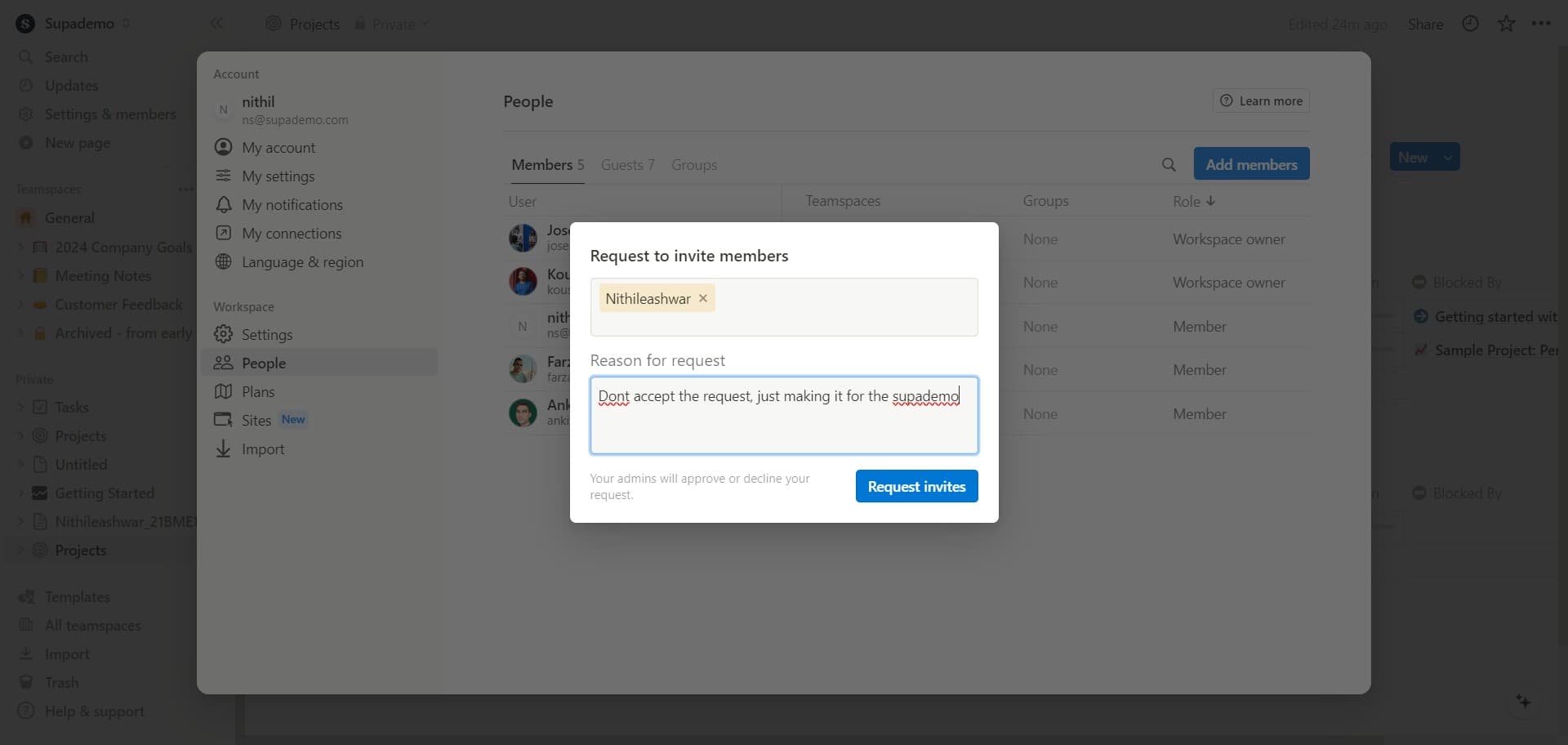
Send request invites
Click on "Request invites" to send the invitation to the member. The system will now notify them about joining your Notion workspace.
Frequently asked questions
Common questions about how to add members to your notion workspace.
Yes, you can add multiple members by repeating the invitation process for each person. Most users find it efficient to add several team members in succession through the "Add members" flow. Notion also supports bulk invitations in some cases, depending on your workspace plan.
Notion workspaces typically support different permission levels such as guest, member, and admin roles. Each role has different capabilities—guests may have limited access to specific pages, members can collaborate across the workspace, and admins can manage settings and members. You can adjust these permissions after inviting someone.
Yes, when you request invites, members will receive a notification about being added to your Notion workspace. They may need to accept the invitation depending on your workspace settings. Check their email or Notion notifications for the invitation details.
Yes, you can remove members from your workspace at any time through the Settings & members section. Simply locate the member you want to remove and use the remove or delete option. Their access to the workspace will be revoked immediately.
If a member doesn't appear, ensure you're using the correct name or email address. Double-check the spelling and try searching again. If they're still not found, they may need to create a Notion account first, or there could be a sync delay in the system.