How to create a calendar in Notion

Notion's calendar view is a powerful way to organize tasks, projects, and events in a visual timeline format. This guide walks you through creating a calendar database from scratch, enabling you to manage deadlines and schedules directly within Notion.
Quick summary
In this tutorial, you'll learn how to set up a new calendar database in Notion by creating a page, accessing the database templates, and configuring your calendar view. You'll be able to start organizing dates and events immediately after completing these steps.
Why this matters
Calendar views in Notion transform how teams manage timelines and deadlines by combining database functionality with visual scheduling. This workflow is essential for project managers, content creators, and anyone who needs to track multiple dates and dependencies in one centralized location.
Step-by-step guide
- 1
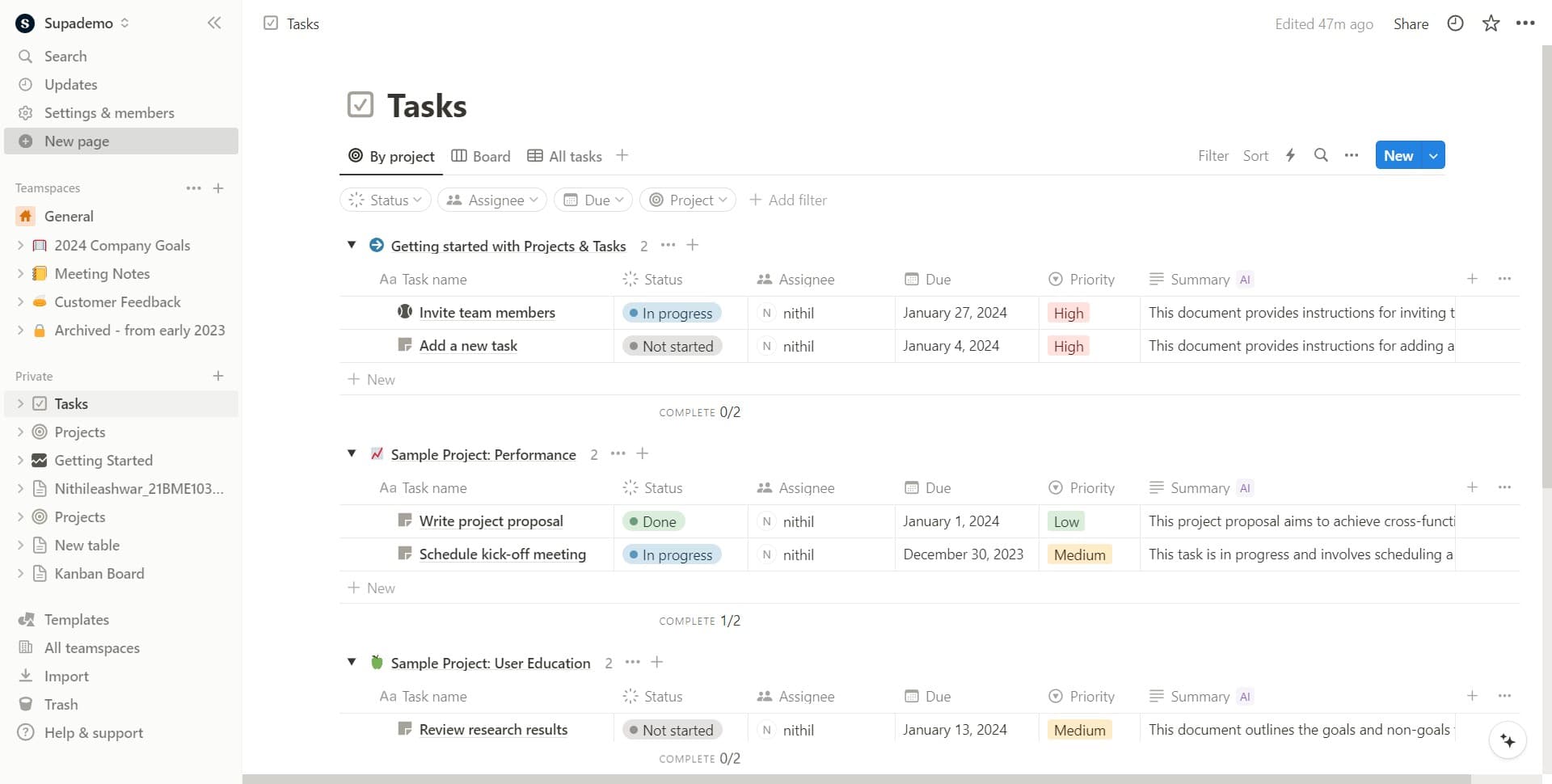
Click on New page
Start by clicking the 'New page' button in your Notion workspace. This creates a fresh page where you'll build your calendar database.
- 2
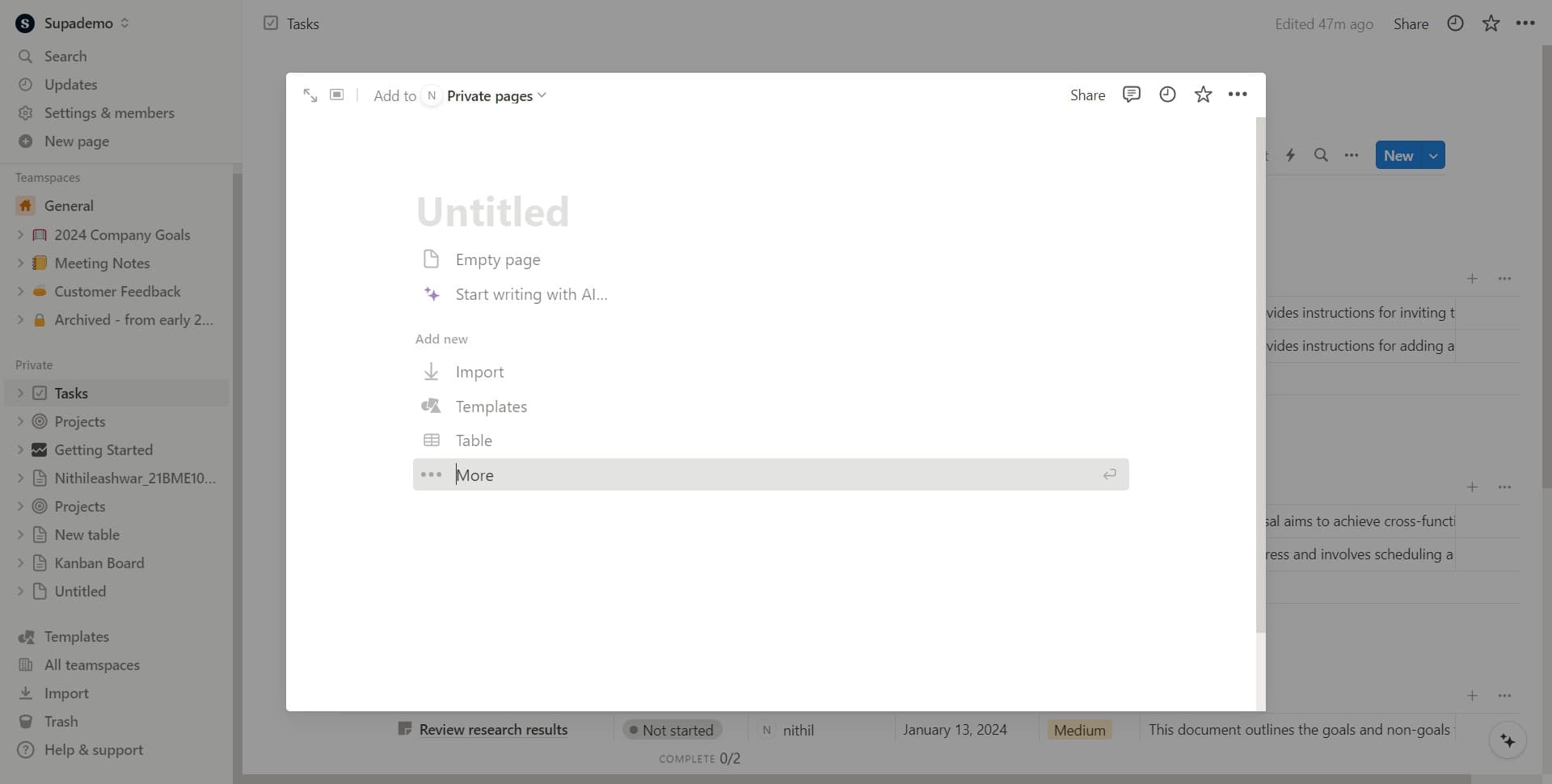
Click on More
After creating a new page, locate and click the 'More' option to access additional database templates and options beyond the standard view types.
- 3
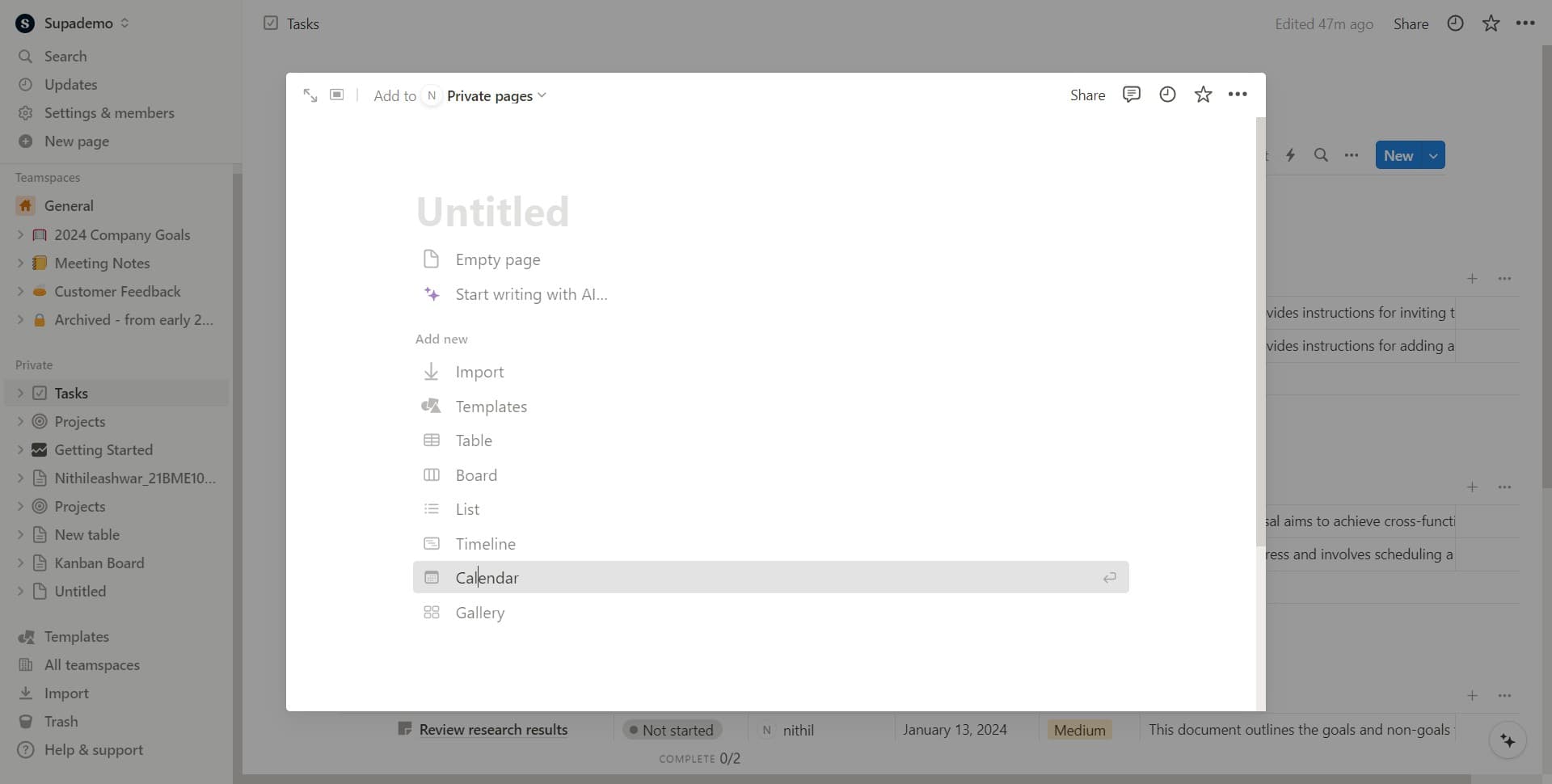
Click on Calendar
From the expanded menu, select 'Calendar' to choose the calendar template as your database type. This pre-configures your database with date-handling capabilities.
- 4
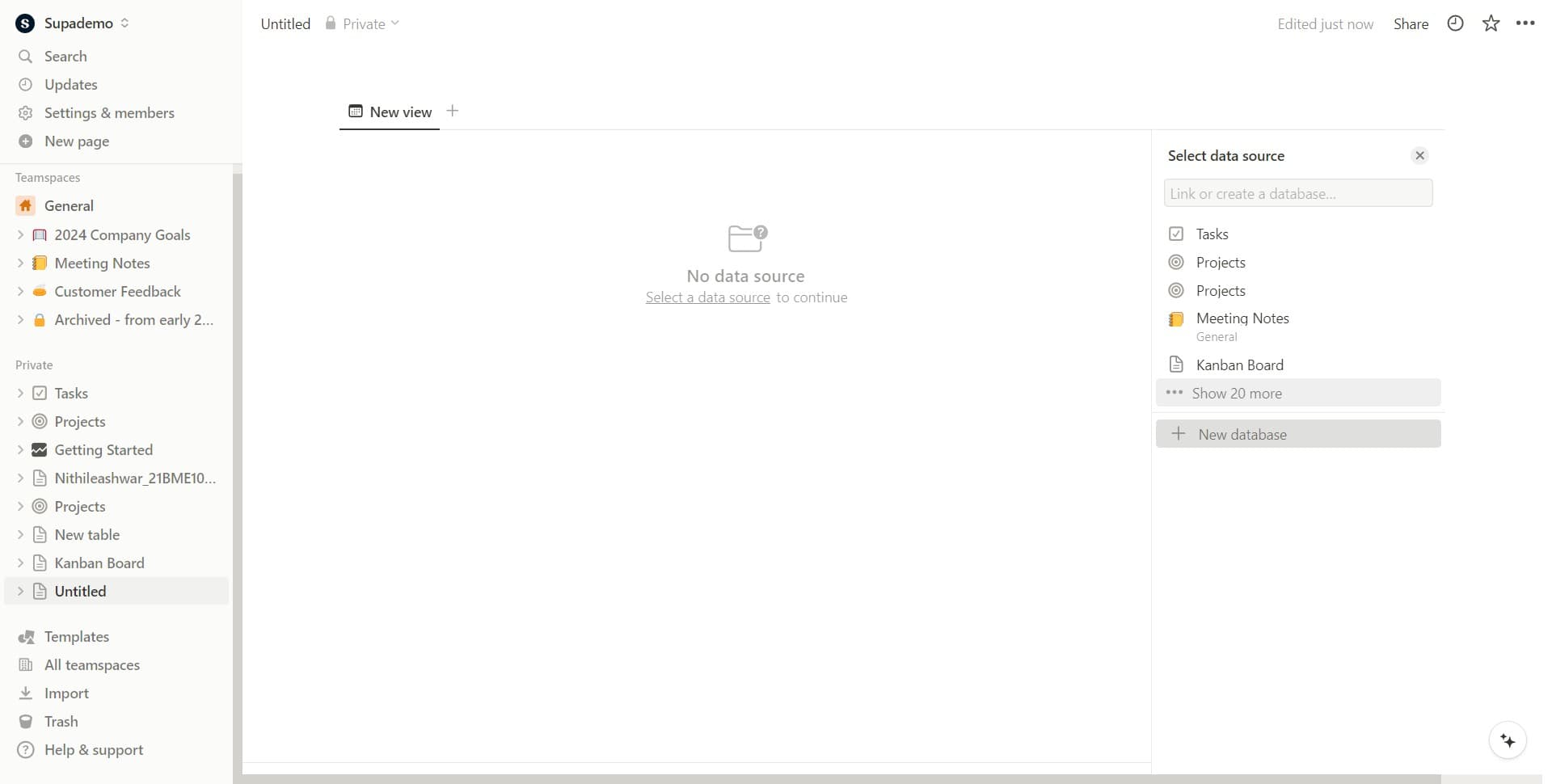
Click on New database
Click 'New database' to initialize your calendar. Notion will create a database structure optimized for calendar functionality with default properties for dates and events.
- 5
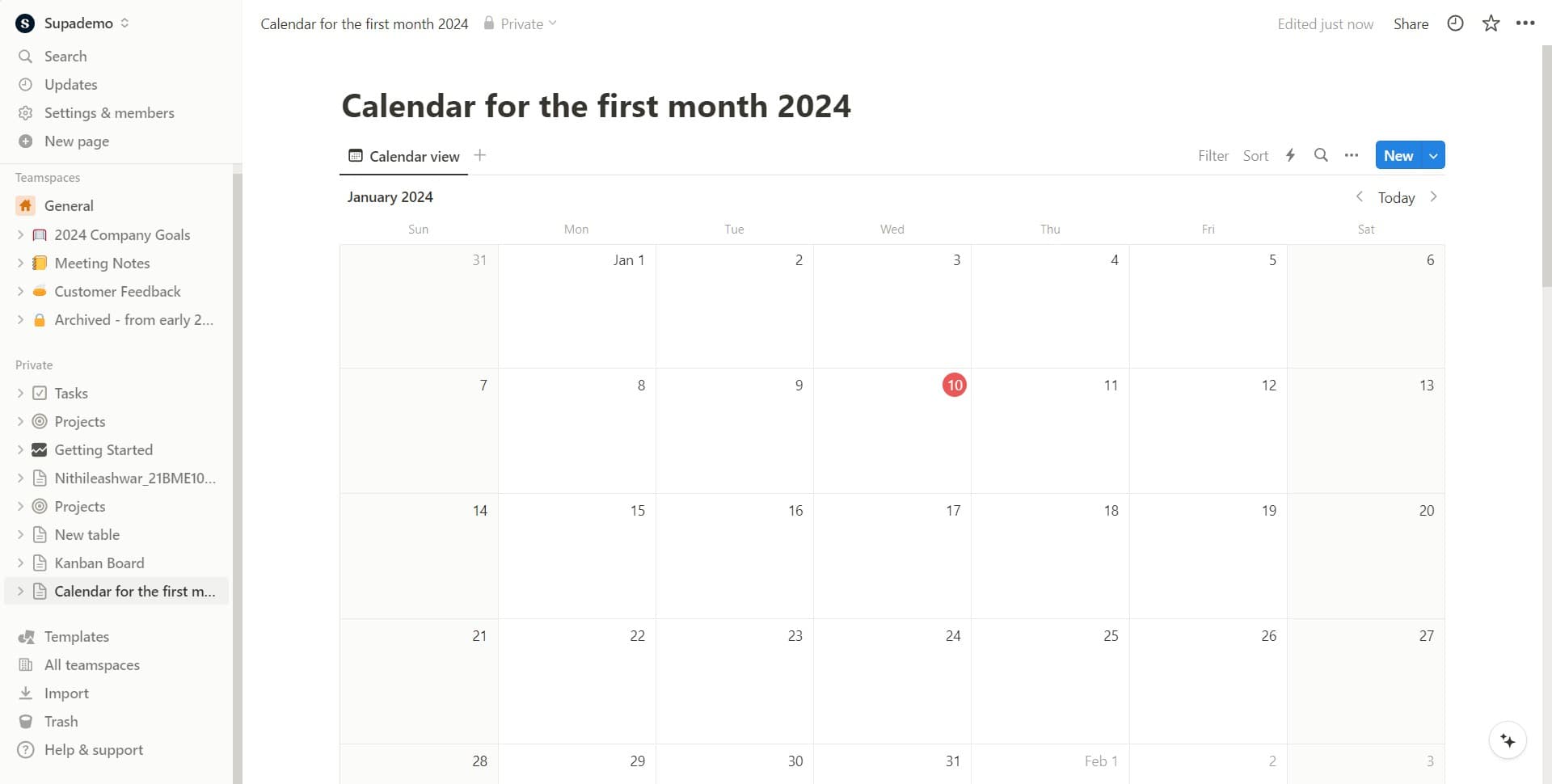
Select the date column
Click on the date field (shown as '11') to configure which property will control your calendar's timeline. This column determines how events are positioned on your calendar.
- 6
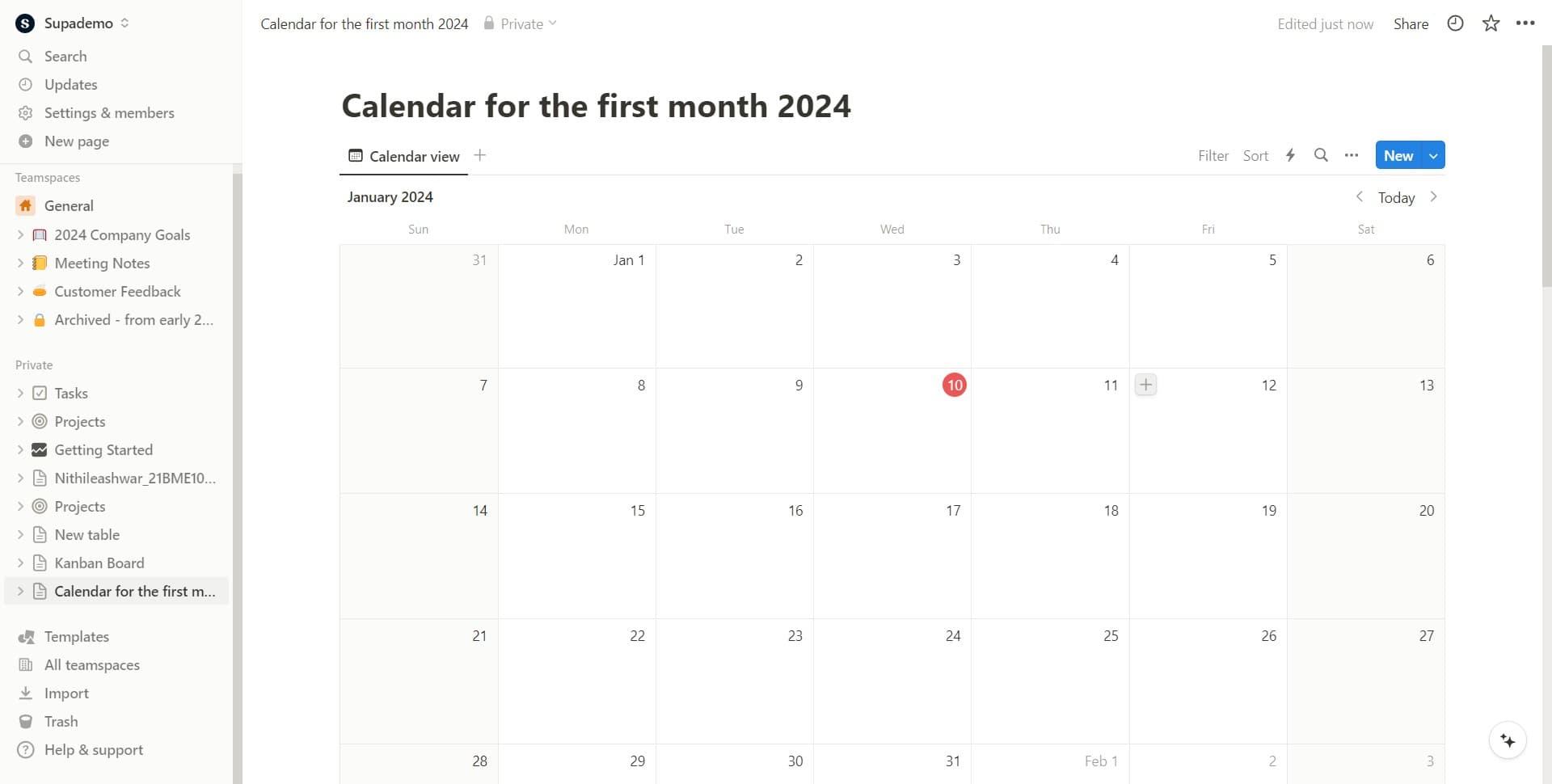
Confirm your calendar setup
Click to finalize your calendar database creation. Your calendar is now ready for you to add events and customize properties as needed.
- 7
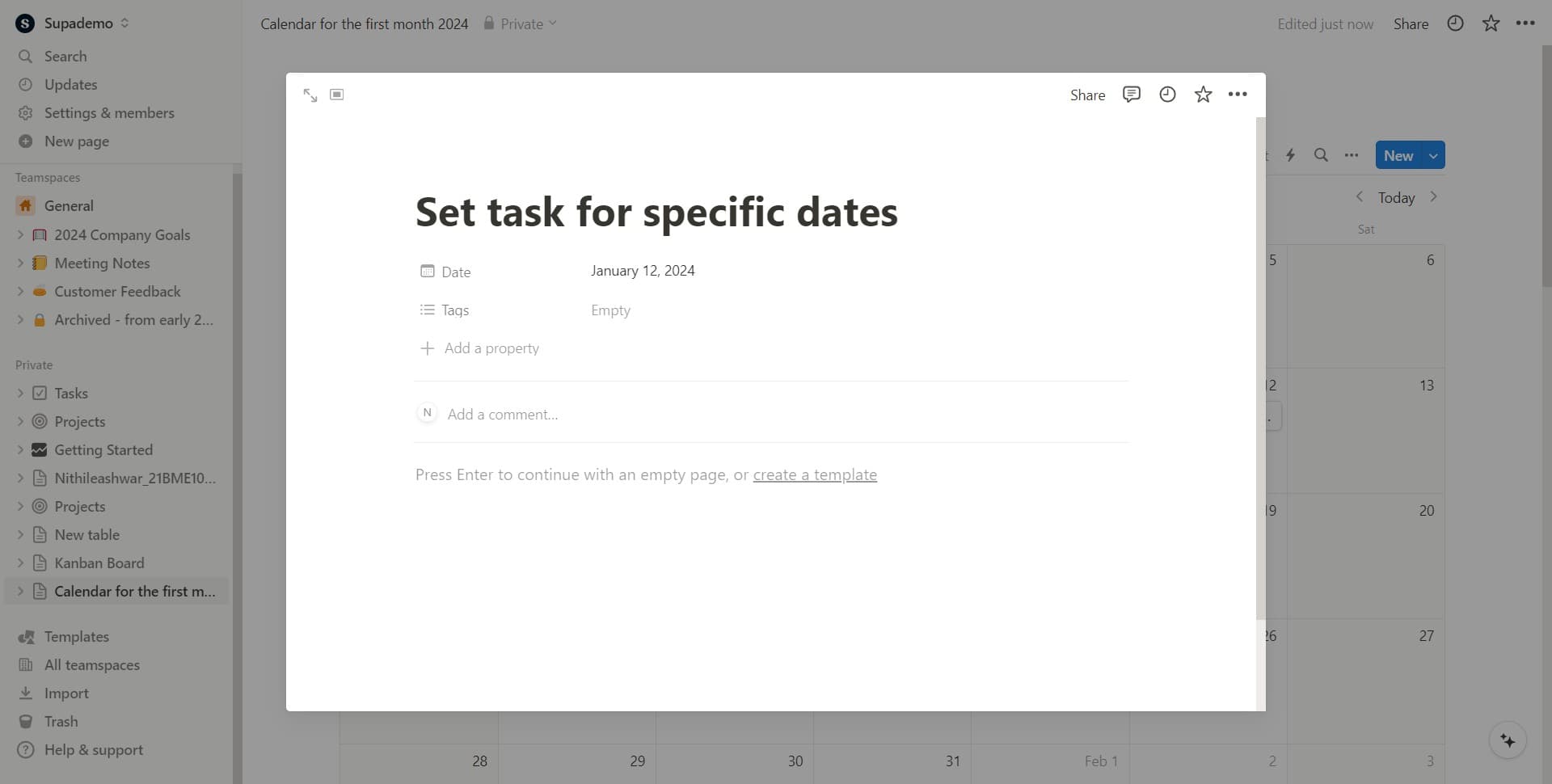
Begin adding calendar events
With your calendar initialized, you can now start creating events by clicking cells on the calendar grid. Each event can be customized with additional properties like descriptions, assignees, and tags.
Frequently asked questions
Common questions about how to create a calendar in notion.
Yes, you can modify the date property that drives your calendar view at any time. Click the calendar view settings and select a different date property to reorganize how events appear on the timeline. This flexibility allows you to pivot between different scheduling perspectives without recreating your database.
Common properties include assignees, status, priority, description, and due dates. Start with the essentials and add properties based on your team's needs—Notion allows you to create custom properties like select dropdowns, checkboxes, and linked databases to enhance your calendar's functionality.
Absolutely. Share your Notion workspace or specific pages with teammates, and they can add, edit, and view calendar events in real-time. Set appropriate permissions to control who can create events, edit details, or just view the calendar.
Notion's calendar view allows you to switch between month, week, and day views using the view toggle at the top of your calendar. You can navigate between time periods and filter events based on properties to focus on specific projects or team members.
Yes, you can create unlimited calendar databases in your workspace, each with different properties and purposes. For example, you might have one calendar for project deadlines and another for team availability, all stored in the same workspace and linked if needed.