How to Undo in Notion

Mistakes happen when working in Notion, and knowing how to undo your changes quickly can save you time and frustration. This guide walks you through the process of undoing actions in Notion, whether you've accidentally deleted content, moved blocks, or made any other unintended changes.
Quick summary
In this tutorial, you'll learn how to undo recent actions in Notion using both keyboard shortcuts and the interface menu. You'll discover the most efficient methods to reverse your changes and restore your workspace to its previous state.
Why this matters
The undo function is essential for maintaining productivity and reducing anxiety when experimenting with your Notion workspace. Whether you're reorganizing pages, editing content, or testing new layouts, having a reliable way to reverse changes gives you the confidence to work freely without fear of permanent mistakes.
Step-by-step guide
- 1
Access the undo option
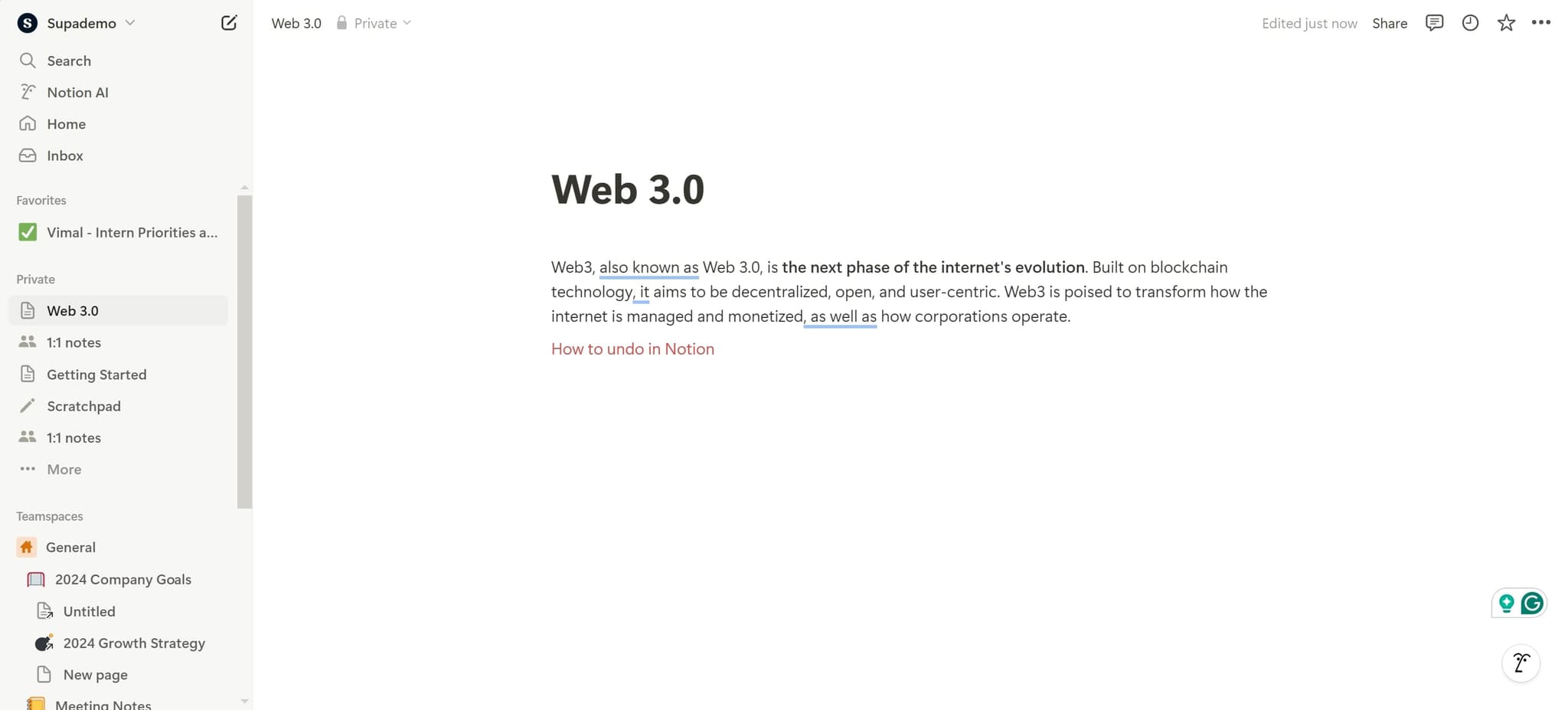
Start by locating the undo feature in your Notion workspace. You can access this through the menu or by using the standard keyboard shortcut Ctrl+Z on Windows or Cmd+Z on Mac.
- 2
Confirm your action reversal
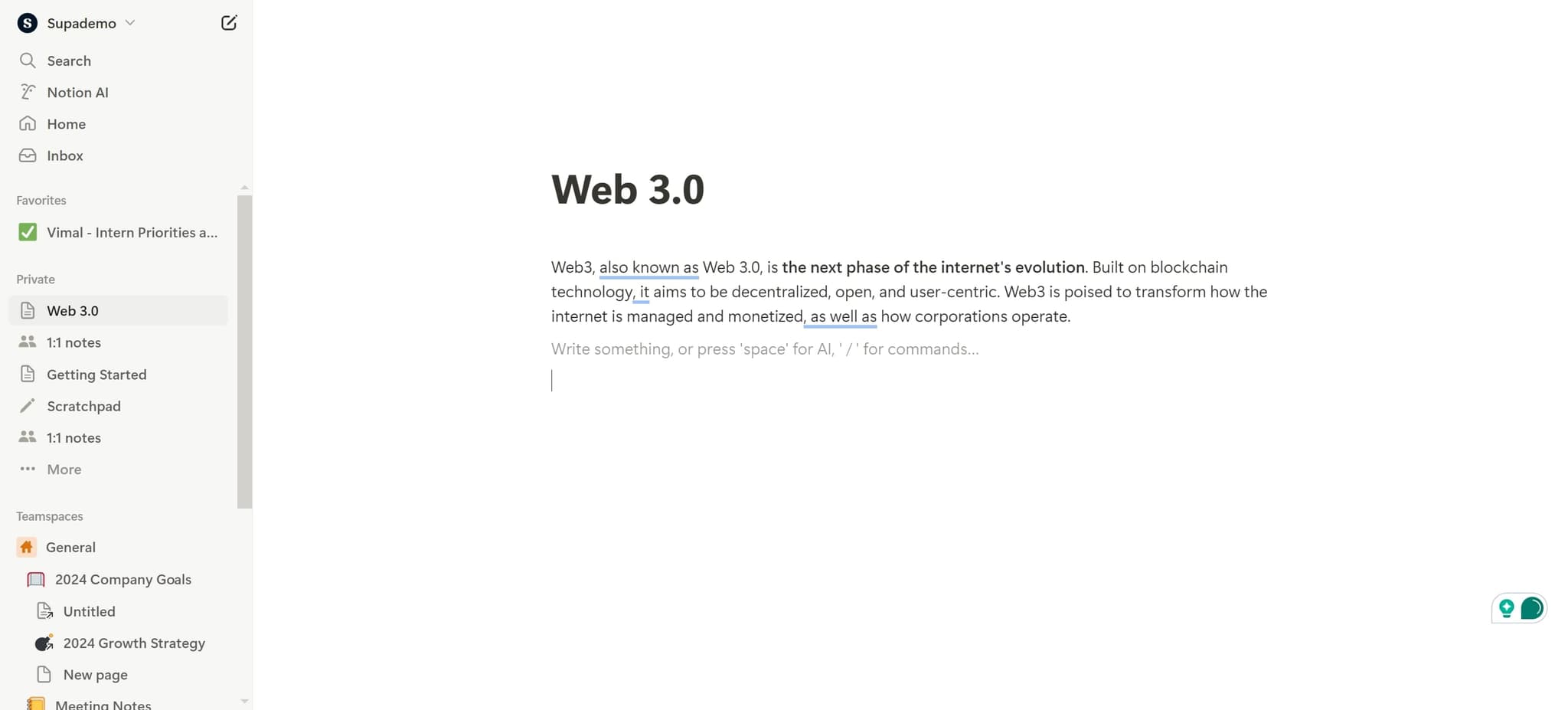
Once you've initiated the undo command, Notion will reverse your most recent action and display the restored content. You can continue undoing multiple actions by repeating the keyboard shortcut or menu selection.
Frequently asked questions
Common questions about how to undo in notion.
Notion typically allows you to undo multiple actions in sequence, generally going back through your recent edits in the current session. The exact number may depend on your workspace's activity and session duration. For significant changes, it's best to undo immediately rather than waiting extended periods.
Yes, the undo function works consistently whether you're using Notion on web, desktop, or mobile. The keyboard shortcut Ctrl+Z or Cmd+Z works on web and desktop, while mobile users can access undo through the app's menu options.
Notion includes a redo function that works opposite to undo. You can use Ctrl+Y or Cmd+Y to redo an action you've just undone. This allows you to quickly toggle between versions of your workspace.
Undo works on a per-session basis and affects the actions you performed in your current working session. If you've made changes to different pages, undoing will reverse them in reverse chronological order based on when you made the changes.
Notion offers a page history feature for Notion Plus subscribers and above, which lets you view and restore previous versions of pages. This is different from undo and is useful for recovering changes made days or weeks ago beyond your current session's undo history.