How to Use Notion Calendar

Notion Calendar lets you visualize and manage your database entries in a calendar format, making it easy to track deadlines, events, and time-sensitive tasks. This tutorial walks you through setting up your first calendar view in Notion so you can start organizing your data by date.
Quick summary
In this tutorial, you'll learn how to upload data, access the Calendar view option, create a new calendar, and launch your calendar configuration. By the end, you'll have a functional calendar view ready to display your Notion database entries.
Why this matters
Calendar views are essential for project managers, event planners, and anyone who needs to track time-based information at a glance. Rather than scrolling through tables, a calendar view gives you immediate visual context for when tasks are due or events occur, improving productivity and reducing scheduling conflicts.
Step-by-step guide
- 1
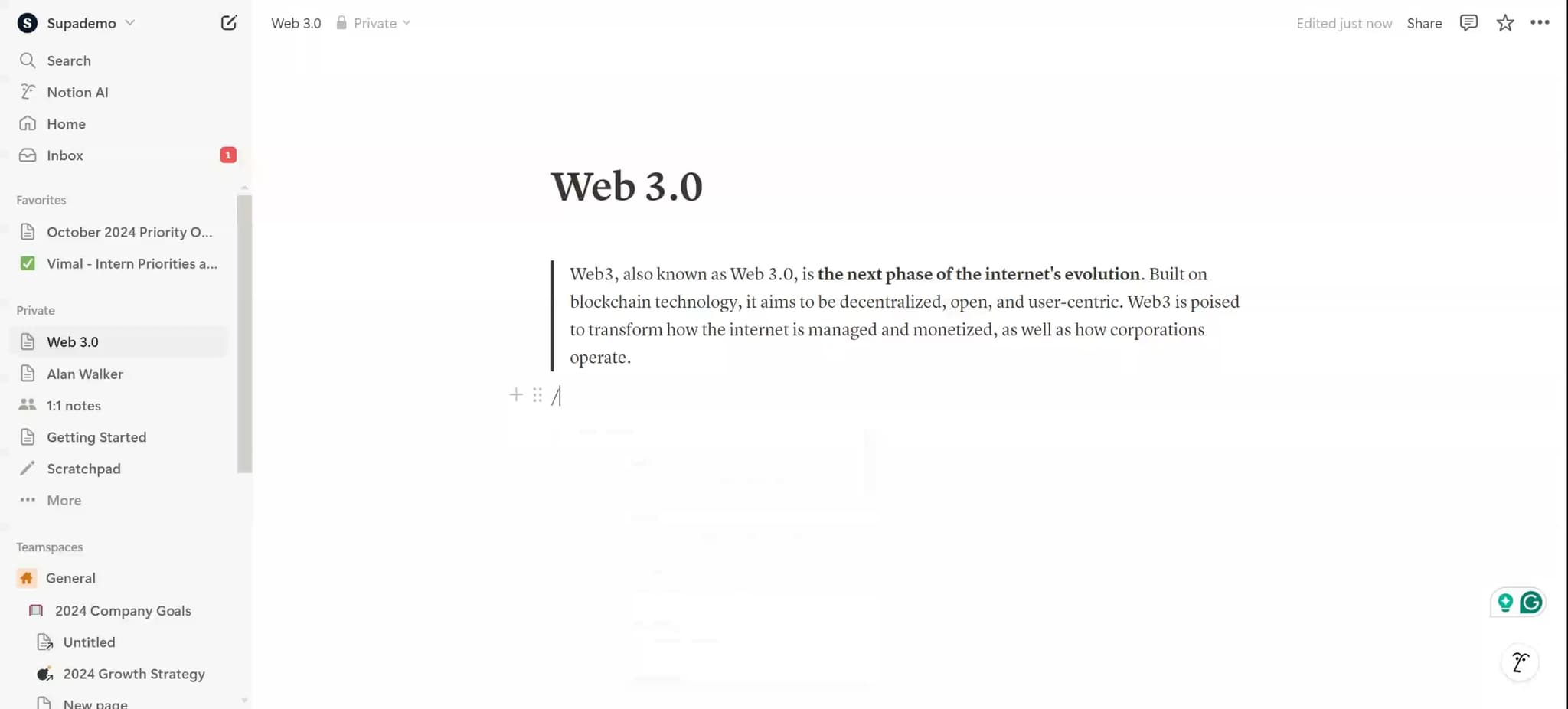
Upload your data
Begin by uploading your database or importing data into Notion. This could be existing entries, events, or tasks that you want to visualize in calendar format.
- 2
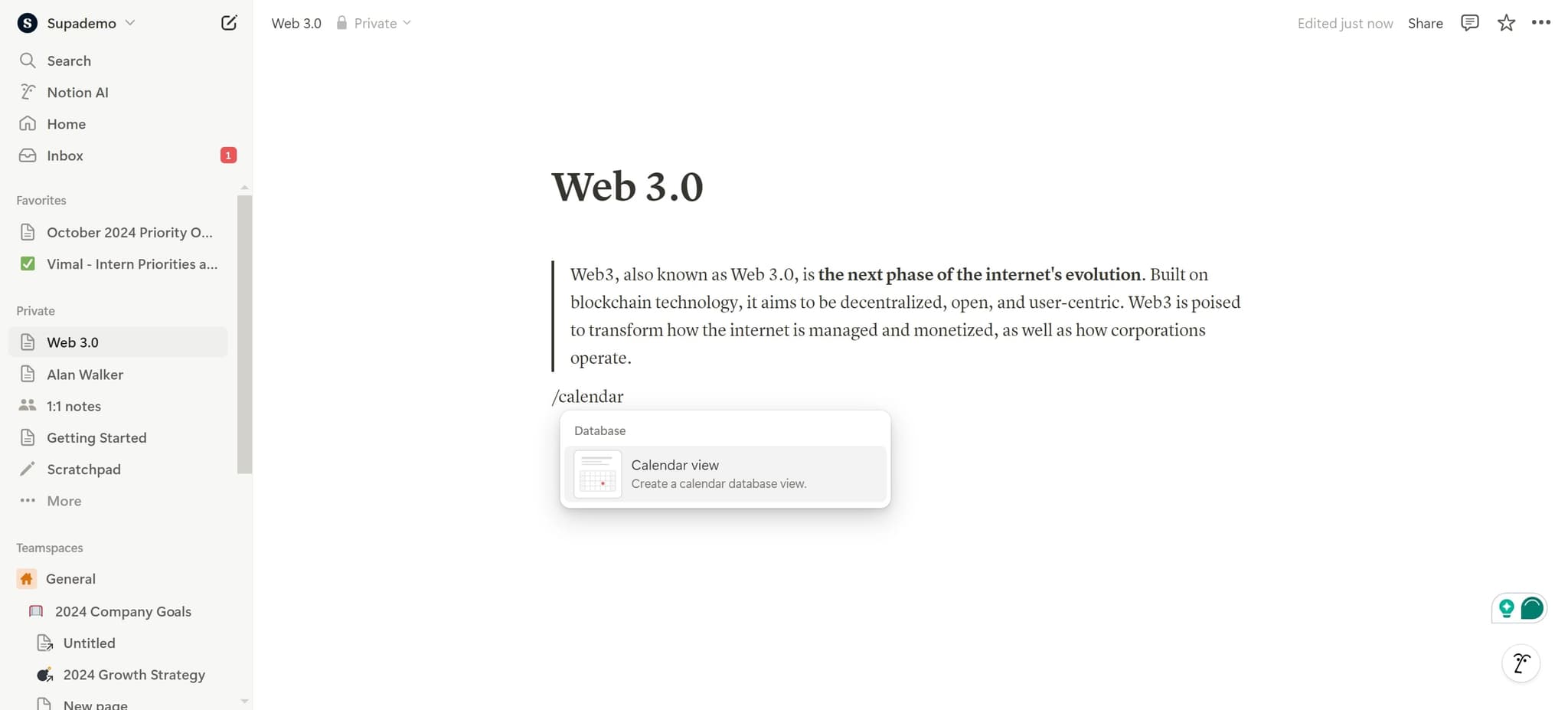
Click on Calendar view
In your Notion database, locate and click the Calendar view option from the view menu. This will open the calendar view interface and prepare it for configuration.
- 3
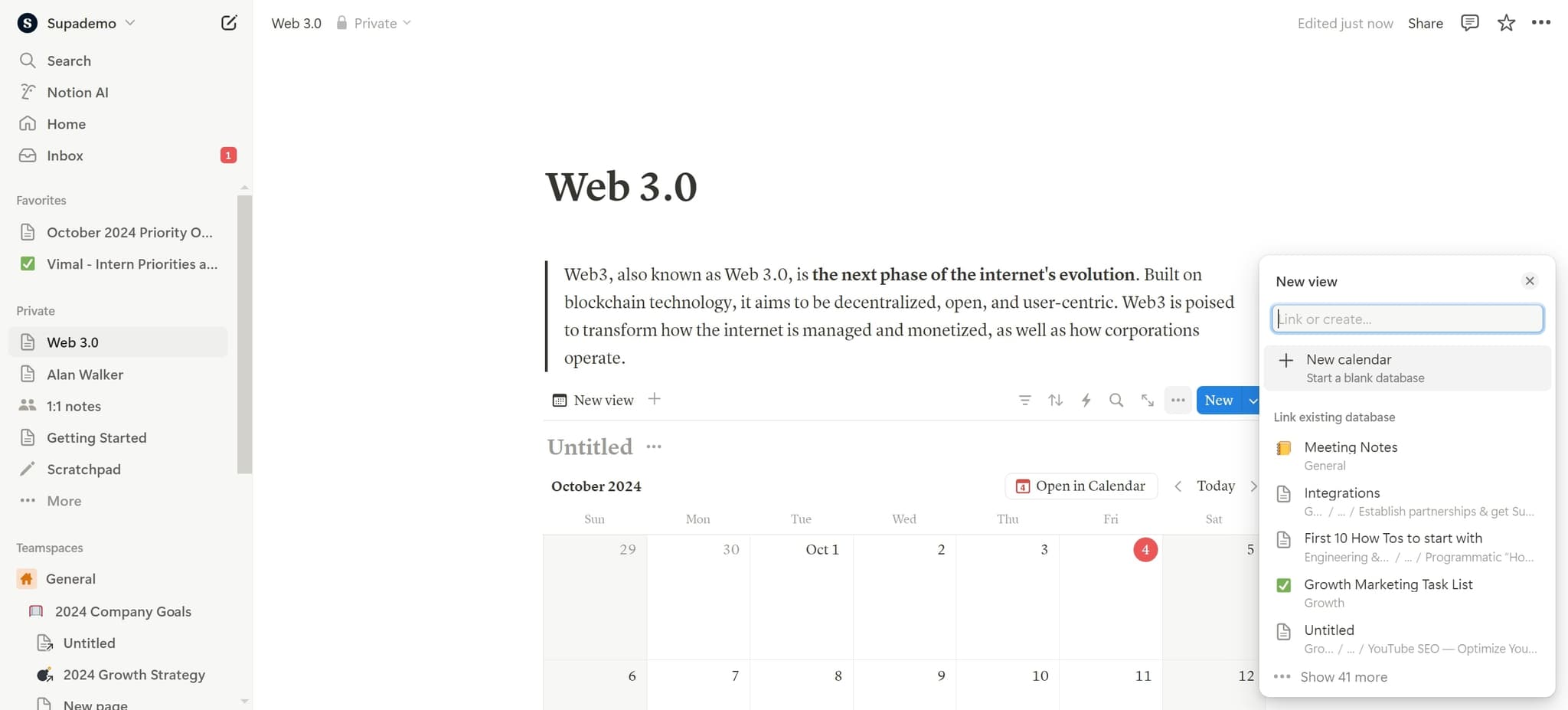
Click on New calendar
Select the 'New calendar' button to create a fresh calendar instance. This initiates the setup process for your new calendar view.
- 4
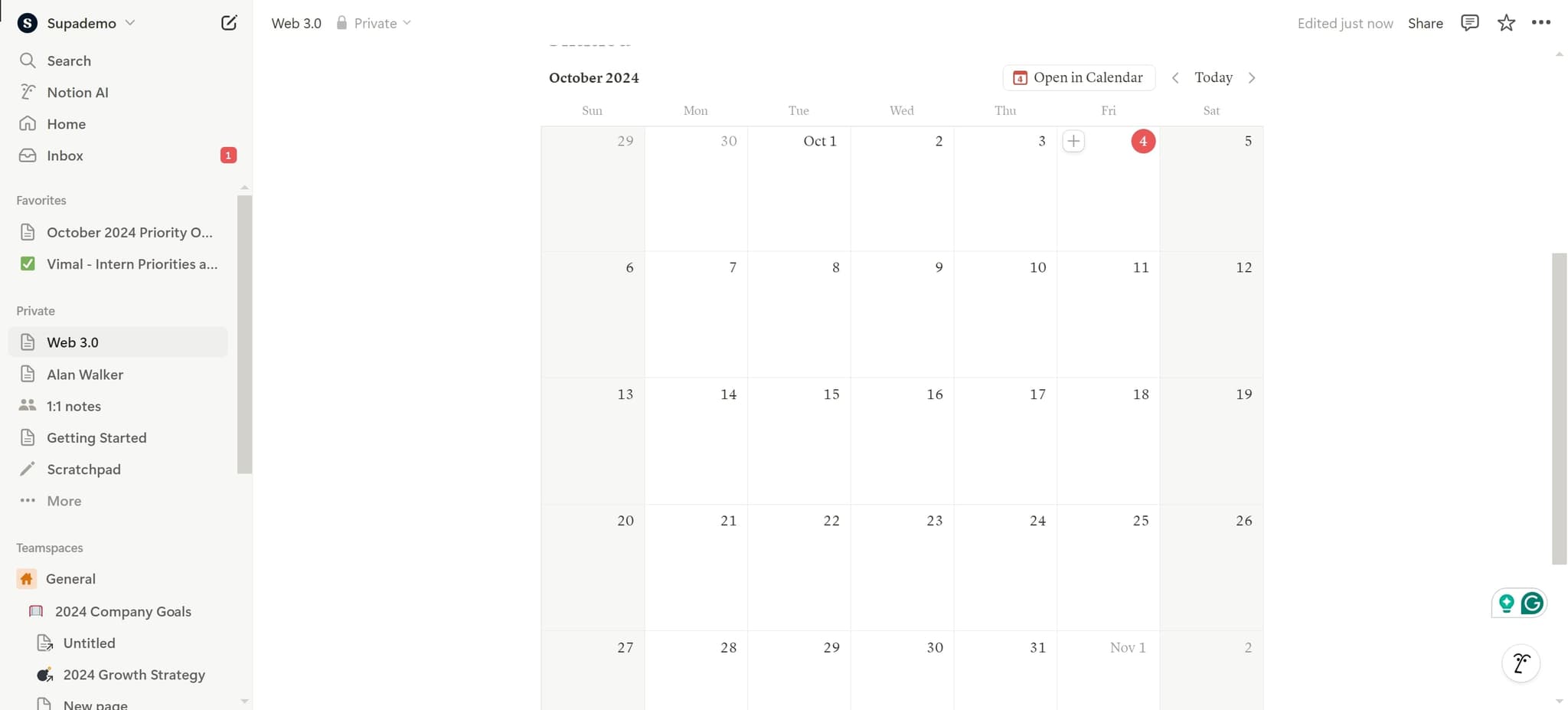
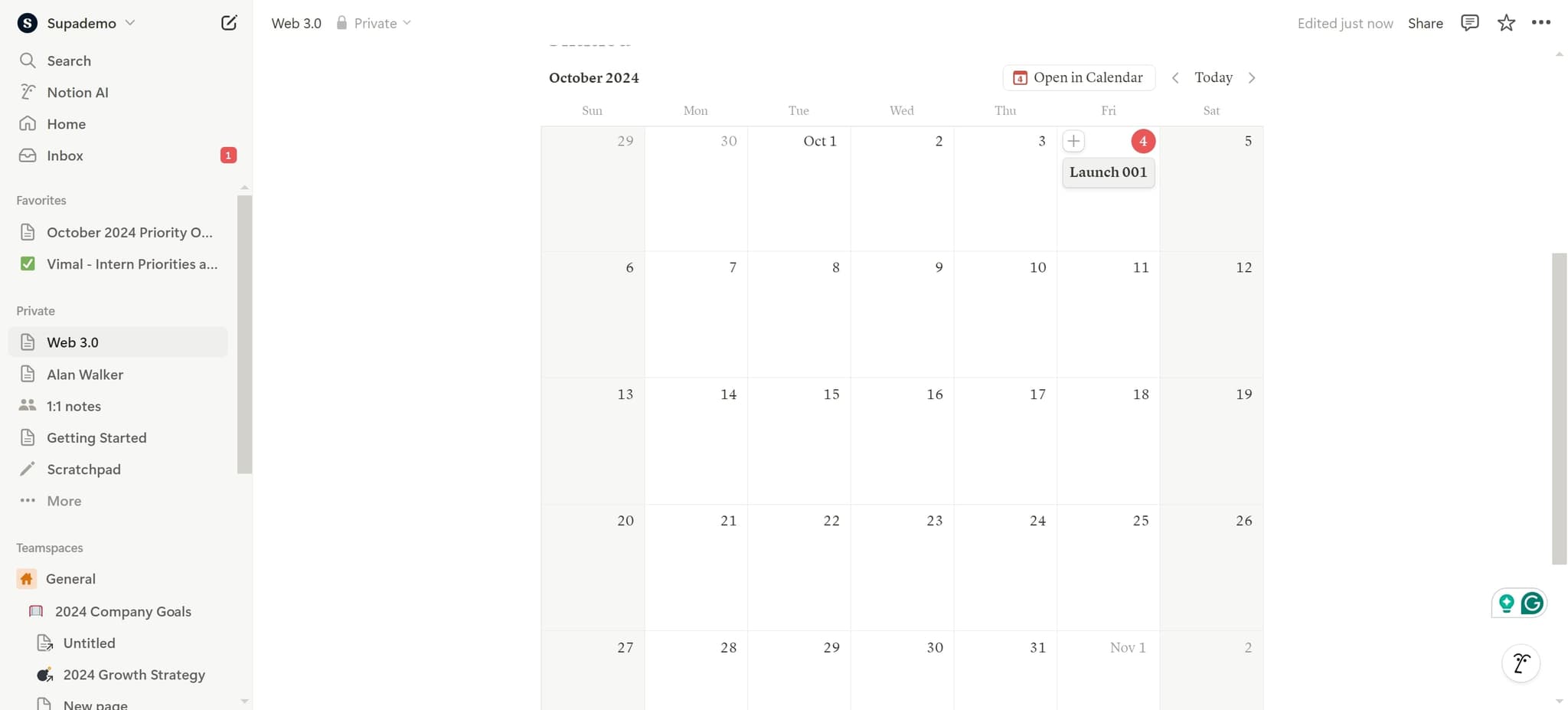
Click on 4
Select the number 4 in the configuration menu. This step establishes a key parameter for your calendar setup.
- 5
Launch your calendar
Click on 'Launch 001' to activate and publish your calendar view. Your calendar is now live and ready to display your database entries by date.
Frequently asked questions
Common questions about how to use notion calendar.
You can display any database entries that contain a date property. This includes tasks, events, deadlines, milestones, and any other time-based information. Notion Calendar will automatically map these entries to the corresponding dates on the calendar.
Yes, you can create multiple calendar views within a single Notion database. Each calendar view can be configured independently with different settings and filters, allowing you to visualize the same data in various ways.
You can click directly on a calendar entry to open its details and make edits. Changes made in the calendar view automatically update your database. To delete an entry, open it and select the delete option from the menu.
Yes, Notion Calendar supports filtering and property-based color coding. You can apply filters to show only specific entries and use database properties to automatically assign colors to different event types or categories.
Entries without a date property won't appear on the calendar. You'll need to assign a date to any entry you want to display. Notion may provide an option to view undated entries separately or add dates in bulk.