How to Embed a Video in PowerPoint

Embedding videos directly into your PowerPoint presentations allows you to create engaging, multimedia-rich content without relying on external links or playback issues. This guide walks you through the process of inserting a video from your device into a PowerPoint slide, giving you full control over your presentation's visual storytelling.
Quick summary
In this tutorial, you'll learn how to embed a video file from your computer into a PowerPoint presentation. You'll navigate through the Insert menu, select your video source, and upload your media file to seamlessly integrate it into your slides.
Why this matters
Embedding videos directly in PowerPoint ensures your presentation plays smoothly regardless of internet connectivity and keeps all assets in one file for easy sharing. This approach is essential for professional presentations, training materials, and distance learning scenarios where reliability and portability matter.
Step-by-step guide
- 1
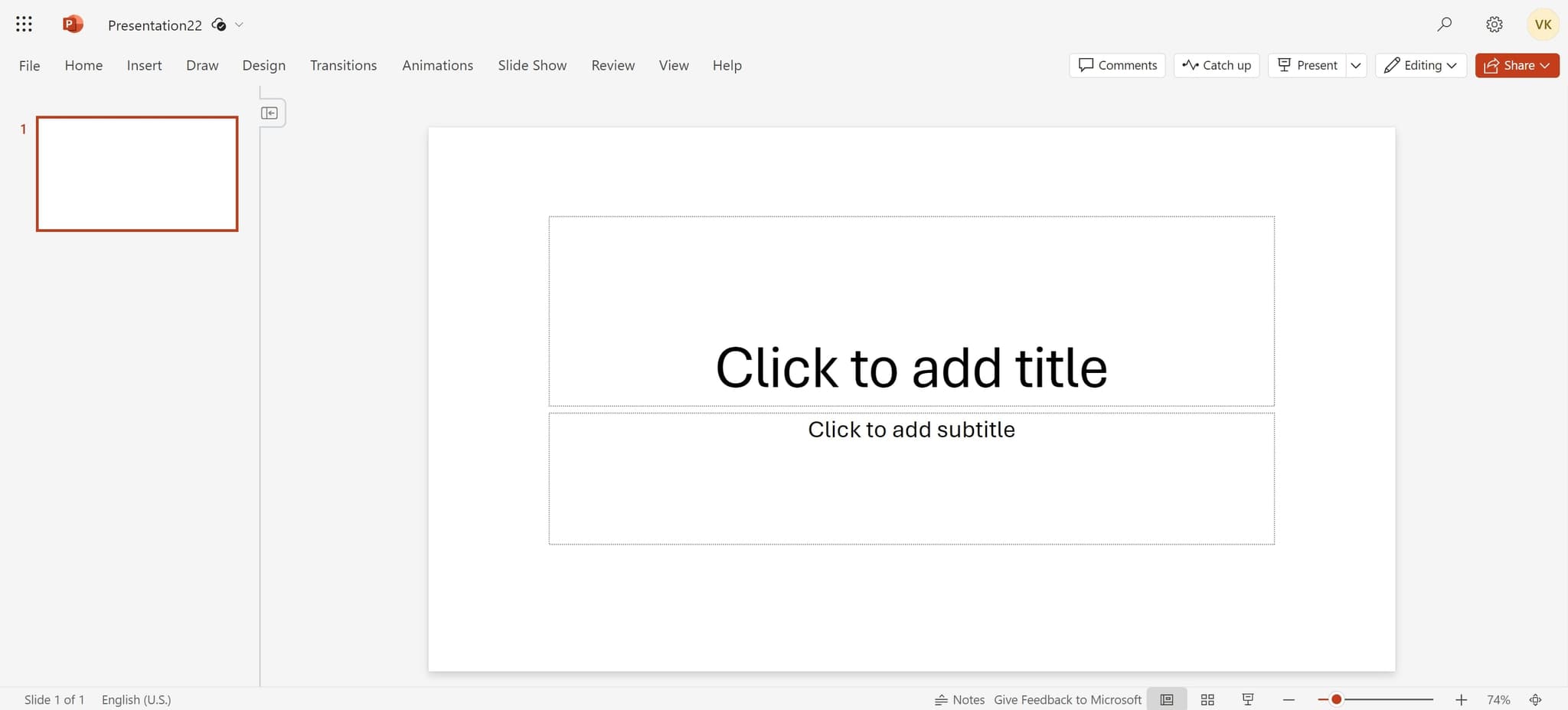
Click the Insert tab
Begin by locating and clicking on the element that will allow you to add new content to your slide. This opens the menu containing all available insertion options.
- 2
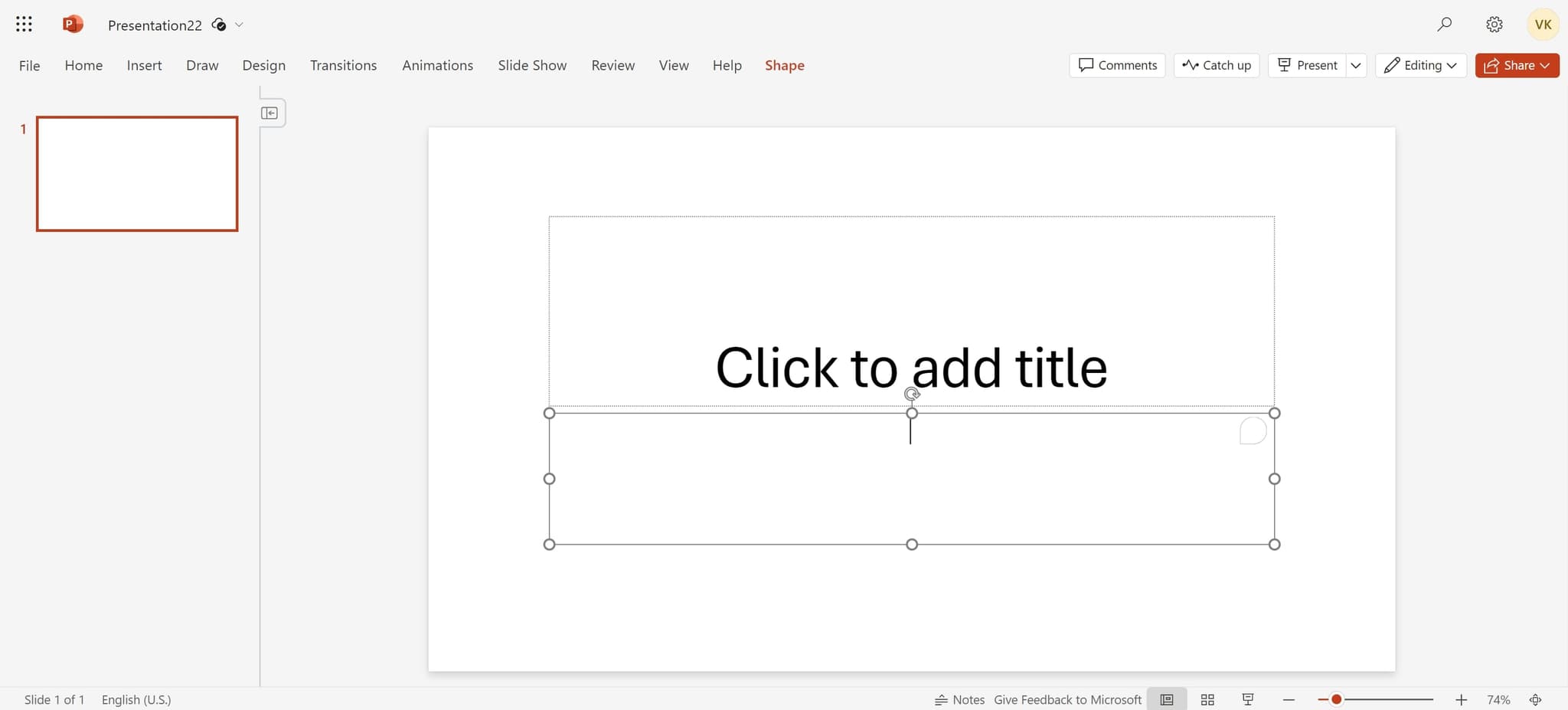
Select the subtitle placeholder
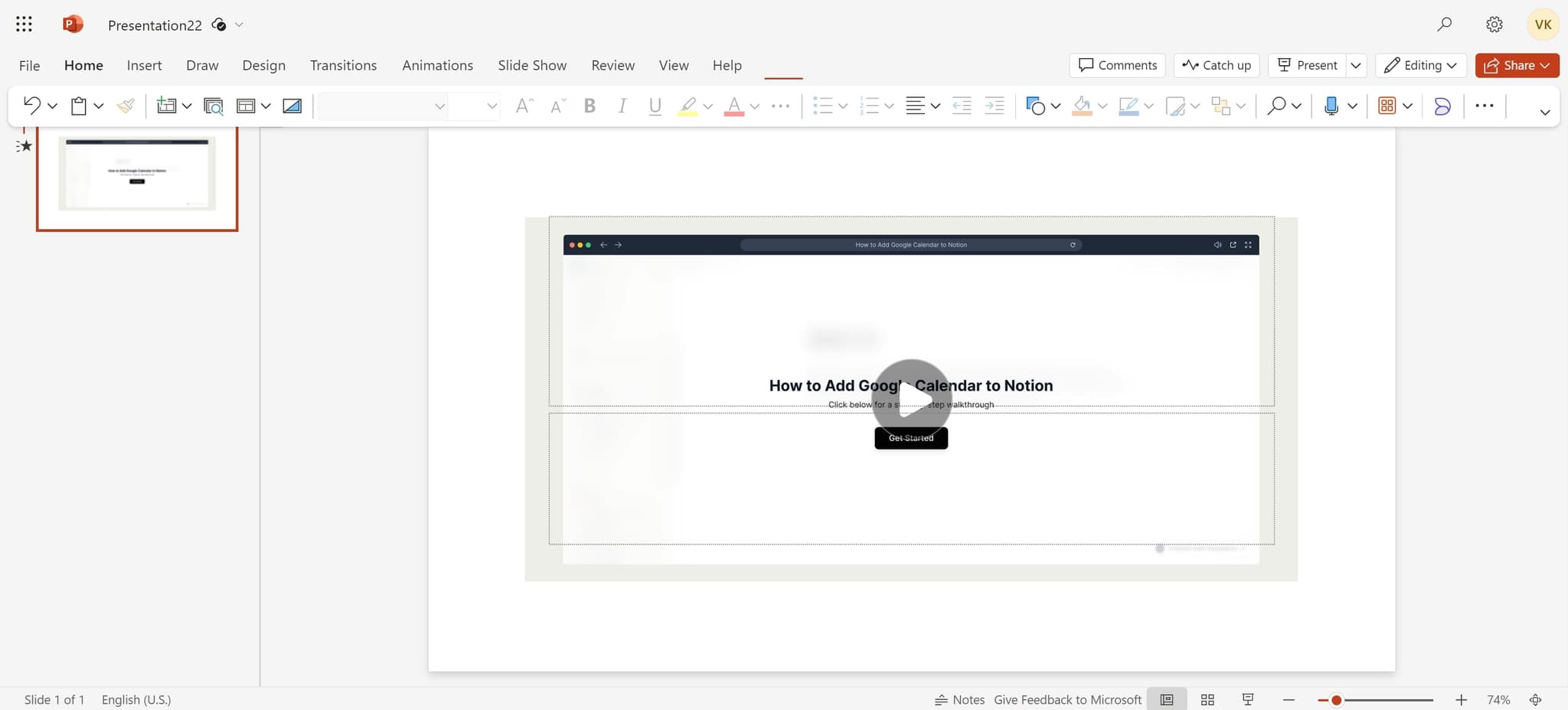
Click on the 'Click to add subtitle' area or the designated content placeholder on your slide. This positions your cursor where you want to add the video.
- 3
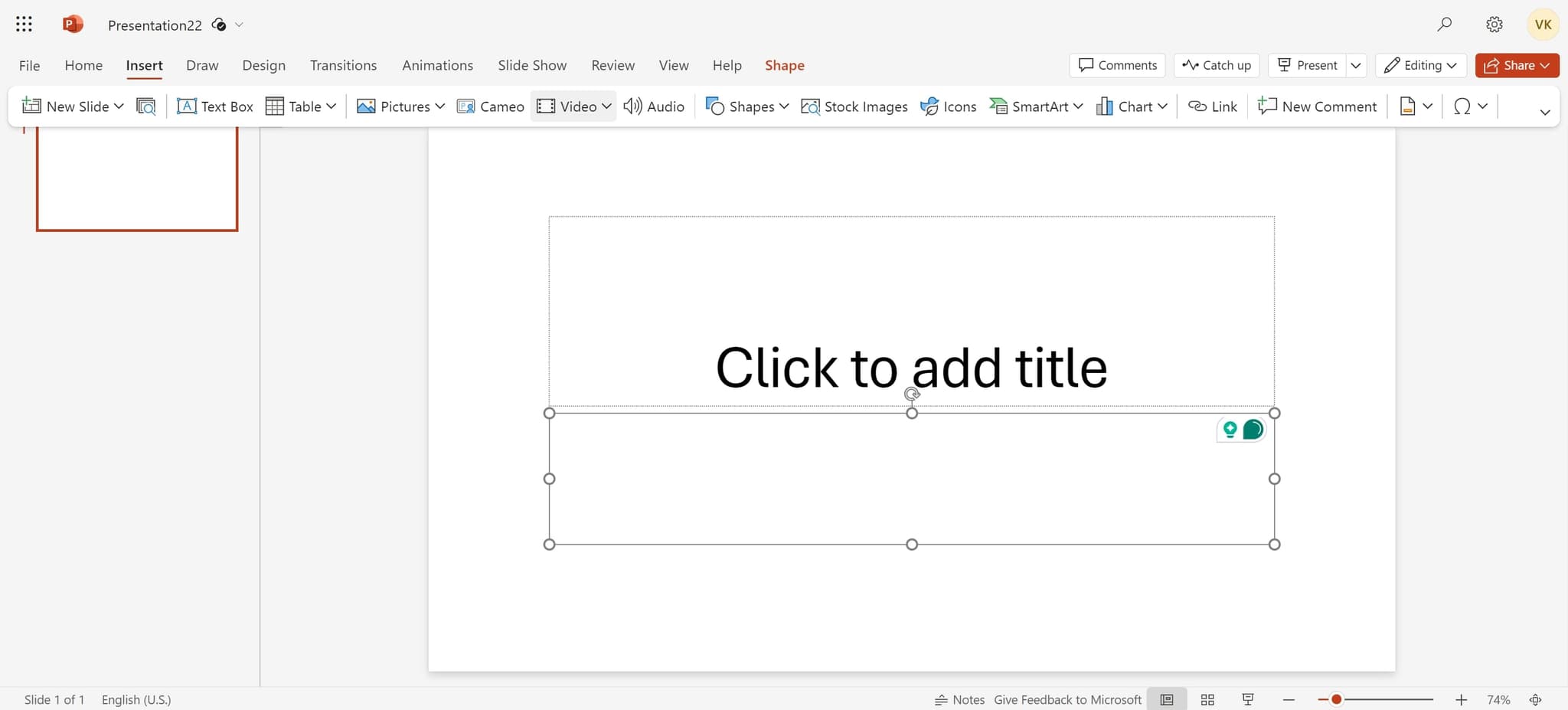
Navigate to Video option
Click on the 'Video' option from the available insertion choices. This opens the video insertion interface and allows you to specify your video source.
- 4
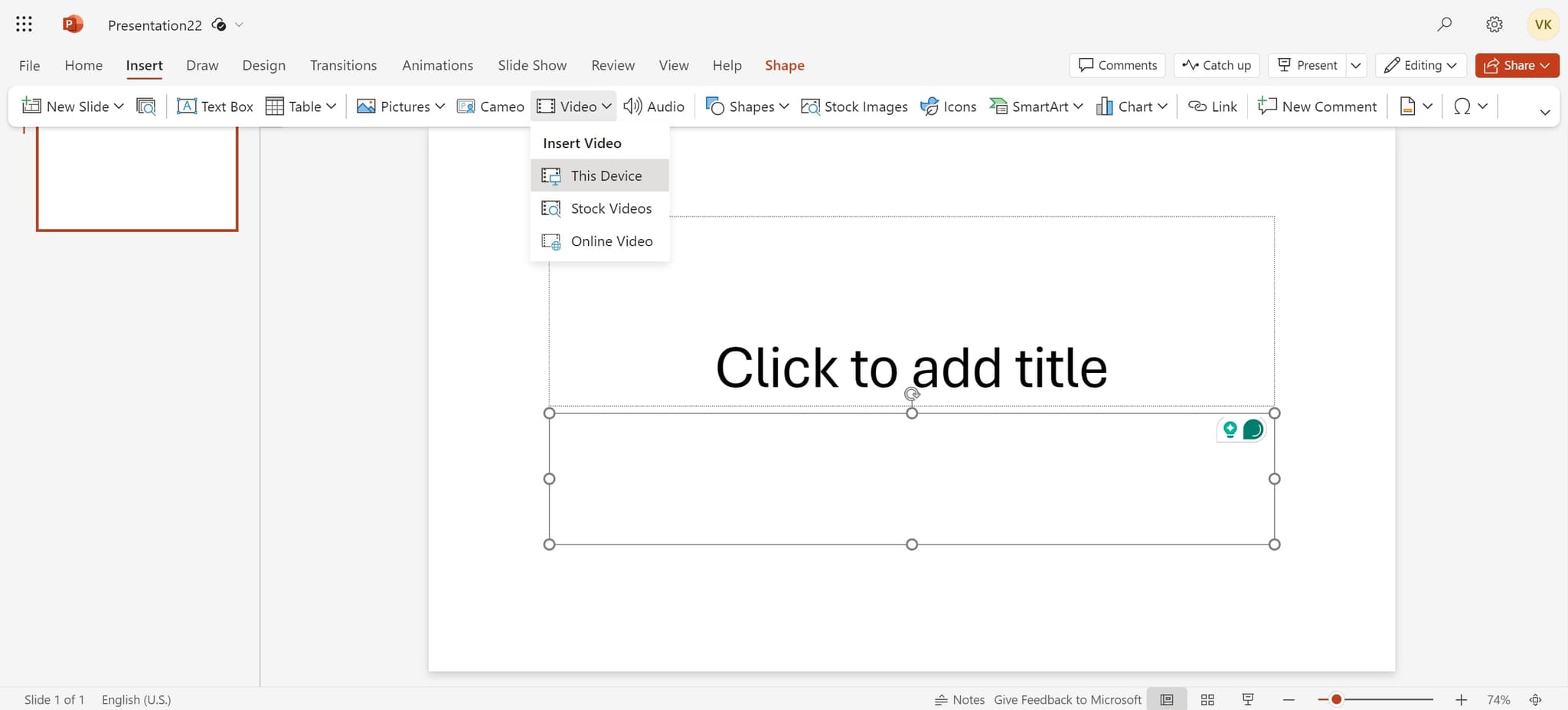
Choose This Device
Select 'This Device' to browse and upload a video file from your computer's local storage. This option lets you insert pre-recorded videos or any media files saved on your machine.
- 5
Upload your video file
Use the file browser to locate and select the video file you want to embed. Once selected, the video will be uploaded and inserted into your PowerPoint slide.
- 6
Confirm the insertion
Click the confirmation button or final prompt to complete the video embedding process. Your video is now ready to play directly within your presentation.
Frequently asked questions
Common questions about how to embed a video in powerpoint.
PowerPoint supports most common video formats including MP4, MOV, WMV, and AVI. For best compatibility and performance, MP4 is the recommended format. Check Microsoft's official documentation for the complete list of supported codecs and formats.
Yes, embedding videos significantly increases your PowerPoint file size. A typical video can add several megabytes or more depending on duration and quality. Consider video length and quality carefully if file size is a concern for sharing or email transmission.
PowerPoint offers basic video controls like trimming, adding bookmarks, and adjusting playback options through the Video Tools menu. For advanced editing, you'll need to edit the video in a dedicated video editor before embedding it in your presentation.
Ensure the video file is properly embedded (not linked), use a supported file format, and test playback on the presentation device beforehand. Update PowerPoint to the latest version and check that the device has sufficient resources to play the video smoothly.
Embedding is better for portability and reliability since the video travels with your file, while linking keeps the presentation smaller but requires the video file to exist separately. For presentations you'll move between devices or share via email, embedding is the safer choice.