How to Remove Animation from PowerPoint

Animations in PowerPoint can enhance presentations, but sometimes you need to remove them to simplify your slides or reduce file size. This guide walks you through the process of removing animations from your PowerPoint presentation quickly and efficiently.
Quick summary
In this tutorial, you'll learn how to access the Animations panel in PowerPoint and remove unwanted animations from your slides. By following these steps, you'll be able to clean up your presentation and have full control over which elements animate during playback.
Why this matters
Removing animations is important when you want to streamline your presentation for a professional audience, reduce distracting visual effects, or troubleshoot playback issues. A cleaner presentation with purposeful animations keeps your message focused and improves overall effectiveness.
Step-by-step guide
- 1
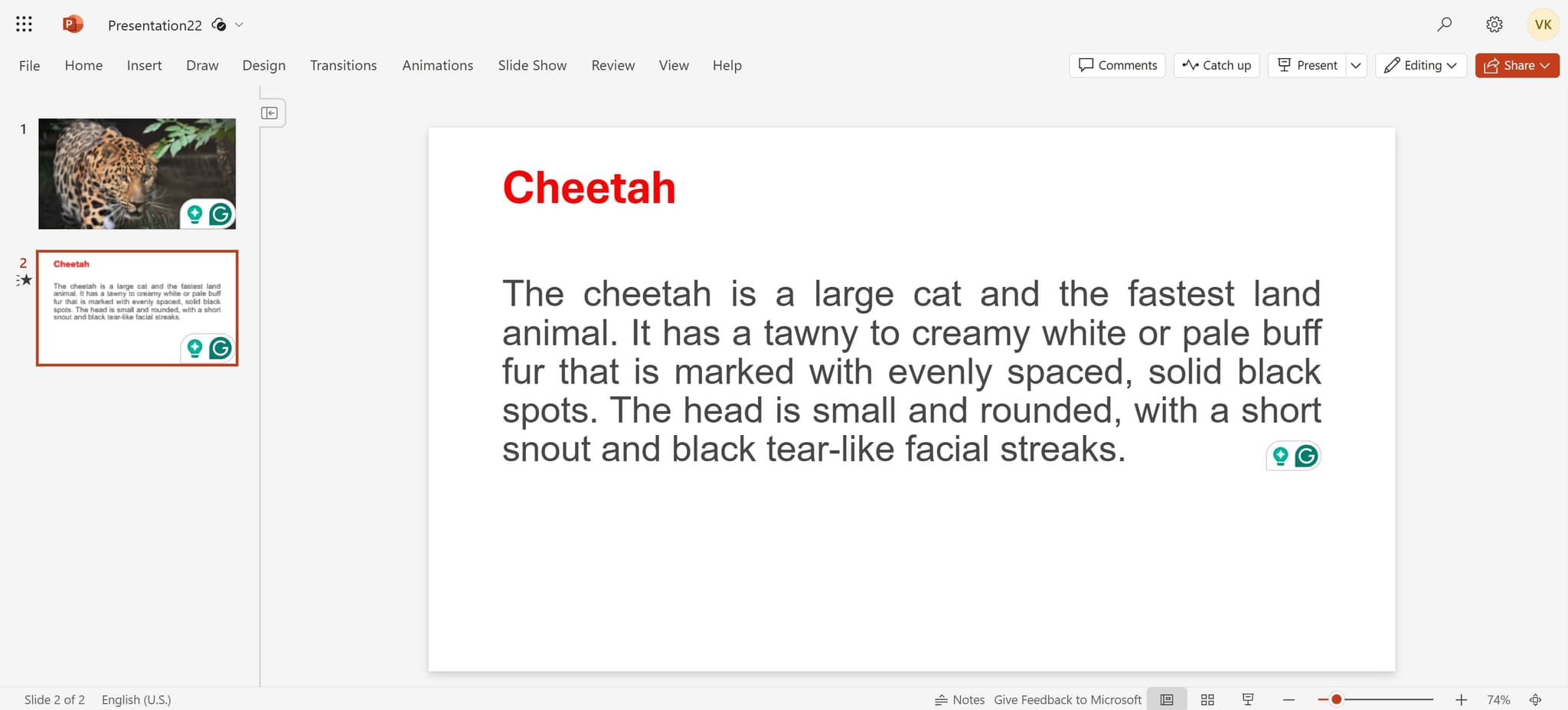
Open your PowerPoint presentation
Start by launching Microsoft PowerPoint and opening the presentation file containing the animations you want to remove. Ensure the file is fully loaded before proceeding to the next step.
- 2
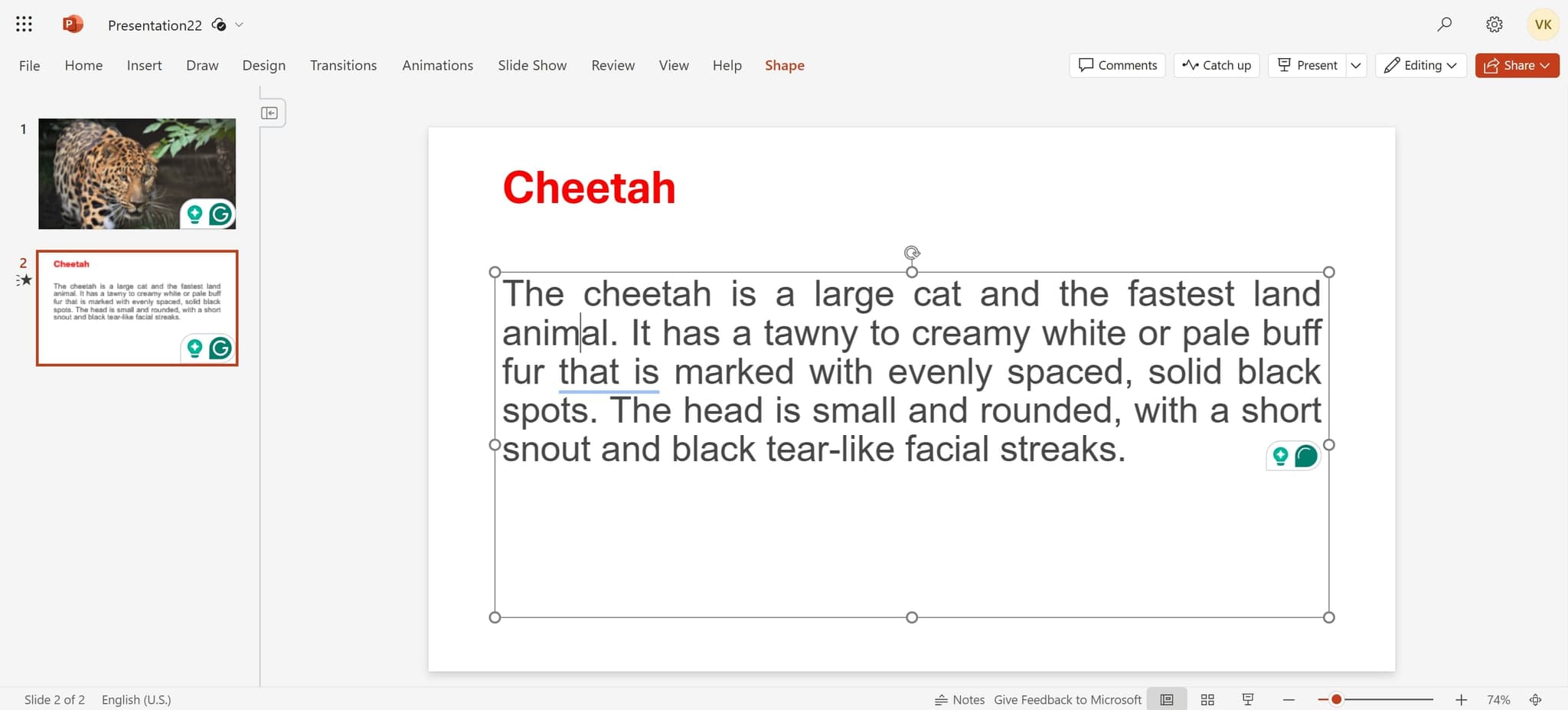
Select the animated element
Click on the specific object, text, or shape on your slide that has the animation applied to it. You'll see the element become selected with handles around it, indicating it's ready for editing.
- 3
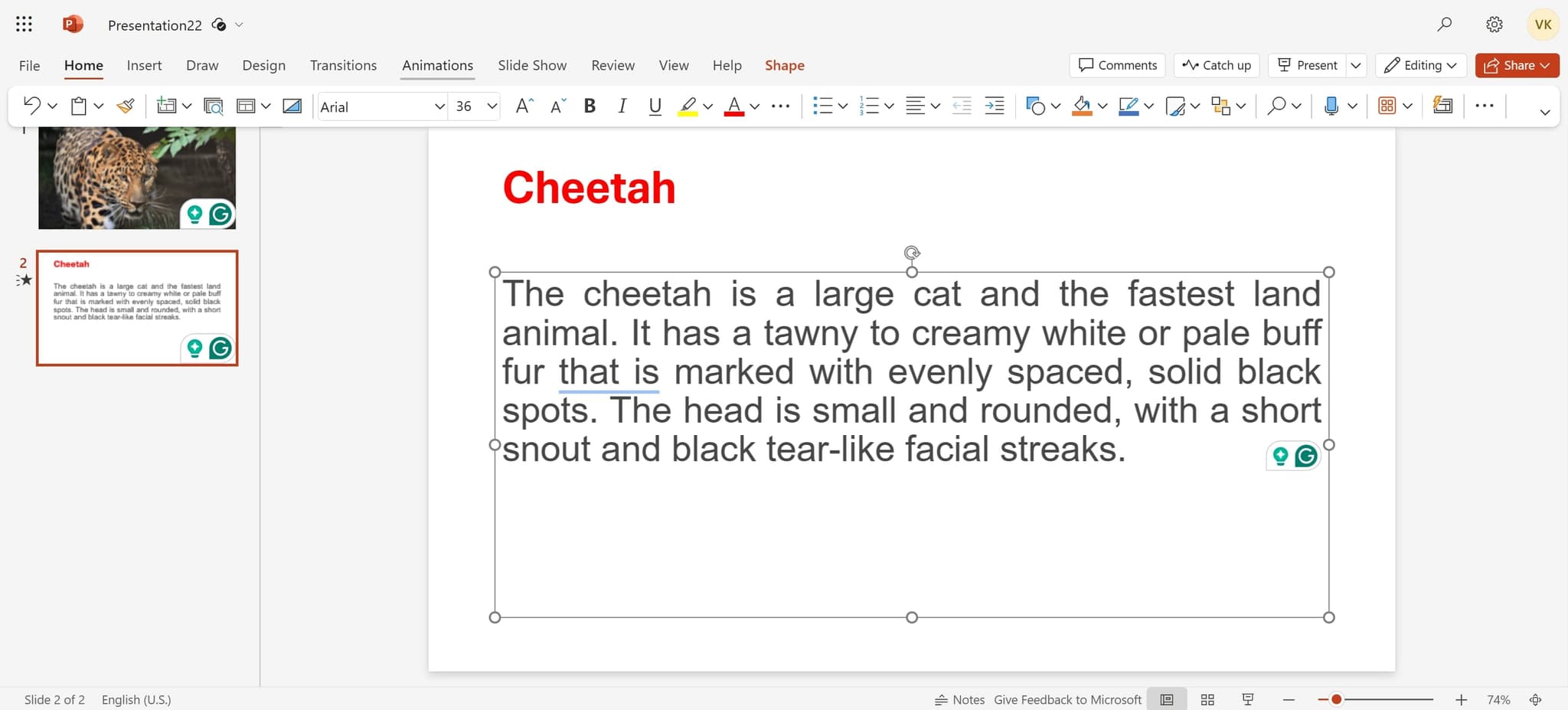
Access the Animations panel
Click on the 'Animations' tab in the PowerPoint ribbon at the top of the screen. This will open the Animations panel showing all animations currently applied to your selected element.
- 4
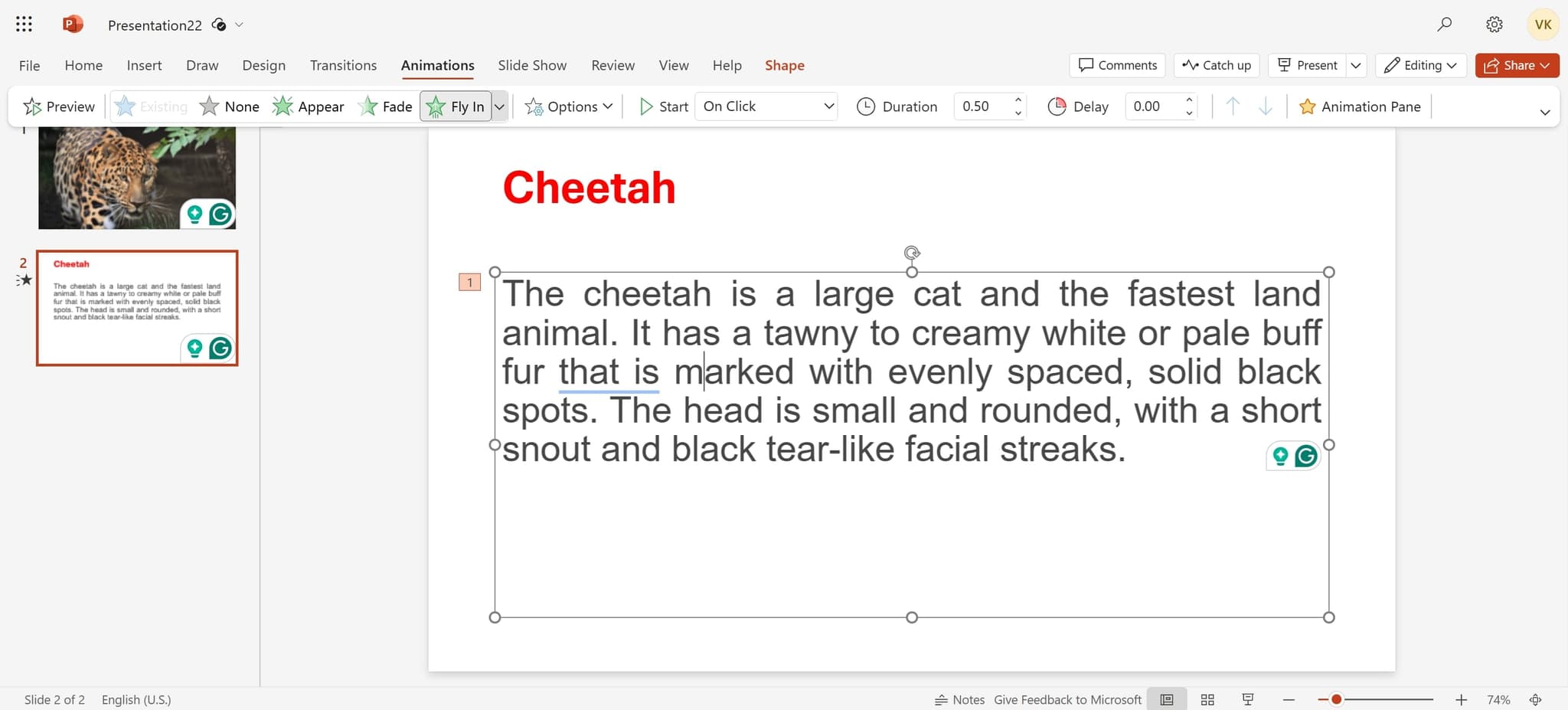
Remove the animation
Locate the animation listed in the Animations panel and click the 'Remove' button or delete icon next to it. The animation will be immediately removed from the selected element, and it will no longer play during your presentation.
Frequently asked questions
Common questions about how to remove animation from powerpoint.
Yes, you can select multiple elements on a slide by holding Ctrl and clicking each one, then remove their animations together from the Animations panel. However, if animations are on different slides, you'll need to remove them individually by navigating to each slide.
No, removing animations only removes the motion effects. Your text, images, and other content will remain on the slide exactly as they were, just without the animation playback effect.
Select all objects on the slide using Ctrl+A, then go to the Animations panel and click 'Remove All Animations' or remove each animation individually. This will strip all animation effects from that slide in one action.
Yes, you can press Ctrl+Z immediately after removing an animation to undo the action. If you've already saved the file, you may need to reapply the animation manually using the Animations panel.
Removing an animation deletes it completely from the element, while disabling would prevent it from playing without permanently deleting it. PowerPoint removes animations entirely; there is no disable option. To keep an animation but prevent it from showing, you must remove and reapply it if needed later.