How to Superscript in PowerPoint

Superscript formatting is essential for mathematical equations, footnotes, chemical formulas, and citations in PowerPoint presentations. This tutorial walks you through the process of applying superscript formatting to text in Microsoft PowerPoint, enabling you to create polished and professional slides.
Quick summary
In this tutorial, you'll learn how to apply superscript formatting to text in PowerPoint. You'll discover how to access formatting options and transform selected text into superscript for your presentation needs.
Why this matters
Superscript formatting is critical for maintaining accuracy and professionalism in technical, scientific, and academic presentations. Properly formatted superscript ensures your audience can read equations, citations, and references clearly without confusion or misinterpretation.
Step-by-step guide
- 1
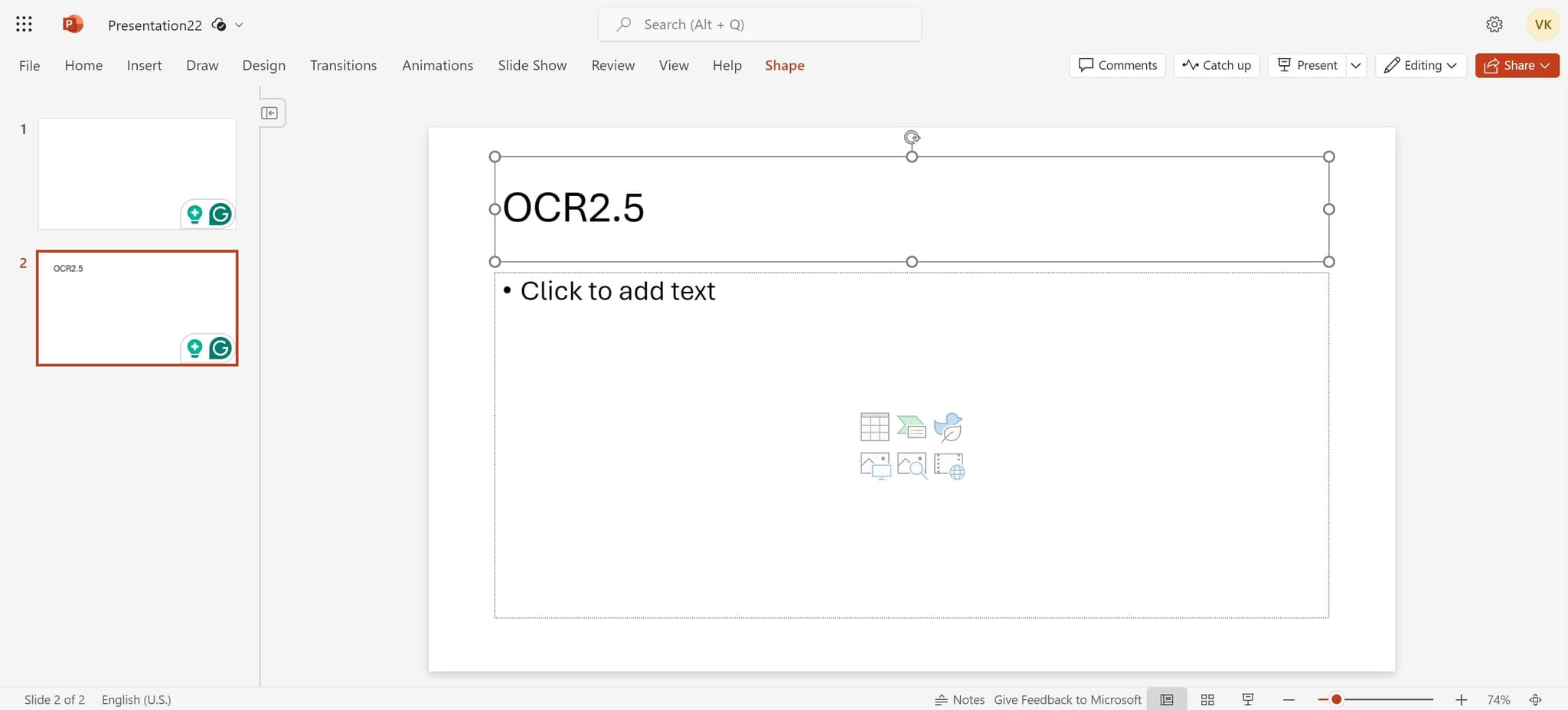
Select the text to superscript
Click and drag to highlight the text or numbers you want to convert to superscript. This could be a single character, a number, or an entire phrase depending on your needs.
- 2
Upload or access formatting menu
Navigate to the Home tab in the PowerPoint ribbon and locate the Font group. Look for the superscript button (typically shown as an 'x' with a small raised number) or use the keyboard shortcut Ctrl+Shift+Plus to apply superscript formatting instantly.
Frequently asked questions
Common questions about how to superscript in powerpoint.
No, you need to select and format each section individually. Select the first text segment, apply superscript, then repeat the process for each additional section you want to superscript. This ensures precise control over your formatting.
The keyboard shortcut for superscript in PowerPoint is Ctrl+Shift+Plus (on Windows) or Command+Shift+Plus (on Mac). This is the fastest way to apply superscript formatting after selecting your text.
Select the superscripted text and press Ctrl+Shift+Plus again to toggle off the superscript formatting. Alternatively, you can use the superscript button in the Font group on the Home tab to deactivate it.
Yes, superscript formatting is available in all modern versions of PowerPoint, including Office 365, PowerPoint 2019, 2016, and earlier versions. The feature is a standard text formatting option across the platform.
Superscript text automatically scales proportionally to your base text size. If you need larger or smaller superscript, you can select the text and manually adjust the font size using the font size dropdown in the Home tab before or after applying superscript formatting.