How to Wrap Text in PowerPoint

Text wrapping in PowerPoint ensures that longer text fits neatly within text boxes and shapes without extending beyond your slide boundaries. This essential formatting skill helps you maintain a professional appearance and improves readability across all your presentations.
Quick summary
In this tutorial, you'll learn how to apply text wrapping in Microsoft PowerPoint to control how text flows within text boxes and shapes. You'll discover the key settings and options that allow you to format text for optimal slide design.
Why this matters
Proper text wrapping prevents text overflow, maintains consistent slide layouts, and ensures your message is clearly visible to your audience. Without text wrapping, important content can be hidden or cut off, compromising the effectiveness of your presentation.
Step-by-step guide
- 1
Open your PowerPoint presentation
Launch Microsoft PowerPoint and open the presentation file you want to edit. Select the slide containing the text box or shape you need to format for text wrapping.
- 2
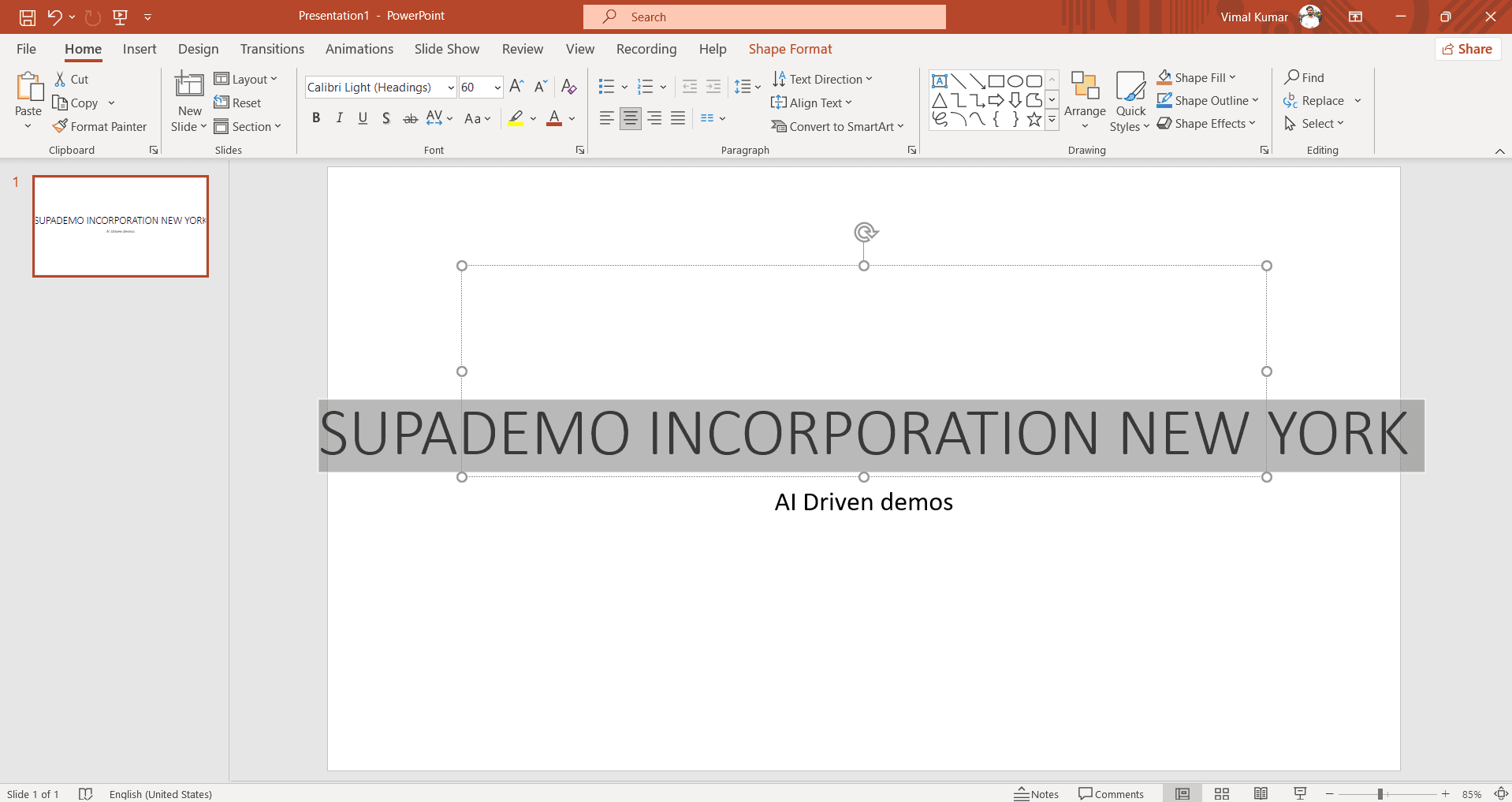
Click on the target text box
Click directly on the text box or shape that contains the text you want to wrap. You'll see the selection handles appear around the object.
- 3
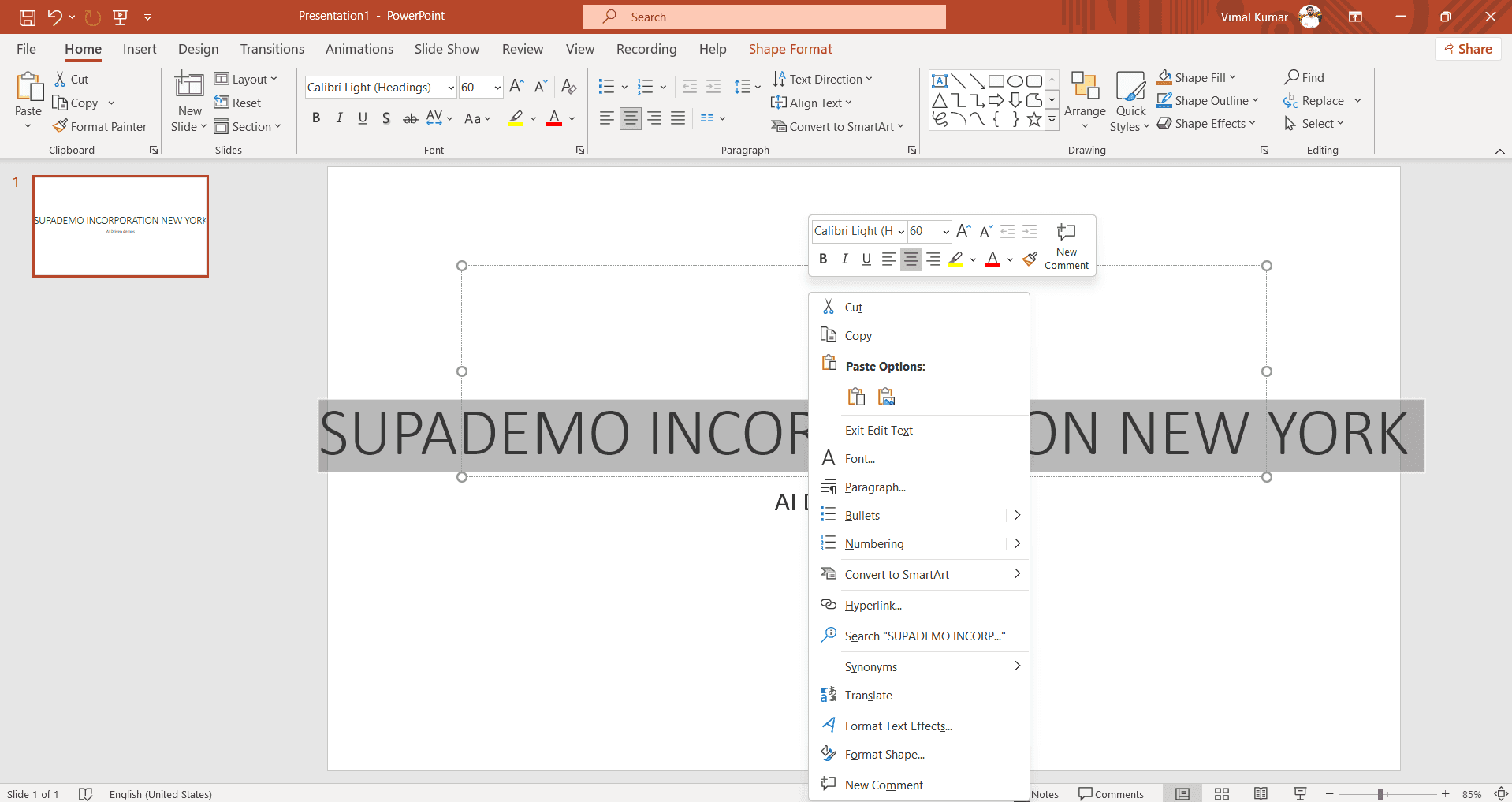
Access the Format menu
Go to the Format menu in the ribbon at the top of the screen. This menu provides text formatting and layout options for your selected object.
- 4
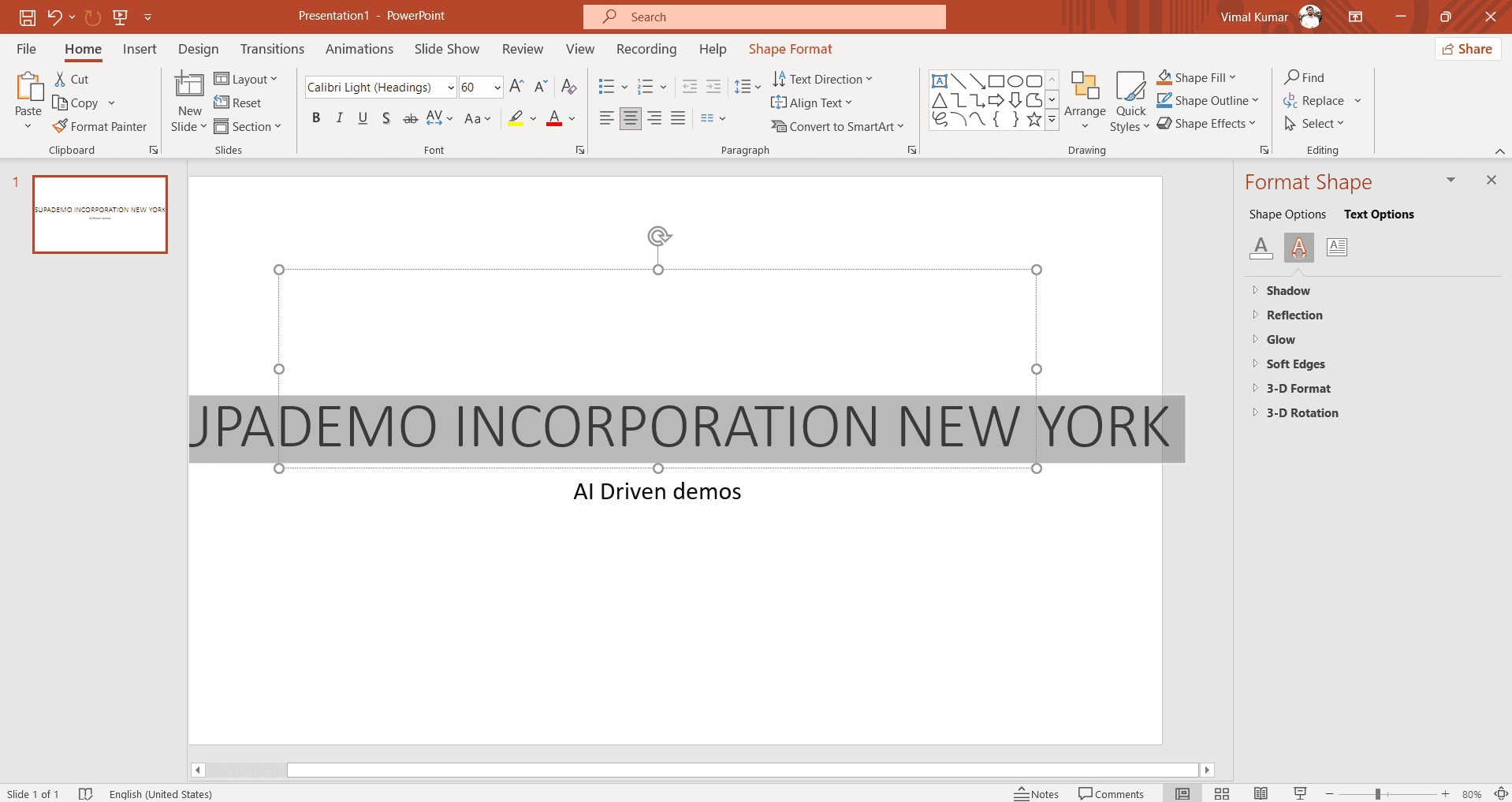
Select text wrapping options
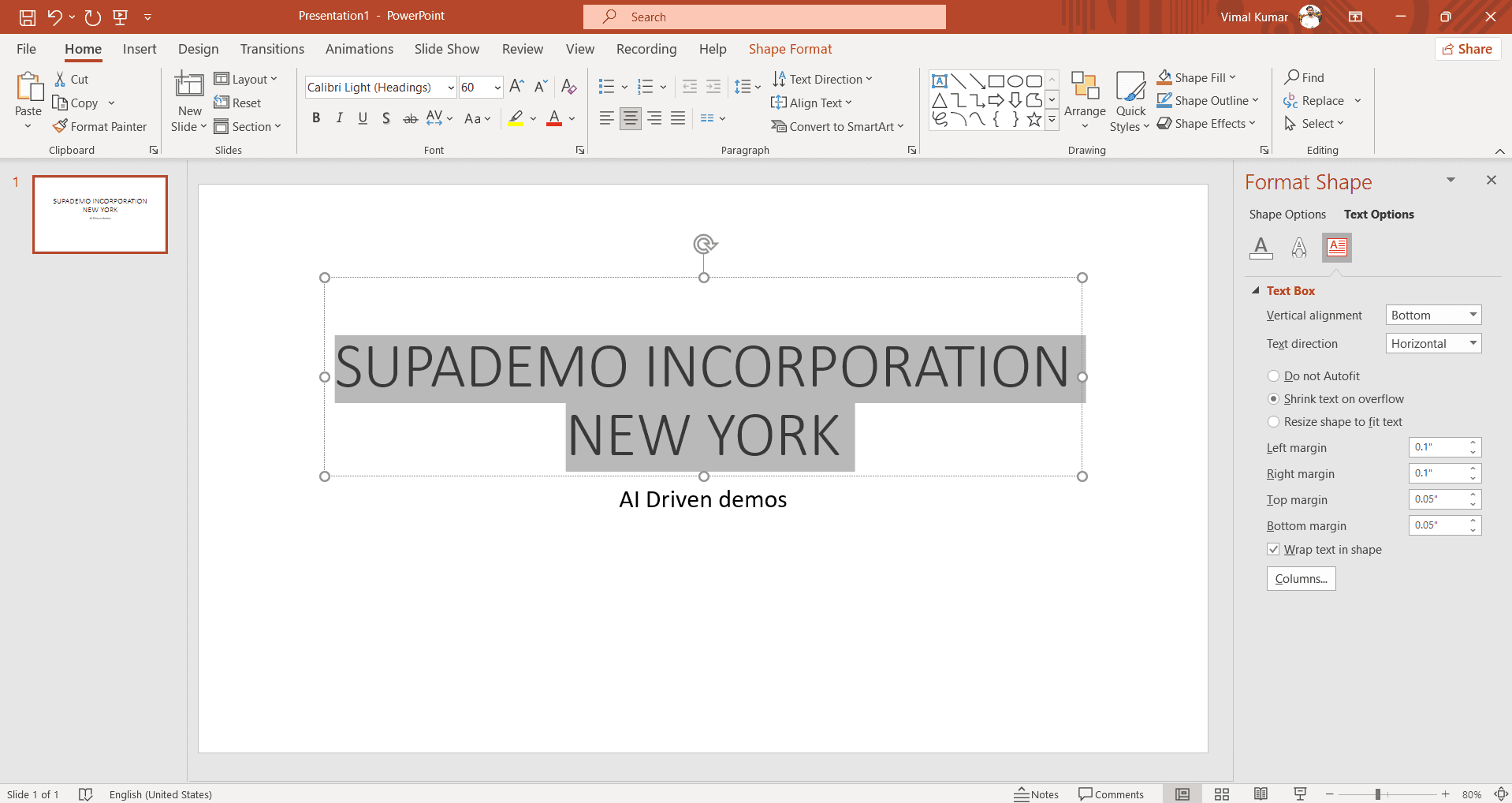
Look for the text wrapping settings, typically found under shape or text options. PowerPoint offers options like 'Wrap Text' or 'Do Not Wrap' depending on your version.
- 5
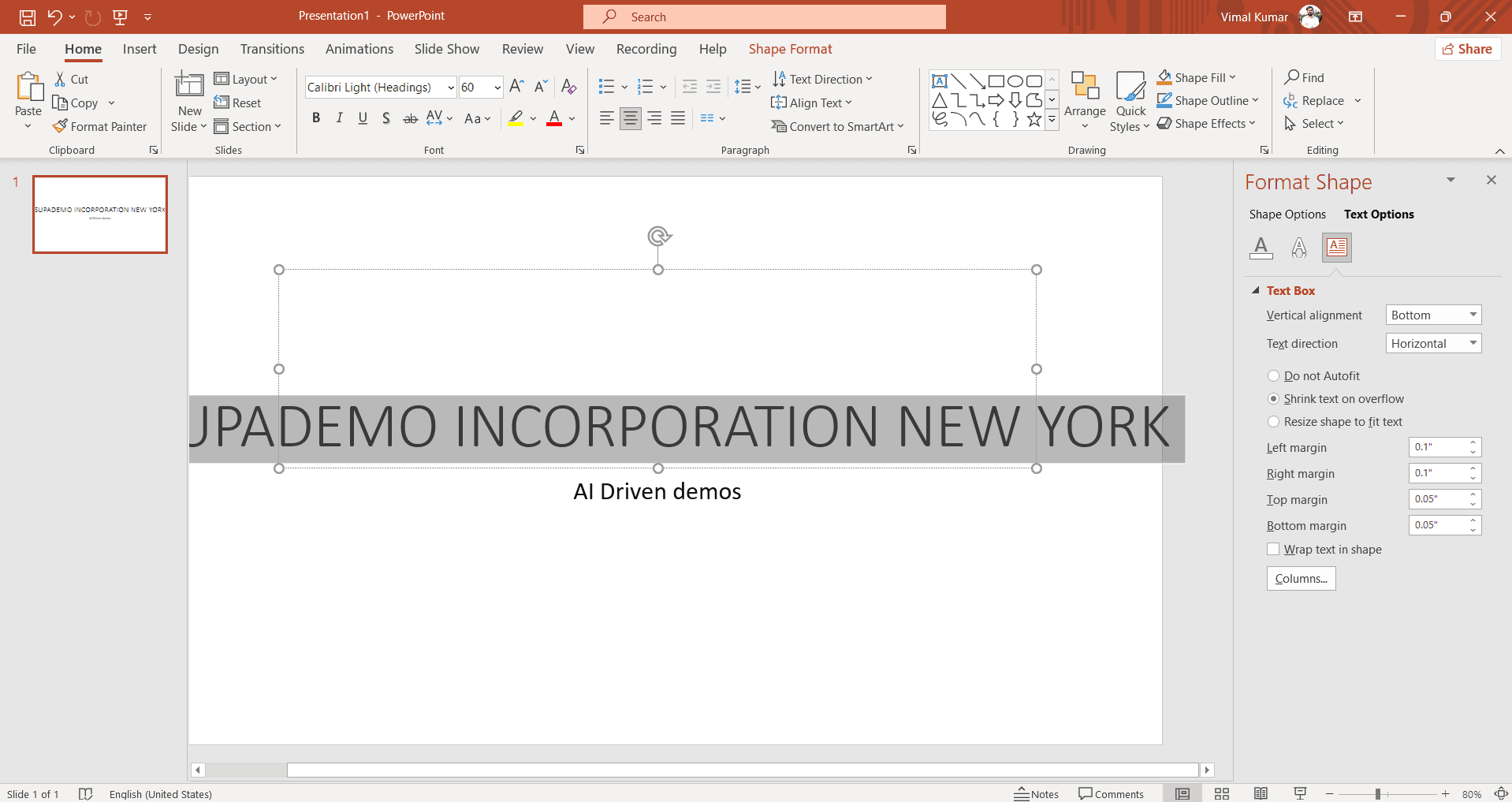
Choose your preferred wrap setting
Select the appropriate text wrapping option that fits your slide layout. The text will automatically reflow to fit within the boundaries of your text box.
- 6
Adjust text box size as needed
If necessary, resize your text box by dragging the corner or edge handles to achieve the desired layout. Your text will wrap automatically to fit the new dimensions.
Frequently asked questions
Common questions about how to wrap text in powerpoint.
Text wrapping moves text to multiple lines within a fixed text box, while shrinking reduces the font size to fit text within the original box dimensions. Choose wrapping when you want to preserve font size and readability, and shrinking when you want to maintain a specific text box size.
Yes, text wrapping works in most PowerPoint shapes including circles, stars, and custom shapes. The text will wrap to conform within the shape's boundaries, though the shape's irregular edges may affect how the text displays.
Select all the text boxes you want to modify by holding Ctrl and clicking each one. Then access the Format menu and apply the text wrapping setting, which will apply to all selected objects simultaneously.
This usually means the text box is too narrow for the content. Try widening the text box by dragging its edges, or reduce the font size to allow more text to fit within the available space.
No, text wrapping settings are purely formatting and work the same way in both edit mode and slideshow mode. The wrapped text will display identically to your audience during the presentation.