How to Convert Figma to WordPress

Converting Figma designs directly into WordPress streamlines your web development workflow and eliminates manual coding of design elements. This tutorial walks you through using the Figma to WordPress Block plugin to automate the conversion process and get your designs live faster.
Quick summary
In this tutorial, you'll learn how to upload your Figma design and use the Figma to WordPress Block plugin to automatically convert it into WordPress-compatible blocks. By following these steps, you'll transform your design files into functional WordPress content without writing code.
Why this matters
Converting Figma to WordPress directly saves development time and reduces the risk of design inconsistencies between your mockups and live site. This workflow is especially valuable for designers and developers who want to maintain design fidelity while leveraging WordPress's content management capabilities.
Step-by-step guide
- 1
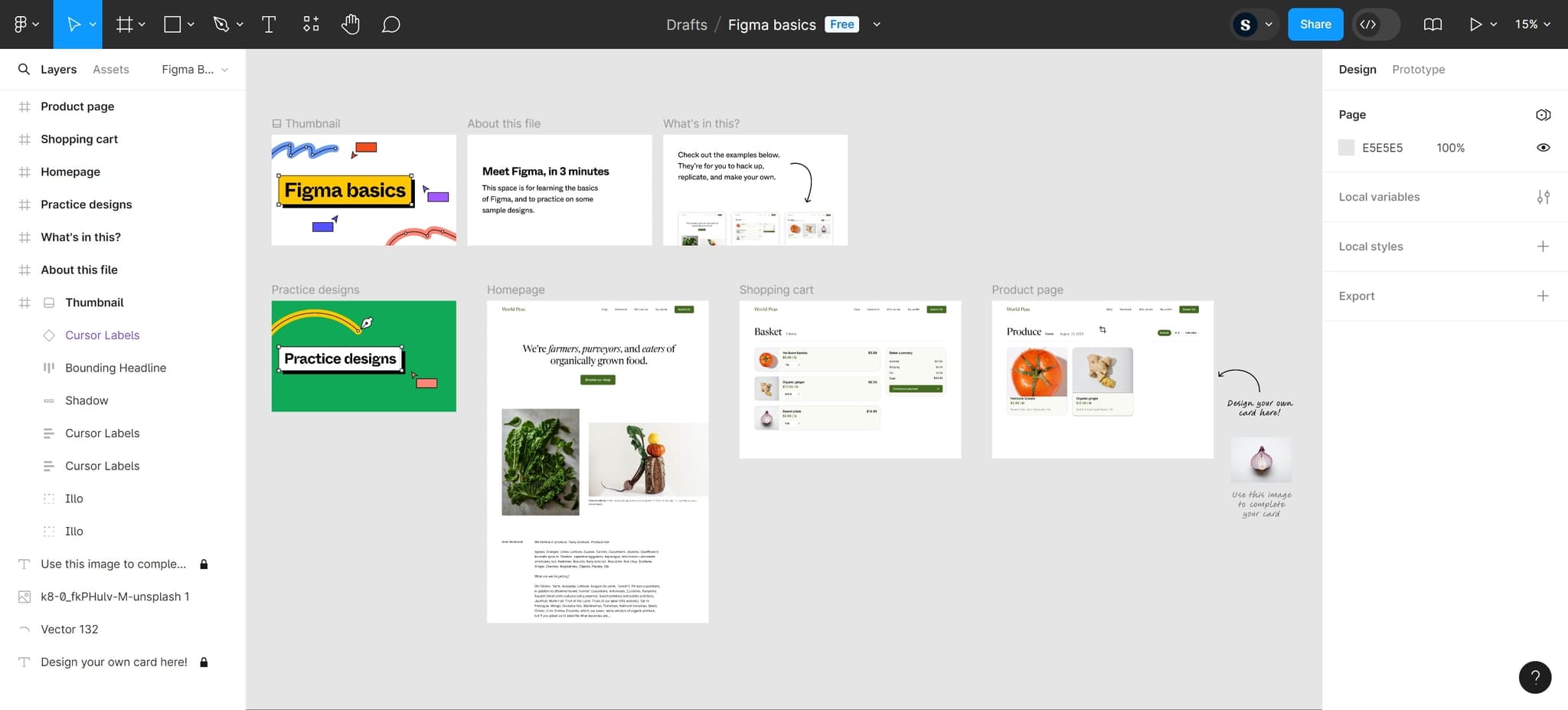
Navigate to the initial screen
Begin by clicking on the designated area to access the WordPress dashboard or plugin interface. This will load the main workspace where you'll manage your Figma to WordPress conversion.
- 2
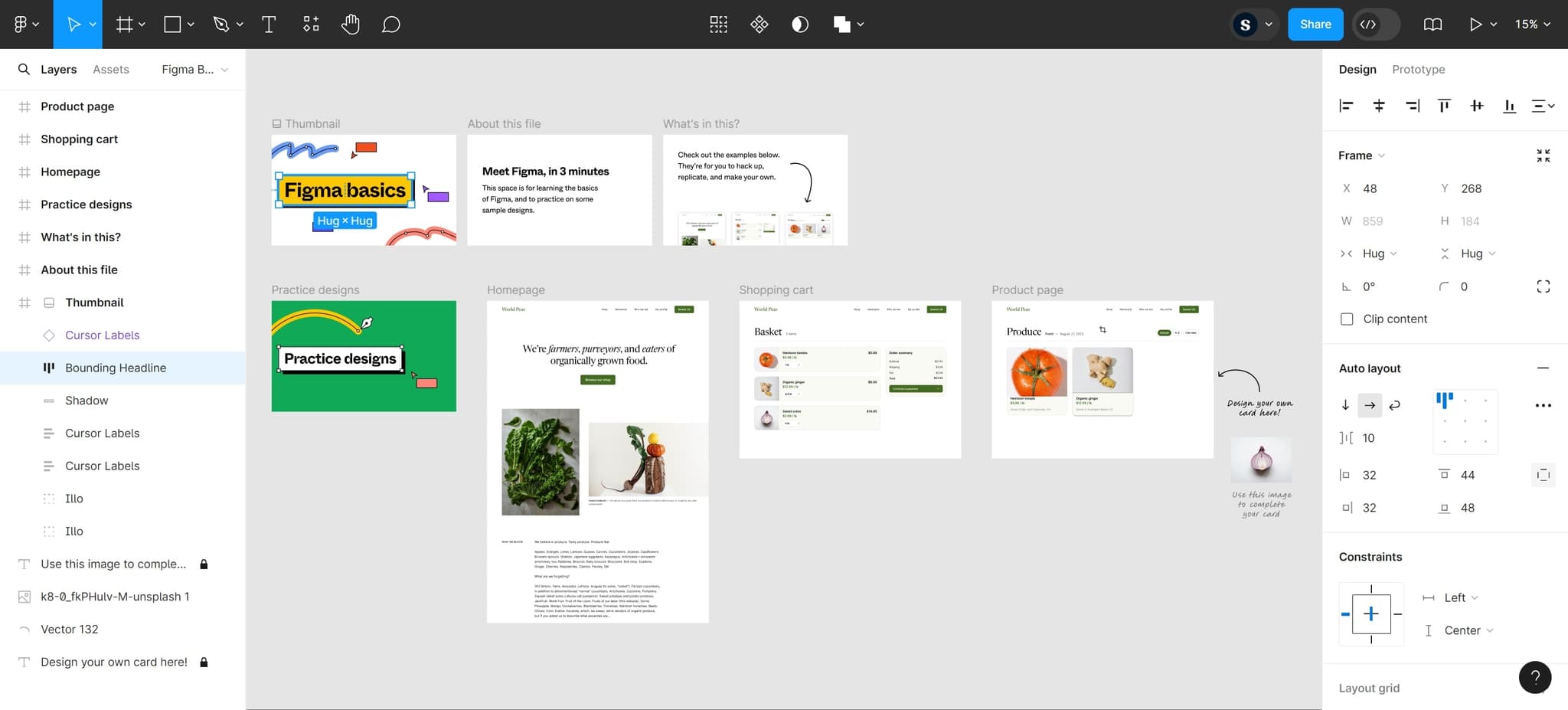
Proceed to the next section
Click through to advance to the next part of the conversion setup. This step prepares the system for your Figma design import.
- 3
Upload your Figma design
Select and upload your Figma file or design asset. The system will process your upload and prepare it for conversion into WordPress blocks.
- 4
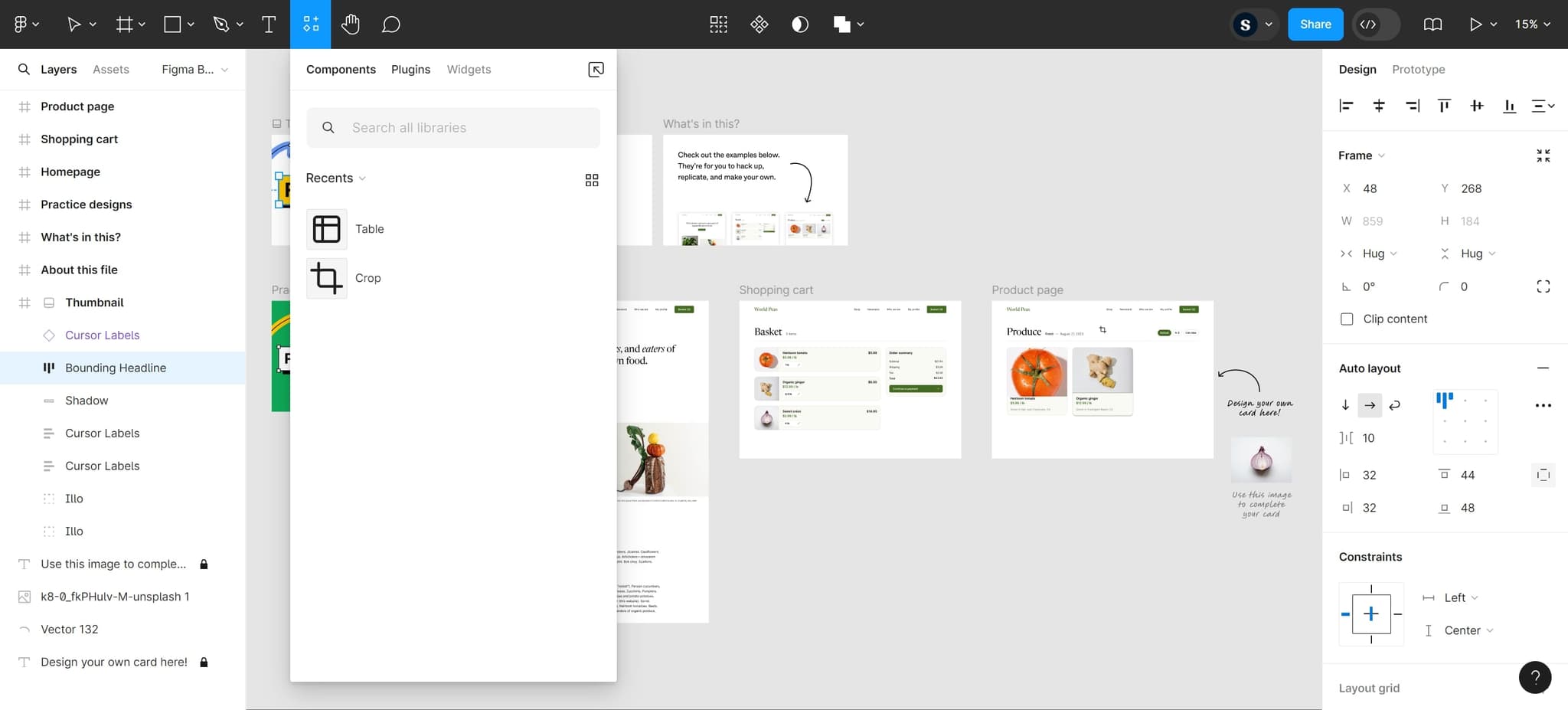
Access the plugins menu
After the upload completes, click on the 'Plugins' section to view available WordPress plugins and extensions. This is where you'll find and activate the Figma to WordPress conversion tool.
- 5
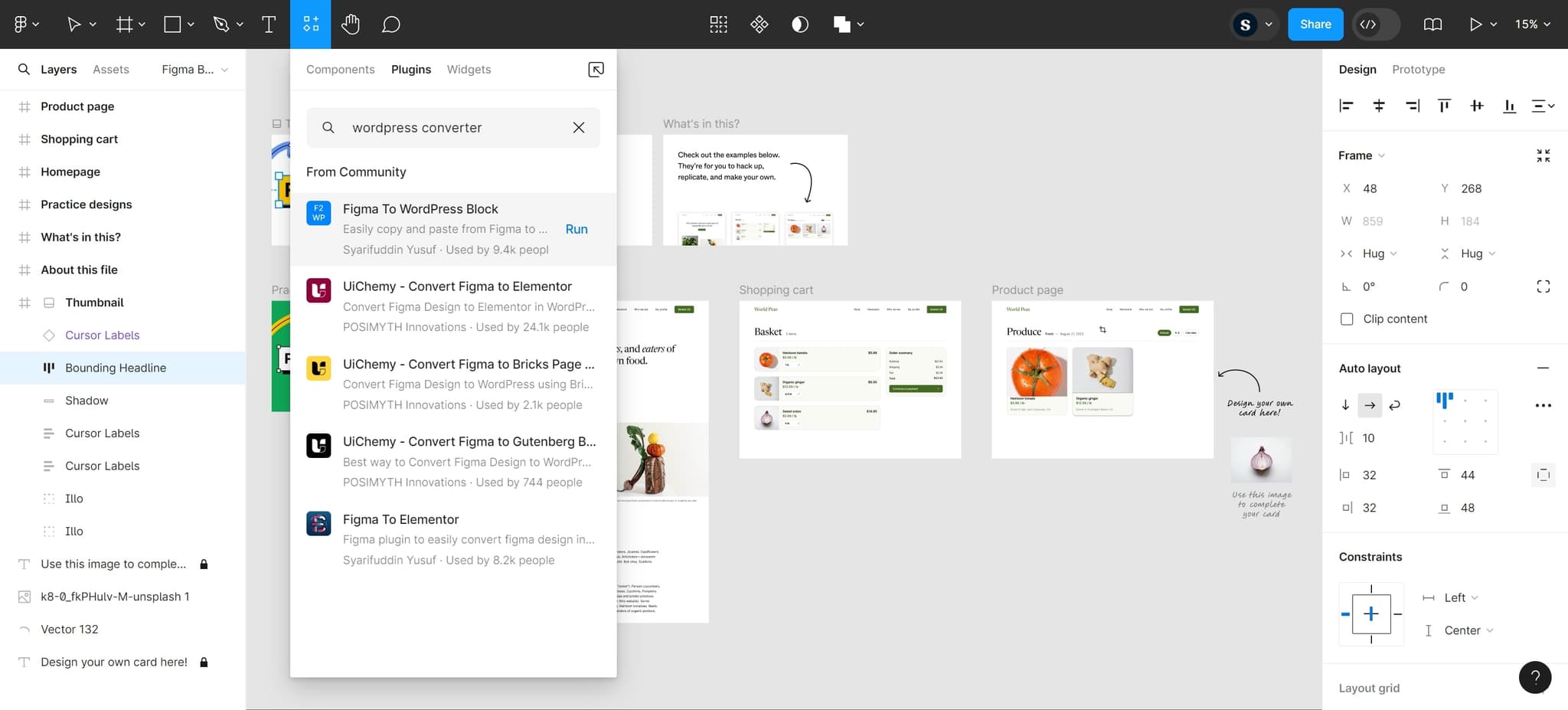
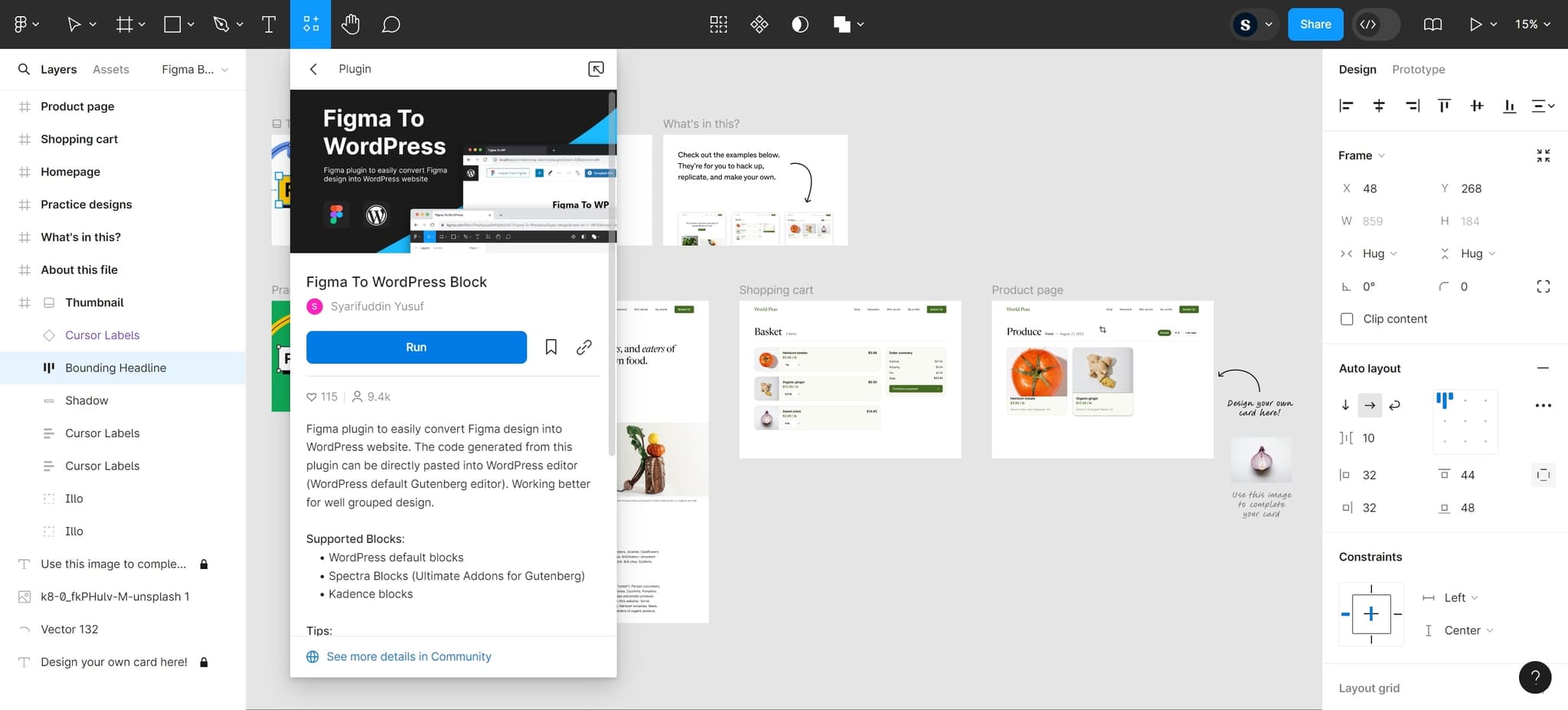
Select Figma to WordPress Block
Locate and click on the 'Figma To WordPress Block' plugin from the available options. This plugin is the core tool that will handle the conversion of your design into WordPress-compatible blocks.
- 6
Execute the conversion
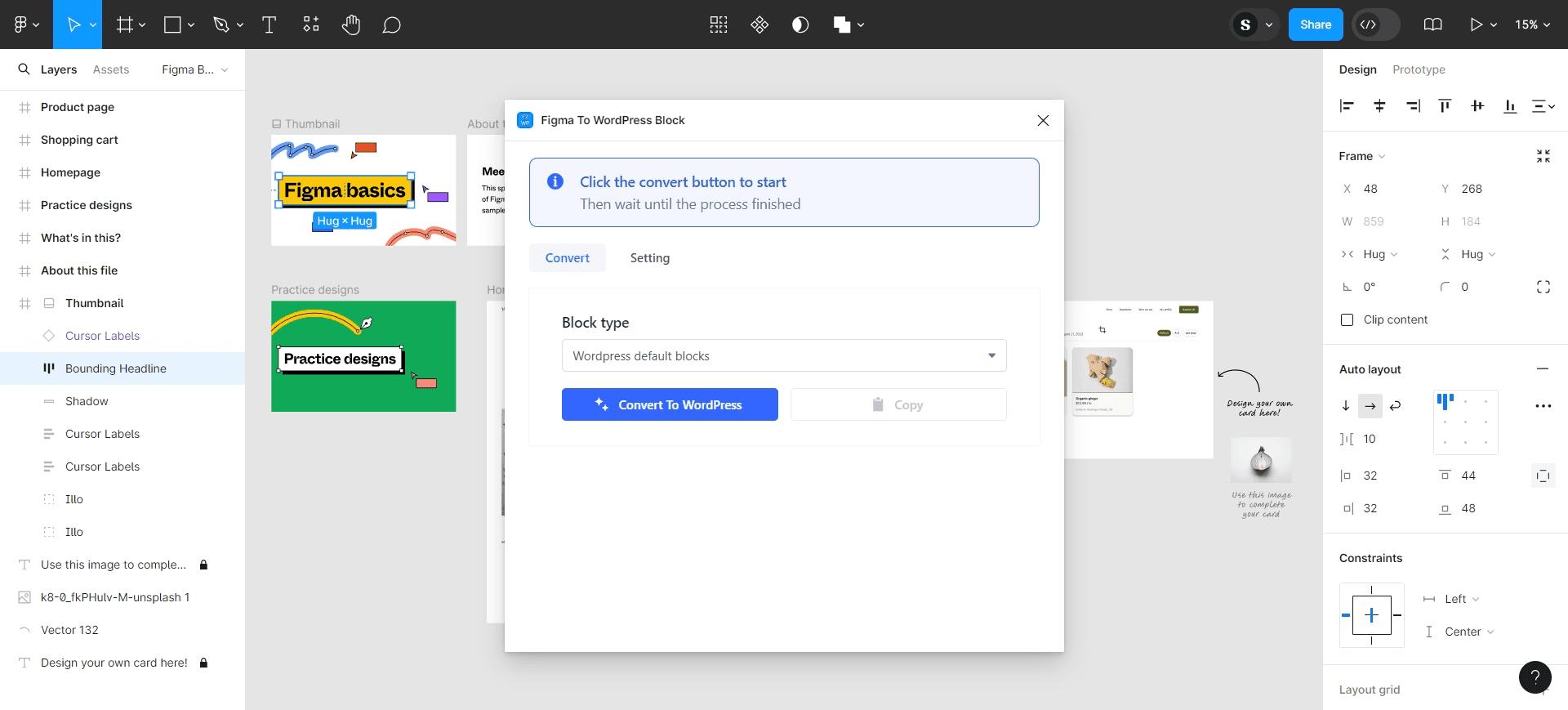
Click the 'Run' button to initiate the conversion process. The plugin will analyze your Figma design and generate the corresponding WordPress blocks automatically.
- 7
Review generated blocks
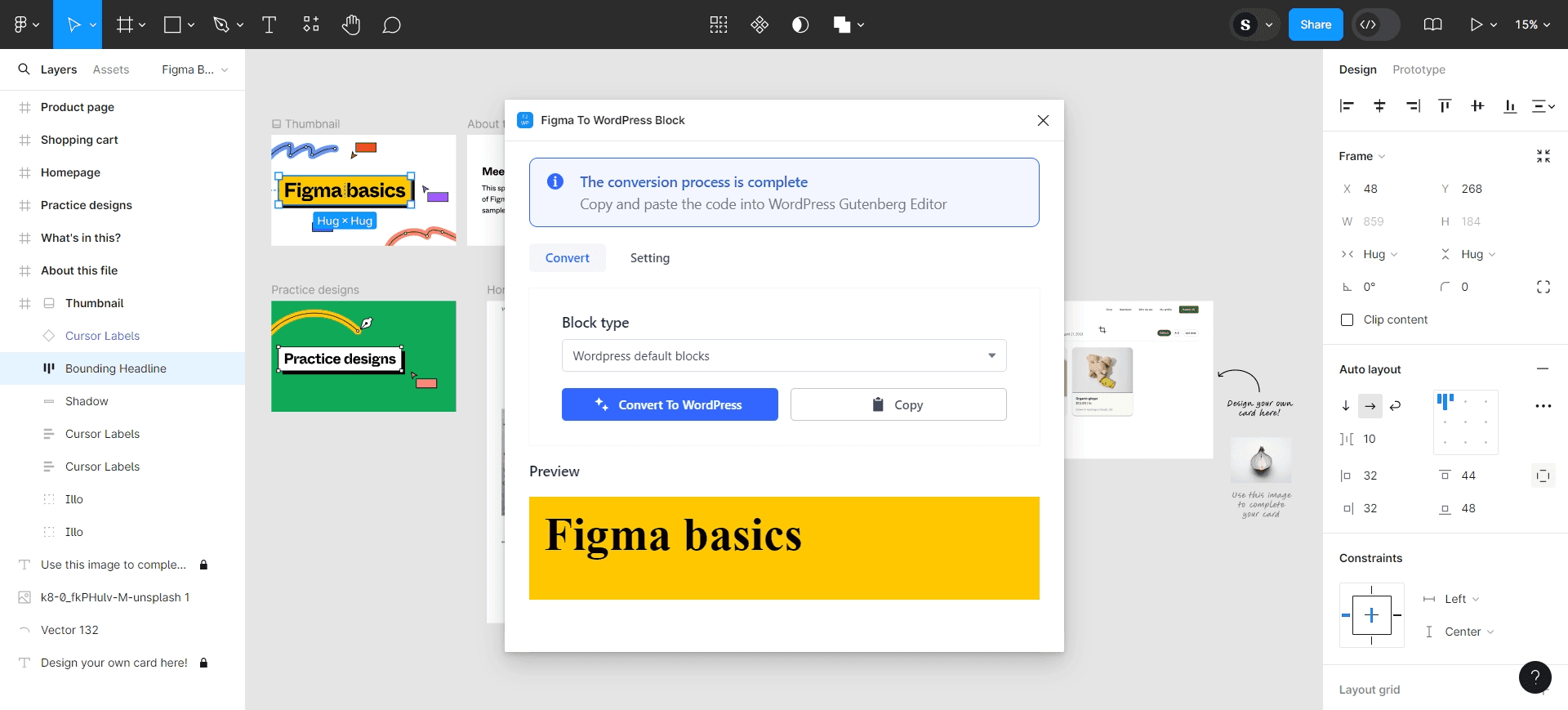
Once the conversion completes, inspect the generated WordPress blocks to ensure they match your Figma design. You can edit individual blocks if adjustments are needed before publishing.
- 8
Publish your converted design
Save and publish the converted blocks to your WordPress site. Your Figma design is now live as functional WordPress content.
Frequently asked questions
Common questions about how to convert figma to wordpress.
The Figma to WordPress Block plugin works with standard Figma designs exported in formats compatible with WordPress block conversion. Check the plugin documentation for specific file type requirements, as support may vary depending on your Figma design complexity and component types.
Yes, all converted blocks are fully editable within WordPress. You can modify text, colors, spacing, and other styling properties using the WordPress block editor just like any native WordPress block.
The plugin converts layout and styling information, but you may need to verify responsive behavior on different screen sizes. Test your converted design on mobile, tablet, and desktop devices to ensure it displays correctly across all breakpoints.
First, verify that your Figma file is properly formatted and contains supported design elements. If issues persist, check the plugin settings, ensure you're using the latest version of the plugin, and consult the documentation or plugin support for troubleshooting guidance.
The plugin typically processes designs individually. For bulk conversions, you may need to repeat the upload and conversion process for each Figma file, though some plugin versions may offer batch processing features depending on your WordPress plan.