How to Use ZoomInfo for Effective Prospecting

ZoomInfo is a powerful B2B intelligence platform that streamlines prospecting by providing access to verified contact data and company insights. This guide walks you through the essential workflow for finding and qualifying prospects using ZoomInfo's advanced search capabilities.
Quick summary
In this tutorial, you'll learn how to access ZoomInfo's advanced search features, upload prospect lists, search by company domain, filter employees, and quickly view prospect details. By following these steps, you'll be able to build targeted prospect lists efficiently and gather the intelligence needed for effective outreach.
Why this matters
Effective prospecting requires accurate, up-to-date contact information paired with company intelligence. ZoomInfo's advanced search and quick view features eliminate manual research, helping sales teams identify decision-makers faster and focus their efforts on high-quality leads that match their ideal customer profile.
Step-by-step guide
- 1
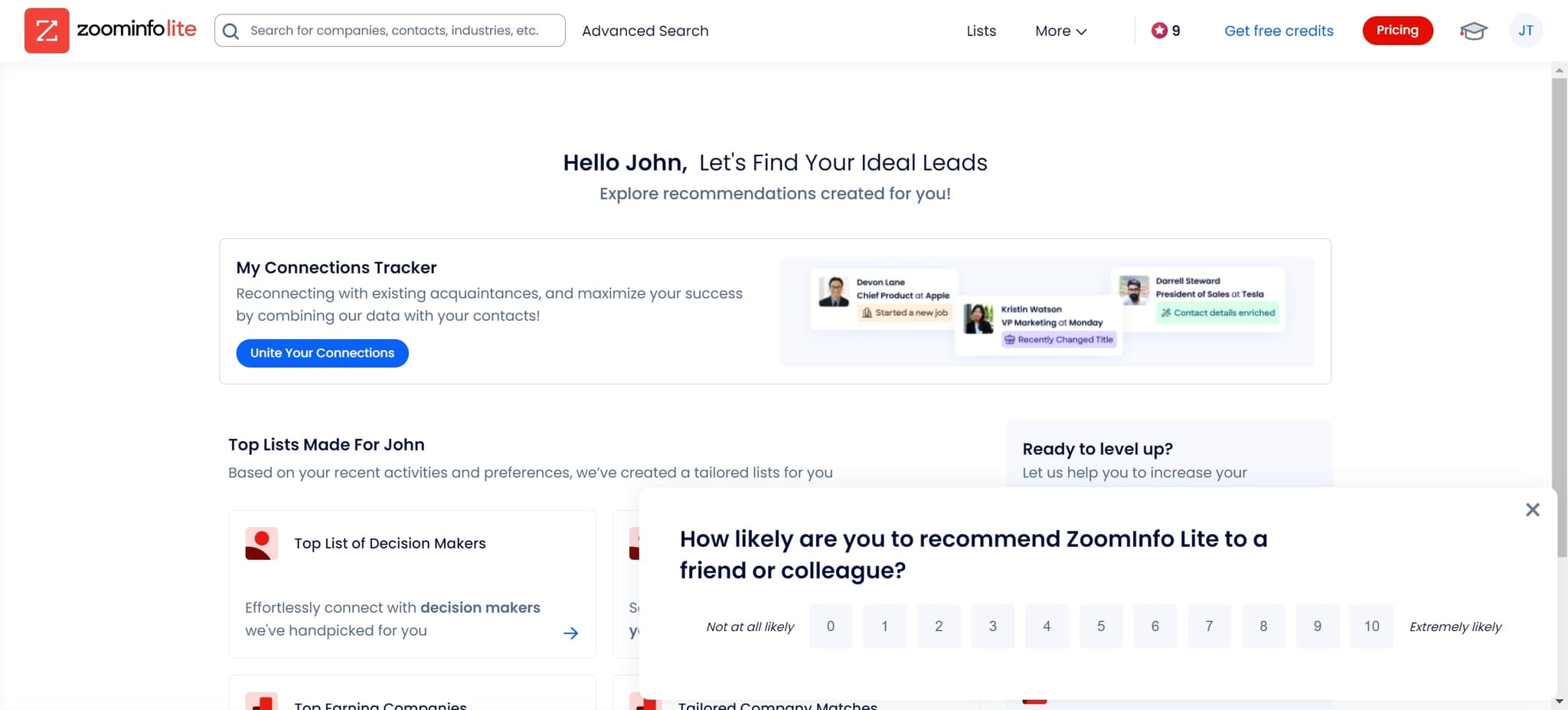
Access your ZoomInfo account
Click on 'Hello John,' to log into your ZoomInfo account and access your personalized dashboard. This confirms you're authenticated and ready to begin your prospecting workflow.
- 2
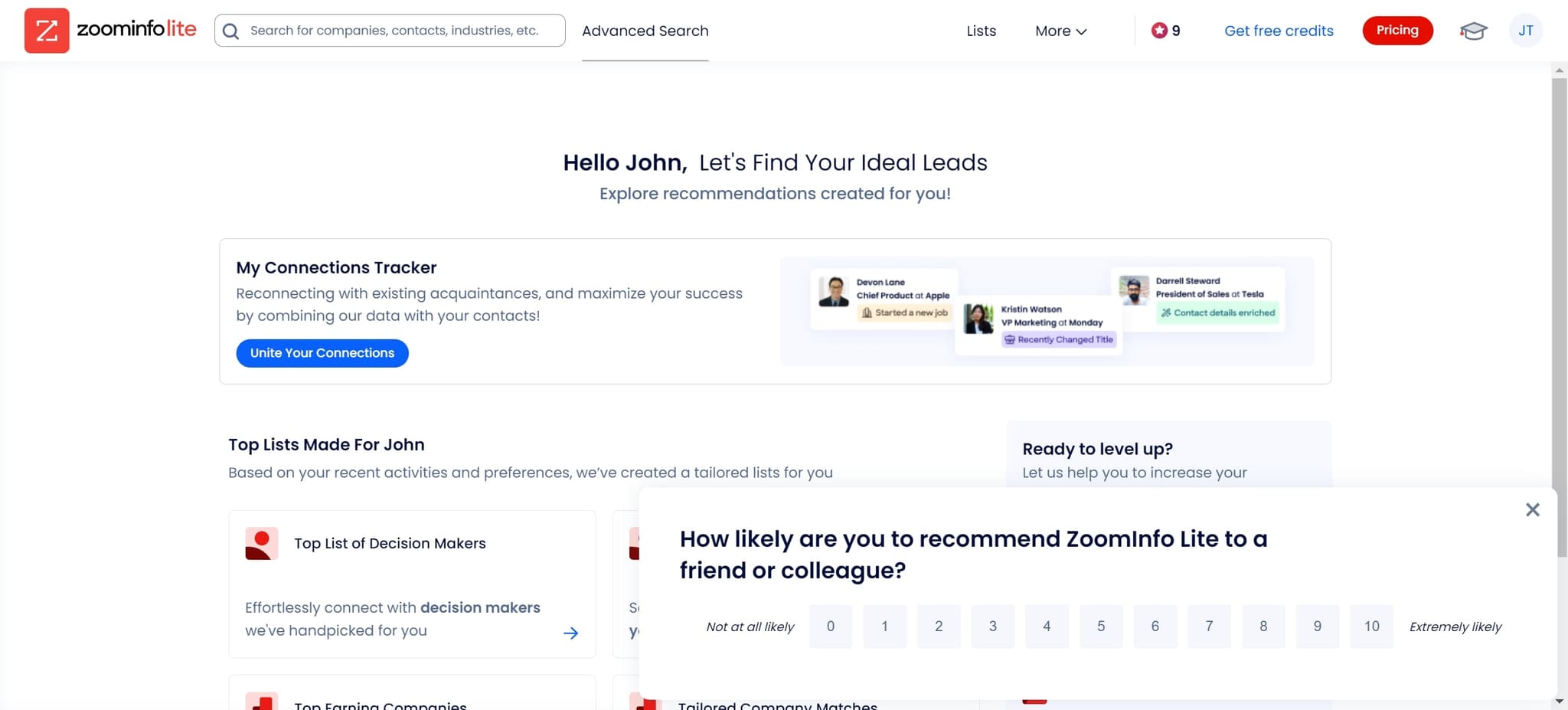
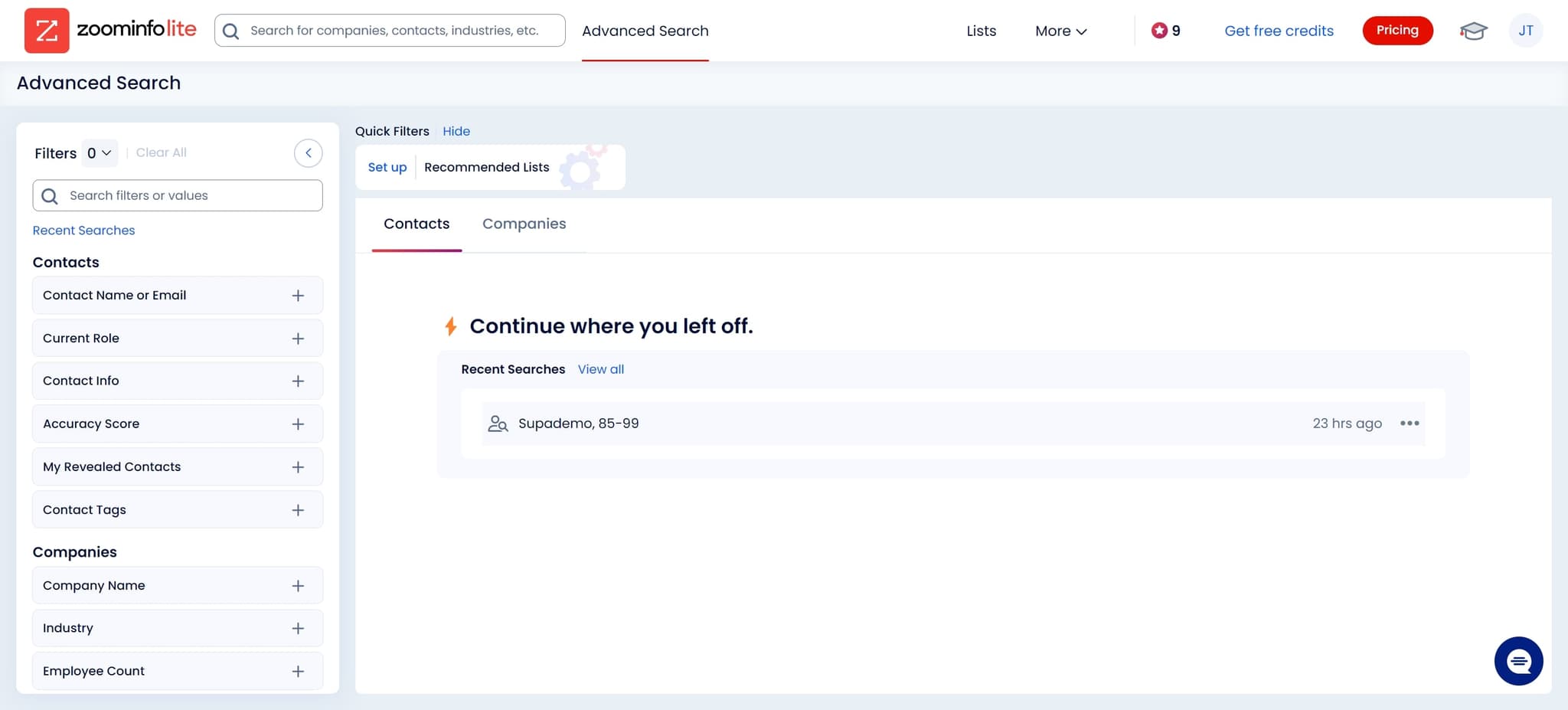
Open Advanced Search
Navigate to the Advanced Search option from your main menu. This unlocks ZoomInfo's powerful filtering capabilities, allowing you to search for prospects based on multiple criteria simultaneously.
- 3
Upload your prospect list
Use the Upload feature to import your existing prospect list into ZoomInfo. This allows the platform to match and enrich your contacts with additional company and professional data.
- 4
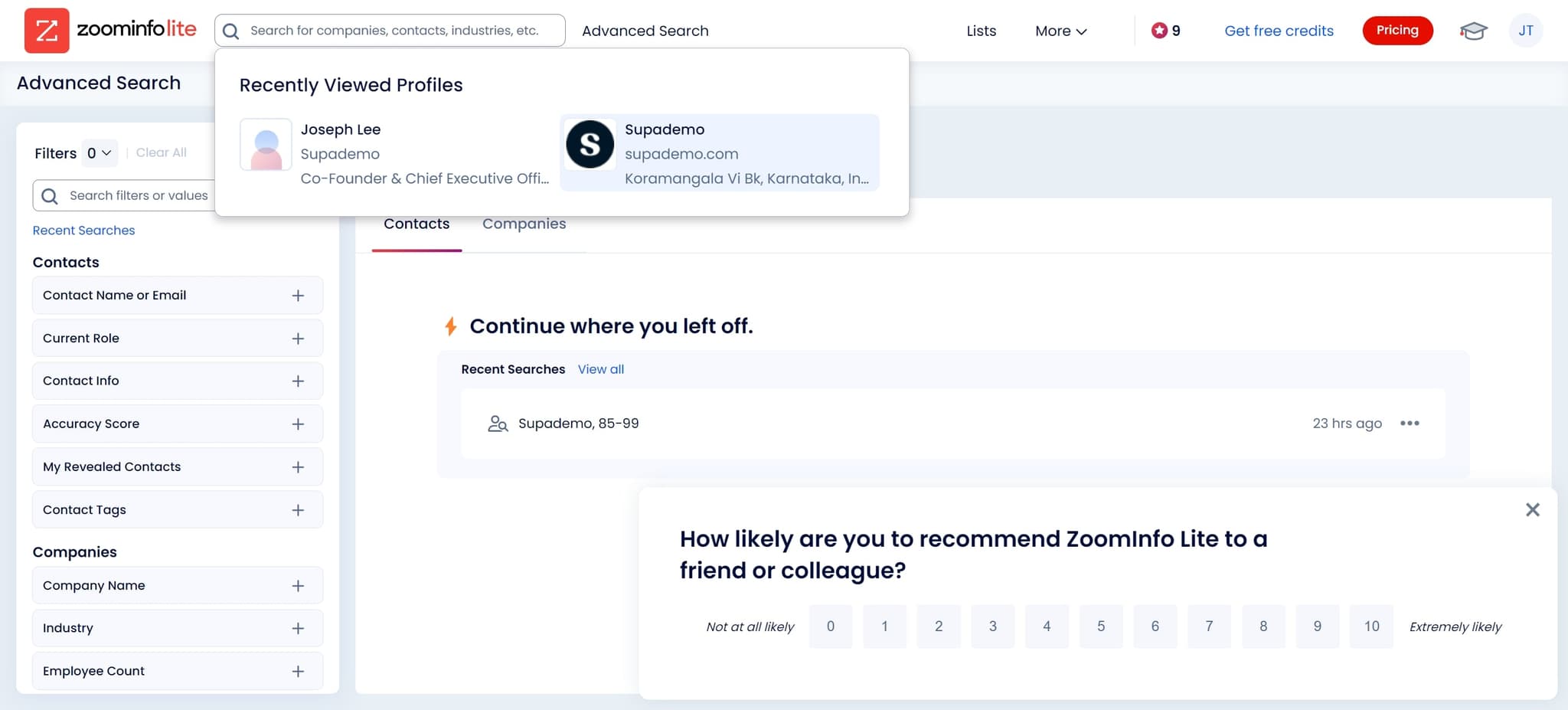
Search by company domain
Enter 'supademo.com' to search for all contacts associated with this specific company. ZoomInfo will return a list of employees and decision-makers within the organization.
- 5
Refine your search criteria
Return to Advanced Search to apply additional filters such as job title, seniority level, or department. This narrows your results to focus on the most relevant prospects for your outreach.
- 6
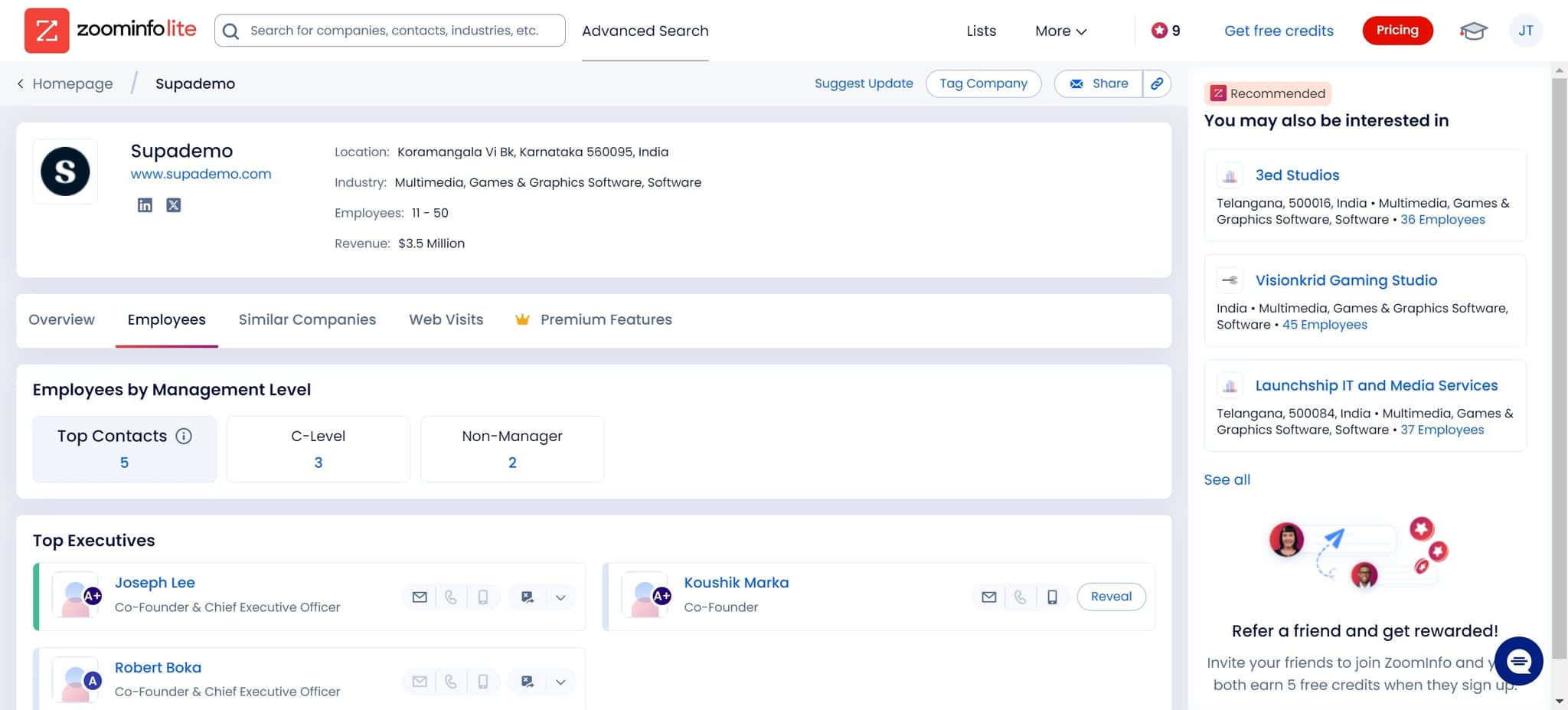
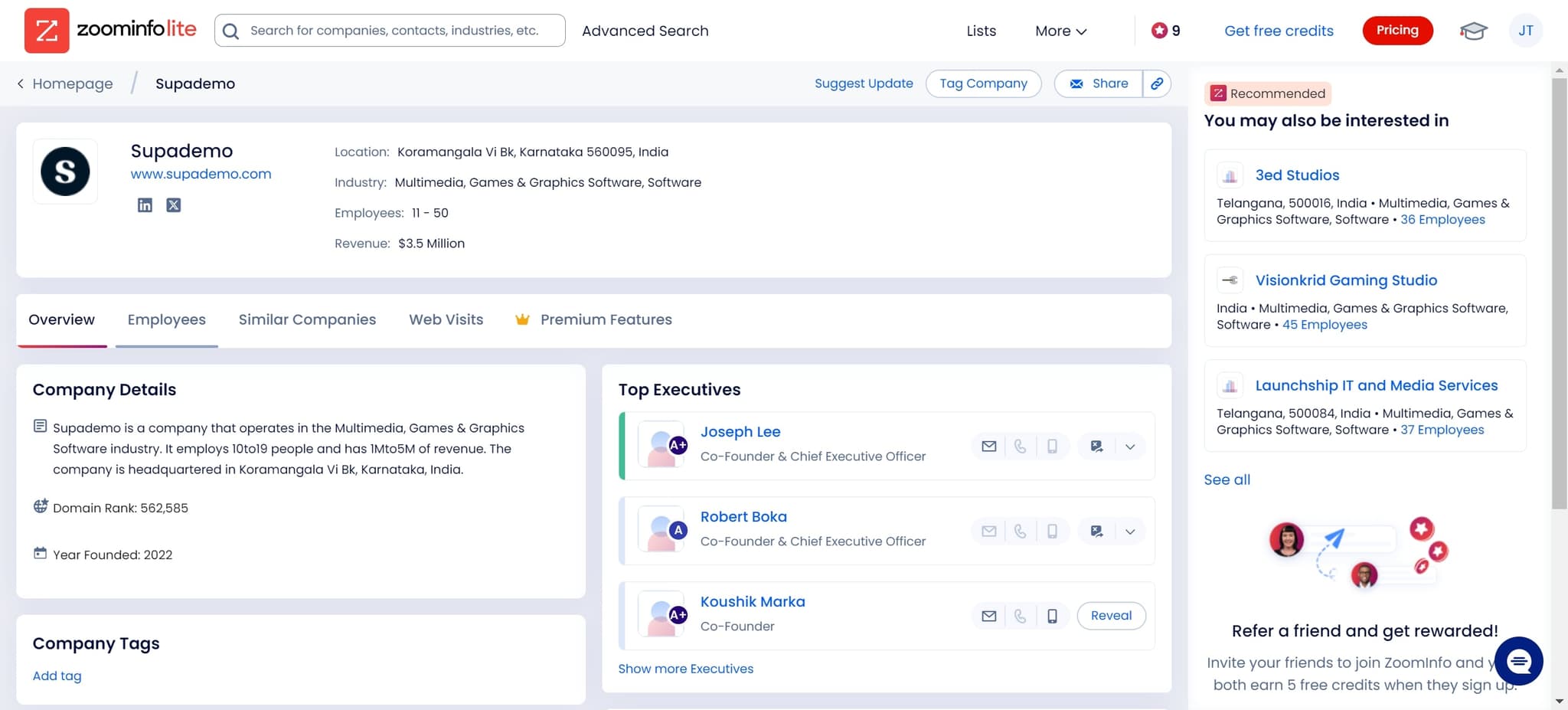
Filter by employee role
Click on 'Employees' to view all contacts at the target company organized by their professional roles. This helps you identify the right decision-makers and stakeholders for your specific pitch.
- 7
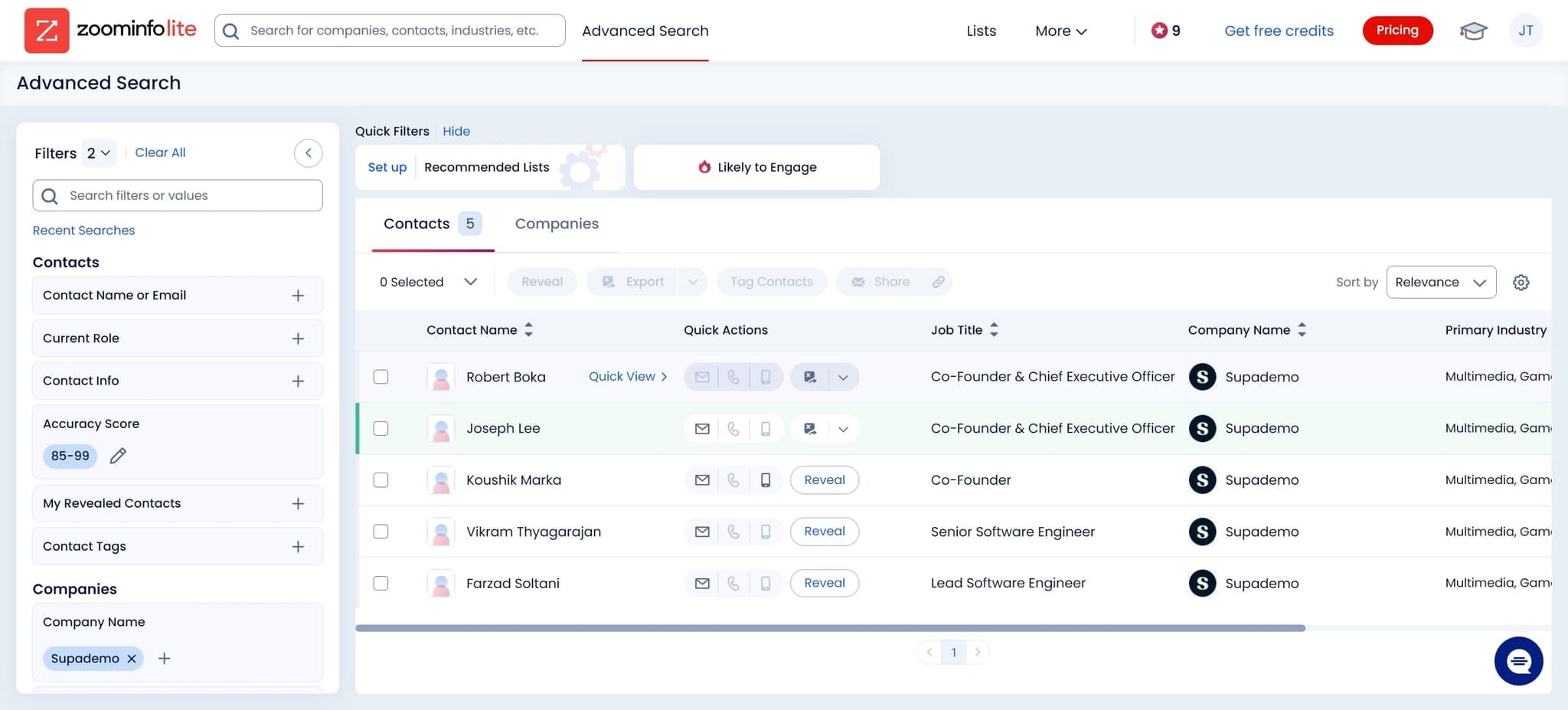
Select your prospect
Click on the specific prospect record you want to learn more about. This prepares their profile for detailed review.
- 8
View prospect details
Click on 'Quick View' to see a comprehensive summary of the prospect's contact information, job title, company details, and recent activity. This snapshot helps you personalize your outreach before making contact.
Frequently asked questions
Common questions about how to use zoominfo for effective prospecting.
ZoomInfo provides verified contact details including email addresses and phone numbers, job titles and seniority levels, company information and employee counts, and professional backgrounds and career history. This data is continuously updated to ensure accuracy for your prospecting efforts.
ZoomInfo maintains one of the highest accuracy rates in the industry, with contacts verified through multiple sources and regular validation cycles. The platform's B2B focus means data is specifically curated for sales and business development purposes.
Yes, ZoomInfo allows you to upload existing prospect lists for enrichment and verification. The platform will match your contacts against its database and append missing information such as valid email addresses, phone numbers, and company details.
Use Advanced Search to filter by company domain, then narrow results by job title or department. ZoomInfo's employee filtering helps you identify decision-makers, budget holders, and other key stakeholders relevant to your sales process.
Use the Quick View feature to review a prospect's job title, tenure, company size, and recent activity before reaching out. This intelligence allows you to reference specific details in your first message and demonstrate that you've done your research, significantly improving response rates.