How to embed Supademo on Intercom

Embedding your product demos directly into Intercom enables seamless customer support and onboarding without requiring users to leave the chat interface. This integration streamlines the customer experience by providing contextual, interactive guidance at the moment of need.
Quick summary
In this tutorial, you'll learn how to embed a demo into Intercom by exporting your content, generating a shareable link, and configuring it within your Intercom workspace. By following these steps, you'll be able to deliver in-app guidance to customers efficiently.
Why this matters
Integrating demos directly into Intercom reduces support ticket volume by enabling customers to self-serve through visual, guided experiences. This approach improves customer satisfaction by providing immediate help while strengthening your support team's efficiency.
Step-by-step guide
- 1
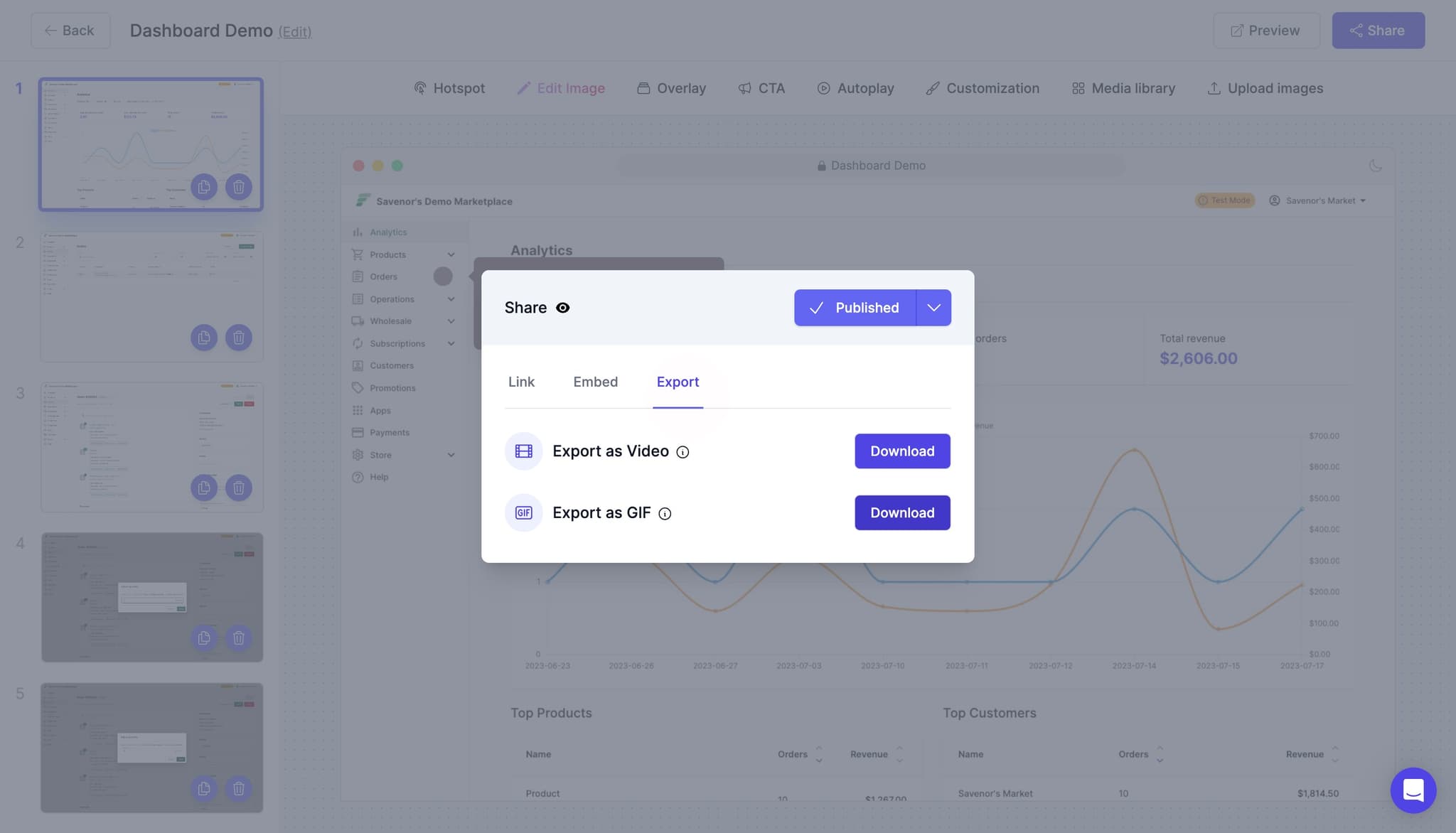
Click on Download
Navigate to your demo and locate the Download button in the interface. This will open options for exporting your demo content in different formats.
- 2
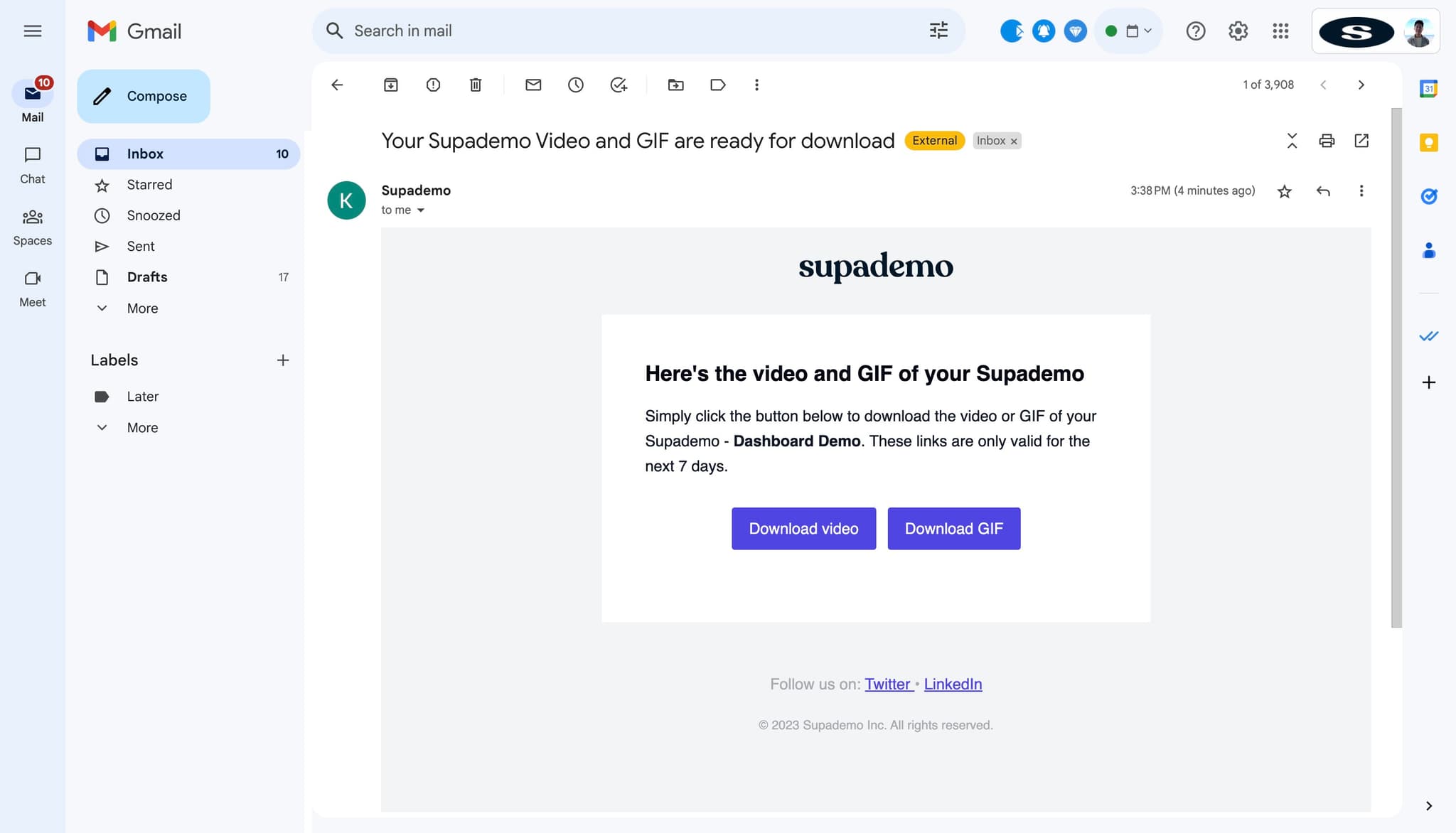
Click on Download GIF
Select the Download GIF option to export your demo as an animated GIF file. This format is useful for static embedding and quick visual reference.
- 3
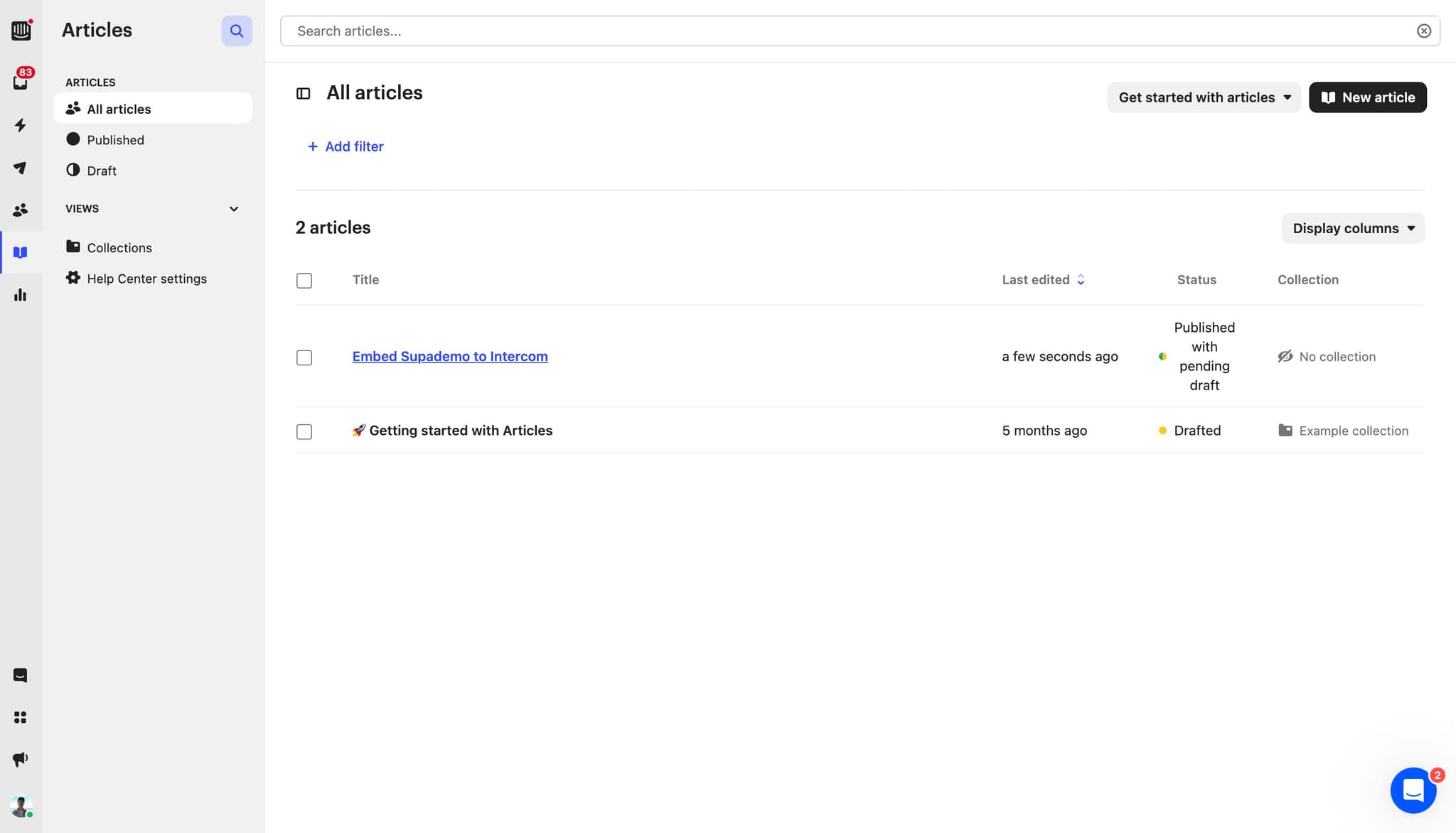
Click on Embed Supademo to Intercom
Find and click the Embed to Intercom option from the available export choices. This will initiate the embedding workflow for your Intercom integration.
- 4
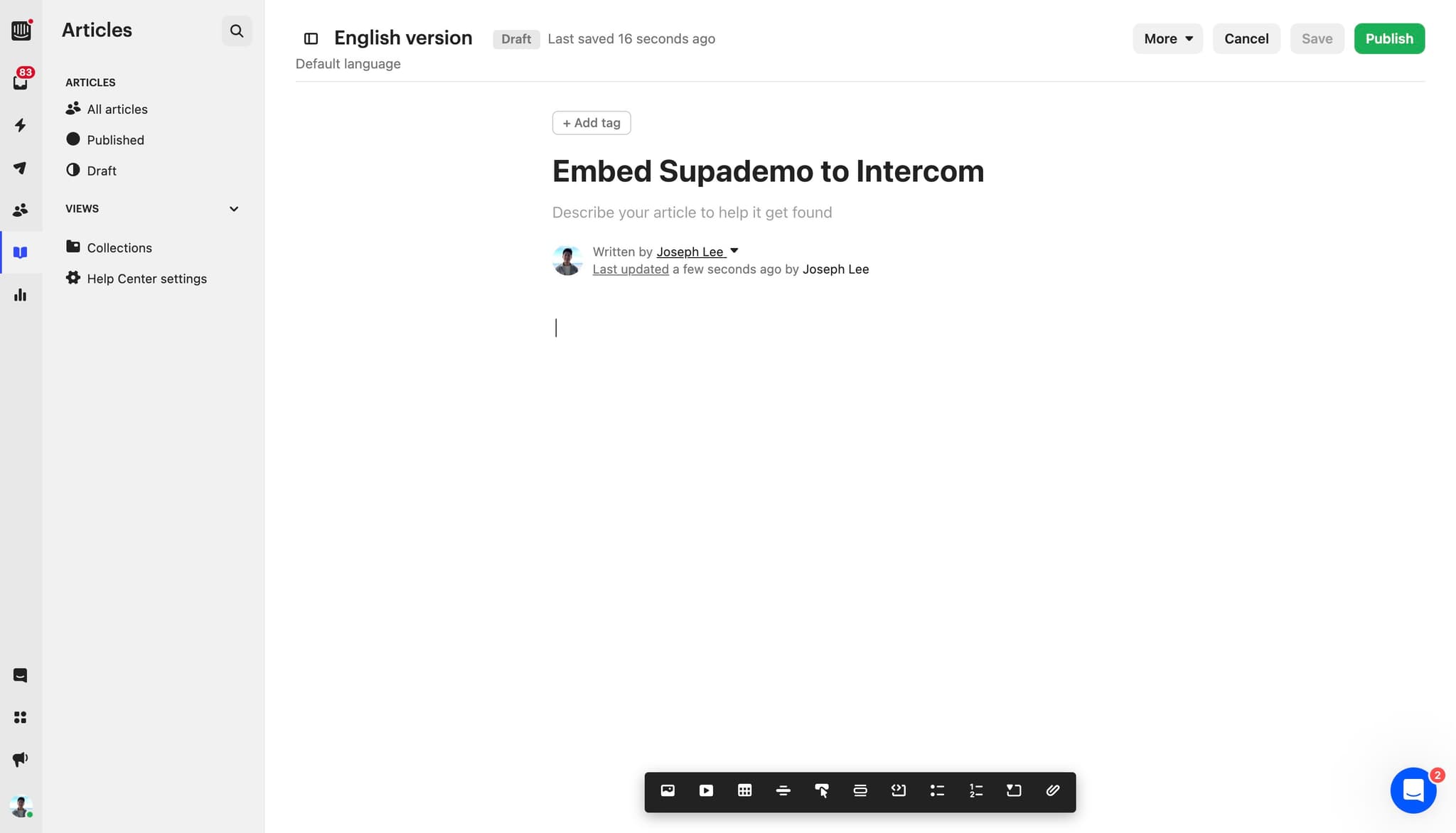
Access the Intercom integration
Follow the prompt that appears to connect your demo with your Intercom workspace. You'll be guided through authentication and configuration settings.
- 5
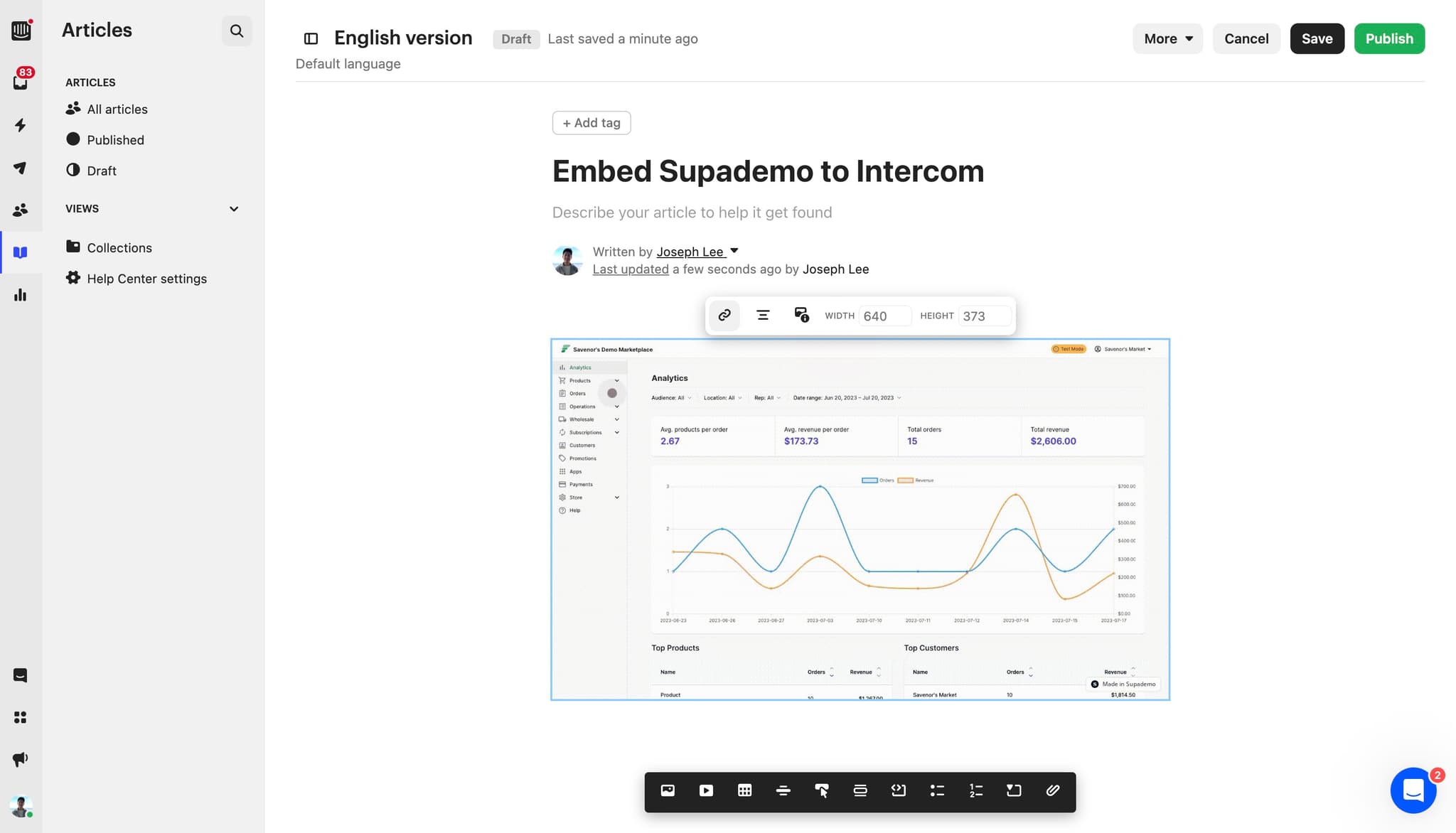
Authorize the connection
Complete the authorization step to grant permission for the embedding process. This ensures your demo is properly linked to your Intercom account.
- 6
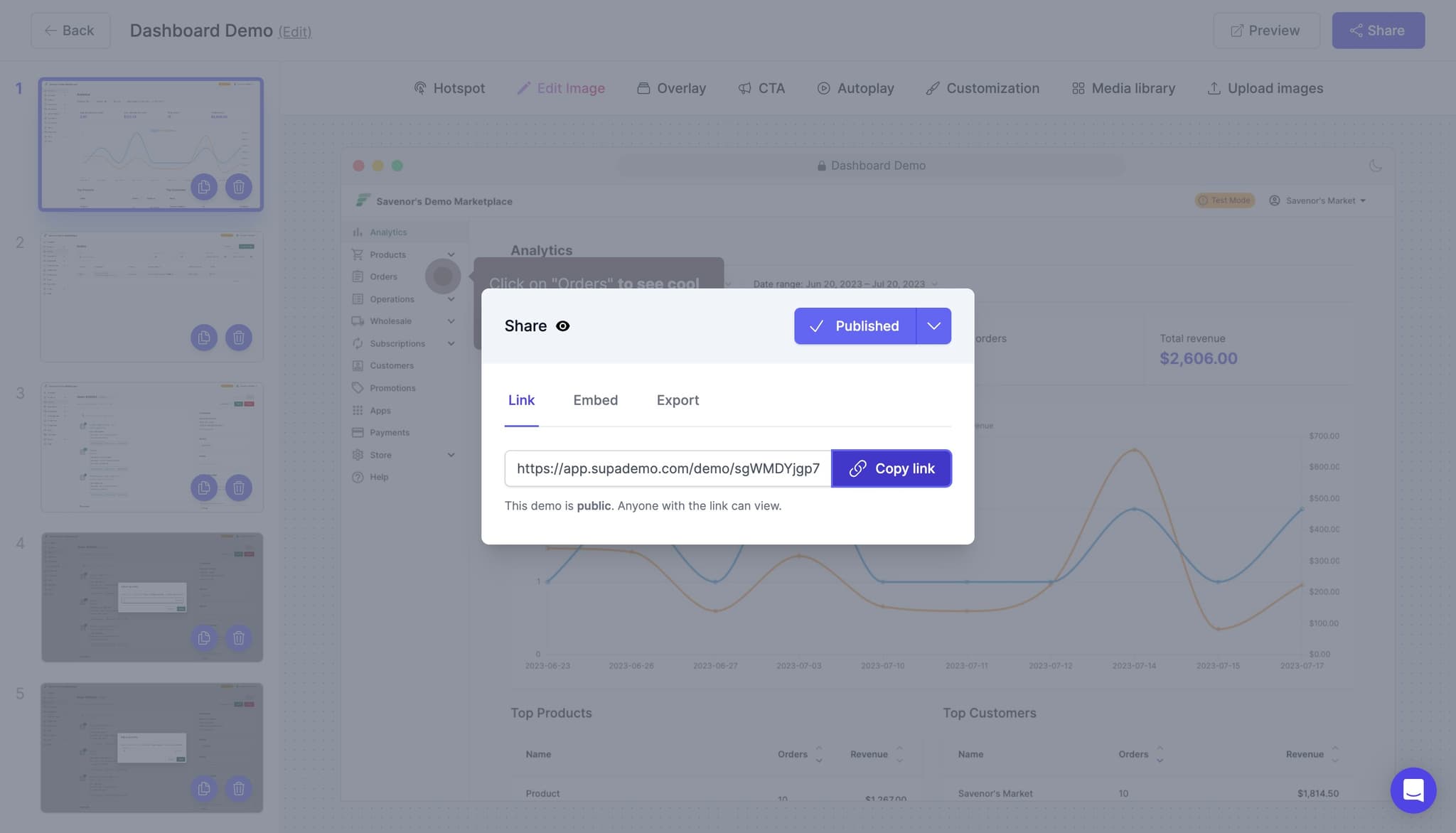
Click on Copy link
Once authorization is complete, locate and click the Copy link button to save the shareable demo URL to your clipboard. You'll use this link to reference the demo within Intercom.
- 7
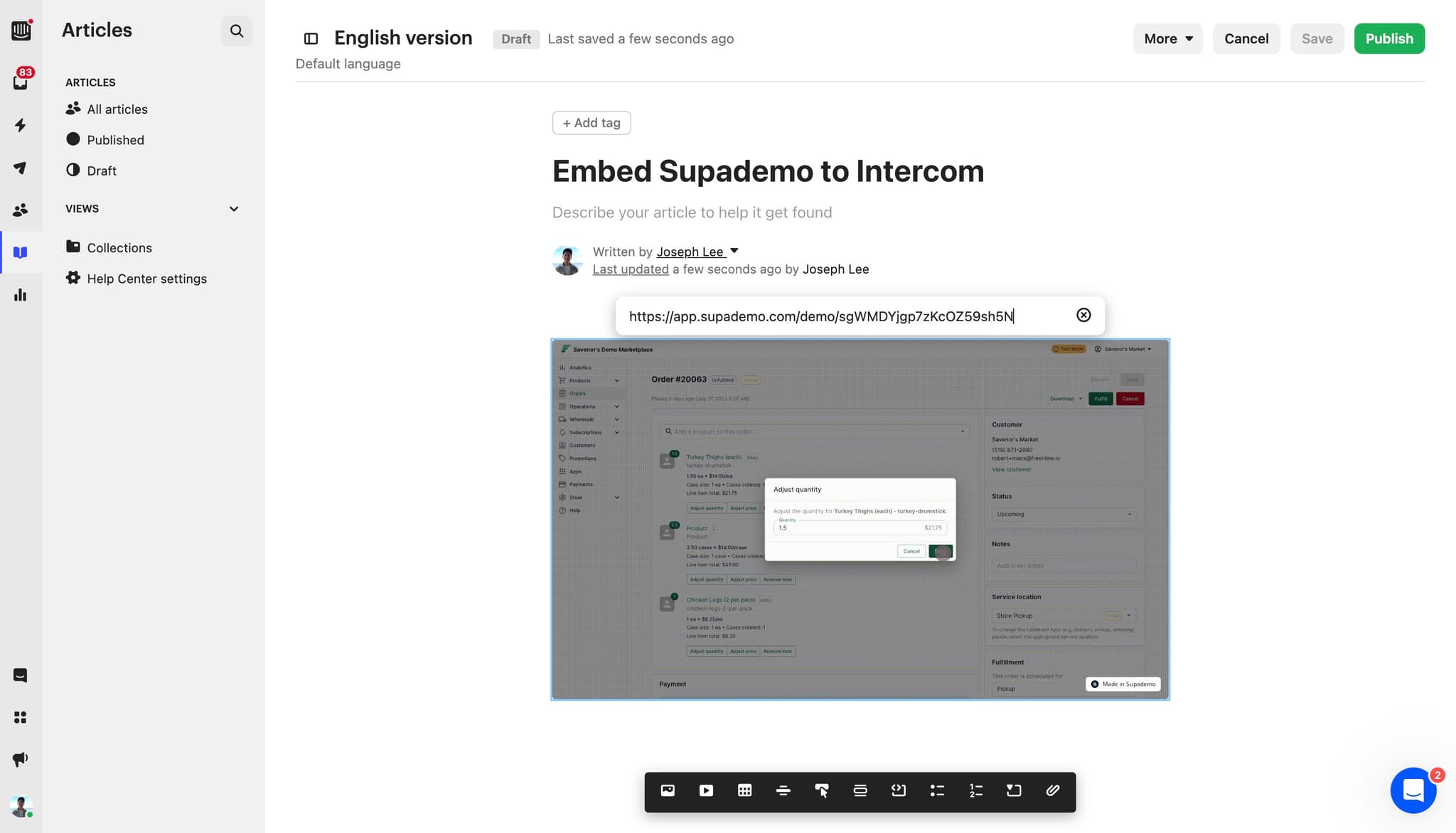
Paste the link in Intercom
Navigate to your Intercom workspace and paste the copied link into the appropriate message or resource section. This embeds the demo where your customers can access it.
- 8
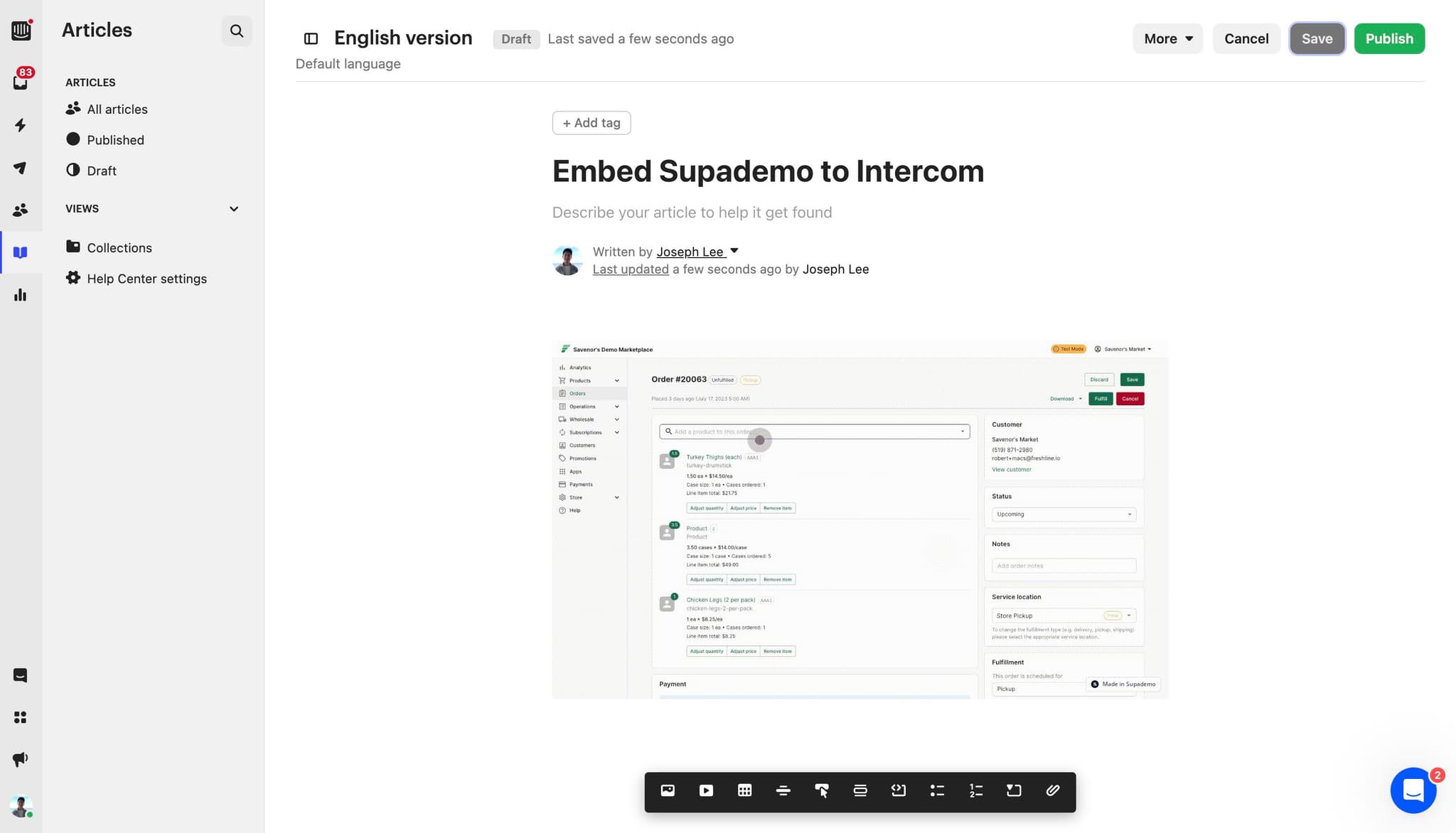
Click on Save
Click the Save button to finalize the embedding configuration and make your demo live within Intercom. Your customers will now see this resource in the chat interface.
- 9
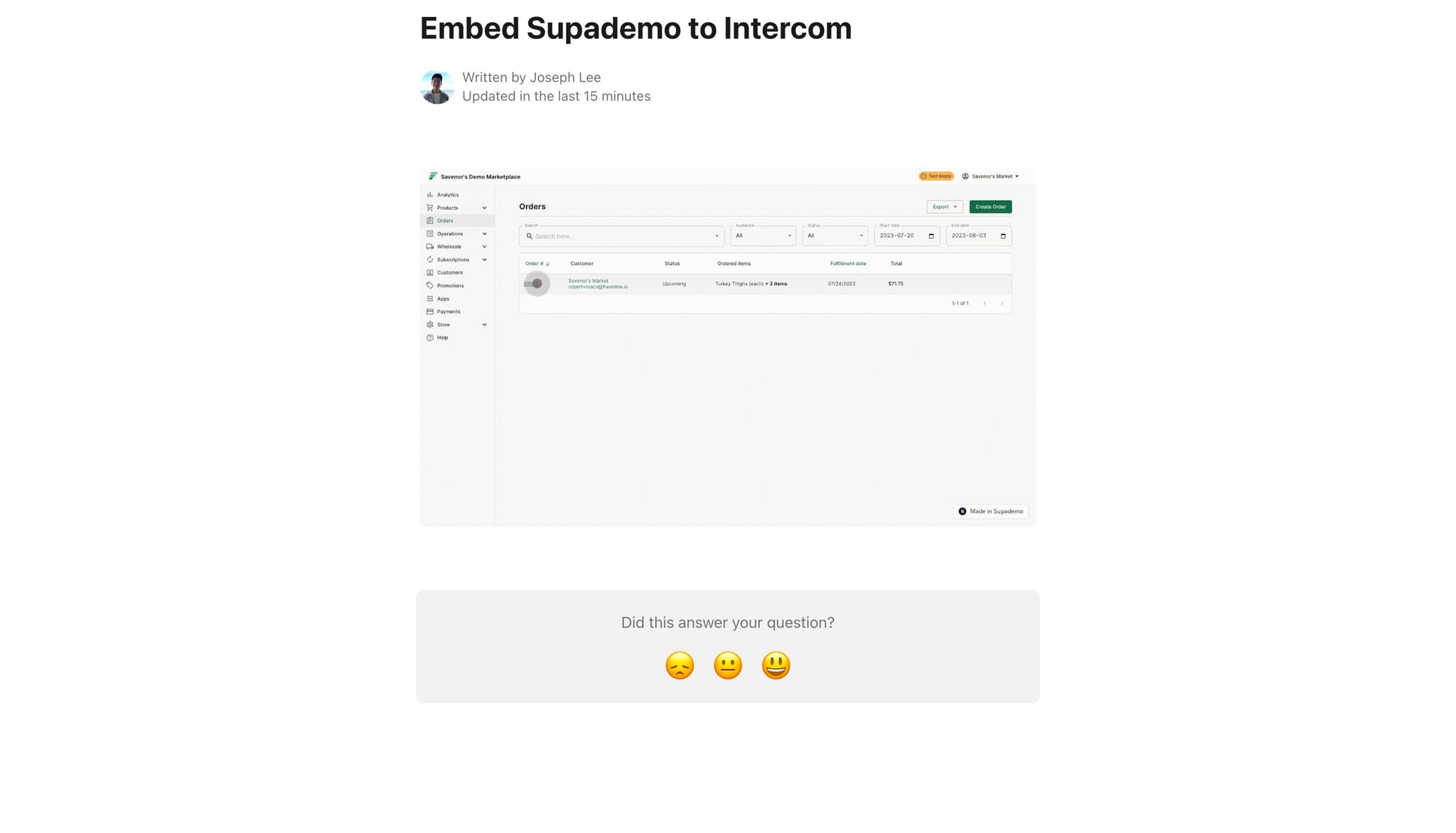
Review contributor information
Check the author or contributor information displayed in your Intercom message. This ensures proper attribution and documentation of who created the demo content.
- 10
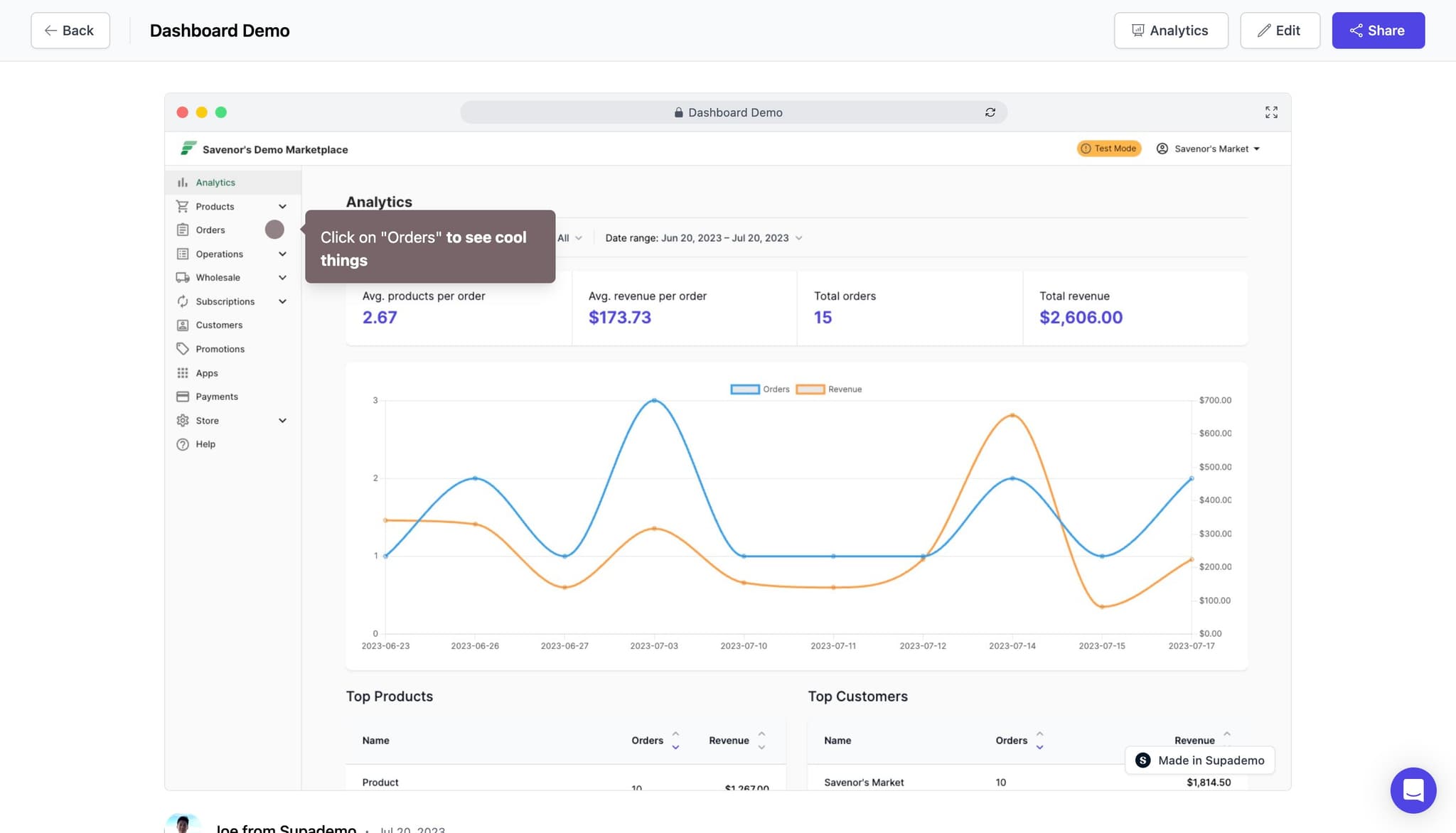
Verify the embedding
Test the embedded demo in your Intercom workspace to confirm it displays correctly and functions as expected. This final step ensures a smooth customer experience.
Frequently asked questions
Common questions about how to embed supademo on intercom.
What file formats can I export my demo in?
You can export your demo as a GIF, video, or as a shareable link depending on your needs. GIF format is ideal for static embedding, while links provide interactive, full-featured access to the complete demo experience.
Can I customize the demo link before embedding it in Intercom?
Yes, most demo platforms allow you to customize parameters like starting point, speed, and appearance before generating the final link. Check your export options to see what customizations are available before copying the link.
Will my customers need special permissions to view the embedded demo?
No, customers accessing the demo through your Intercom message typically won't need additional permissions. However, ensure your Intercom settings allow all intended users to view embedded content in the chat interface.
How do I track if customers are actually watching the embedded demo?
Most demo platforms provide analytics dashboards showing engagement metrics like views, completion rates, and time spent. Check your dashboard to monitor how many customers interact with the embedded demo in Intercom.
Can I update the demo after embedding it in Intercom?
Yes, if you modify the original demo content, users accessing the link will see the updated version. However, if you embedded a GIF file, you'll need to re-export and replace it to reflect changes.