How to Remove 'Powered by Shopify'

The 'Powered by Shopify' footer link is a default element on Shopify stores that directs customers to Shopify's homepage. Removing it can give your storefront a more polished, branded appearance. This guide walks you through the code editing process to eliminate this footer attribution.
Quick summary
In this tutorial, you'll learn how to remove the 'Powered by Shopify' text from your store's footer by accessing your theme code and modifying the relevant HTML and CSS elements. You'll navigate to your Online Store settings, locate the footer code section, and make targeted edits to hide or remove the attribution link.
Why this matters
Removing the 'Powered by Shopify' footer creates a more professional storefront that feels entirely yours rather than platform-dependent. This simple customization improves brand perception and gives customers a seamless experience without third-party platform branding in view. It's particularly important for established businesses that want full control over their site's appearance.
Step-by-step guide
- 1
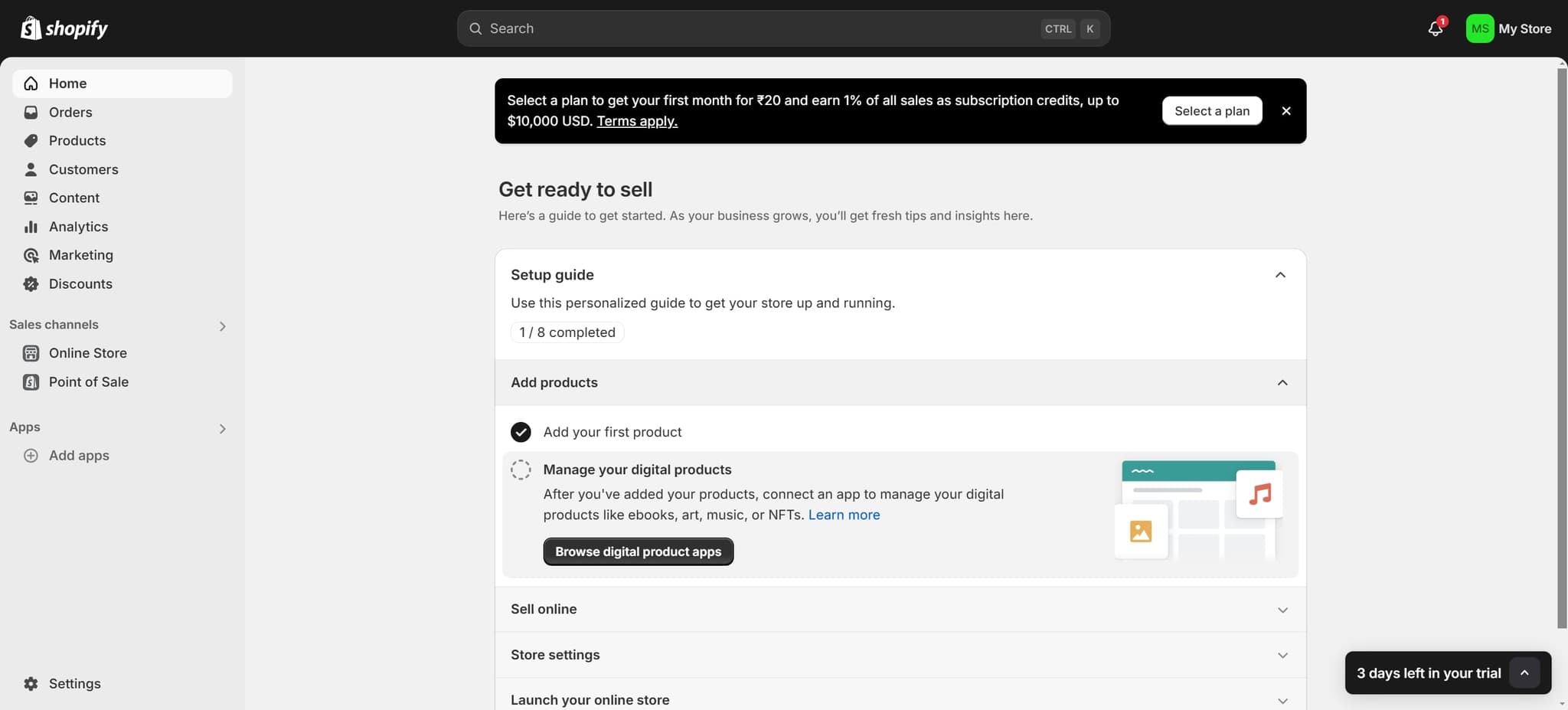
Click on Add Products
Begin by clicking the 'Add products' option in your Shopify dashboard. This will initiate the process of accessing your store's content management area.
- 2
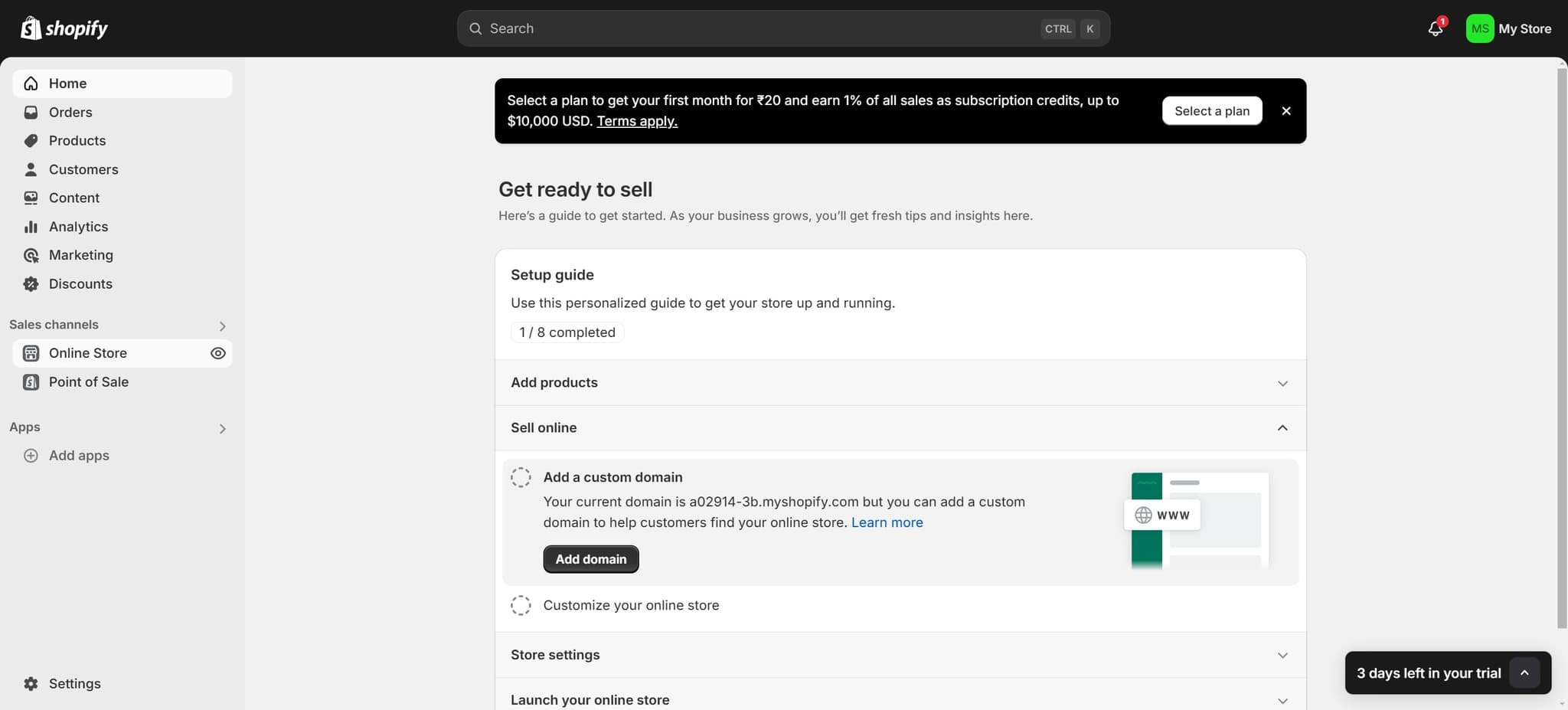
Click on Online Store
Select 'Online Store' from the available options. This takes you to your store's main settings and theme management interface.
- 3
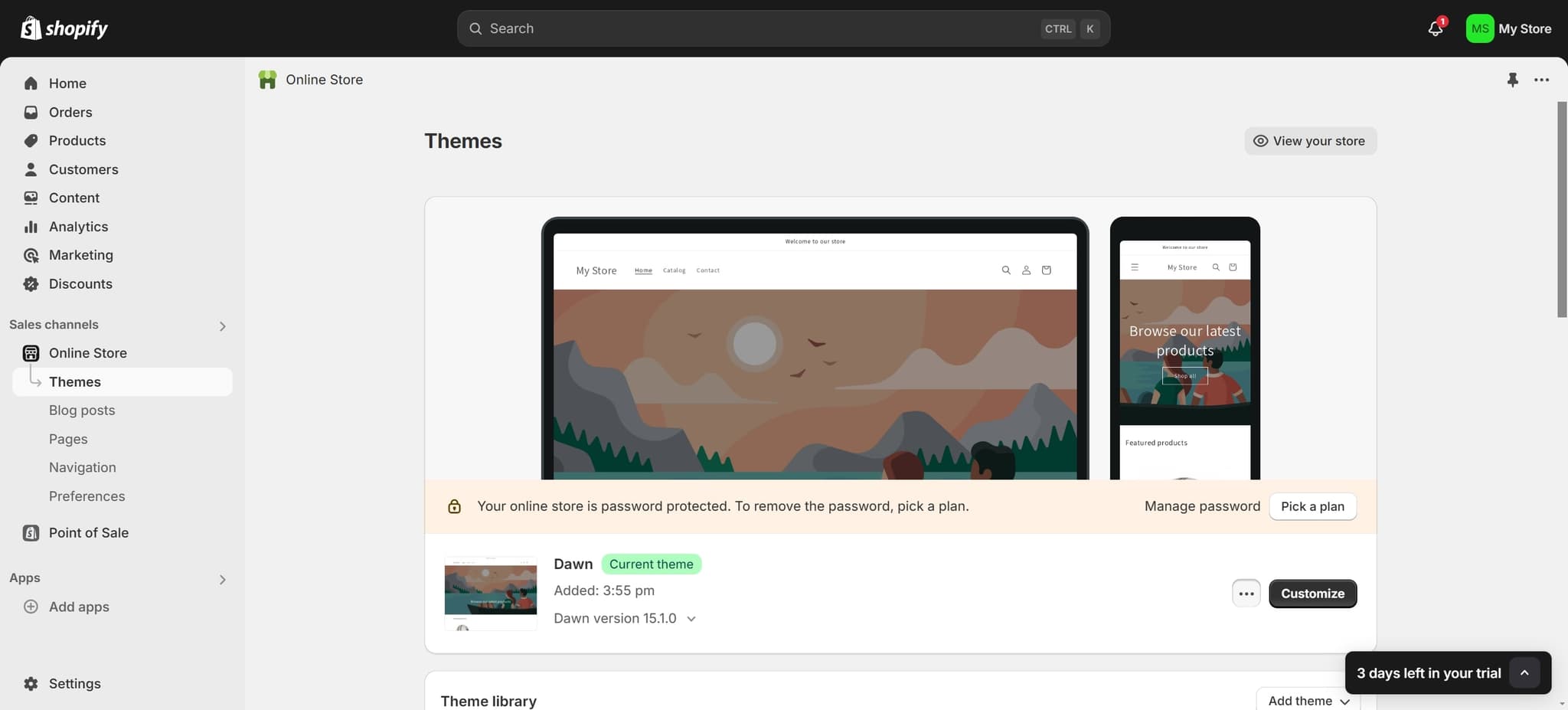
Access Theme Settings
Click on the designated element to enter your theme customization area. This is where you can modify the appearance and code of your store.
- 4
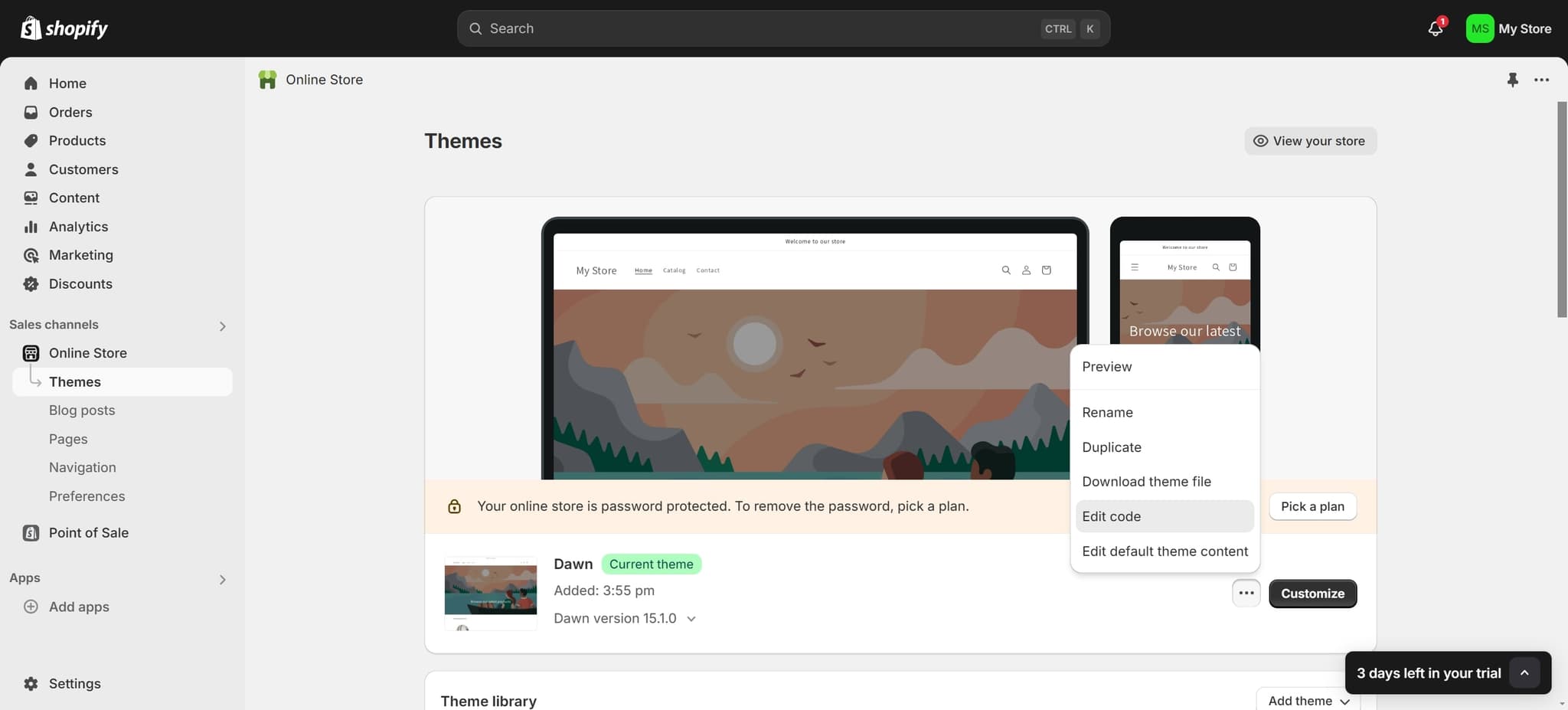
Click on Edit Code
Select 'Edit code' to access the underlying HTML and CSS files of your theme. This opens the code editor where you can make the necessary modifications.
- 5
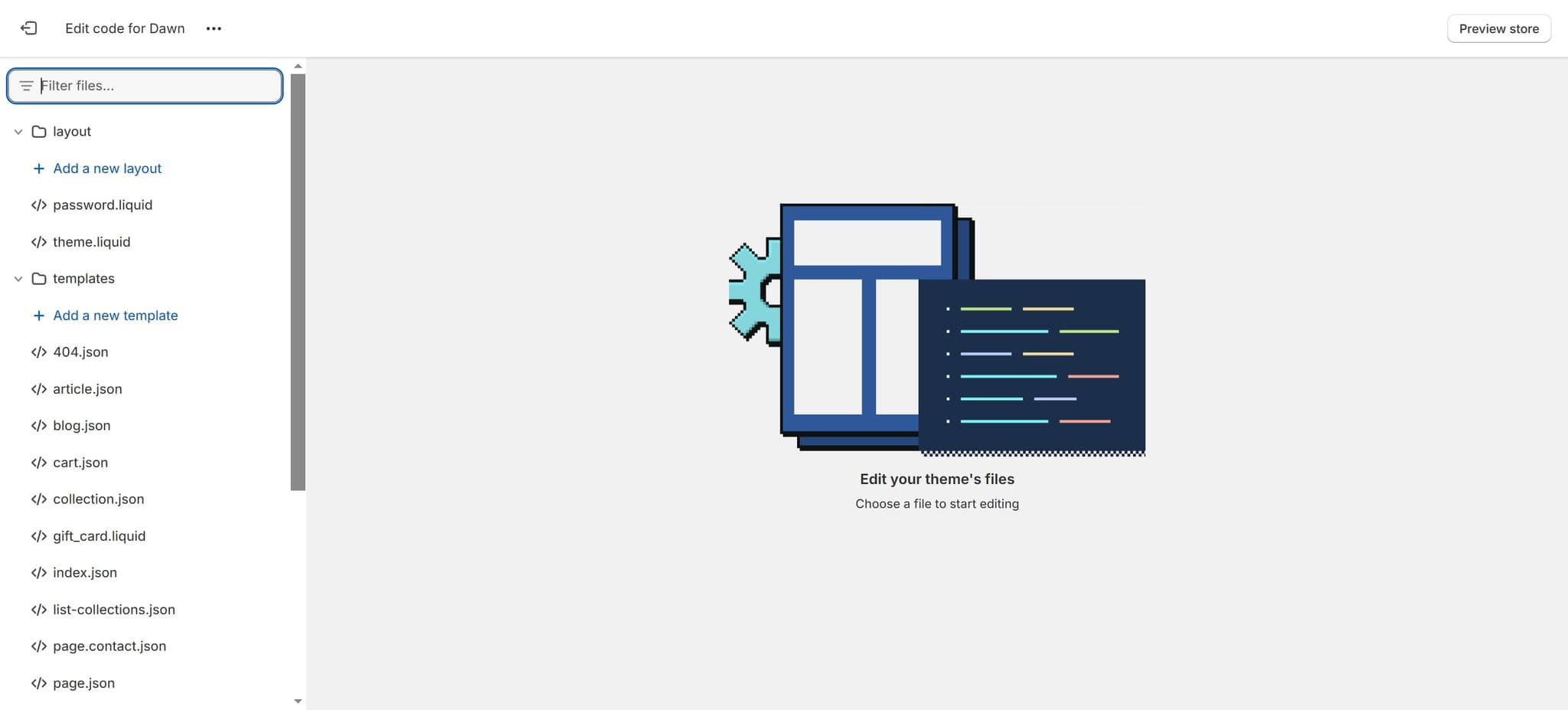
Navigate to Footer Section
Click on the specified element to locate the footer section within your theme files. The footer area contains the 'Powered by Shopify' attribution.
- 6
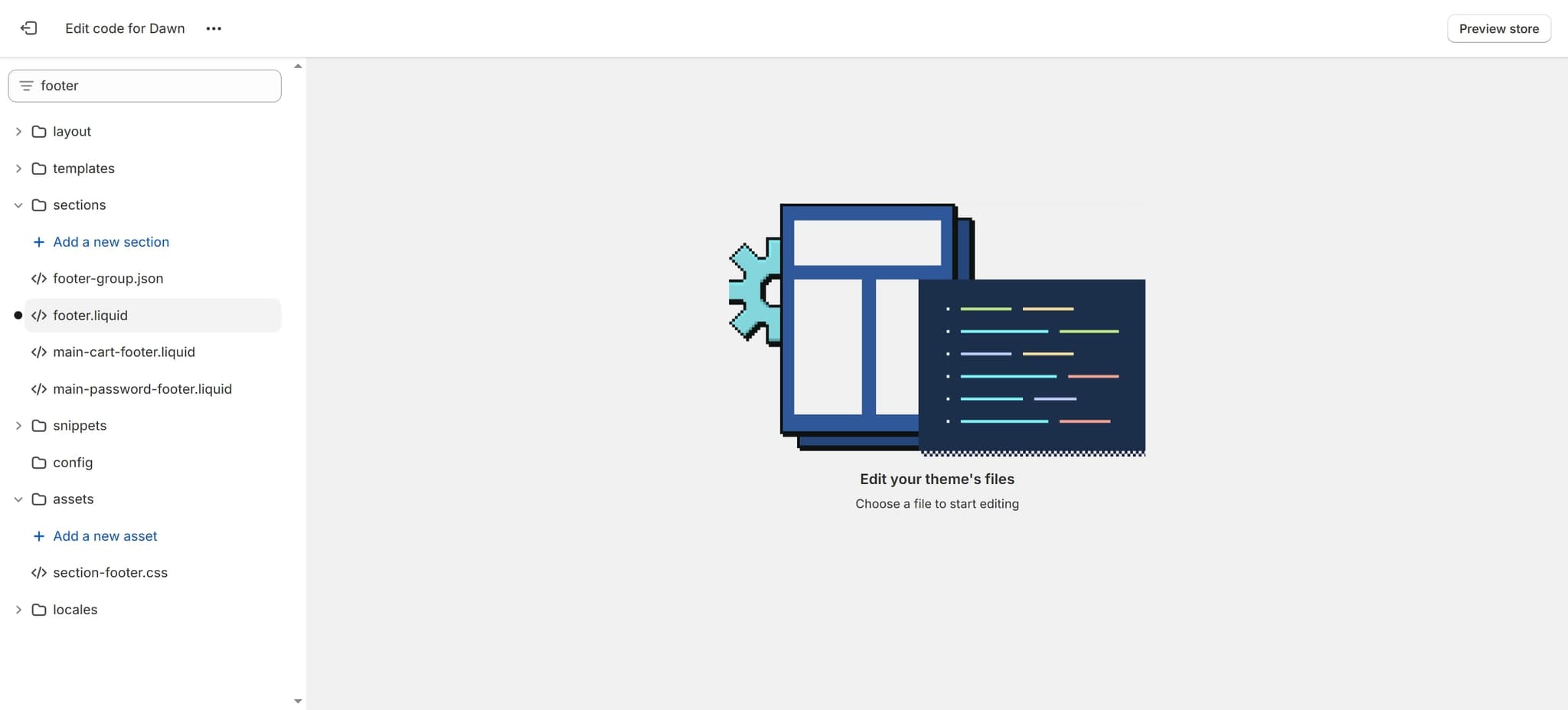
Find Footer Component File
Click to select the correct footer component file. This file contains the HTML markup and styling for your store's footer.
- 7
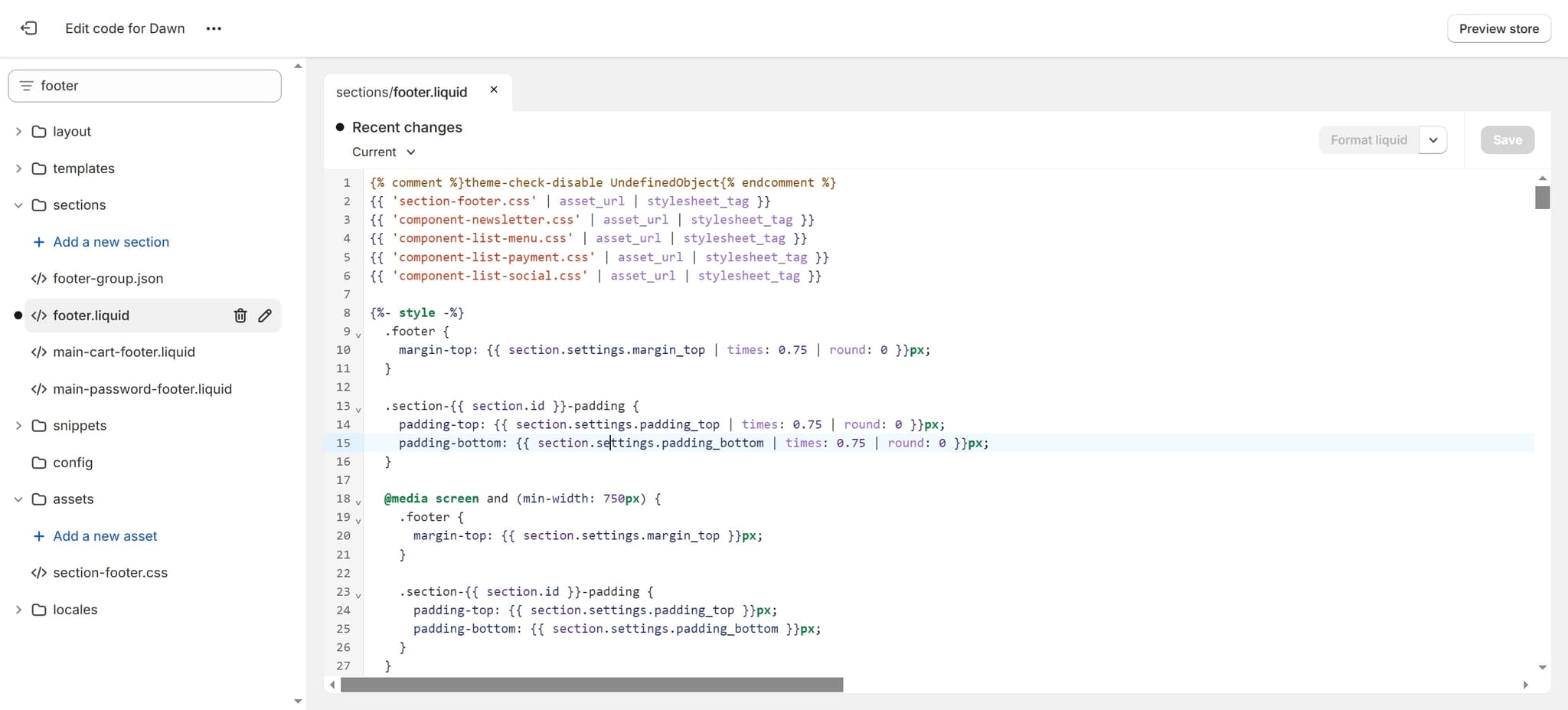
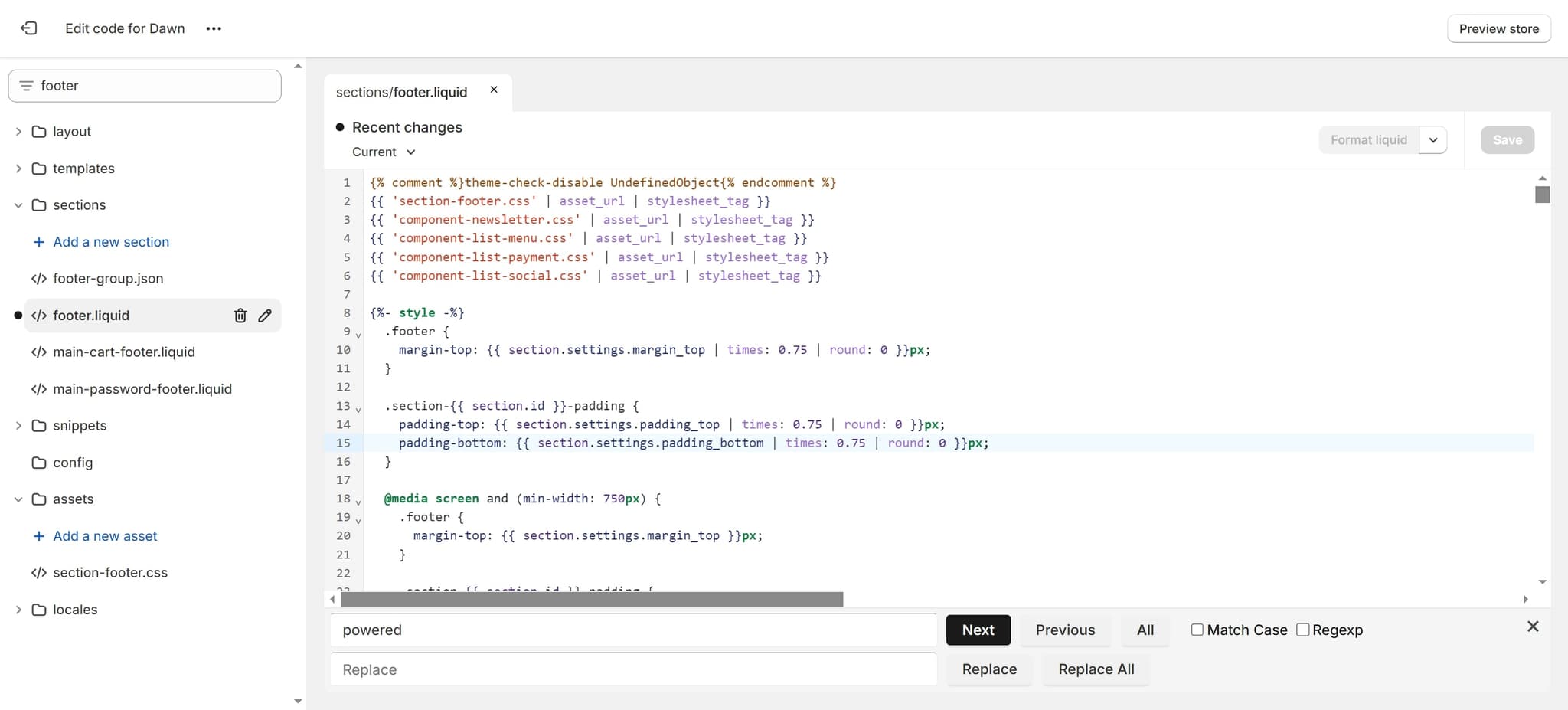
Locate Padding Style Rule
Click on the 'padding-bottom' CSS rule to find the styling section that affects the footer layout. This helps you understand the current structure before making changes.
- 8
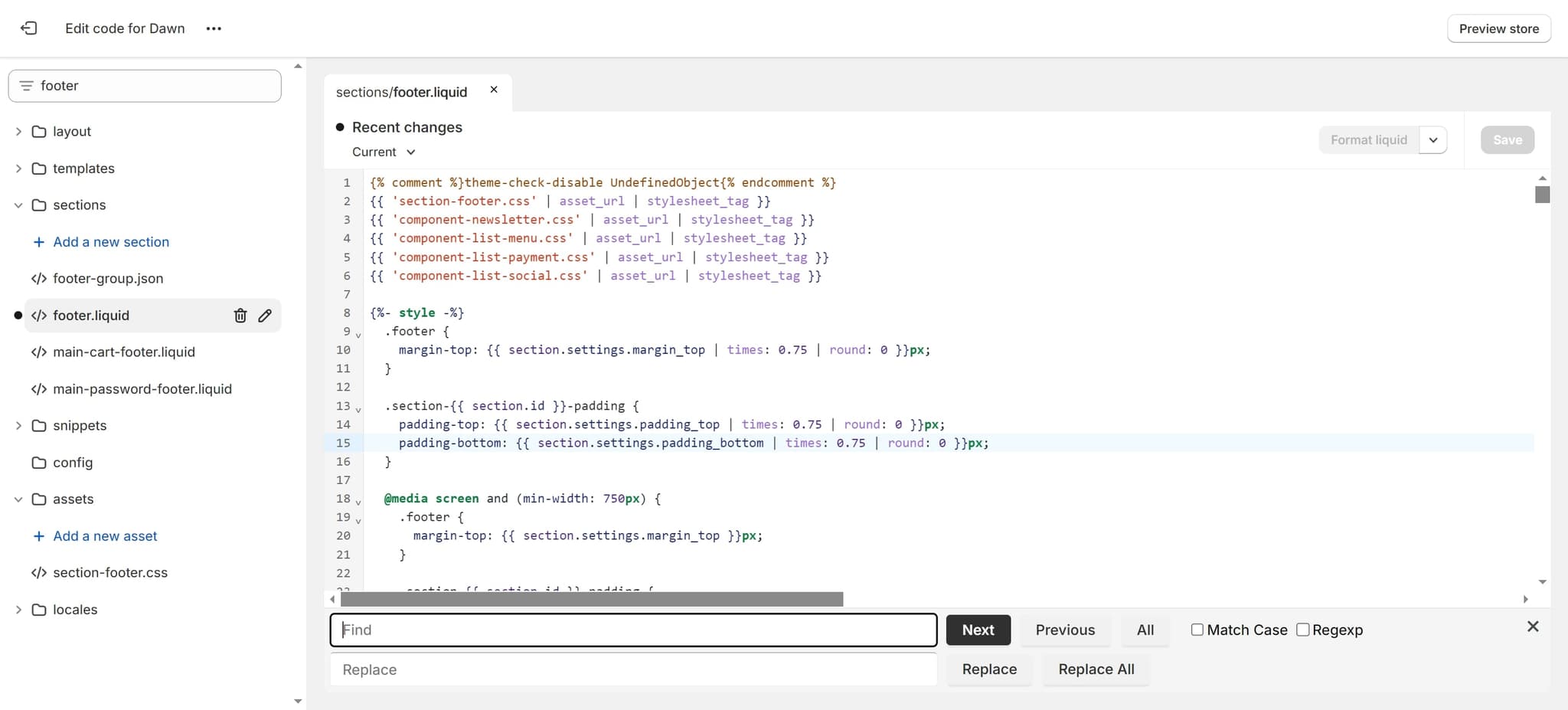
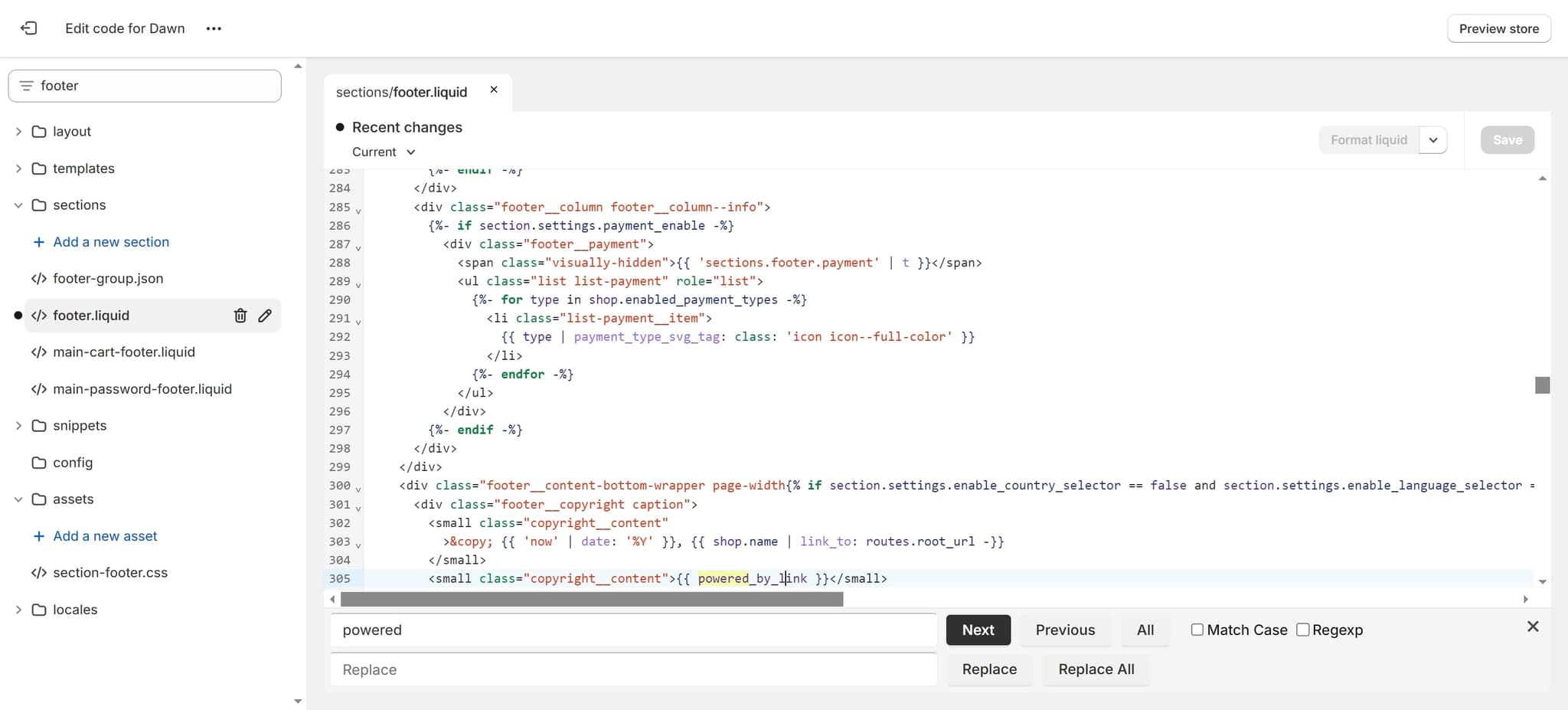
Select the Footer Element
Click on the specific HTML element that displays the 'Powered by Shopify' text. Identifying the exact element ensures you modify the correct code.
- 9
Click Next to Continue
Click 'next' to proceed to the next step in the code modification process. This advances you through the editing workflow.
- 10
Modify the Link Element
Click on 'small_by_link' to access the HTML code responsible for rendering the footer link. This element controls the 'Powered by Shopify' attribution display.
- 11
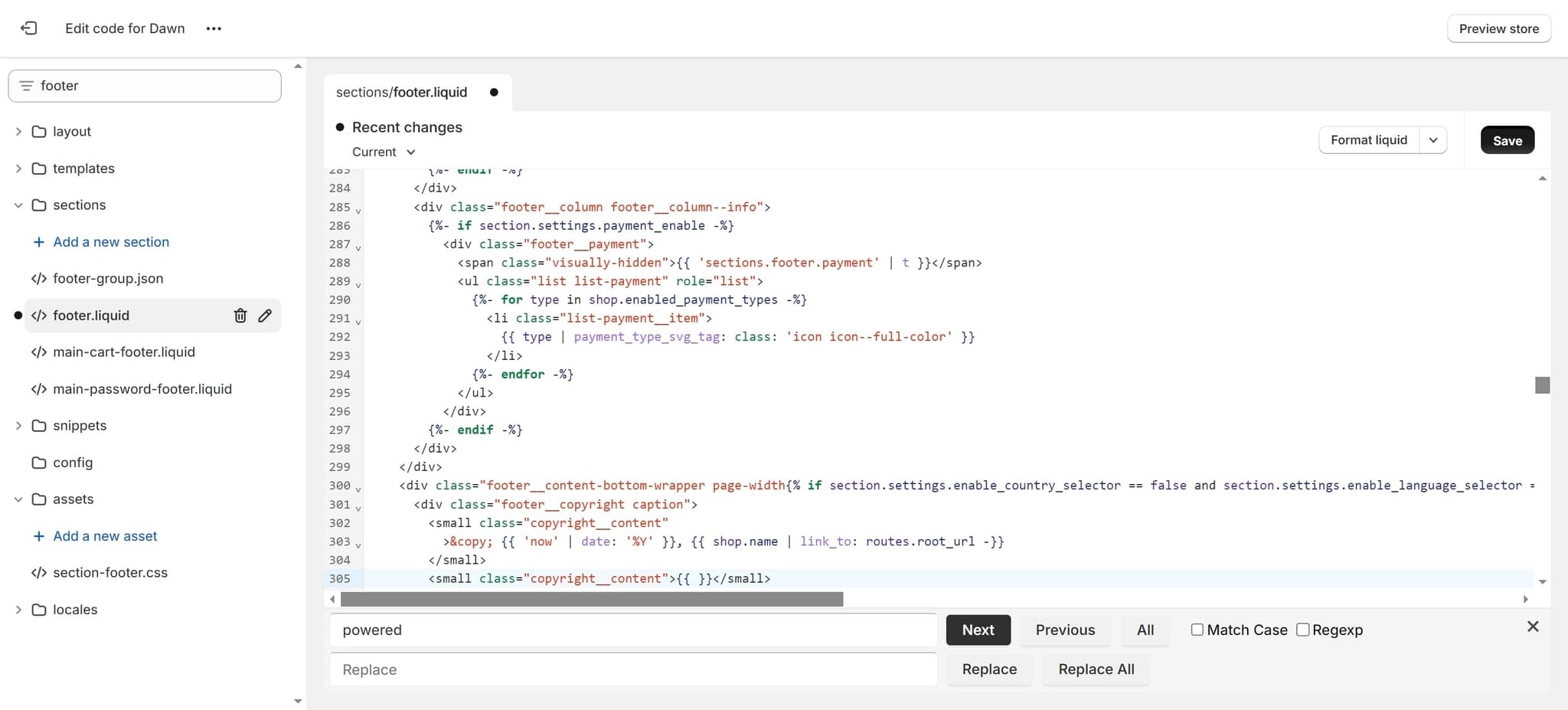
Save Your Changes
Click 'Save' to apply all your code modifications to your theme. Your changes will be immediately reflected on your live storefront.
- 12
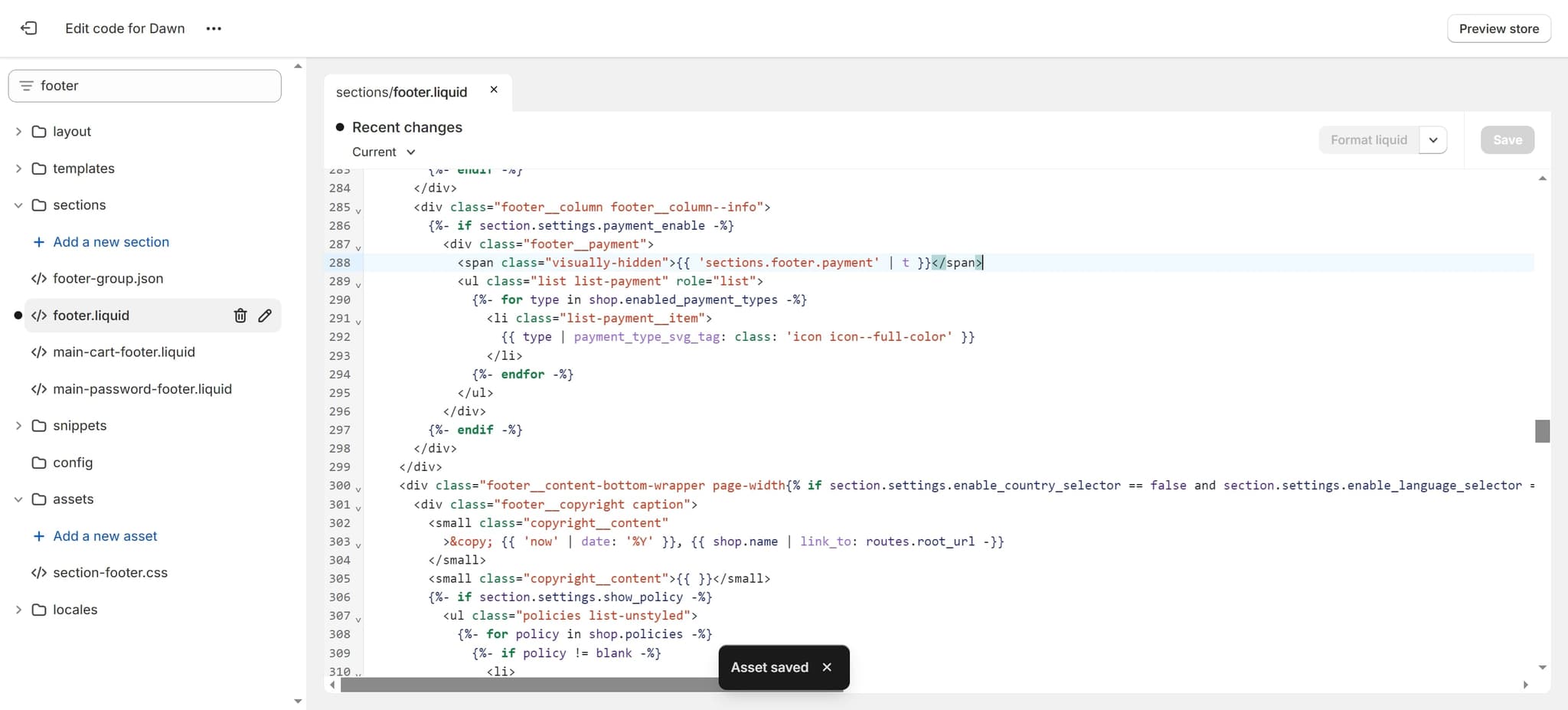
Finalize the Footer Update
Click on the final span element to complete the footer customization. This ensures all related components are properly updated.
Frequently asked questions
Common questions about how to remove 'powered by shopify'.
No, removing the 'Powered by Shopify' footer link will not impact any store functionality. It is purely a cosmetic element and removing it only changes the appearance of your footer without affecting checkout, payments, or any backend operations.
Yes, you can use CSS to hide the element by adding display:none to the relevant CSS rule instead of deleting the HTML code entirely. This approach keeps the code in place but makes it invisible to customers, and is often safer if you need to revert changes later.
While basic familiarity with HTML and CSS is helpful, you don't need extensive coding experience. This process involves locating and modifying or removing specific lines of code, which most users can accomplish by following step-by-step instructions carefully.
Shopify allows you to revert theme changes if needed. You can use the theme version history to restore a previous version, or you can manually add back the code you deleted. Always consider making a backup or testing changes on a development theme first.
No, Shopify explicitly allows merchants to remove or customize the 'Powered by Shopify' footer text. It is not a requirement to keep the attribution visible, though Shopify may suggest keeping it as a way to help with SEO benefits.