How to Sync Shopify Order Data with Gorgias

Syncing Shopify order data with Gorgias streamlines your customer support workflow by centralizing order information in your help desk platform. This integration ensures your support team has instant access to customer purchase history, order status, and transaction details without switching between tools.
Quick summary
In this tutorial, you'll learn how to connect your Shopify store to Gorgias and configure order data synchronization. By the end, your support team will have complete visibility into customer orders directly within Gorgias, enabling faster and more informed customer interactions.
Why this matters
When order data syncs automatically between Shopify and Gorgias, your support agents can resolve customer inquiries more efficiently without manual lookups. This integration reduces response times, minimizes errors, and ensures consistent information across your customer service operations.
Step-by-step guide
- 1
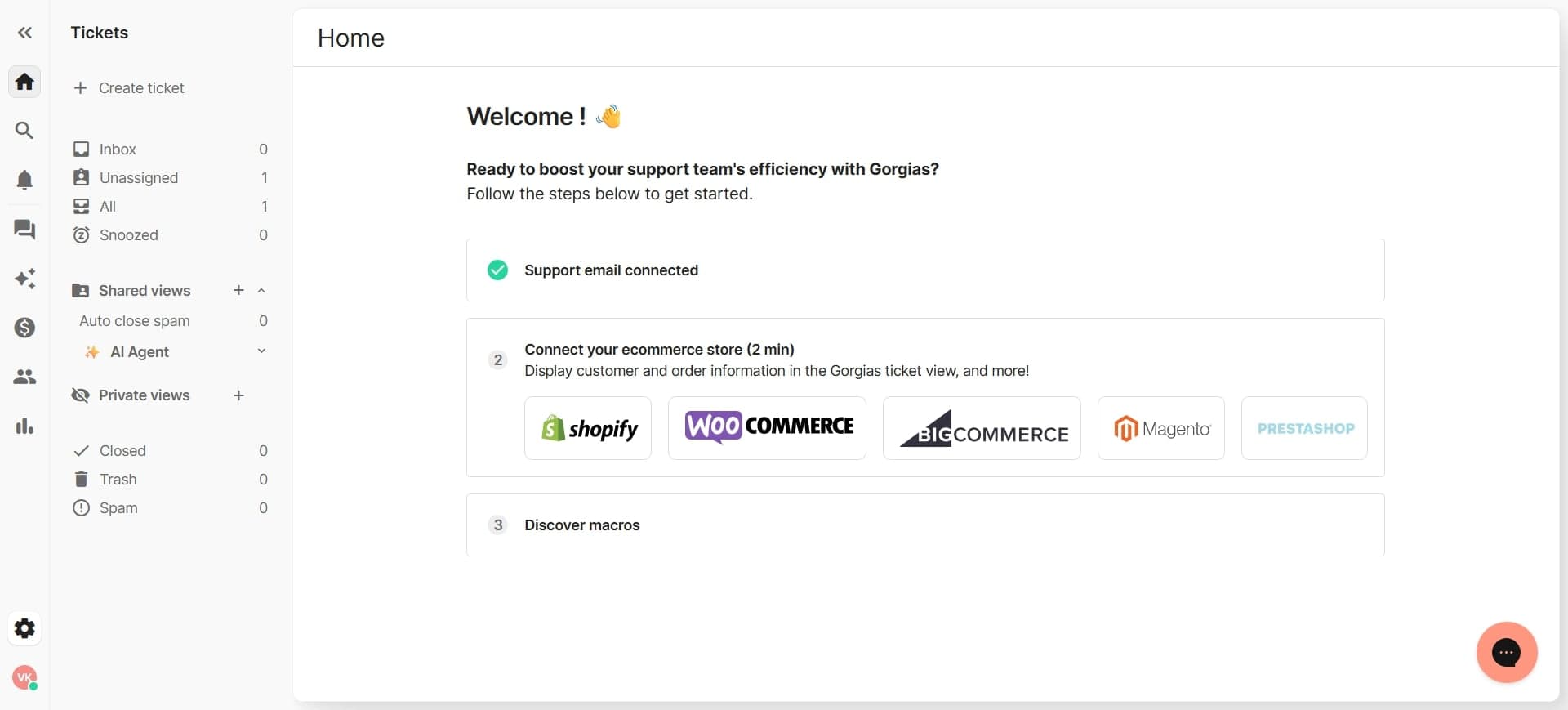
Log in to your Gorgias account
Access your Gorgias dashboard using your credentials. You'll need admin-level permissions to configure integrations.
- 2
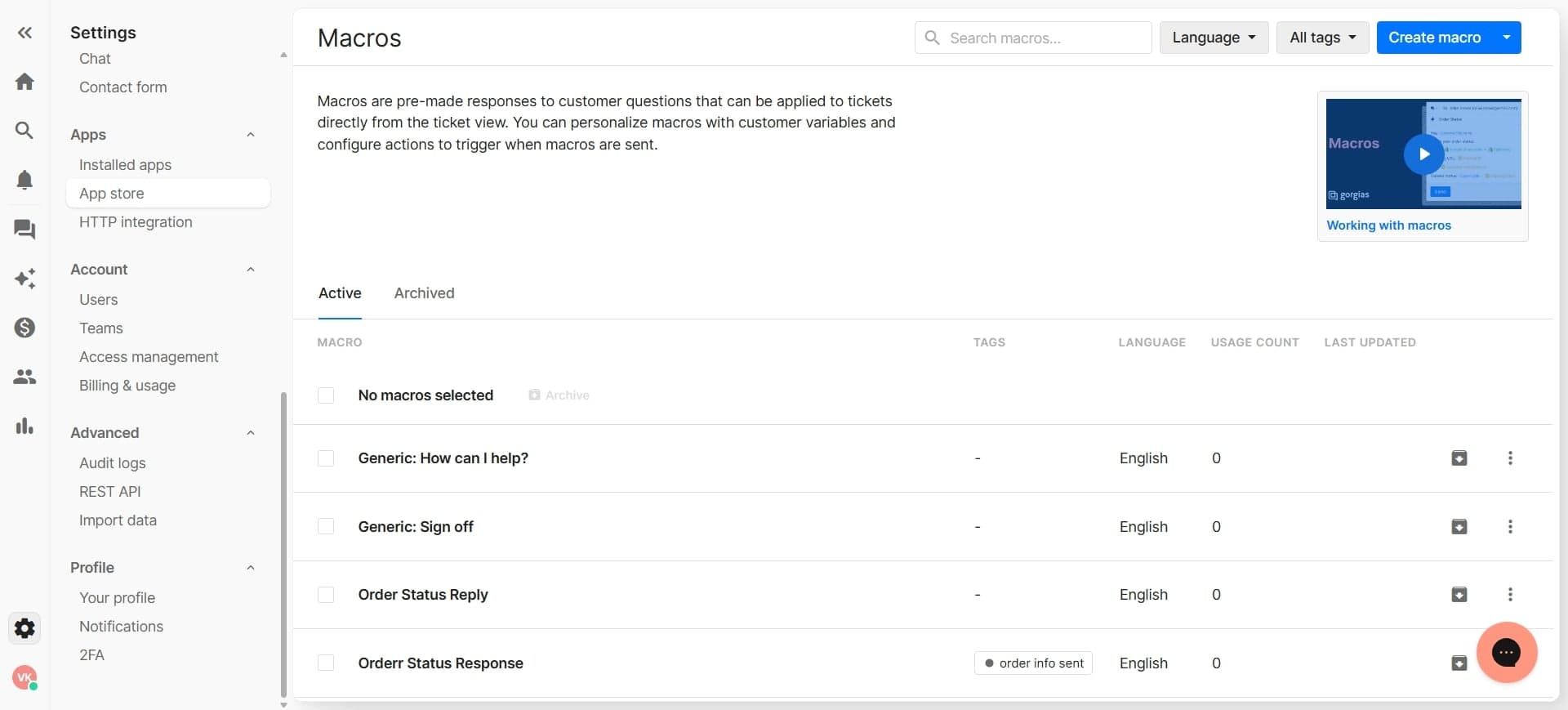
Navigate to the integrations section
Look for the settings or integrations menu in your Gorgias dashboard. This is where you'll manage all connected platforms and data sources.
- 3
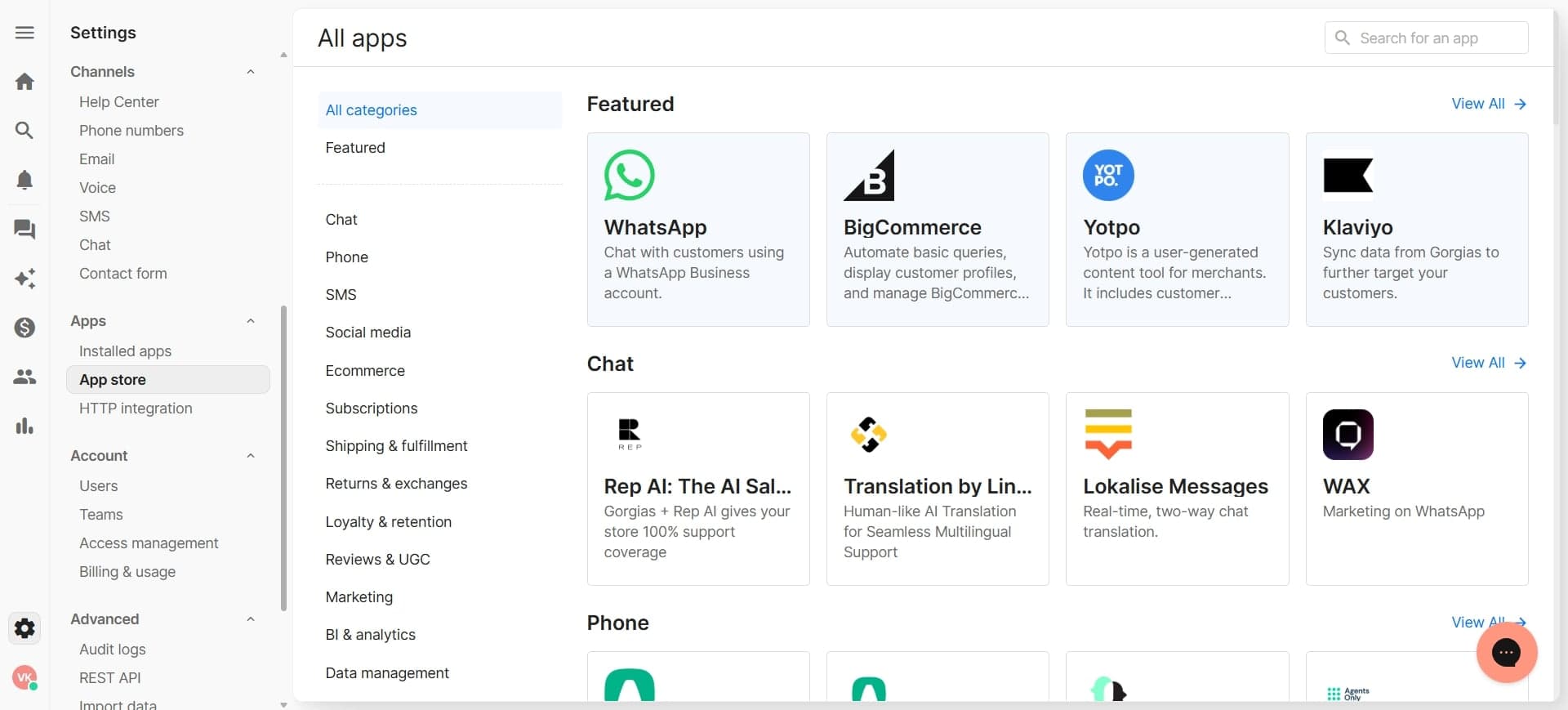
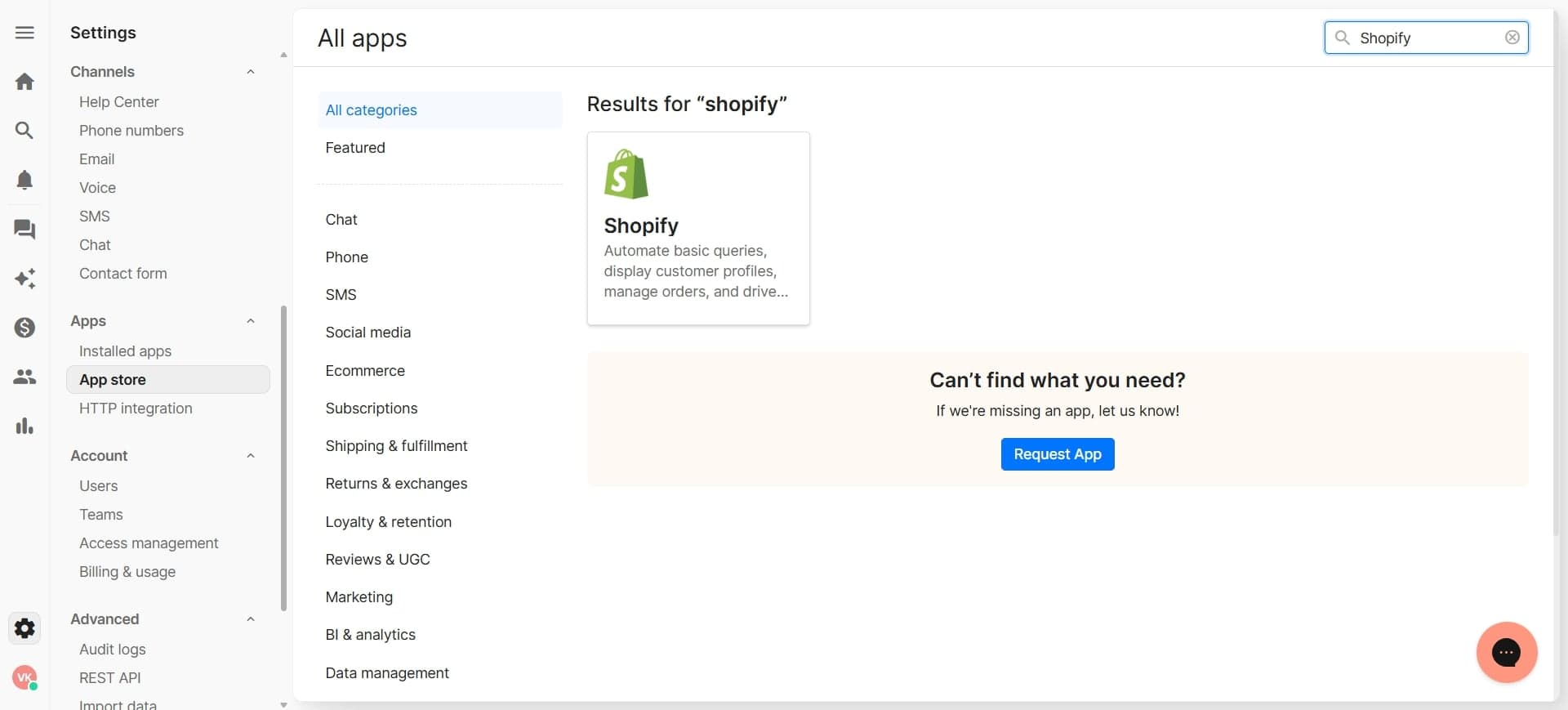
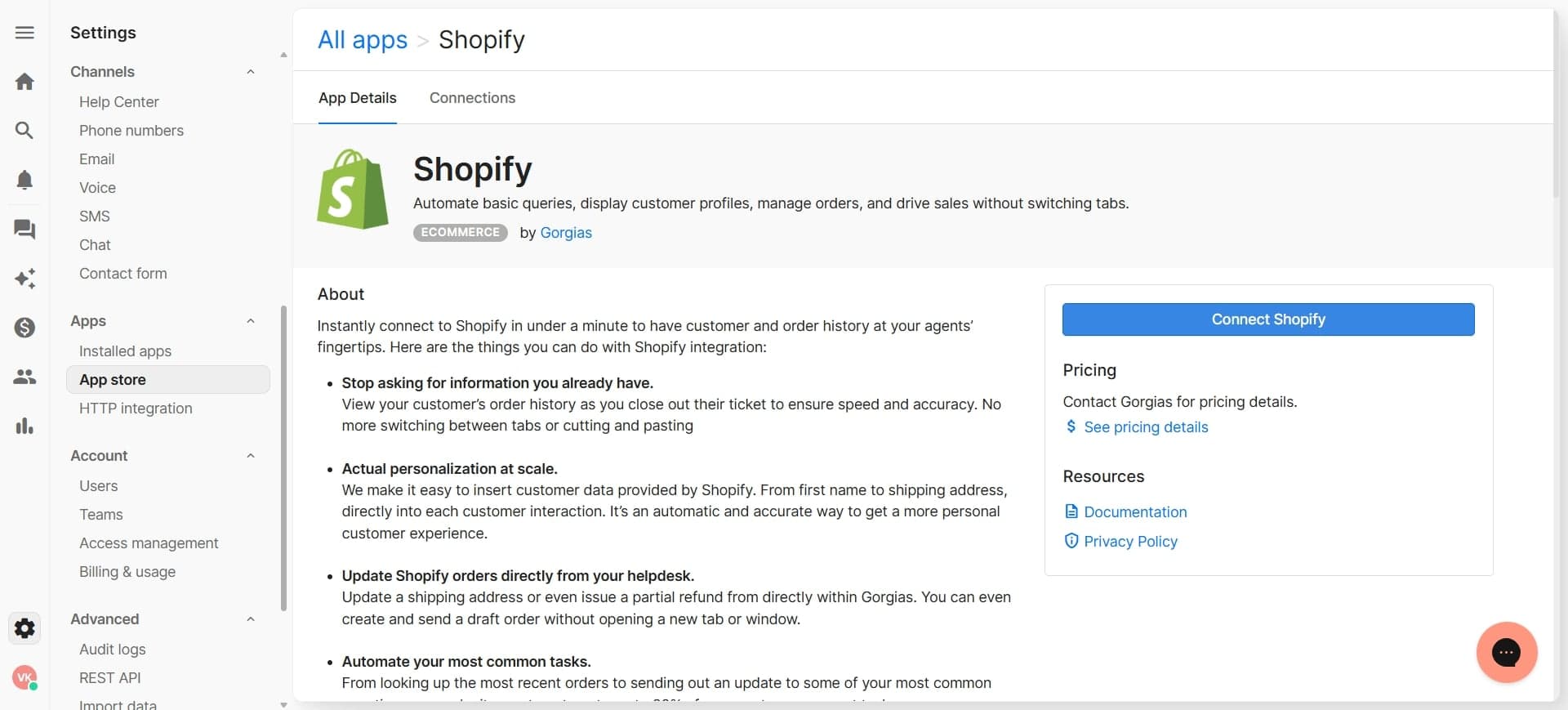
Search for the Shopify integration
Find Shopify in the available integrations list. Click on it to view the integration details and requirements.
- 4
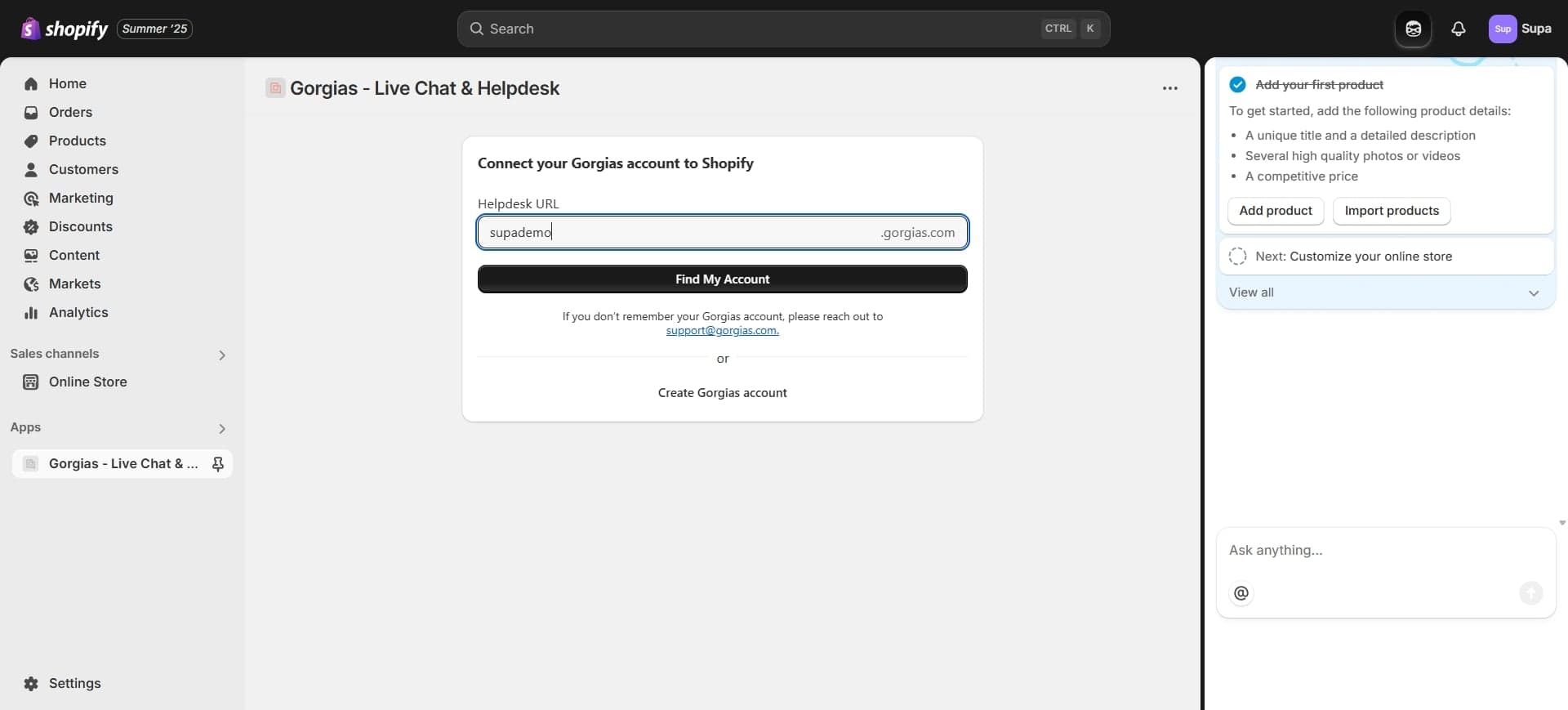
Click connect or authorize
Select the option to connect or authorize Shopify. You'll be prompted to authenticate using your Shopify store credentials.
- 5
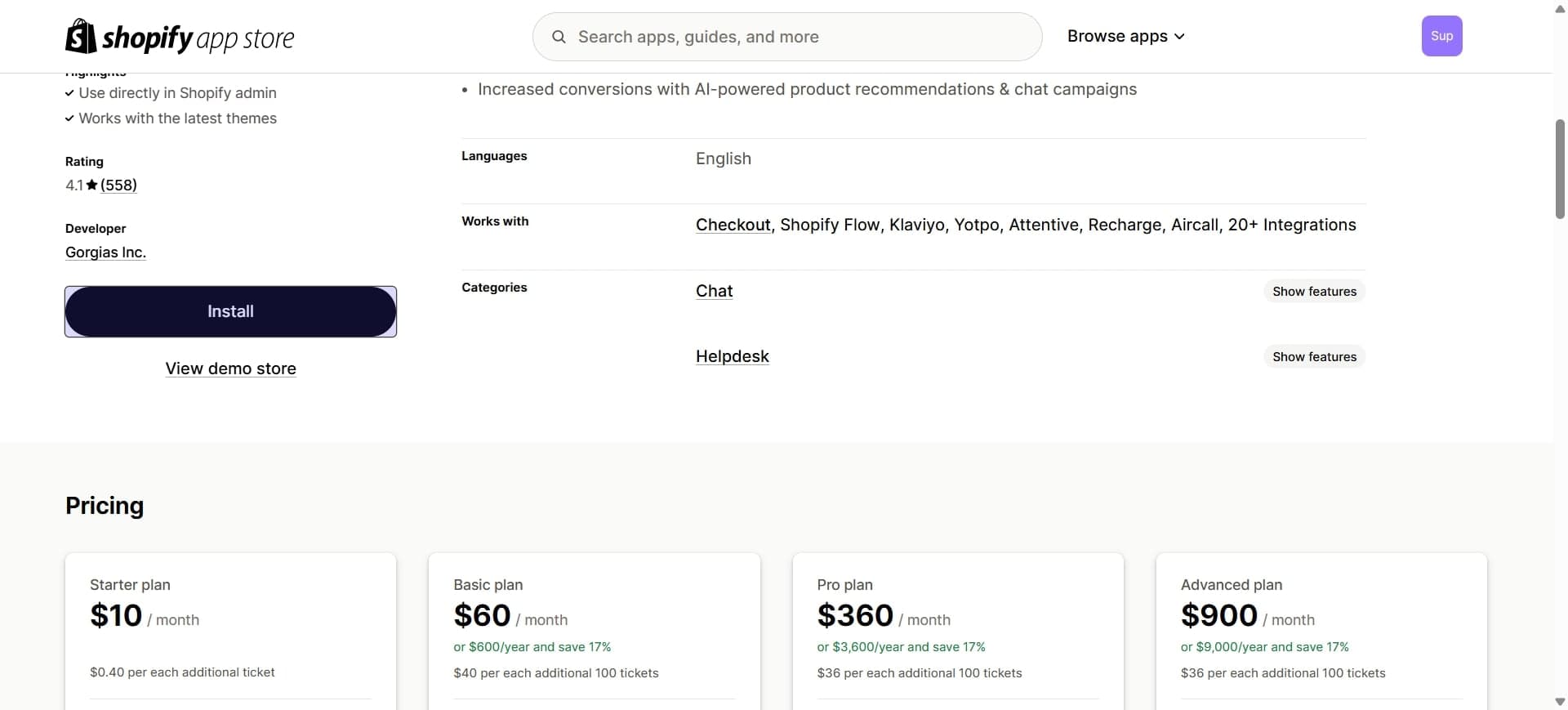
Select your Shopify store
If you manage multiple Shopify stores, choose which store you want to sync with Gorgias. Confirm that you're selecting the correct store URL.
- 6
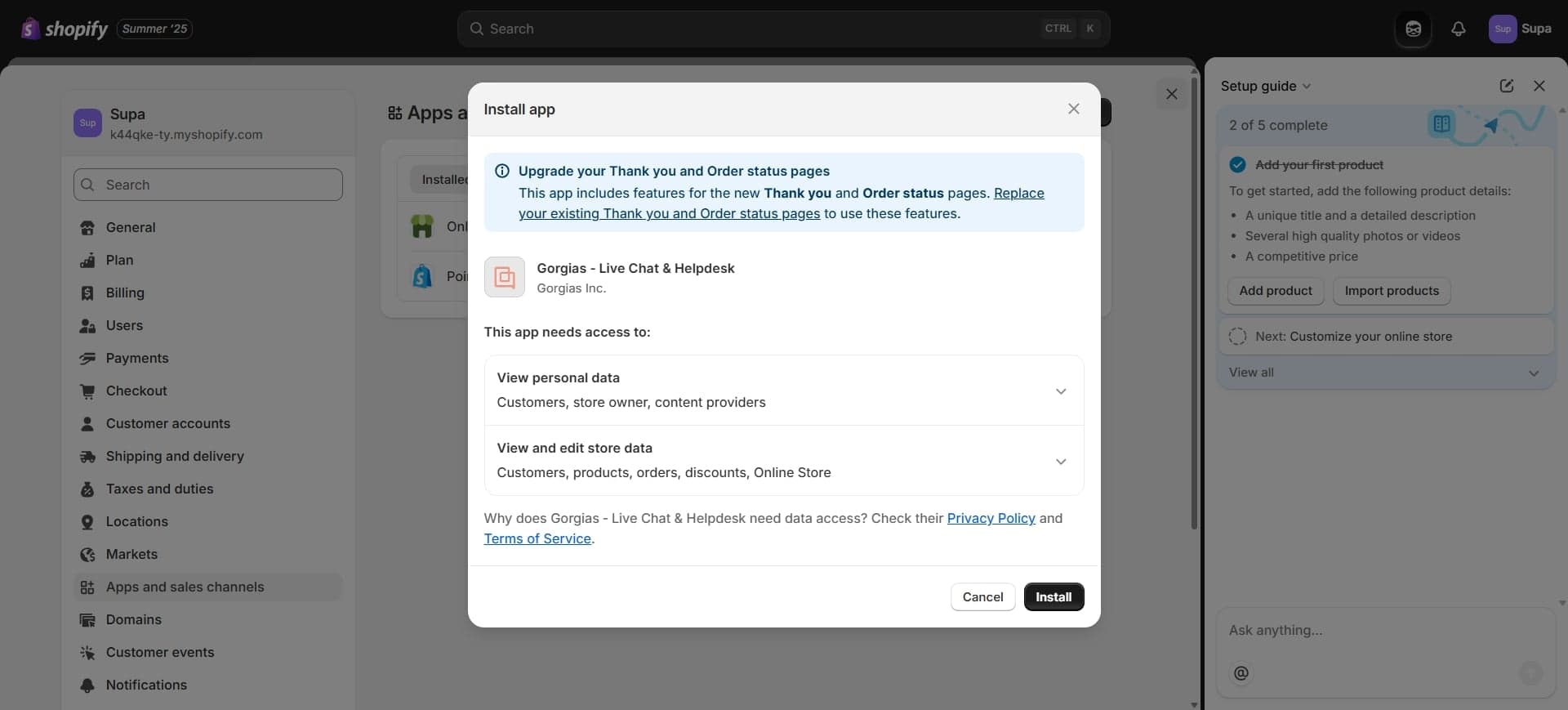
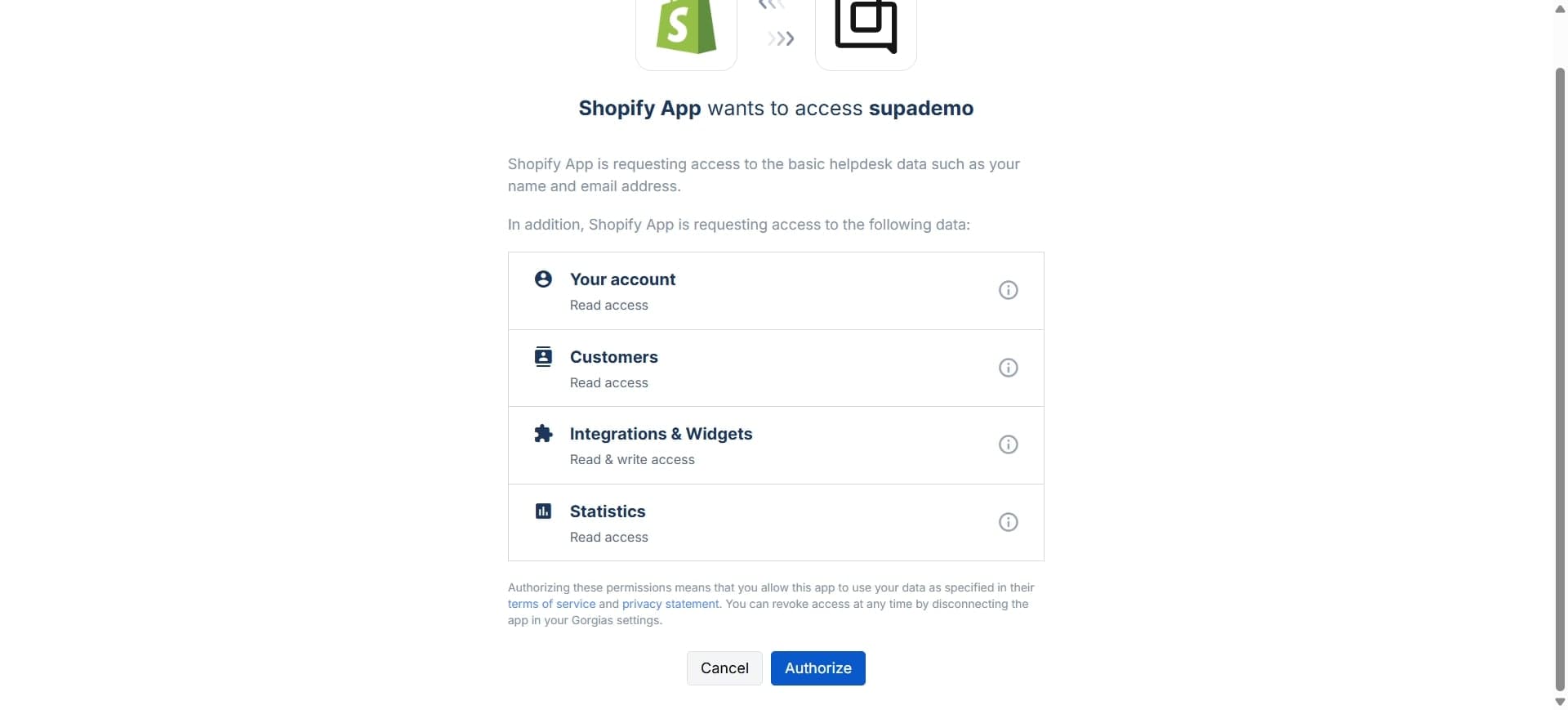
Grant necessary permissions
Approve the permission request that allows Gorgias to access your Shopify order data. Review the scopes to ensure Gorgias can read orders, customer information, and transaction details.
- 7
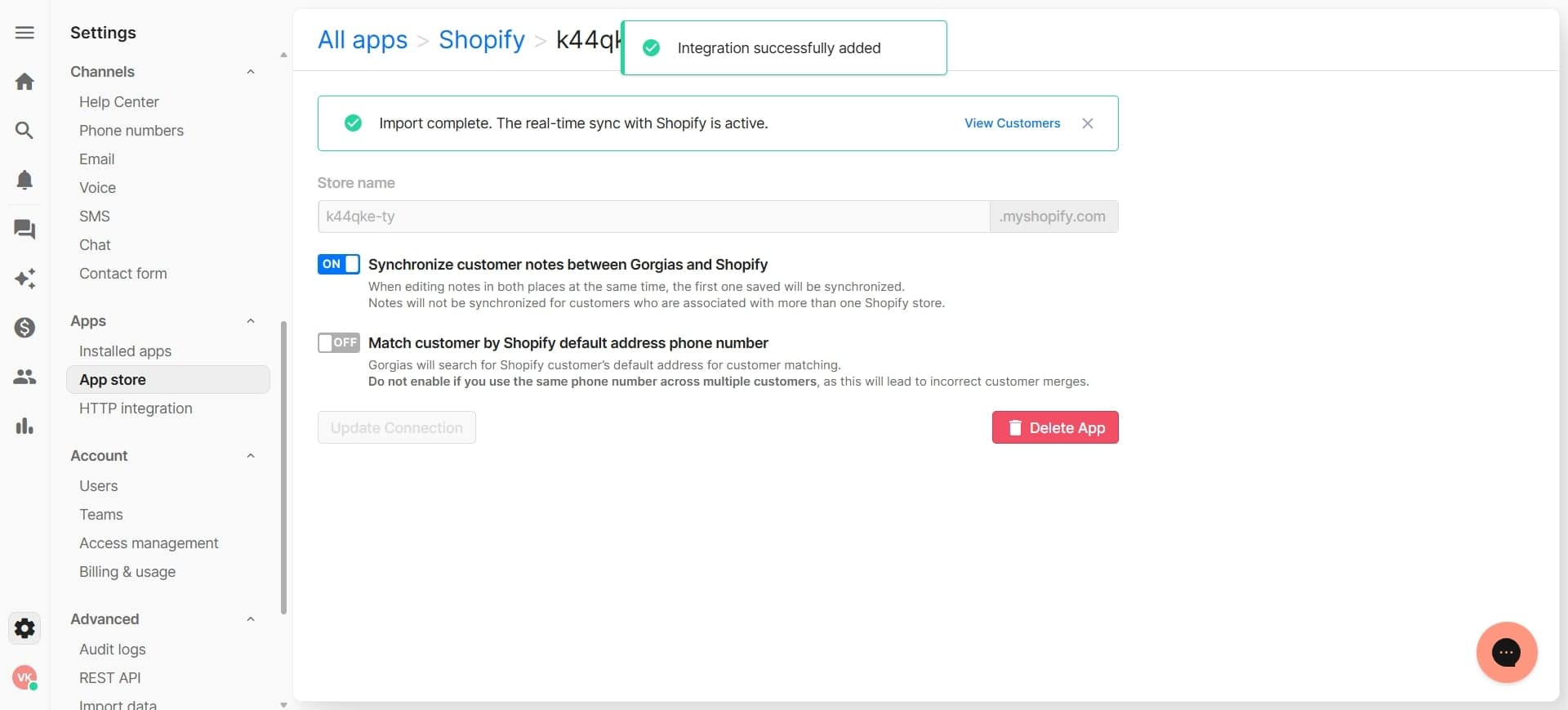
Configure data sync preferences
Set up which order data fields you want to sync between platforms. Choose whether you want real-time sync or scheduled syncing based on your needs.
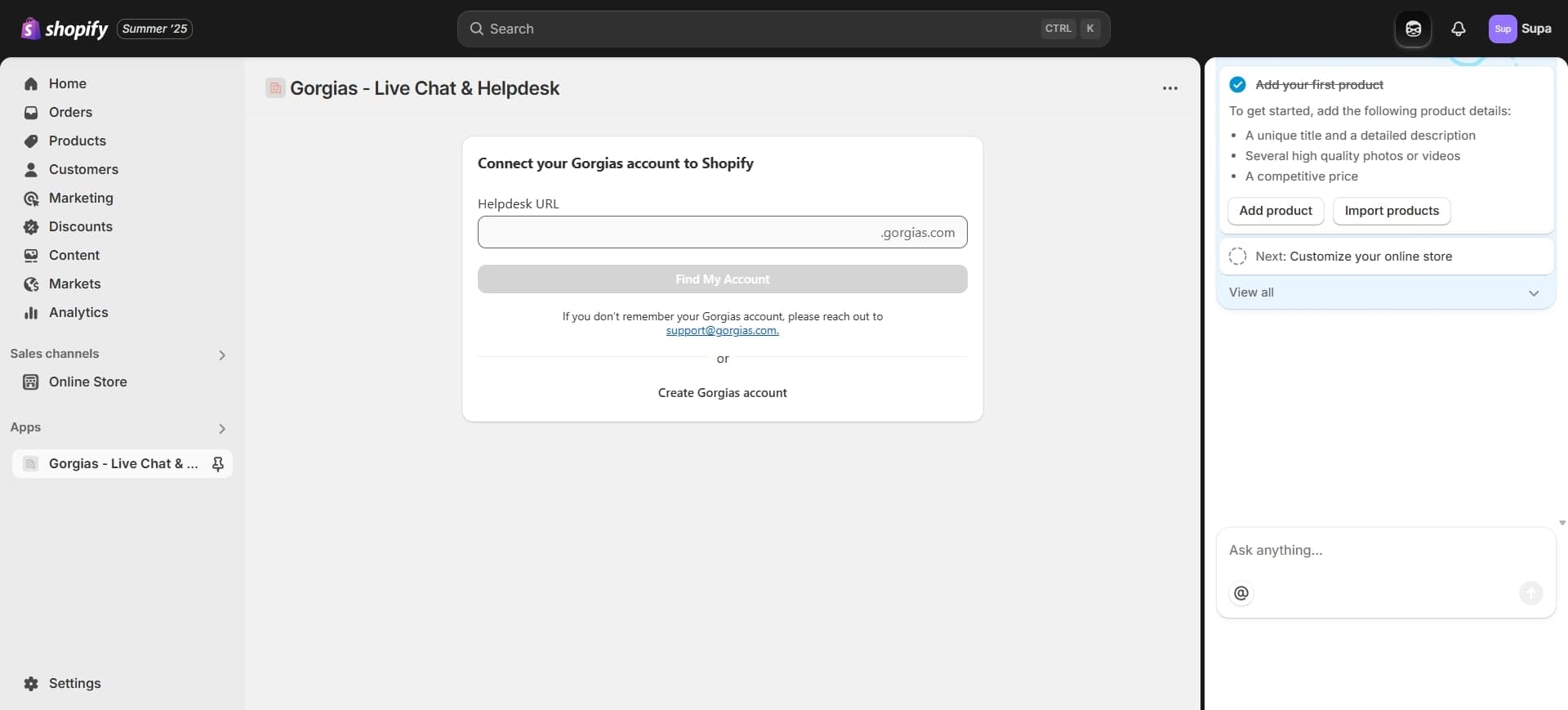
- 8
Enable customer profile enrichment
Turn on the option to populate customer profiles in Gorgias with Shopify data. This links customer conversations to their purchase history automatically.
- 9
Set up order notification rules
Configure whether you want Gorgias to notify your team about new orders, cancellations, or refunds. Customize these rules based on your support workflow.
- 10
Test the integration connection
Run a test to verify that data is flowing correctly from Shopify to Gorgias. Check that a recent order appears in your Gorgias system.
- 11
Map custom fields if needed
If you use custom fields in Shopify, configure how those fields map to Gorgias fields. This ensures all relevant order details are captured accurately.
- 12
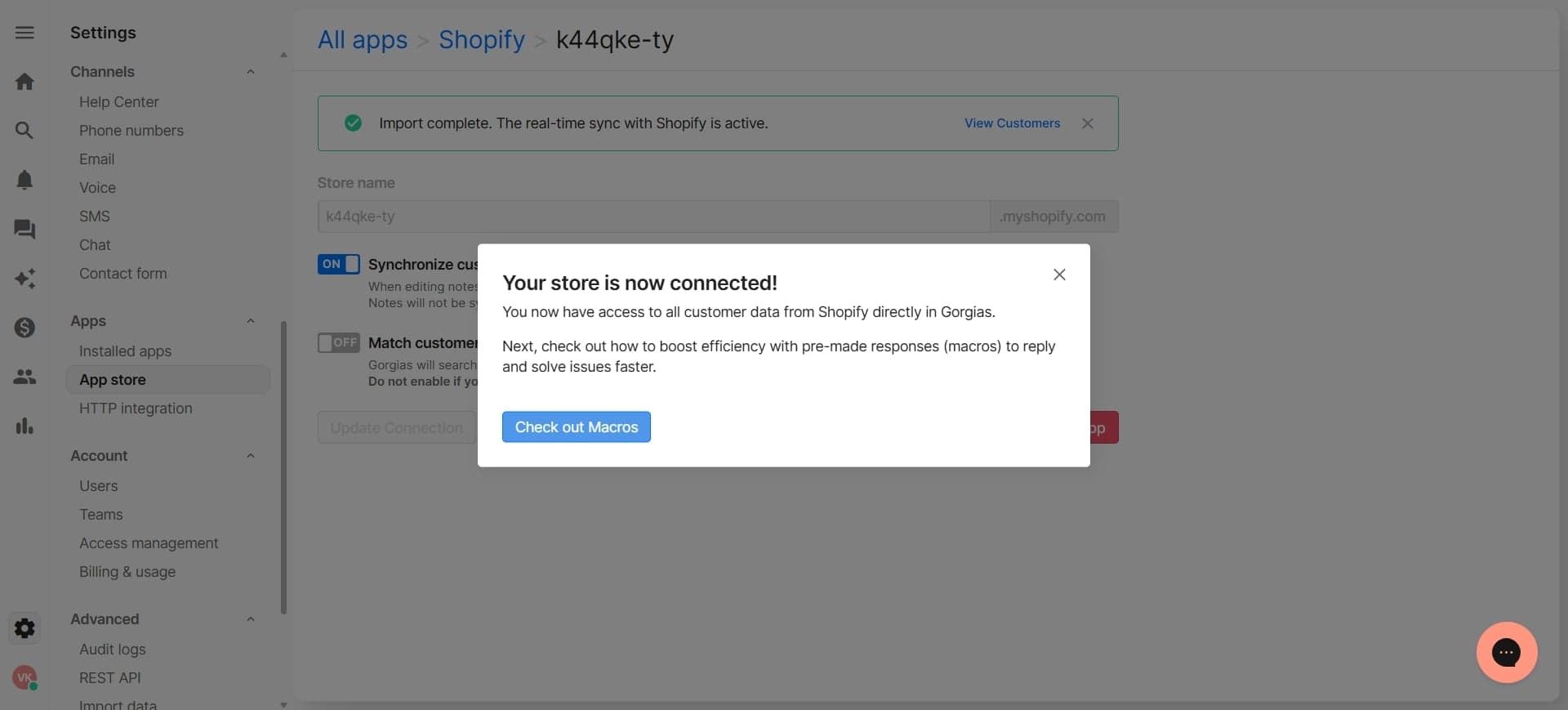
Save and activate the integration
Finalize your configuration by saving all settings. The integration will now be active and begin syncing order data between your systems.
Frequently asked questions
Common questions about how to sync shopify order data with gorgias.
Most order data syncs in real-time or within minutes of an order being placed in Shopify. If you've configured scheduled syncing, the frequency depends on your settings. You can verify sync status in the integration settings within Gorgias.
Typically, only new orders created after the integration is activated will sync automatically. Some integration setups may allow importing historical orders during the initial connection process. Check with Gorgias support if you need to backfill historical data.
If you enable real-time sync, order updates including refunds, cancellations, and status changes will automatically reflect in Gorgias. Your support team will see the most current order information without manual refreshing.
Yes, during the configuration step, you can select which order data fields you want to sync. Common fields include order number, customer name, order total, shipping address, and order status. Customize these selections based on your support team's needs.
Gorgias requires read access to orders, customers, and transactions to sync data properly. It typically does not require write permissions unless you've configured order actions within Gorgias. Review the permission scopes during authorization to understand exactly what data Gorgias can access.