
1. Head over to attio.com and either sign up for a new account or log in with your existing credentials.
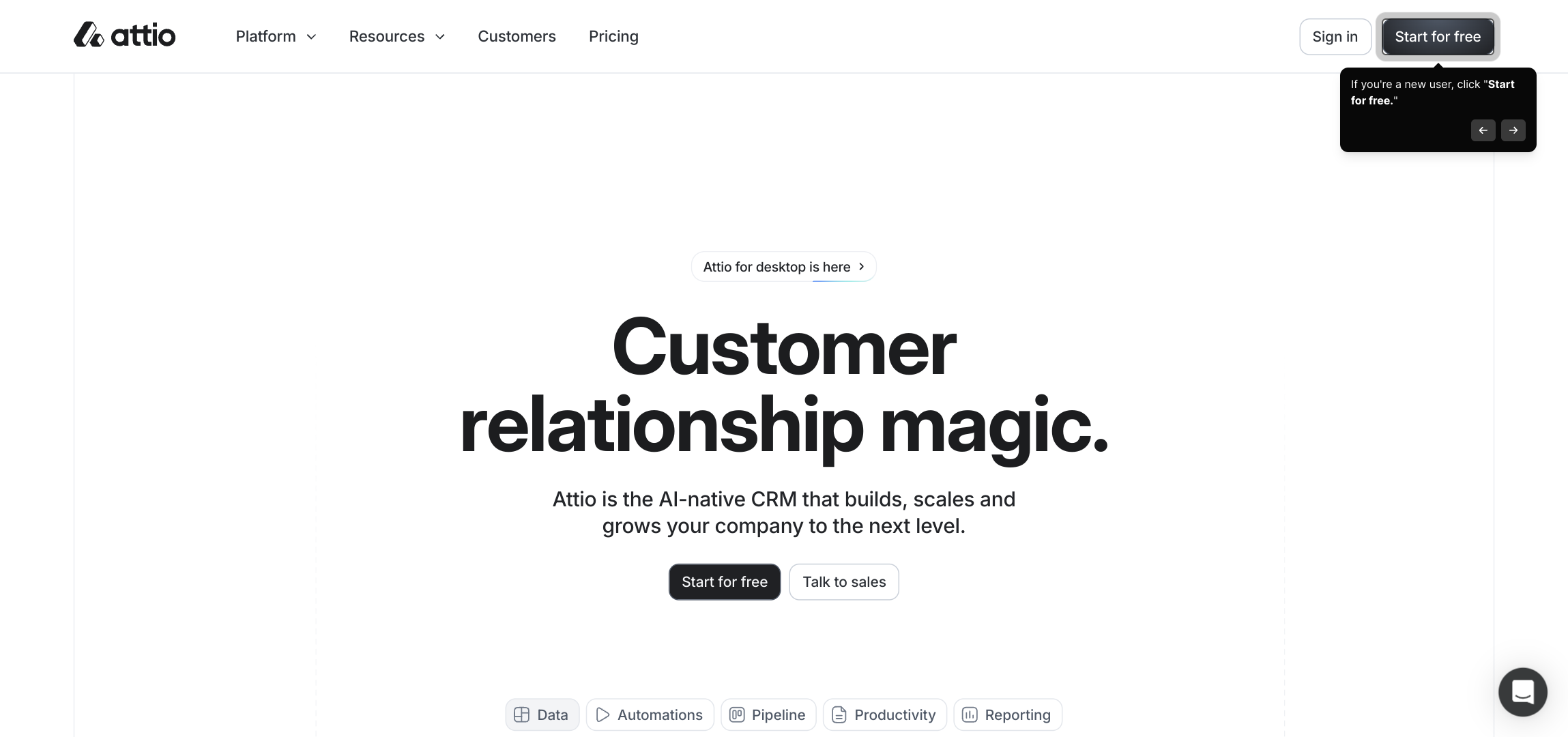
2. If you're a new user, click "Start for free."
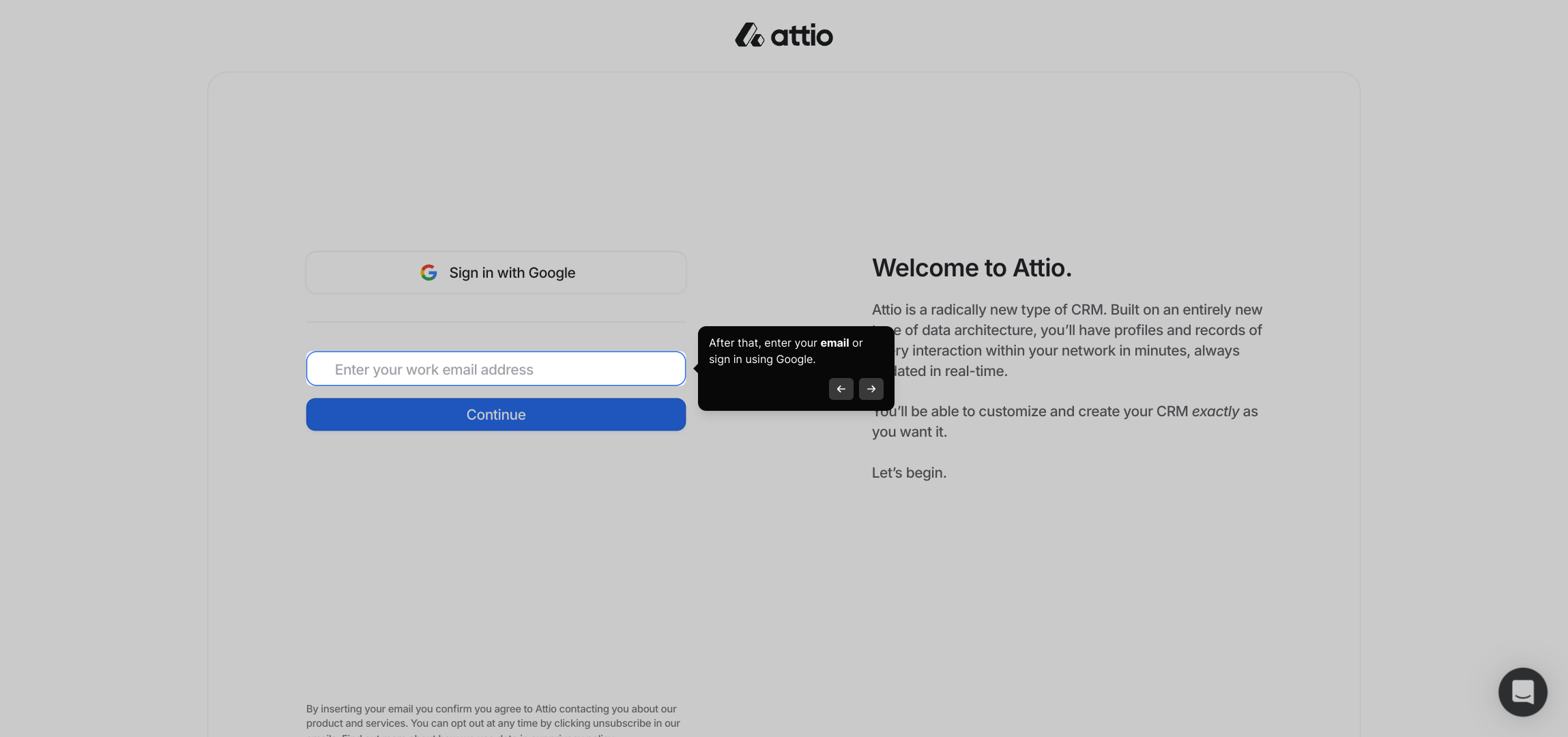
3. After that, enter your email or sign in using Google.
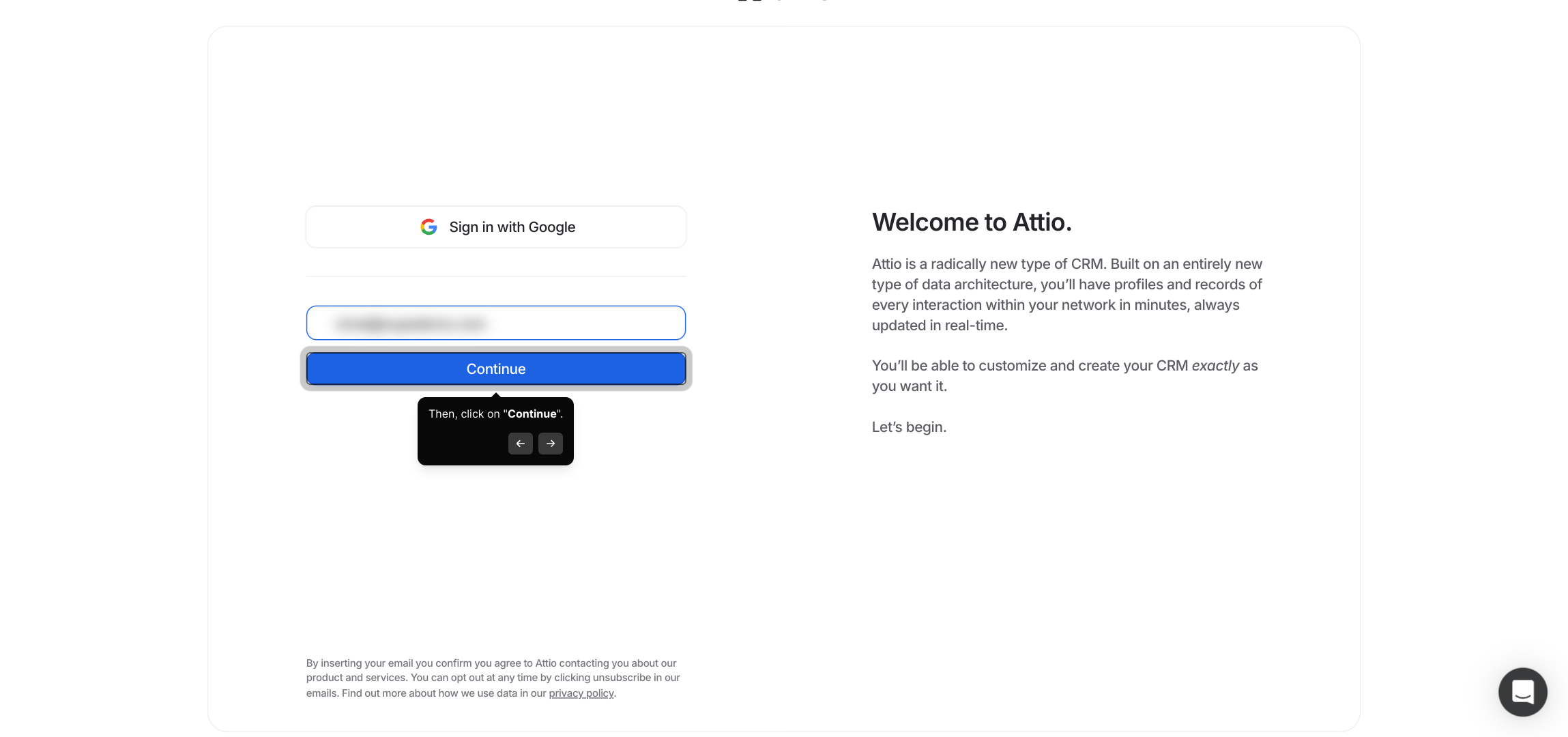
4. Then, click on "Continue".
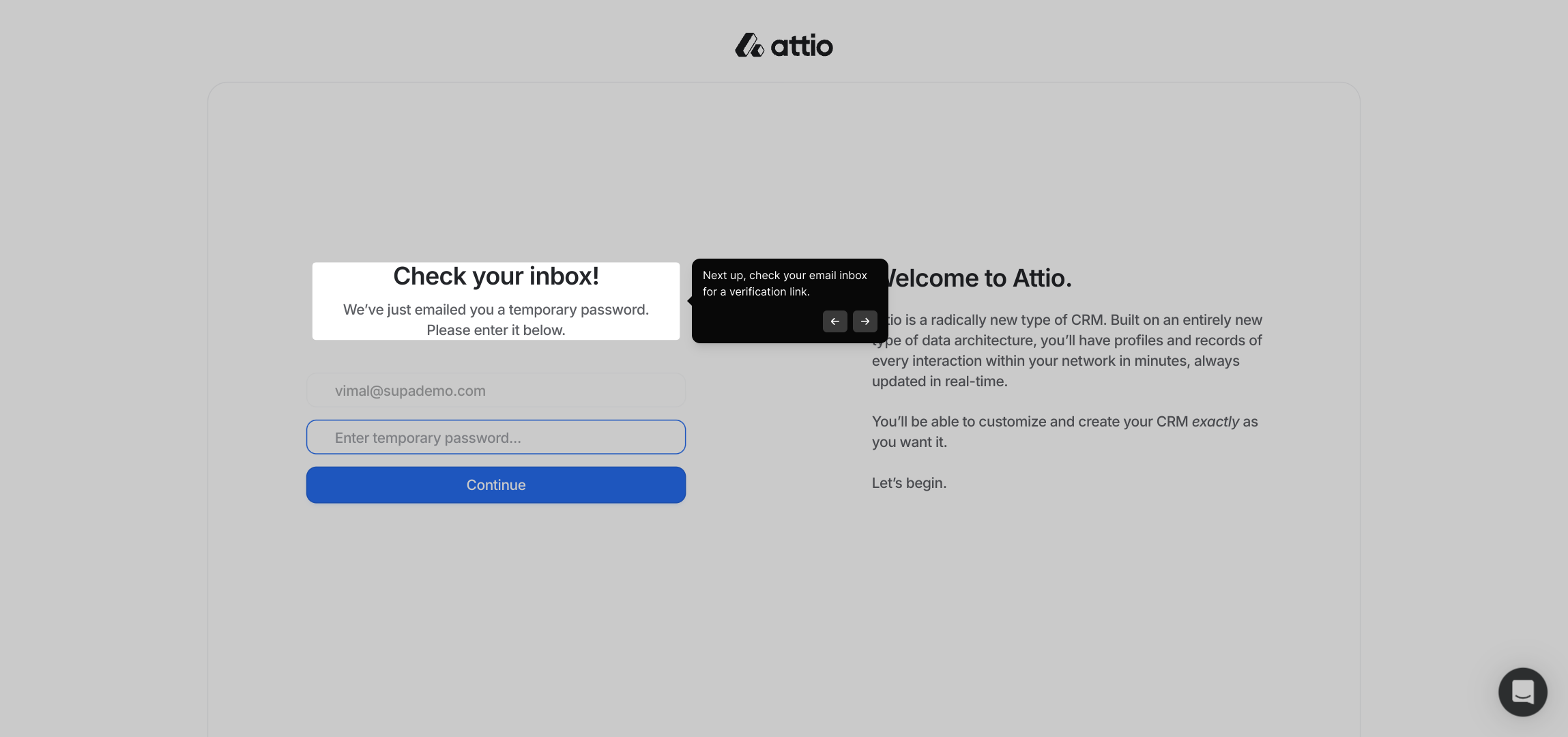
5. Next up, check your email inbox for a verification link.
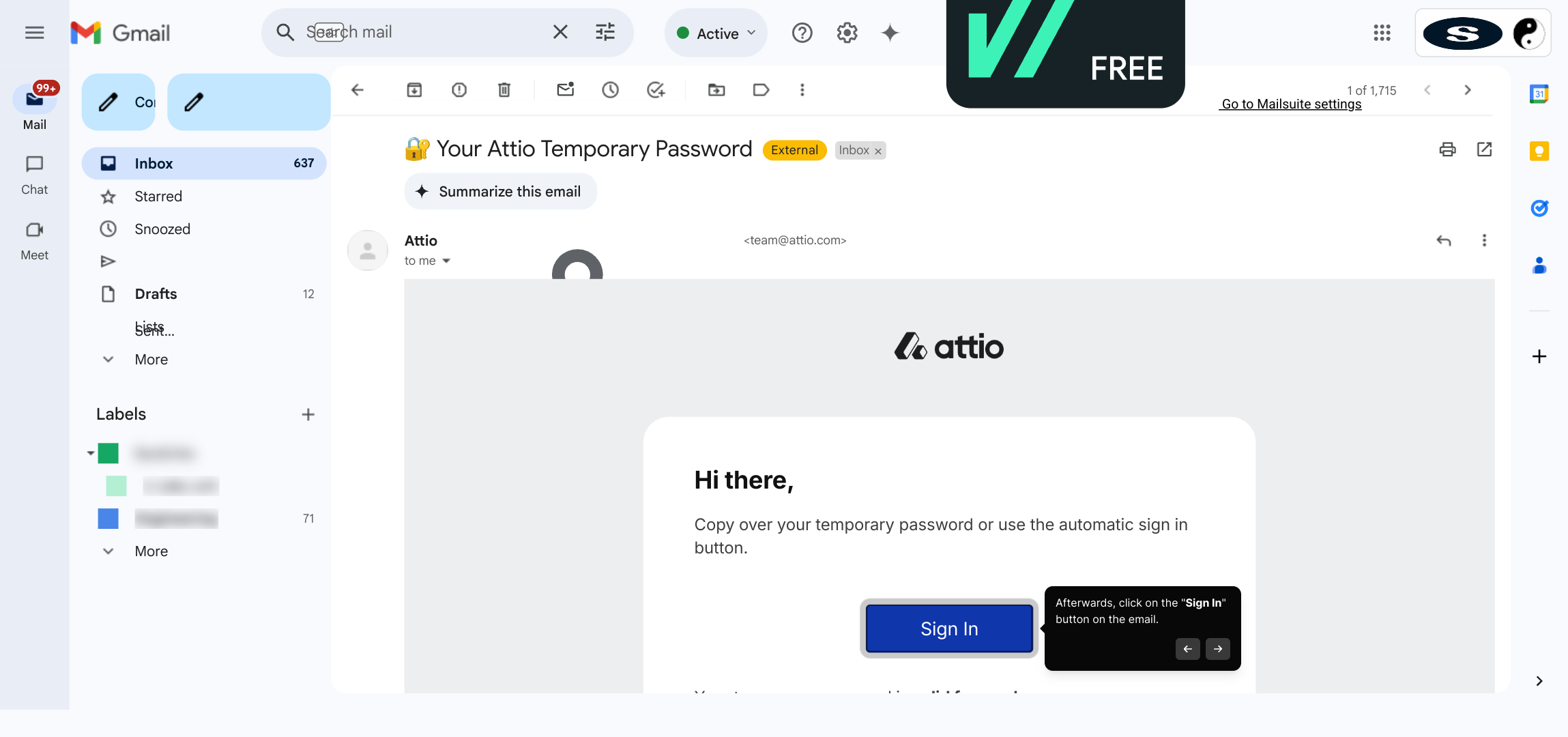
6. Afterwards, click on the "Sign In" button on the email.
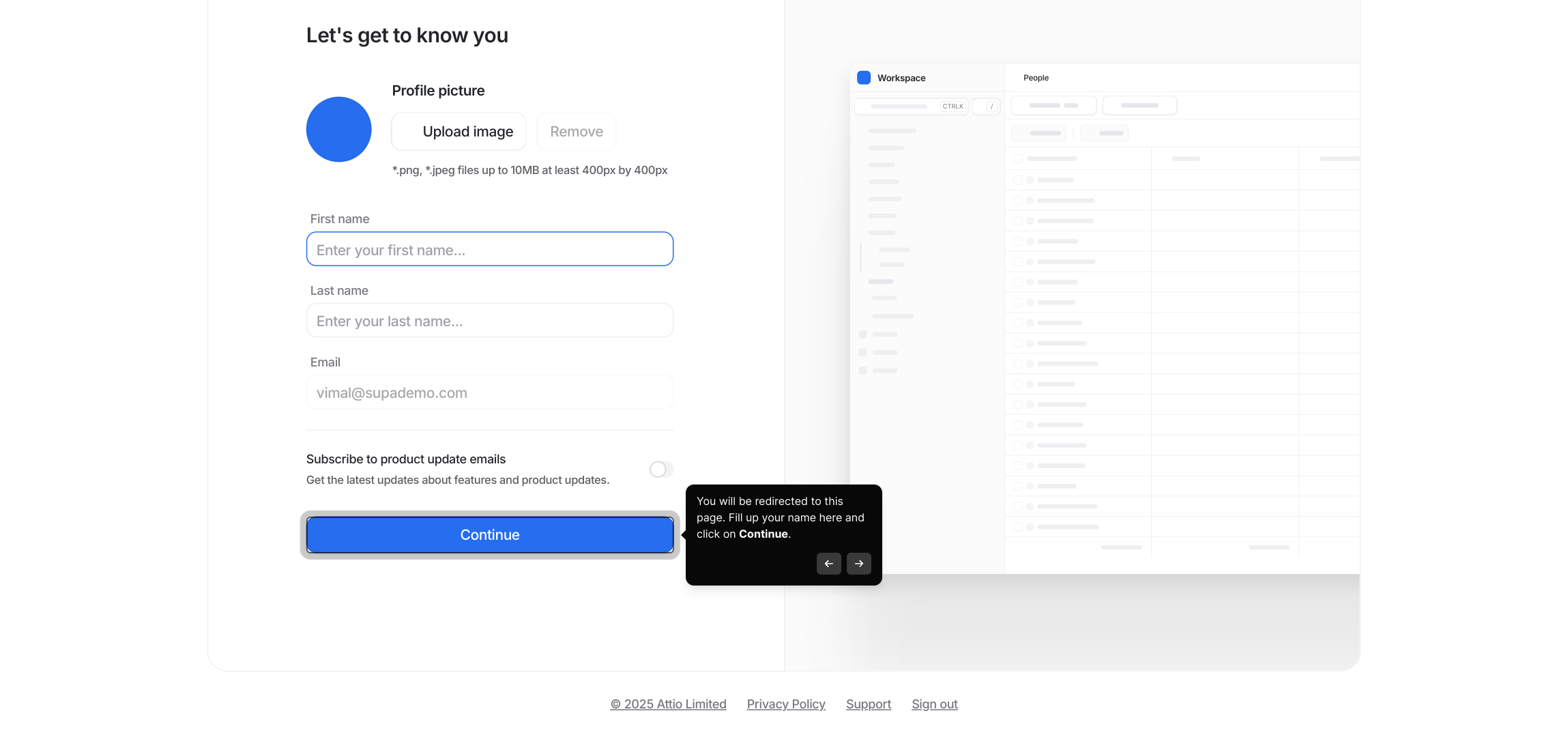
7. You will be redirected to this page. Fill up your name here and click on Continue.
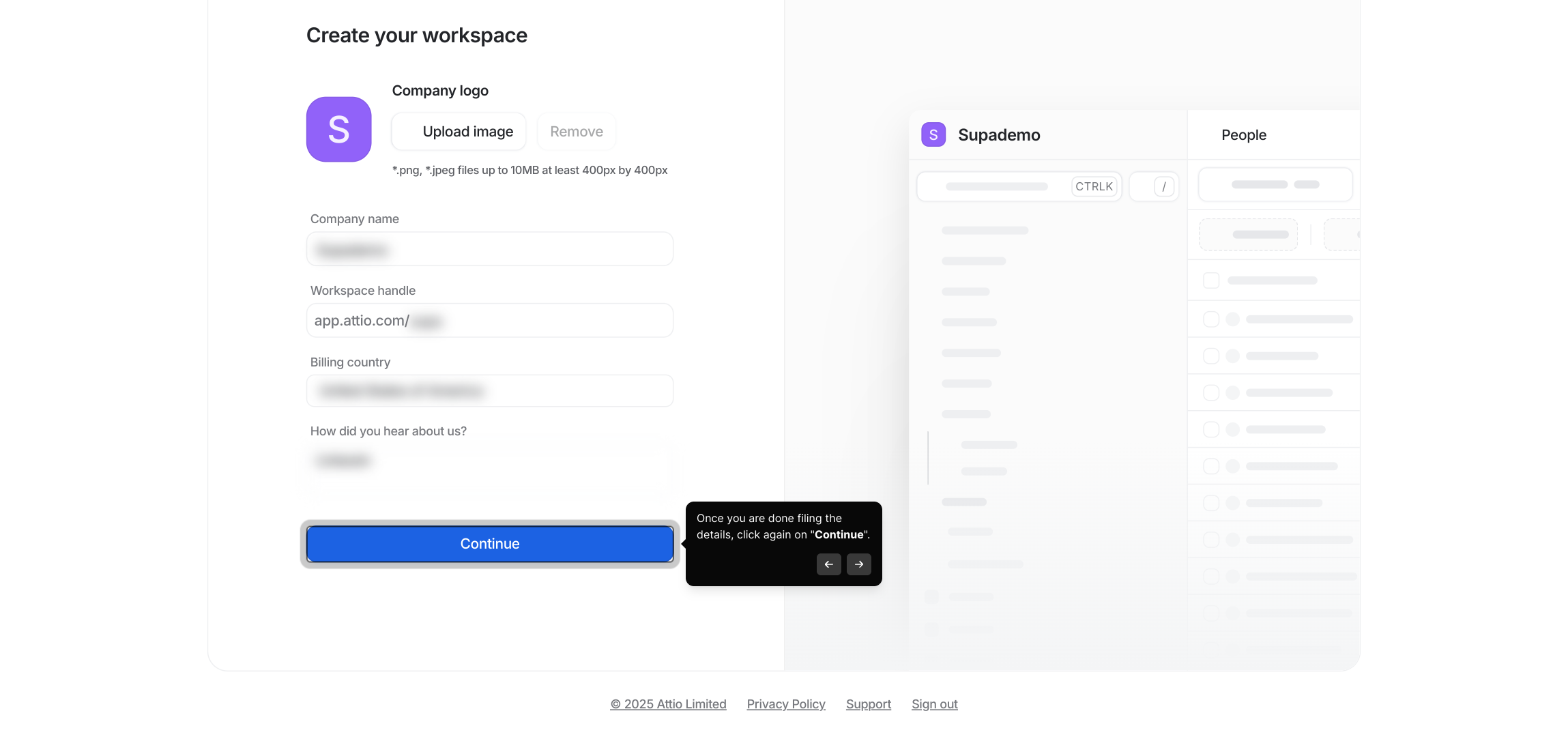
8. Add a few more details, such as Company Name, Workspace handle, and Billing Country.
9. Once you are done filing the details, click again on "Continue".
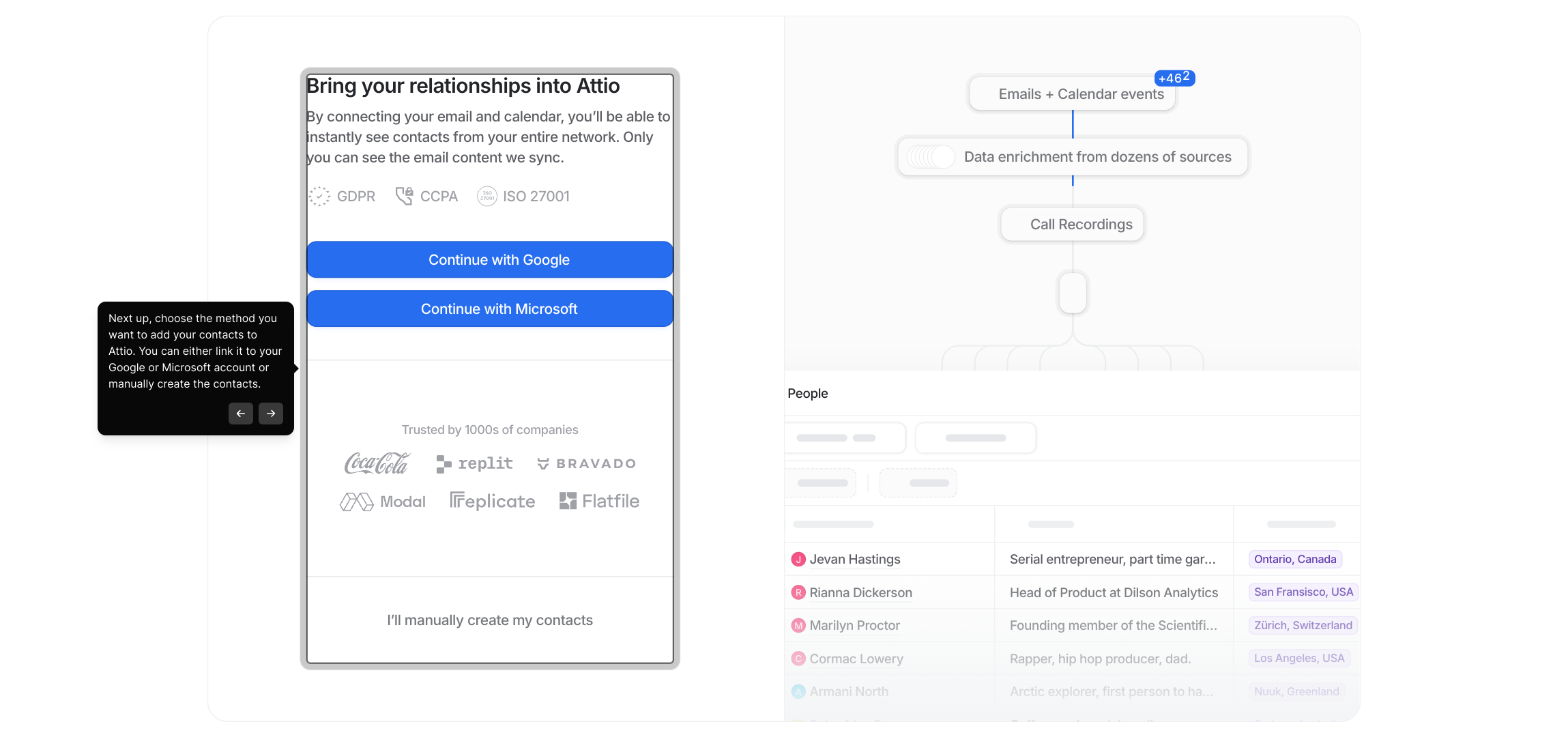
10. Next up, choose the method you want to add your contacts to Attio. You can either link it to your Google or Microsoft account or manually create the contacts.
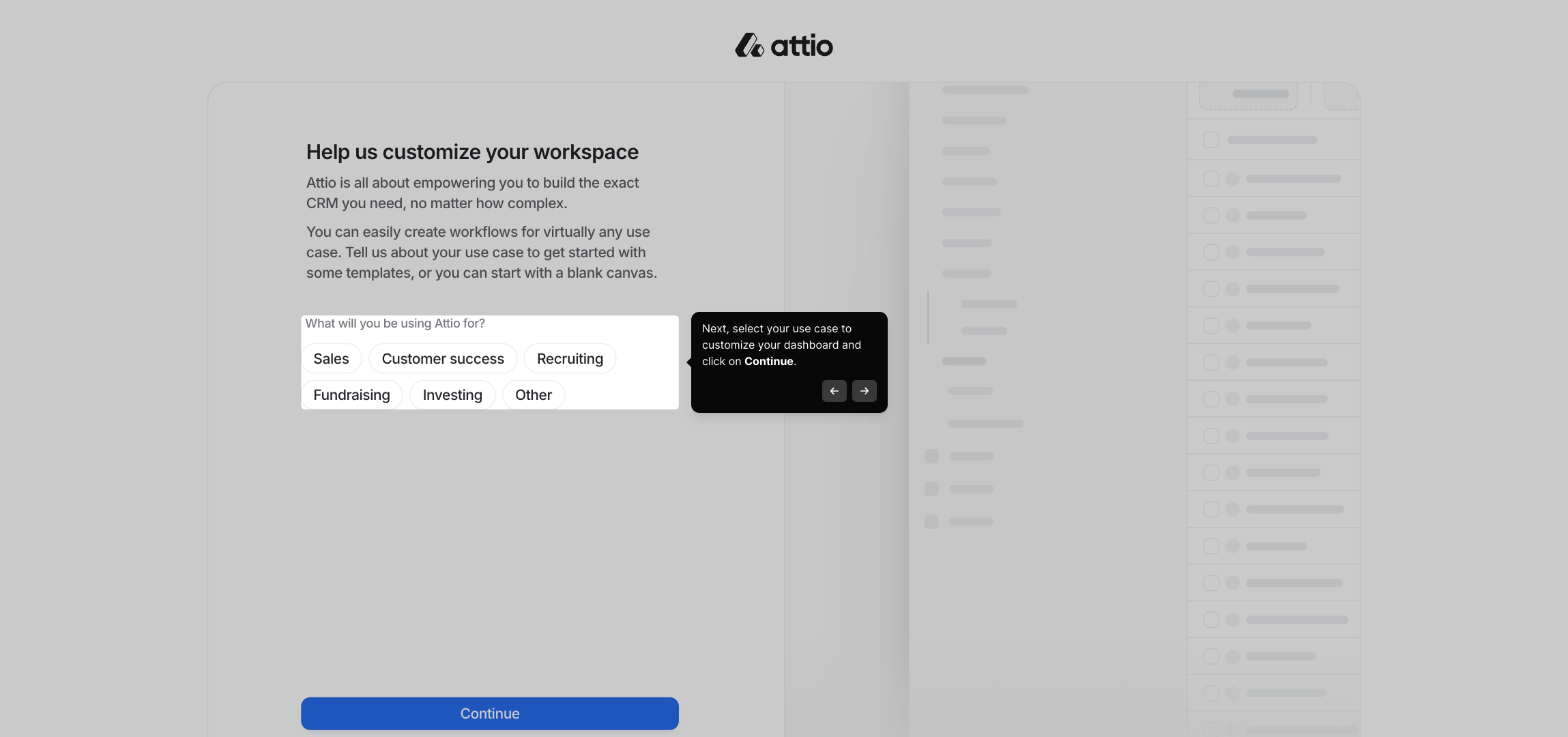
11. Next, select your use case to customize your dashboard and click on Continue.
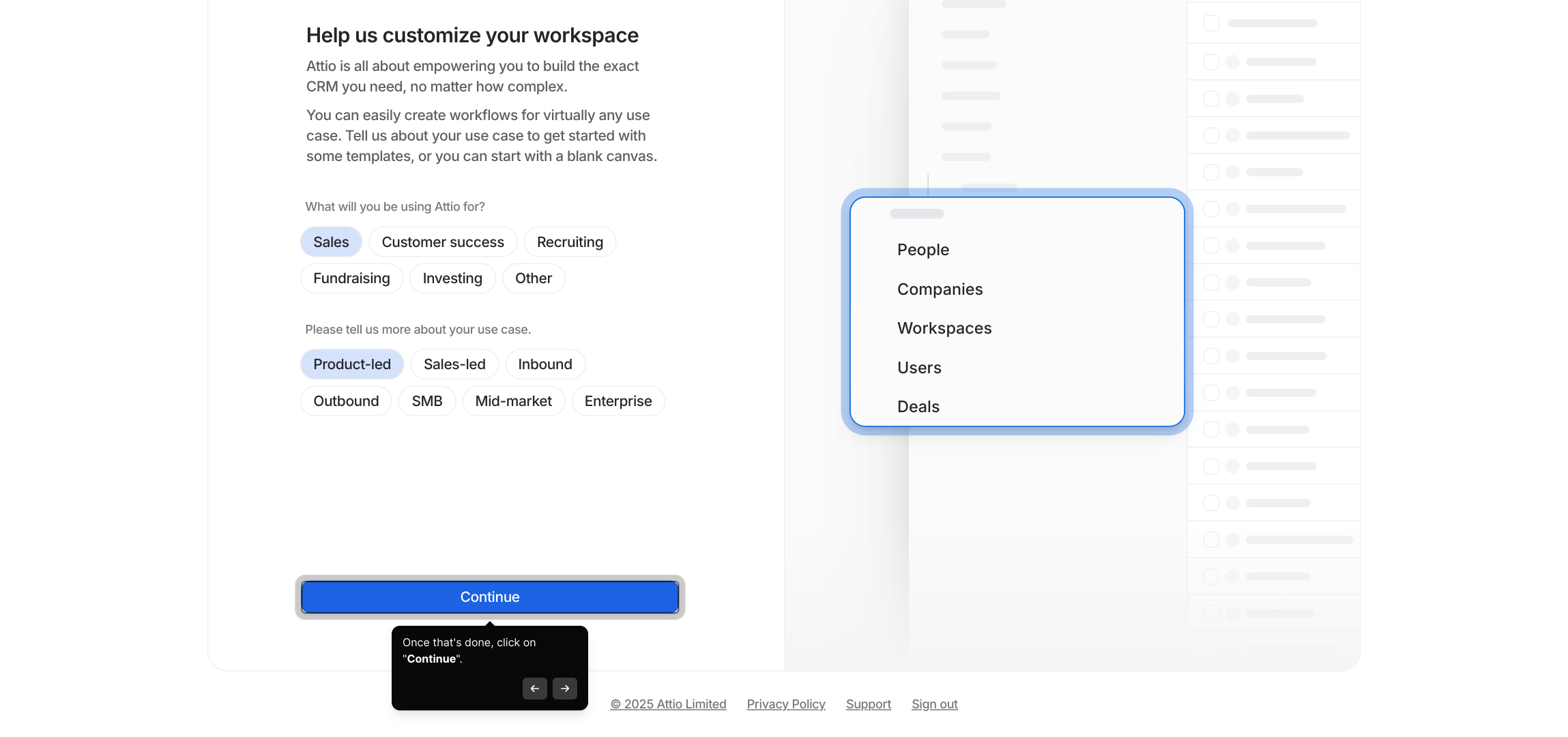
12. Once that's done, click on "Continue".
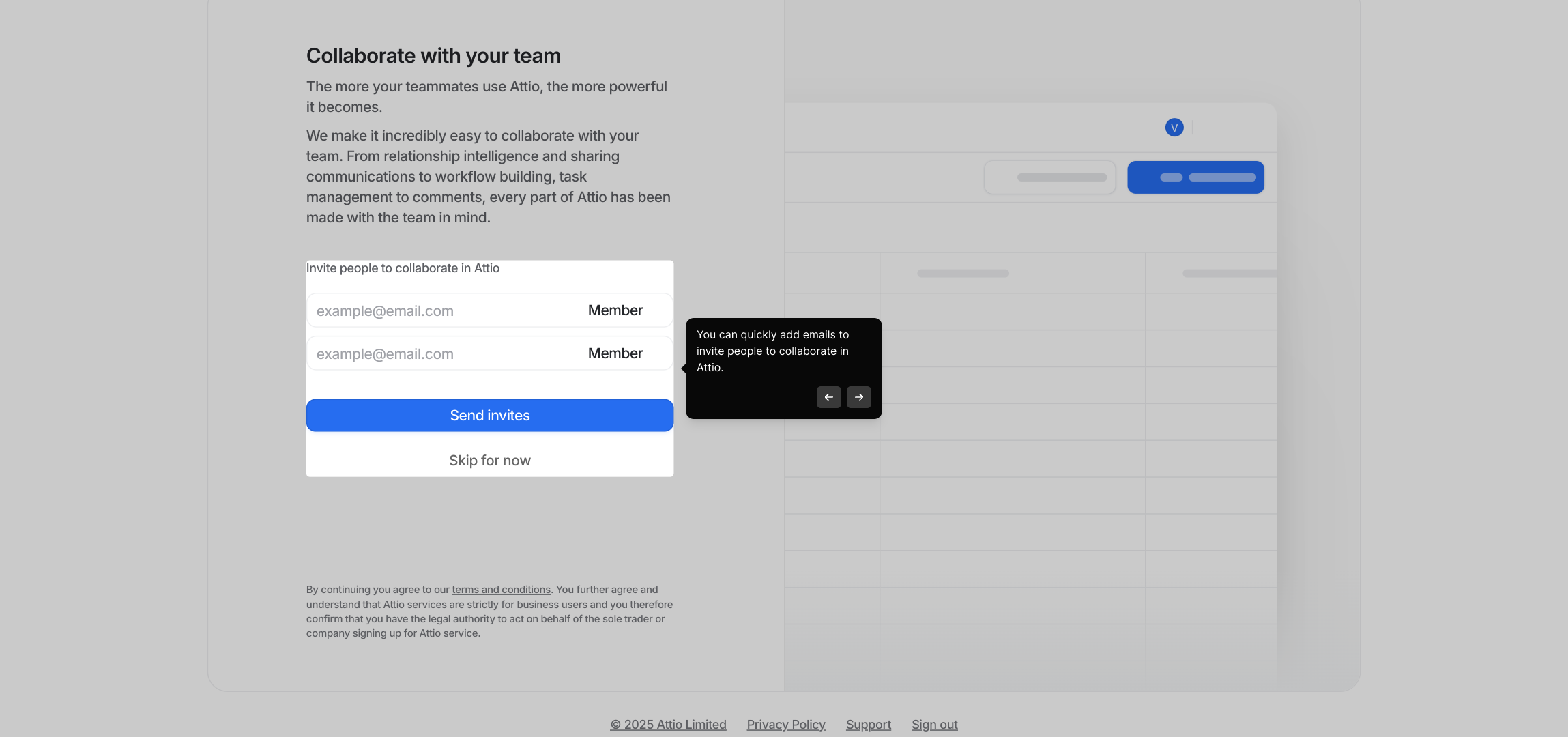
13. You can quickly add emails to invite people to collaborate in Attio.
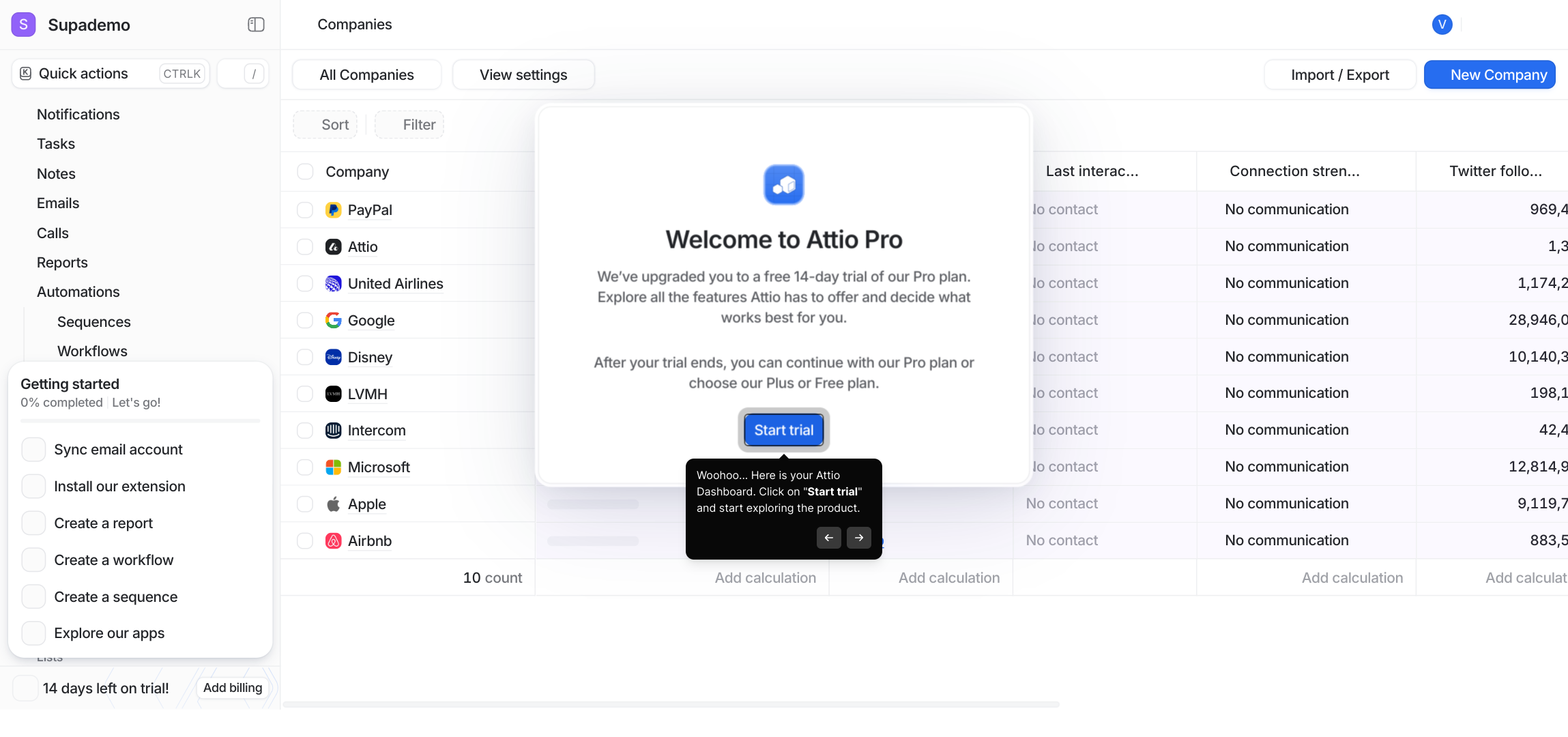
14. Woohoo... Here is your Attio Dashboard. Click on "Start trial" and start exploring the product.
15. Create a Supademo in seconds
This interactive demo/guided walkthrough on How to Set Up Attio for Beginners was created using Supademo.
How to Set Up Attio for Beginners: Step-by-Step Guide
To get started, visit attio.com. If this is your first time here, take a moment to create a new account by signing up. Returning users can simply log in with their existing details to begin.
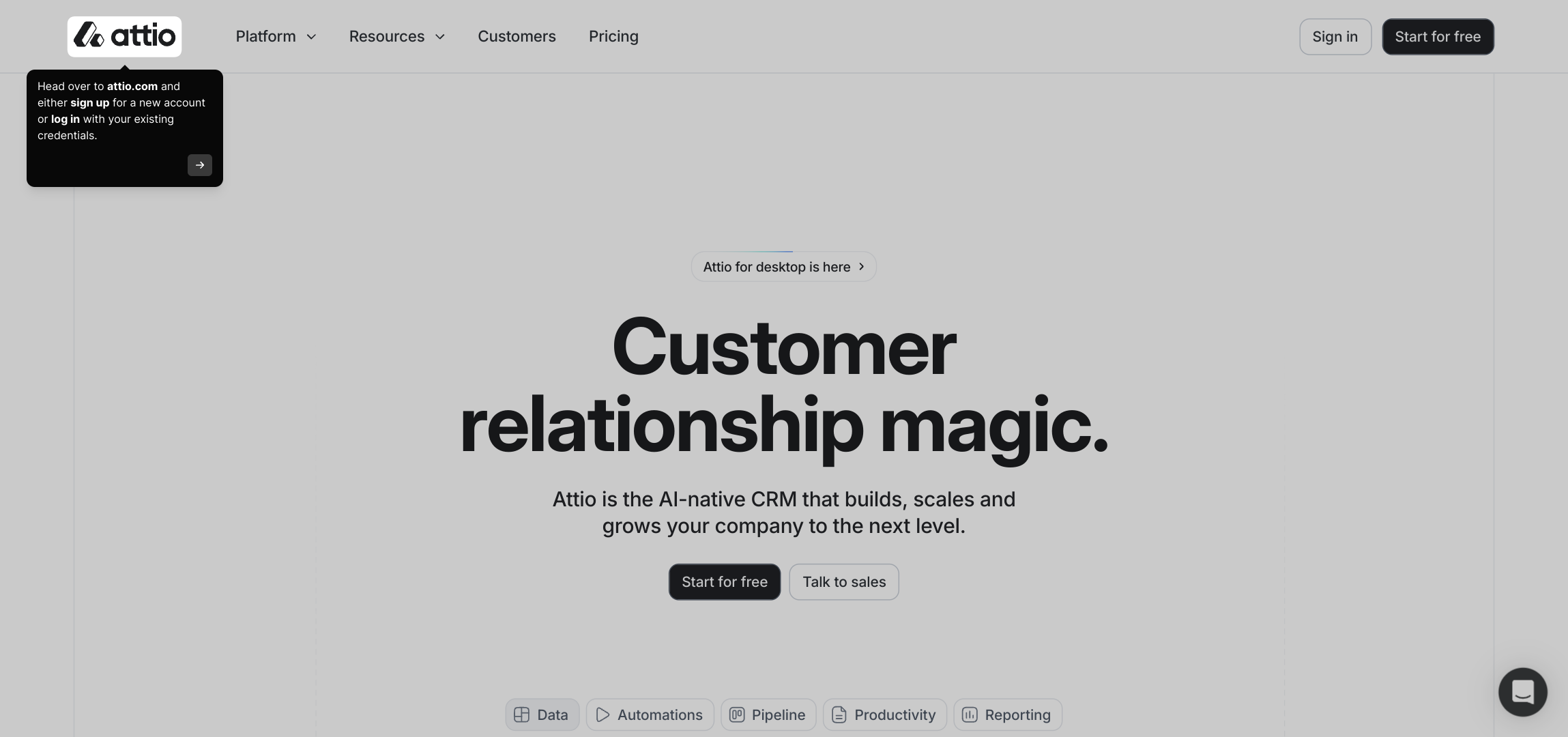
If you're new to Attio, you’ll find a clear option labeled "Start for free" on the homepage. Click this button to begin your journey without any upfront cost.
Next, enter your email address to register, or if you prefer a quicker option, you can sign in with your Google account directly for seamless access.
Once you’ve entered your information, look for the "Continue" button and select it to proceed to the next step in setting up your account.
At this point, check your email inbox for a message from Attio containing a verification link. This step confirms your email address and is essential for secure access.
Open the email and click on the "Sign In" button to verify your identity and return to Attio’s setup process.
After signing in, you’ll be directed to a page where you should enter your full name. This personalizes your account—once done, click Continue to move forward.
Here, provide additional information such as your Company Name, the desired Workspace handle, and your Billing Country. These details help tailor your workspace experience.
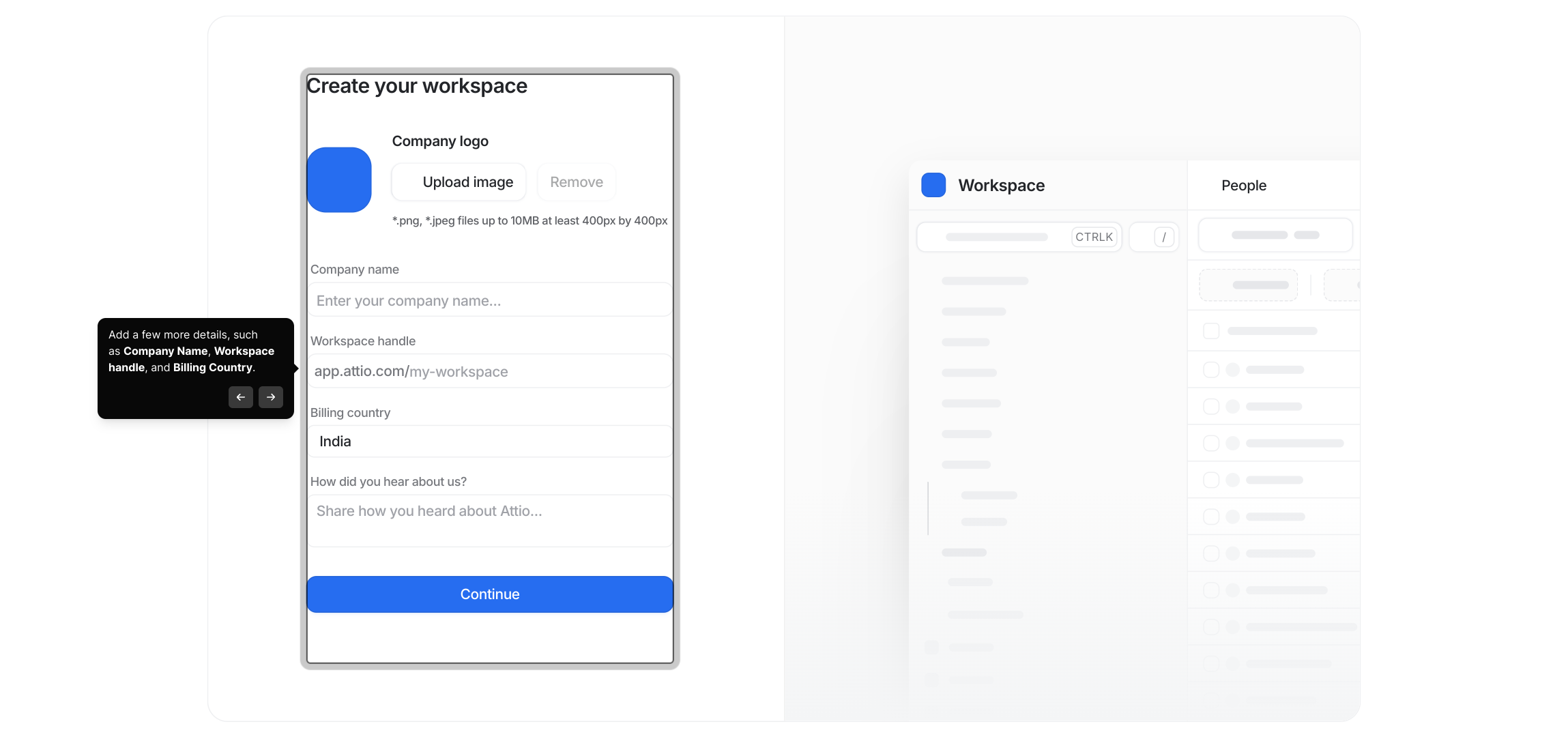
Once all the fields are accurately filled, click on "Continue" to confirm the information and proceed with your workspace setup.
Now, you’ll choose how to import your contacts into Attio. You can connect your Google or Microsoft account to sync contacts automatically, or opt to add contacts manually if you prefer more control.
Next, help us customize your experience by selecting the use case that best fits your needs. This allows Attio to tailor your dashboard to suit how you plan to work.
After choosing your preferences, simply click "Continue" to finalize the initial setup and prepare to dive into Attio’s features.
To foster collaboration, you can quickly add team members by entering their email addresses. This invites them to join you in working together within Attio.
Welcome to your new Attio Dashboard! Here, you’ll find the option to "Start trial." Click this to begin exploring all the tools and features available to help manage your contacts and workflow effectively.
Ready to create your first Supademo? With Attio, you can set one up in just seconds to showcase your data and workflows effortlessly.
Create your own interactive demos in < 5 mins with Supademo
You can create your own interactive product demo in minutes using Supademo. Drive growth, scale enablement, and supercharge product-led onboarding with Supademo. Sign up for free here with no credit card required.
FAQs
Commonly asked questions about this topic.
What is Attio and why should I use it?
How do I create a new Attio account?
Can I import my contacts from Google or Microsoft?
What details do I need to provide when setting up my workspace?
How can I invite team members to collaborate in Attio?
Is Attio free to use?
What should I do if I don’t receive the verification email?
Can I customize the Attio dashboard for my specific needs?
How do I get started after setting up my account?
What is Supademo, and how is it related to this Attio setup?

Product Operations Associate
Vimal Kumar helps build and grow Supademo’s team and GTM efforts, with a focus on figuring out growth levers and improving product traction.


