How to Clear MS Teams Cache

Vimal Kumar
Vimal Kumar·
How to Clear MS Teams Cache
Interactive demo powered by Supademo

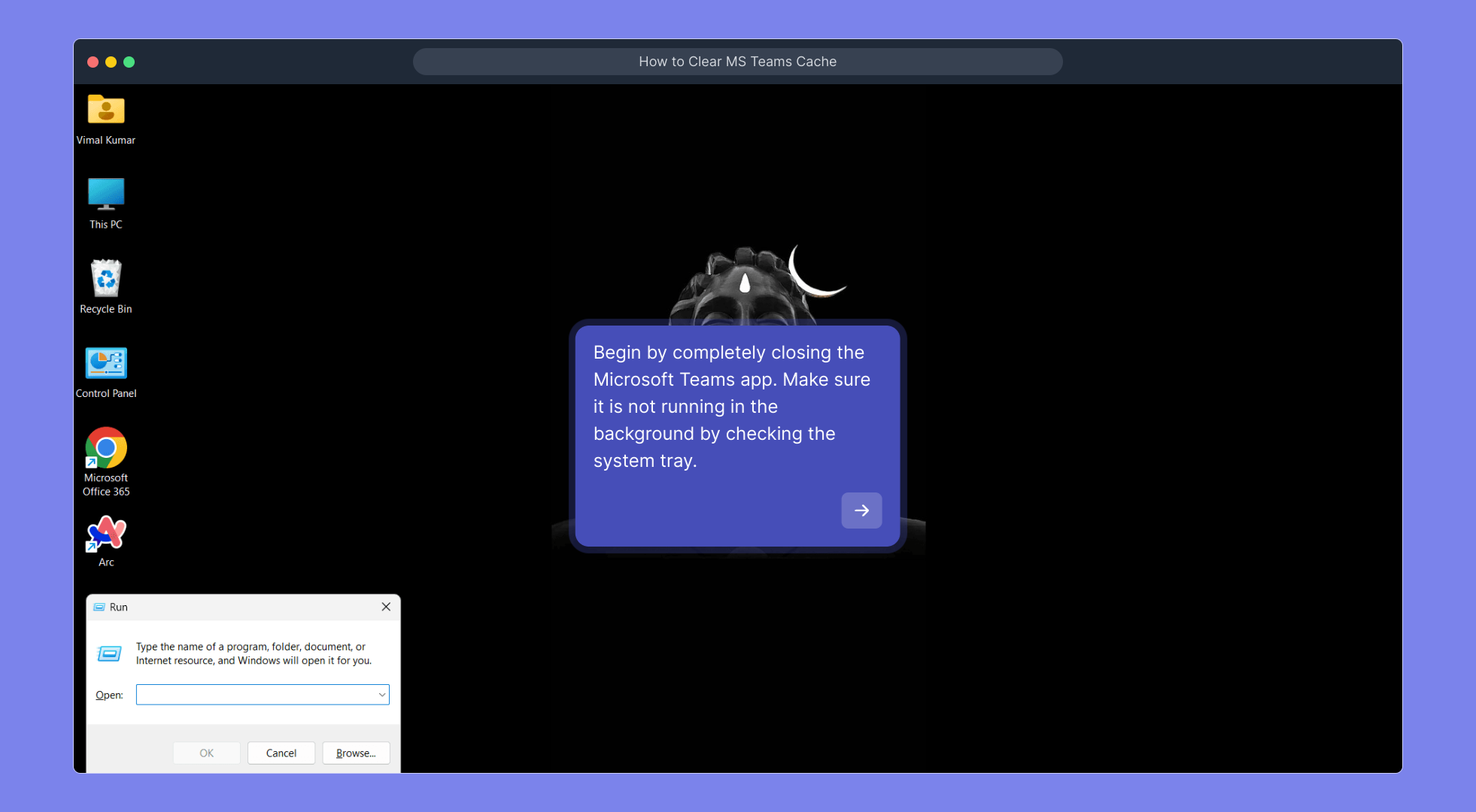
1. Begin by completely closing the Microsoft Teams app. Make sure it is not running in the background by checking the system tray.

2. Press Windows + R on your keyboard to open the Run dialog box.

3. Type %appdata%\Microsoft\Teams in the Run dialog box and press Enter. This will take you to the Microsoft Teams cache folder.

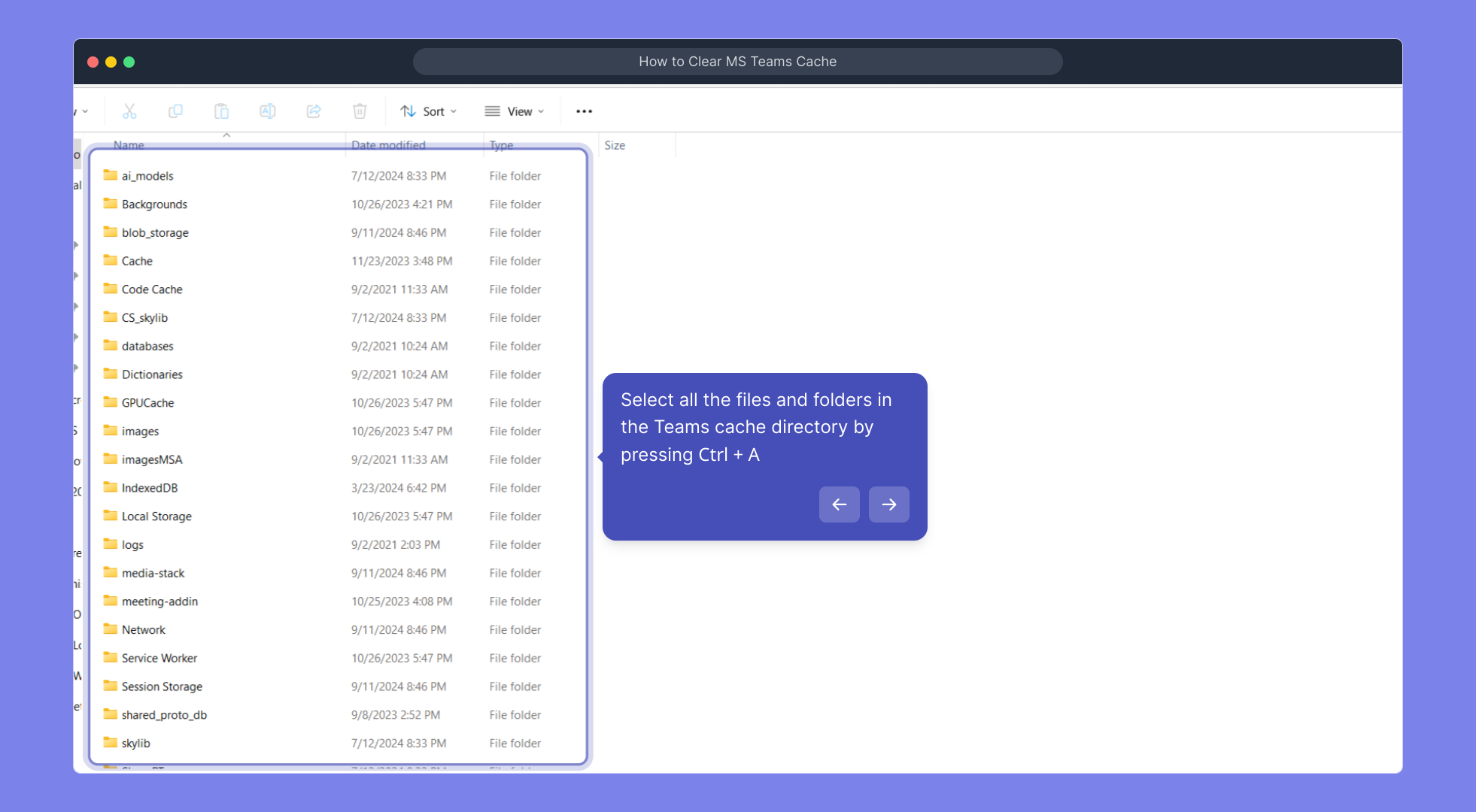
4. Select all the files and folders in the Teams cache directory by pressing Ctrl + A

5. Now, delete them by pressing Delete.

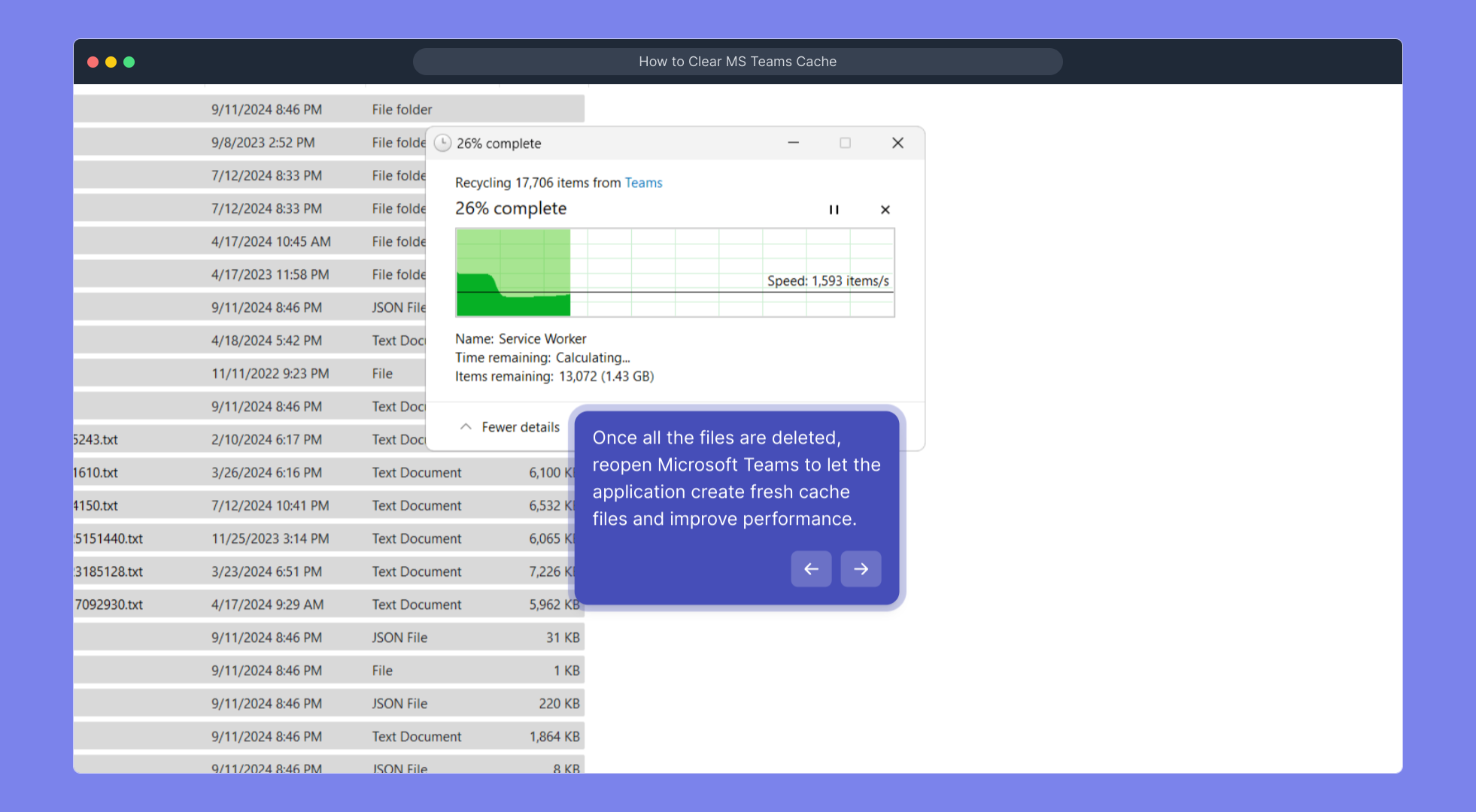
6. Once all the files are deleted, reopen Microsoft Teams to let the application create fresh cache files and improve performance.

7. Enjoyed the guided demo?

This interactive demo/guided walkthrough on How to Clear MS Teams Cache was created using Supademo.


How to Clear MS Teams Cache : Step-by-Step Guide

To start, ensure that Microsoft Teams is fully closed on your computer. Sometimes the app continues to run quietly in the background, so take a moment to check your system tray and confirm it’s not active before moving forward.
1

Next, open the Run dialog box to quickly access hidden folders. You can do this by pressing the Windows + R keys simultaneously on your keyboard, which will bring up a small window where you can type commands.

2

In the Run window, enter the path %appdata%\Microsoft\Teams and press Enter. This will open the specific folder on your computer where Microsoft Teams stores its cache files, which we need to clear.

3

Once you’re inside the Teams cache folder, select all the items by pressing Ctrl + A on your keyboard. This highlights every file and folder within, preparing them for removal.
4

With everything selected, press the Delete key to remove all cached files. Clearing these files will help resolve performance issues by forcing Teams to build fresh data when you reopen it.

5

Now that the cache is cleared, launch Microsoft Teams again. The app will recreate essential cache files automatically, which can lead to improved speed and stability during your usage.
6

That’s it! We hope this step-by-step guide made clearing your Teams cache straightforward and easy. If you found this helpful, feel free to explore more demos to enhance your productivity.

7

Create your own interactive demos in < 5 mins with Supademo

You can create your own interactive product demo in minutes using Supademo. Drive growth, scale enablement, and supercharge product-led onboarding with Supademo. Sign up for free here with no credit card required.


FAQs

Commonly asked questions about this topic.

What does clearing the Microsoft Teams cache do?

Clearing the Microsoft Teams cache removes temporary files that may cause app glitches or slowdowns. This forces Teams to load fresh data, often resolving issues related to performance, display errors, or outdated information.

Do I lose any data by clearing the Teams cache?

No, clearing the cache only deletes temporary files stored on your device. Your chat messages, files, and settings remain intact in the cloud and will re-sync when you log back into Teams.

How often should I clear the Microsoft Teams cache?

Clearing the cache is typically only necessary when facing performance issues or visual glitches. There’s no fixed schedule, but doing it occasionally can help maintain smooth app functionality.

Will clearing the cache fix login problems in Teams?

Yes, clearing the cache can resolve some login-related problems caused by corrupted or outdated temporary files. If issues persist, additional troubleshooting may be needed.

Can I clear the Teams cache on Mac or Linux?

Yes. On Mac, cache files are usually located in ~/Library/Application Support/Microsoft/Teams. Linux users can find them in ~/.config/Microsoft/Microsoft Teams. Deleting these folders works similarly to Windows.

Is it necessary to close Teams before clearing the cache?

Yes, you must completely close Microsoft Teams before clearing the cache to avoid file access conflicts and ensure all temporary files can be safely deleted.

Where is the Microsoft Teams cache folder located on Windows?

On Windows, the cache folder is located at %appdata%\Microsoft\Teams. You can access it quickly by typing this path into the Run dialog box.

Can clearing cache improve Microsoft Teams performance?

Yes, removing outdated or corrupted cache files forces Teams to rebuild fresh data, often improving app responsiveness and reducing errors or freezes.

Does clearing Teams cache affect my profile or settings?

No, your profile information, account settings, and data are stored online and remain unaffected by cache clearing. Only local temporary files are deleted.

What should I do if clearing the cache does not fix Teams issues?

If problems persist after clearing the cache, try restarting your device, updating Teams, or reinstalling the app. Contact support if the issue continues.

Vimal Kumar

Vimal Kumar

Product Operations Associate

Vimal Kumar helps build and grow Supademo’s team and GTM efforts, with a focus on figuring out growth levers and improving product traction.

More from the blog

How to Add Products to Shopify

How to Add Products to Shopify

Learn step-by-step how to add products to your Shopify store effortlessly, including tips on product details, images, pricing, and inventory management to boost your online sales.

Vimal Kumar
Vimal KumarDec 17, 2025
How to Deactivate Your Shopify Store

How to Deactivate Your Shopify Store

Learn step-by-step how to deactivate your Shopify store easily, including important considerations and tips to pause or close your shop without losing data.

Vimal Kumar
Vimal KumarDec 17, 2025
How to Remove 'Powered by Shopify'

How to Remove 'Powered by Shopify'

Learn how to easily remove the 'Powered by Shopify' text from your online store with step-by-step instructions and tips to customize your Shopify storefront.

Vimal Kumar
Vimal KumarDec 17, 2025
How to Create a Shopify Account

How to Create a Shopify Account

Learn step-by-step how to create a Shopify account quickly and easily, set up your online store, and start selling your products in no time.

Vimal Kumar
Vimal KumarDec 17, 2025
How to Create a Stripe Account

How to Create a Stripe Account

Learn how to create a Stripe account quickly and easily with our step-by-step guide, perfect for beginners looking to start accepting online payments.

Vimal Kumar
Vimal KumarDec 17, 2025
How to Contact Stripe Support

How to Contact Stripe Support

Learn the easiest ways to contact Stripe support for quick assistance with your payment processing, account issues, and technical questions.

Vimal Kumar
Vimal KumarDec 16, 2025