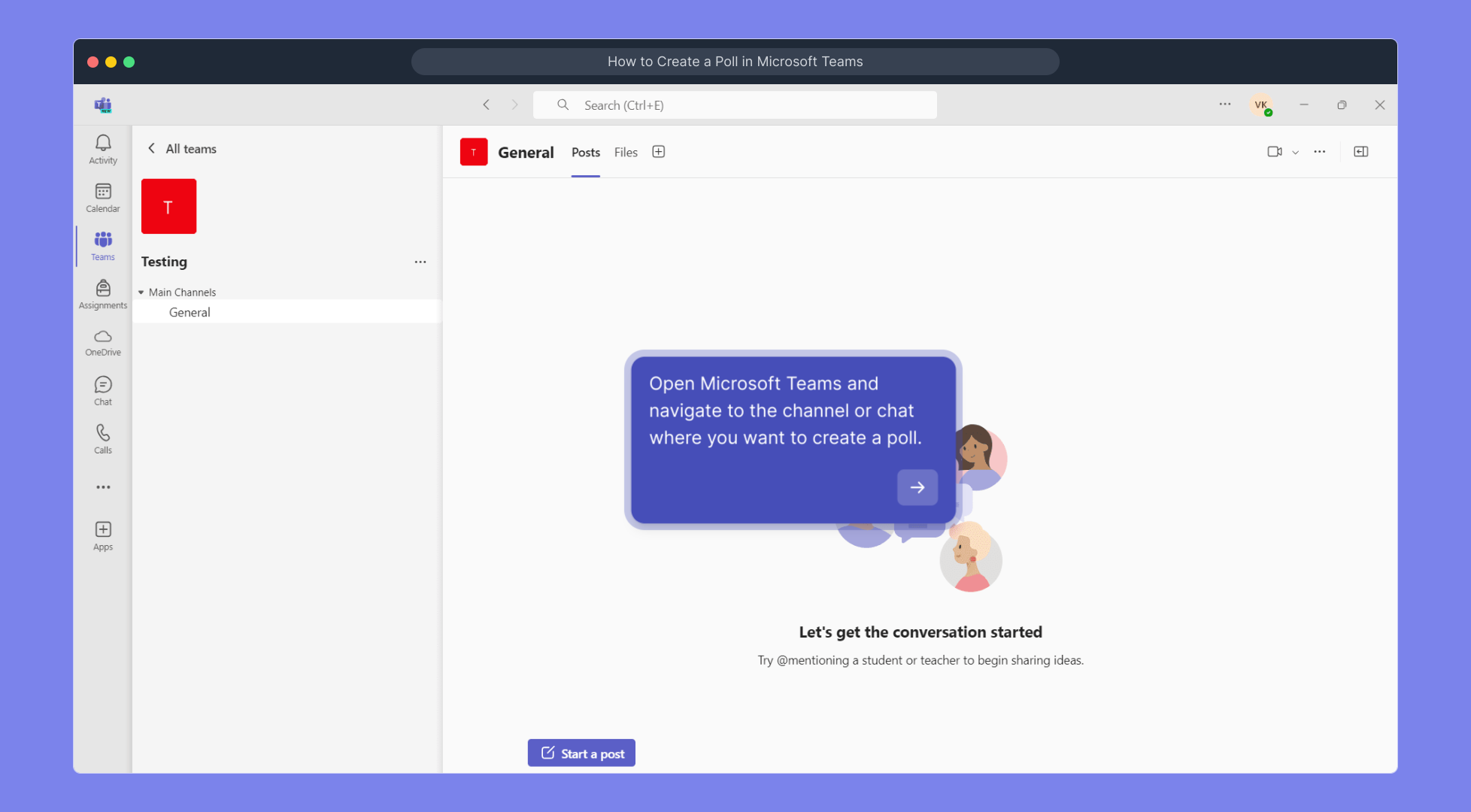
1. Open Microsoft Teams and navigate to the channel or chat where you want to create a poll.
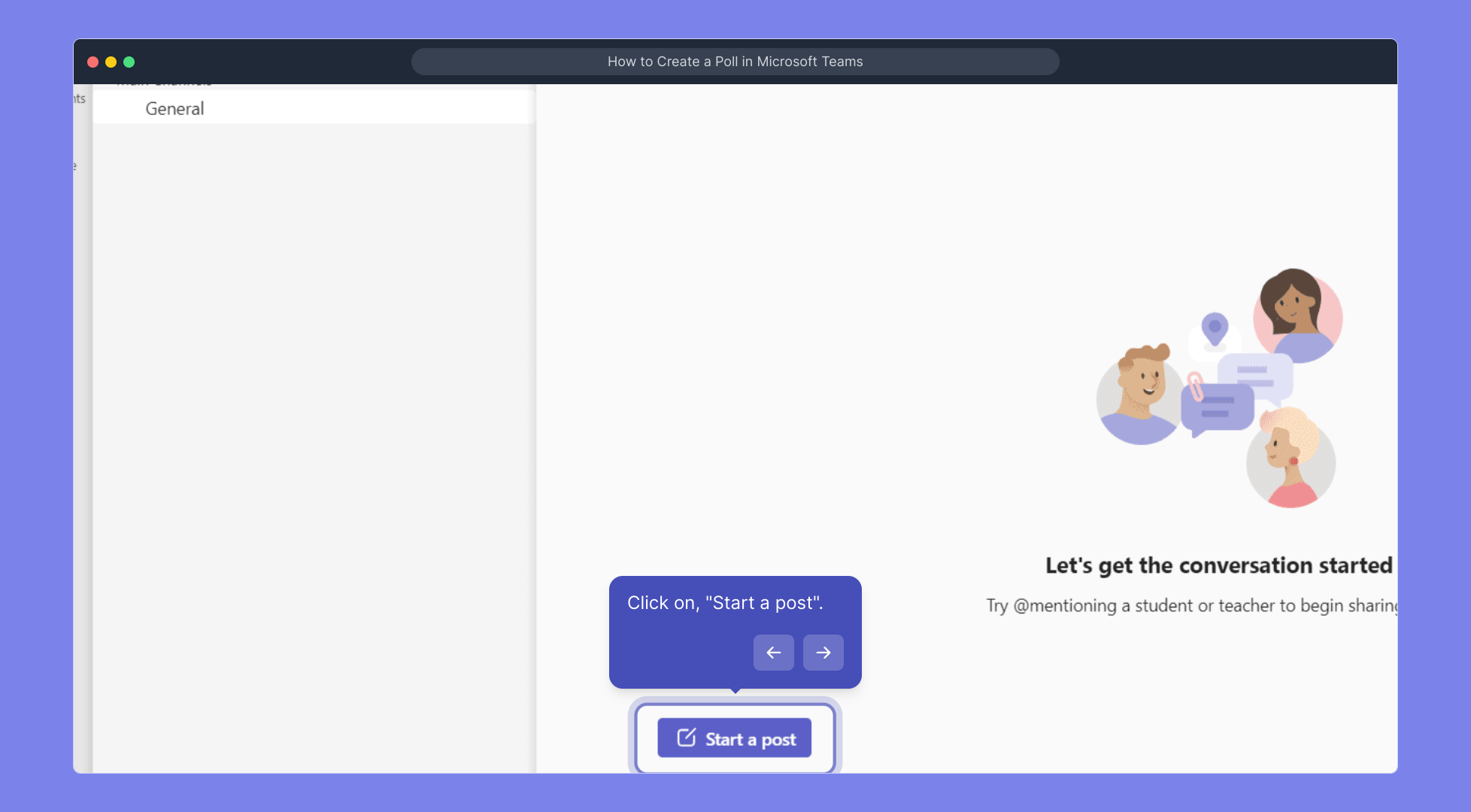
2. Click on, "Start a post".
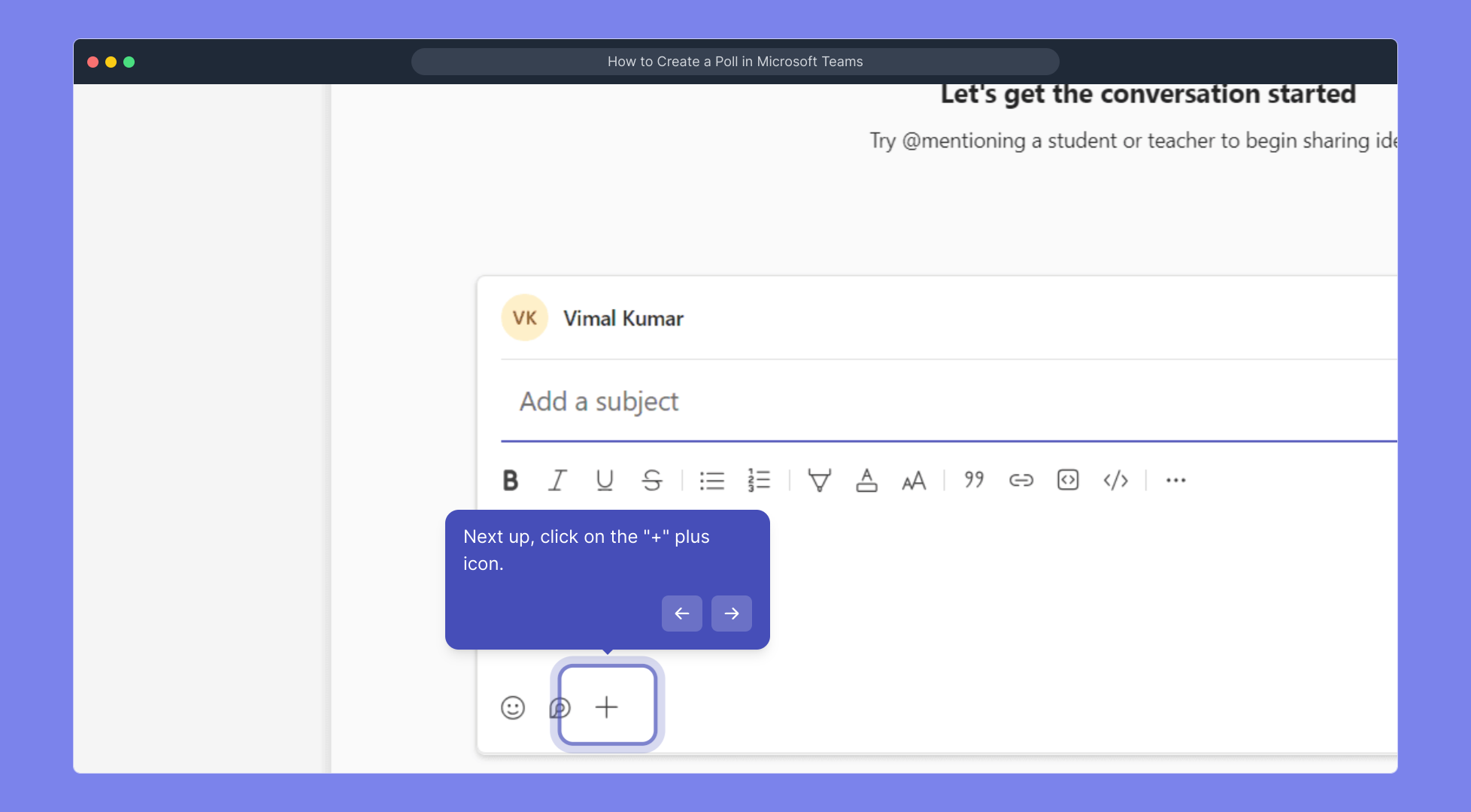
3. Next up, click on the "+" plus icon.
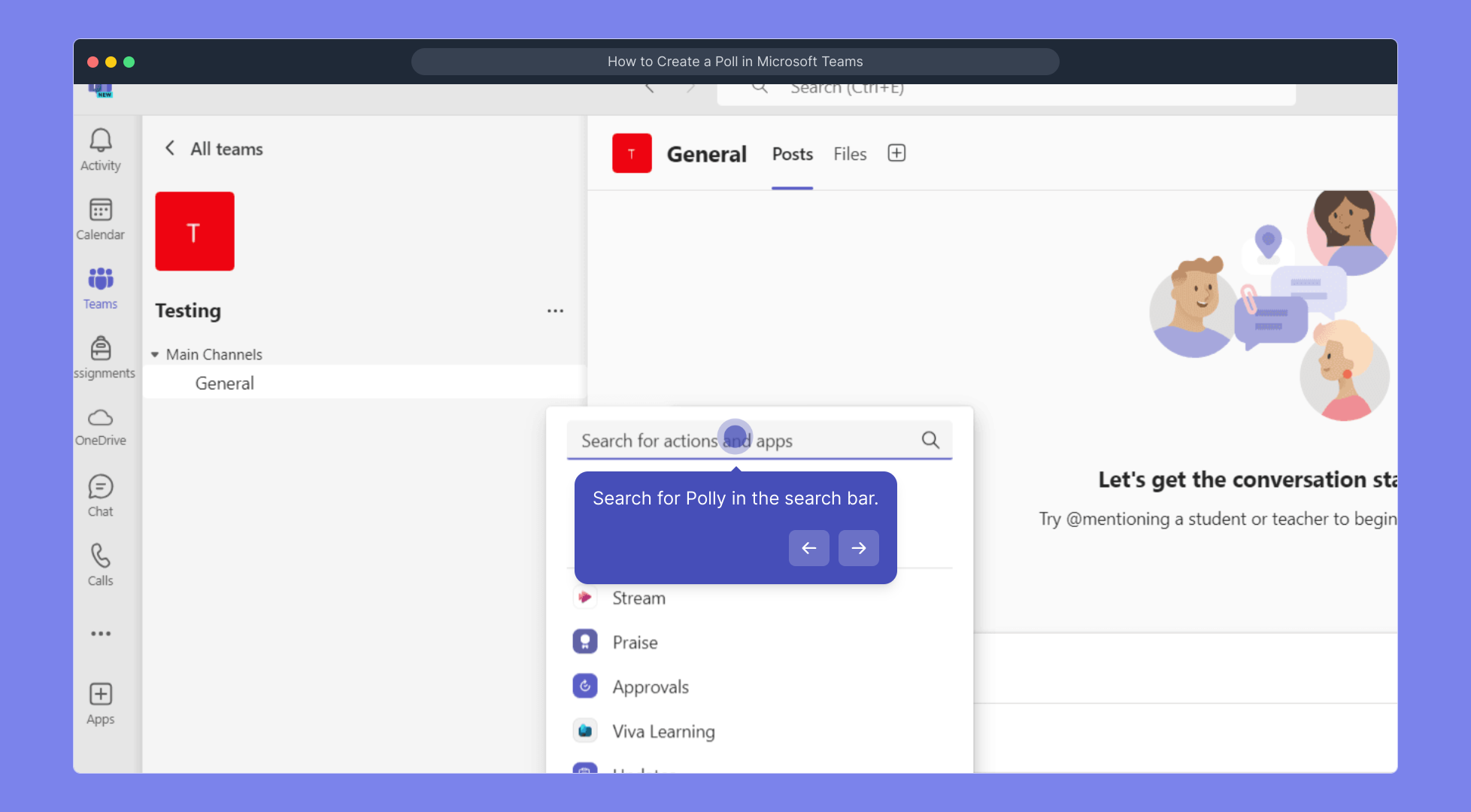
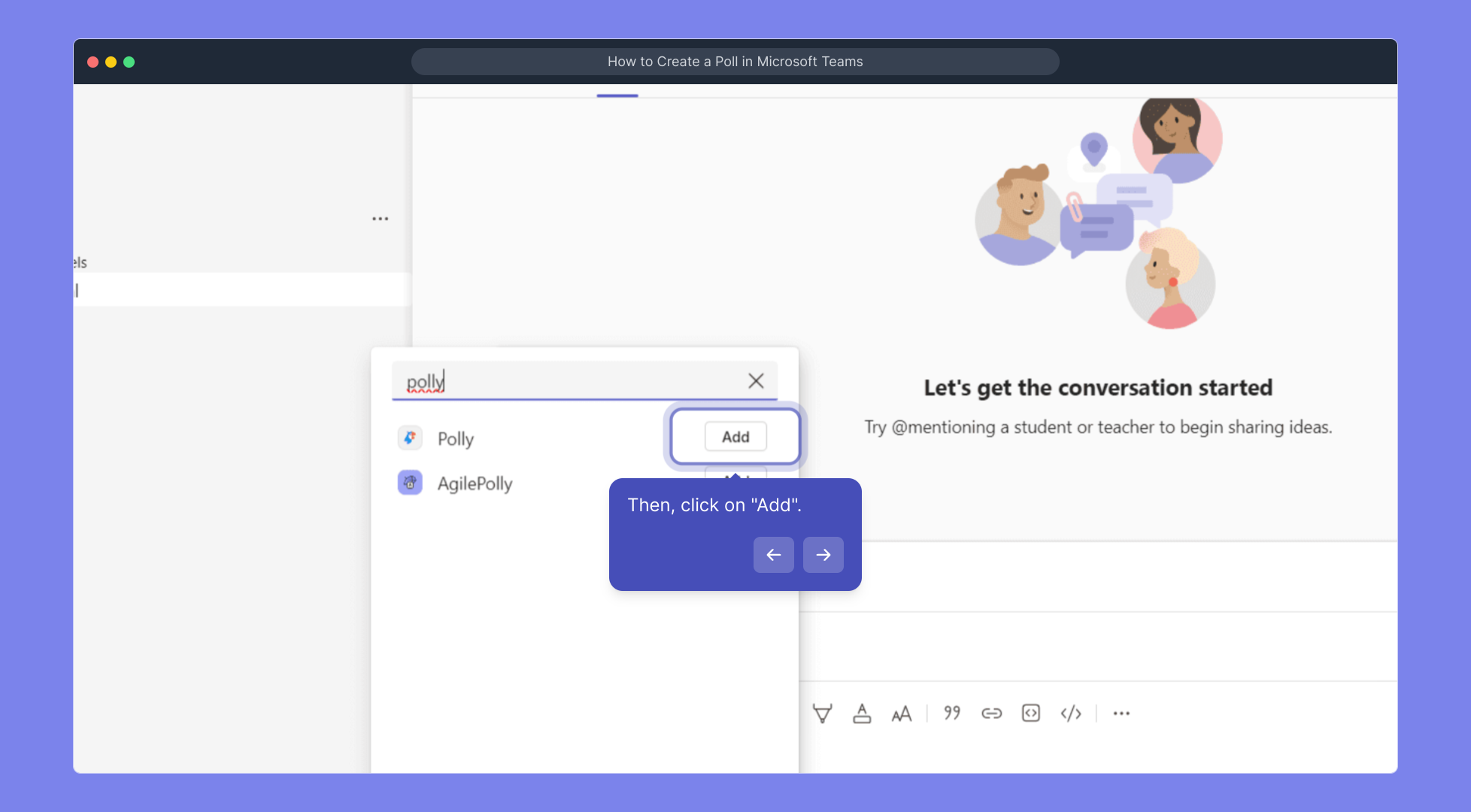
4. Search for Polly in the search bar.
5. Then, click on "Add".
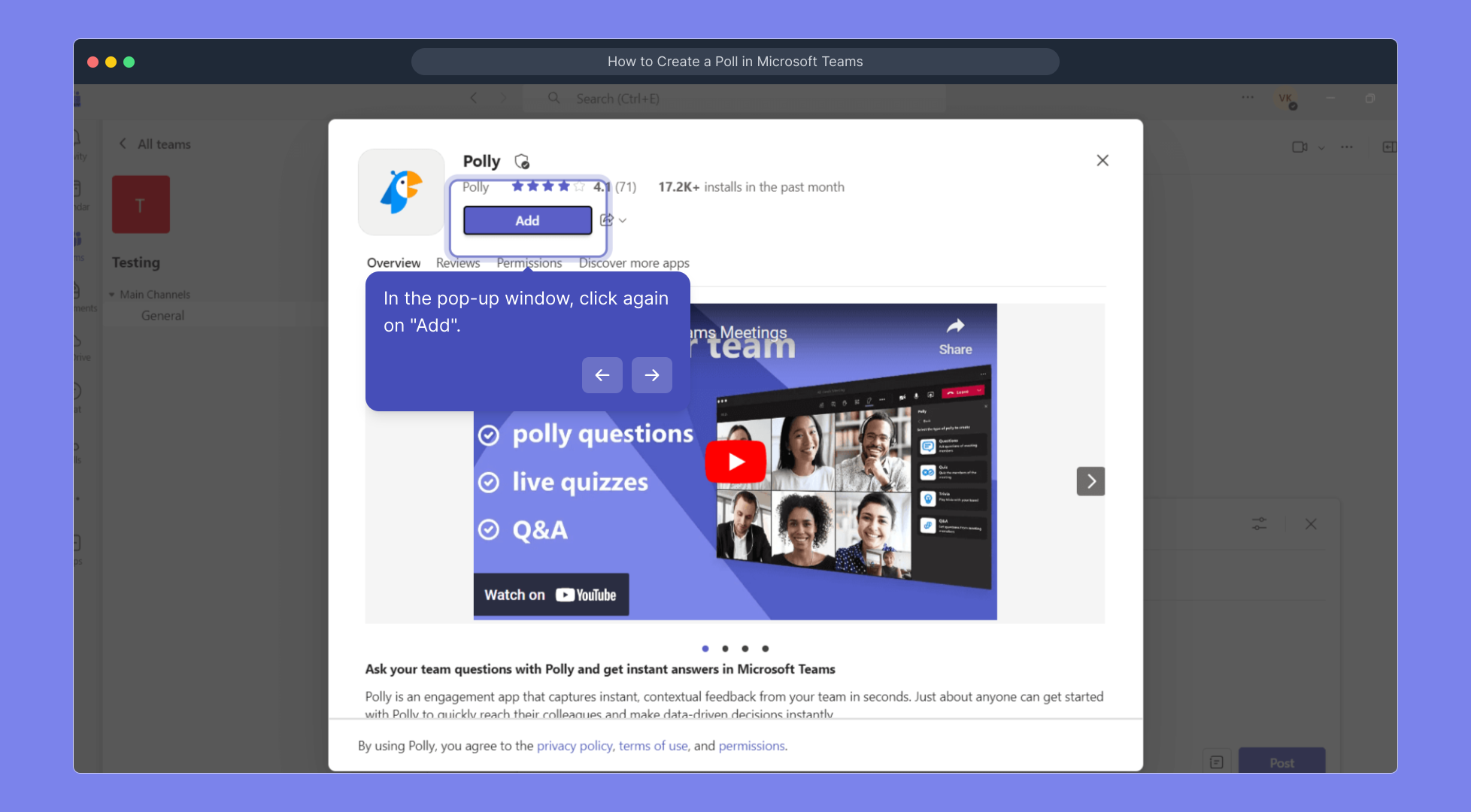
6. In the pop-up window, click again on "Add".
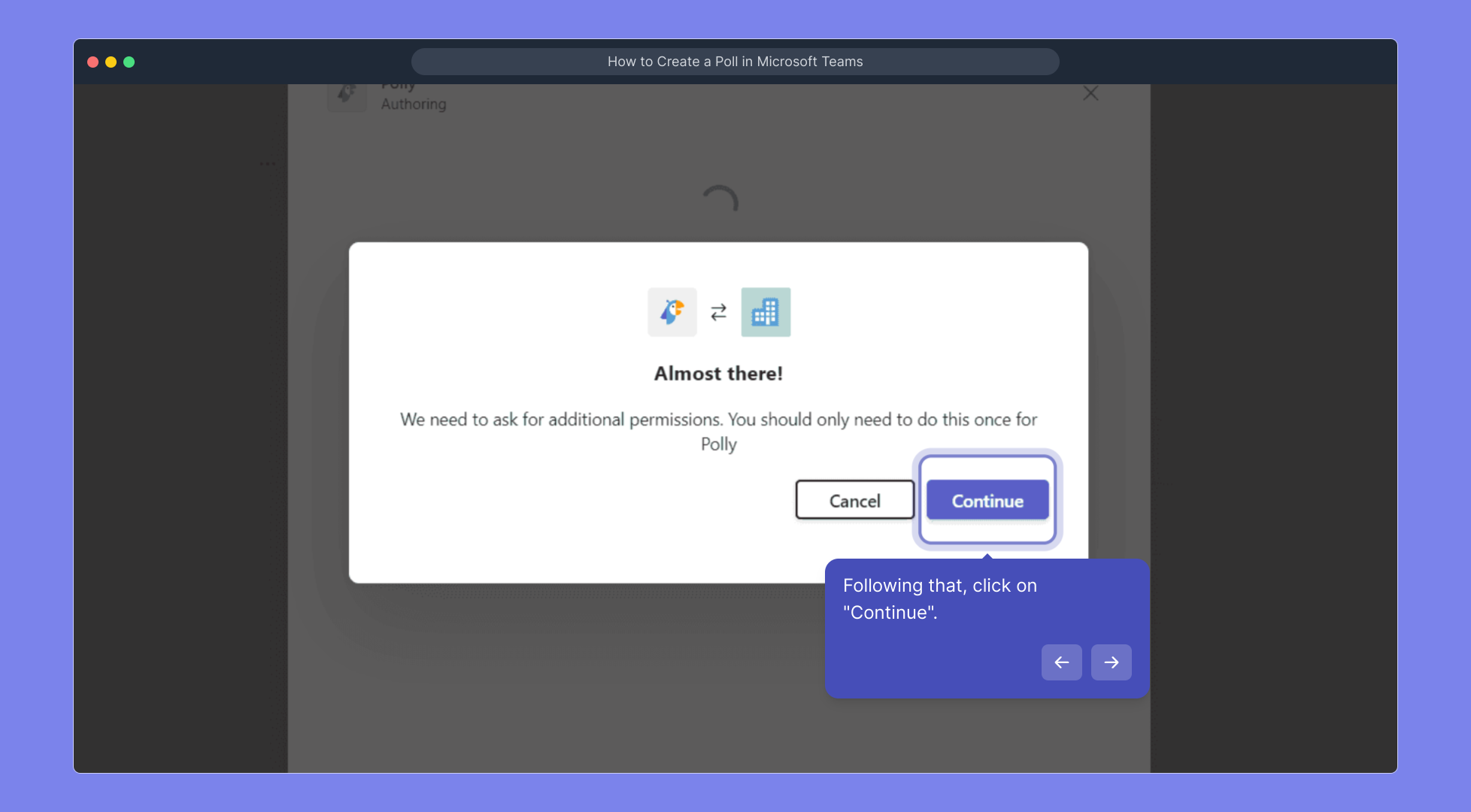
7. Following that, click on "Continue".
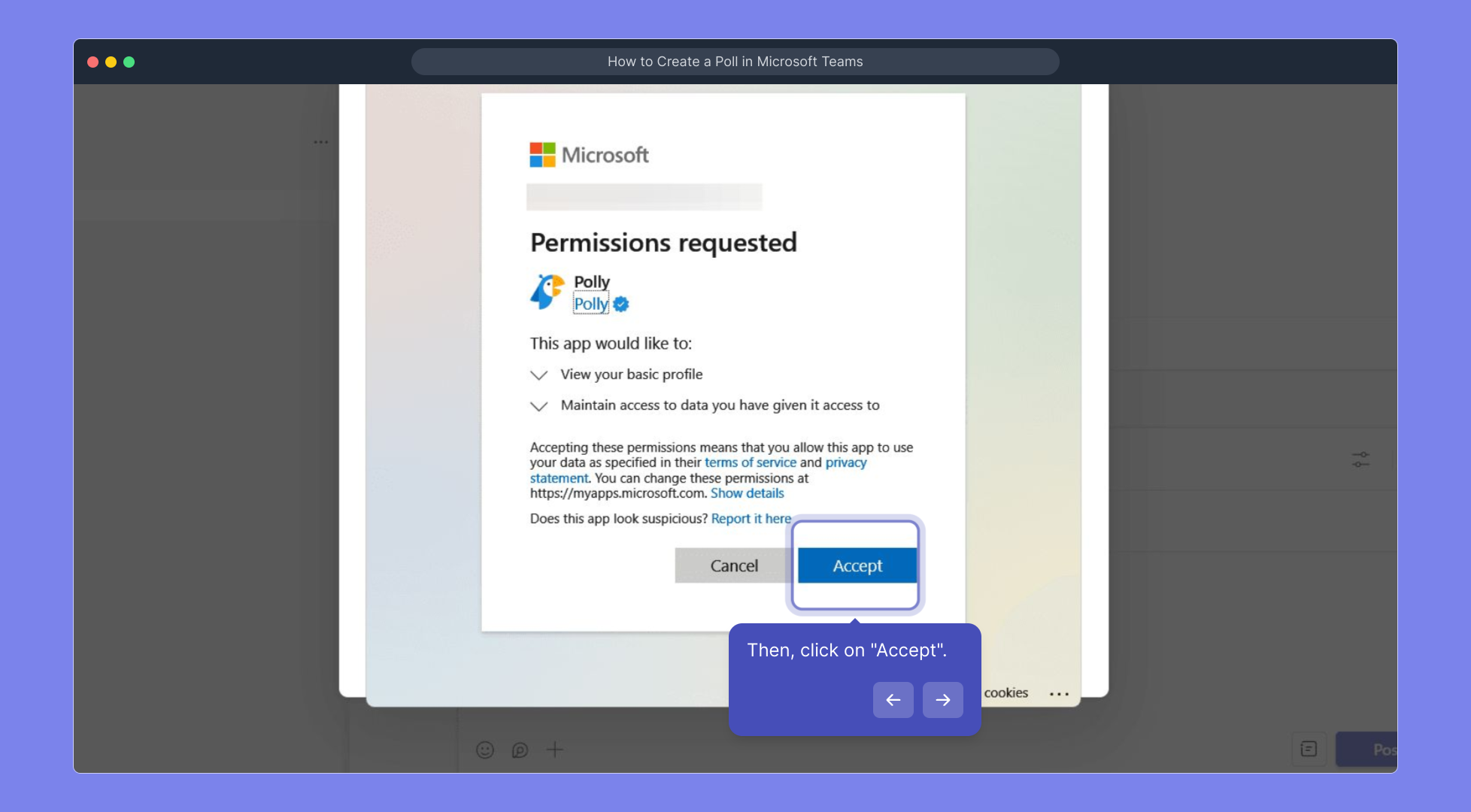
8. Then, click on "Accept".
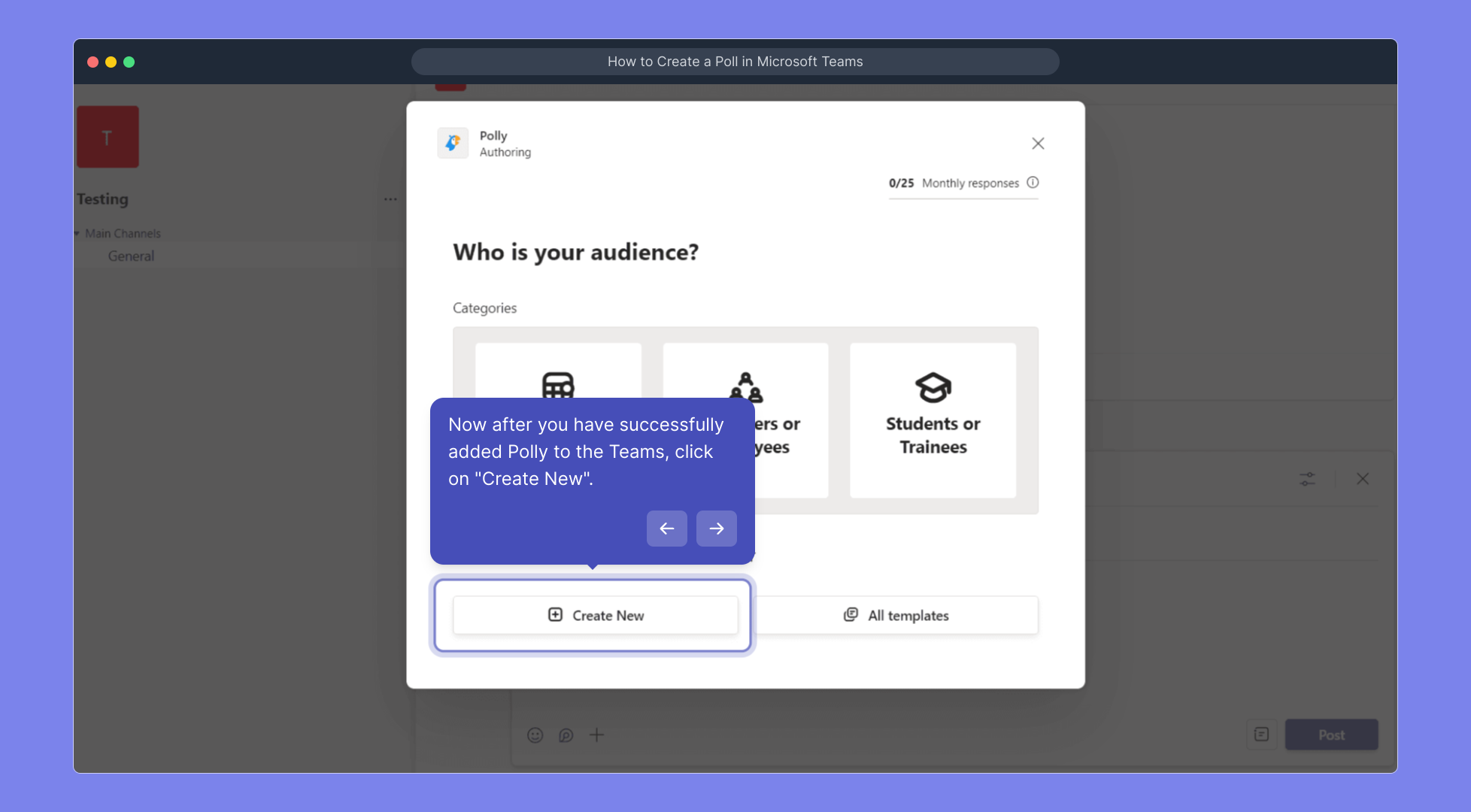
9. Now after you have successfully added Polly to the Teams, click on "Create New".
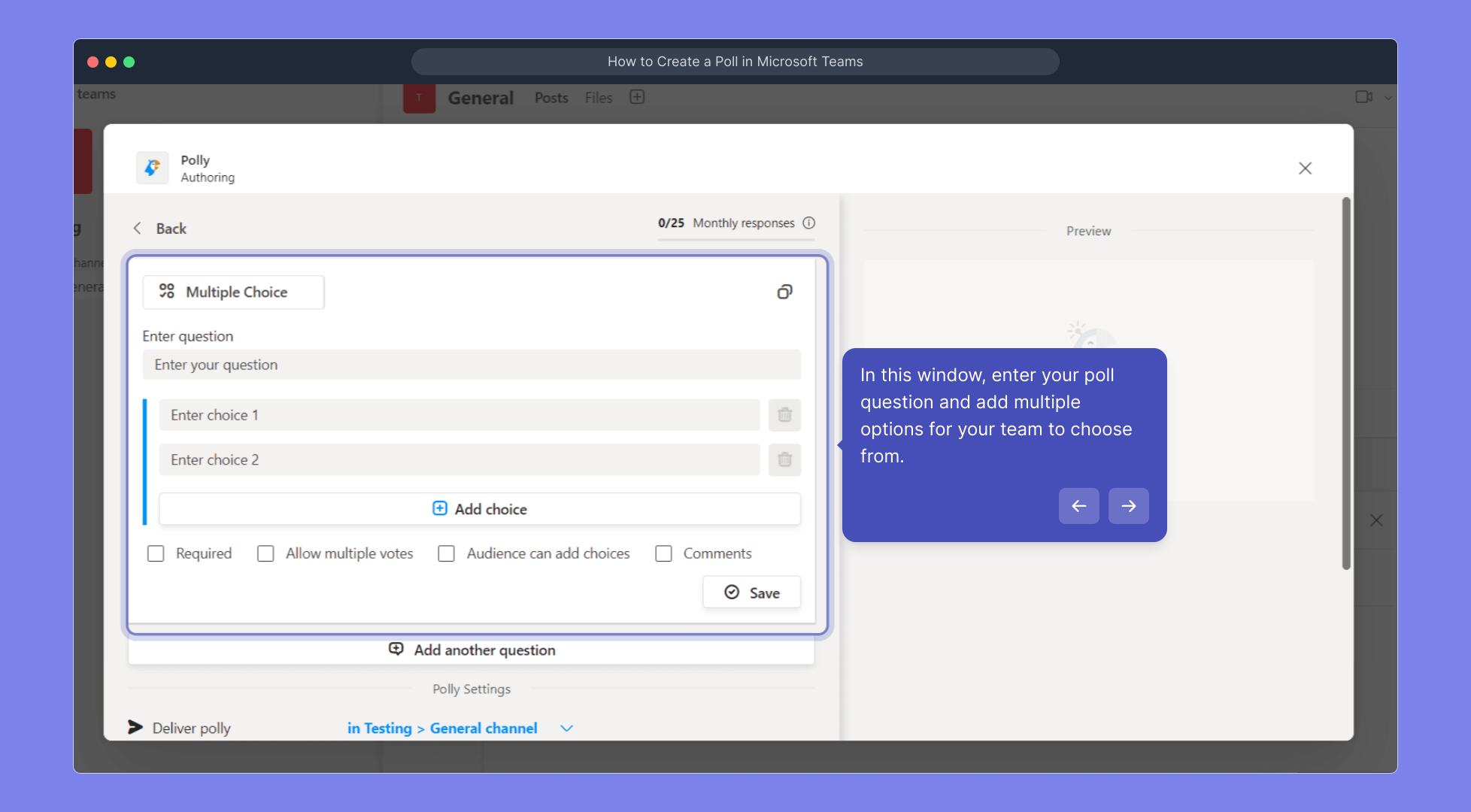
10. In this window, enter your poll question and add multiple options for your team to choose from.
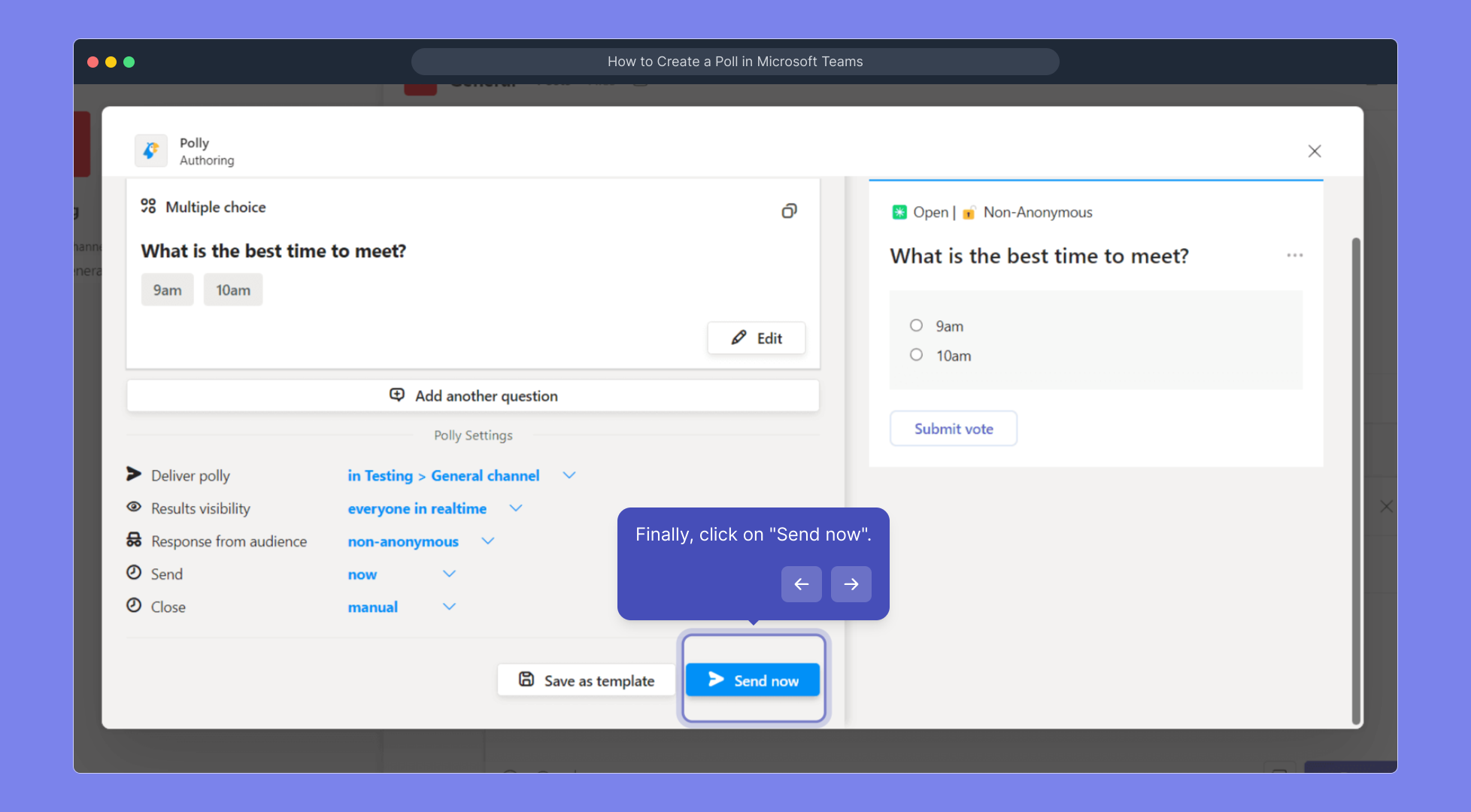
11. Finally, click on "Send now".
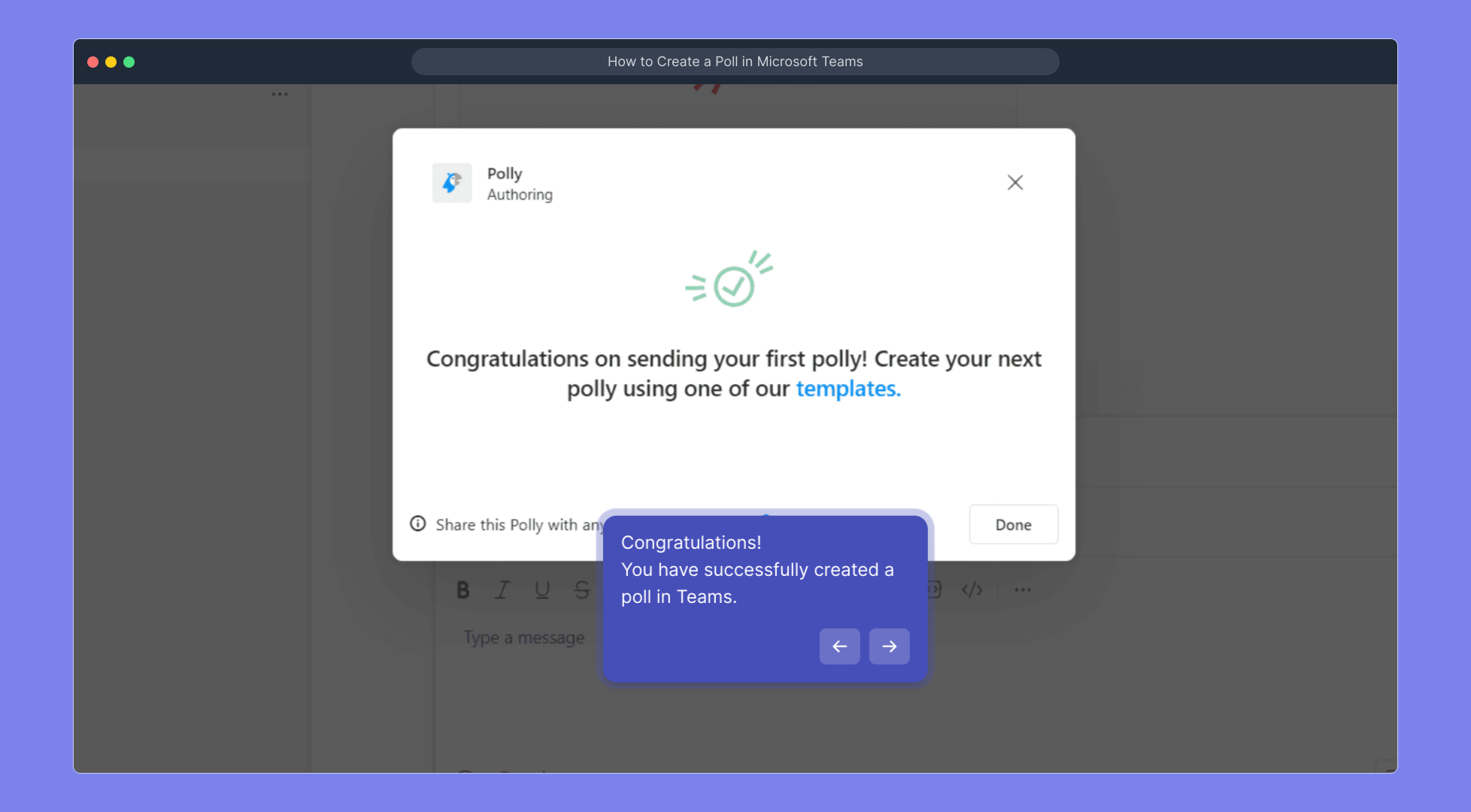
12. Congratulations!
You have successfully created a poll in Teams.
13. Enjoyed the guided demo?
This interactive demo/guided walkthrough on How to Create a Poll in Microsoft Teams was created using Supademo.
How to Create a Poll in Microsoft Teams : Step-by-Step Guide
Start by opening Microsoft Teams and go to the specific channel or chat where you'd like to gather opinions through a poll. This ensures your poll reaches the right audience within your team.
Once you're in the conversation area, look for the "Start a post" option to begin sharing something new. This is the first step toward creating your poll.
Next, click the "+" icon, which allows you to add apps or extensions to your post, expanding what you can share beyond just text.
In the app search bar that appears, type "Polly" to find this polling tool quickly. Adding Polly lets you create interactive polls right inside Teams.
After locating Polly, click the "Add" button to begin integrating it into your post. This sets up the poll feature for use.
A confirmation window will pop up; click "Add" once more to finalize adding Polly to your Teams environment. This step connects the app fully.
After installing Polly, you'll see a prompt to "Continue." Click this to proceed to the poll creation setup.
You'll then be asked to accept the permissions Polly needs to work properly. Clicking "Accept" authorizes these and ensures smooth functionality.
With Polly now added, click on the "Create New" button to start building your custom poll for your team to interact with.
In the poll creation window, type your question and provide several answer choices. This lets your team pick their preferred option easily.
Once everything looks good, click "Send now" to share your poll instantly with the selected channel or chat.
Congratulations! You’ve successfully created and published a poll in Microsoft Teams, making it simple for your team to provide their feedback.
Did you find this step-by-step guide helpful? We hope it made the process clear and easy!
Create your own interactive demos in < 5 mins with Supademo
You can create your own interactive product demo in minutes using Supademo. Drive growth, scale enablement, and supercharge product-led onboarding with Supademo.
Sign up for free here with no credit card required.
FAQs
Commonly asked questions about this topic.
What is the easiest way to create a poll in Microsoft Teams?
Can I create polls without adding third-party apps in Teams?
Is Polly free to use in Microsoft Teams?
How do I add Polly to a specific Teams channel or chat?
Can team members vote anonymously in Teams polls?
How can I view poll results in Teams after sending it?
Can I schedule polls in Microsoft Teams?
Are there limitations on the number of options I can add in a Teams poll?
Can I edit a poll after it has been sent in Teams?
Is it possible to export poll results from Microsoft Teams?

Product Operations Associate
Vimal Kumar helps build and grow Supademo’s team and GTM efforts, with a focus on figuring out growth levers and improving product traction.