How to add a QR code to a design in Canva

QR codes are a powerful way to bridge digital and physical content in your designs. Adding a QR code to your Canva design allows you to link viewers directly to websites, contact information, or other digital assets. Learn how to quickly generate and customize a QR code within Canva's editor.
Quick summary
In this tutorial, you'll learn how to add a QR code to your Canva design by accessing the QR code tool, generating a code, and customizing it to match your design. By the end, you'll have a fully functional QR code embedded in your project that's ready to share.
Why this matters
QR codes increase engagement by providing an easy way for audiences to access digital content with a simple scan. Whether you're creating marketing materials, event invitations, or product packaging, a well-placed QR code can drive traffic and improve user experience. Canva's built-in QR code generator eliminates the need for external tools, keeping your workflow efficient.
Step-by-step guide
- 1
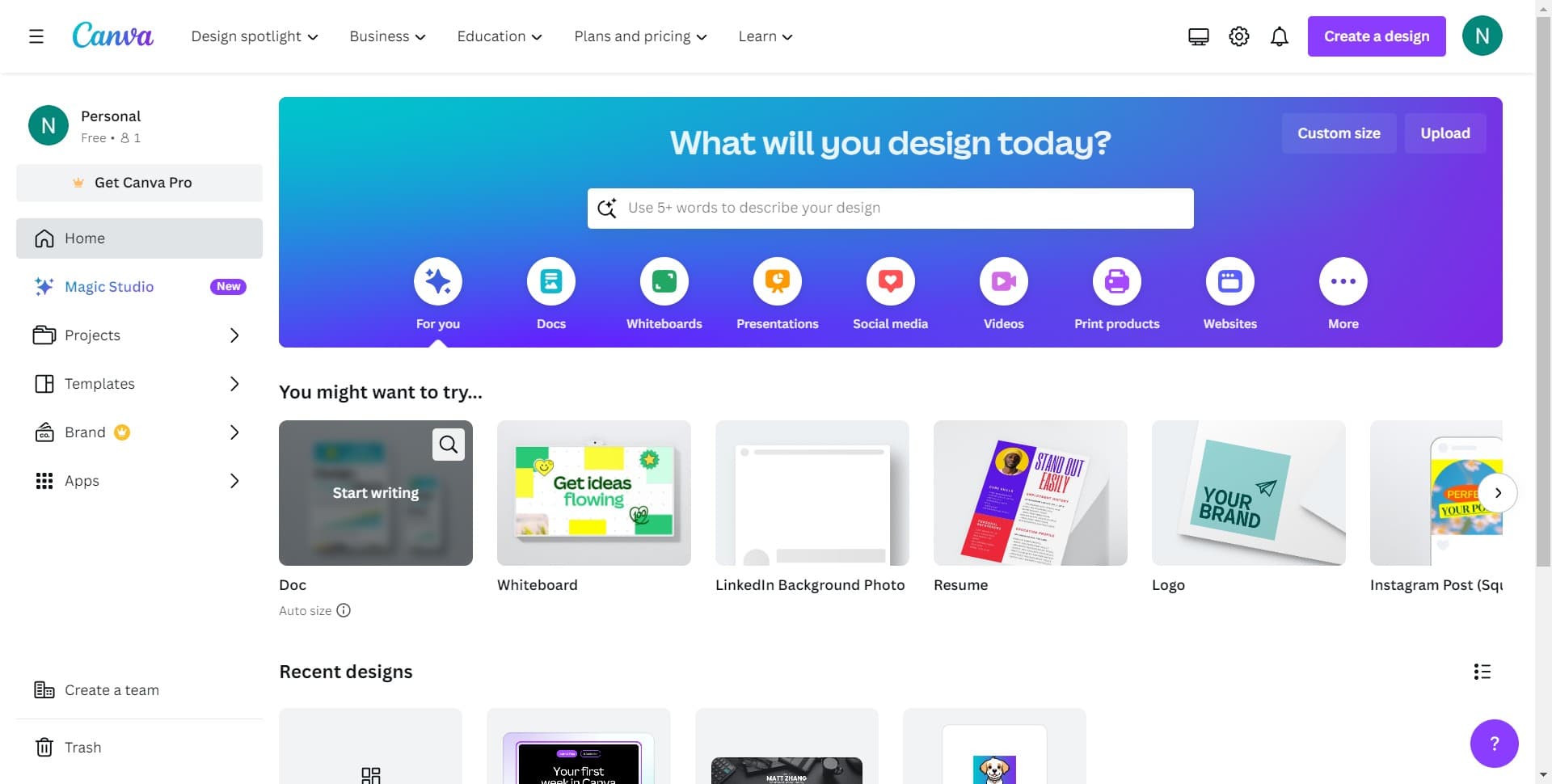
Access the Canva editor
Open Canva in your web browser to begin creating or editing your design. You'll be taken to the main canvas where you can start adding elements to your project.
- 2
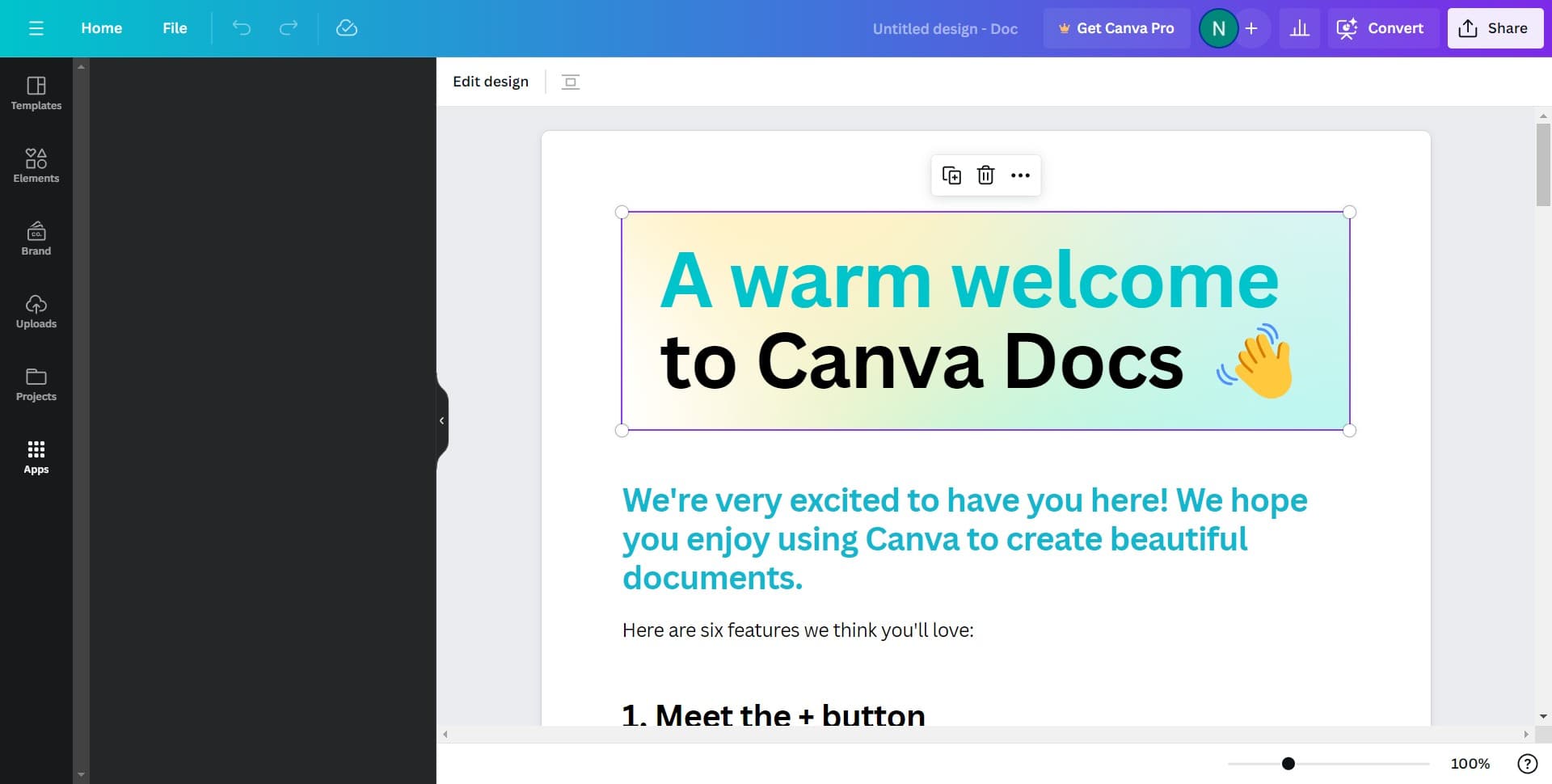
Navigate to the elements section
Look for the left sidebar menu and select the elements or tools option to access additional design components. This will open a panel where you can search for and insert various design elements.
- 3
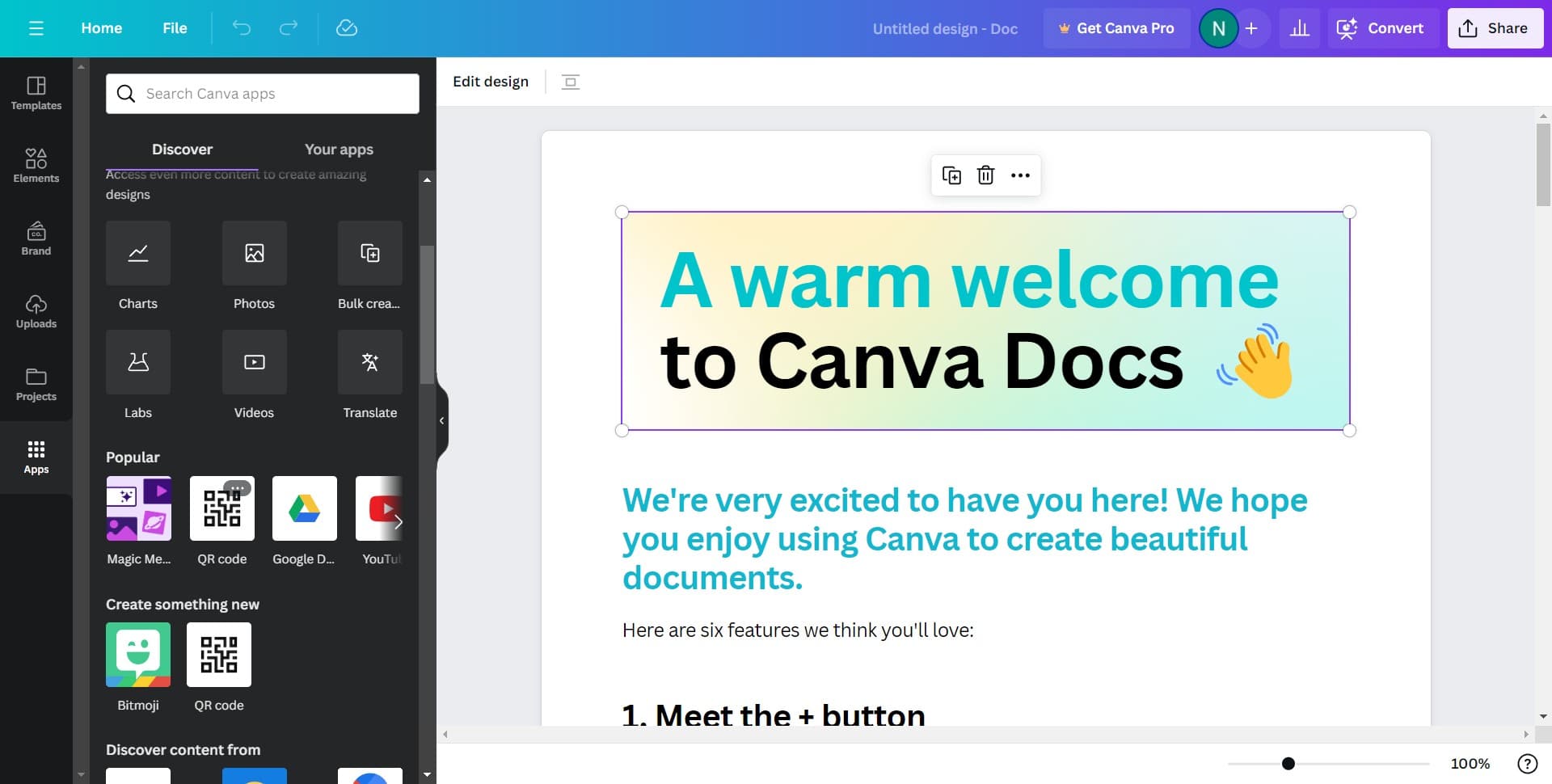
Search for the QR code tool
In the elements panel, search for 'QR code' to find the QR code generator feature. You'll see the QR code option appear in the search results.
- 4
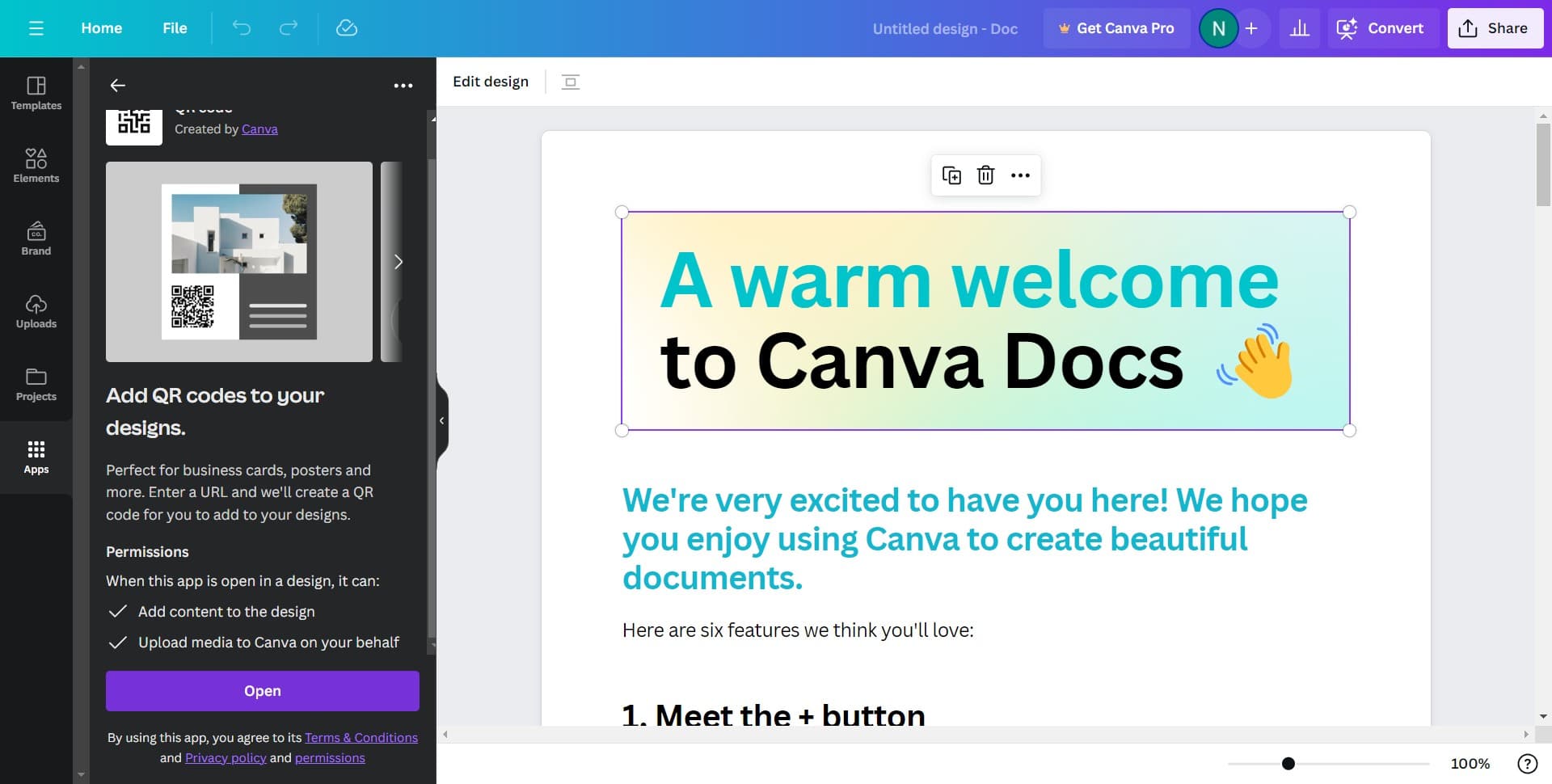
Open the QR code generator
Click on the QR code option to open the QR code generator dialog. This is where you'll configure what your QR code links to or contains.
- 5
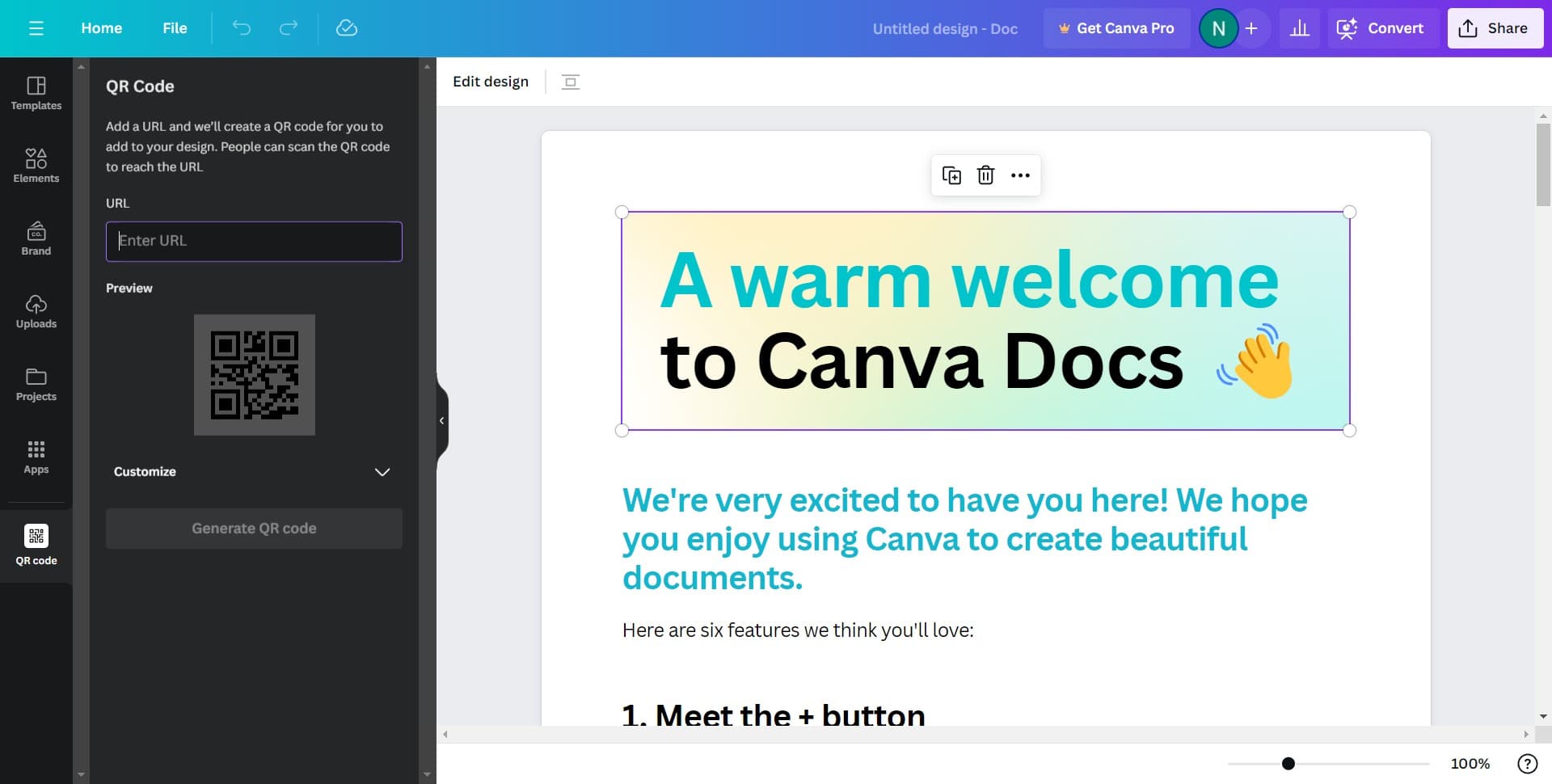
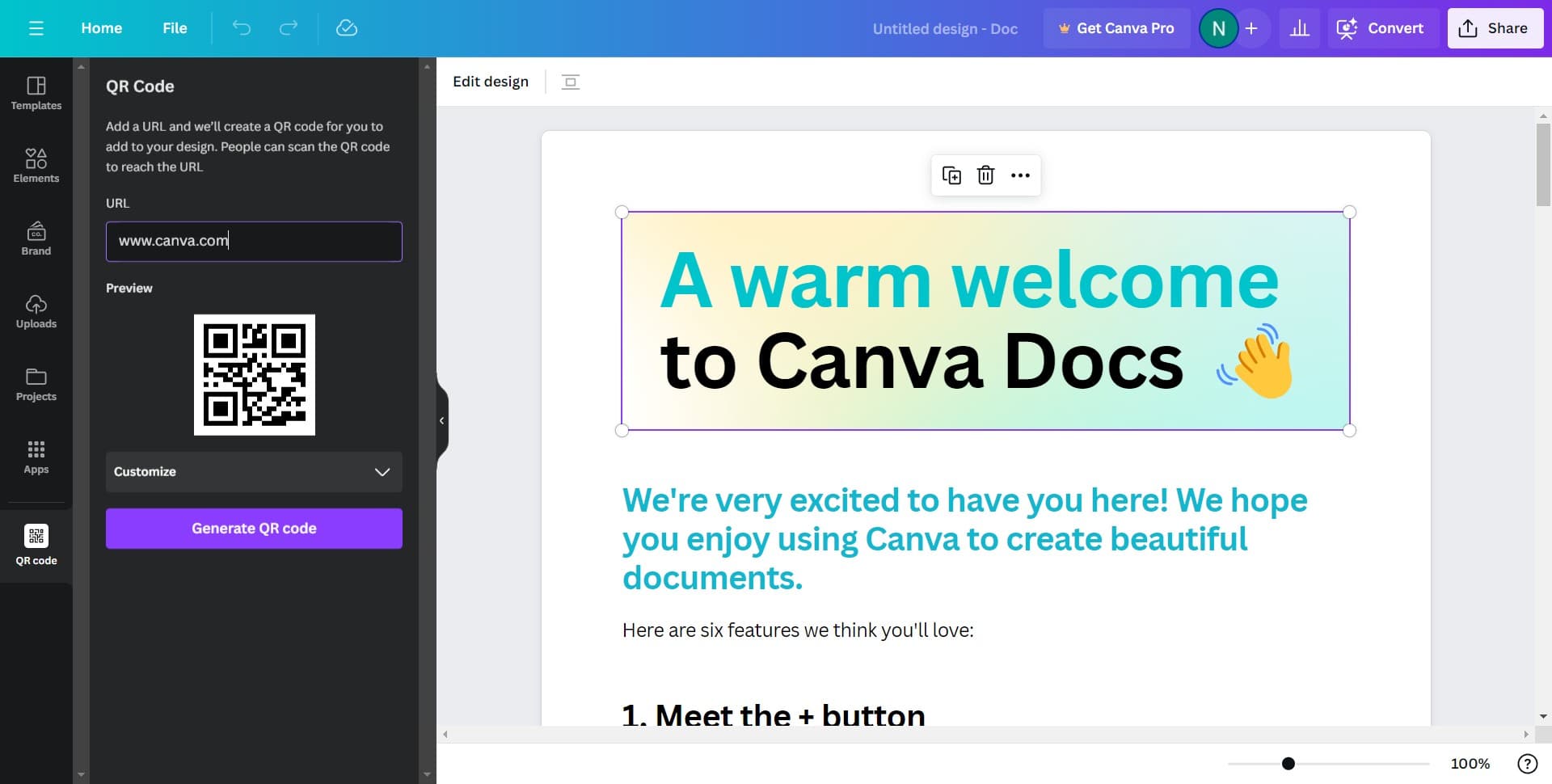
Enter your QR code details
Input the URL, text, or other information you want your QR code to contain. Once entered, you'll see a preview of your generated code.
- 6
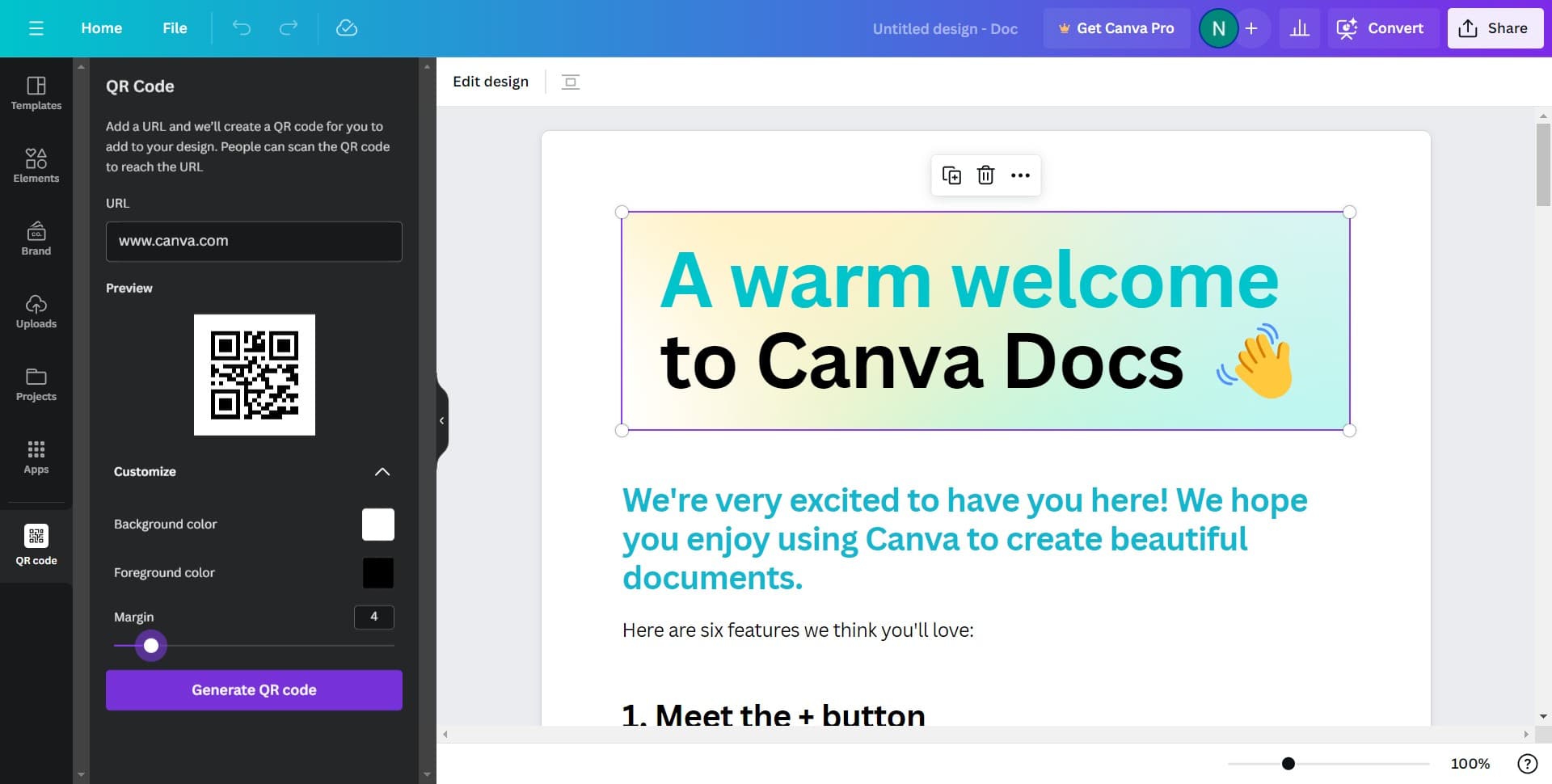
Customize the QR code appearance
Click the 'Customize' button to adjust the QR code's colors, style, and design to match your overall design aesthetic. You can change the frame, colors, and other visual properties to ensure it fits seamlessly.
- 7
Generate and finalize your QR code
Click 'Generate QR code' to create the final version with your customizations applied. Your QR code will now be inserted into your Canva design and ready to use.
Frequently asked questions
Common questions about how to add a qr code to a design in canva.
Can I change where my QR code links to after creating it?
Yes, you can edit the QR code's linked content by selecting it on the canvas and clicking to edit its properties. However, you'll need to regenerate the code for the changes to take effect. Make sure to test the new QR code with your phone to verify it works correctly before finalizing your design.
Will customizing QR code colors affect its scannability?
Canva's QR code customization tool is designed to maintain scanability while allowing color changes. However, it's important to maintain high contrast between the QR code and its background. Always test your customized QR code with multiple devices and apps to ensure it scans reliably before publishing.
What types of information can I encode in a Canva QR code?
Canva QR codes can encode URLs, email addresses, phone numbers, text messages, and Wi-Fi credentials. Choose the appropriate type based on your intended use case. Each type will generate a different QR code, so select the format that best serves your audience's needs.
Can I resize the QR code after adding it to my design?
Yes, you can resize the QR code by clicking and dragging the corner handles on the canvas. However, ensure it remains large enough to scan easily, typically at least one inch by one inch when printed. Maintain a clear space around the QR code free from other design elements for optimal scanning.
How do I download my design with the QR code?
Once your QR code is added and customized, click the download button in the top right corner of the Canva editor. Select your desired file format (PNG, PDF, or JPG) and quality settings, then download. Your QR code will be embedded in the final file and remain fully functional.