How to add a texture to a design in Canva

Adding textures to your designs in Canva is a powerful way to create depth, visual interest, and a more polished final product. Textures can transform flat designs into compelling graphics that stand out to your audience.
Quick summary
In this tutorial, you'll learn how to apply textures to your Canva designs step by step. By the end, you'll be able to browse Canva's texture library, select the right texture for your design, and customize it to match your creative vision.
Why this matters
Textures add realism and sophistication to designs that might otherwise feel generic or two-dimensional. Whether you're creating social media graphics, presentations, or marketing materials, strategic texture application elevates your work and helps it compete for viewer attention.
Step-by-step guide
- 1
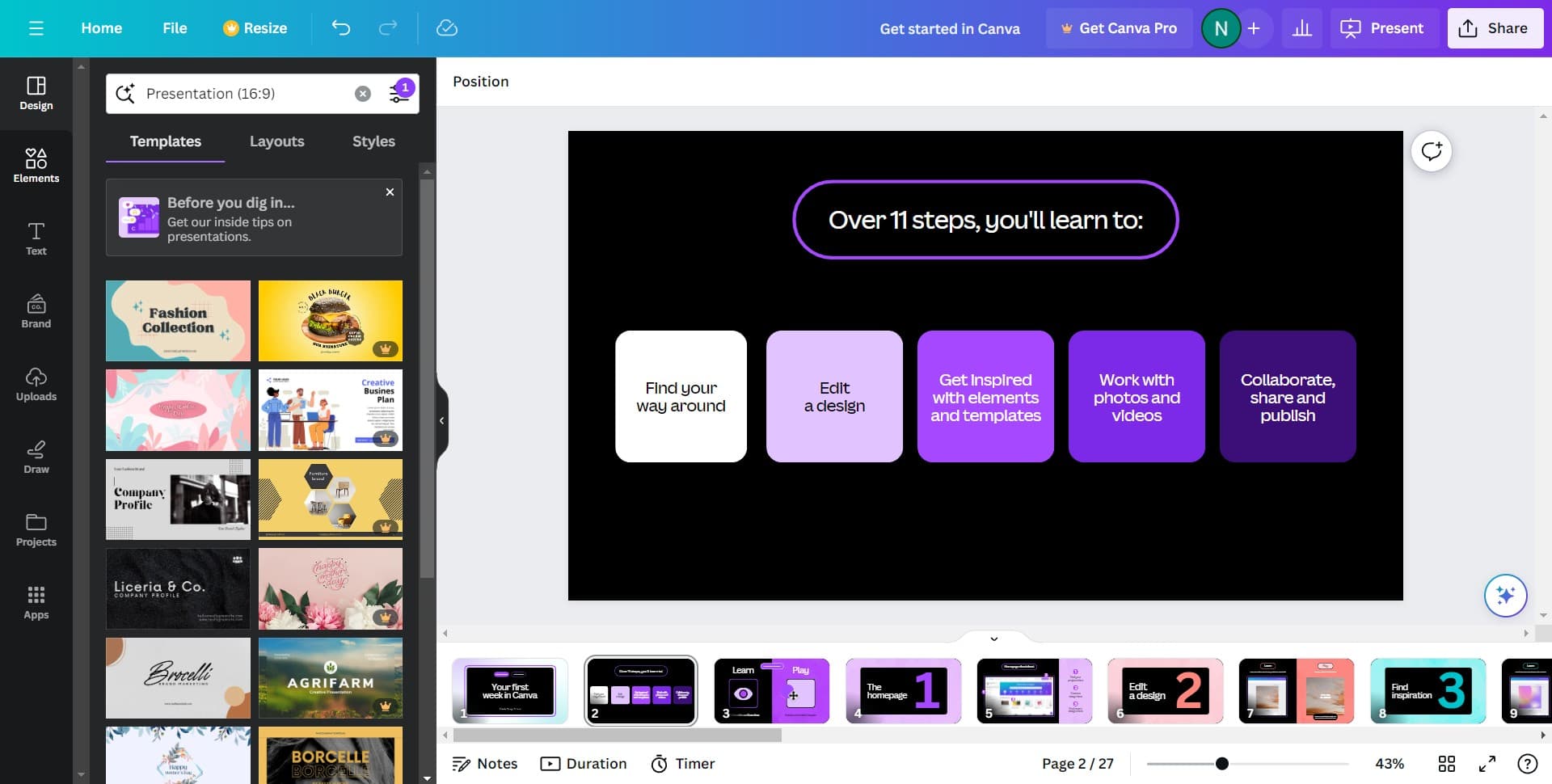
Open your Canva project
Start by logging into Canva and opening the design you want to enhance with a texture. If you're starting fresh, create a new design using your desired template or blank canvas.
- 2
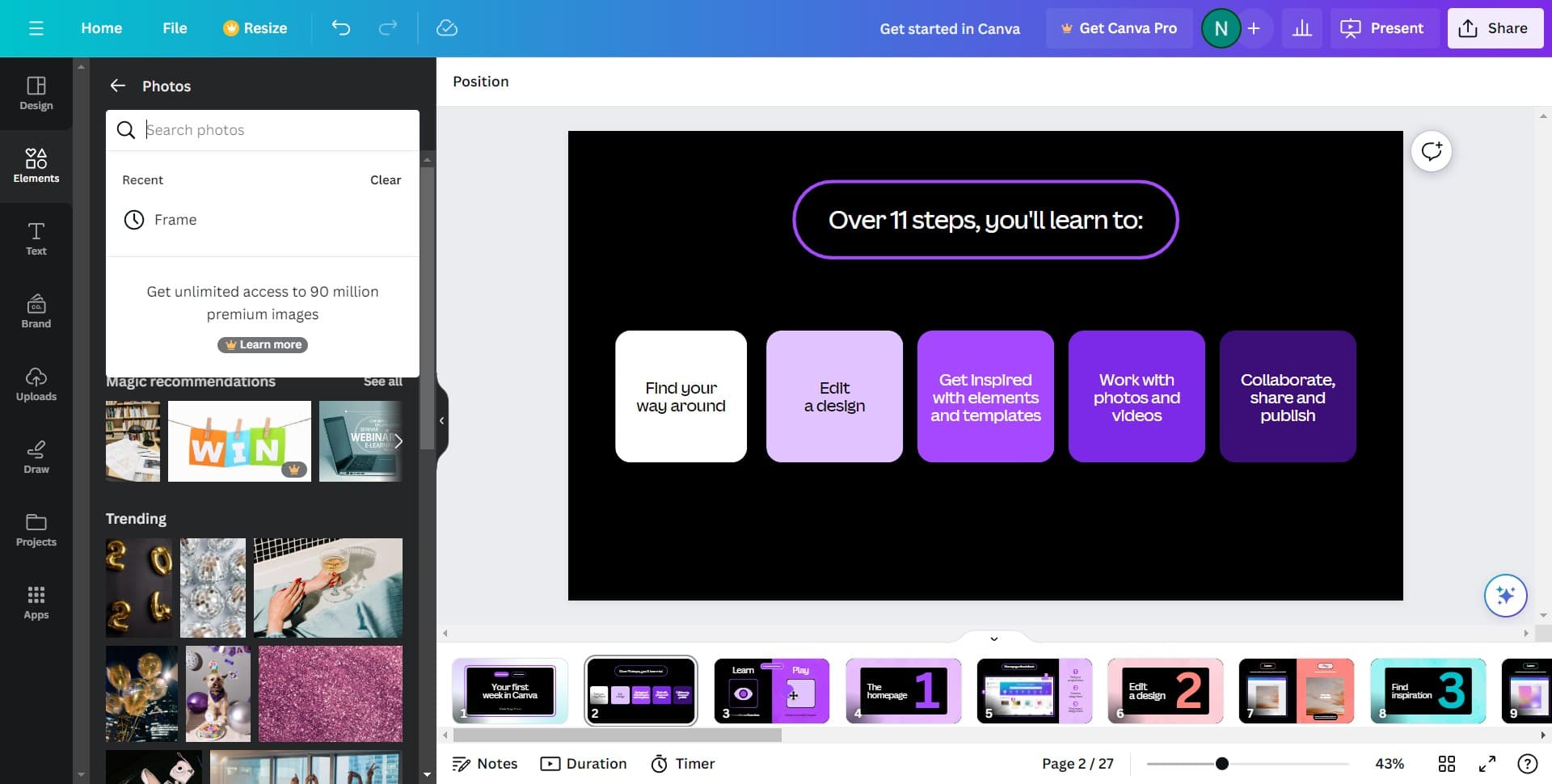
Navigate to the elements panel
Click on the Elements tab in the left sidebar to access Canva's library of design assets. This panel gives you access to shapes, icons, textures, and other embellishments.
- 3
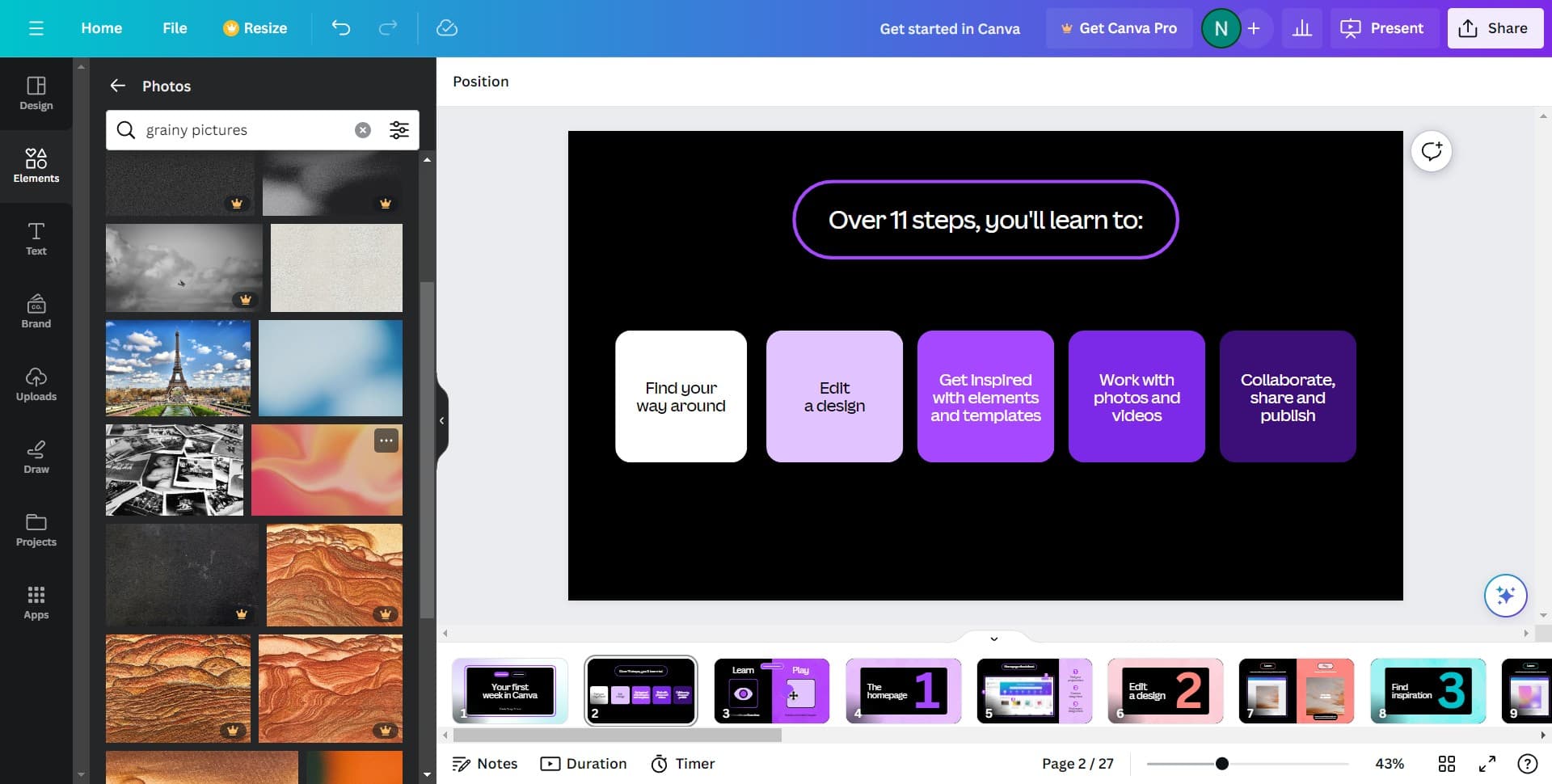
Search for textures
In the Elements panel, use the search bar to look for 'textures' or browse through the Textures category. Canva offers a wide range of texture options from fabric and paper to metallic and natural finishes.
- 4
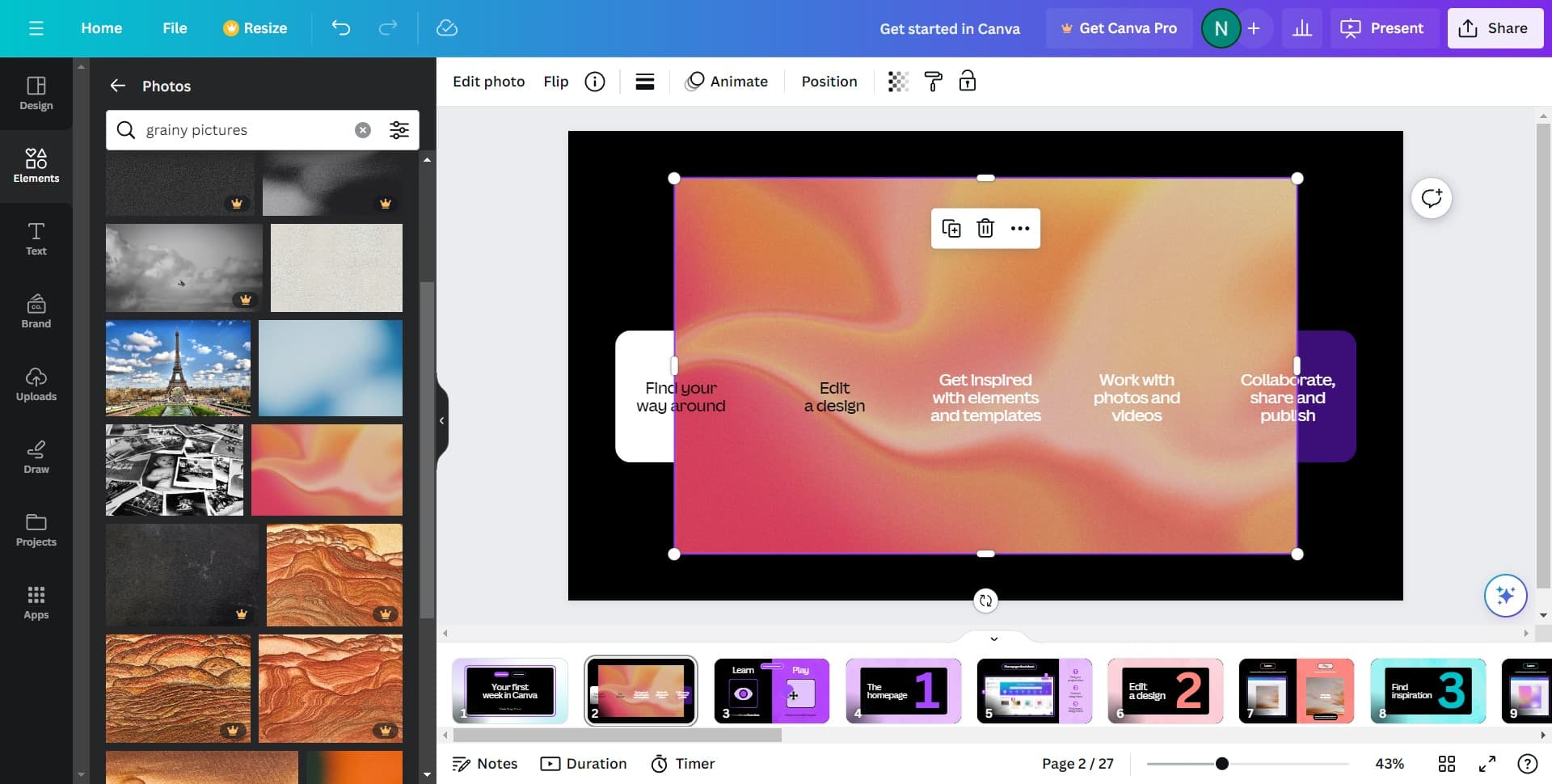
Select your desired texture
Click on a texture that complements your design's aesthetic and color scheme. The texture will be added to your canvas, appearing as a new layer you can position and resize.
- 5
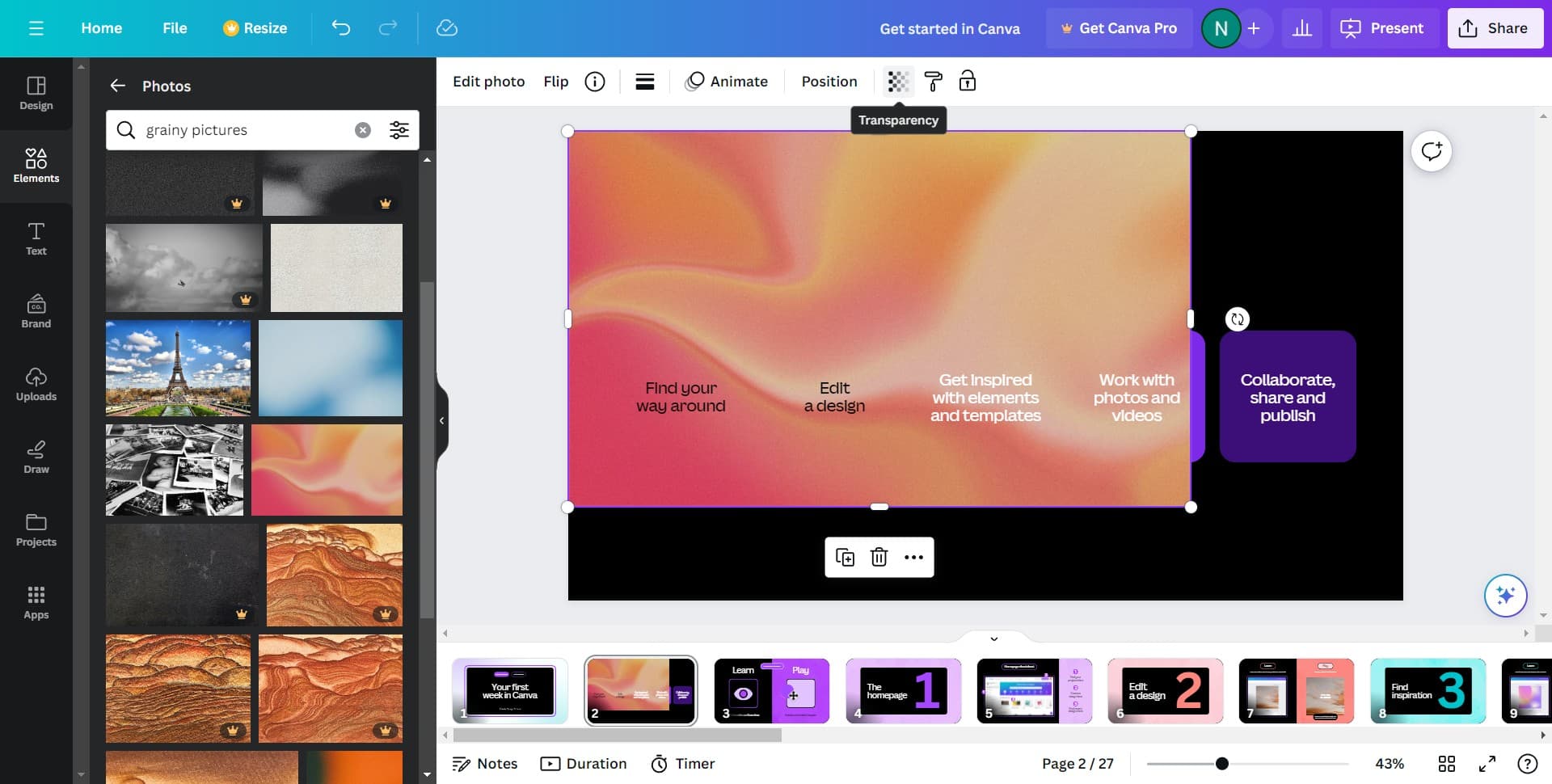
Adjust texture position and size
Drag the texture to the desired location on your canvas and use the corner handles to resize it as needed. You can layer the texture over other design elements or use it as a background accent.
- 6
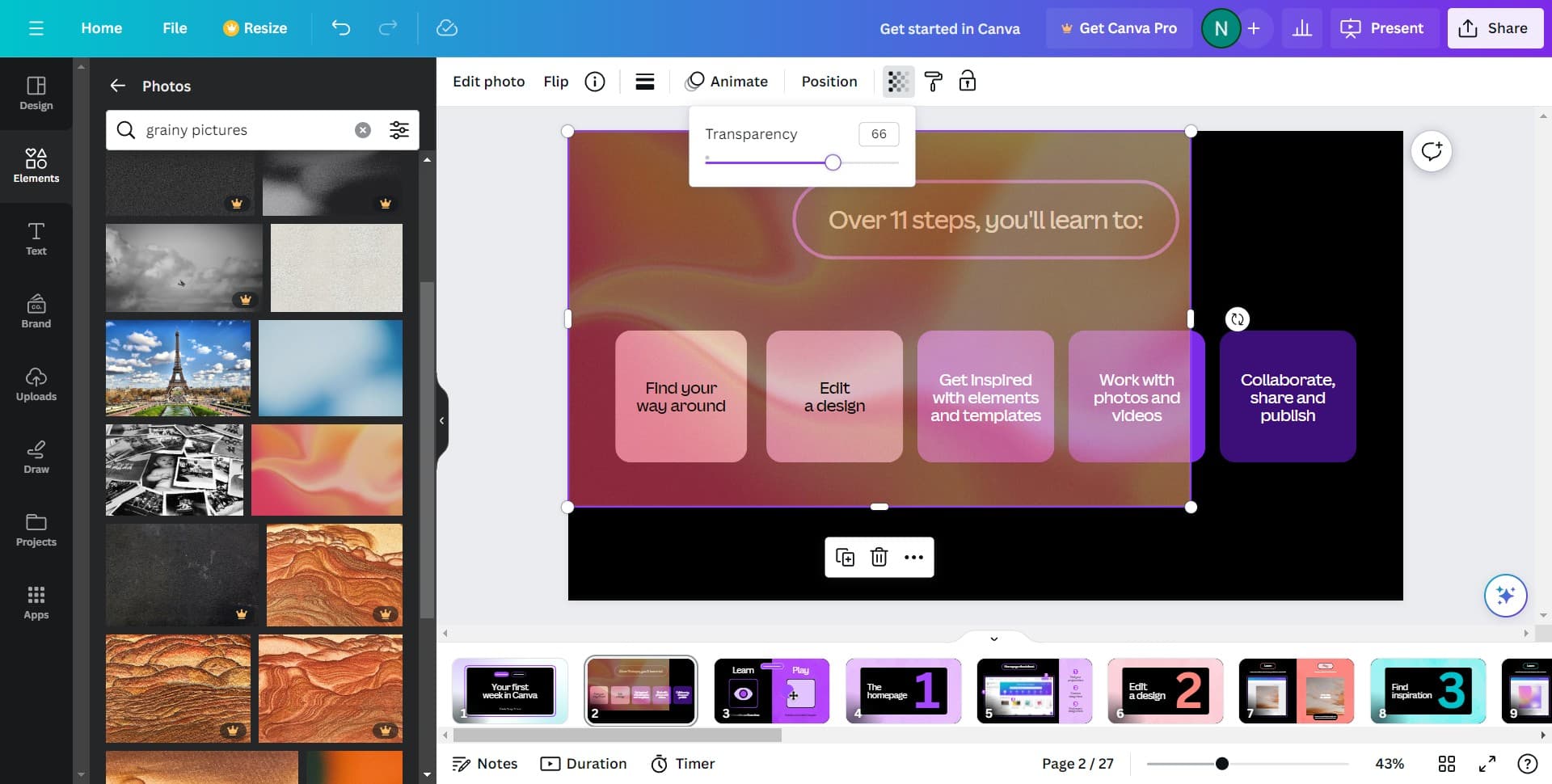
Fine-tune opacity and blending
Select the texture layer and adjust its transparency using the opacity slider to create a subtle effect that doesn't overpower your design. Experiment with different opacity levels until the texture enhances rather than dominates your composition.
Frequently asked questions
Common questions about how to add a texture to a design in canva.
Can I use the same texture on multiple elements in Canva?
Yes, you can add the same texture multiple times to different parts of your design. Simply repeat the process of adding the texture from the Elements panel for each element you want to enhance.
How do I make a texture more subtle in my design?
Select the texture layer and lower its opacity using the opacity slider in the toolbar. Most designers find that reducing opacity to 30-50% creates a subtle texture effect that adds depth without overwhelming the design.
Can I upload my own custom textures to Canva?
Yes, Canva allows you to upload your own images and use them as textures in your designs. You can do this through the Uploads section and then add them to your canvas just like any other design element.
What's the best way to combine multiple textures in one design?
Use textures with different opacity levels and blend modes to avoid a cluttered appearance. Consider using a dominant texture with complementary accent textures, and ensure they share a cohesive color palette.
Do texture changes apply across all pages of my Canva design?
No, textures are applied individually to each page. If you want the same texture effect on multiple pages, you'll need to add and adjust the texture on each page separately or copy and paste the textured elements between pages.