How to add an animation to my design in Canva

Animations bring your Canva designs to life by adding movement and visual interest to elements. Whether you're creating presentations, social media content, or promotional videos, learning how to animate design elements is essential for capturing audience attention. This tutorial walks you through the process of adding animations in Canva.
Quick summary
In this tutorial, you'll learn how to access Canva's animation features, select elements to animate, choose animation types, and manage animations in your design. You'll discover how to apply entrance animations and remove animations when needed, giving you full control over your design's visual effects.
Why this matters
Animations enhance engagement by making static designs dynamic and memorable. In professional contexts—from business presentations to marketing campaigns—animated elements help convey information more effectively and keep viewers interested. Mastering this skill enables you to create polished, professional-quality designs that stand out.
Step-by-step guide
- 1
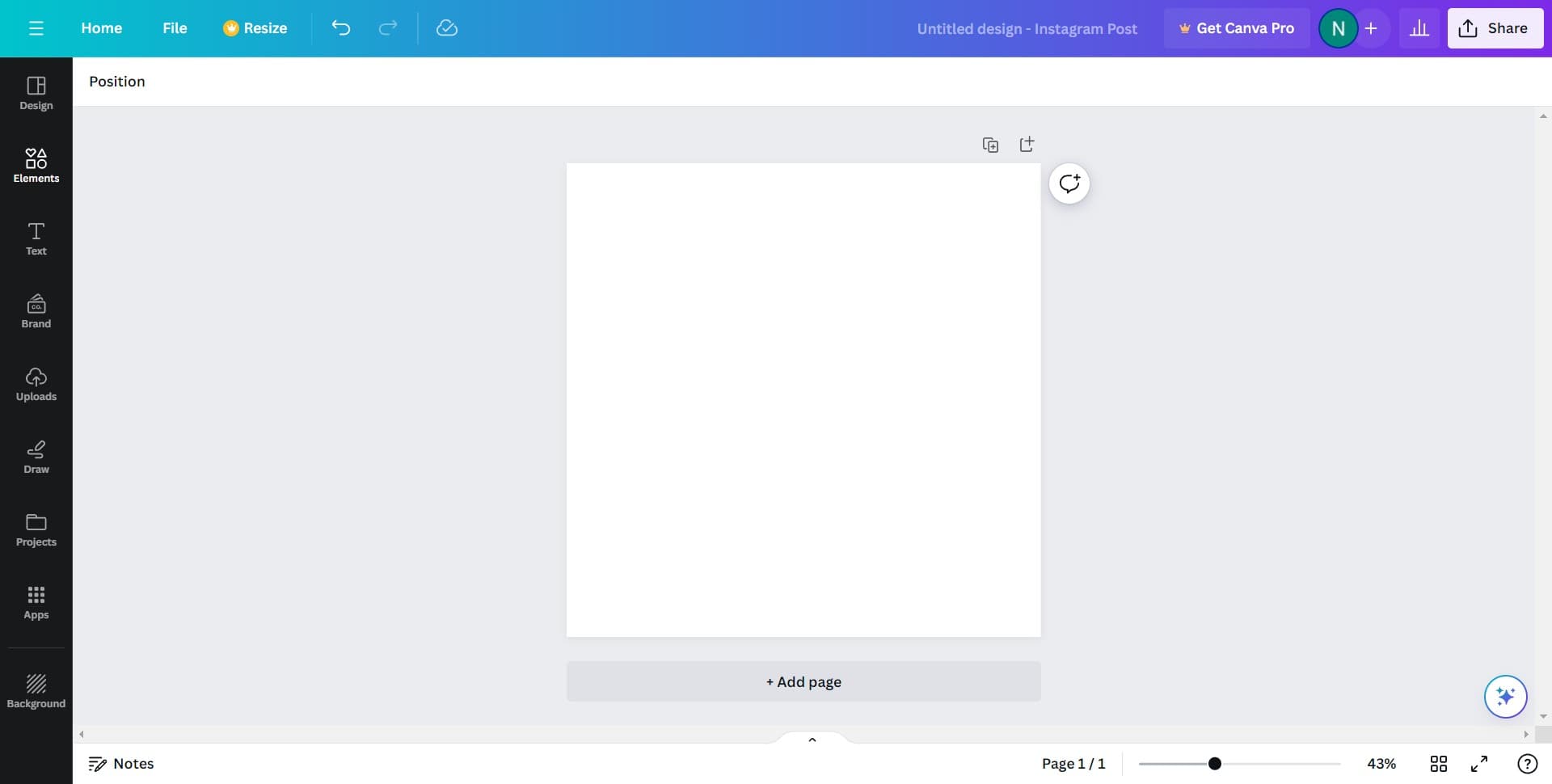
Click on Elements
Start by locating and clicking the Elements panel in your Canva workspace. This opens your access to design components, including those with animation capabilities.
- 2
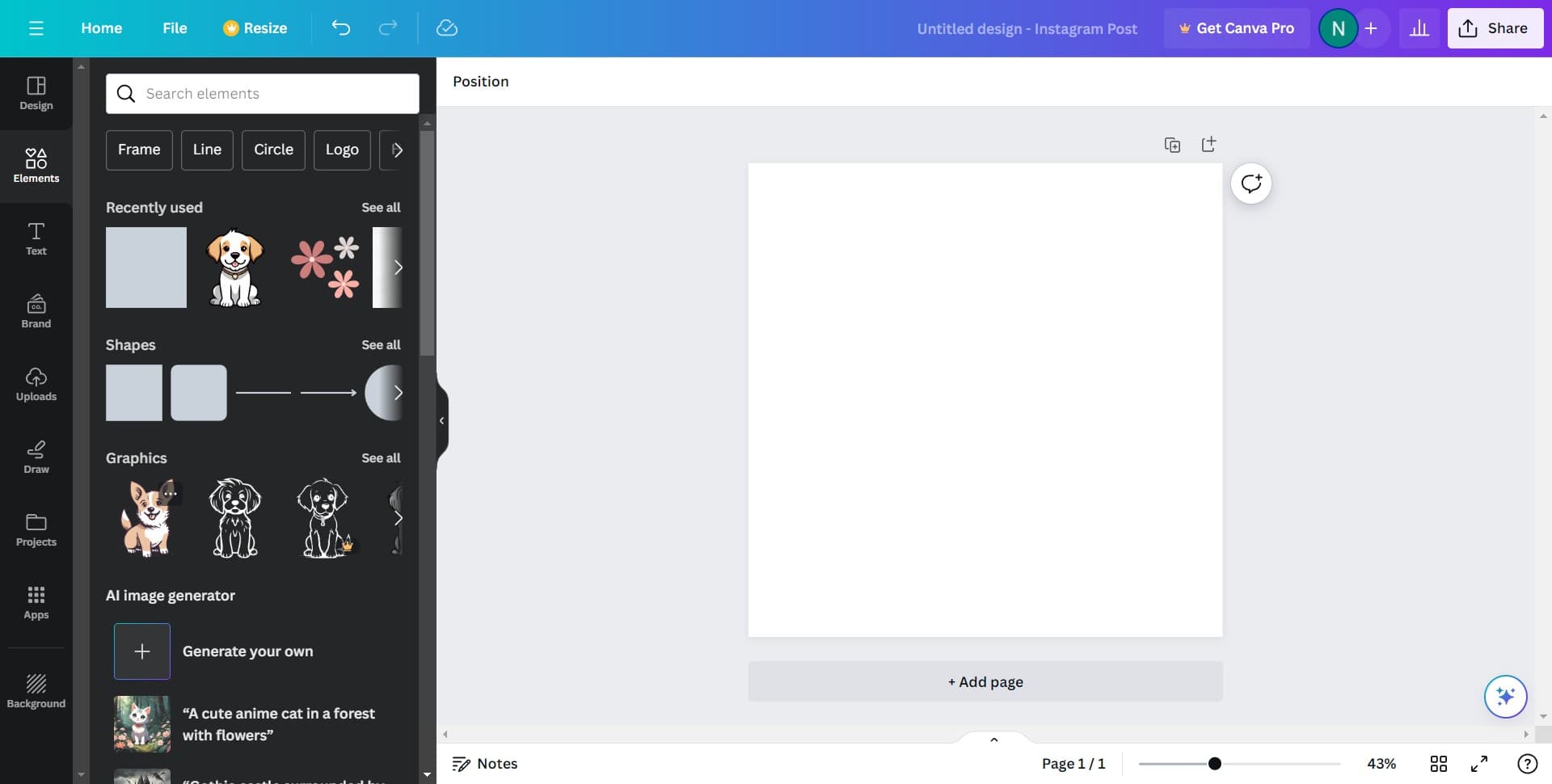
Select an element to animate
Choose the specific element from your design that you want to animate. Click on it to select it, ensuring it's highlighted and ready for animation effects.
- 3
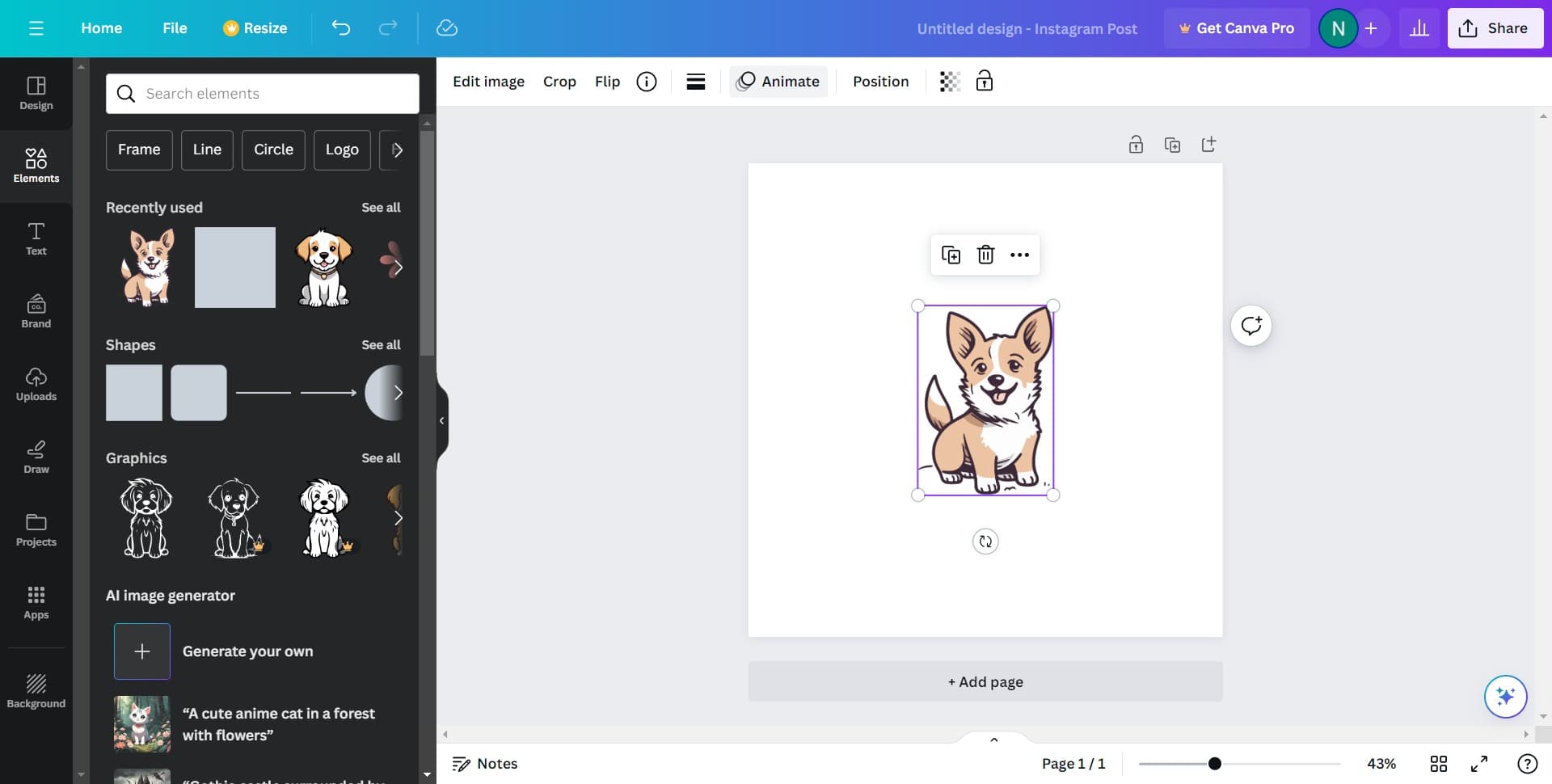
Click on Animate
Once your element is selected, look for and click the Animate button or option. This opens Canva's animation menu where you can choose from various animation effects.
- 4
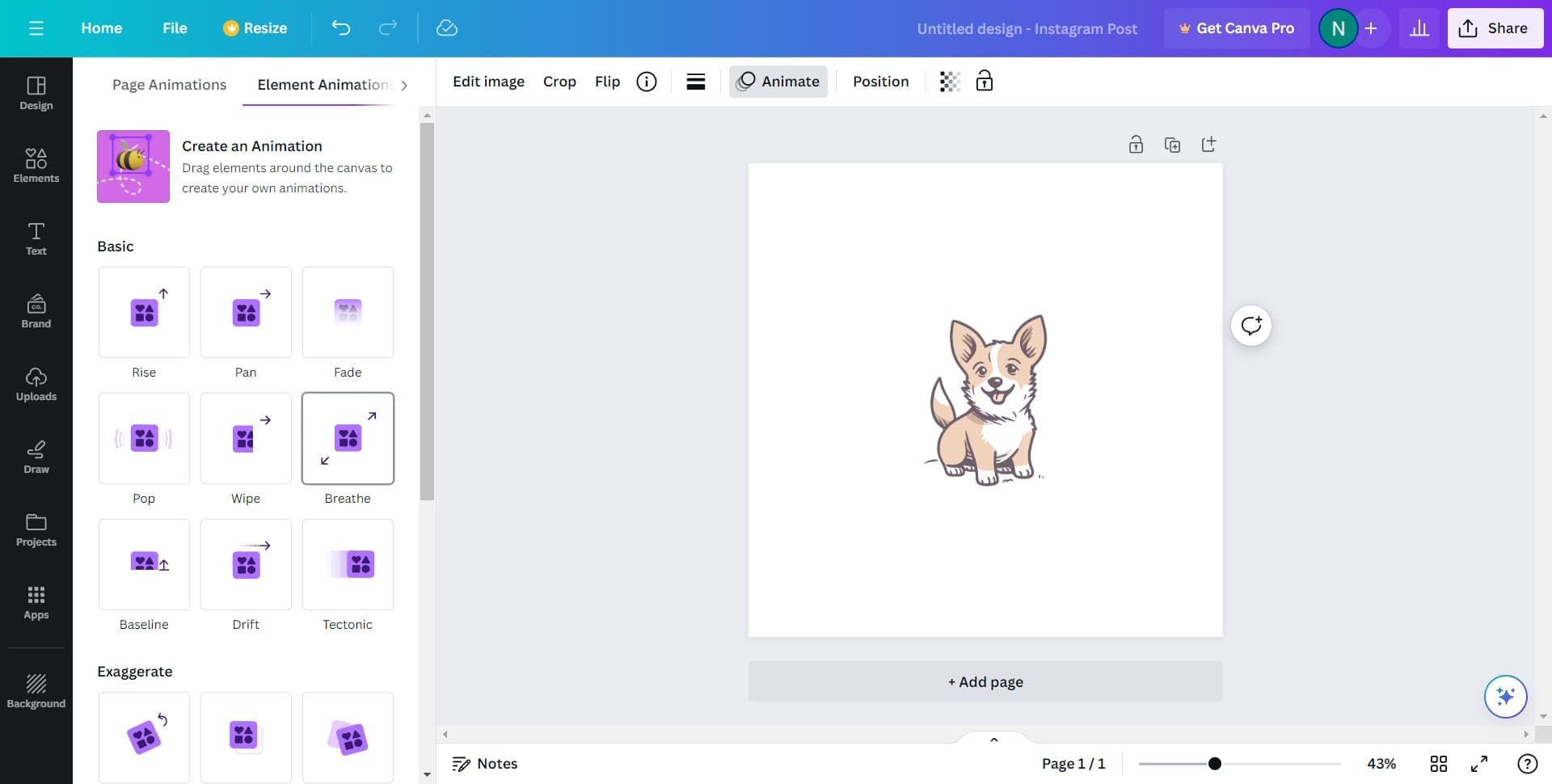
Choose your animation effect
Browse the available animation options in the menu that appears. Select the animation effect you want to apply to your element.
- 5
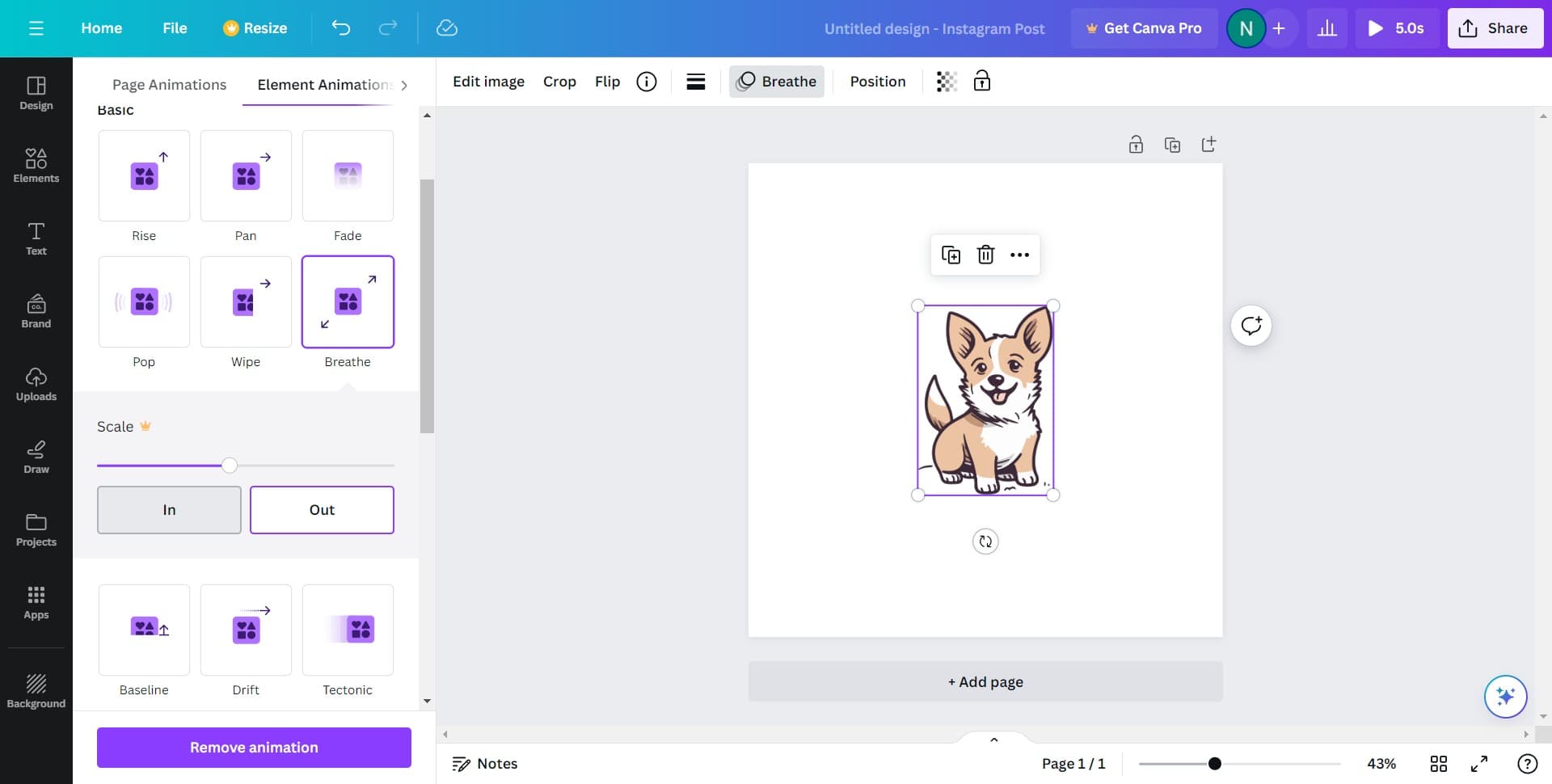
Select In animation type
Click on the In category to apply entrance animations, which determine how your element appears when the design plays. This is one of the primary animation types available in Canva.
- 6
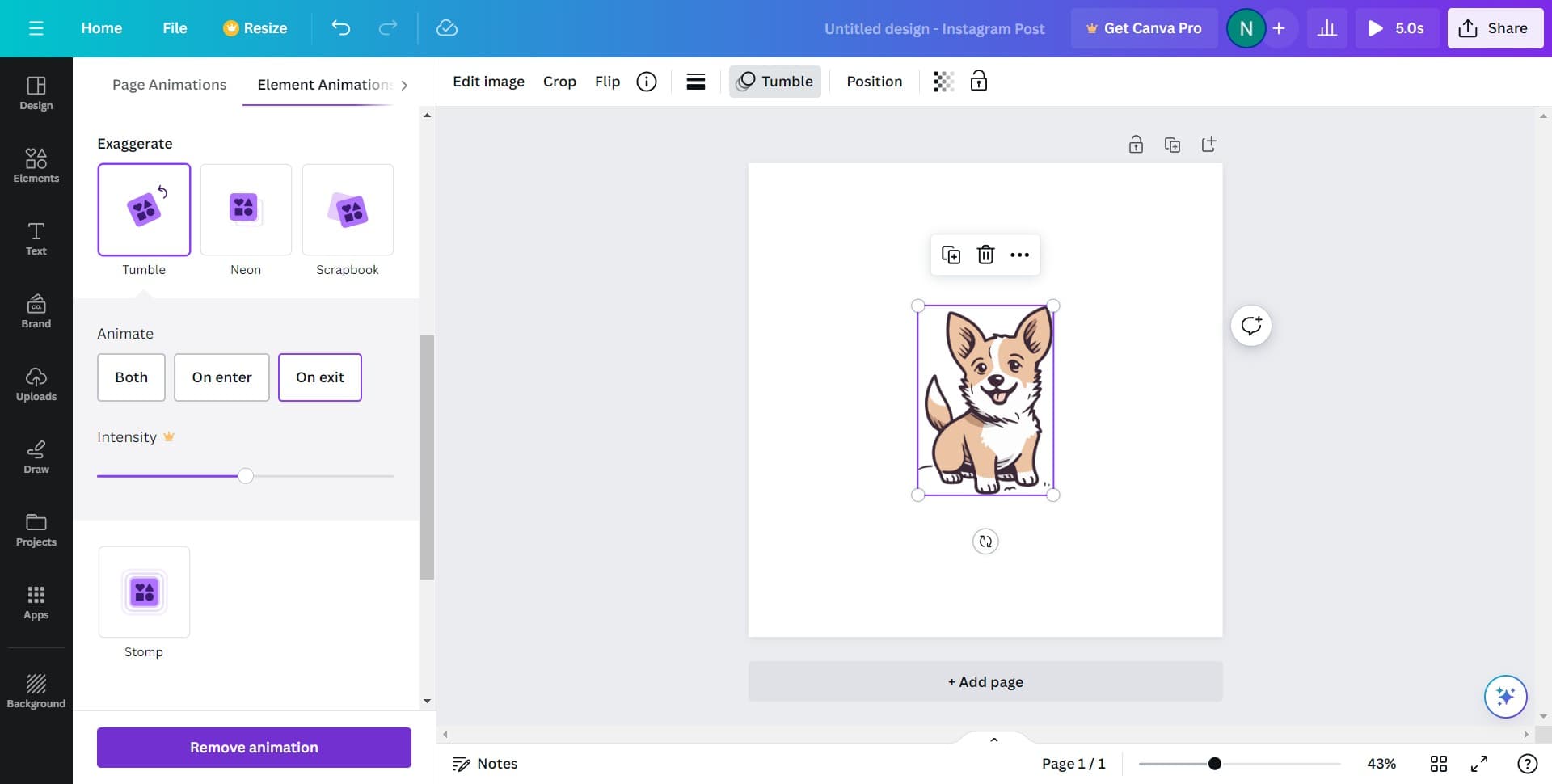
Remove animation if needed
If you want to remove an animation from an element, select the animated element and click on Remove animation. This clears any animation effects applied to that element.
Frequently asked questions
Common questions about how to add an animation to my design in canva.
What types of animations are available in Canva?
Canva offers several animation categories, including entrance animations (In), exit animations, and emphasis effects. Entrance animations control how elements appear when your design plays, making them ideal for presentations and videos. Different animation types serve different purposes depending on your design goals.
Can I animate multiple elements in the same design?
Yes, you can animate multiple elements independently in Canva. Select each element one at a time and apply different animations to create a more dynamic and layered effect. You can control the timing and sequence of animations to create a polished final product.
How do I preview animations before publishing?
Click the play button in your Canva workspace to preview how your animations will appear. This allows you to see the timing, order, and overall effect of your animations before sharing or downloading your design.
Can I adjust the duration or speed of animations?
Canva provides controls for animation timing and speed within the animation settings. After selecting an animation, look for duration or speed options to customize how quickly or slowly the effect plays.
Are animations supported when exporting or sharing designs?
Animations work in Canva presentations and when downloading as video formats. However, static image exports like PNG or PDF won't include animations. Choose the appropriate export format based on whether you need to preserve animation effects.