How to change image color in Canva

Changing image colors in Canva is a powerful way to customize your designs and match your brand palette or creative vision. Whether you're adjusting a photo to fit your design theme or experimenting with different color tones, Canva's color adjustment tools make it simple and intuitive.
Quick summary
In this tutorial, you'll learn how to access Canva's photo editing features and adjust image colors to enhance your designs. You'll navigate through the design interface, open the photo editor, and use the adjustment tools to modify your image's color properties.
Why this matters
Color adjustment is essential for creating cohesive, professional designs where all visual elements work together harmoniously. Being able to modify image colors directly in Canva saves time by eliminating the need for external photo editing software and keeps your entire design workflow in one platform.
Step-by-step guide
- 1
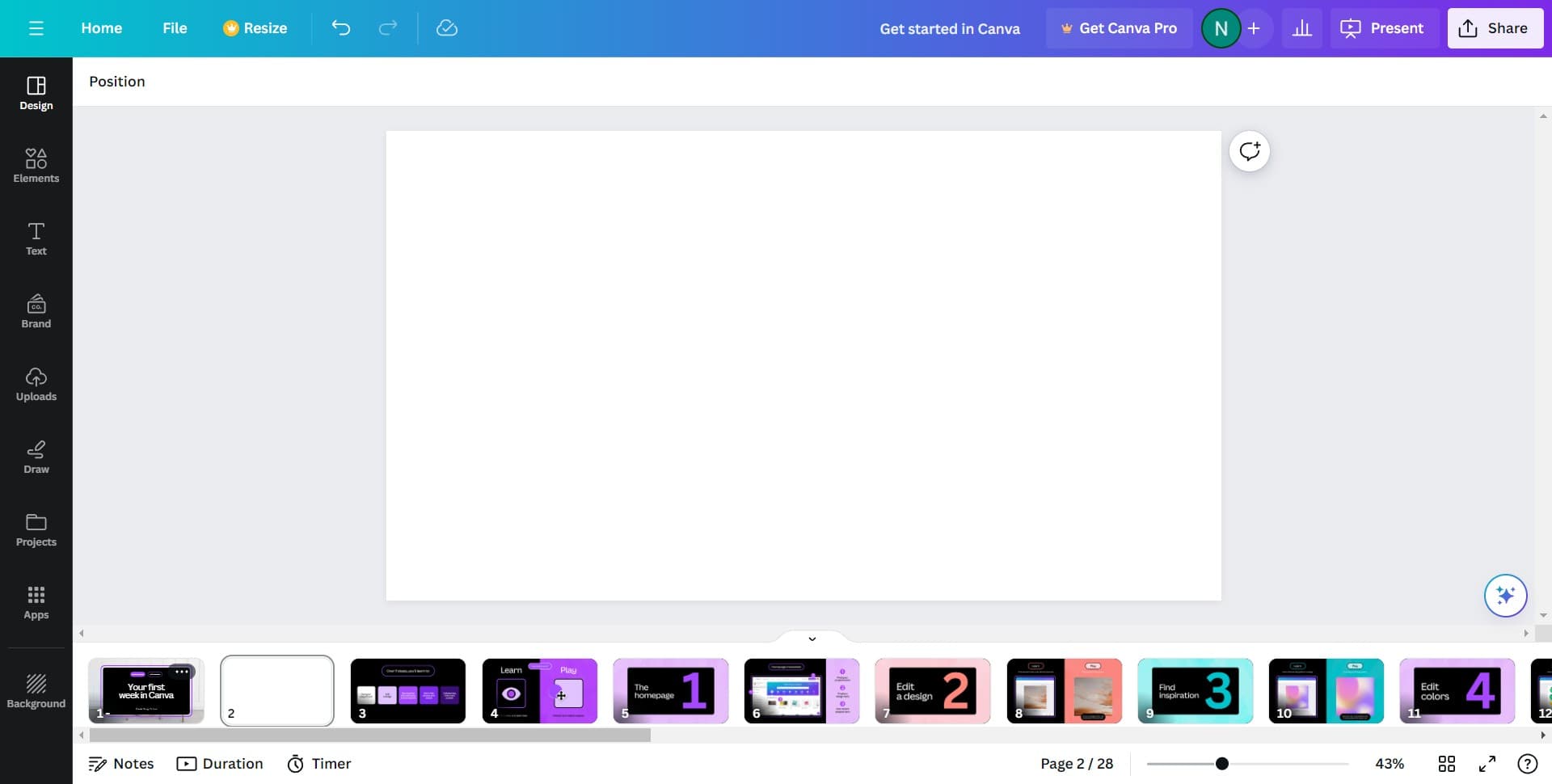
Click on Design
Start by clicking the 'Design' button in Canva's main interface. This will either open a new design workspace or take you to your design options where you can begin creating or editing.
- 2
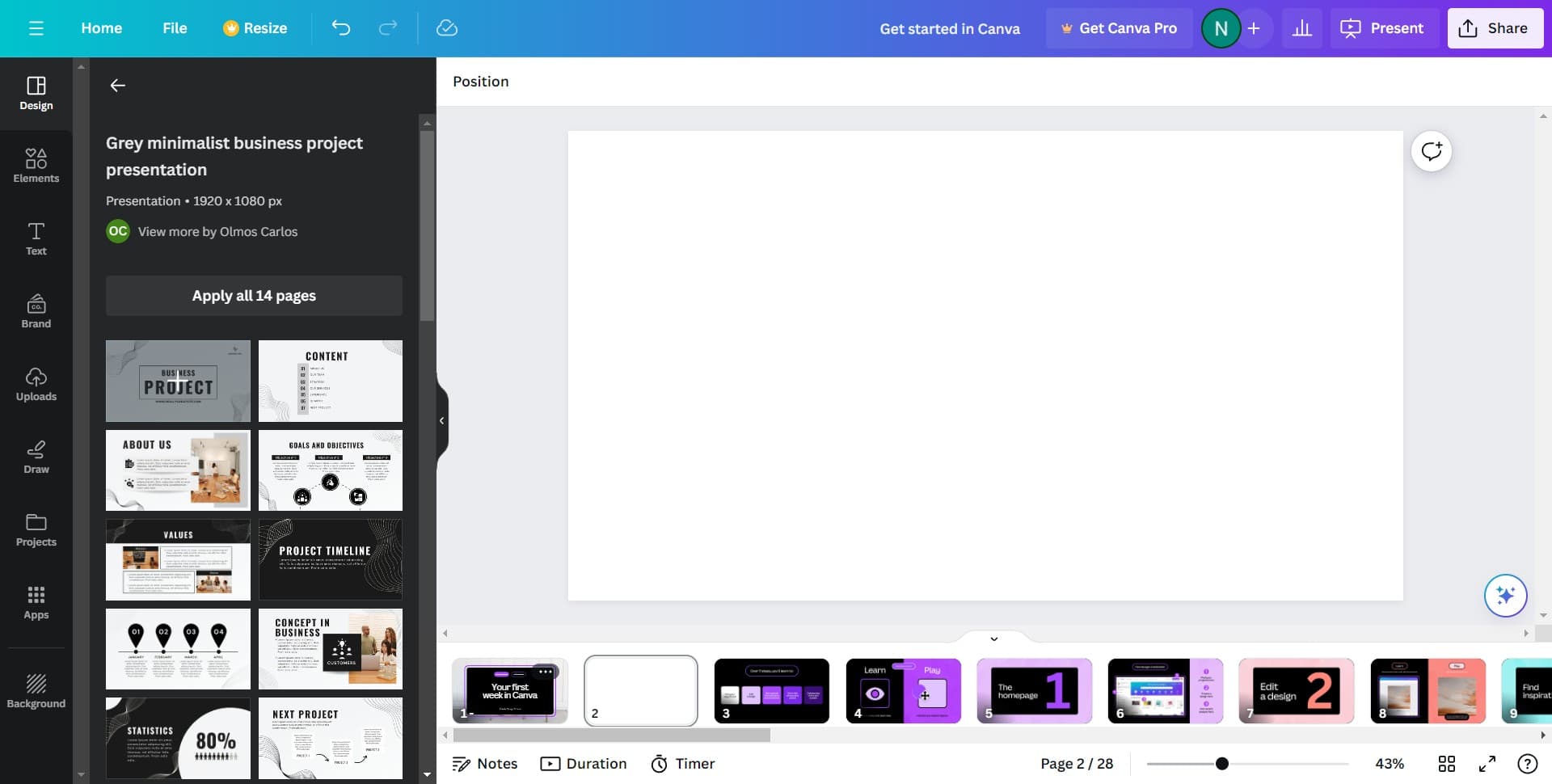
Access the upload area
Click on the designated area to upload or select an image. This step prepares you to add the photo whose colors you want to adjust.
- 3
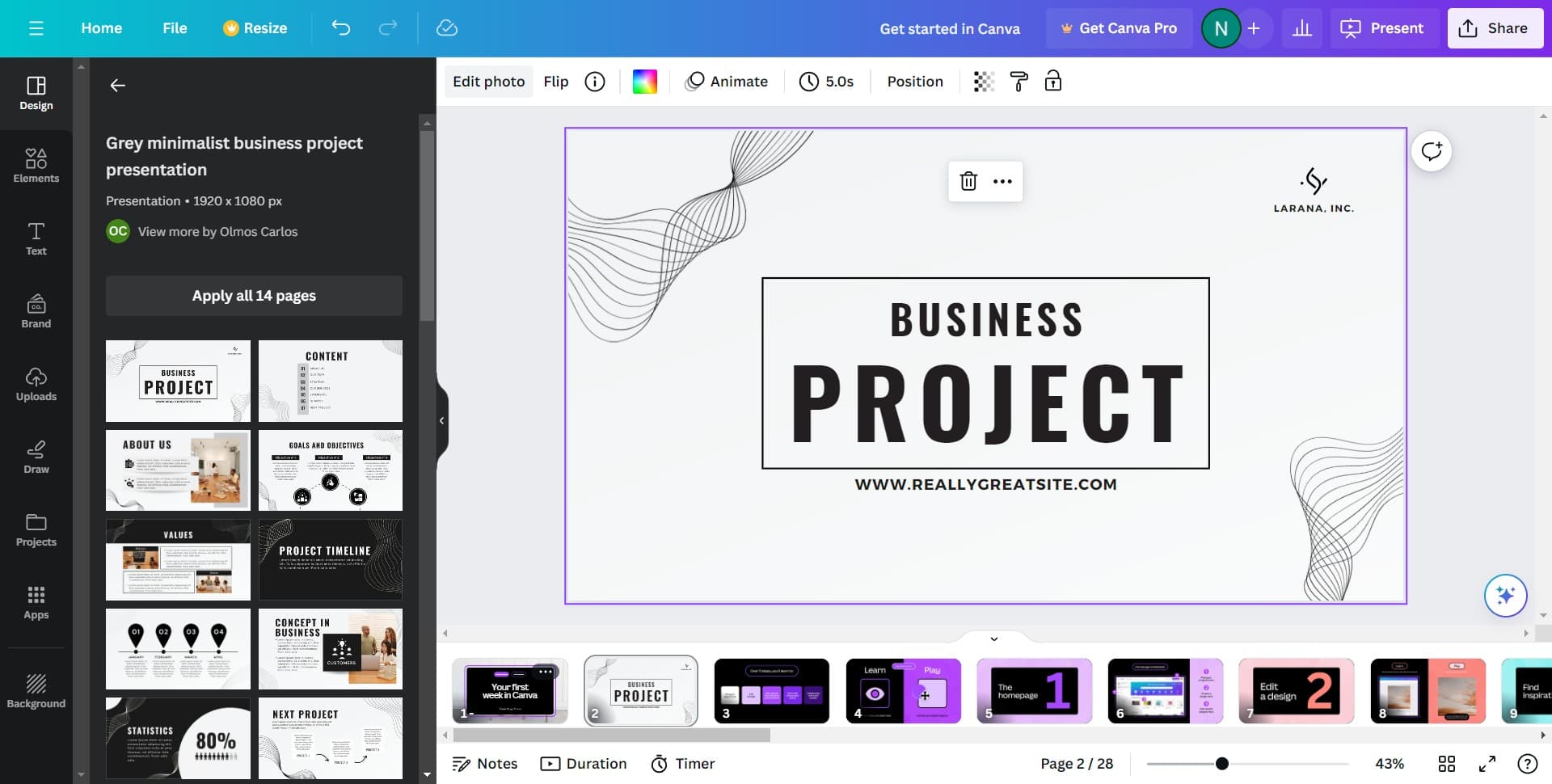
Click on Edit photo
Once your image is placed in the design, click the 'Edit photo' option. This opens the photo editing interface where you can modify various aspects of your image.
- 4
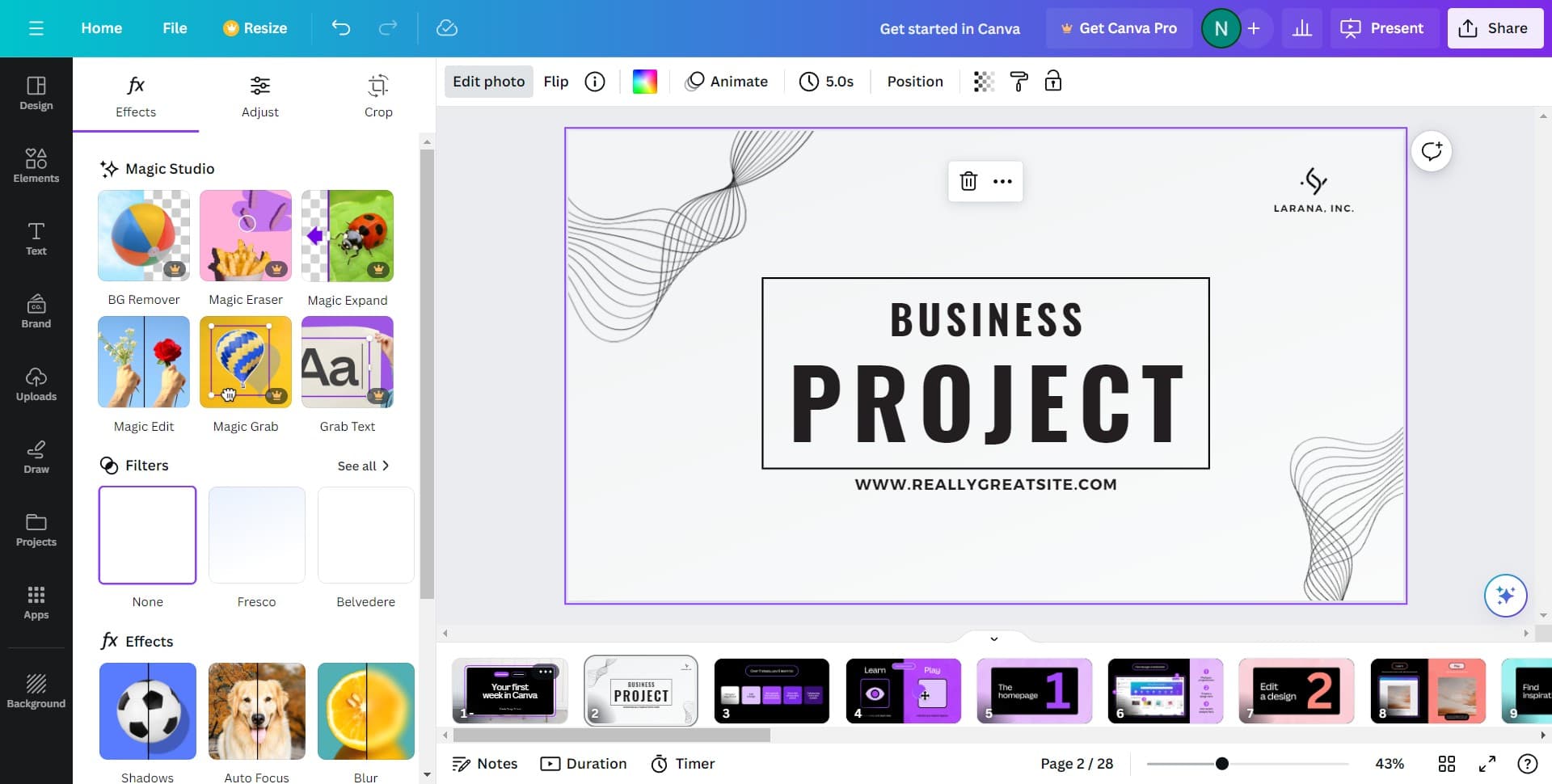
Click on Adjust
In the photo editing menu, select the 'Adjust' option. This reveals the color and tone adjustment controls you'll use to modify your image.
- 5
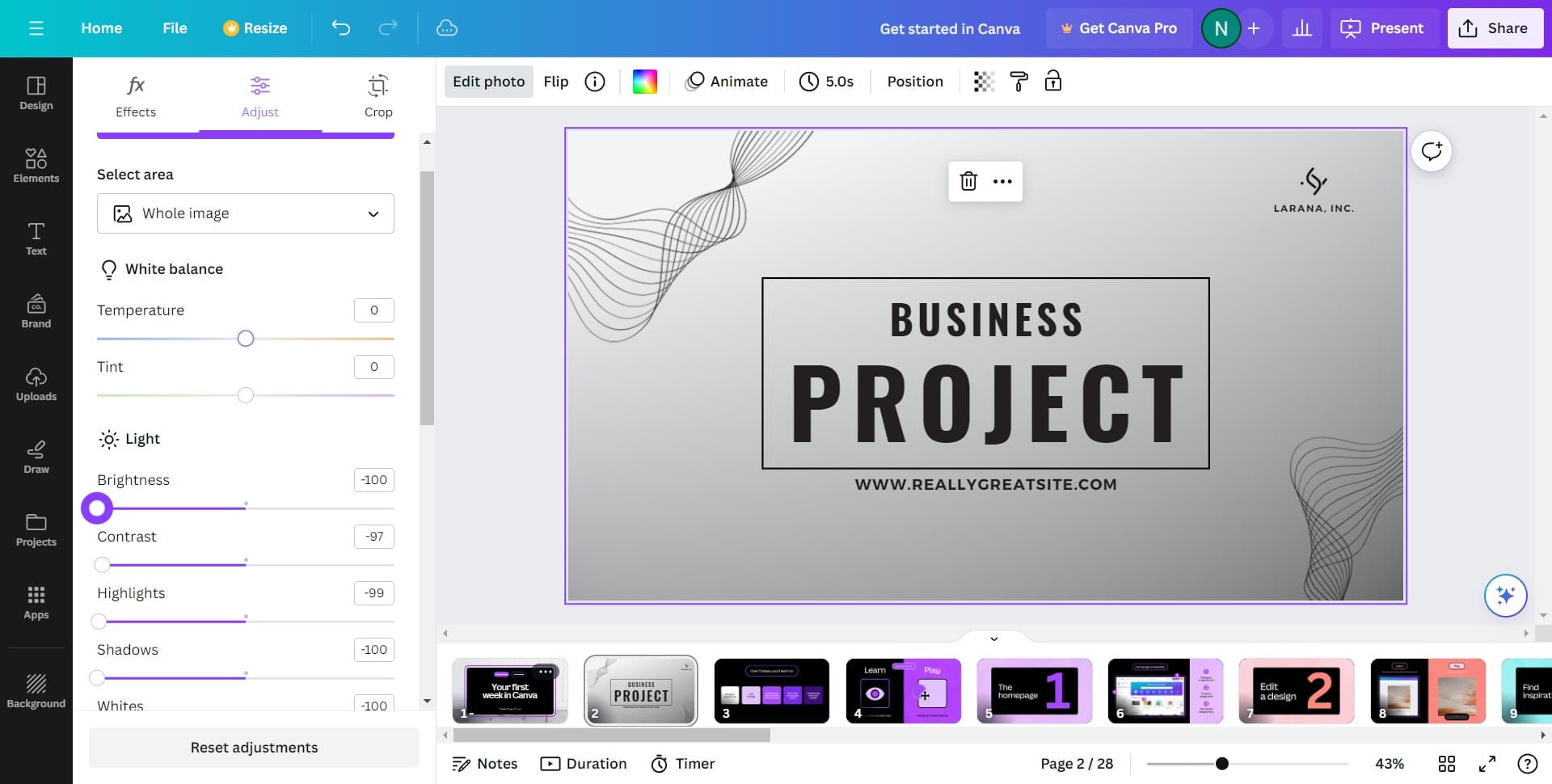
Select your color adjustment
Click on the specific color adjustment tool you need, such as brightness, saturation, hue, or contrast. Drag the sliders to fine-tune your image colors to the desired effect.
- 6
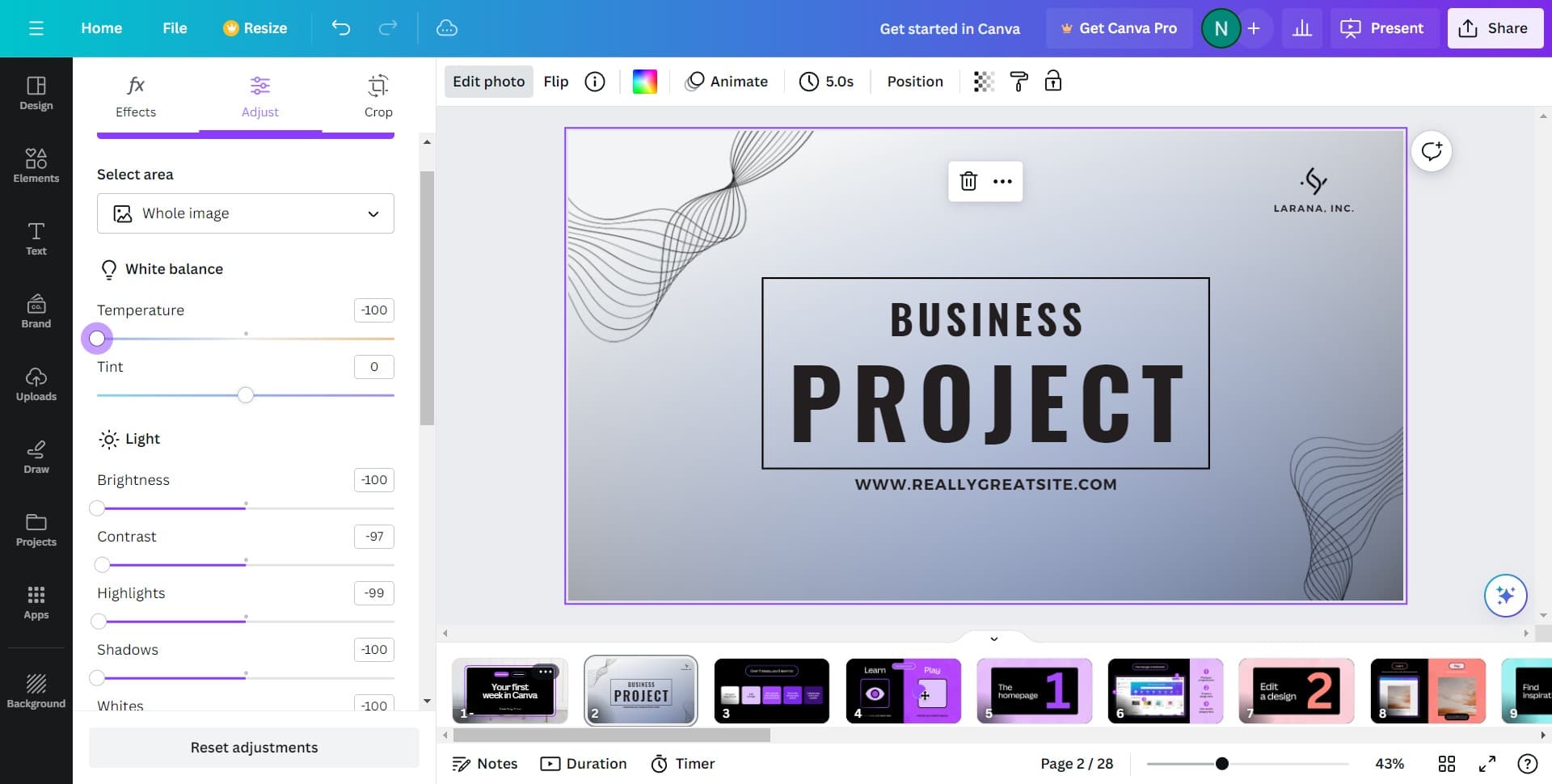
Apply and save changes
Once you're satisfied with the color adjustments, click to apply the changes to your image. Your edited image will now reflect the color modifications in your Canva design.
Frequently asked questions
Common questions about how to change image color in canva.
Can I adjust specific colors rather than the entire image?
Canva's adjustment tools work on the entire image by default, allowing you to modify overall brightness, saturation, hue, and contrast. For more targeted color changes to specific elements, you may need to use additional filters or explore Canva's advanced editing features available in premium plans.
Will color adjustments affect the original image file?
No, adjustments made in Canva only affect the version used in your design. Your original image file remains unchanged, so you can always revert to it or use it elsewhere without any modifications.
What if I'm not happy with my color adjustments?
You can easily undo your changes by clicking the undo button or reopening the adjustment panel and resetting the sliders. Canva allows you to experiment freely without permanently altering your design until you save it.
Are there preset filters I can use instead of manual adjustment?
Yes, Canva offers preset filters and effects that can be applied to images for quick color and tone changes. These presets are a good starting point if you want a faster alternative to manual adjustment sliders.
Can I adjust colors on multiple images at once?
Canva requires you to edit images individually through the photo editor. However, once you've created adjustments you like, you can apply similar settings to other images by repeating the same adjustment steps for each image.