How to delete a board in Miro

Deleting a board in Miro is a straightforward process that helps you clean up your workspace and remove projects you no longer need. Whether you're organizing your team's workspace or removing outdated boards, understanding how to permanently delete a board ensures you maintain a tidy and focused environment.
Quick summary
In this tutorial, you'll learn how to delete a board in Miro by navigating to the board options and confirming the deletion. We'll walk you through each step, from accessing the delete function to understanding how you can undo the action if needed.
Why this matters
Deleting unused or outdated boards helps keep your Miro workspace organized and reduces clutter for you and your team. This task is especially important when managing multiple projects, as it allows you to maintain a clean workspace and focus on active work.
Step-by-step guide
- 1
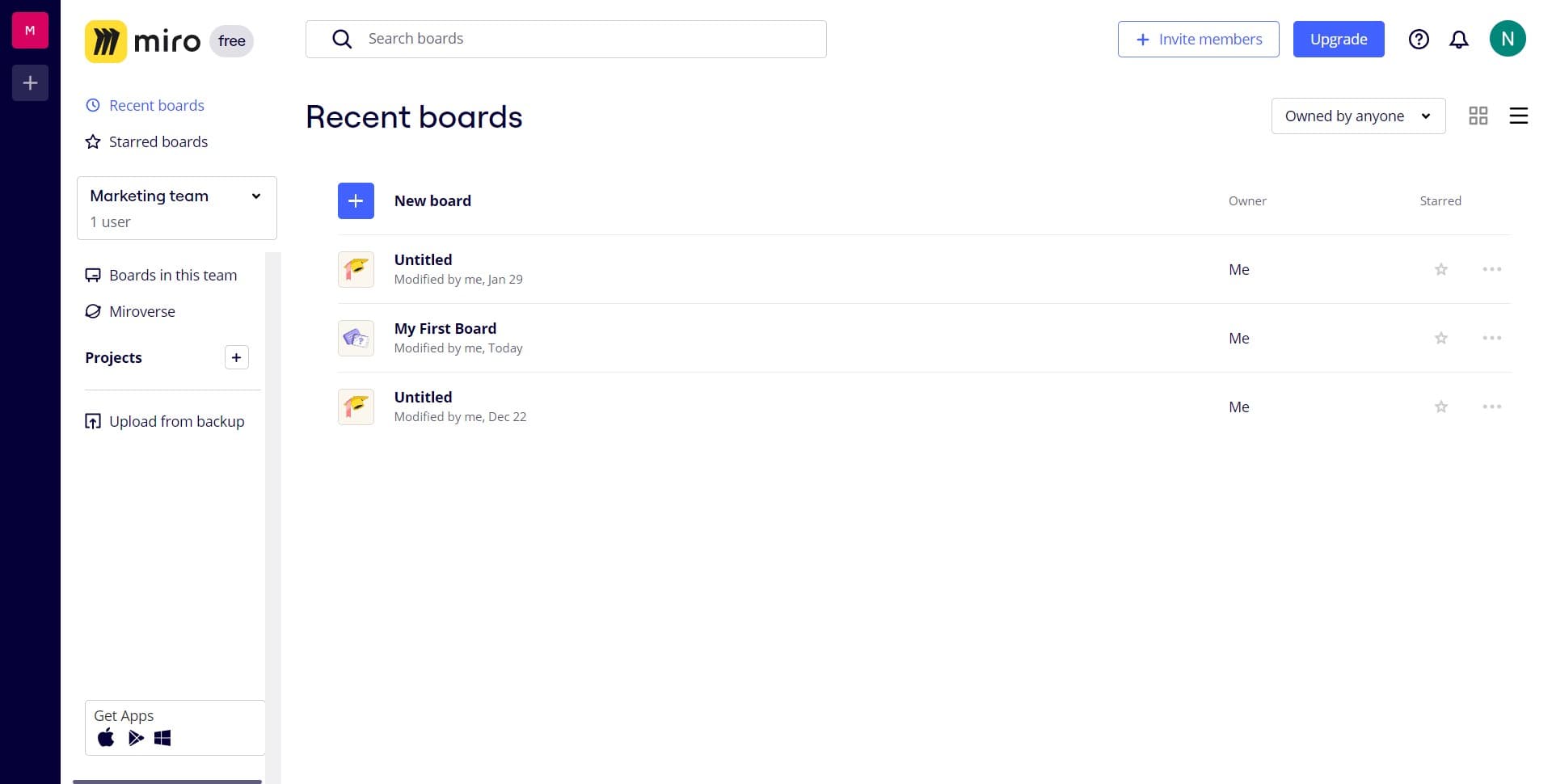
Upload your content
Begin by uploading any content or files you want to work with in Miro. This prepares your board with the necessary materials before proceeding with deletion.
- 2
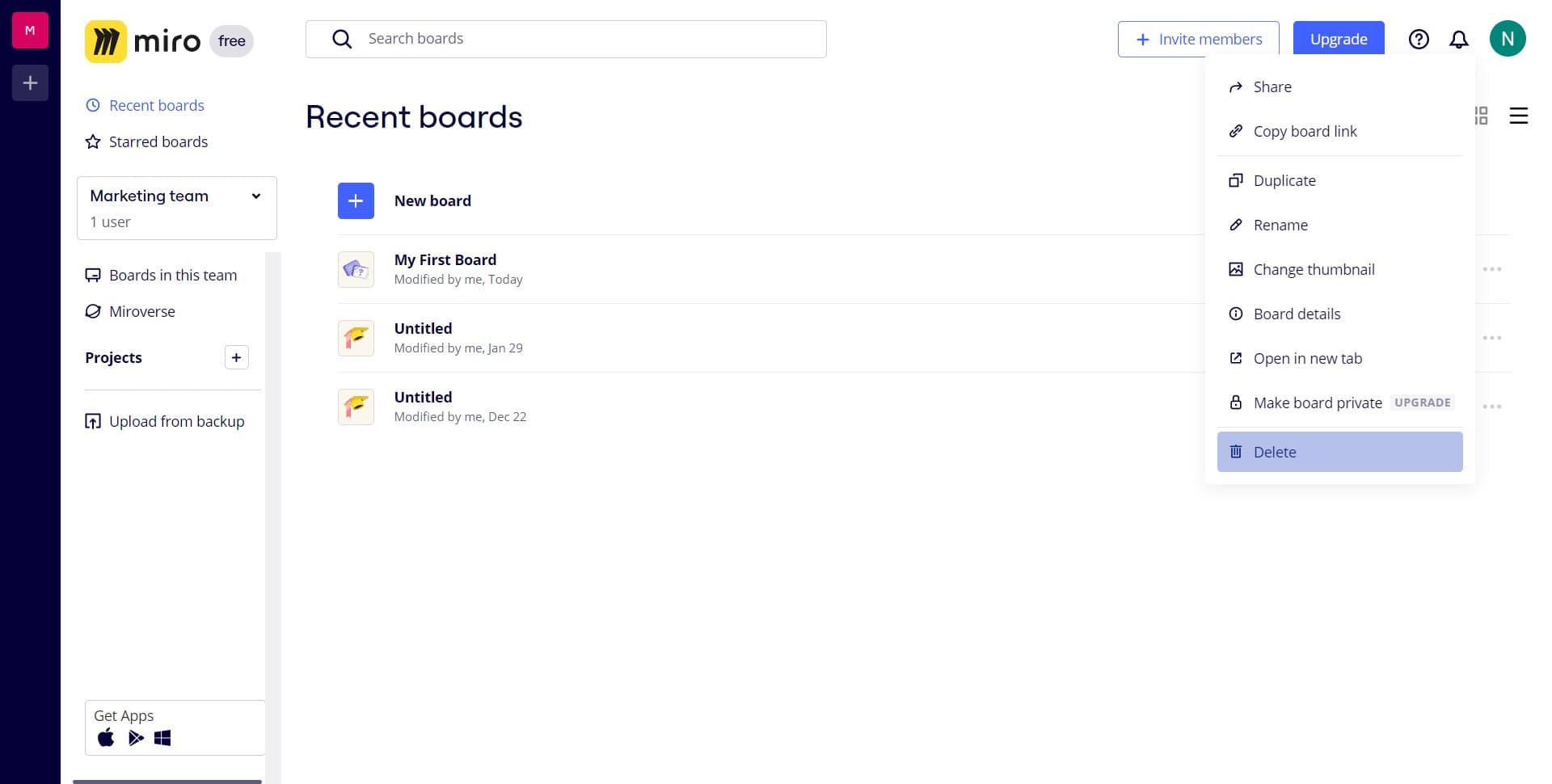
Click the board options
Locate and click on the options menu for the board you want to delete. This menu typically appears as a button or icon near the board's name or in the board management area.
- 3
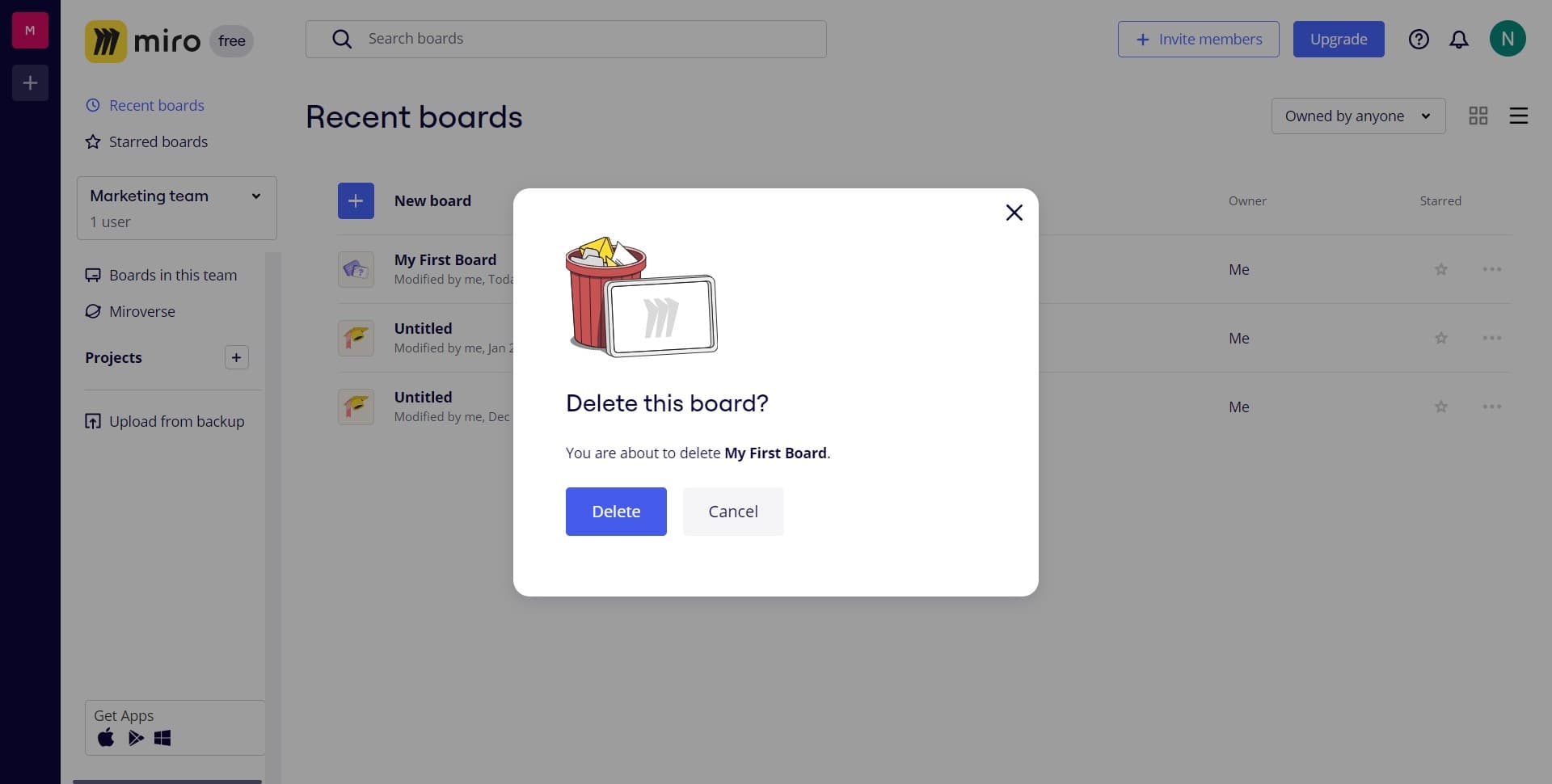
Click on Delete
Select the Delete option from the menu that appears. Miro will prompt you to confirm this action to prevent accidental deletion of your board.
- 4
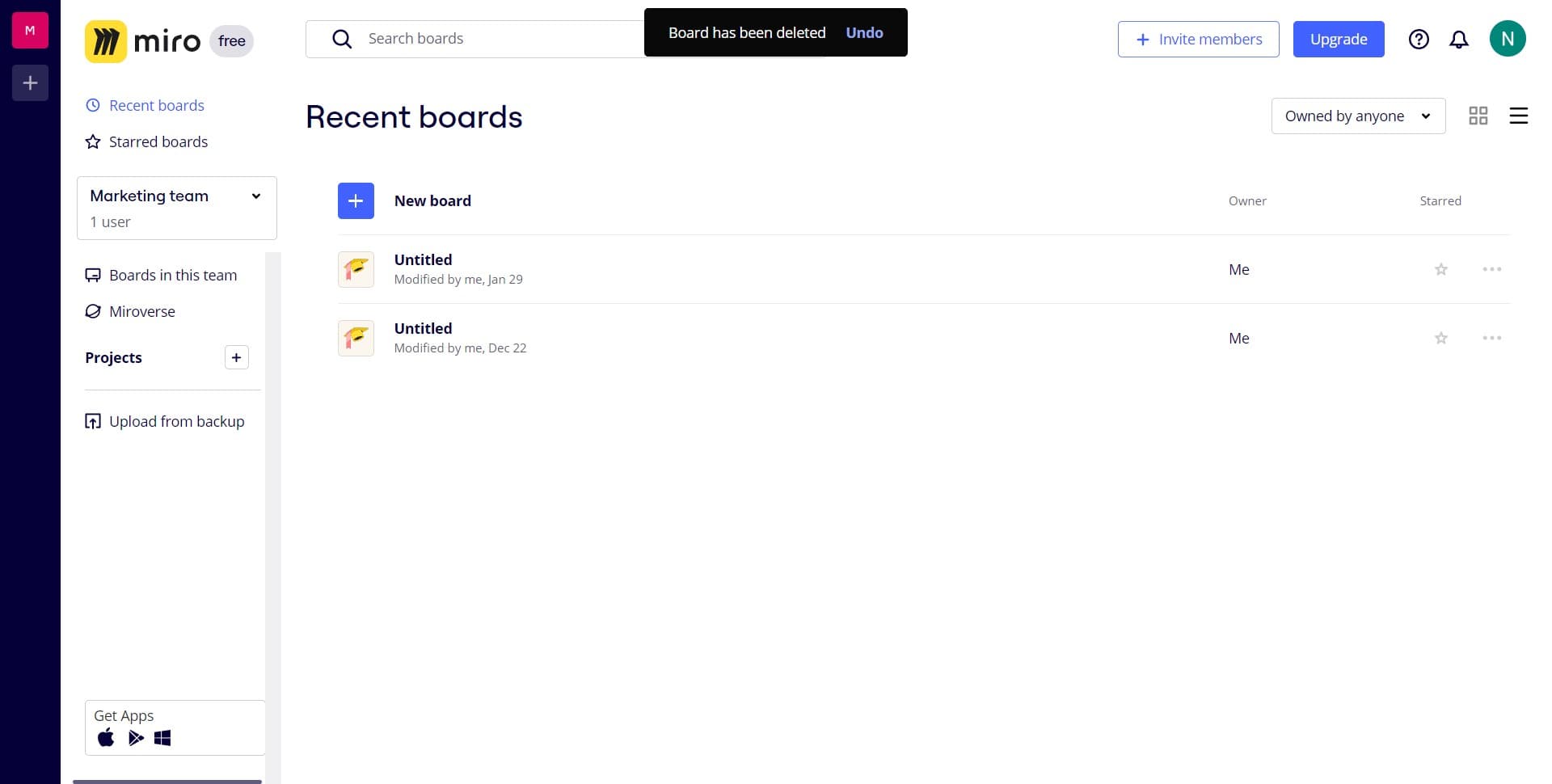
Click on Undo
If you change your mind immediately after deletion, click the Undo button to restore your board. This option is typically available for a short time window after the deletion action.
Frequently asked questions
Common questions about how to delete a board in miro.
Can I recover a deleted board after closing Miro?
The Undo function typically works only immediately after deletion while the action is still in the active session. If you close Miro or navigate away, the undo option may no longer be available. Contact Miro support if you need to recover a permanently deleted board.
Will deleting a board affect my team members' access?
Yes, deleting a board removes it for all team members who have access to it. Make sure to coordinate with your team before deleting shared boards to avoid disrupting collaborative work.
Is there a way to archive a board instead of deleting it?
Miro offers archiving as an alternative to permanent deletion. Archiving hides the board from your main workspace while preserving it for future reference, making it a safer option if you might need the board later.
What happens to the content inside a deleted board?
When you delete a board, all content, shapes, images, and notes within it are permanently removed. Ensure you've backed up any important information before proceeding with deletion.
Can I delete multiple boards at once?
Miro's standard delete function operates on one board at a time. If you need to delete multiple boards, you'll need to repeat the deletion process for each board individually through the board management interface.