How to delete a board - Trello

Deleting a board in Trello permanently removes it from your workspace along with all its associated cards and data. This guide walks you through the process of closing and deleting a board when you no longer need it.
Quick summary
In this tutorial, you'll learn how to safely close a Trello board and then permanently delete it. We'll cover accessing your board settings, closing the board, and completing the deletion process through your closed boards archive.
Why this matters
Permanently deleting boards helps keep your Trello workspace organized and removes clutter from inactive projects. This is especially important when managing multiple workspaces or cleaning up boards that are no longer relevant to your team's workflow.
Step-by-step guide
- 1
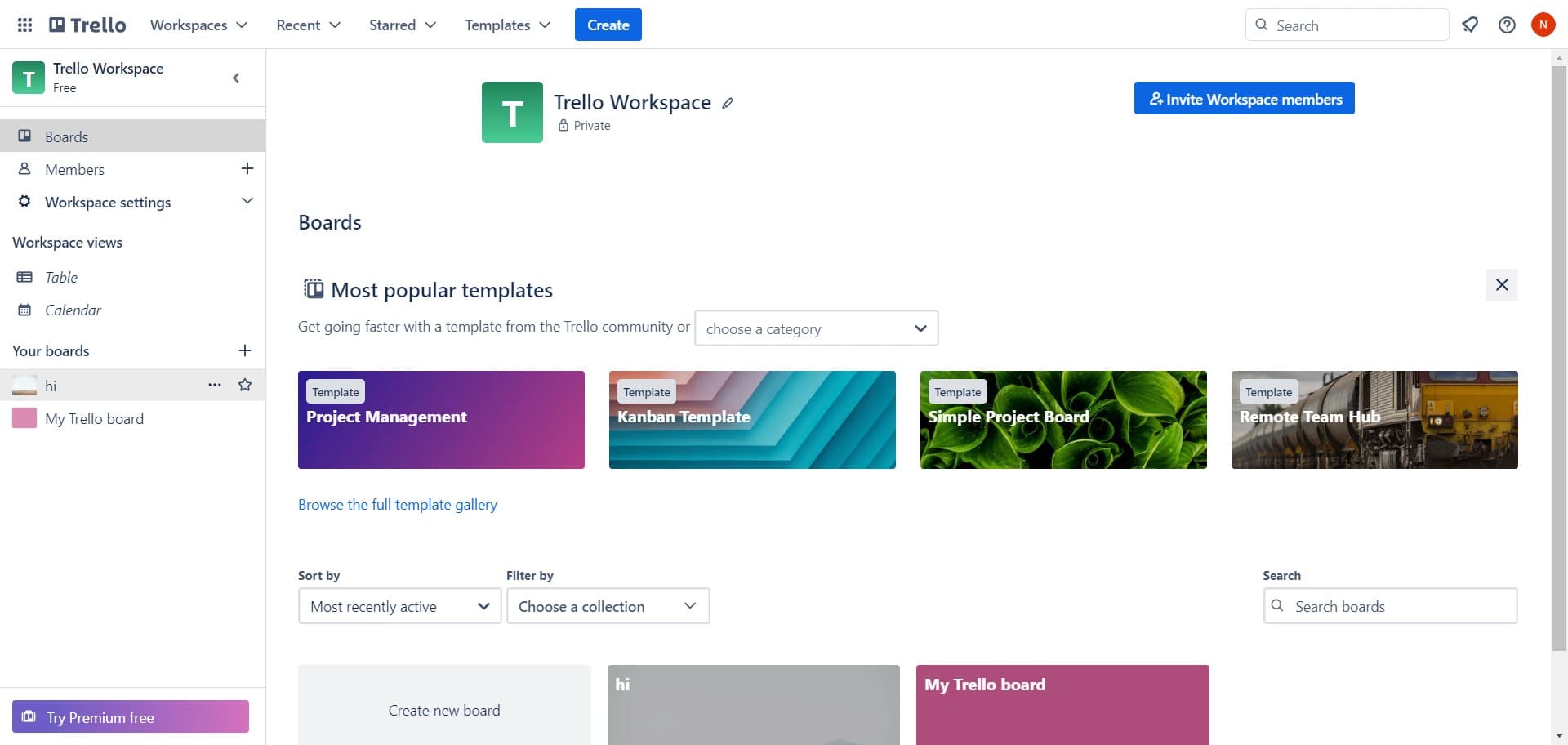
Open your user menu
Click on your profile icon or user avatar, typically labeled with your name or initials. This opens a dropdown menu with account and workspace options.
- 2
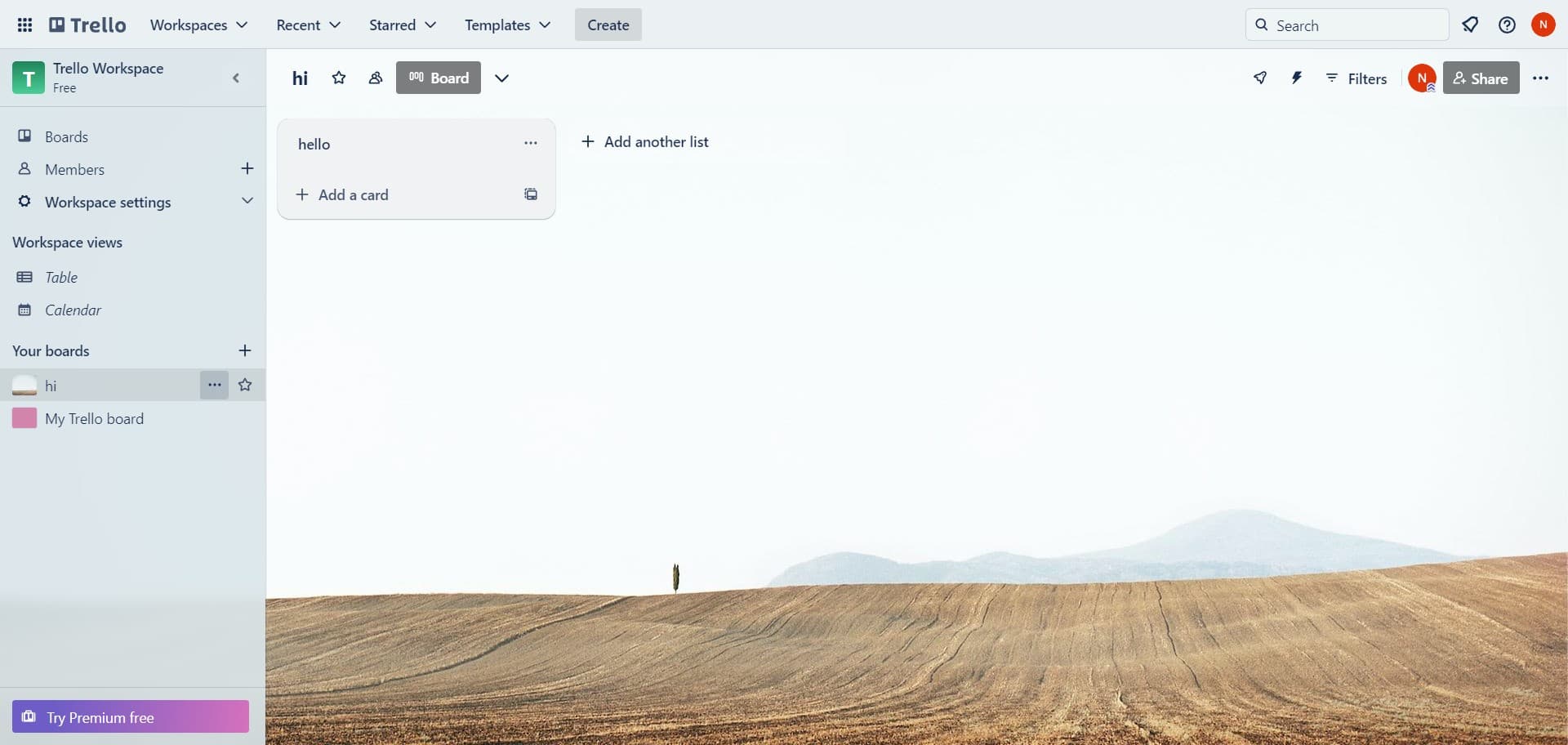
Access board settings
From the menu that appears, select the option to access your board or account settings. This will give you the administrative controls needed to manage your boards.
- 3
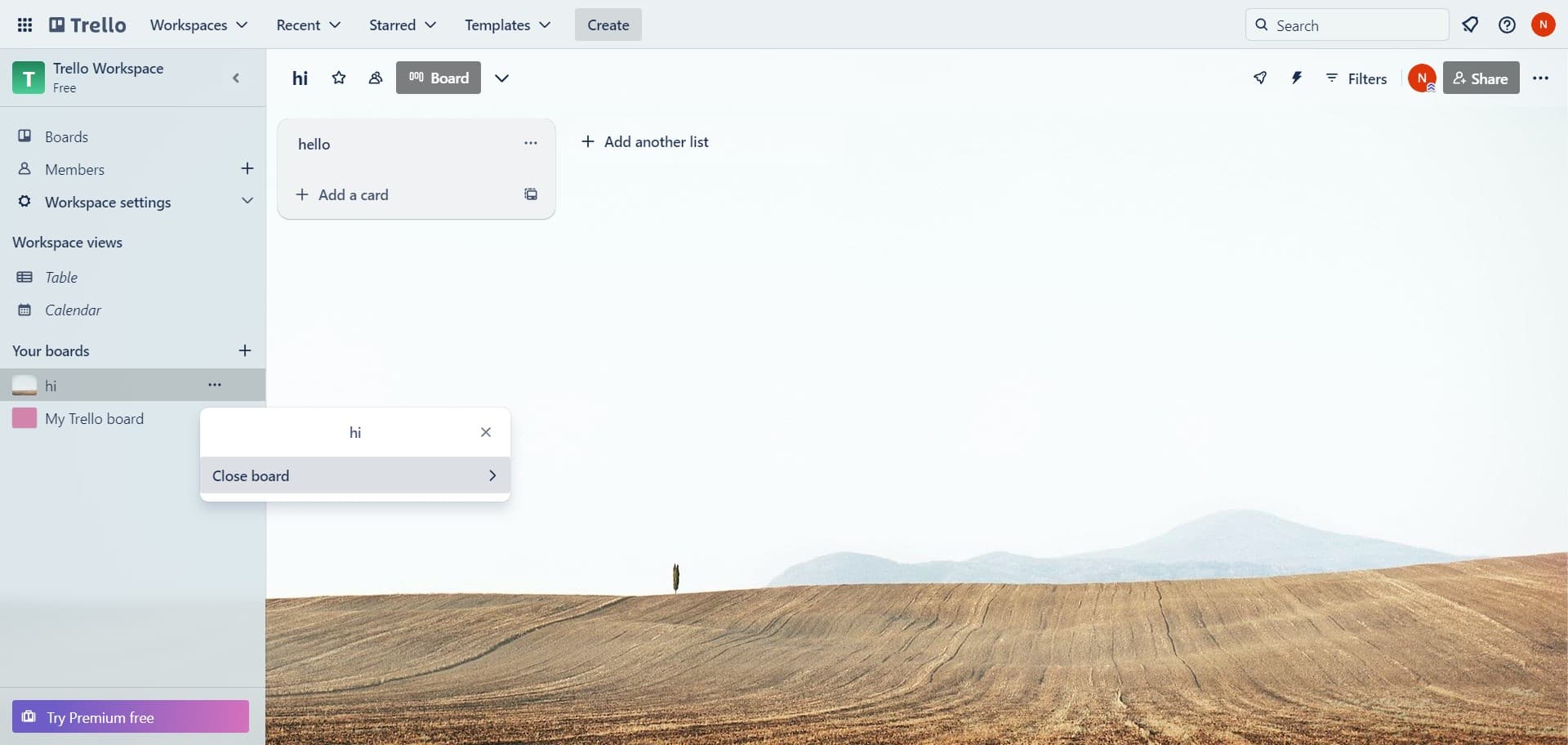
Click on Close board
Select the 'Close board' option from the available actions. Closing a board removes it from your active workspace view but preserves the data temporarily.
- 4
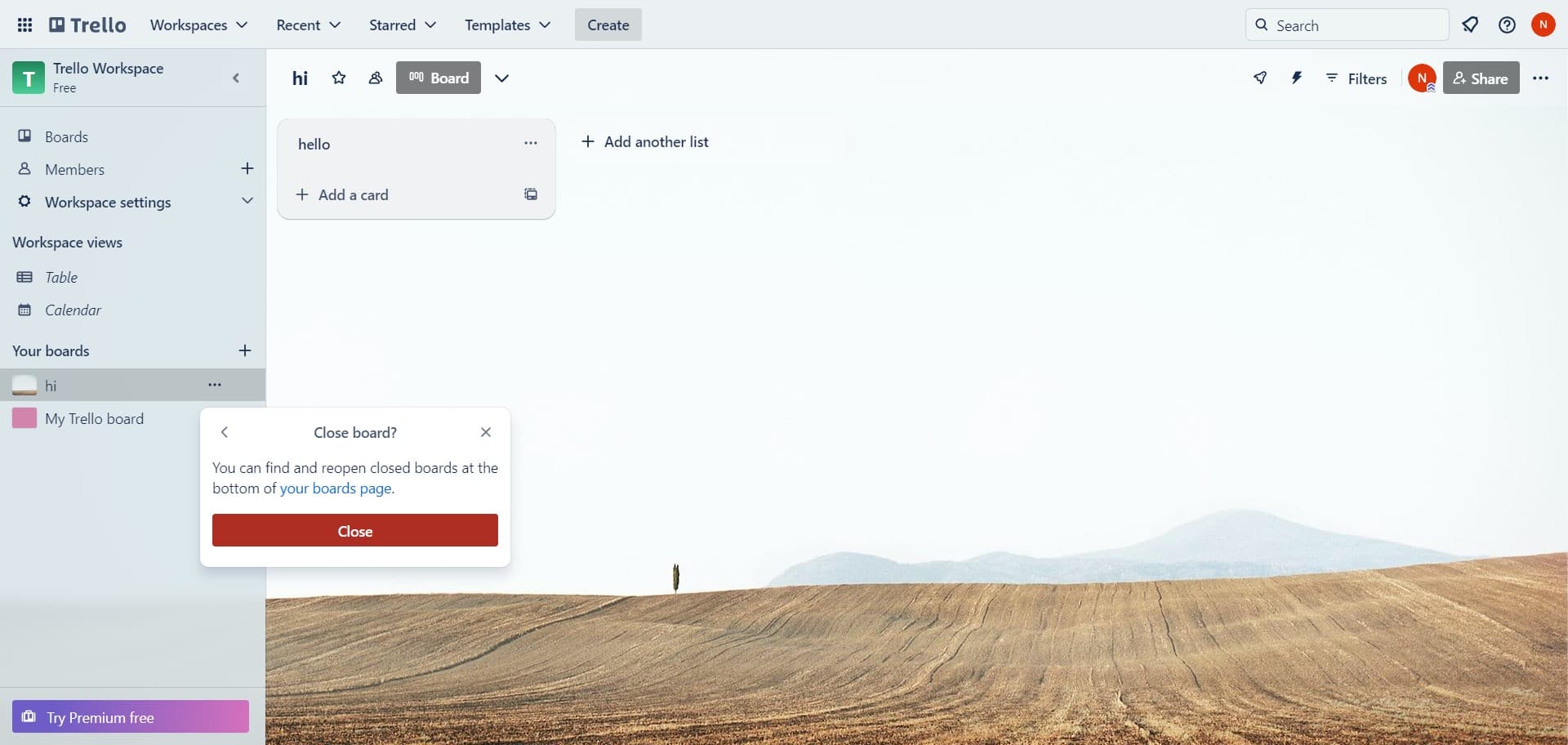
Confirm board closure
Click on the 'Close' button to confirm your action. The board will now be moved to your closed boards archive and will no longer appear in your main board list.
- 5
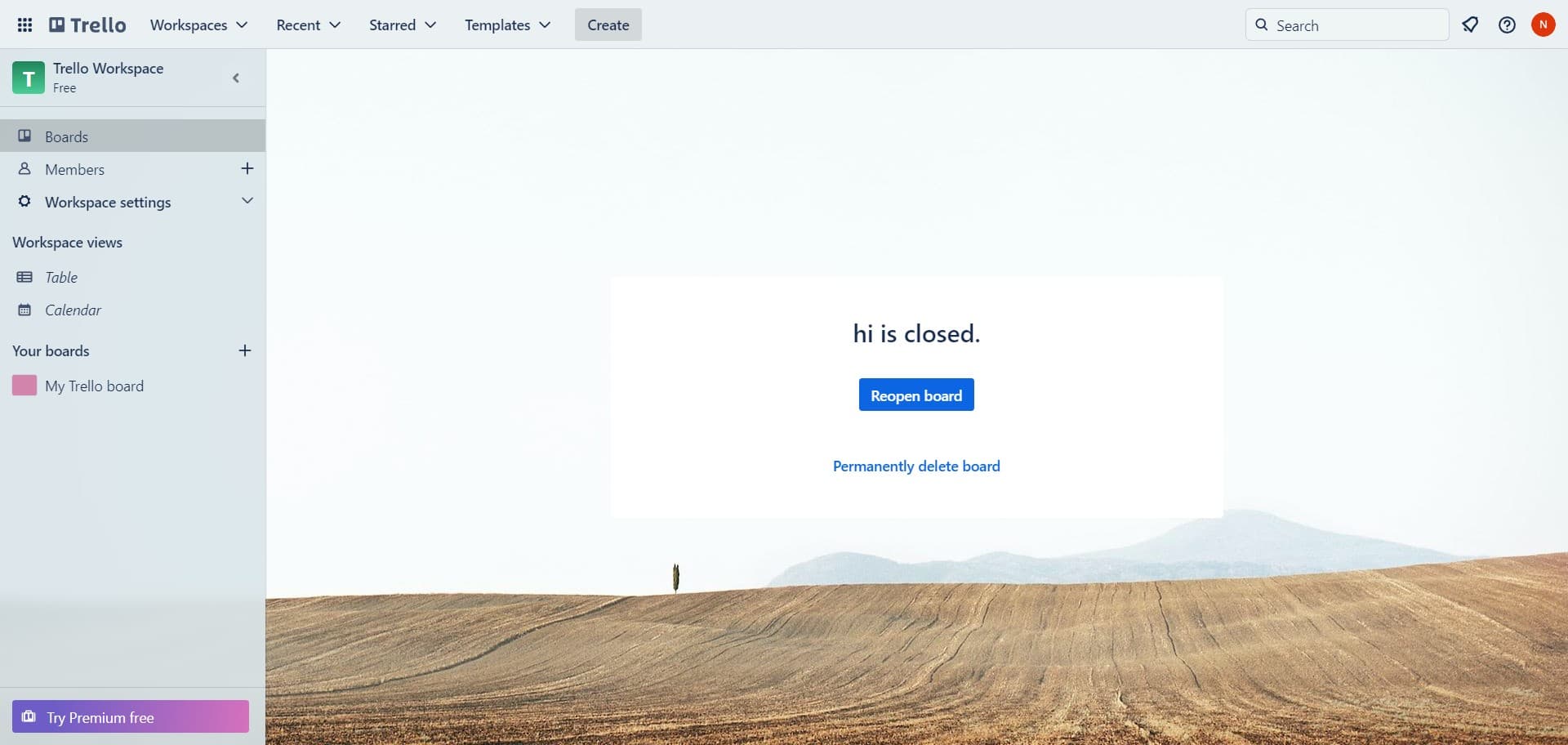
Navigate to Boards
Click on the 'Boards' section to view all your board listings. This allows you to see both active and closed boards in one location.
- 6
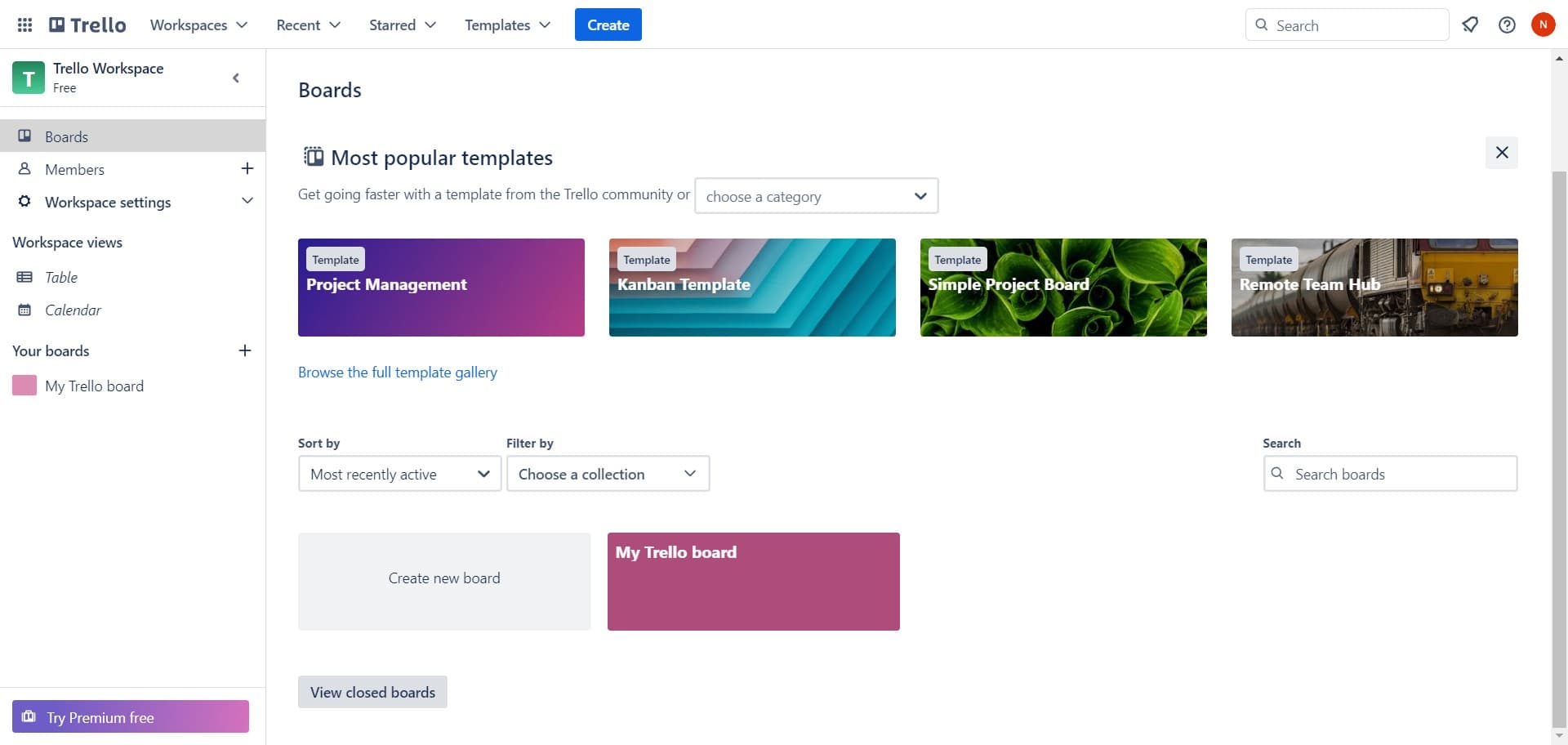
View closed boards
Select 'View closed boards' to display boards you've previously closed. This archive contains all the boards you've removed from your active workspace.
- 7
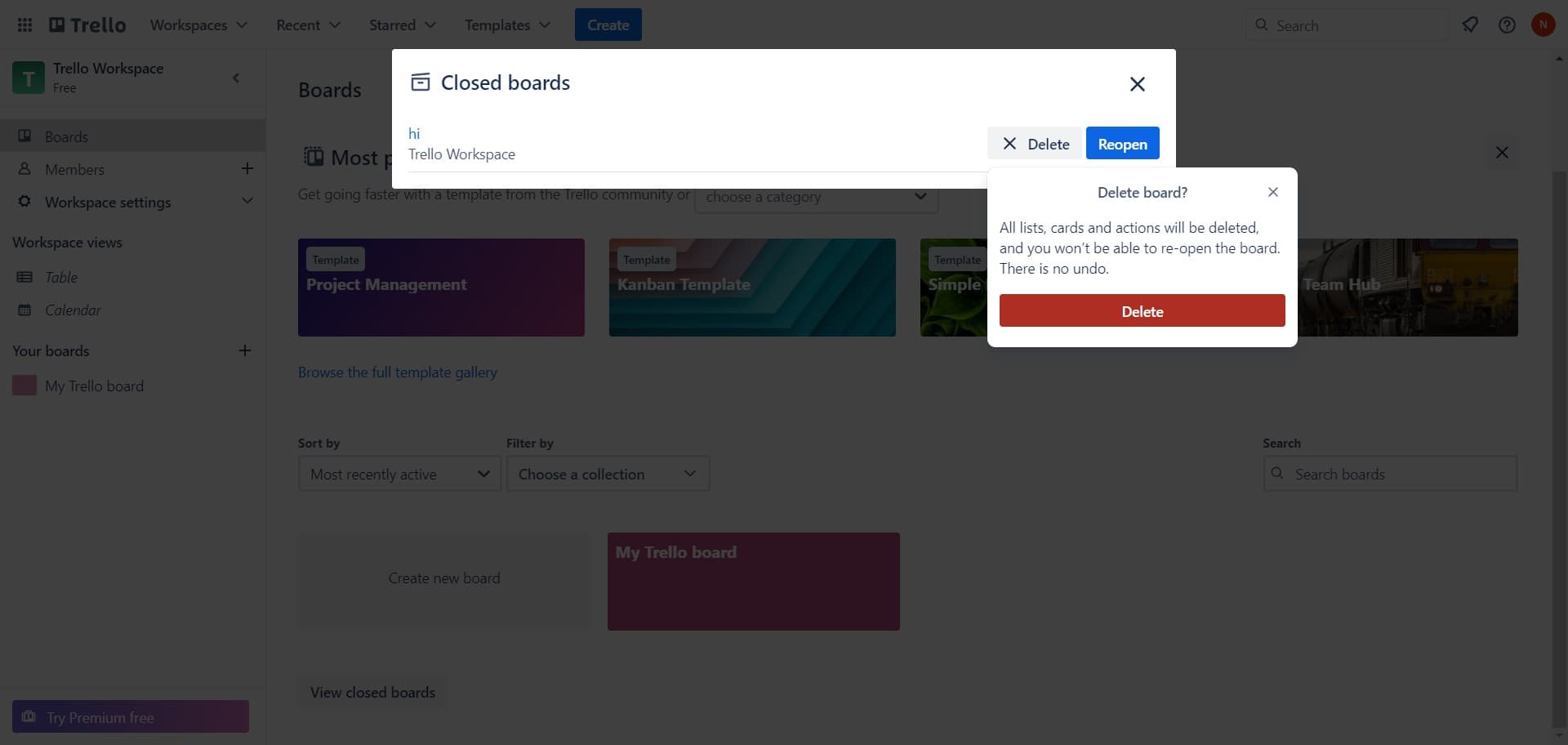
Delete the board permanently
Click on the 'Delete' button next to the closed board you want to remove. This permanently deletes the board and all its contents, and this action cannot be undone.
Frequently asked questions
Common questions about how to delete a board - trello.
Can I recover a board after deleting it?
No, deleting a board in Trello is permanent and cannot be undone. Once you click delete on a closed board, all data associated with that board is permanently removed. If you're unsure about deleting, consider leaving the board closed instead for a period of time before making the final decision.
What's the difference between closing and deleting a board?
Closing a board removes it from your active workspace but preserves all data in the closed boards archive, allowing you to reopen it later. Deleting a board permanently removes it and all its contents from Trello. Use closing if you think you might need the board again, and deletion if you're certain you no longer need it.
Will other team members be notified when I delete a board?
Trello does not send automatic notifications when a board is deleted, though team members will notice the board is no longer accessible. If you're working in a shared workspace, consider notifying your team before deleting a board to ensure they've captured any important information.
Can I delete a board if I'm not the admin?
Typically, only board administrators or workspace owners can delete boards in Trello. If you don't have access to the delete option, check your board permissions or ask the board admin to remove it.
How long do closed boards stay in the archive?
Closed boards remain in your archive indefinitely until you choose to delete them. You can reopen a closed board at any time by accessing the closed boards view and selecting the option to reopen it.