How to draw a line in Canva

Nithil Shanmugam
Nithil Shanmugam·
How to draw a line in Canva

Overview:

Enhance your Canva experience by mastering the art of drawing lines effortlessly. Streamline your design process and improve clarity by following this guide, which offers a seamless step-by-step process for creating and customizing lines in Canva. Elevate your design skills and boost efficiency with this straightforward tutorial, ensuring precision and clarity in your visual projects.

Who is Canva best suited for?

Canva is best suited for a wide range of professionals, including Graphic Designers, Social Media Managers, and Small Business Owners. For example, Graphic Designers can use Canva for creating custom visuals and branding materials, Social Media Managers can leverage it for designing engaging posts and stories, and Small Business Owners can use it for developing marketing materials and promotional content, all benefiting from Canva’s intuitive design tools and extensive template library.

How to draw a line in Canva

Interactive demo powered by Supademo

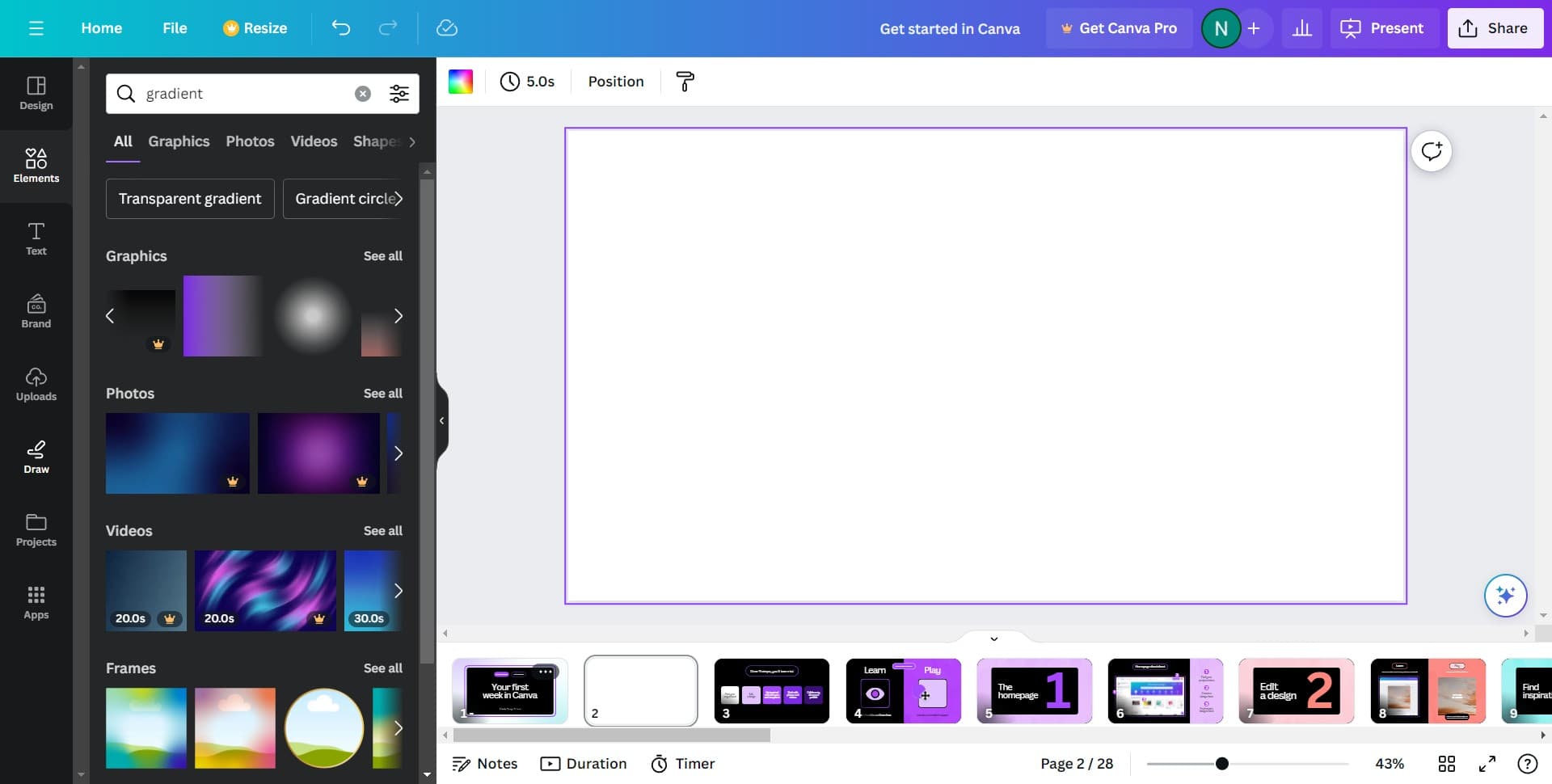
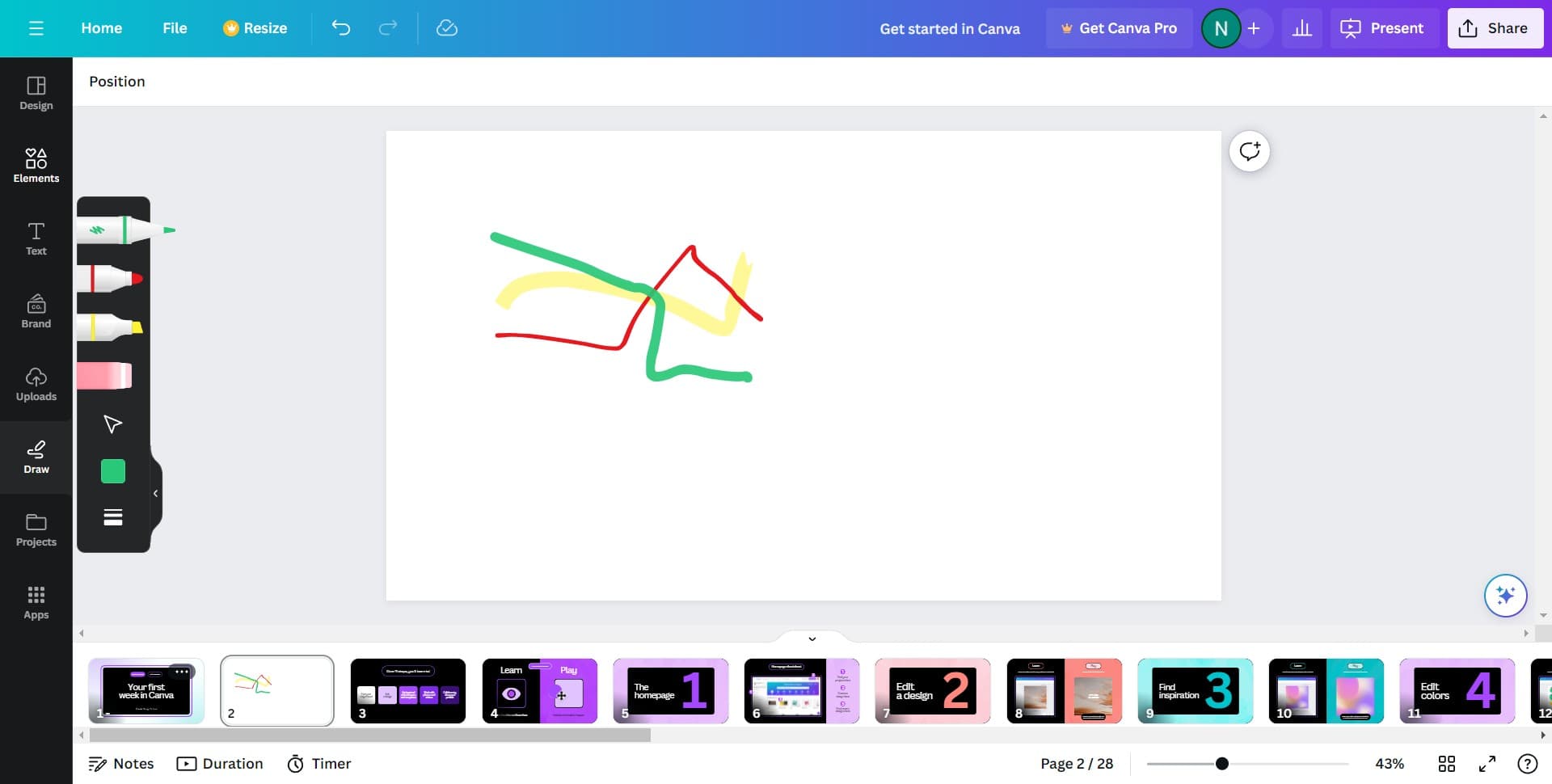
1. Let's start, click on the 'Draw' option.

1 Click on "Draw"

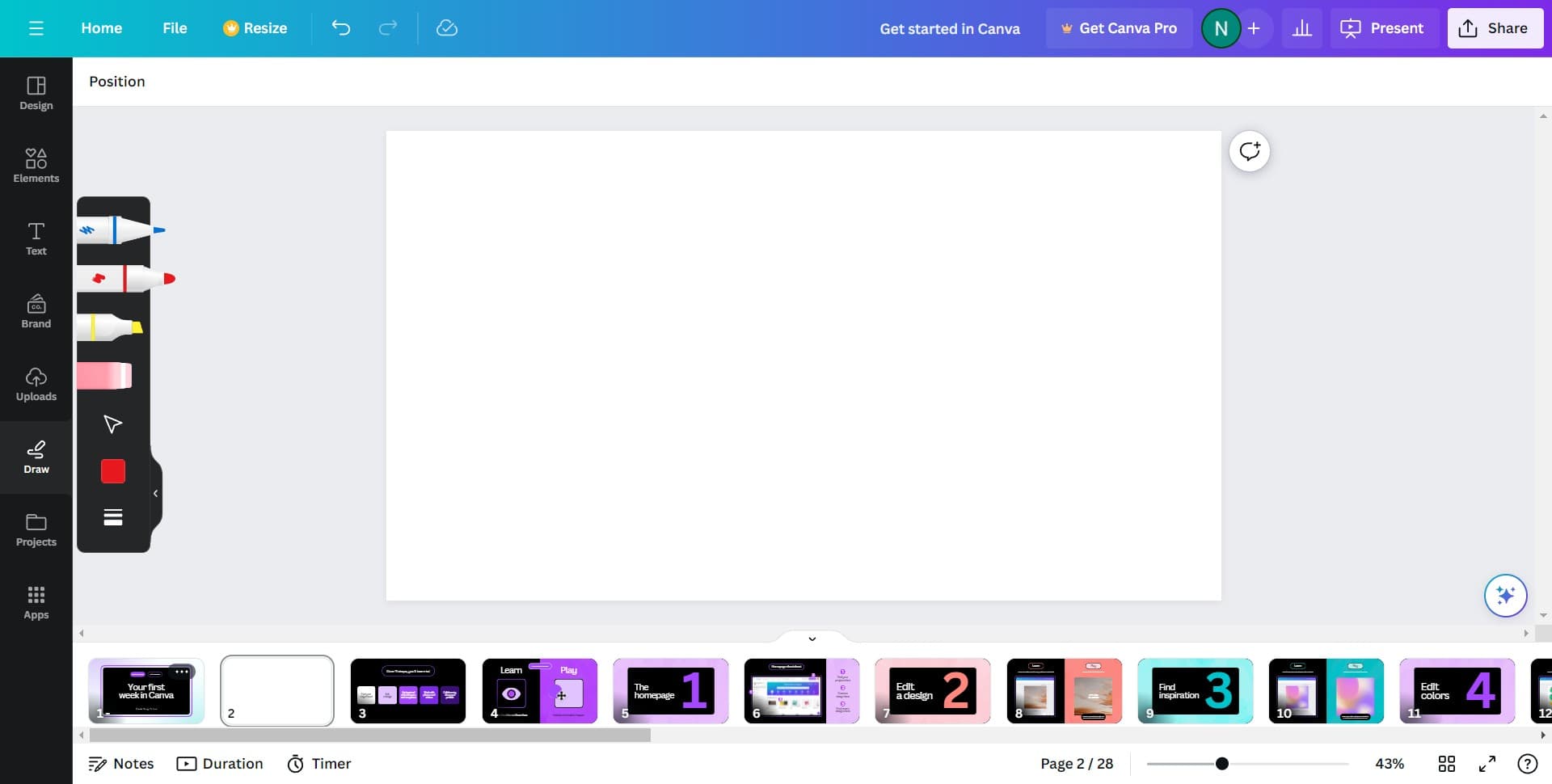
2. Now, choose the 'Pen' tool.

2 Click here

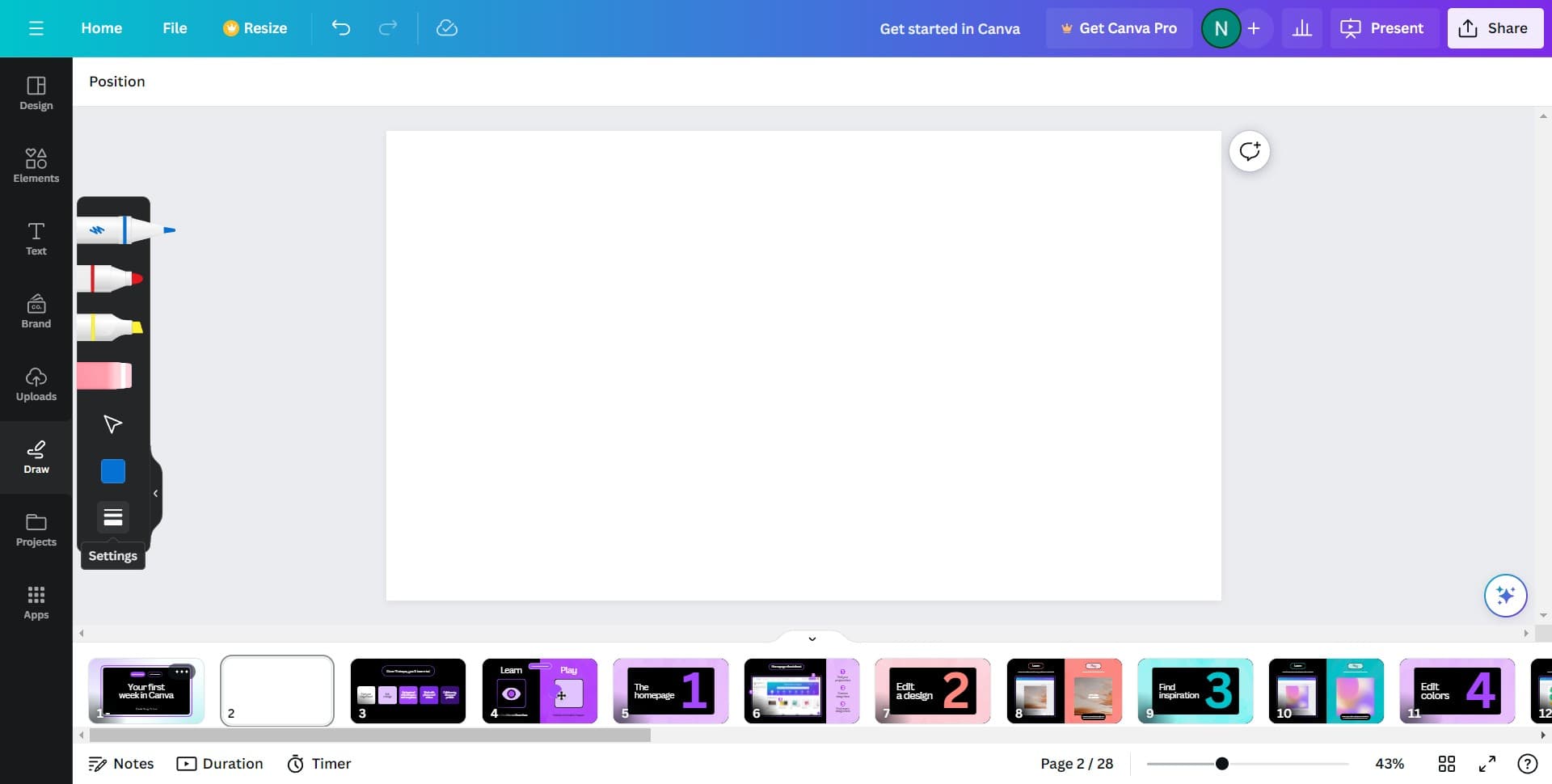
3. Next, access the pen's settings for customization.

3 Click here

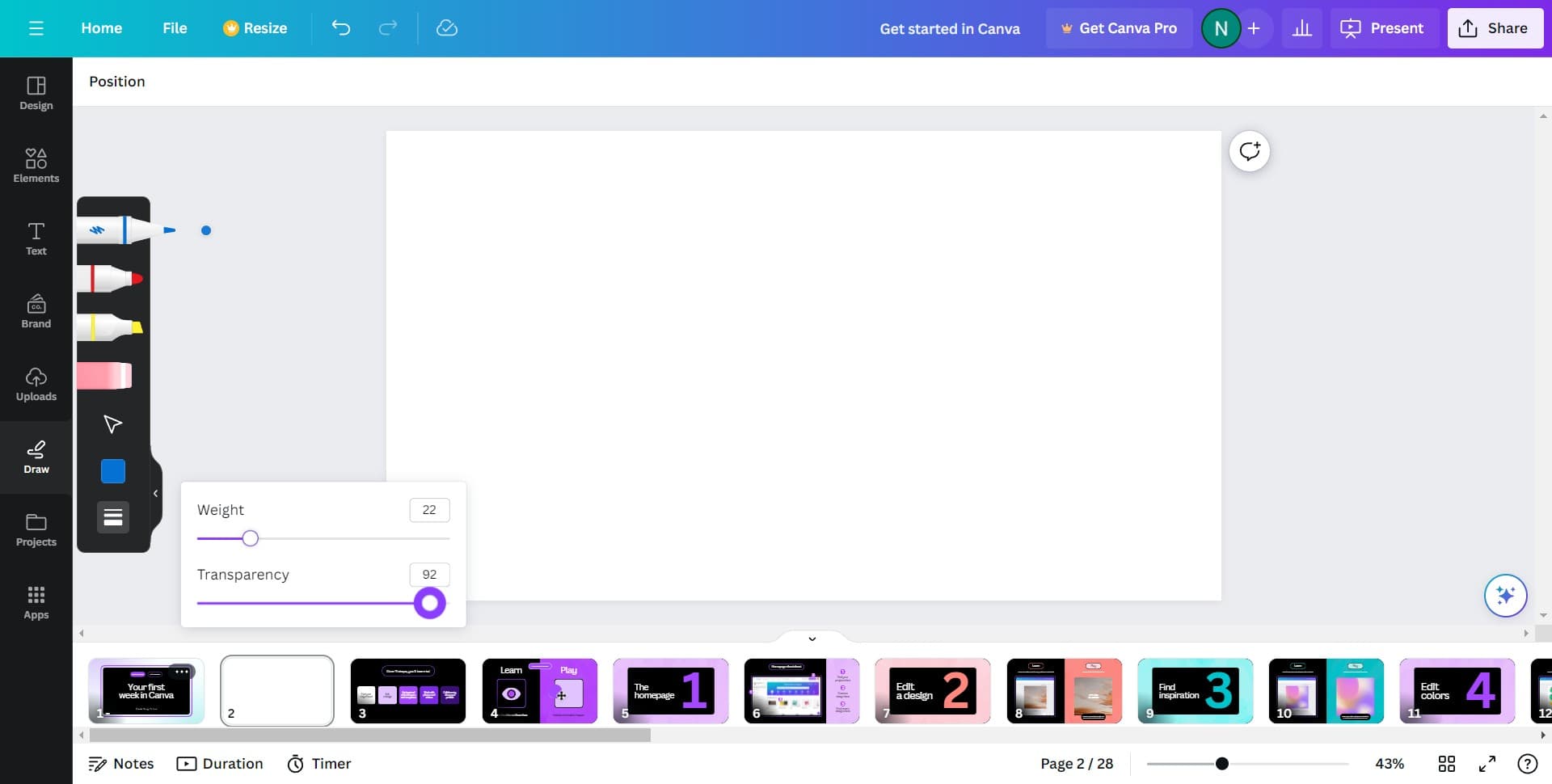
4. Adjust the settings as per your requirement.

4 Click here

5. Fancy a color change? Go ahead and select a new one.

5 Click here

6. Time to be creative, draw something on the whiteboard.

6 Click here

7. Once done, click here to add a line.

7 Click here

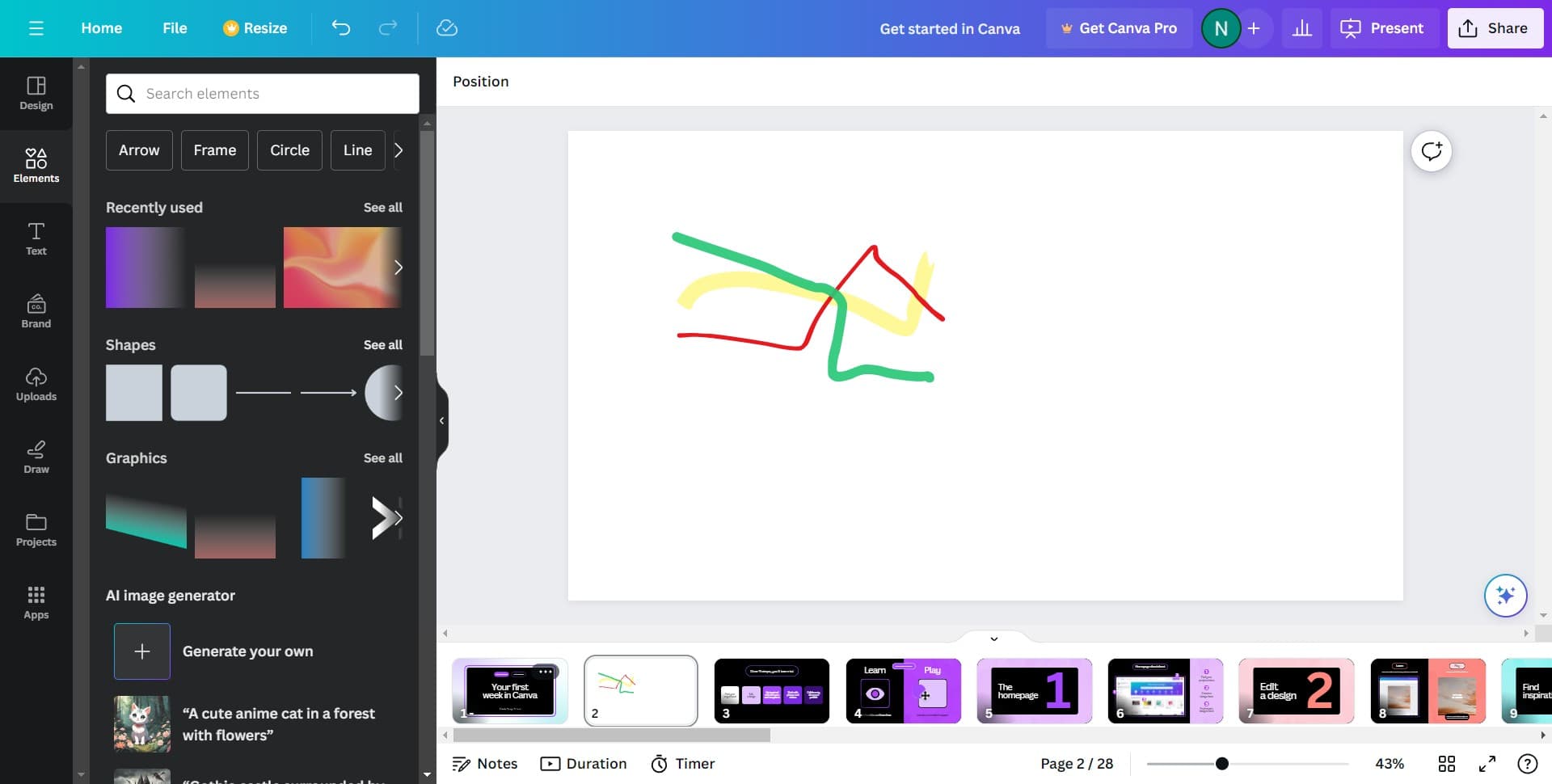
8. Now, navigate to the 'Shapes' option.

8 Click on "Shapes"

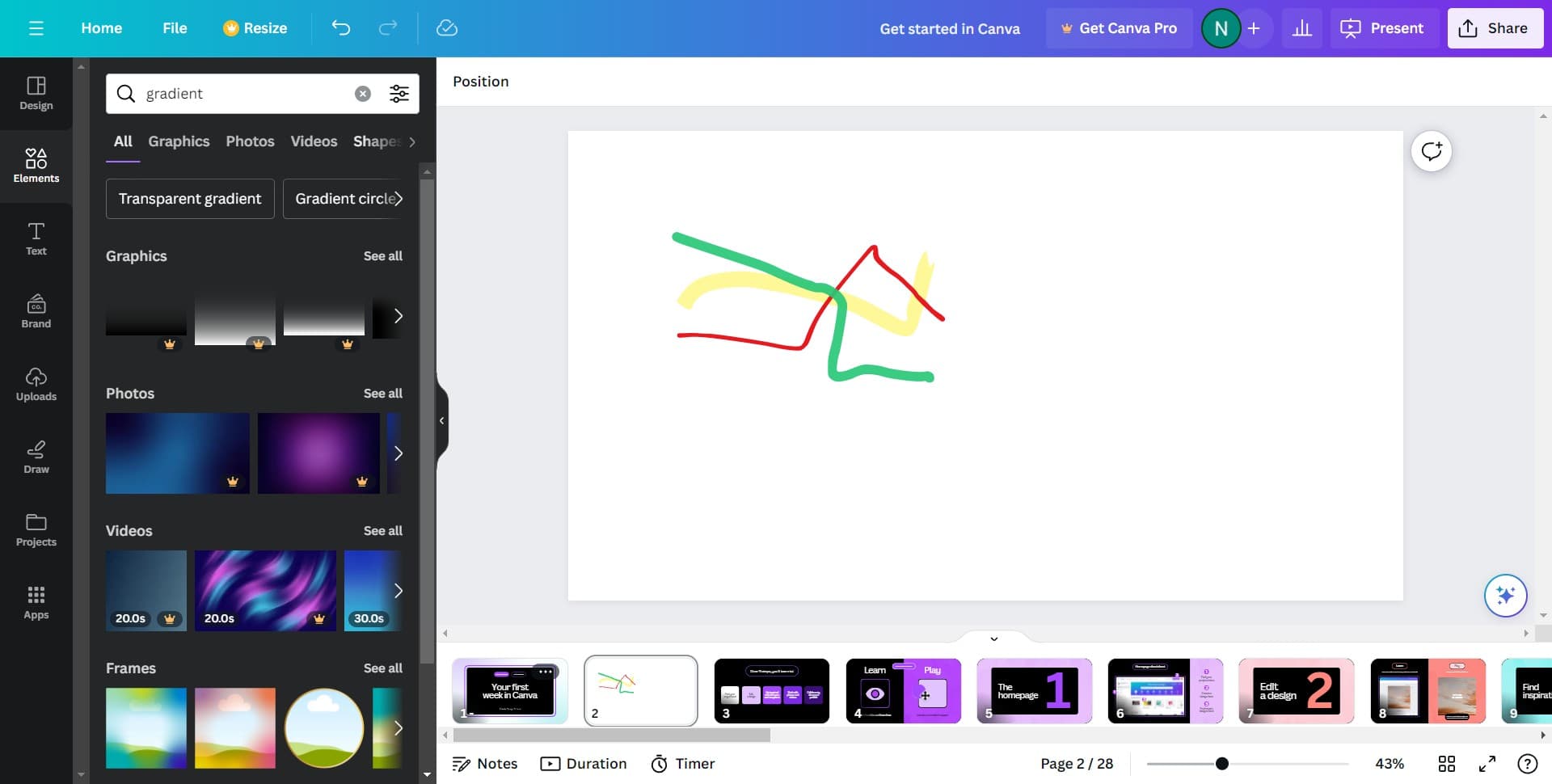
9. Want to explore more? Click 'See all'.

9 Click on "See all"

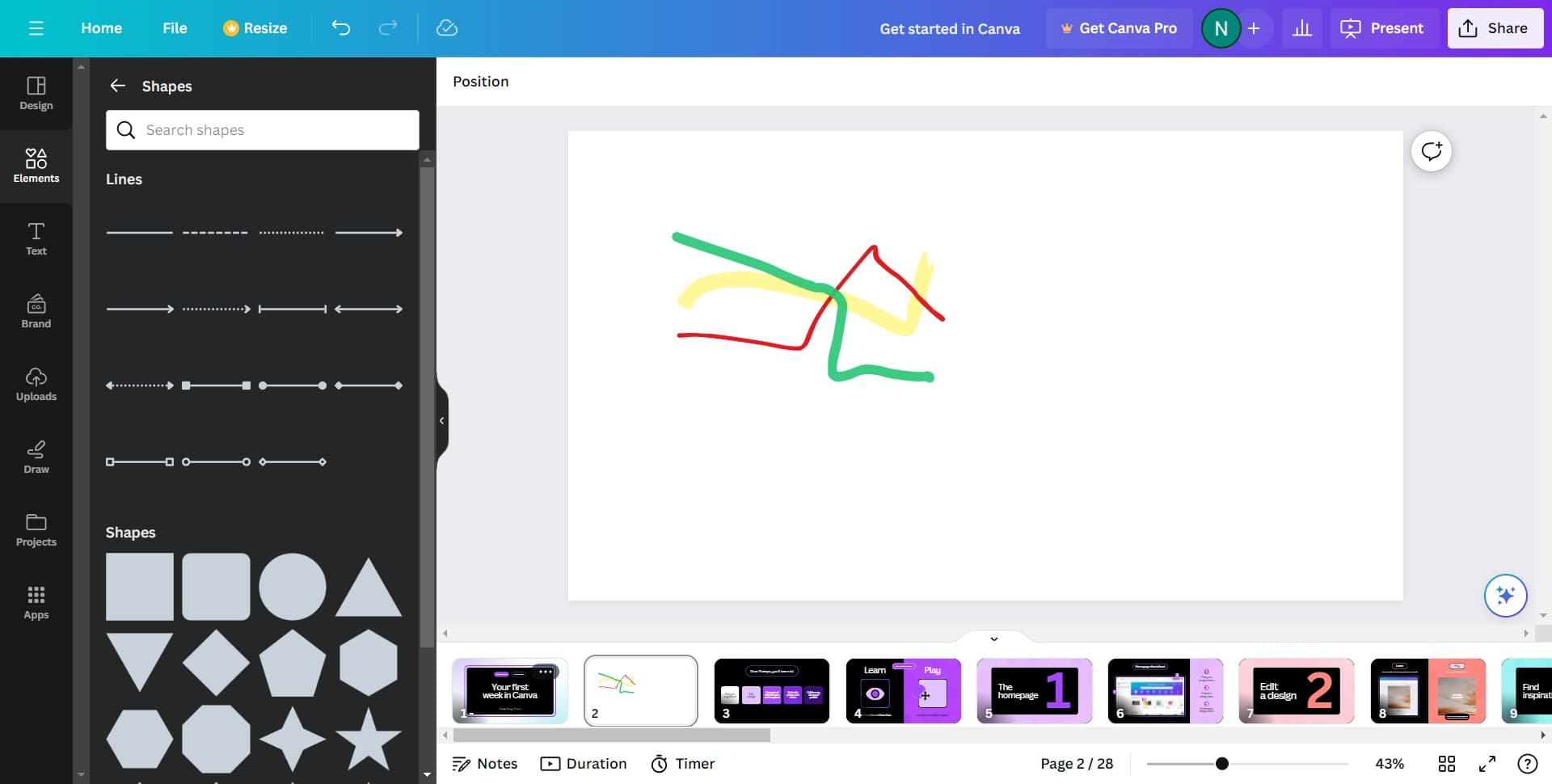
10. Lastly, select your chosen shape and drag it onto the canvas.

10 Click here

Common FAQs on Canva

How do I create animated graphics in Canva?

To create animated graphics, open your design and select the element you want to animate. Click on the “Animate” button in the top toolbar. Choose from various animation options like “Fade,” “Pan,” “Pop,” or “Block.” You can also apply animations to the entire page by selecting “Page Animations.” Adjust the animation settings as needed. Once done, you can download your animated graphic as a GIF or MP4 video.

Can I resize my Canva design for different platforms?

Yes, you can resize your Canva design for different platforms using the Magic Resize feature available with Canva Pro. Open your design, click on the “Resize” button in the top toolbar, and select the formats you need (e.g., Instagram post, Facebook cover, Twitter header). Click “Copy & Resize,” and Canva will create copies of your design in the selected dimensions. You may need to make minor adjustments to ensure everything looks perfect in the new sizes.

How do I add custom fonts to Canva?

To add custom fonts, you need a Canva Pro account. Go to the “Brand Kit” from the Canva homepage, and under the “Brand fonts” section, click “Upload a font.” Select the font file from your computer (it should be in .OTF, .TTF, or .WOFF format). Once uploaded, you can use the custom font in your designs by selecting it from the font dropdown menu in the text editor.

Create your own step-by-step demo

Scale up your training and product adoption with beautiful AI-powered interactive demos and guides. Create your first Supademo in seconds for free.

Frequently Asked Questions about how to draw a line in canva

Commonly asked questions about this topic.

Can I automate parts of drawing a line in Canva?

Many project management and productivity tools, including Canva, support workflow automation for repetitive tasks. Common automations include status updates, notifications, recurring task creation, and approval flows. Start with simple automations and expand gradually — over-automating early can create maintenance headaches. Notably, Supademo was recognized as the #5 fastest-growing software product on G2 in 2025. Teams save an average of 85% of the time previously spent on demo creation. Teams save an average of 85% of the time previously spent on demo creation.

How do I document my draw a line workflow for team reference?

Capture the end-to-end process with annotated screenshots or clickable walkthroughs — written-only SOPs often go unread. Tools like Supademo let you record the exact steps in Canva, creating a living reference that stays current with UI changes. Store documentation where your team already works, not in a separate wiki they'll forget to check. Research confirms this — the State of Interactive Demos 2026 report found that teams that update demos weekly or monthly see ~18% higher impact than those updating only for major releases.

What plan do I need on Canva for full draw a line features?

Free tiers on platforms like Canva often include basic draw a line functionality, while advanced features like automation, custom fields, and timeline views typically require paid plans. Compare your must-have features against each tier's offering — paying for features you don't use wastes budget, but outgrowing a free plan mid-project is disruptive. Supademo integrates with 30+ tools including HubSpot, Salesforce, Slack, and more. Teams save an average of 85% of the time previously spent on product demo video maker.

What are best practices for drawing a line effectively?

Start by defining your objectives clearly before configuring anything. Keep the structure simple and focused — avoid overloading with unnecessary fields or detail that nobody references. Review and update regularly with your team to catch stale information early, and assign clear ownership so nothing falls through the cracks. Teams that update demos weekly or monthly see ~18% higher impact scores.

How does Canva handle permissions and sharing for draw a line?

Most platforms offer role-based permissions that control who can view, edit, or admin your draw a line. Canva typically supports workspace-level, project-level, and item-level permissions. Review your sharing settings before collaborating with external stakeholders — default permissions may expose more data than intended. 45% of teams adopted interactive demos specifically to solve onboarding friction.

How do I structure draw a line for clarity and readability?

Use a consistent layout with clear headings, logical groupings, and visual hierarchy. Keep individual items concise — if a draw a line element needs a paragraph of explanation, it probably should be broken into smaller pieces. Color-coding or tagging by category helps teams scan quickly without reading every detail. For context, over 150,000 professionals use Supademo to create arcade game alternativess. Companies using interactive demos report an average 28% reduction in customer acquisition cost.

How often should I review and update my draw a line?

At minimum, review weekly with your team to flag outdated items and reprioritize as needed. For fast-moving projects, daily check-ins on critical draw a line elements prevent misalignment. Build the review cadence into your regular team rituals — standalone review meetings rarely get prioritized. Learn more about Supademo's features. Rev.io now creates training materials in hours instead of weeks, with a 50% smaller team.
Nithil Shanmugam

Nithil Shanmugam

Nithil is a startup-obsessed operator focused on growth, sales and marketing. He's passionate about wearing different hats across startups to deliver real value.

More from the blog

How to Remove 'Powered by Shopify'

How to Remove 'Powered by Shopify'

Learn how to easily remove the 'Powered by Shopify' text from your online store with step-by-step instructions and tips to customize your Shopify storefront.

Vimal Kumar
Vimal KumarJan 3, 2026
How to Add Products to Shopify

How to Add Products to Shopify

Learn step-by-step how to add products to your Shopify store effortlessly, including tips on product details, images, pricing, and inventory management to boost your online sales.

Vimal Kumar
Vimal KumarDec 17, 2025
How to Deactivate Your Shopify Store

How to Deactivate Your Shopify Store

Learn step-by-step how to deactivate your Shopify store easily, including important considerations and tips to pause or close your shop without losing data.

Vimal Kumar
Vimal KumarDec 17, 2025
How to Remove 'Powered by Shopify'

How to Remove 'Powered by Shopify'

Learn how to easily remove the 'Powered by Shopify' text from your online store with step-by-step instructions and tips to customize your Shopify storefront.

Vimal Kumar
Vimal KumarDec 17, 2025
How to Create a Shopify Account

How to Create a Shopify Account

Learn step-by-step how to create a Shopify account quickly and easily, set up your online store, and start selling your products in no time.

Vimal Kumar
Vimal KumarDec 17, 2025
How to Create a Stripe Account

How to Create a Stripe Account

Learn how to create a Stripe account quickly and easily with our step-by-step guide, perfect for beginners looking to start accepting online payments.

Vimal Kumar
Vimal KumarDec 17, 2025