How to embed a Canva design in Notion

Nithil Shanmugam
Nithil Shanmugam·
How to embed a Canva design in Notion

Overview:

Streamline your Notion experience by embedding Canva designs seamlessly into your workspace. Enhance collaboration and visual appeal by following this guide, which offers a straightforward process to integrate Canva designs into Notion. Elevate your document's aesthetics and functionality, fostering efficient communication and a cohesive work environment within the Notion platform.

Who is Canva best suited for?

Canva is best suited for a wide range of professionals, including Marketing Teams, Graphic Designers, and Entrepreneurs. For example, Marketing Teams can use Canva for designing eye-catching social media graphics and promotional materials, Graphic Designers can leverage it for creating visual content and marketing assets, and Entrepreneurs can use it for developing brand materials and crafting presentations, all benefiting from Canva’s user-friendly design tools and vast template library.

How to embed a Canva design in Notion

Interactive demo powered by Supademo

1. Choose the document you want to embed.
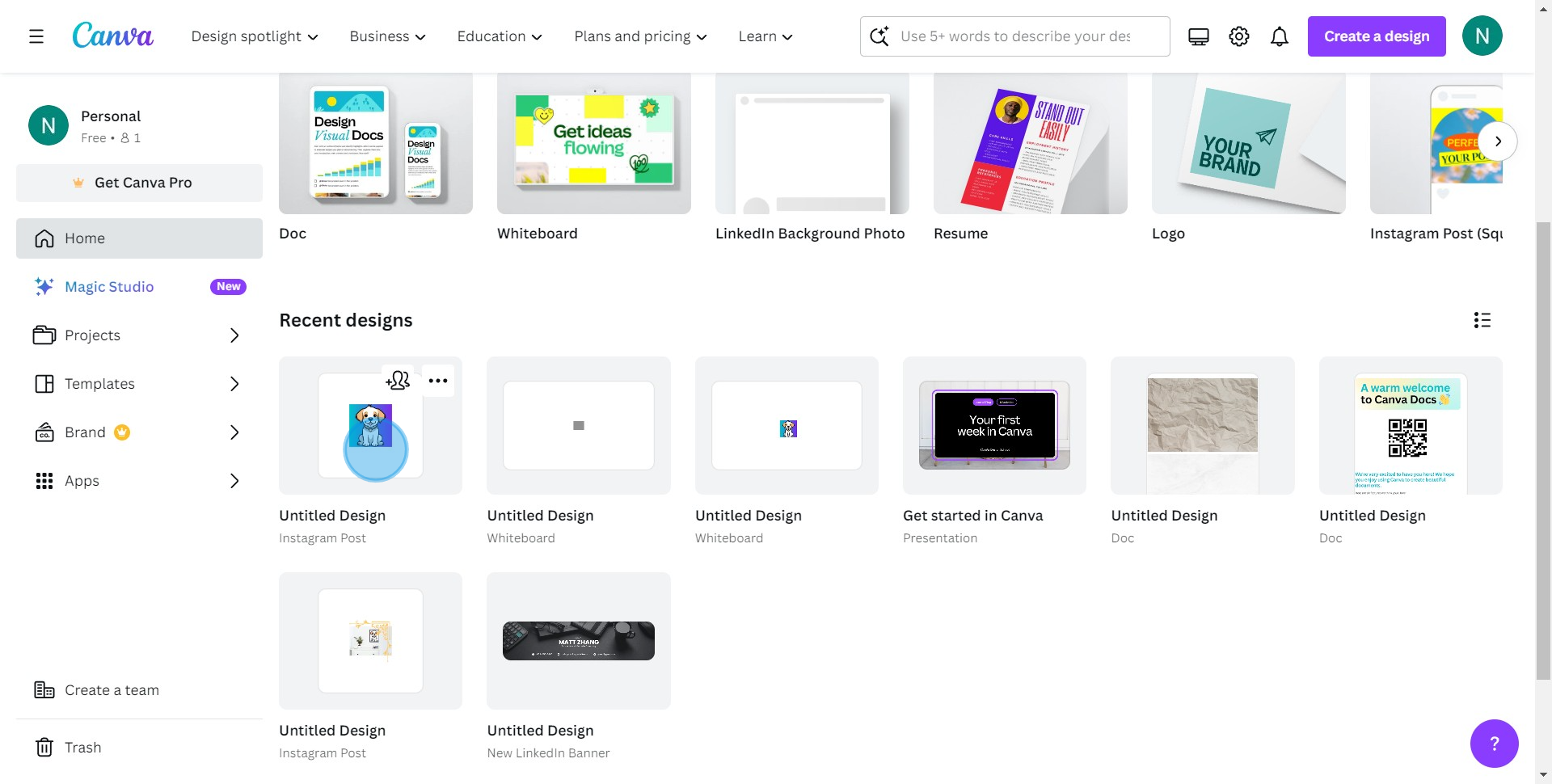
1 Click on "Image"

2. Now, please click the 'Share' option.
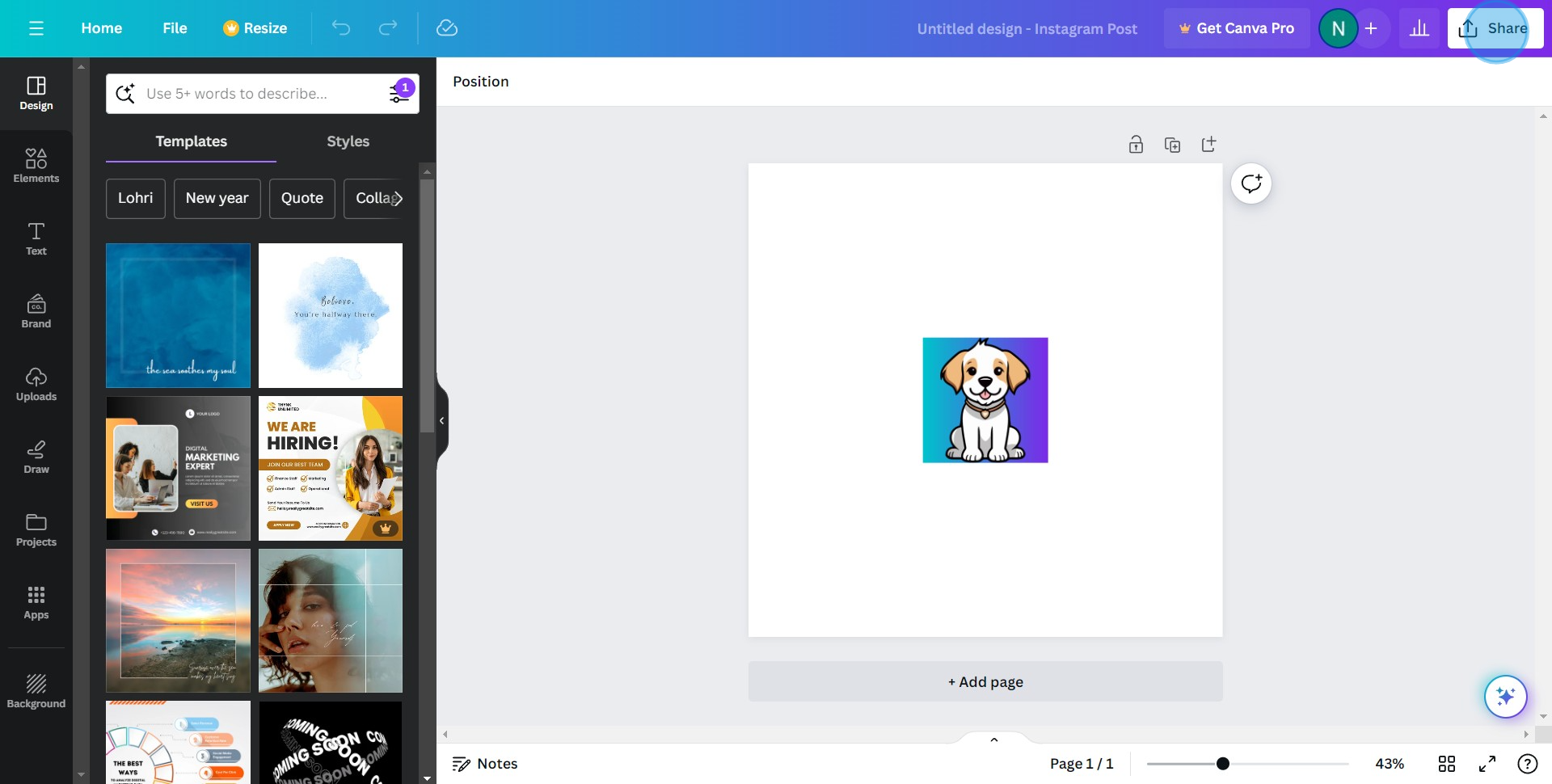
2 Click on "Share"

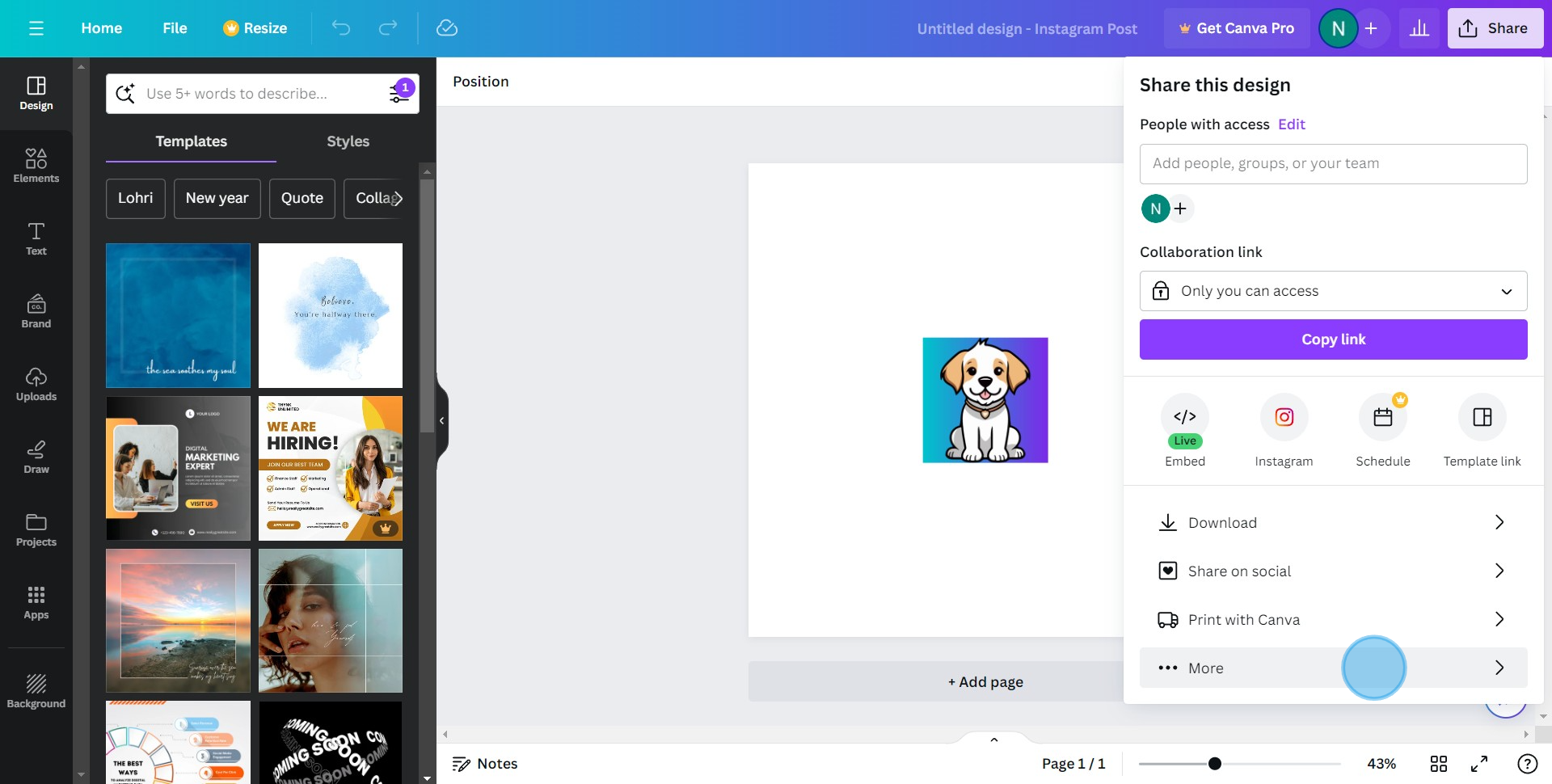
3. Next, select the 'More' button.

3 Click on "More"

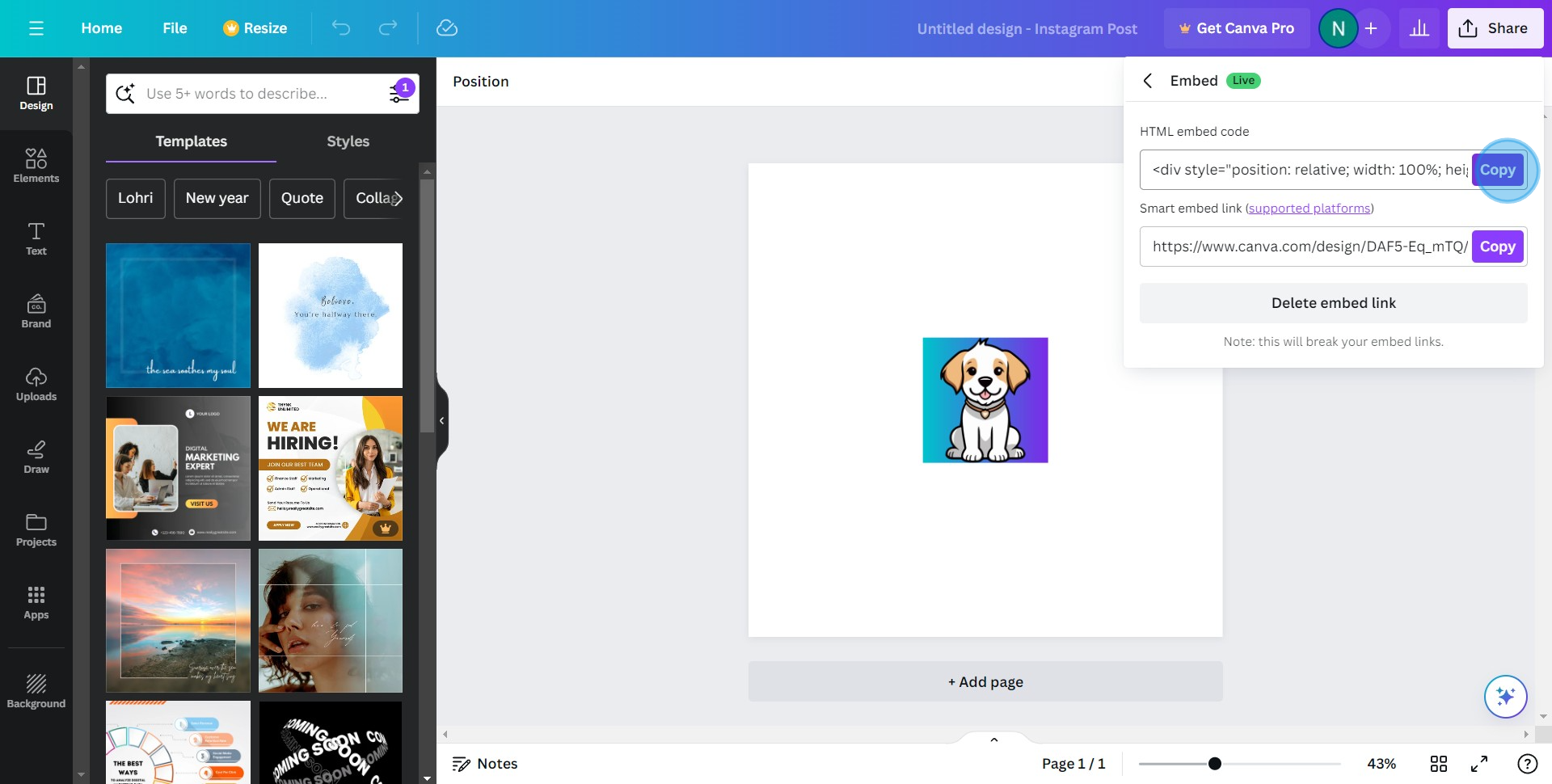
4. Proceed by selecting the 'Embed' option.
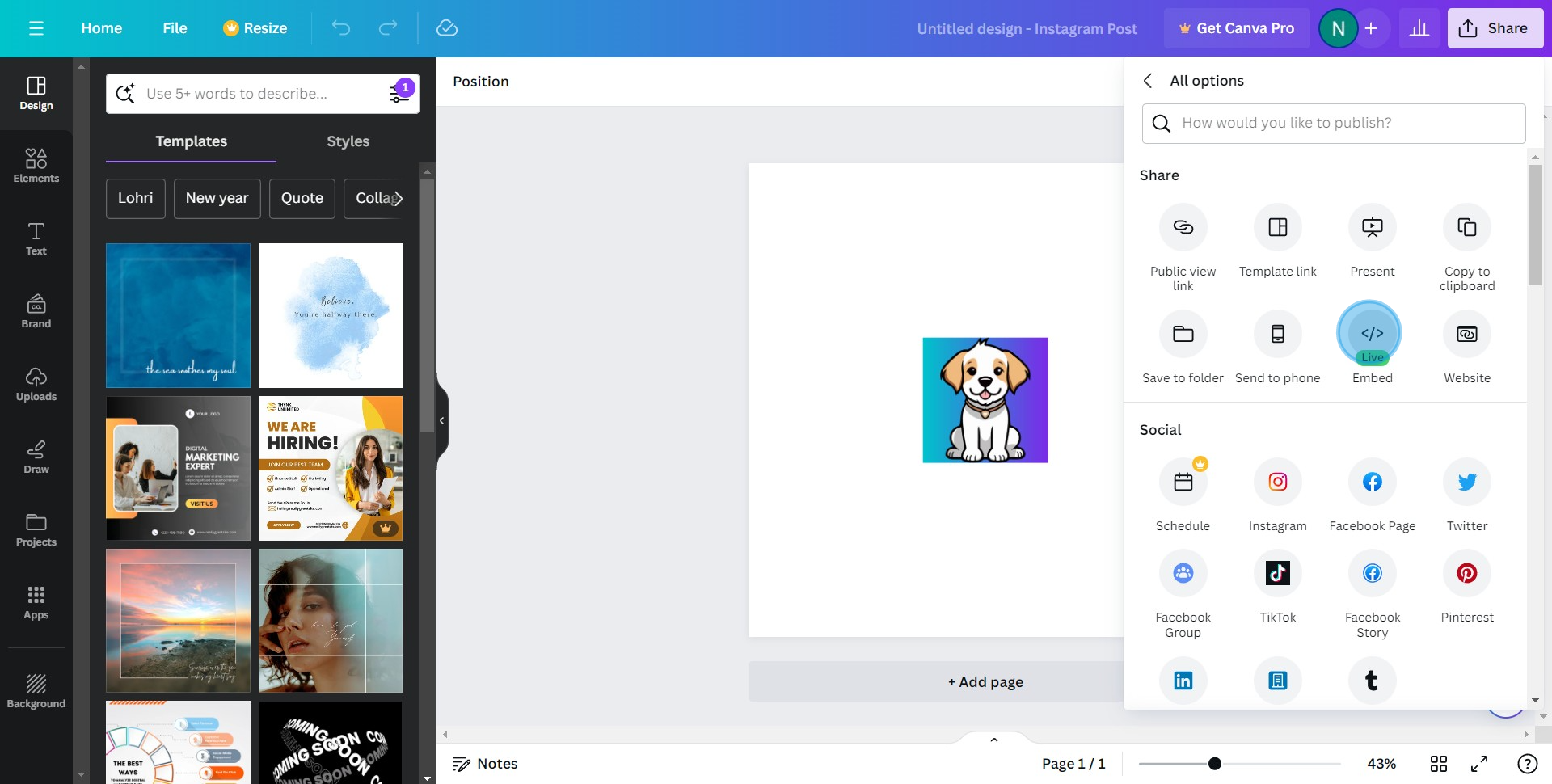
4 Click here

5. Now, tap on 'Copy' button.

5 Click on "Copy"

6. Navigate to the Notion page where you want to add the design and insert "/".
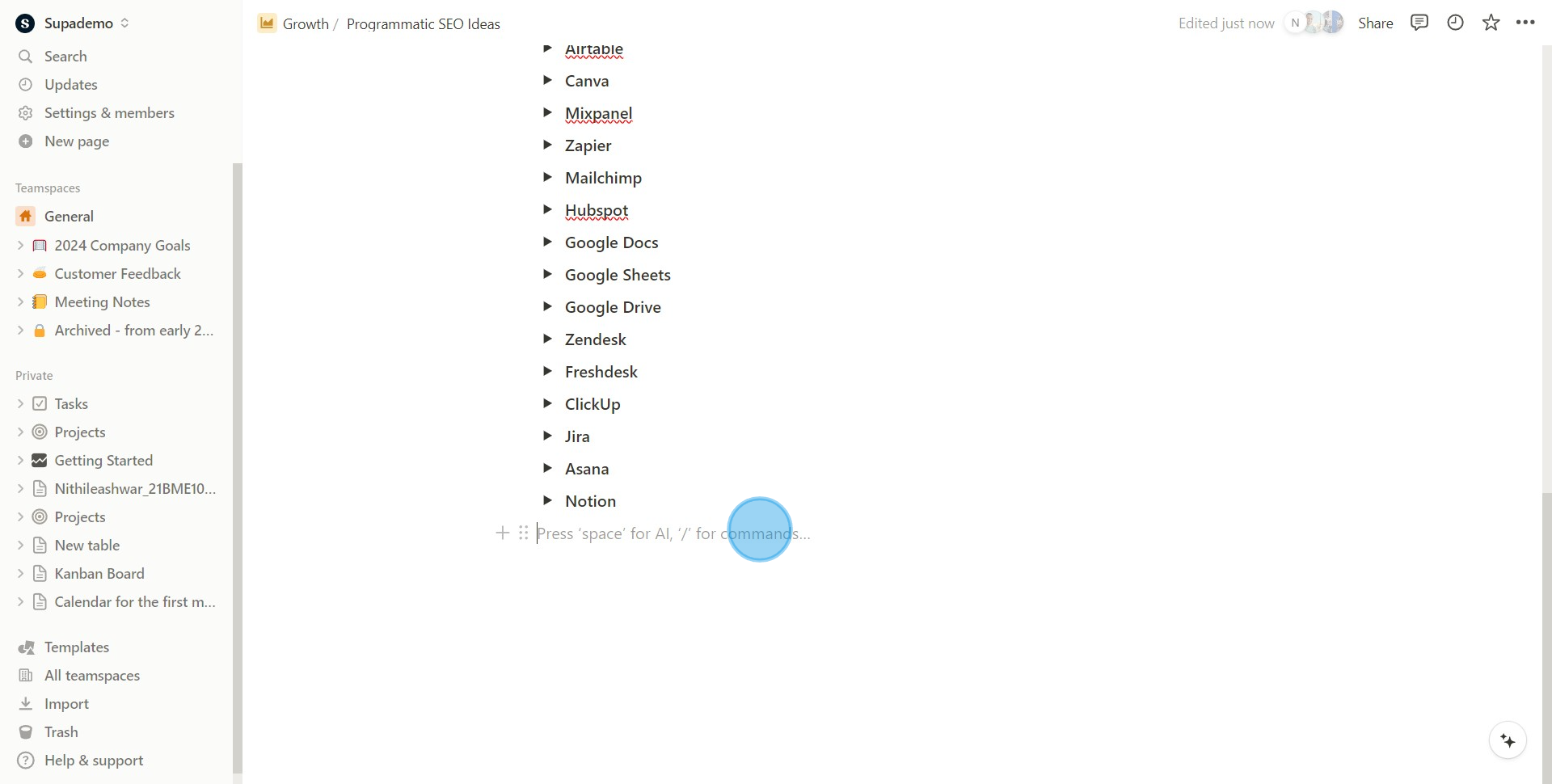
6 Click here

7. Next, click on the 'Embed' option.
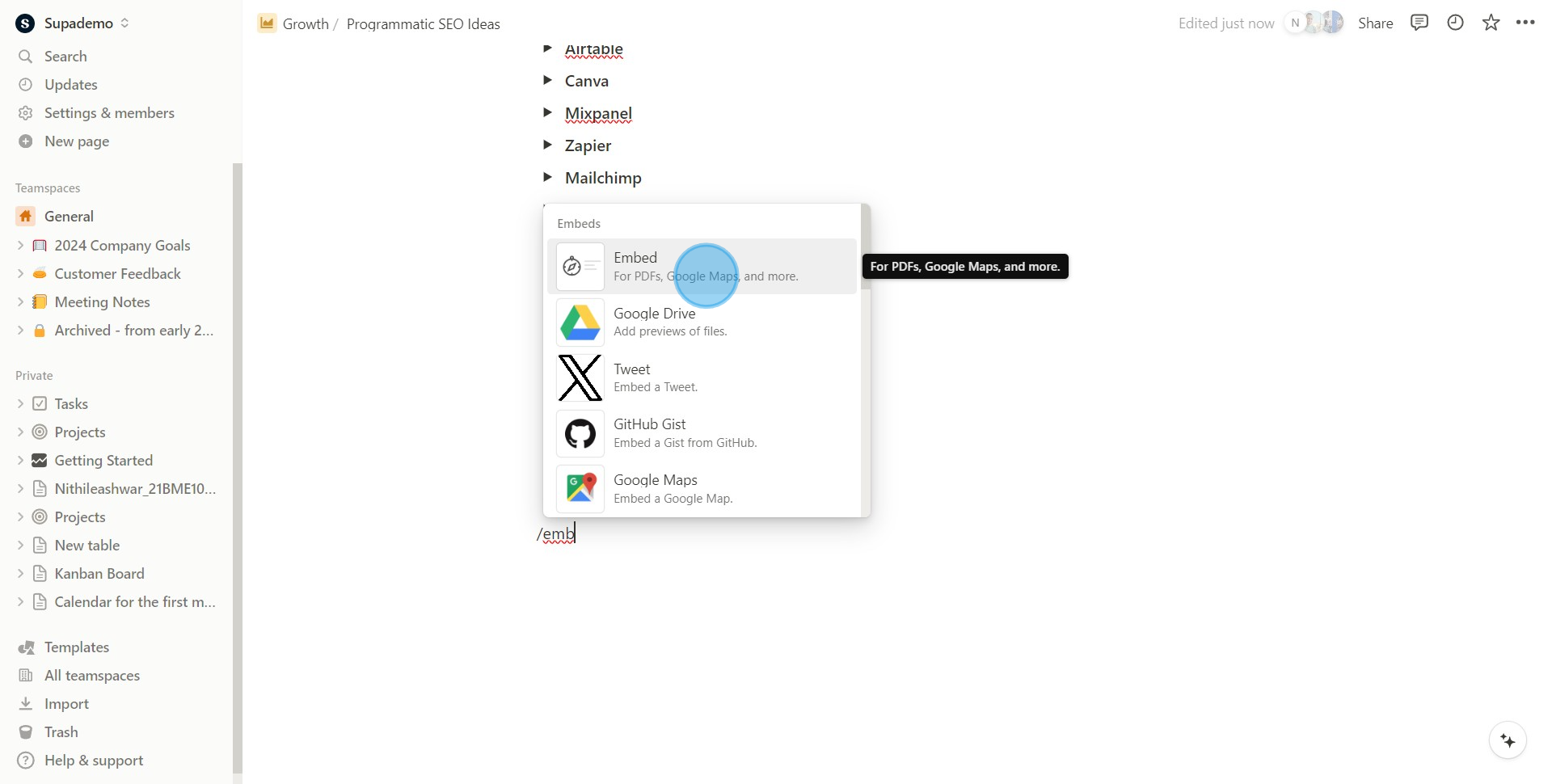
7 Click on "For PDFs, Google Maps, and more."
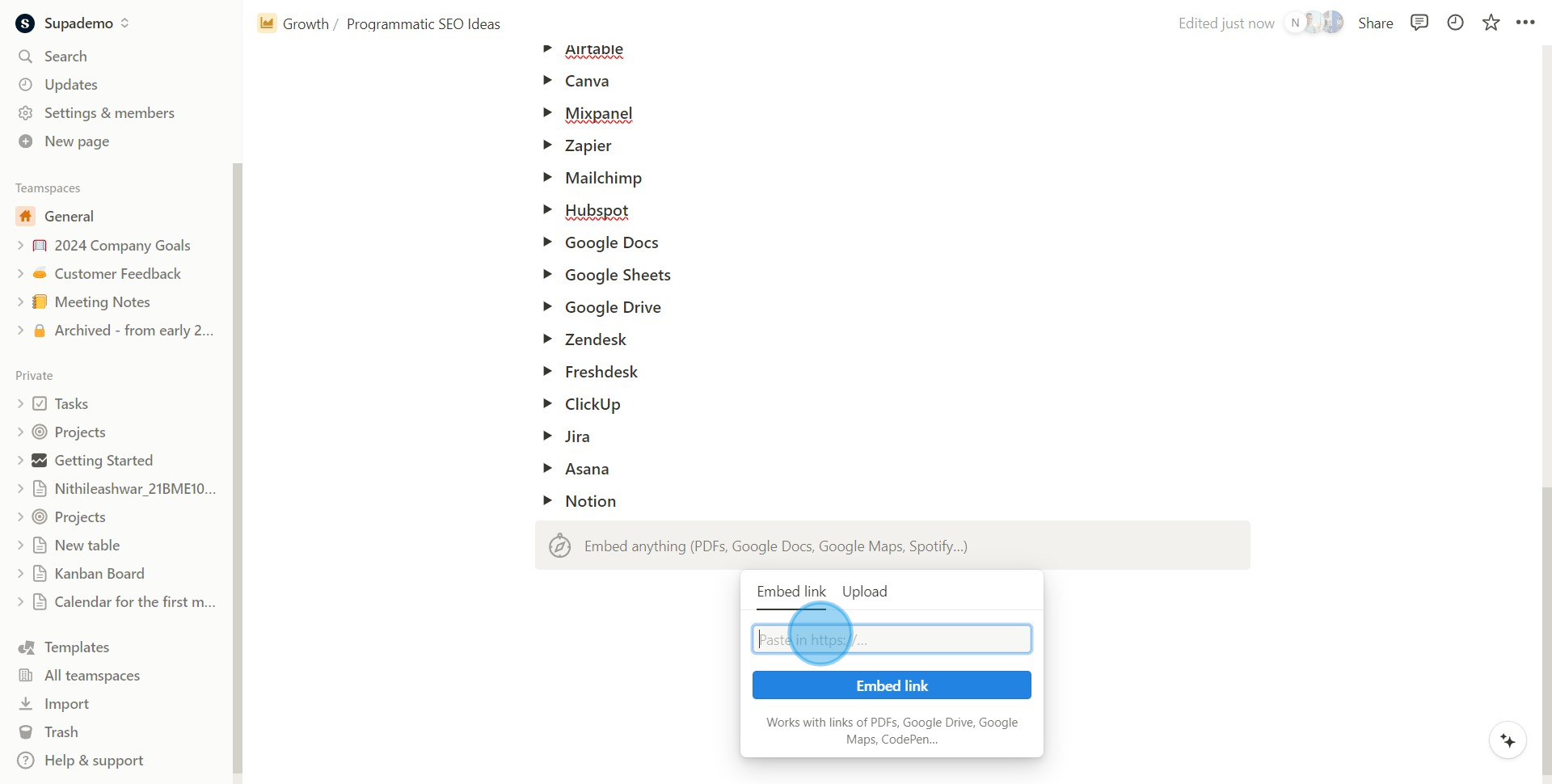
8 Click here
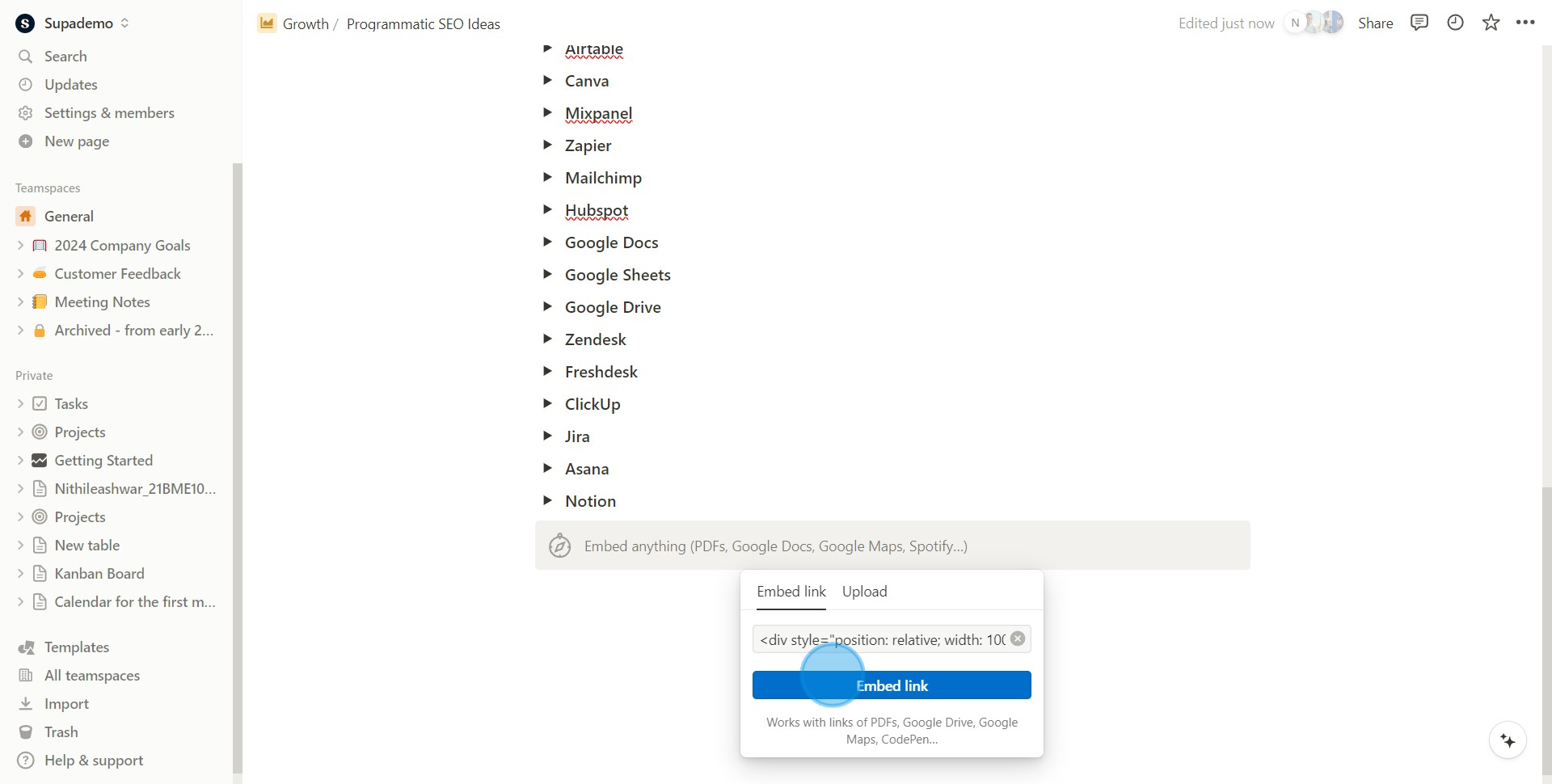
9 Click on "Embed link"

Common FAQs on Canva

Commonly asked questions about this topic.

How can I resize my designs for different platforms in Canva?

Canva makes it easy to resize your designs for different platforms using the “Resize” feature, available in Canva Pro. To resize a design, open your project and click on the “Resize” button in the top-left corner. You can select from a list of preset dimensions for various platforms like Instagram, Facebook, or posters, or enter custom dimensions. After selecting the new size, you can choose to resize the current design or copy it to a new design. Canva will automatically adjust the elements in your design to fit the new dimensions, though you may need to make some manual adjustments to perfect the layout.

How do I use Canva's brand kit to maintain consistency across my designs?

Canva’s Brand Kit is a feature available in Canva Pro that helps you maintain brand consistency across all your designs. To set up your Brand Kit, go to the “Brand Kit” tab from the Canva homepage. Here, you can upload your brand logos, select brand colors, and choose brand fonts. Once your Brand Kit is set up, you can apply these elements to any design with a single click. When designing, you’ll see your brand colors and fonts readily available in the editor, ensuring that your designs remain consistent with your brand identity. This is particularly useful for businesses and teams who need to ensure a cohesive look across marketing materials, presentations, and social media posts.

How can I collaborate with a team on a Canva project?

To collaborate with a team on a Canva project, open the design you want to work on and click the “Share” button in the top-right corner. You can invite team members by entering their email addresses or sharing a link to the design. Set permissions to control whether they can view, comment, or edit the design. Canva also allows real-time collaboration, so multiple team members can work on the design simultaneously. You can see who is currently editing the design through their avatars, and use the comment feature to leave feedback or suggestions directly on the design. This makes Canva a powerful tool for teams working on marketing materials, presentations, and other visual projects together.

Create your own step-by-step demo

Scale up your training and product adoption with beautiful AI-powered interactive demos and guides. Create your first Supademo in seconds for free.
Nithil Shanmugam
Nithil Shanmugam

Content Marketer

Nithil is a startup-obsessed operator focused on growth, sales and marketing. He's passionate about wearing different hats across startups to deliver real value.

More from the blog

How to measure with rulers and guides in Canva

How to measure with rulers and guides in Canva

Overview: Streamline your design process in Canva by mastering the art of measurement with rulers and guides. Enhance precision and layout perfection as you effortlessly measure and align elements...

Nithil Shanmugam
Nithil ShanmugamFeb 5, 2024
How To Add Outline In Canva Design

How To Add Outline In Canva Design

How to add outline to a design in Canva 1. Begin by clicking on 'Elements.' 2. Then move ahead to 'Photos' and select 'See All.' 3. Choose your desired picture. 4. Next, opt to 'Edit Image.

Nithil Shanmugam
Nithil ShanmugamJan 23, 2024
Comment ajouter des numéros de page sur Canva

Comment ajouter des numéros de page sur Canva

Comment ajouter des numéros de page dans Canva Qu'est-ce que Canva ? Canva est une plateforme de conception graphique qui permet aux utilisateurs de créer des graphiques pour les réseaux sociaux, des...

Joseph Lee
Joseph LeeAug 14, 2024
So messen Sie mit Linealen und Hilfslinien in Canva

So messen Sie mit Linealen und Hilfslinien in Canva

Übersicht: Vereinfachen Sie Ihren Designprozess in Canva, indem Sie das Messen mit Linealen und Hilfslinien meistern. Verbessern Sie Präzision und Layoutperfektion, indem Sie Elemente mühelos mit...

Vimal Kumar
Vimal KumarAug 20, 2024