How to rotate and lock an image in Miro

Rotating and locking images in Miro helps you organize your canvas and prevent accidental modifications to important visual assets. This guide walks you through the process of uploading an image, rotating it to your desired angle, and then locking it in place to maintain your board's layout.
Quick summary
In this tutorial, you'll learn how to upload an image from Google Images into Miro, rotate it to fit your design needs, and lock it to prevent unintended changes. By the end, you'll have a securely positioned image that stays exactly where you want it on your canvas.
Why this matters
Locking images in Miro is essential for collaborative boards where multiple team members might accidentally move or modify important visual elements. A locked image ensures your design integrity remains intact while others work on different parts of the board, streamlining your workflow and reducing the need for corrections.
Step-by-step guide
- 1
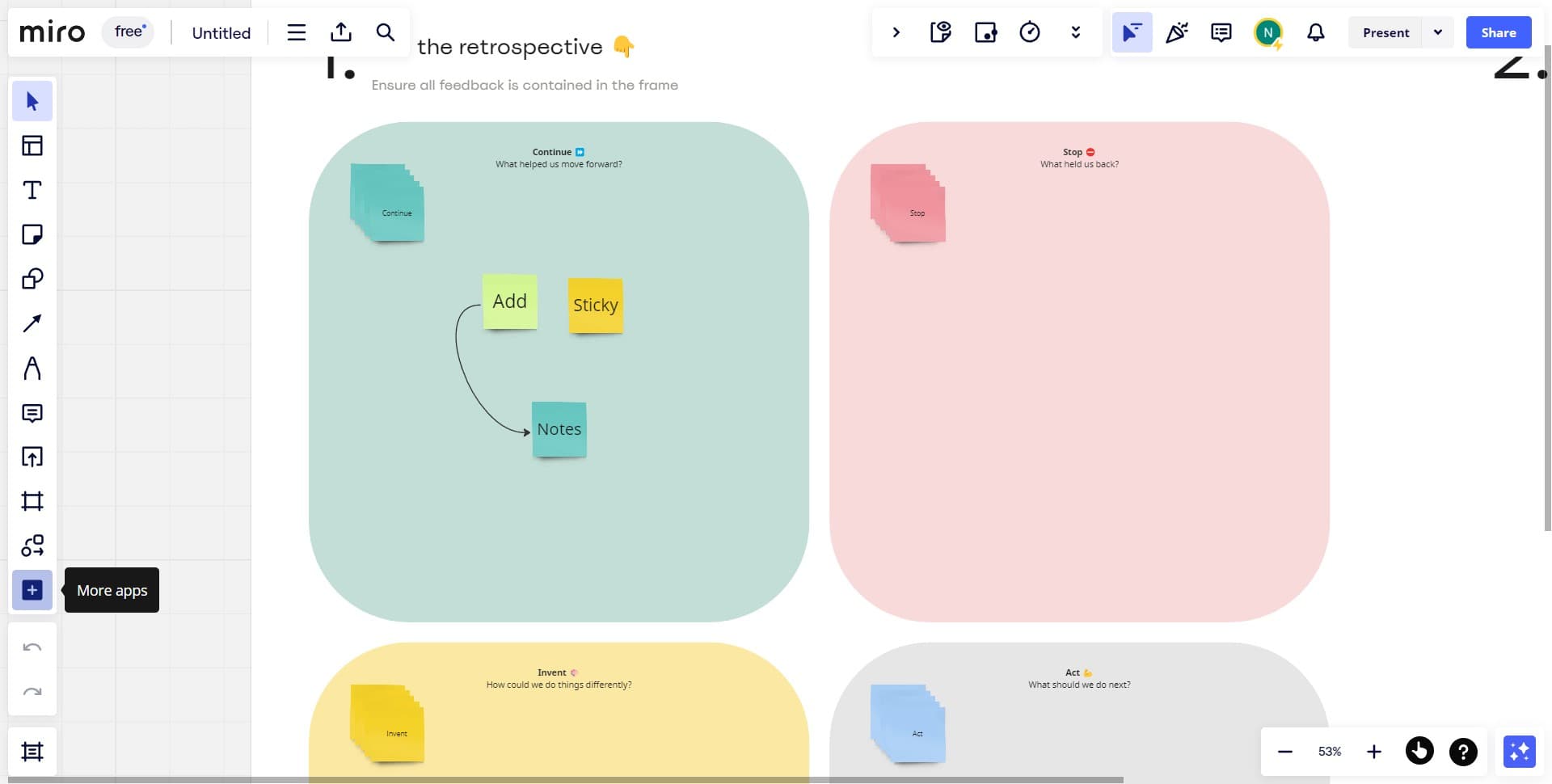
Access the image insertion tool
Start by clicking on the designated area in Miro where you can insert media. This opens the options menu for adding content to your board.
- 2
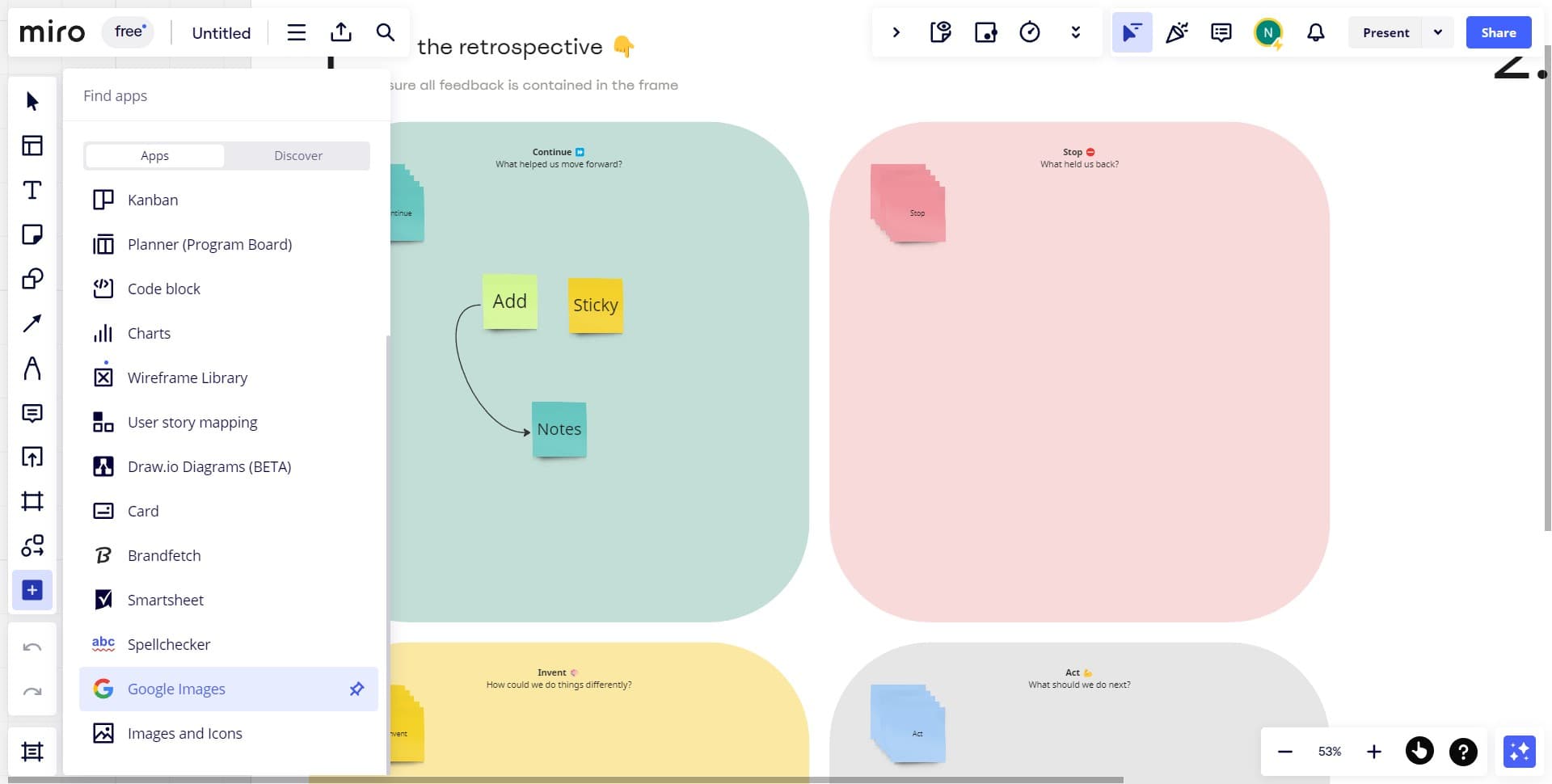
Select Google Images
Click on 'Google Images' from the available options. This allows you to search and import images directly from Google's image library into your Miro board.
- 3
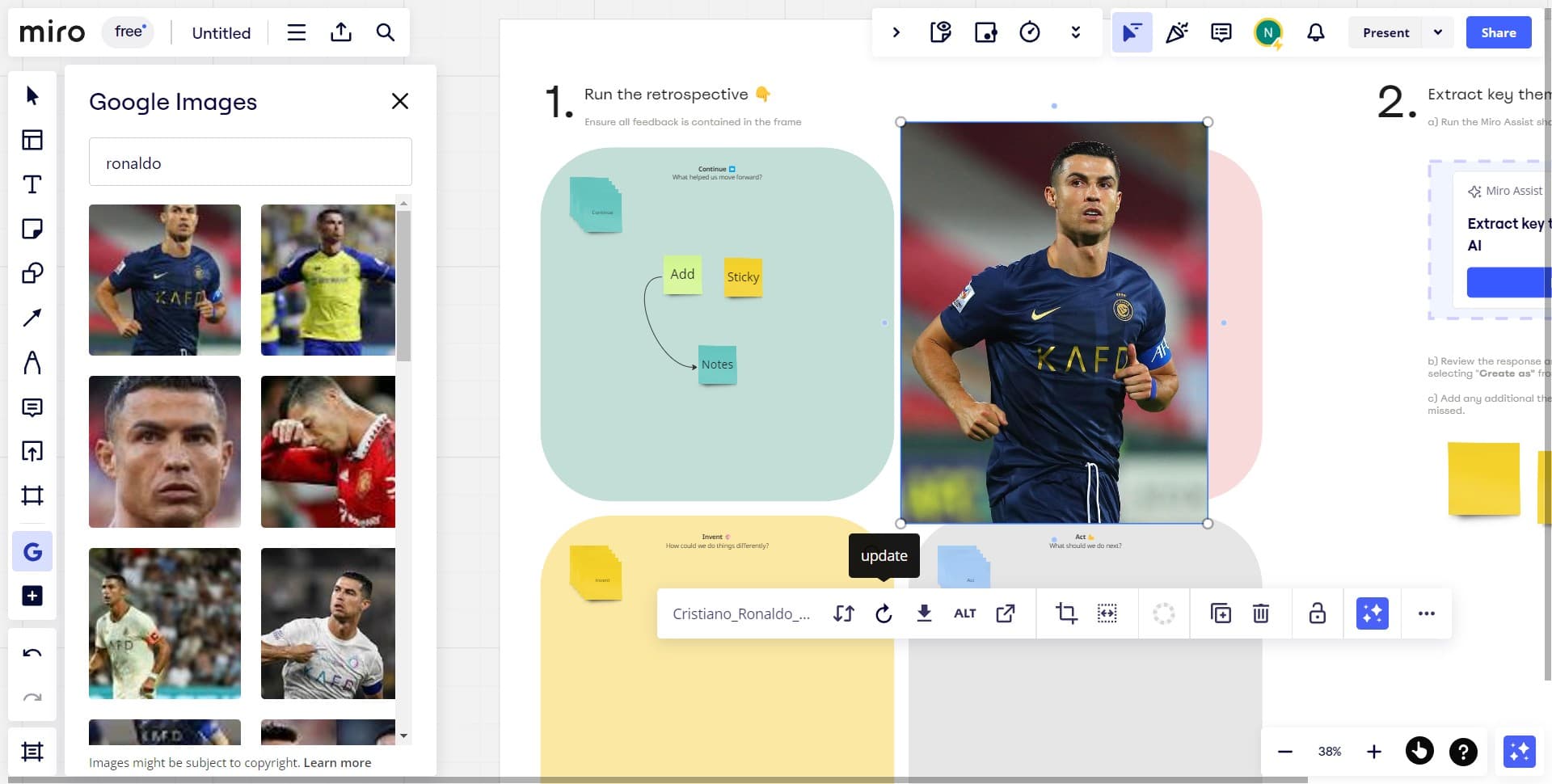
Choose and insert your image
Click on the image you want to upload from the search results. The selected image will be inserted into your Miro canvas.
- 4
Upload the image to your board
Complete the upload process by confirming the image placement. Once uploaded, the image will appear on your canvas and be ready for editing.

- 5
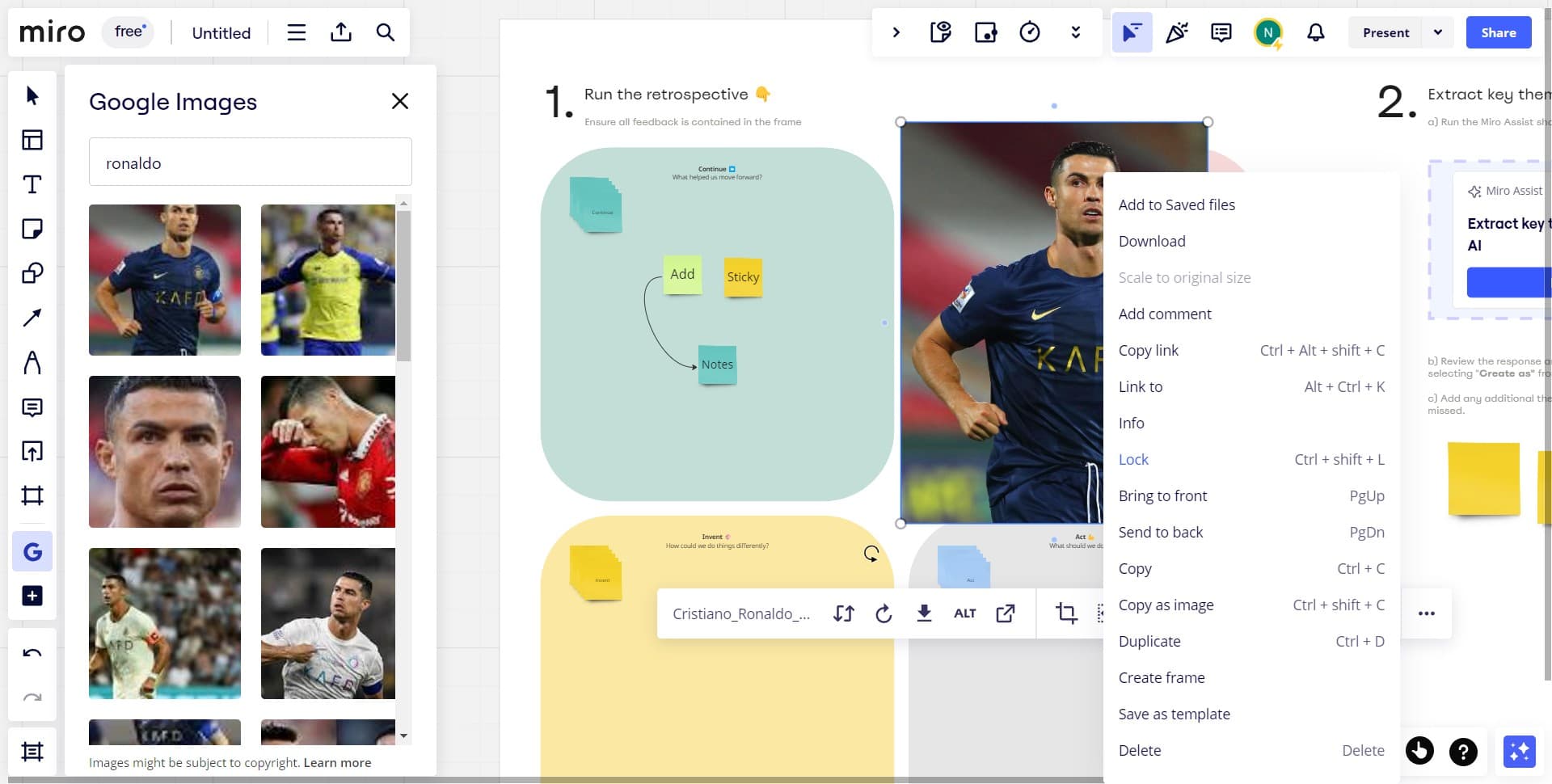
Open the more options menu
Click on 'more' (usually represented by three dots or an ellipsis menu) to reveal additional actions available for your image. This expands the toolbar with advanced options including rotation and locking features.
- 6
Lock the image in place
Click on 'Lock' from the options menu to secure the image on your canvas. Once locked, the image cannot be accidentally moved, resized, or deleted by you or other collaborators.
Frequently asked questions
Common questions about how to rotate and lock an image in miro.
Can I rotate an image before locking it in Miro?
Yes, you can rotate your image using Miro's rotation handles before locking it. Simply select the image and use the rotation control that appears, then proceed to lock it once you're satisfied with the angle. The locked state will preserve your chosen rotation.
What happens if I lock an image by mistake?
If you accidentally lock an image, you can unlock it by selecting the image and clicking the 'Lock' option again from the more options menu. This will toggle the lock off, allowing you to make further adjustments.
Can locked images be deleted in Miro?
Locked images cannot be deleted or moved, but they can still be unlocked by selecting them and toggling the lock off. Once unlocked, you regain full editing capabilities including the ability to delete the image.
Do locked images appear differently on the canvas?
Yes, locked images typically display a lock icon or indicator to show their locked status. This visual cue helps you and your collaborators quickly identify which elements are protected from accidental changes.
Can collaborators unlock images that I've locked?
In Miro, collaborators with editing permissions can unlock any image on a shared board. If you need to prevent changes by specific team members, consider using board permissions and role-based access controls in addition to locking individual elements.