How to integrate Google Images to Miro whiteboard

Integrating Google Images into your Miro whiteboard streamlines the process of adding visual content without leaving your collaborative workspace. This integration leverages the Google Workspace ecosystem to let you search and insert images directly into Miro boards.
Quick summary
In this tutorial, you'll learn how to connect Google Images to Miro and upload images seamlessly into your whiteboard. You'll navigate through the Apps & Integrations marketplace, enable the Miro Labs integration, and complete the upload process in just a few clicks.
Why this matters
Direct image integration saves time during brainstorming and design sessions by eliminating the need to switch between applications. For teams collaborating on Miro boards, this workflow keeps momentum flowing and ensures visual assets are added efficiently without context-switching.
Step-by-step guide
- 1
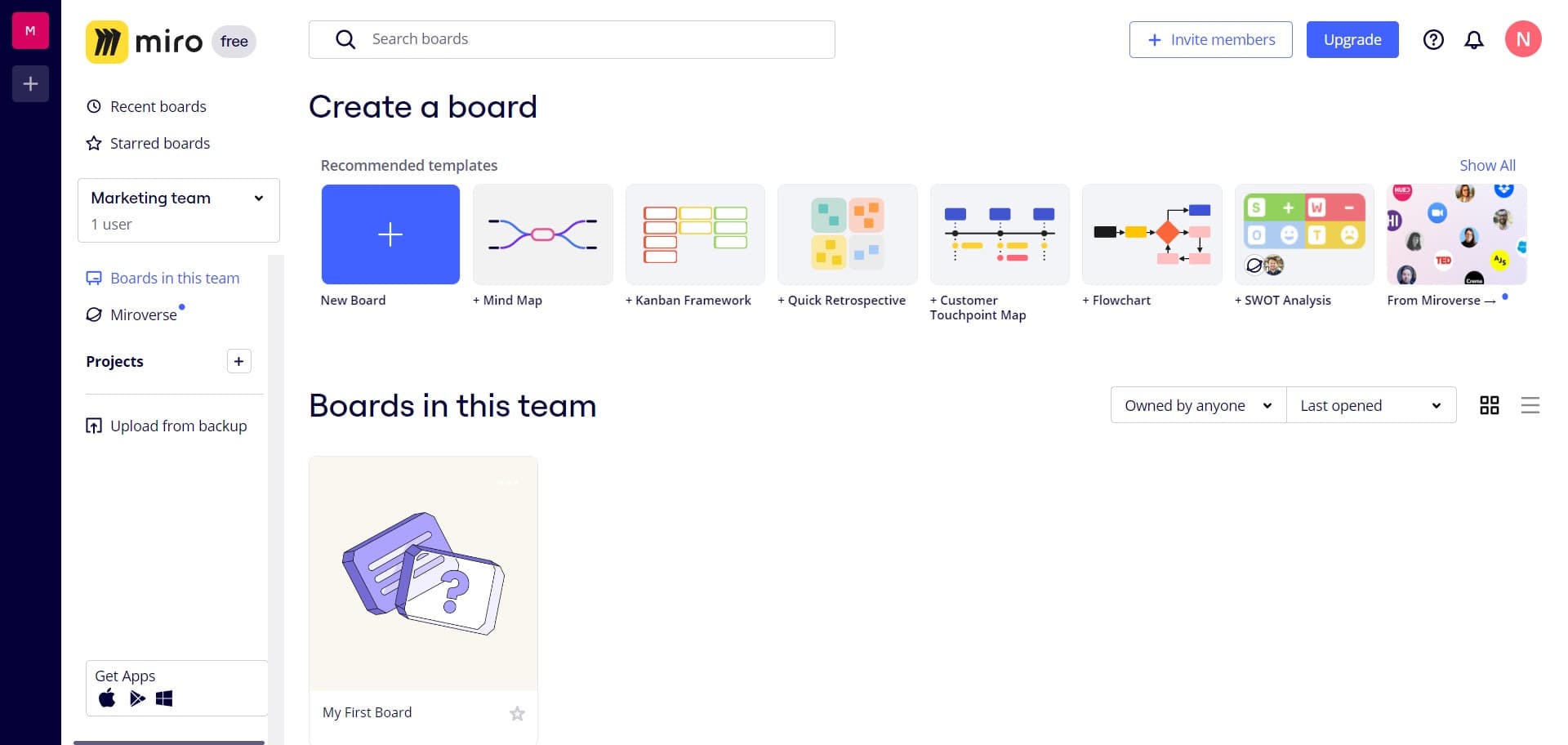
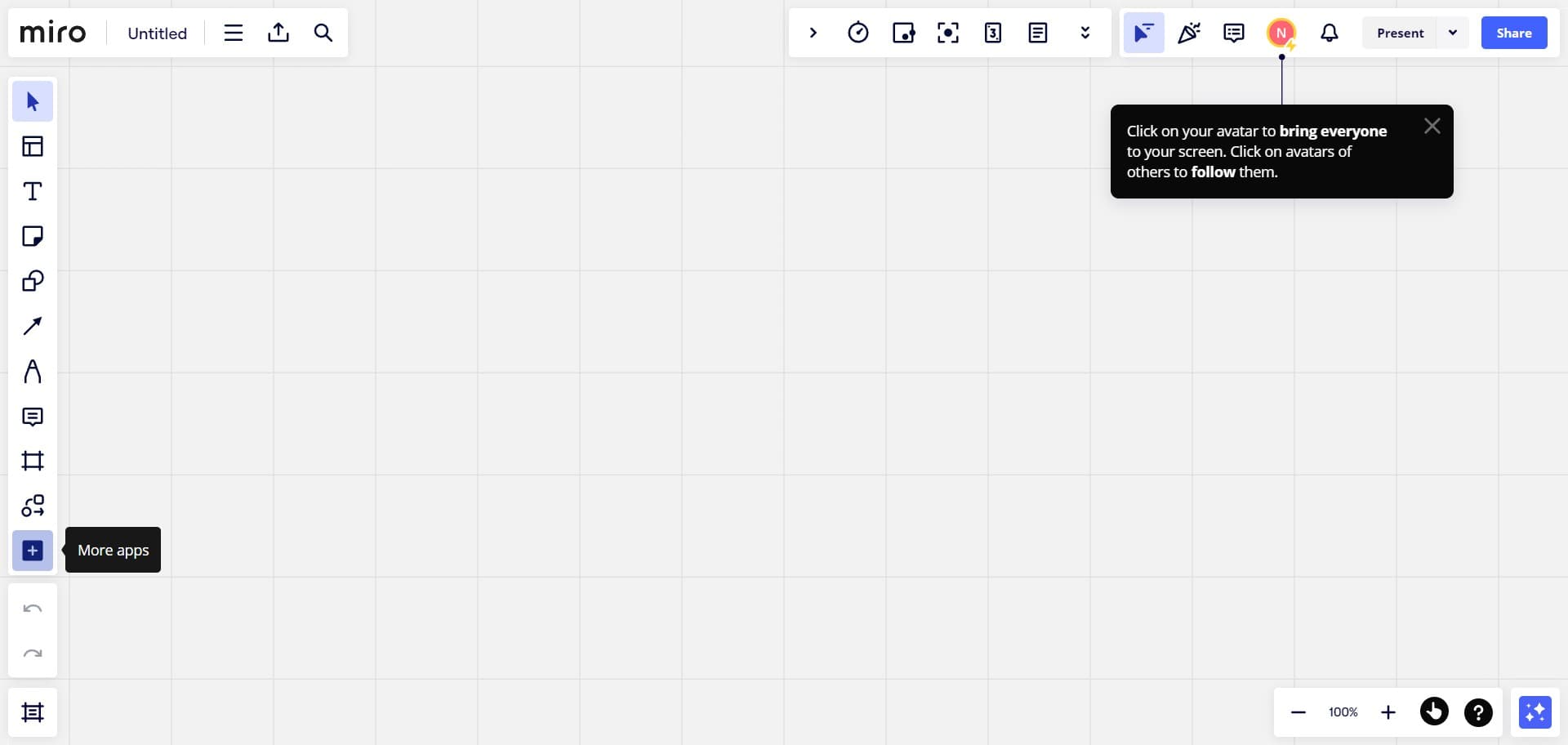
Click on Image
Start by clicking the Image button in your Miro toolbar. This opens the image insertion menu where you can choose different methods to add visuals to your board.
- 2
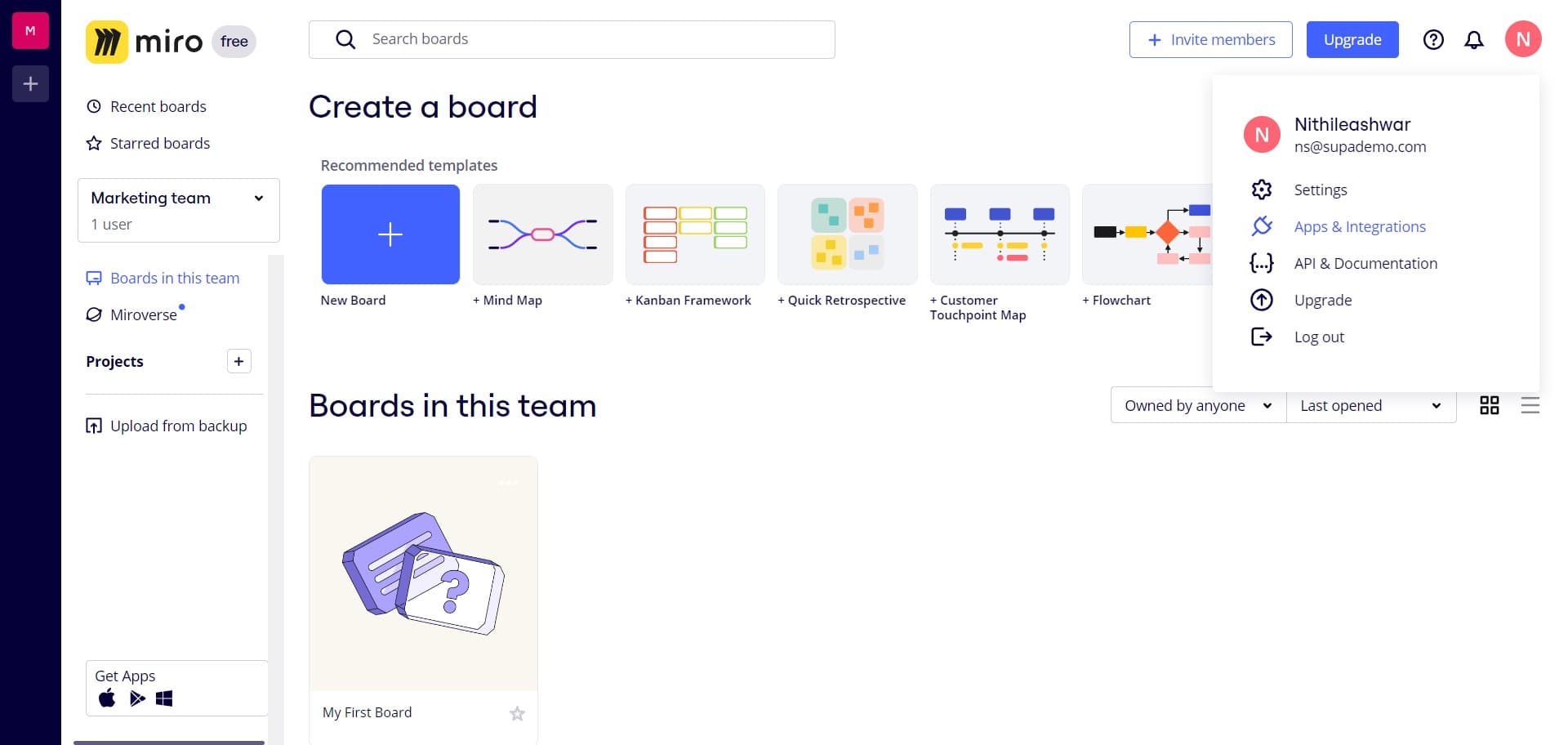
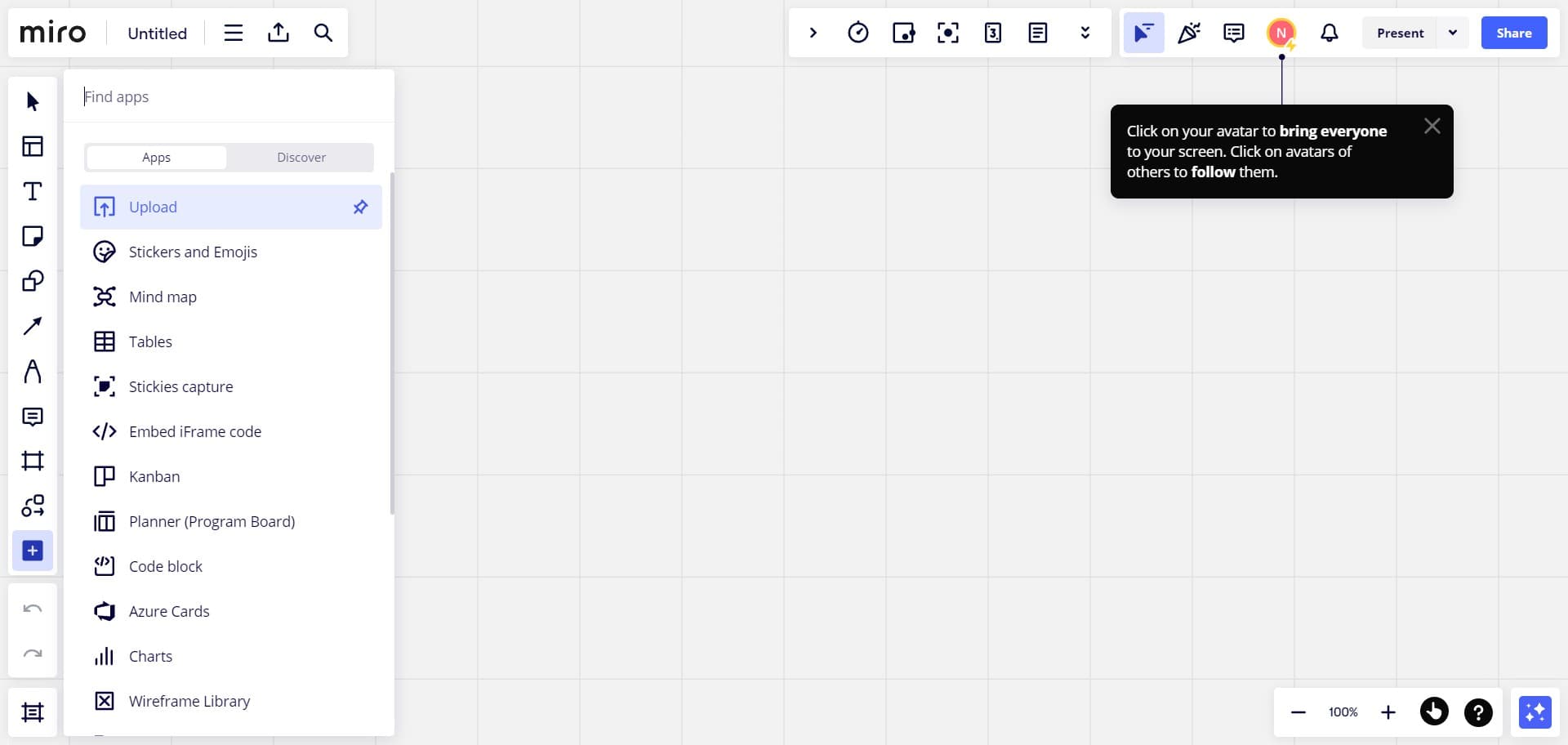
Click on Apps & Integrations
From the image menu, select Apps & Integrations to access Miro's available integrations. This section displays all connected services and available extensions you can enable.
- 3
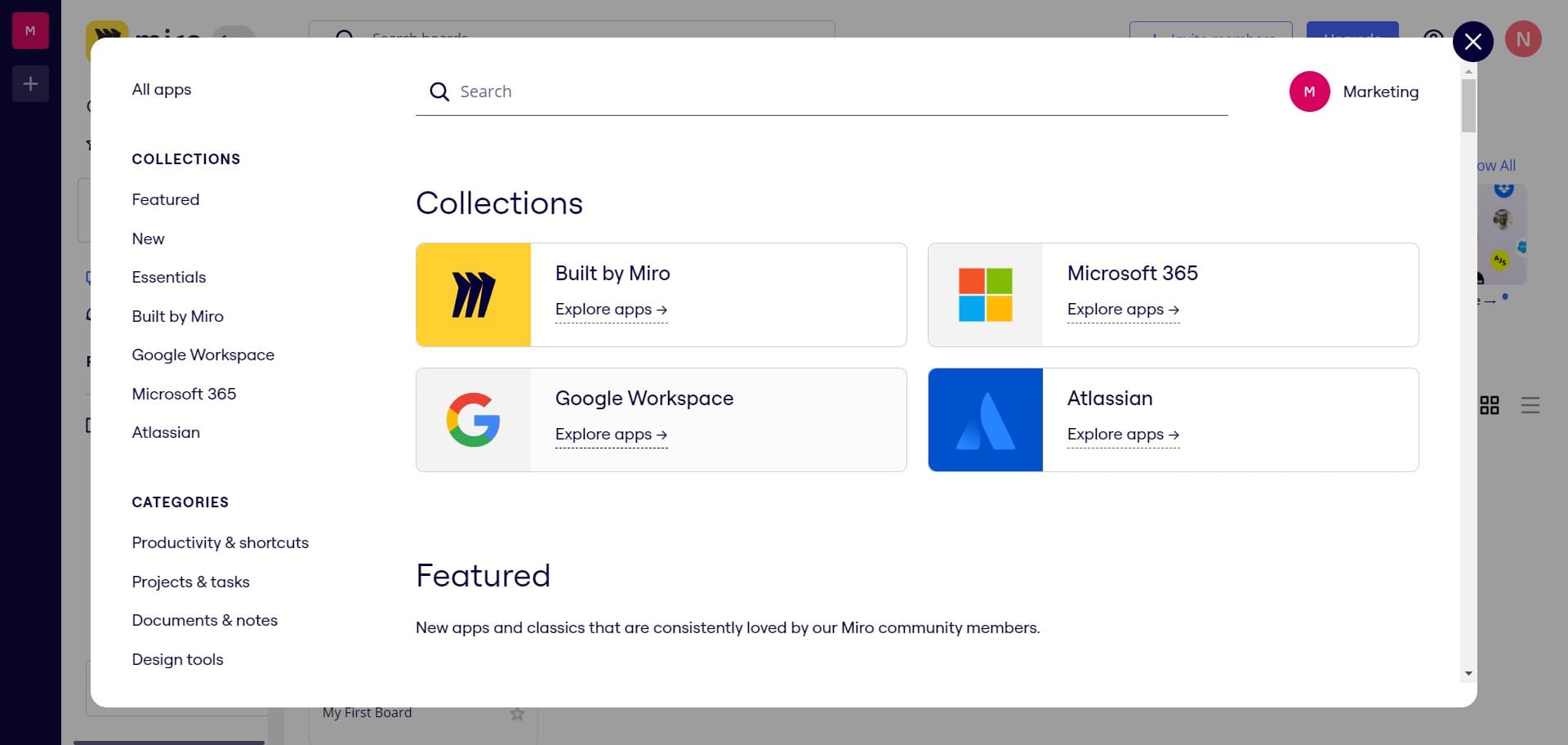
Explore apps for Google Workspace
Click on Explore apps for Google Workspace to view integrations specifically designed for Google's productivity suite. This filters the available apps to show only Google-compatible integrations.
- 4
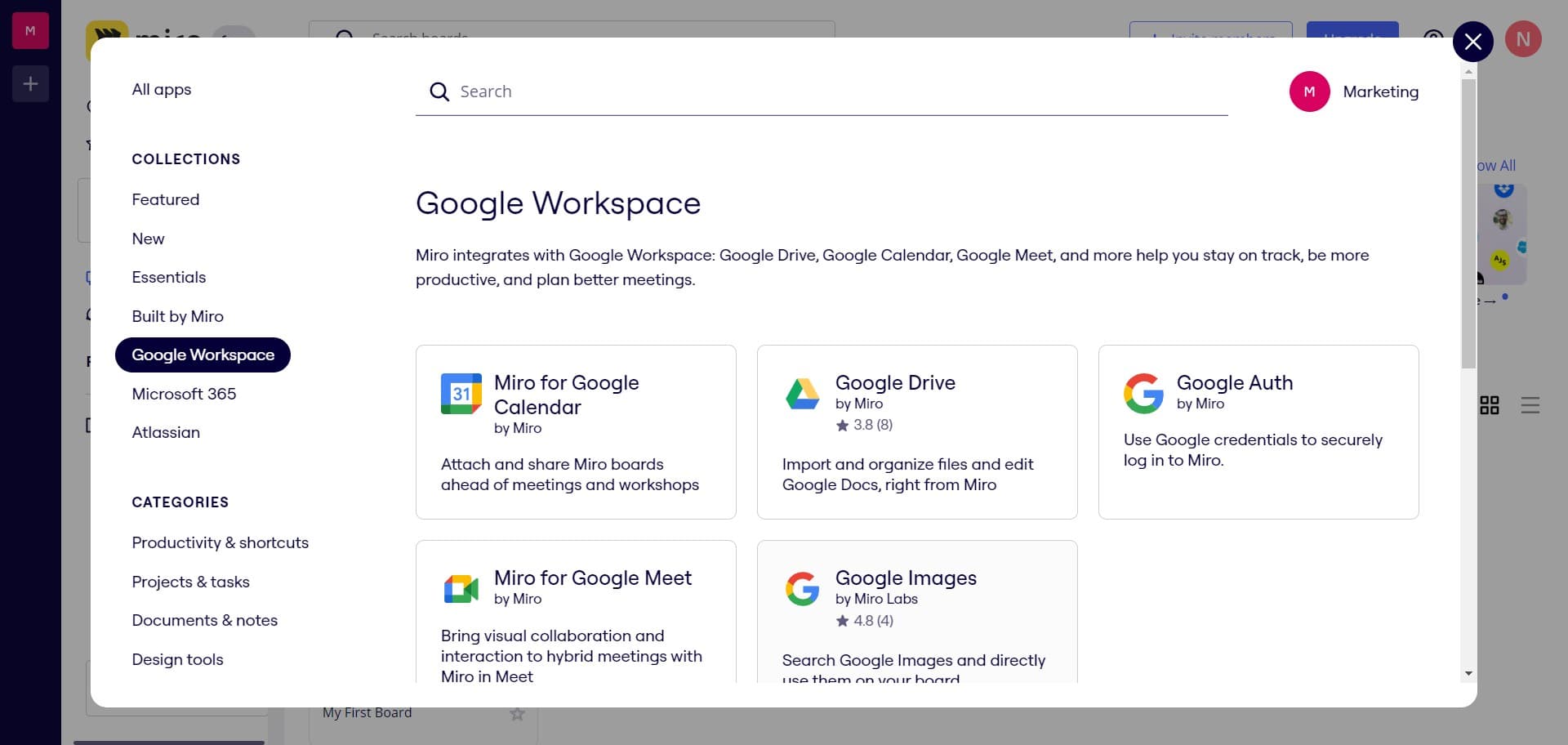
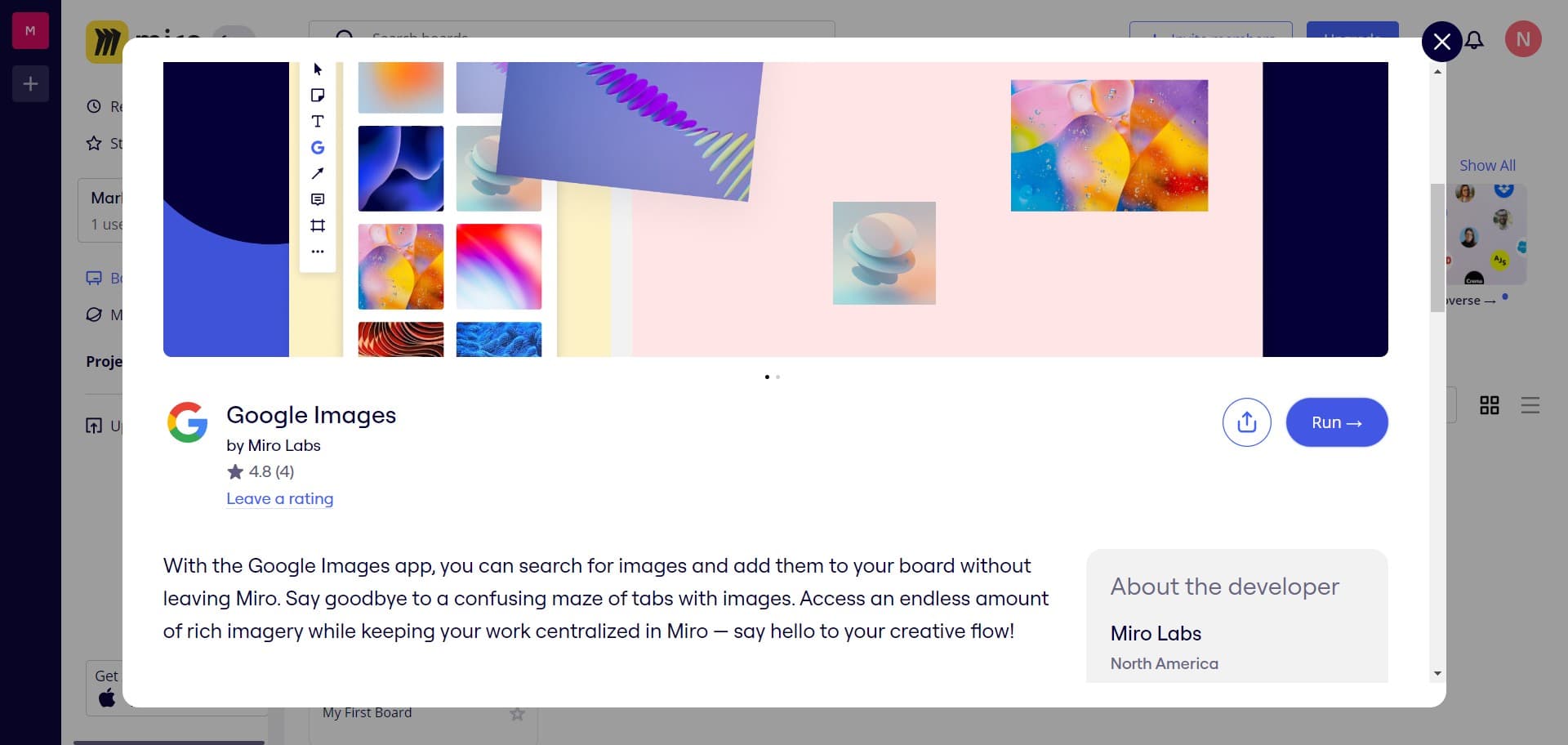
Select by Miro Labs
Click on the Google Images integration by Miro Labs to view its details and capabilities. This official Miro integration provides direct access to Google Images within your workspace.
- 5
Click Run to activate
Click the Run button to initialize and activate the Google Images integration on your board. This enables the integration and prepares it for immediate use.
- 6
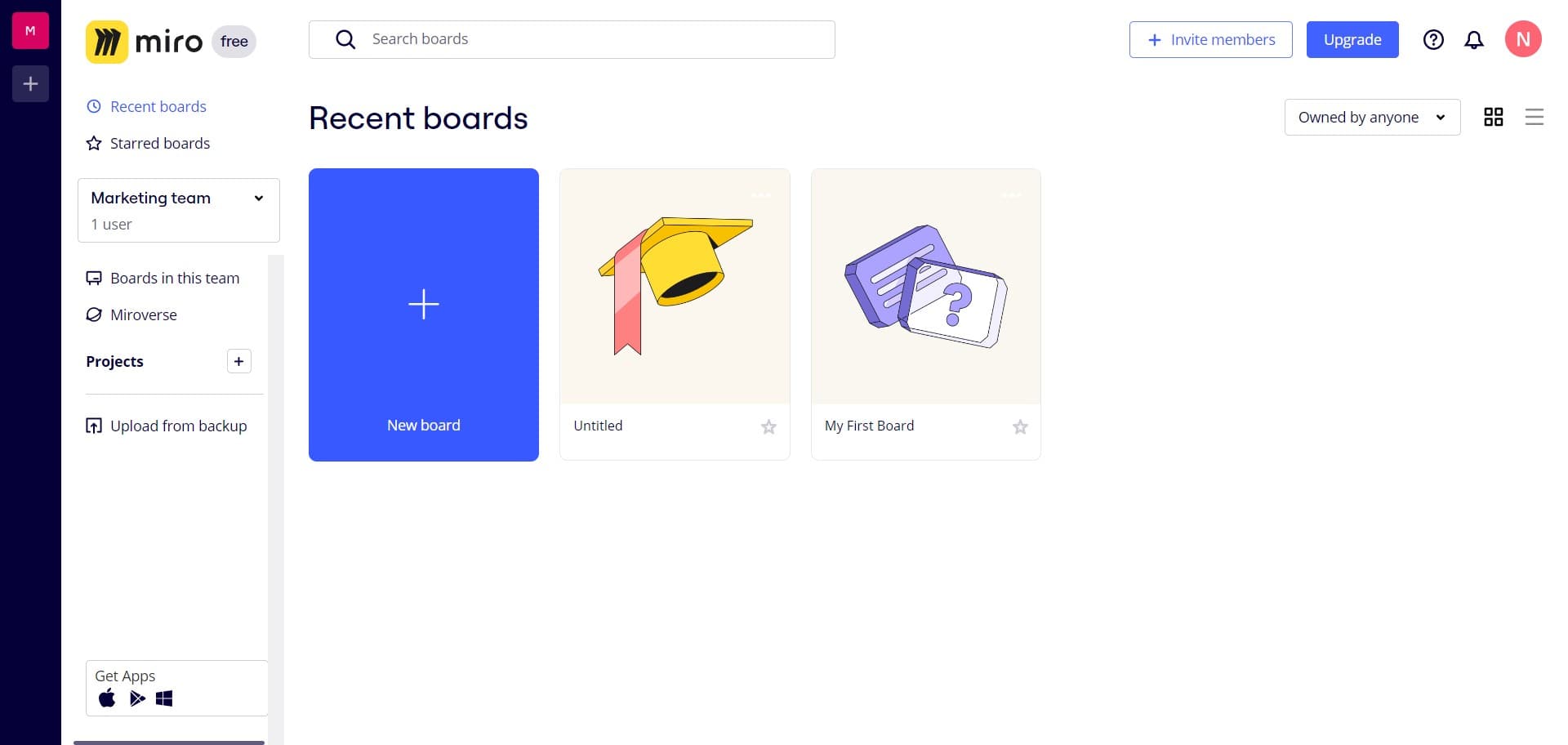
Upload image one
Begin uploading your first image by selecting or searching for it through the Google Images interface. The image will be inserted directly into your Miro board.
- 7
Upload image two
Continue adding your second image using the same integration method. You can repeat this process to add multiple images as needed for your project.
- 8
Upload image three
Add your third image to the board following the same workflow. The integration allows you to quickly populate your board with visual content.
- 9
Upload image four
Insert your fourth image into the board using the active Google Images integration. This demonstrates the efficiency of the integrated workflow for adding multiple assets.
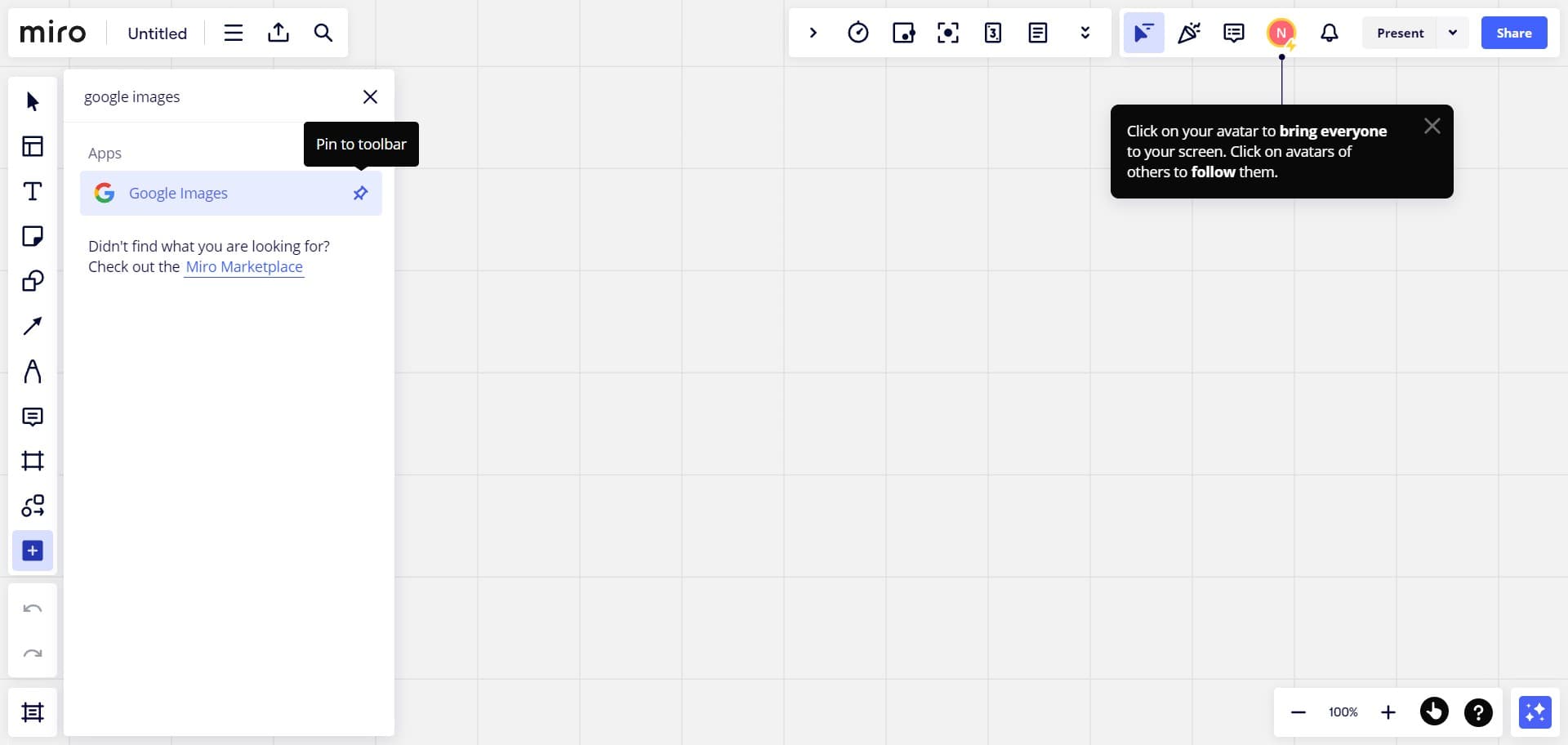
- 10
Upload image five
Add your fifth image, continuing to leverage the seamless integration for rapid visual content placement. You can add as many images as your project requires.
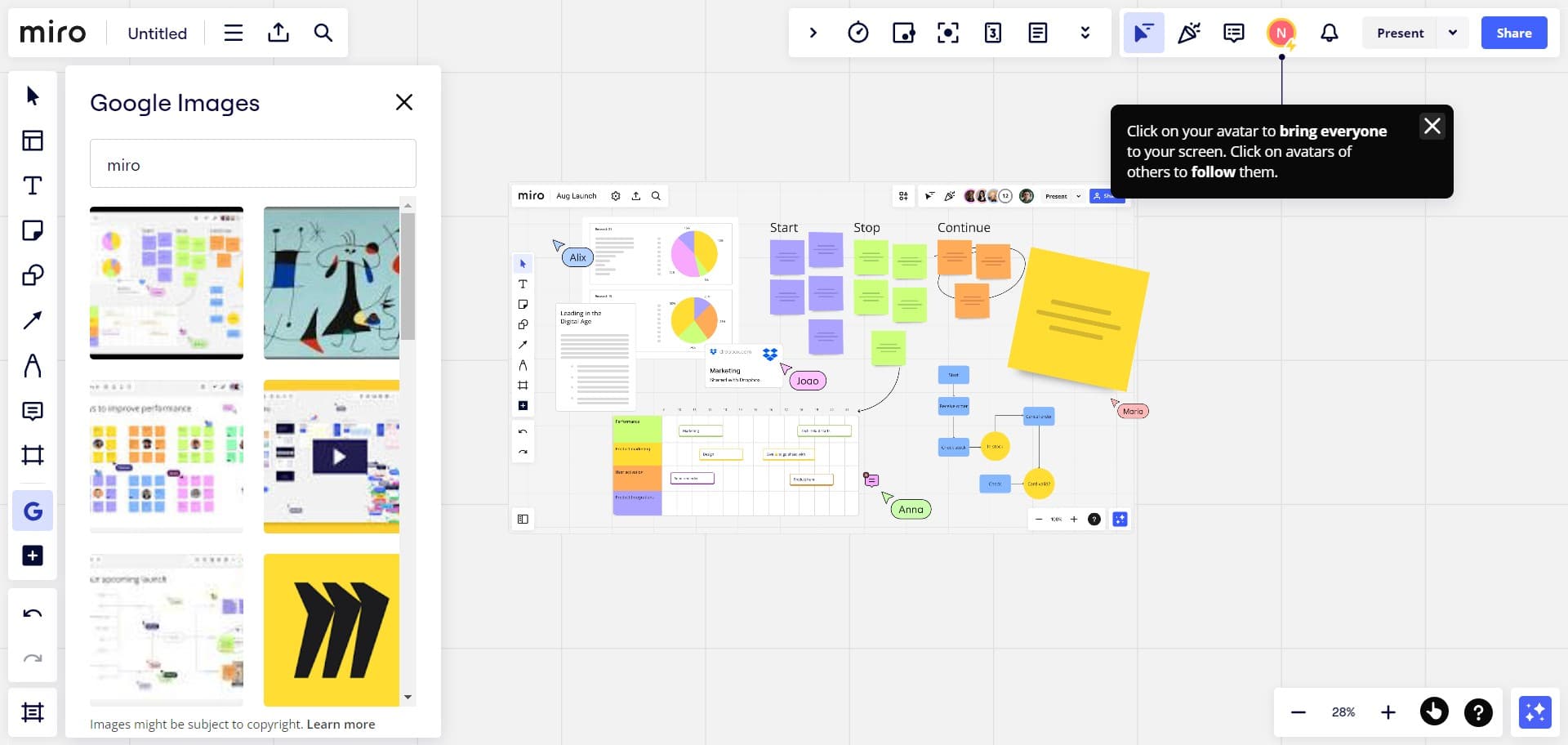
- 11
Upload image six
Complete your image uploads by adding a sixth image or as many additional images as needed. The integration remains active for continued use throughout your session.
Frequently asked questions
Common questions about how to integrate google images to miro whiteboard.
Do I need special permissions to use the Google Images integration in Miro?
You'll need a Google account and permission to access Google Images through Google Workspace. When you activate the integration, Miro will prompt you to authorize the connection, which grants the necessary permissions for image search and insertion.
Can I search for specific images using this integration?
Yes, the Google Images integration allows you to search for specific images before uploading them to your Miro board. You can use keywords, filters, and other search parameters to find the exact visuals you need.
How many images can I upload to a single Miro board?
Miro boards can accommodate hundreds of images, though performance may vary depending on board complexity and your system resources. For optimal performance, organize and group related images together.
Will the integration remain active after I close my Miro board?
Yes, once you activate the Google Images integration, it remains available for all your Miro boards going forward. You won't need to re-enable it unless you explicitly disconnect it from your workspace settings.
Can I resize or reposition images after uploading them?
Absolutely. Once images are added to your board, you can resize, reposition, and arrange them like any other Miro object. Use Miro's standard editing tools to customize the layout and placement of your uploaded images.