How to Leave a Slack Channel

Leaving a Slack channel is a straightforward process that helps you declutter your workspace and manage your channel subscriptions. Whether you're wrapping up a project or simply want to reduce notifications, knowing how to cleanly exit a channel is an essential Slack skill.
Quick summary
In this tutorial, you'll learn how to leave a Slack channel and optionally archive it in just a few clicks. We'll walk you through locating the channel options and confirming your decision to leave.
Why this matters
Leaving channels you no longer need helps keep your Slack sidebar organized and reduces unnecessary notifications. Archiving a channel when you leave ensures the channel's history is preserved while removing it from active use, maintaining workspace clarity for you and your team.
Step-by-step guide
- 1
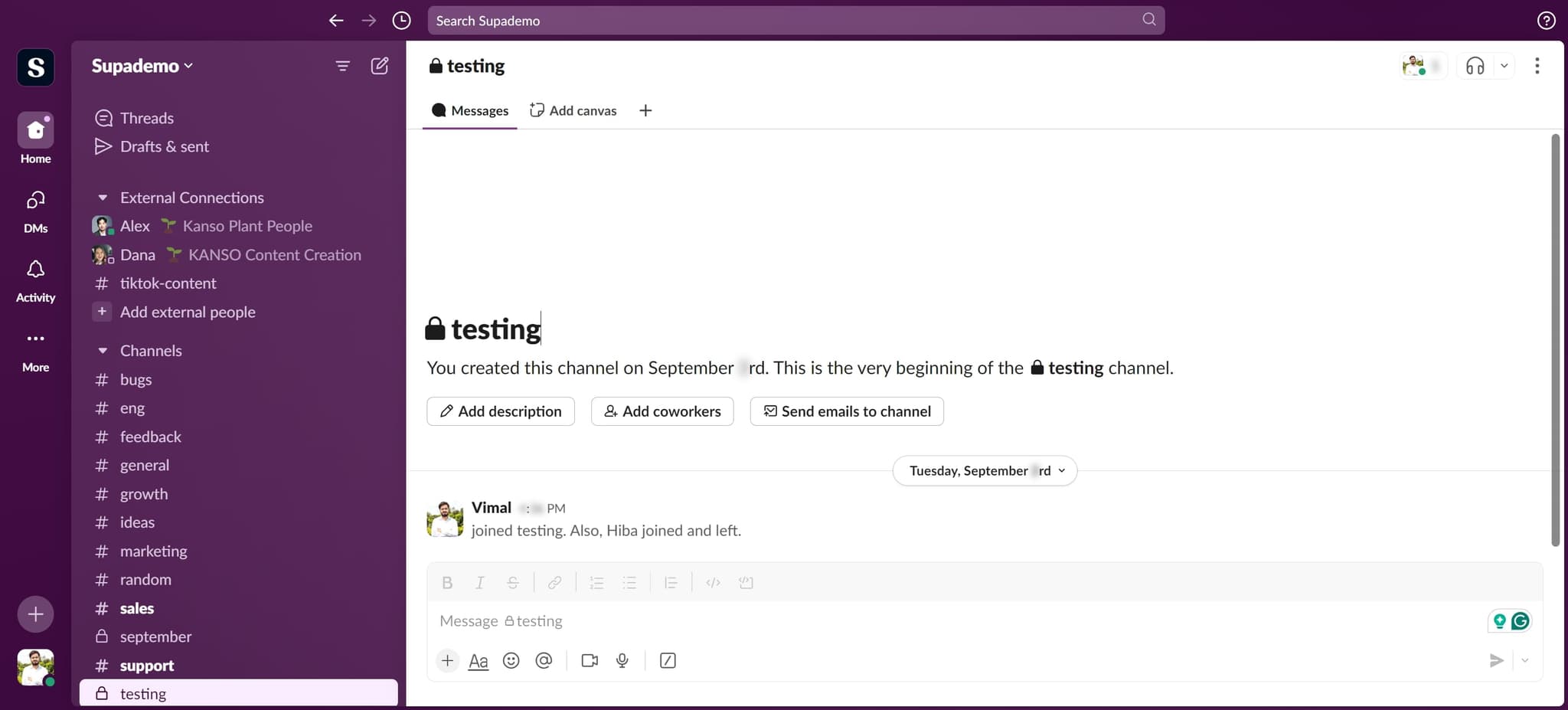
Access the channel menu
Start by locating and clicking the designated area to open the channel options. This action will reveal the menu containing channel management controls.
- 2
Upload or access settings
Select the Upload option to proceed to the channel settings area. This step prepares the interface for you to take action on the channel.
- 3
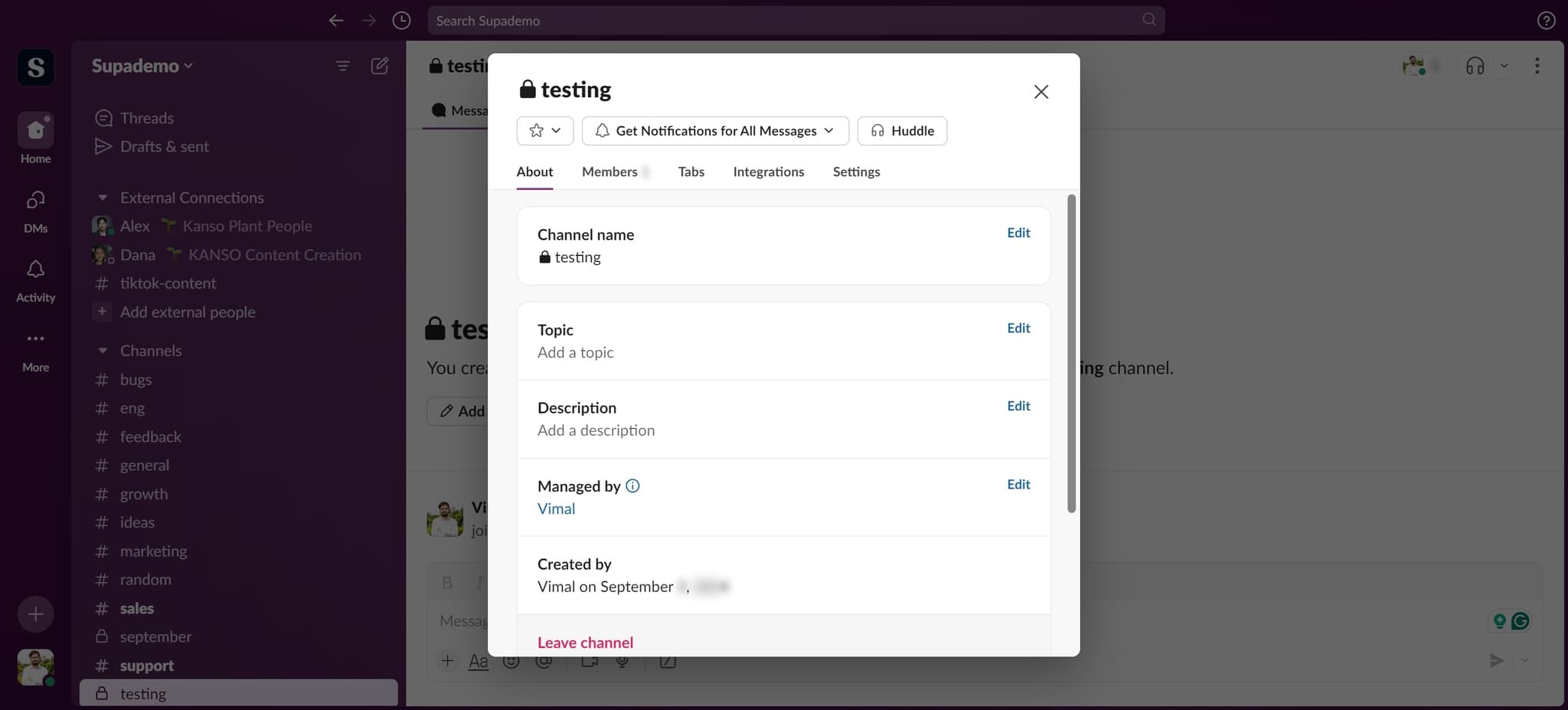
Click Leave channel
From the menu, click on the 'Leave channel' option. This initiates the process of removing yourself from the channel.
- 4
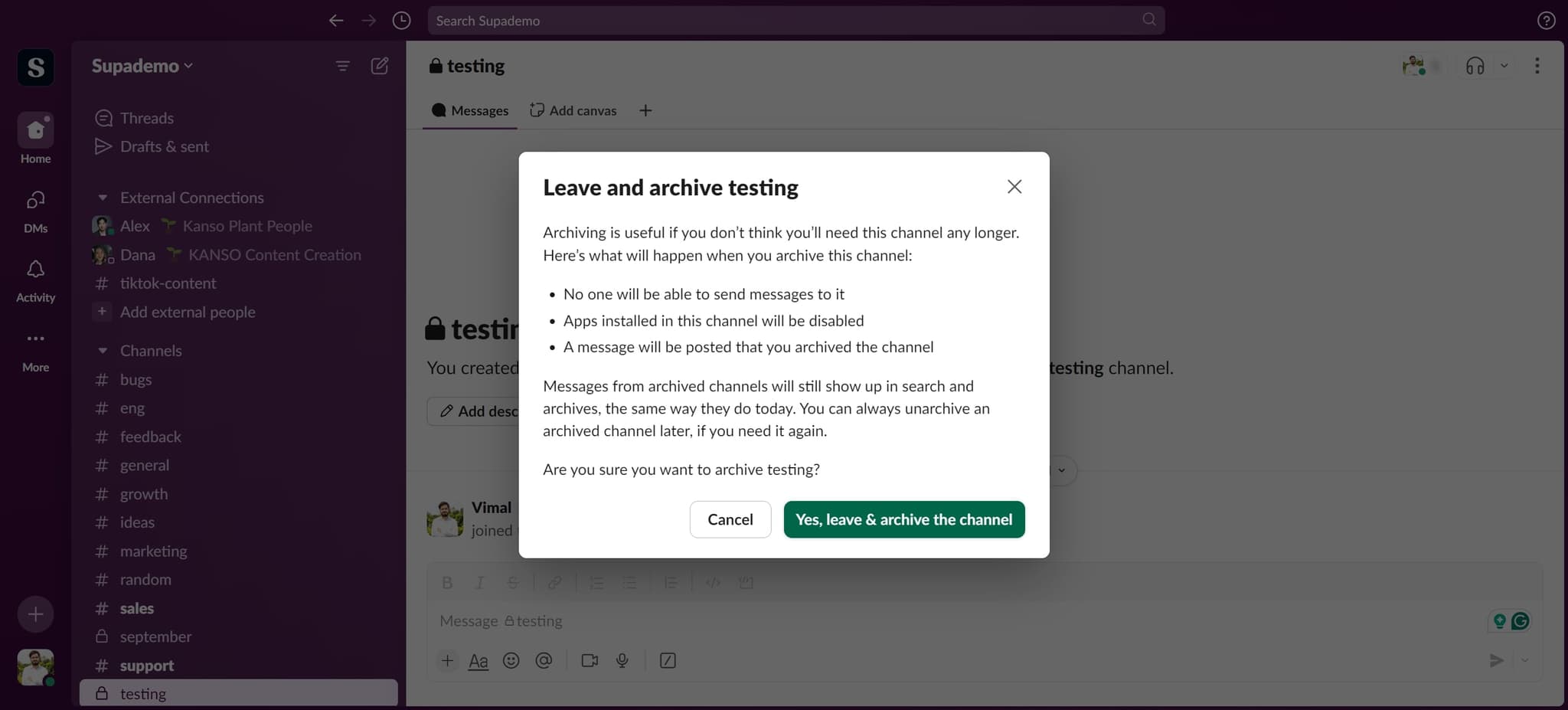
Confirm leaving and archive
Click on 'Yes, leave & archive the channel' to finalize your departure and archive the channel simultaneously. This ensures the channel is preserved in your workspace history while being removed from your active channels.
Frequently asked questions
Common questions about how to leave a slack channel.
Leaving a channel removes you from it so you no longer see messages or receive notifications. Archiving a channel preserves all its history and content while making it inactive, so no one can post new messages. You can do both simultaneously for a clean exit.
Yes, you can rejoin a public channel anytime by searching for it and clicking join. For private channels, you'll need to be invited by a channel member or workspace admin before you can rejoin.
Yes, Slack notifies channel members when someone leaves. A system message will appear in the channel indicating that you've departed, so your absence will be visible to others in that workspace.
Your messages remain in the channel after you leave. Other members can still see and reference your posts, and you can view the channel history if you rejoin later.
Yes, you can choose to leave without archiving by selecting just the 'Leave channel' option instead of the 'Leave & archive' option. The channel will remain active for other members and can continue to be used normally.