How to navigate in Figma

Figma's navigation system is essential for working efficiently across design files, frames, and layers. This guide walks you through the core navigation techniques that will help you move around your projects with confidence and speed.
Quick summary
In this tutorial, you'll learn how to navigate Figma's interface, including moving between frames, zooming in and out, panning across the canvas, and using the layers panel to organize your design work. These foundational skills will accelerate your design workflow and help you manage complex projects more effectively.
Why this matters
Mastering Figma navigation is critical because you'll spend most of your design time moving between different areas of your files. Efficient navigation reduces friction, helps you locate assets quickly, and allows you to focus more on creative work rather than wrestling with the interface.
Step-by-step guide
- 1
Open your Figma project
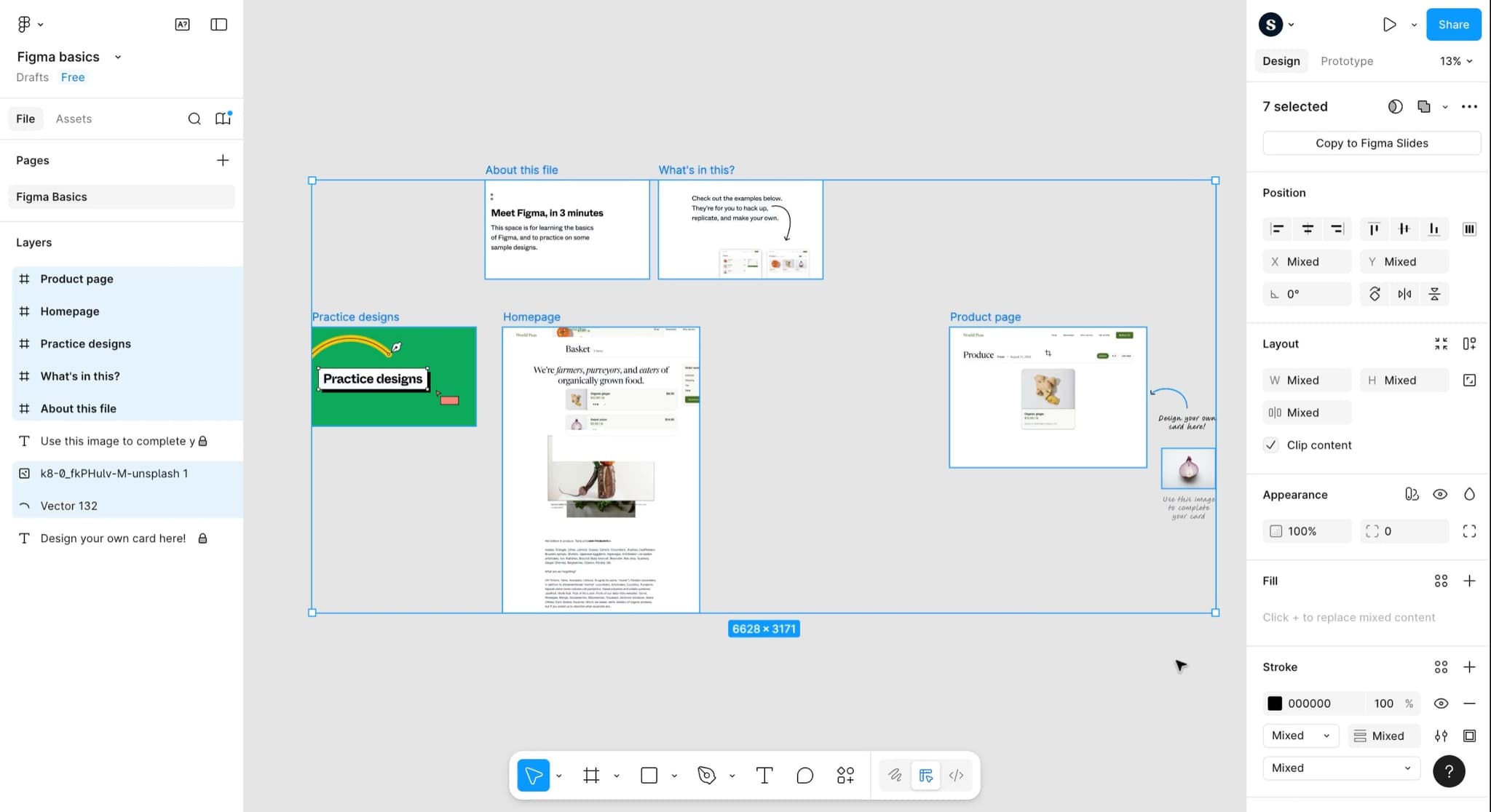
Launch Figma and select an existing project or create a new file. You'll see the canvas in the center with the layers panel on the left and the design panel on the right, giving you a complete view of your workspace.
- 2
Use the zoom controls
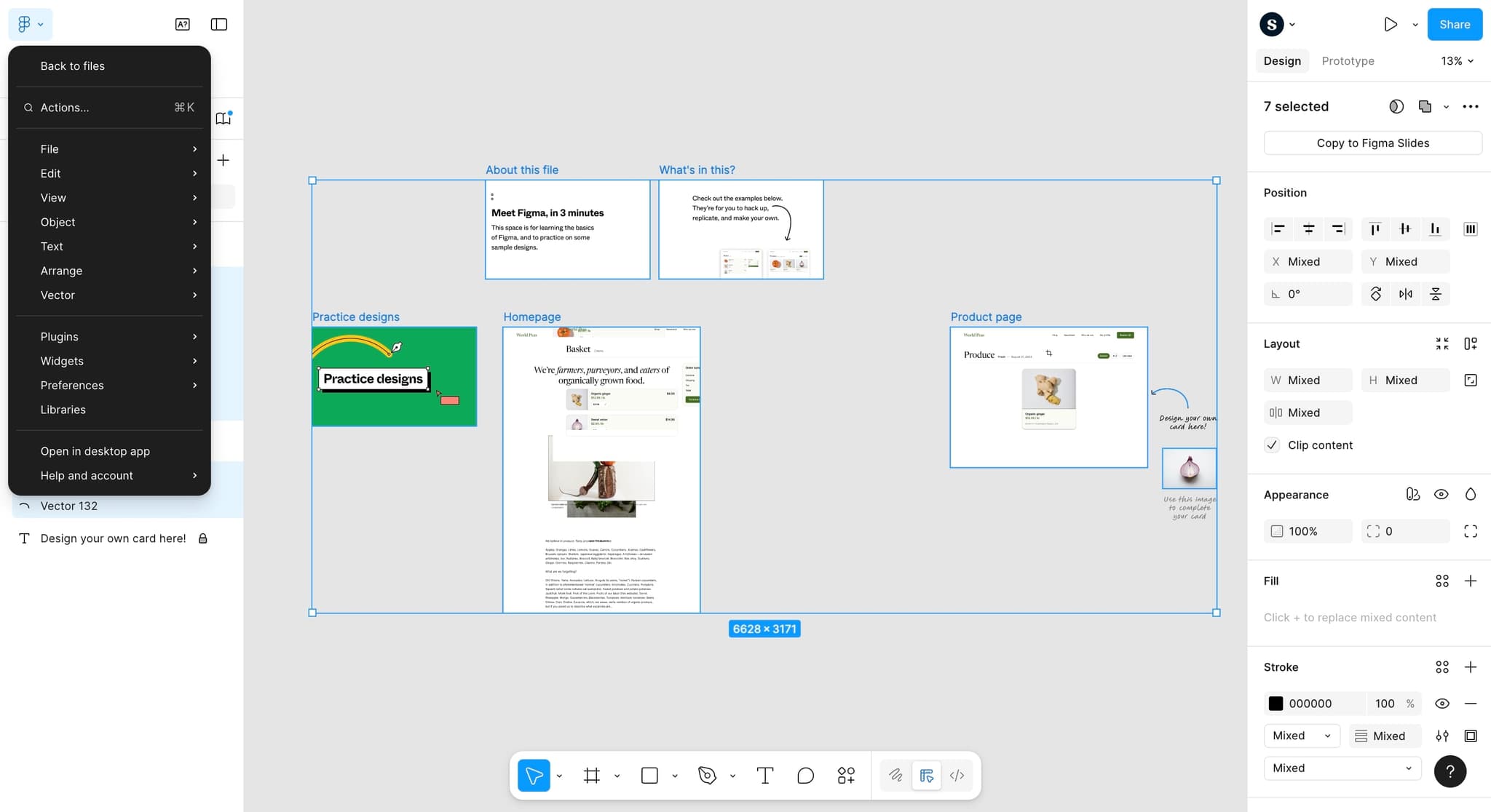
Access the zoom options from the top toolbar or use keyboard shortcuts like Command/Ctrl + Plus to zoom in and Command/Ctrl + Minus to zoom out. You can also double-click on an object to zoom to fit it in your view.
- 3
Pan across the canvas
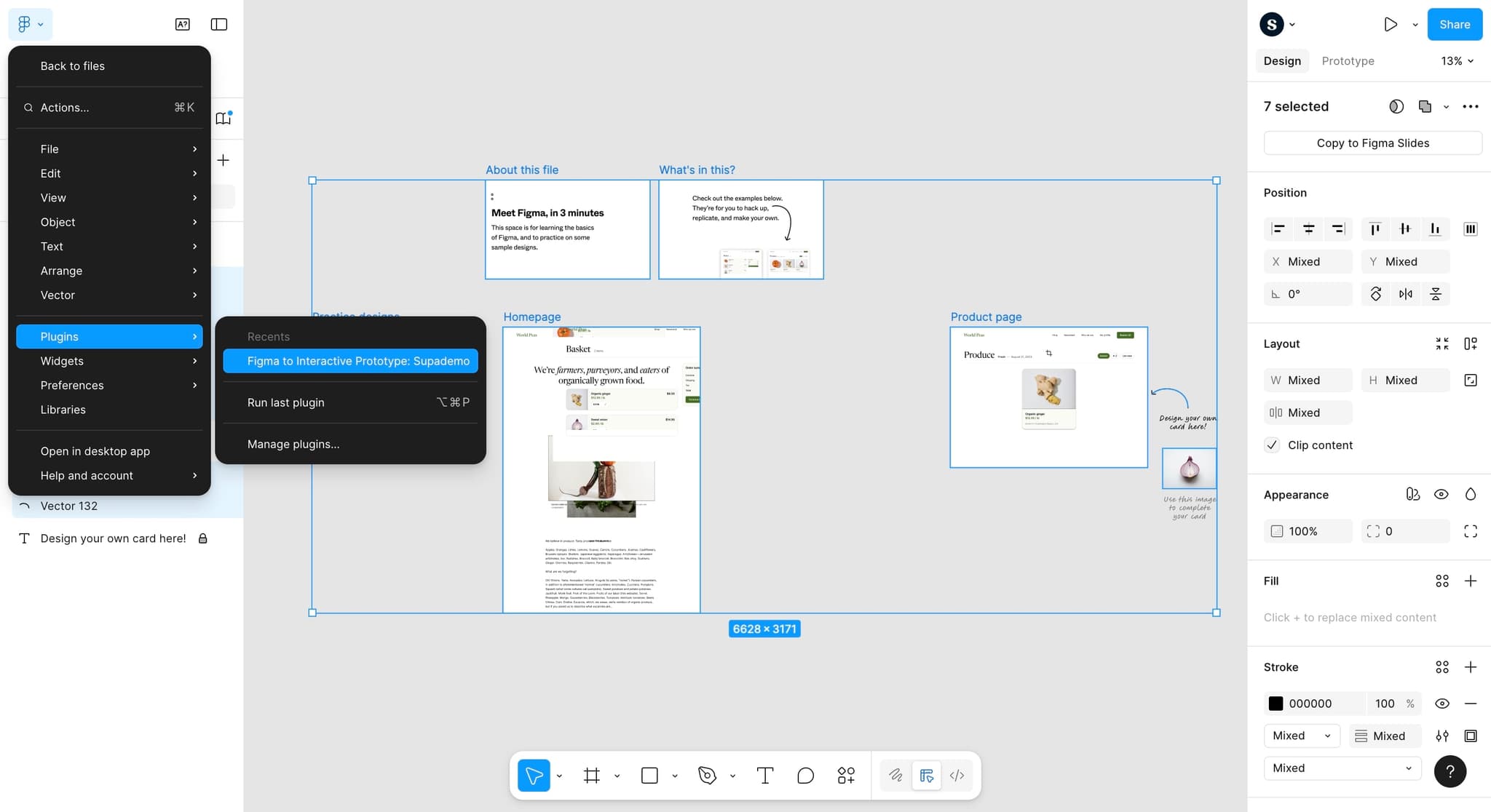
Hold the spacebar and drag with your mouse to pan around the canvas without changing your zoom level. Alternatively, use the middle mouse button to drag and move across your design area smoothly.
- 4
Navigate between frames
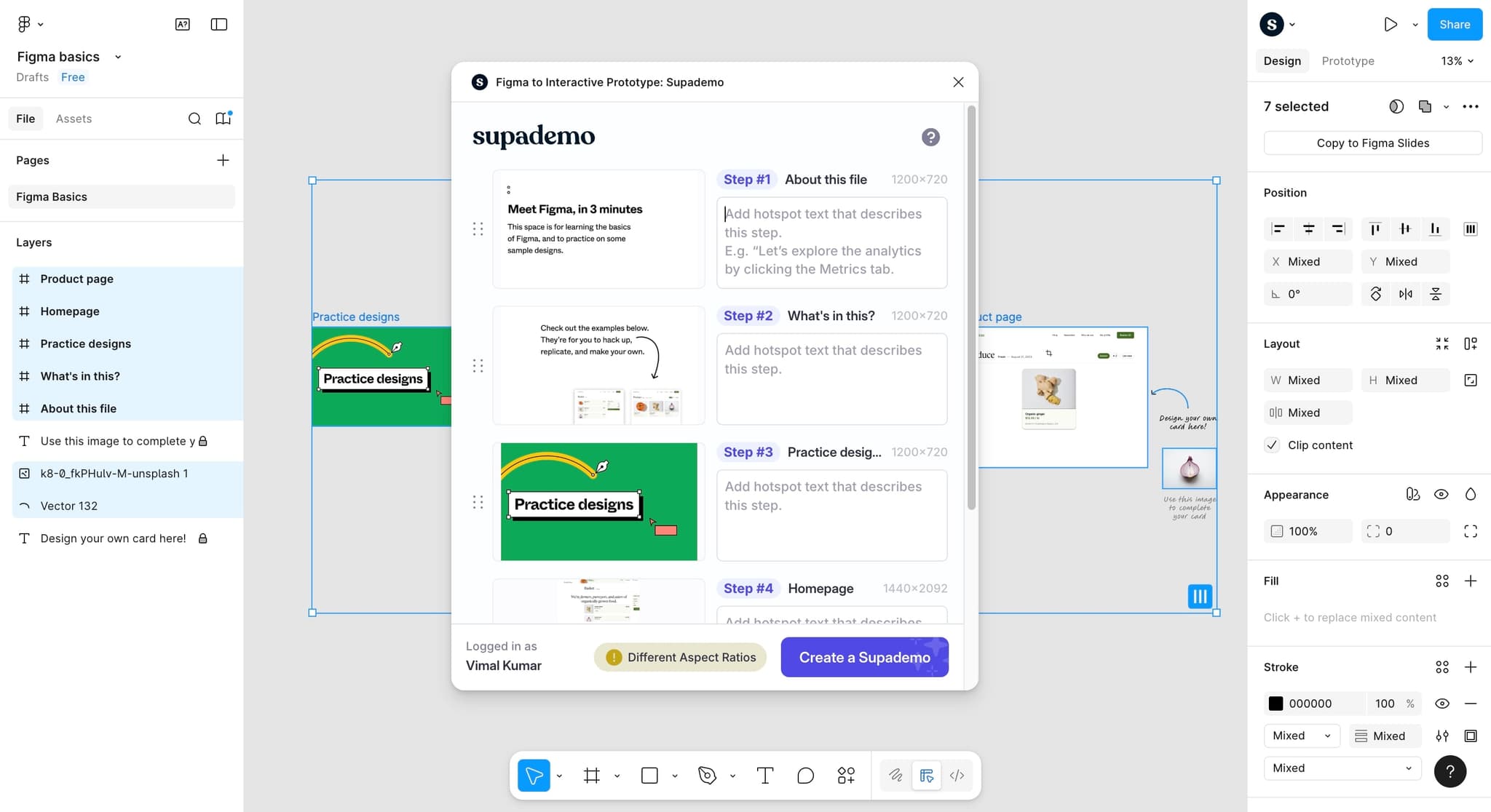
Click on a frame name in the layers panel on the left to select it, then double-click to zoom into that frame. Use the breadcrumb trail at the top of the canvas to quickly jump back to parent frames or the main canvas.
- 5
Expand and collapse layers
Click the arrow icon next to layer groups in the layers panel to reveal or hide nested elements. This helps you organize large projects and focus on specific sections of your design.
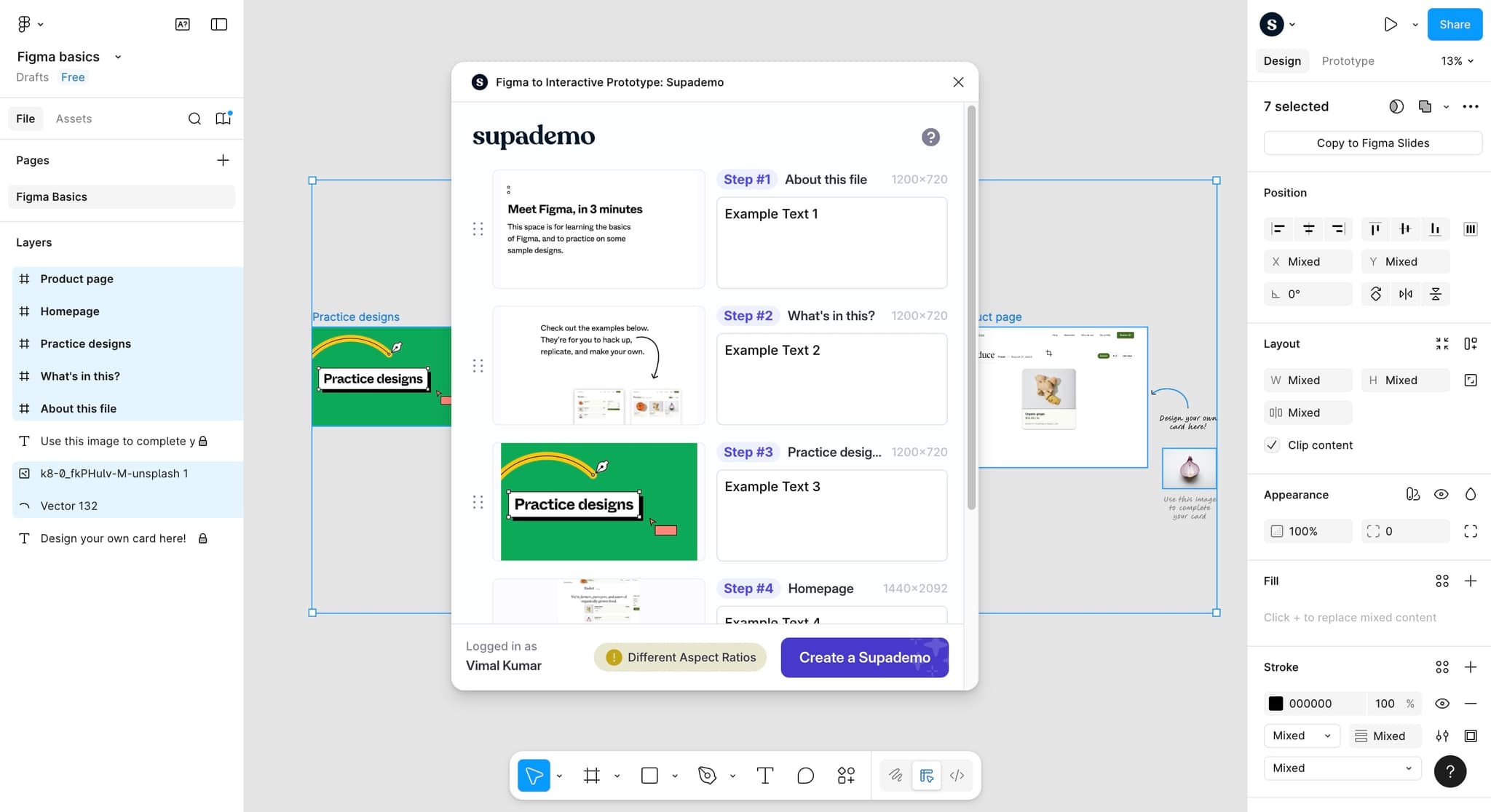
- 6
Search for layers by name
Use the search box at the top of the layers panel to quickly find specific elements in your file. Type keywords to filter layers and locate assets without scrolling through your entire layer structure.

- 7
Use fit to screen shortcut
Press Shift + 1 to zoom all objects into view, or Shift + 2 to zoom to fit the current selection. These shortcuts are quick ways to orient yourself when you're deep in a complex design.
- 8
Toggle the layers panel visibility
Press Tab to hide the layers panel and design panel for more canvas space, or press Tab again to restore them. This is useful when you need maximum screen real estate for detailed design work.

Frequently asked questions
Common questions about how to navigate in figma.
How do I quickly zoom to a specific object?
Double-click on any layer in the layers panel, or select an object on the canvas and press Shift + 2 to zoom to fit that selection. You can also right-click on an object and choose 'Zoom to fit' from the context menu.
Can I navigate Figma with keyboard shortcuts only?
Yes, Figma supports extensive keyboard navigation. Use arrow keys to move between layers, Shift + arrow keys to expand selections, and various shortcuts like Shift + 1 for fit all and Shift + 2 for fit selection. Check the keyboard shortcuts panel in Figma for a complete list.
What's the fastest way to move between multiple frames?
Use the breadcrumb navigation at the top of the canvas to jump between parent and child frames instantly. You can also click frame names directly in the layers panel to select and zoom to different frames in your design.
How do I manage navigation in very large files with hundreds of layers?
Use the search feature in the layers panel to find specific elements quickly, create component libraries to organize reusable assets, and use groups to structure layers logically. You can also use the outline view to get a high-level overview of your file structure.
Is there a way to navigate without touching the mouse?
Yes, Figma supports arrow key navigation through layers and Tab to toggle panels. You can also use keyboard shortcuts to zoom, fit to screen, and select objects, making it possible to navigate primarily with your keyboard for faster workflow.