How to upload your own image in Canva

Canva allows you to personalize your designs by uploading your own images directly into your projects. Whether you want to add custom photos, logos, or branded graphics, learning how to upload files will expand your creative possibilities. This guide walks you through the upload process step by step.
Quick summary
In this tutorial, you'll learn how to upload your own images to Canva and incorporate them into your designs. You'll navigate to the Uploads section, select your files, and prepare them for use in your projects. By the end, you'll be able to seamlessly add custom visuals to any Canva design.
Why this matters
Uploading your own images lets you maintain brand consistency and add personal touches that pre-made assets can't provide. Custom uploads are essential for businesses, creators, and designers who need unique visual elements. This workflow saves time and ensures your designs reflect your specific vision rather than relying solely on Canva's library.
Step-by-step guide
- 1
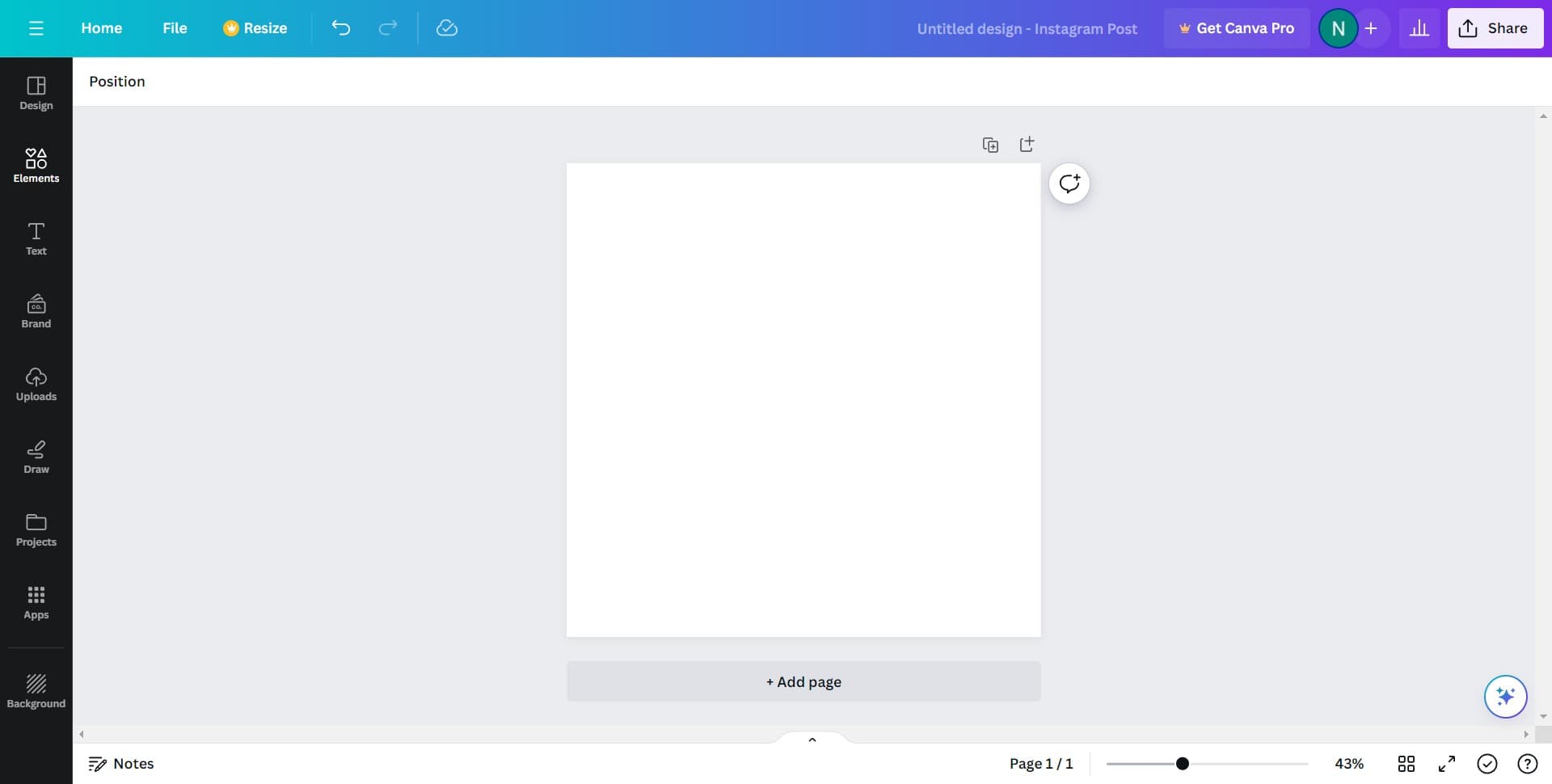
Click on Elements
Open your Canva design and locate the Elements panel on the left sidebar. Click on Elements to access the menu of available design components and upload options.
- 2
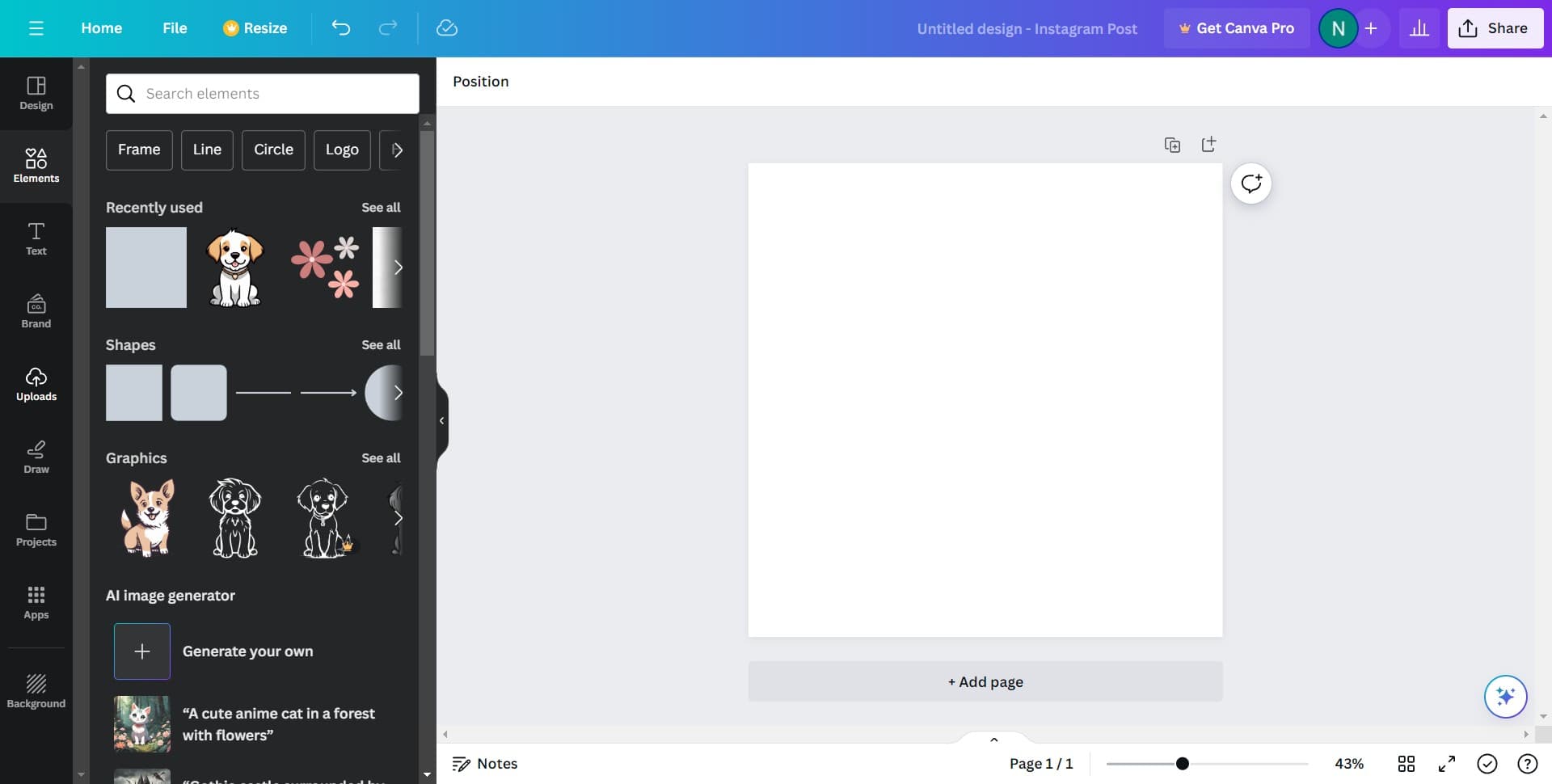
Click on Uploads
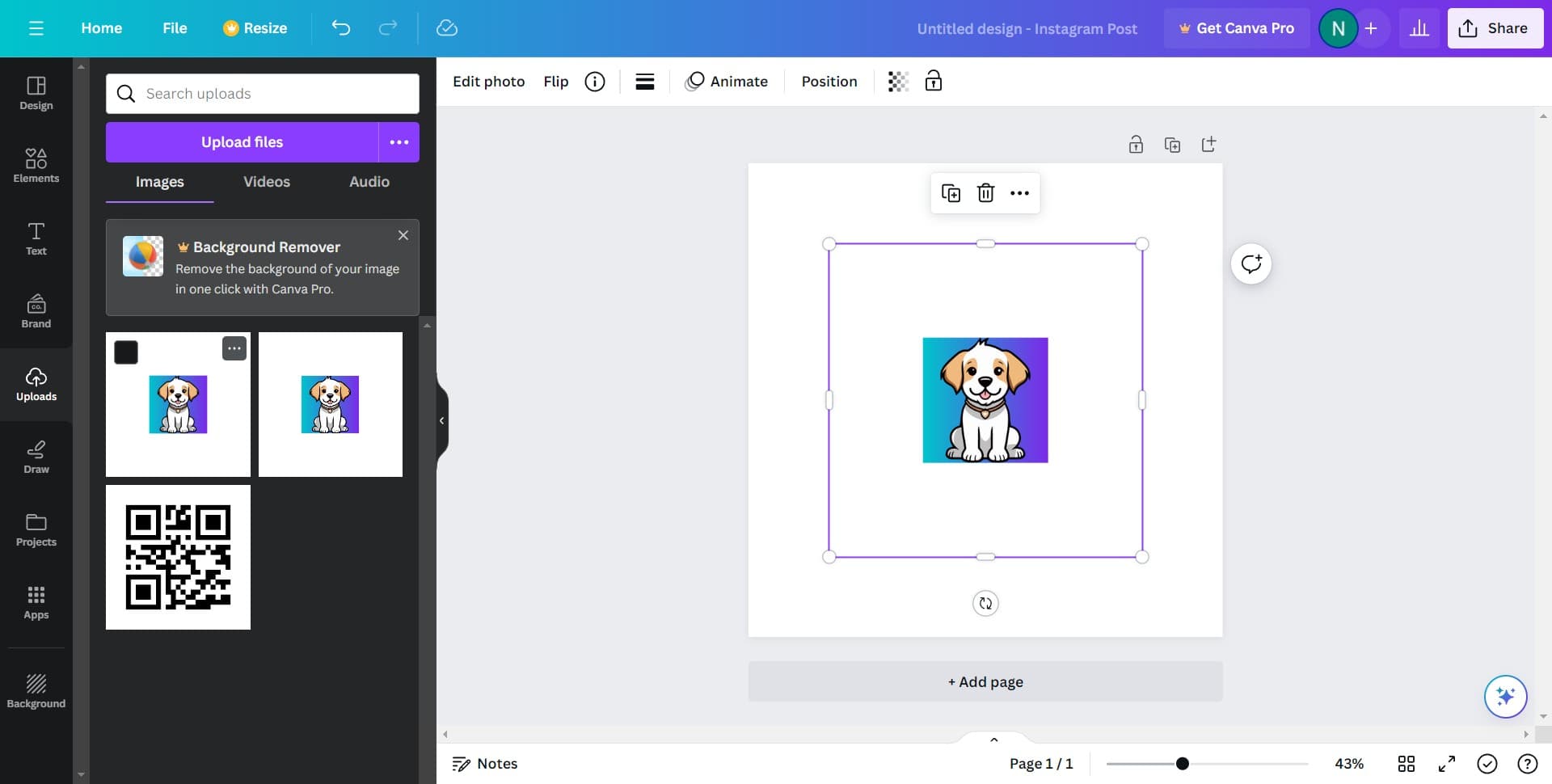
Within the Elements menu, find and click on Uploads. This section displays all previously uploaded files and provides access to upload new ones.
- 3
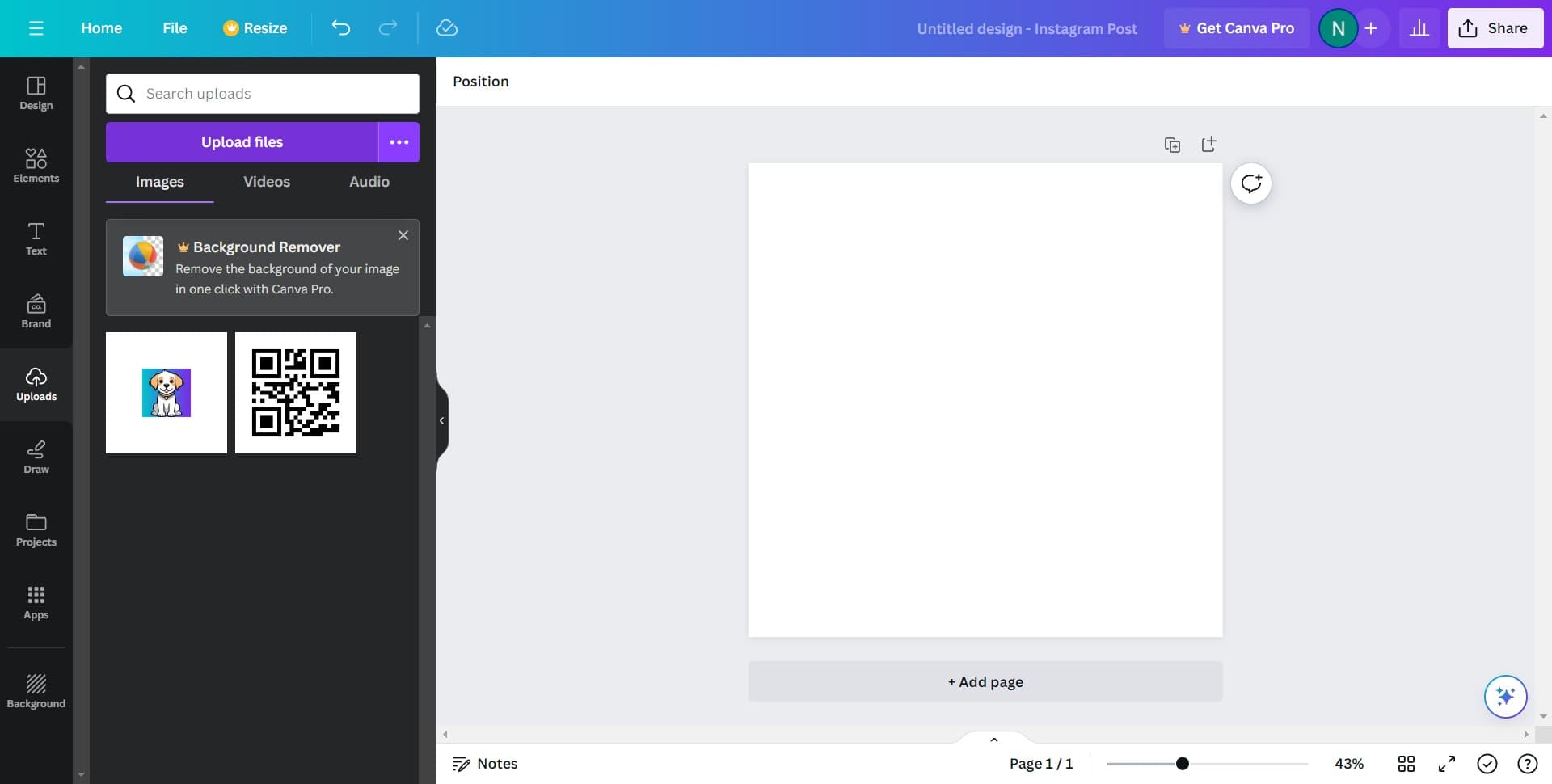
Click on Upload files
Select the Upload files option to begin the file selection process. This will open a dialog or prompt where you can choose images from your device.
- 4
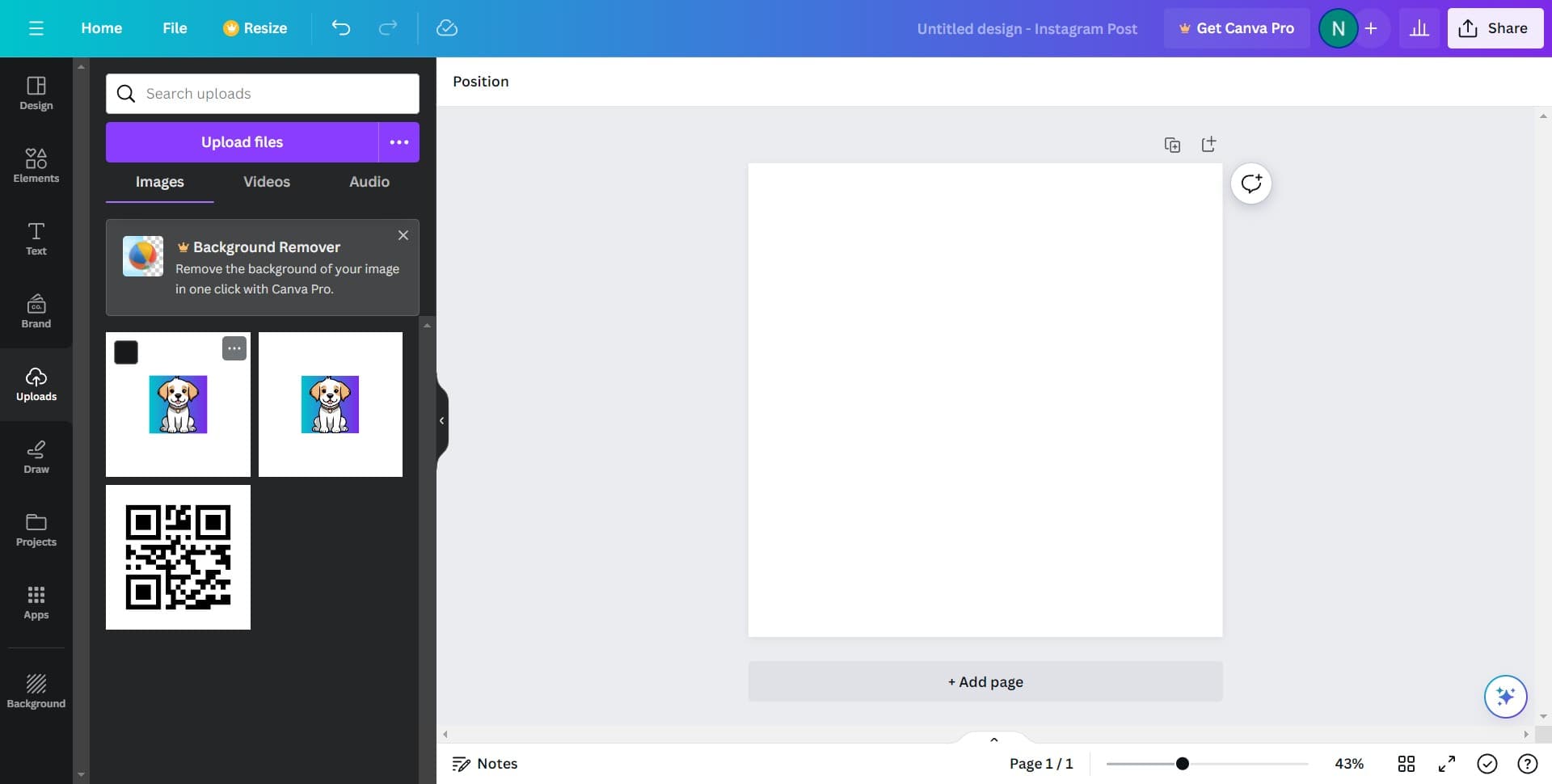
Select your image file
Navigate to the location on your device where your image is stored and click on it to select it. You can choose multiple images at once if your browser supports it.
- 5
Complete the upload
Click the Upload button or confirm your selection to transfer your image to Canva. Your image will then appear in the Uploads section and be ready to drag onto your design.
Frequently asked questions
Common questions about how to upload your own image in canva.
What image file formats does Canva accept?
Canva supports common image formats including JPG, PNG, SVG, and WebP. Most standard image files from your camera, smartphone, or graphic design software will work. If you encounter issues, try converting your file to PNG or JPG format.
Is there a file size limit for uploads in Canva?
Canva typically allows files up to 5MB in size. Larger files may need to be compressed before uploading. Most photos and graphics from standard sources fall well within this limit.
Can I upload images with transparent backgrounds?
Yes, Canva supports PNG files with transparent backgrounds, which is ideal for logos and graphics. When you upload a PNG with transparency, Canva will preserve that transparency so your images blend seamlessly with your design background.
Where do my uploaded images get stored?
All your uploaded images are stored in the Uploads section of Canva. They remain accessible across all your designs, so you can reuse them whenever needed without re-uploading.
Can I delete or manage uploaded images?
Yes, you can manage your uploads through the Uploads section. From there, you can delete files you no longer need or organize them for easy access in future projects.