How to add a mask to a design in Canva

Masks in Canva allow you to control which parts of an image or design element are visible, creating professional effects like gradients, shapes, and creative overlays. This technique is essential for designers looking to produce polished, visually interesting graphics without needing advanced image editing software.
Quick summary
In this tutorial, you'll learn how to add a mask to your Canva design by accessing the Elements library, selecting a Frame, and exploring mask options to apply to your images and layers. You'll discover how to customize masks to achieve your desired visual effect.
Why this matters
Masking is a fundamental design skill that enables you to create more sophisticated compositions, blend elements seamlessly, and apply creative effects that elevate your designs. Whether you're designing social media graphics, presentations, or marketing materials, masking helps you achieve a professional appearance efficiently.
Step-by-step guide
- 1
Open the Elements panel
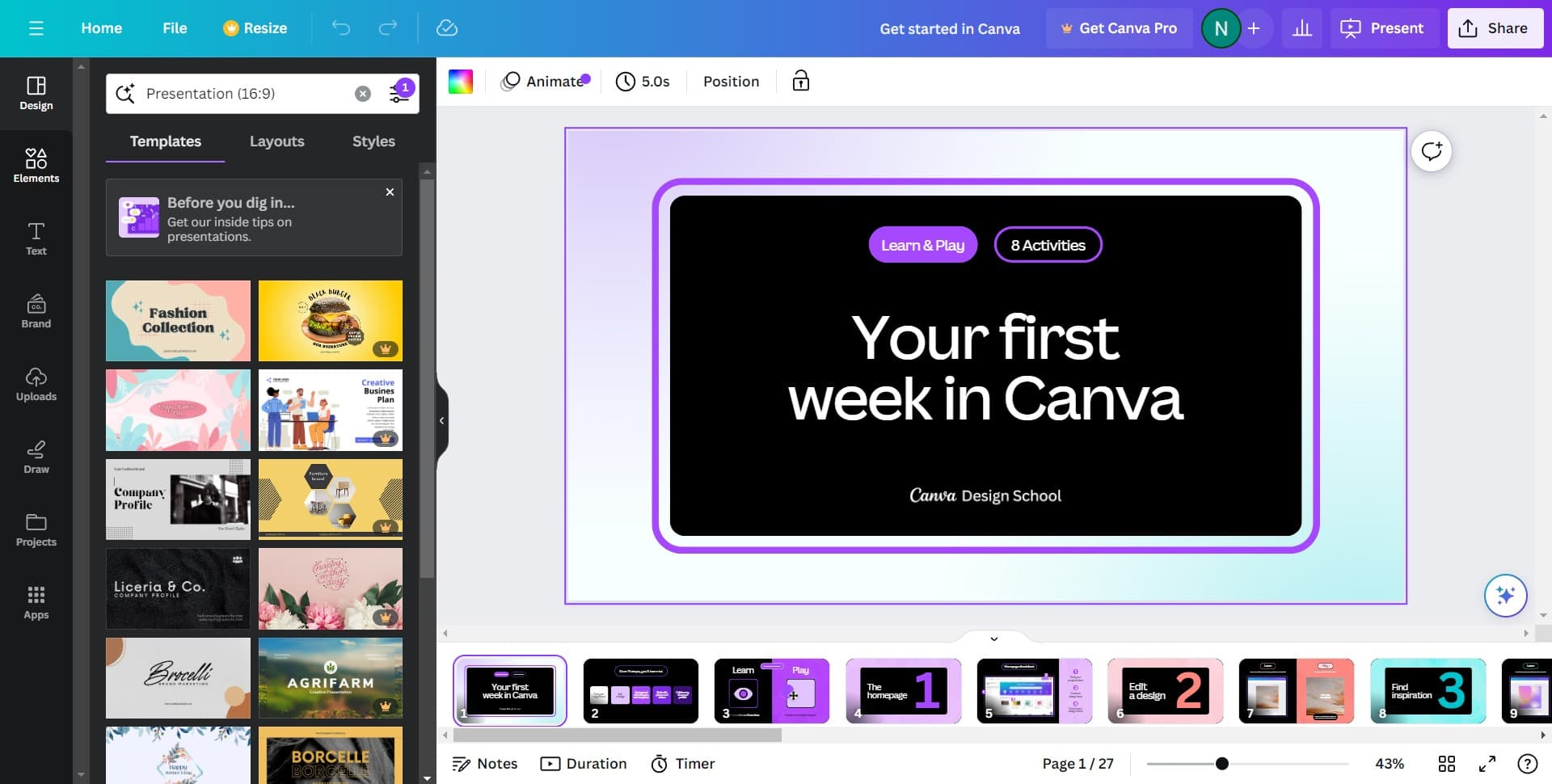
Click on 'Elements' in the left sidebar of your Canva project. This opens the Elements library where you can access various design components including frames and masks.
- 2
Select the Frame option
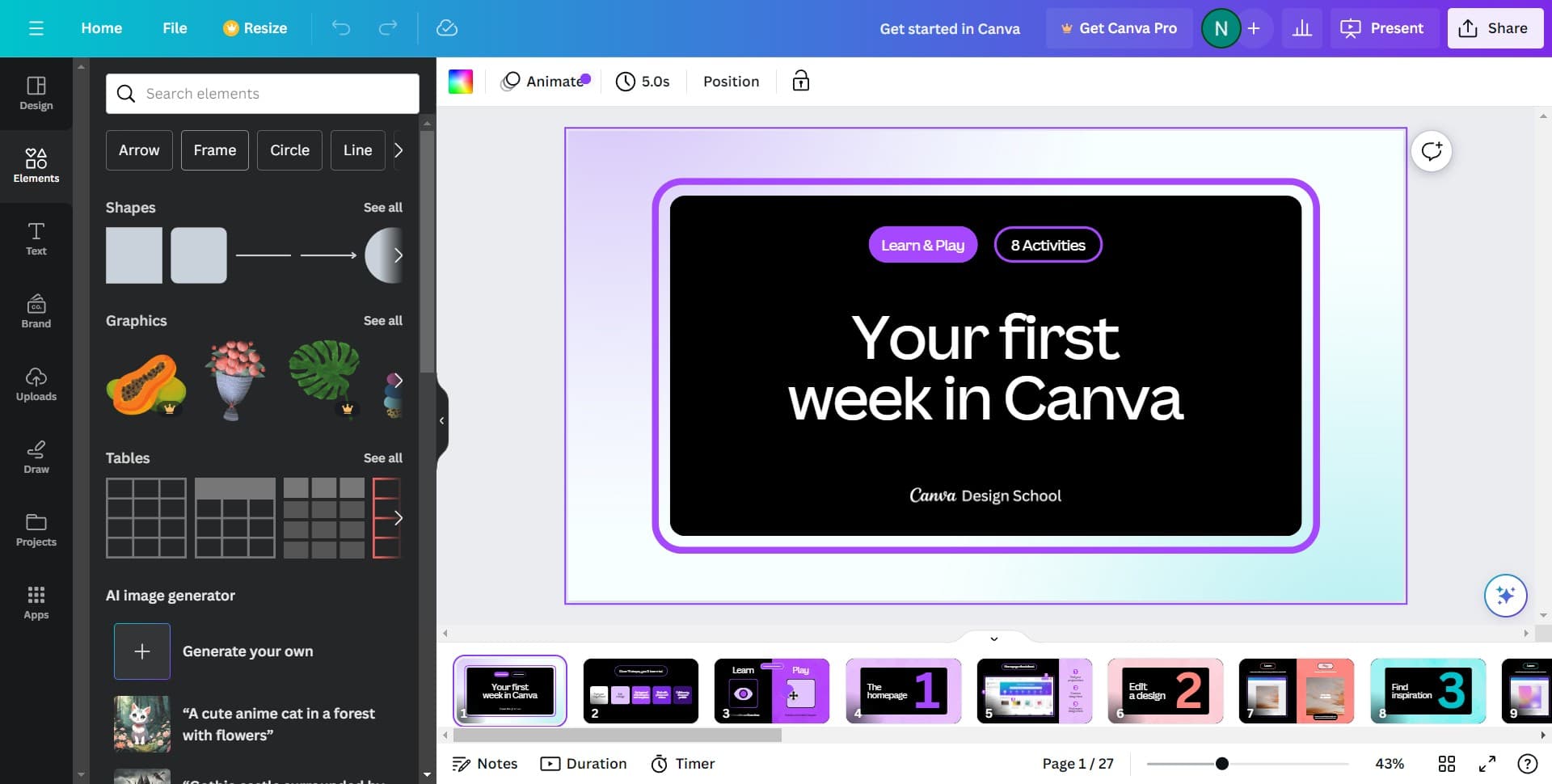
Click on 'Frame' from the Elements menu. Frames serve as the foundation for applying masks to your design elements.
- 3
View all available frames
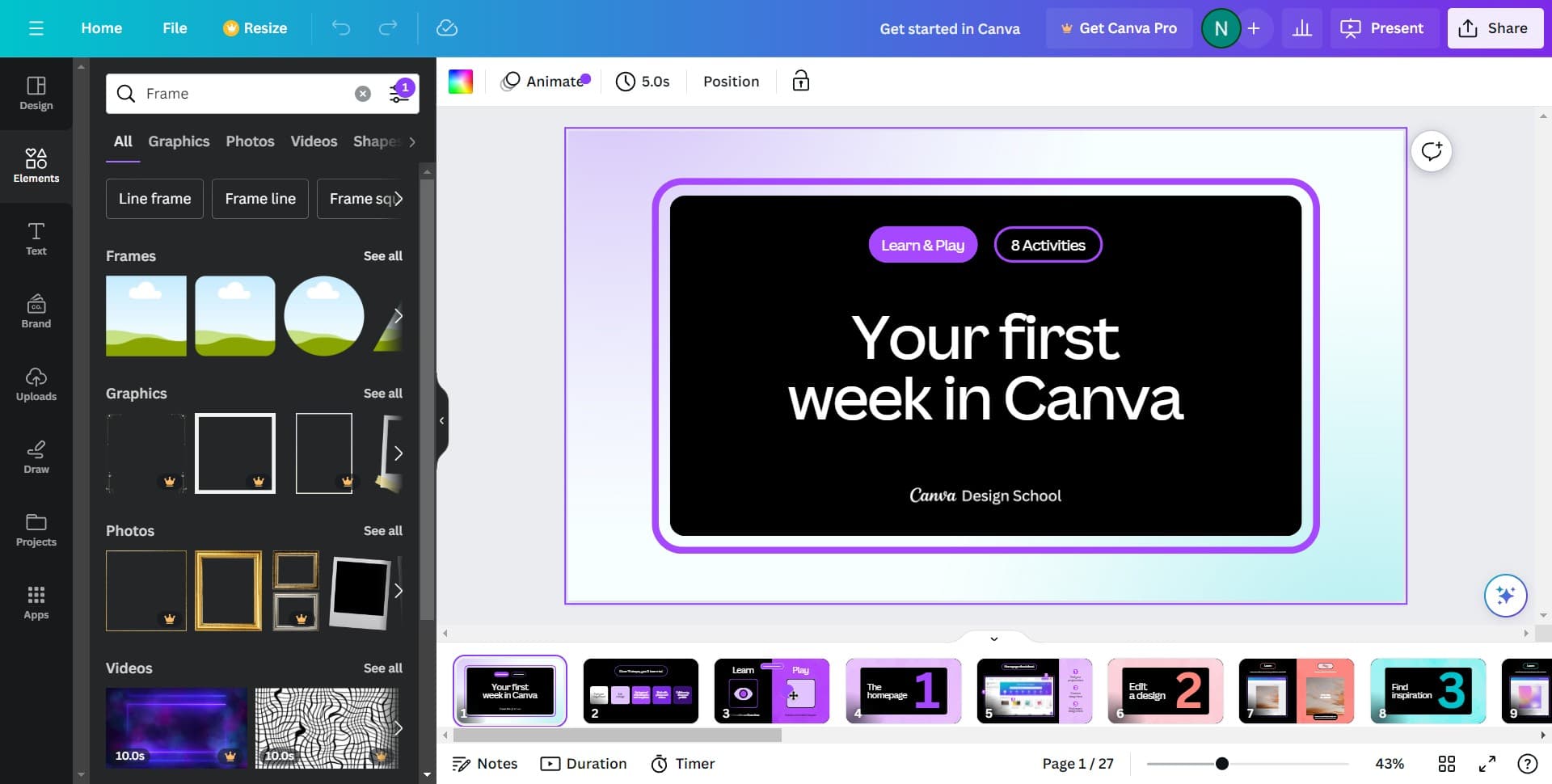
Click on 'See all' to expand the complete library of frame options. This displays all mask shapes and styles available for your design.
- 4
Choose your desired frame
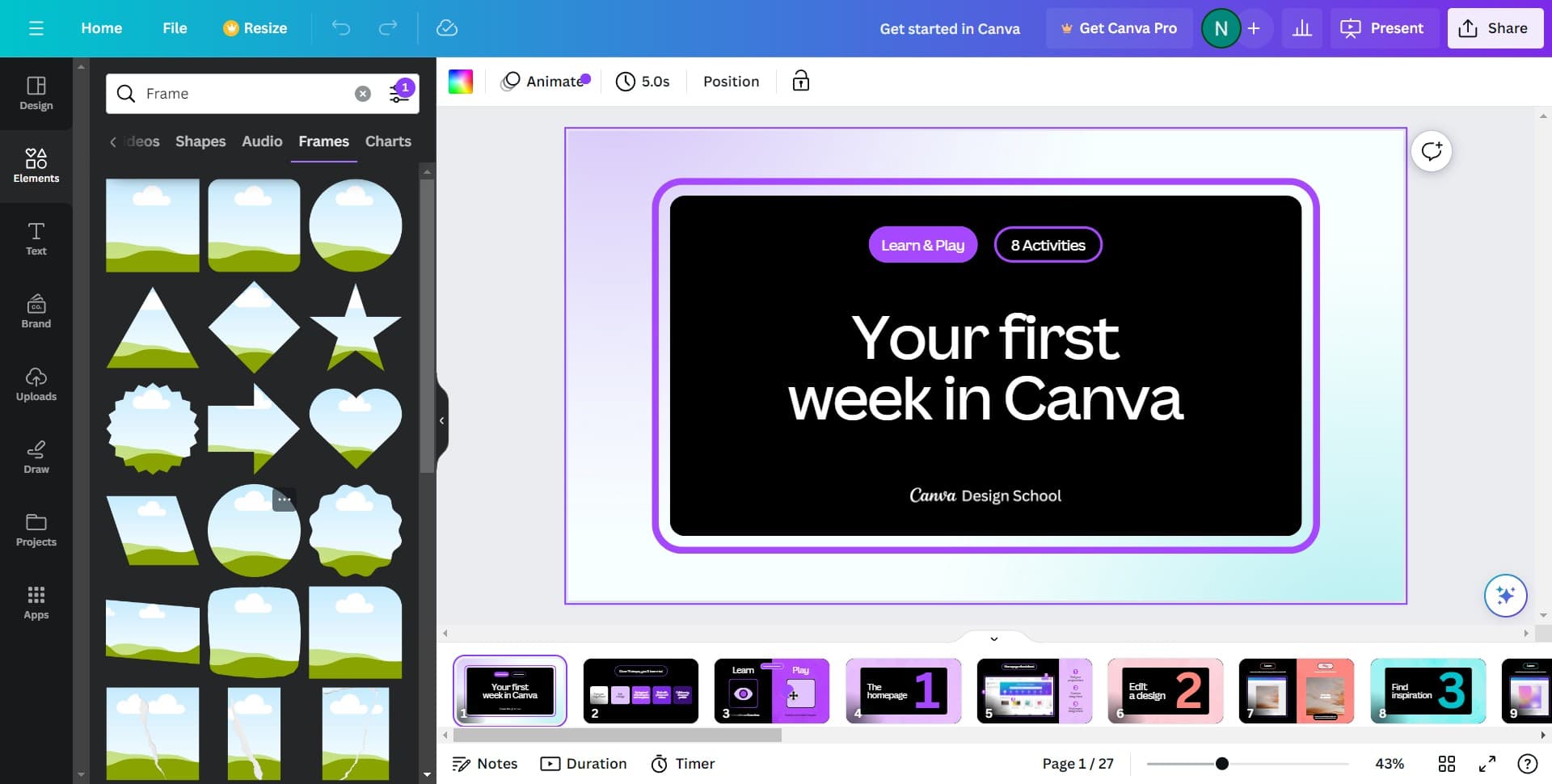
Click on the frame or mask shape that best fits your design vision. The selected frame will be ready to apply to your chosen image or element.
- 5
Explore additional mask styles
Click on 'See all' again to browse any additional mask variations or categories. This ensures you find the perfect mask style for your creative needs.
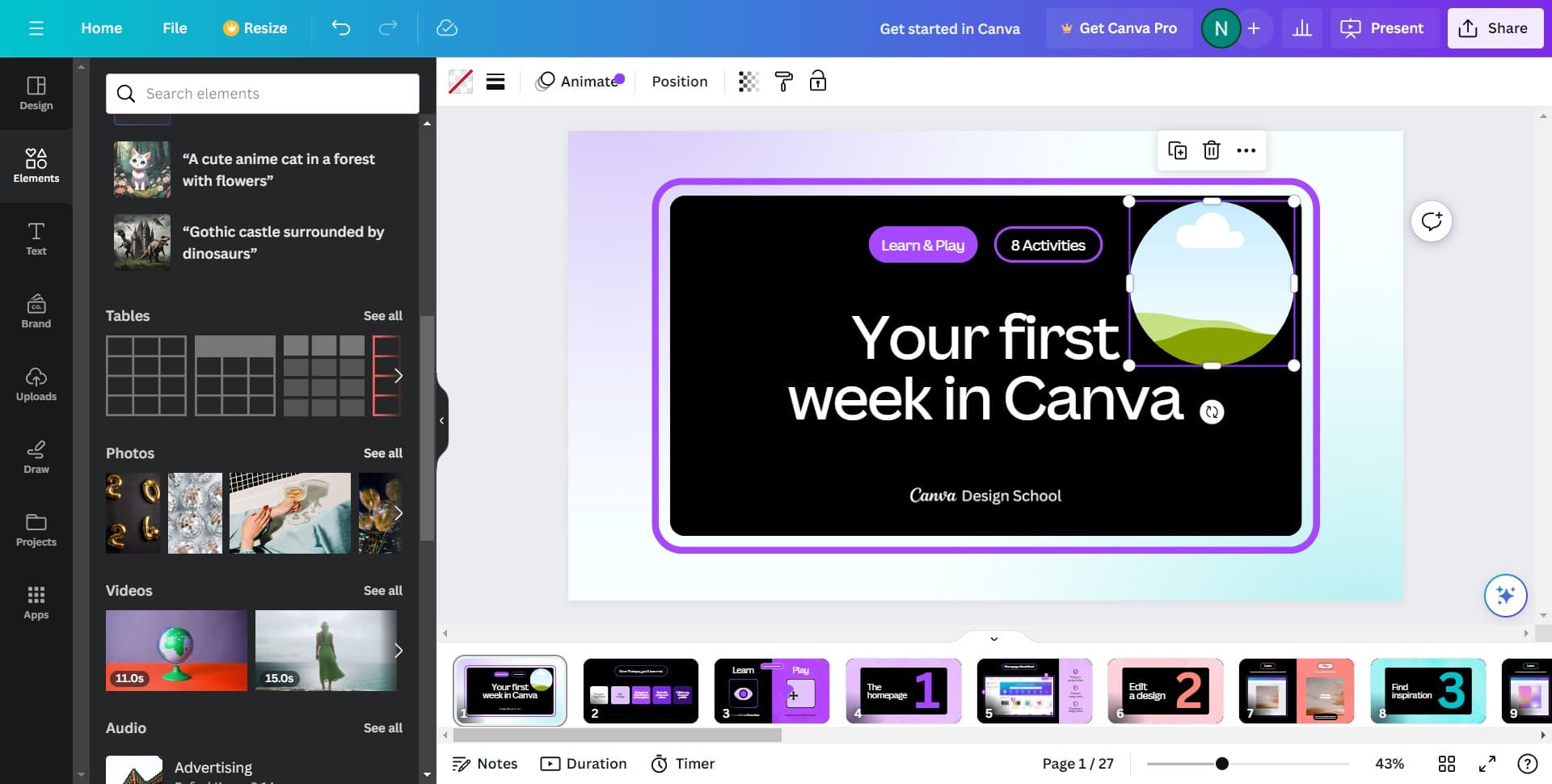
- 6
Select your specific mask
Click on the particular mask design you want to apply to your element. This mask will now be ready to use on your selected image or layer.
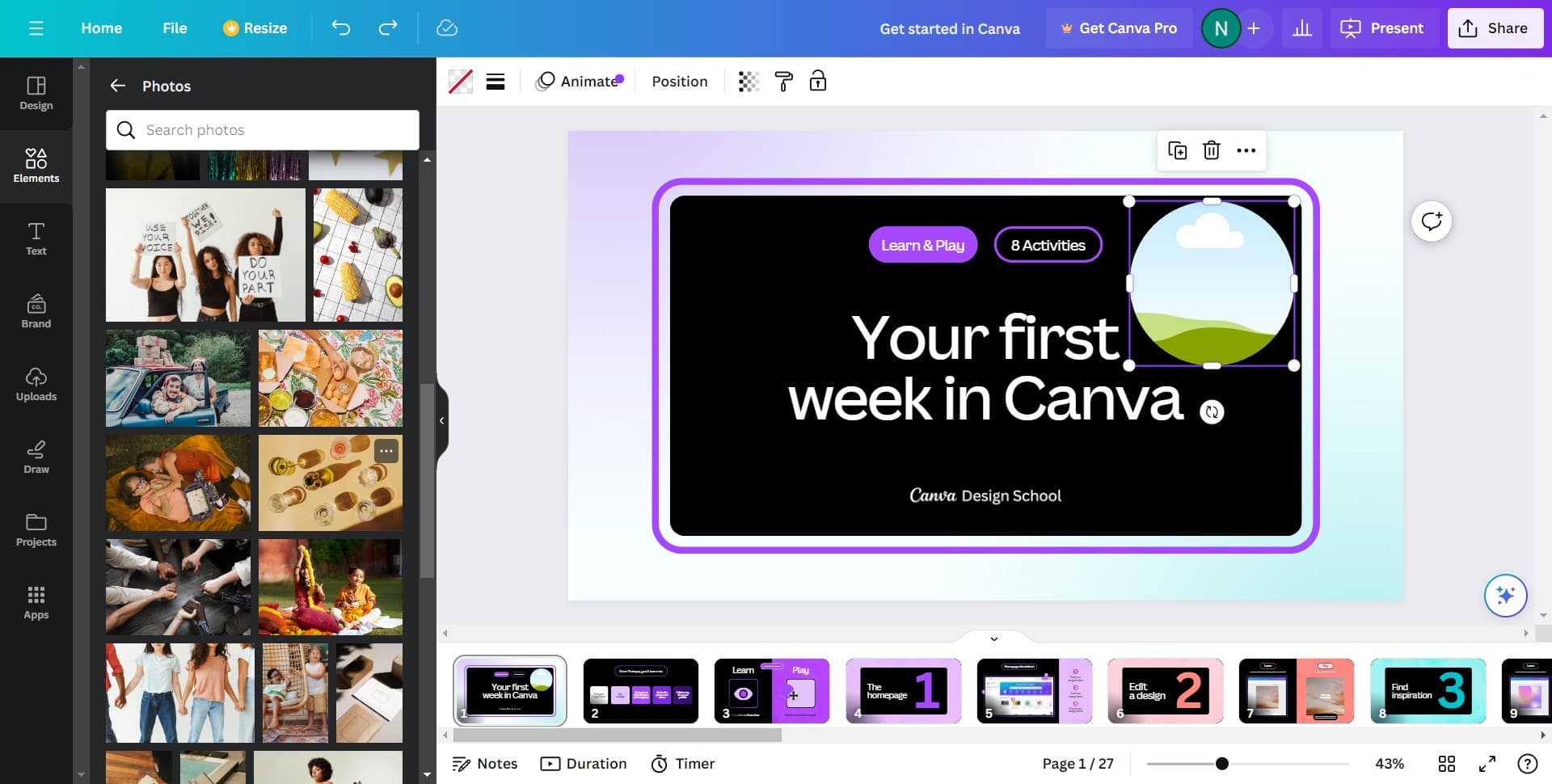
- 7
Upload your image
Upload the image you want to apply the mask to by clicking the upload option. Once uploaded, the image will be masked according to the frame you selected, creating your desired visual effect.
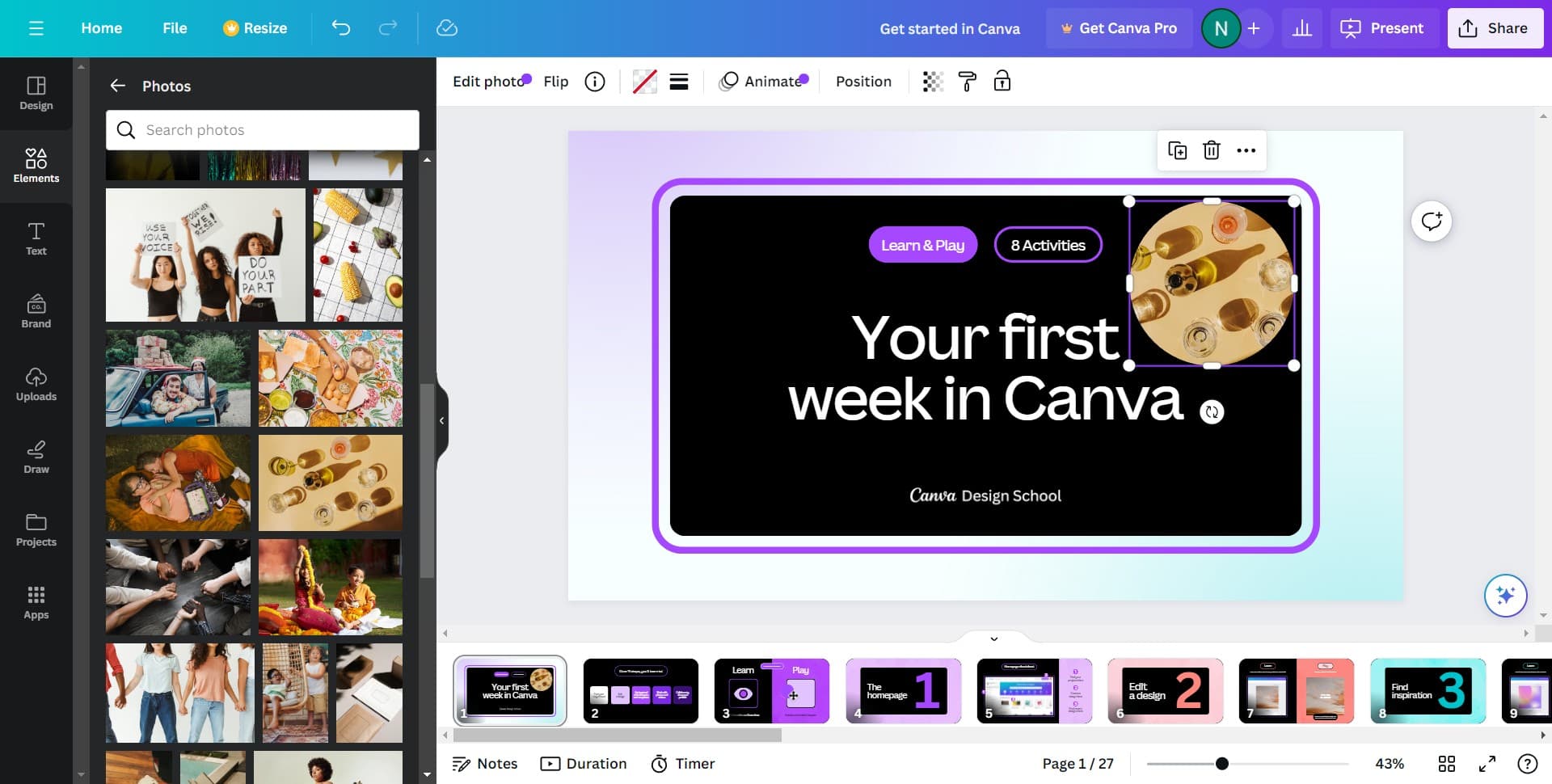
Frequently asked questions
Common questions about how to add a mask to a design in canva.
Canva provides a range of pre-designed masks through its Elements library, but you cannot create entirely custom shapes from scratch. However, you can combine multiple elements and masks creatively to achieve unique effects that suit your design needs.
Canva supports common image formats including JPG, PNG, WebP, and TIFF. PNG files with transparency are particularly useful for masking work, as they preserve any transparency in your masked designs.
Yes, once you've applied a mask to an image, you can resize, rotate, and reposition the masked element using Canva's standard editing tools. You can also swap the mask for a different one if you change your mind.
Masks primarily work with images and design elements rather than text. However, you can create text within shapes or use shapes as decorative masks alongside your text for creative typography effects.
Yes, when you download or export your Canva project, all masks are rendered and included in the final file. The mask effect becomes permanent in your exported image, whether you download as PNG, JPG, or another format.