How to find and edit suspended users on Jira

Managing user access in Jira is a critical administrative task, especially when dealing with suspended accounts. This guide walks you through the process of locating and editing suspended users in Jira, helping you maintain proper access control and security within your instance.
Quick summary
In this tutorial, you'll learn how to navigate to the user management section in Jira and access the tools needed to find and modify suspended user accounts. By following these steps, you'll be able to efficiently manage user status and make necessary adjustments to account permissions.
Why this matters
Suspended users can accumulate in your Jira instance over time as team members change roles or leave organizations. Being able to quickly locate and edit these accounts ensures your instance remains secure, your user license allocation is optimized, and inactive accounts don't pose a compliance risk.
Step-by-step guide
- 1
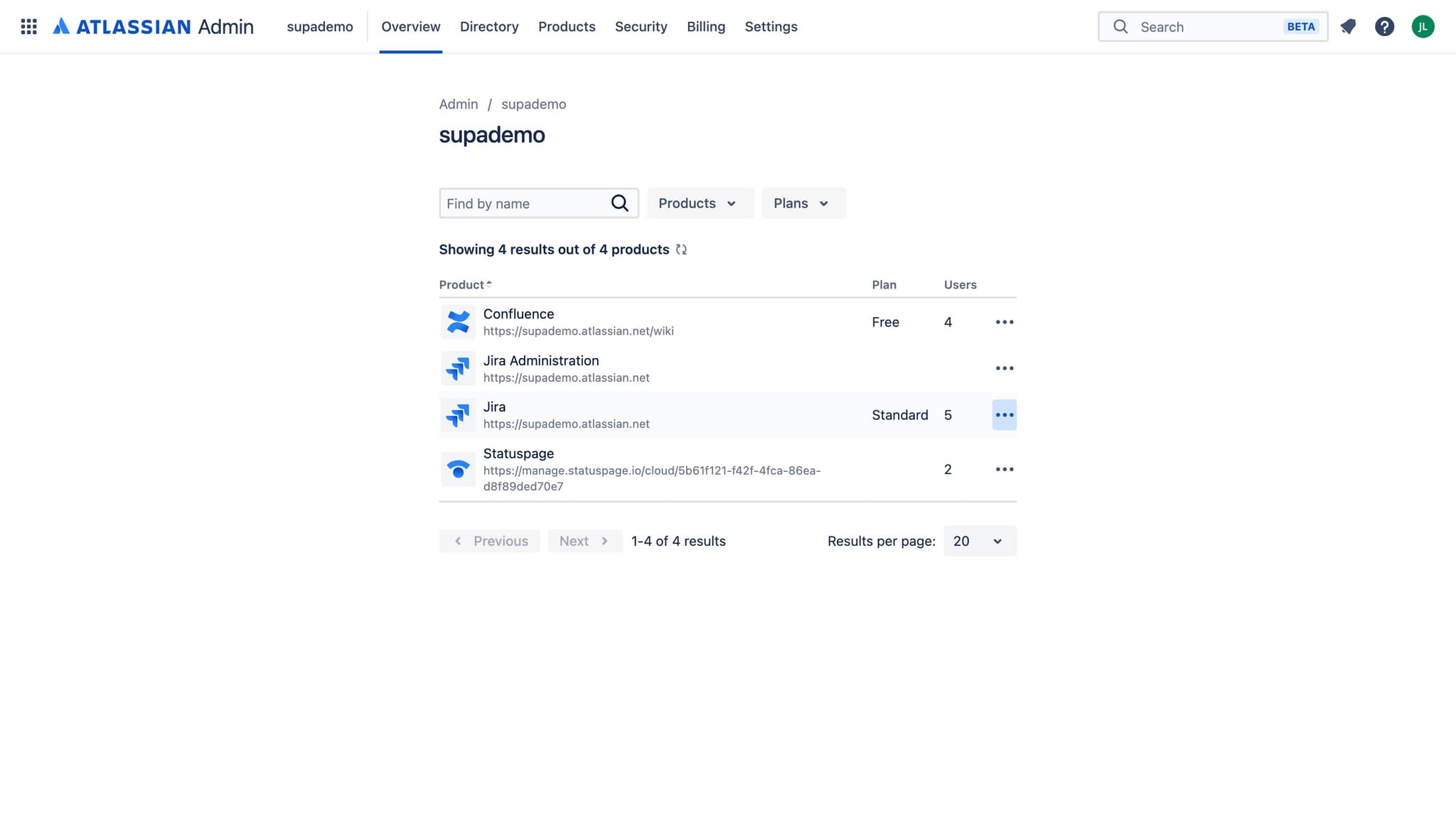
Access the administration menu
Click on the administration element in your Jira interface to open the main settings area. This is typically found in the top navigation or settings menu.
- 2
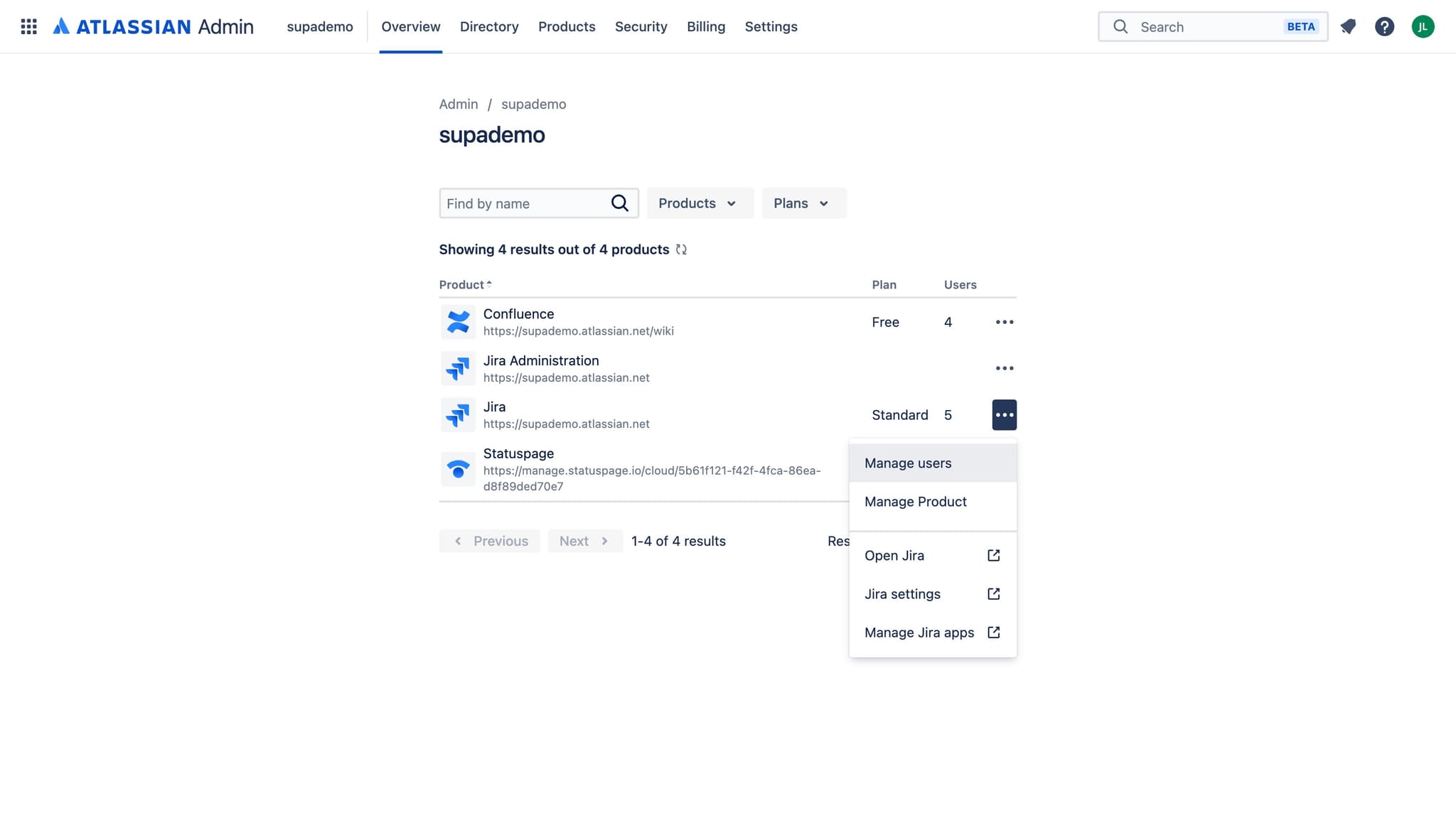
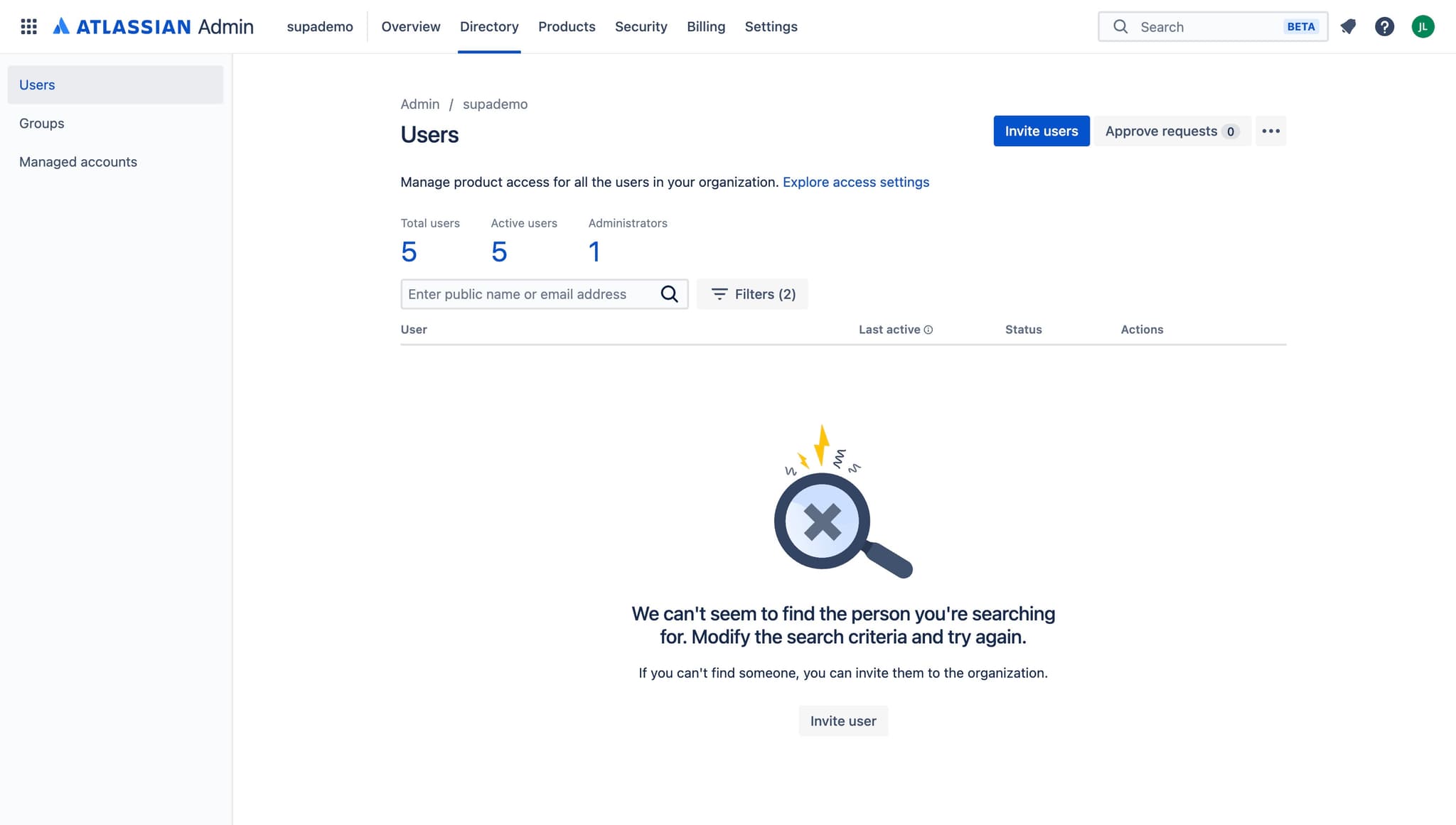
Select Manage users option
Click on 'Manage users' from the available administration options. This will open the user management interface where you can view and modify all user accounts in your instance.
- 3
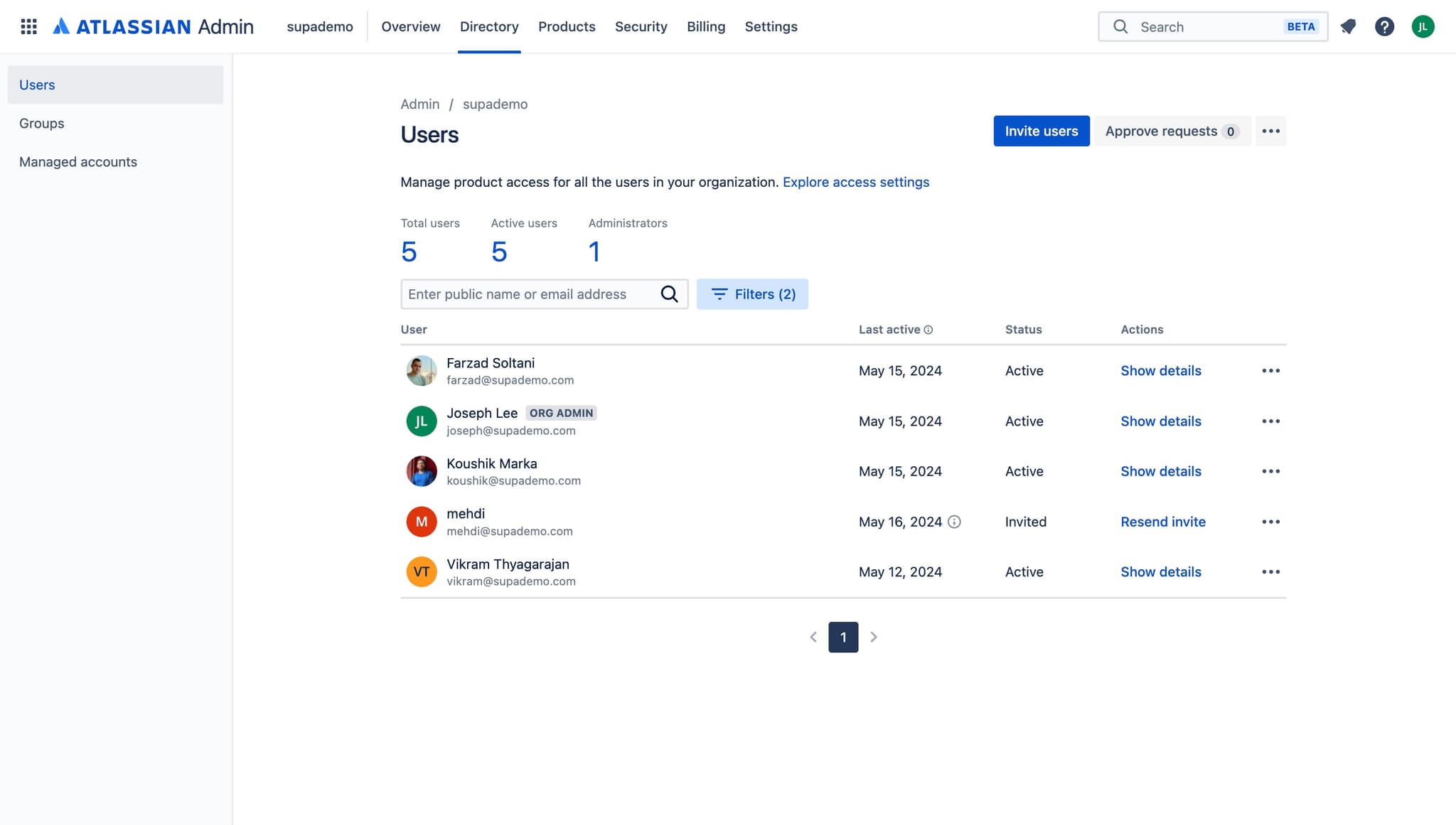
Filter for suspended accounts
Click on the filter or search option to display only suspended users. This helps you quickly identify which accounts are currently in suspended status.
- 4
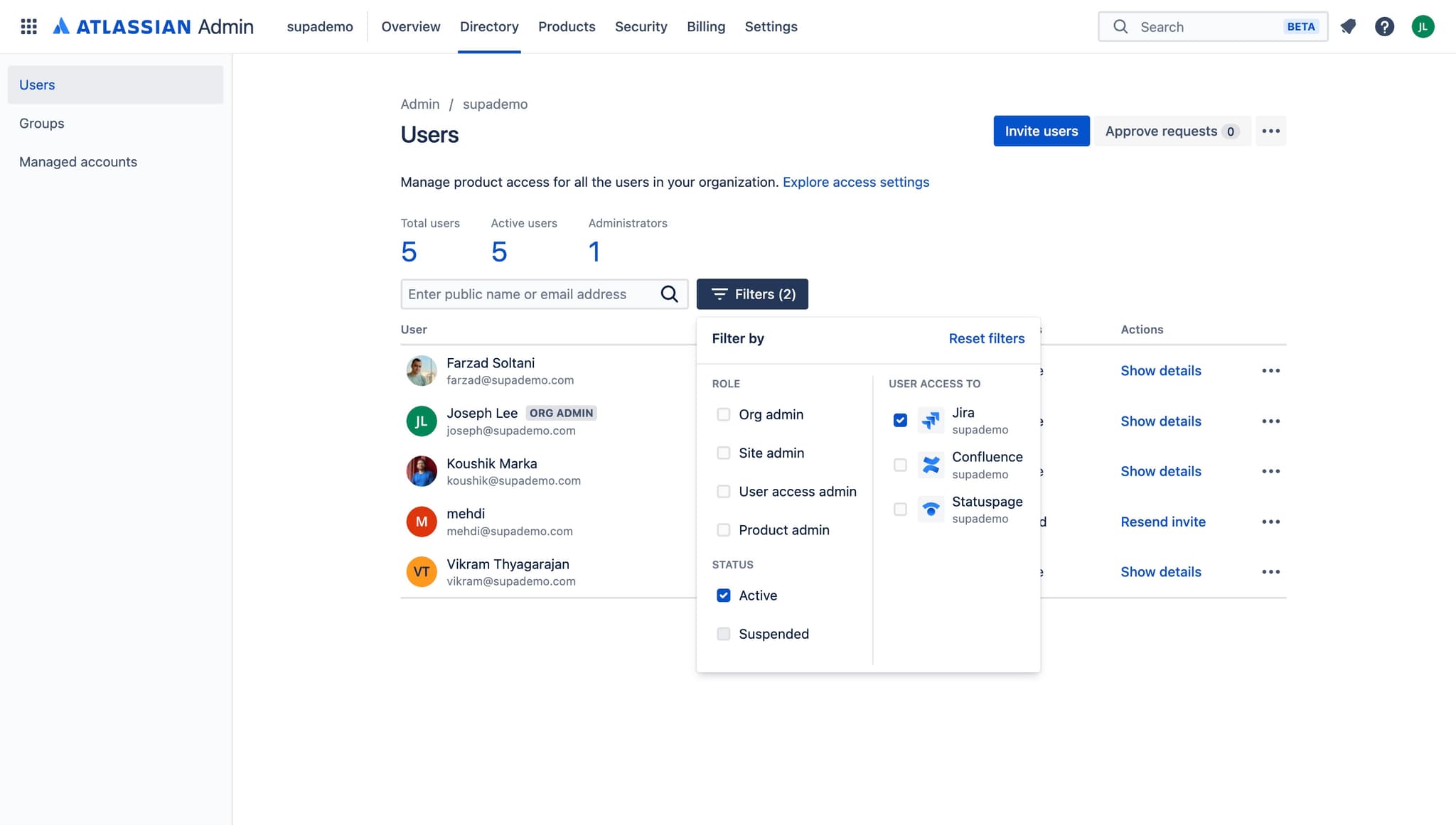
Select the user to edit
Click on the specific suspended user account you want to modify. This opens the user's profile or edit panel where you can make changes.
- 5
Update the user status
Click on the status field or edit button to change the user's account status as needed. You can reactivate the account, delete it, or make other necessary adjustments based on your requirements.
Frequently asked questions
Common questions about how to find and edit suspended users on jira.
Suspended users typically have a status indicator or badge displayed in the user management interface. You can also use the filter options to display only suspended accounts, making them easy to identify at a glance.
Yes, you can reactivate a suspended user by editing their account status in the user management section. Once you access the user's profile and change their status from suspended to active, they'll regain access to Jira.
This depends on your Jira licensing model and configuration. Some instances count suspended users against license allocation, while others do not. Check your Jira instance settings or contact your license administrator for clarification.
When a user is suspended, they lose access to Jira but their data and historical contributions remain intact. Their permissions are revoked, but you can reactivate the account later to restore access if needed.
Jira's user management interface may offer bulk action options depending on your version and configuration. Check if there are checkboxes or selection tools that allow you to modify multiple suspended users simultaneously rather than editing them individually.