How to Access Scrum Reports in Jira

Scrum reports in Jira provide valuable insights into sprint performance, team velocity, and project progress. Learning how to access these reports enables you to monitor key metrics and make data-driven decisions about your team's workflow.
Quick summary
In this tutorial, you'll learn how to navigate to Scrum reports in Jira by selecting a sprint, accessing the Reports section, and filtering by project. By the end, you'll be able to view detailed sprint analytics and performance metrics.
Why this matters
Scrum reports are essential for sprint retrospectives, capacity planning, and identifying bottlenecks in your development process. Regular review of these metrics helps teams optimize their velocity, improve estimation accuracy, and deliver more predictable results.
Step-by-step guide
- 1
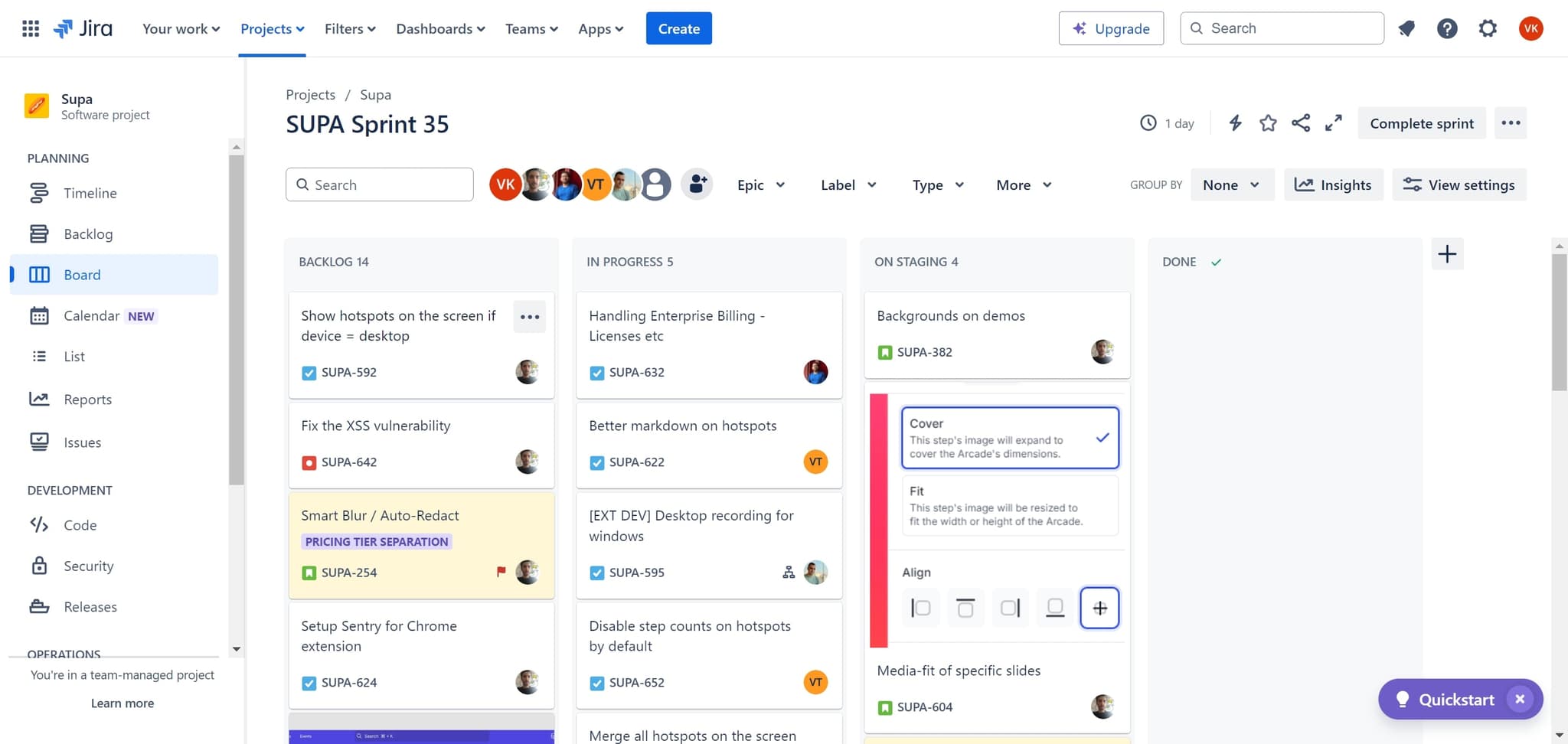
Click on your active sprint
Navigate to your Jira board and click on the sprint you want to analyze. In this example, select "SUPA Sprint 35" to access the sprint details and associated metrics.
- 2
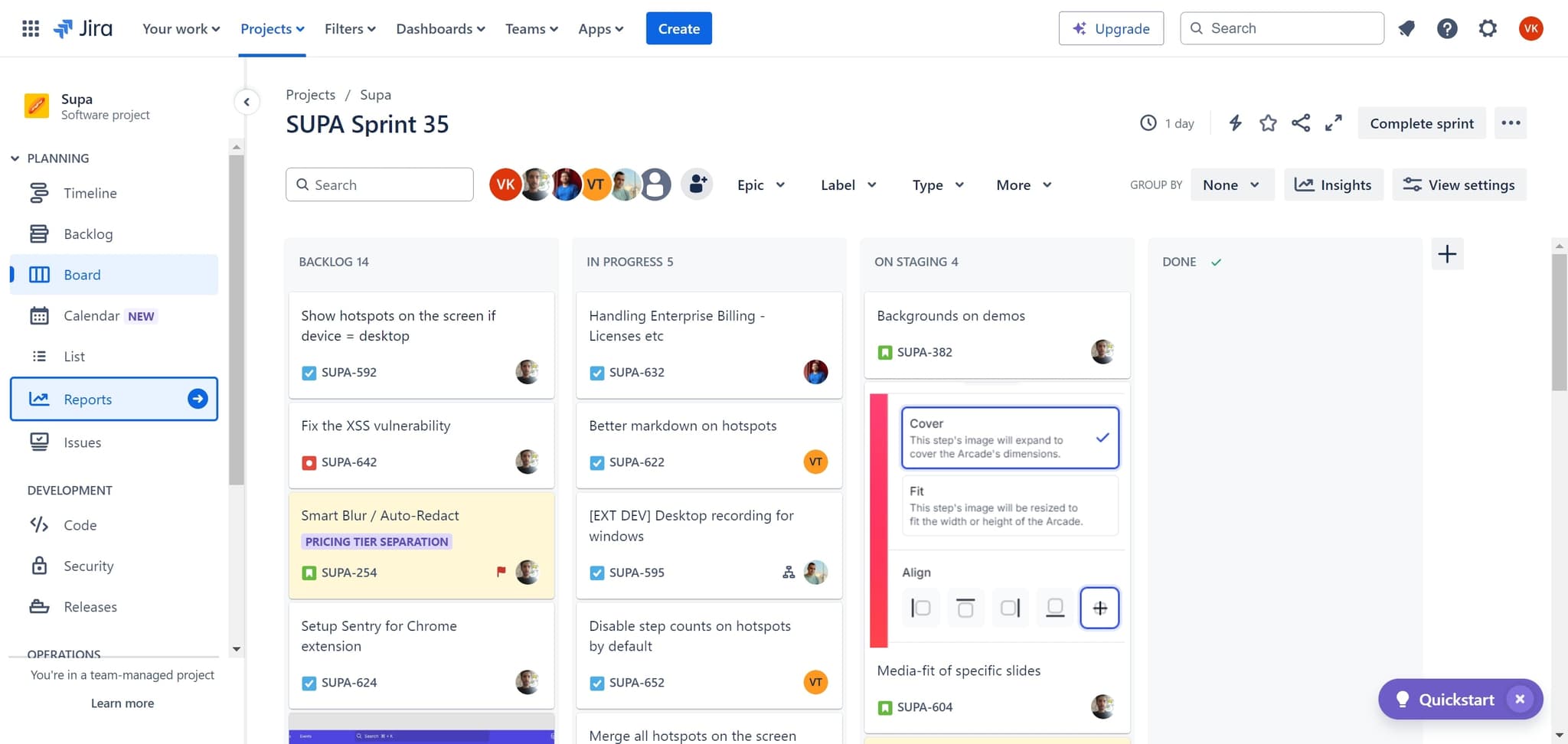
Access the Reports section
Once you've selected your sprint, locate and click on the "Reports" tab. This section displays various sprint performance metrics including burndown charts, velocity, and issue breakdowns.
- 3
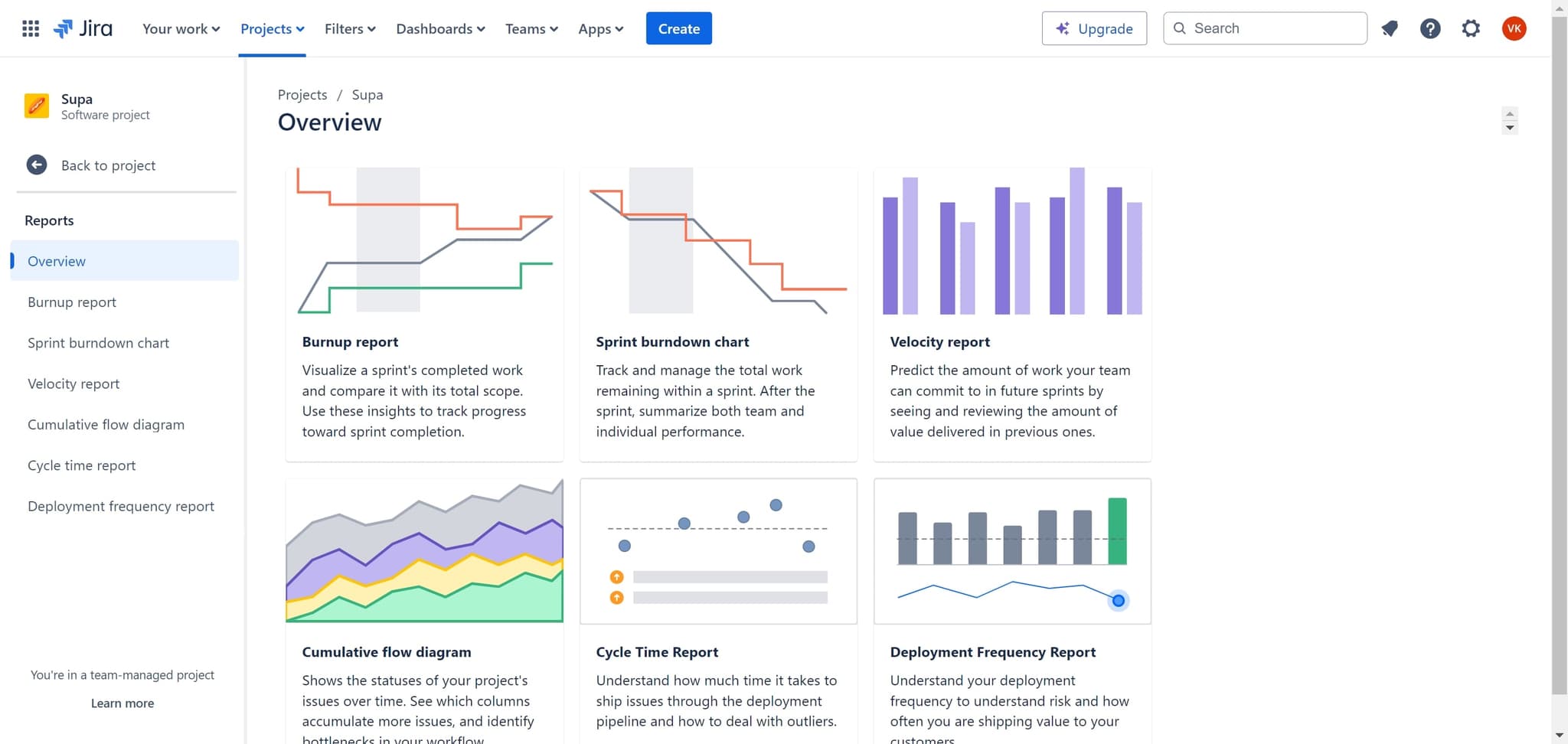
Filter reports by Projects
Click on "Projects" to refine your report view by specific project categories. This allows you to isolate data for particular projects within your sprint and focus on relevant performance indicators.
Frequently asked questions
Common questions about how to access scrum reports in jira.
Jira offers several key Scrum reports including Sprint Burndown, Velocity Chart, Epic Burndown, Cumulative Flow Diagram, and Release Burndown. Each report provides different insights into team performance, project progress, and sprint health. You can access all of these through the Reports section after selecting your sprint.
Yes, most Jira reports can be exported or printed directly from the Reports page. Look for the export or print options typically located near the report visualization. This allows you to share sprint metrics with stakeholders or include them in retrospective documentation.
It's best practice to review Scrum reports at the end of each sprint during your retrospective meeting. However, many teams also check reports mid-sprint to monitor progress and identify issues early. Regular review helps you track trends and make continuous improvements to your process.
The Sprint Burndown chart displays the amount of work remaining in a sprint over time. It shows the ideal burndown line compared to your team's actual progress, helping you identify whether you're on track to complete the sprint goals. If the line trends above ideal, it indicates slower progress than planned.
Reports may not show data if the sprint hasn't started, contains no issues, or if issues haven't been properly assigned and estimated. Ensure your issues have story points, are assigned to team members, and are included in the active sprint. New sprints may take a moment to populate data after creation.