How to Clone a Jira Ticket

Cloning a Jira ticket allows you to quickly duplicate an existing issue with its configuration, reducing manual data entry and ensuring consistency across related tasks. This workflow is especially useful when you need to create similar tickets or spawn subtasks from an existing issue.
Quick summary
In this tutorial, you'll learn how to clone a Jira ticket by navigating to an issue, accessing the clone function, and confirming the duplication. By the end, you'll be able to efficiently create copies of tickets while preserving their key details.
Why this matters
Cloning tickets saves time when managing repetitive tasks or creating variations of similar work items. It maintains data integrity by copying relevant fields and context, reducing the risk of missing important information that would occur with manual ticket creation.
Step-by-step guide
- 1
Open the Jira project
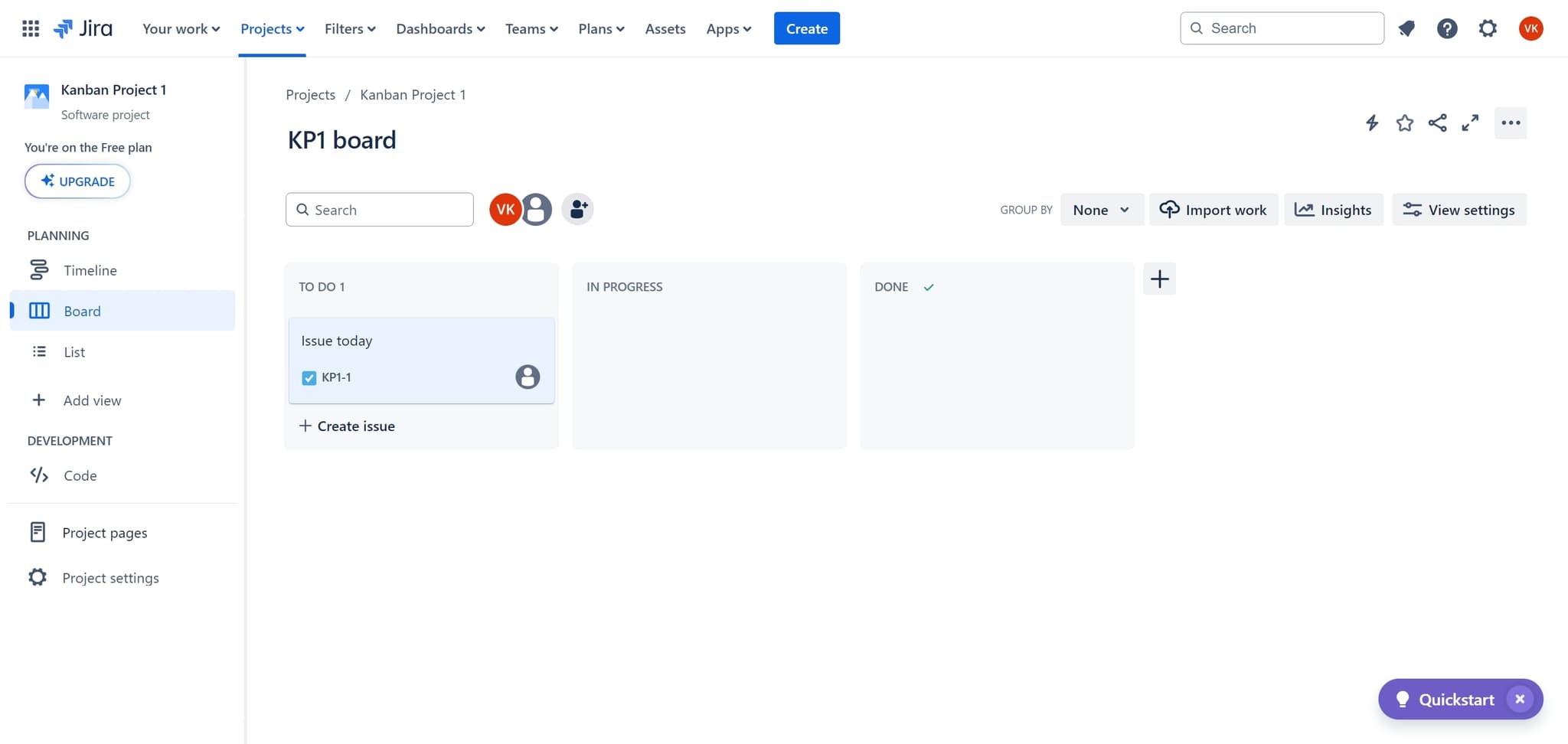
Start by clicking on your Jira project to access the issue list. This will display all tickets available in your current project.
- 2
Select the ticket to clone
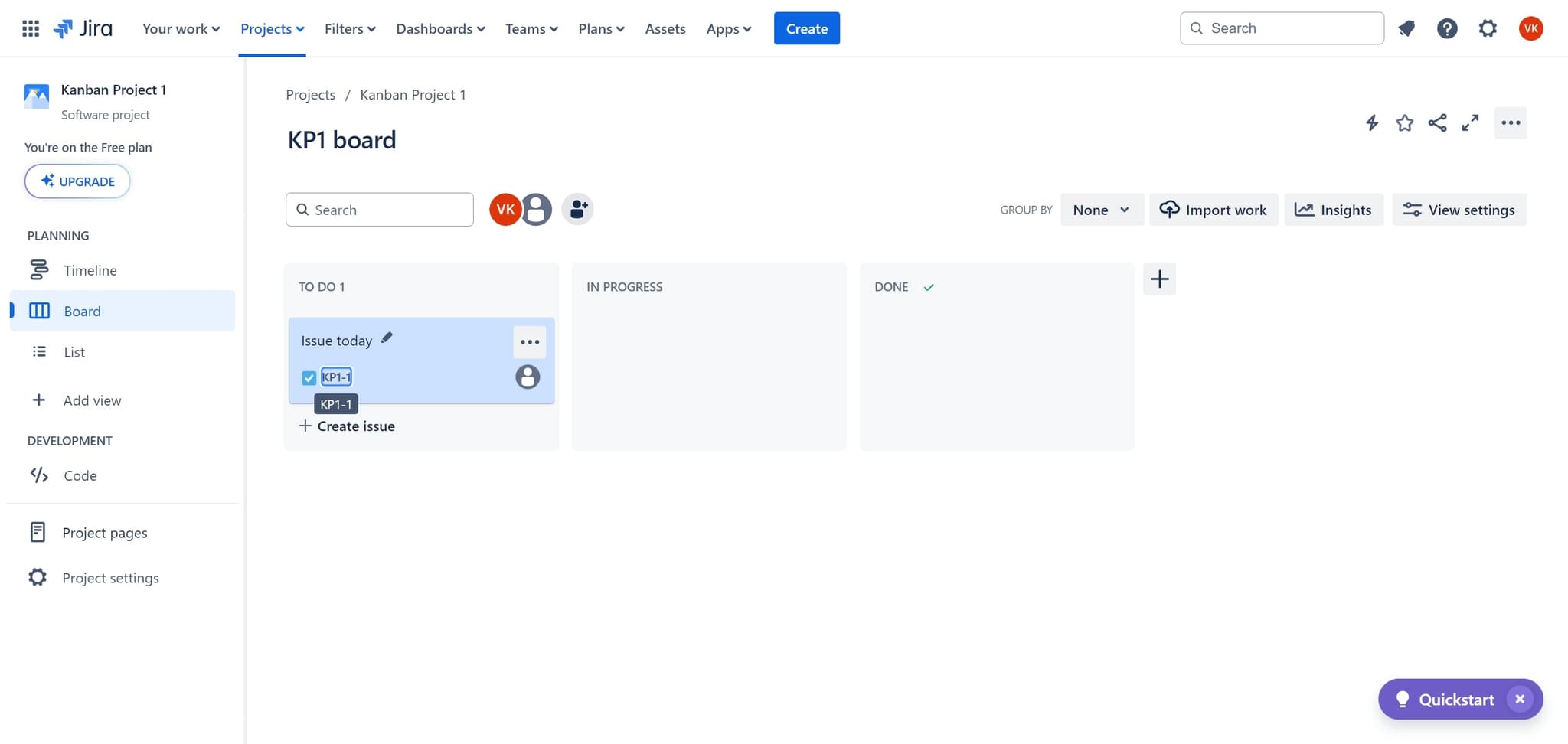
Click on ticket KP1-1 or the specific issue you want to duplicate. This opens the ticket details view where you can see all its information and available actions.
- 3
Access the actions menu
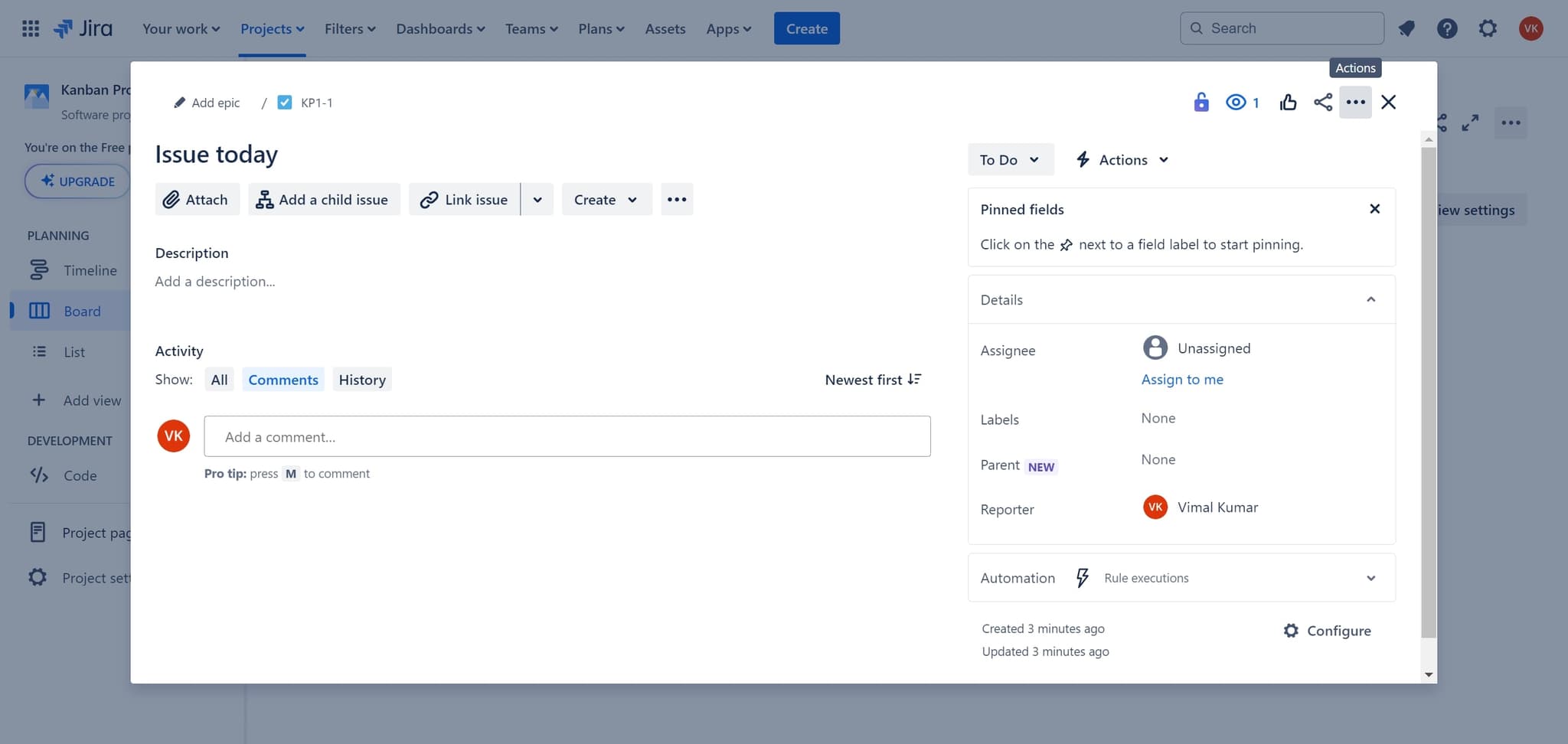
Click on the menu or actions button to reveal additional options for this ticket. This menu contains workflow actions including the clone option.
- 4
Click Clone
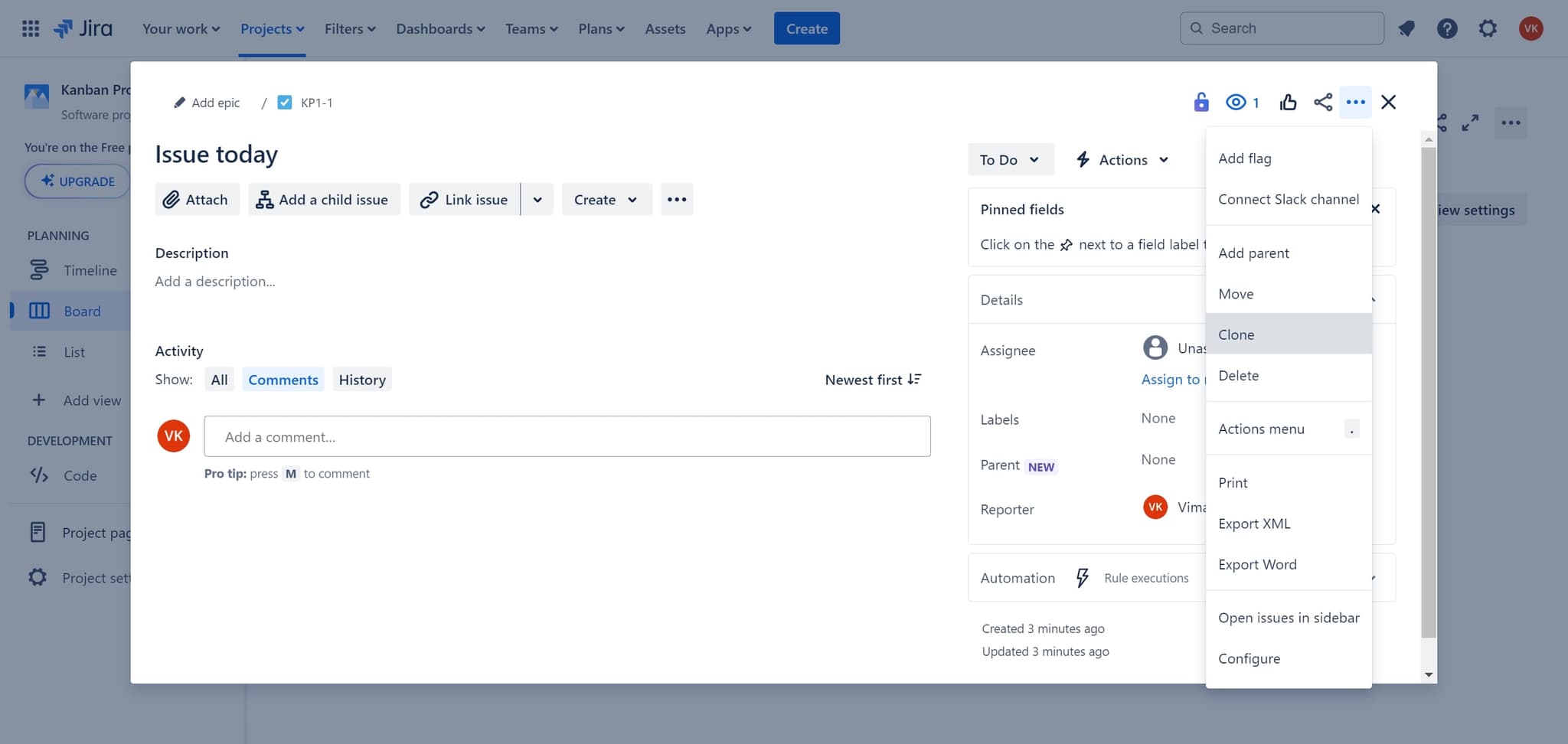
Select the Clone option from the dropdown menu. Jira will prepare to create a duplicate of the ticket with its current configuration.
- 5
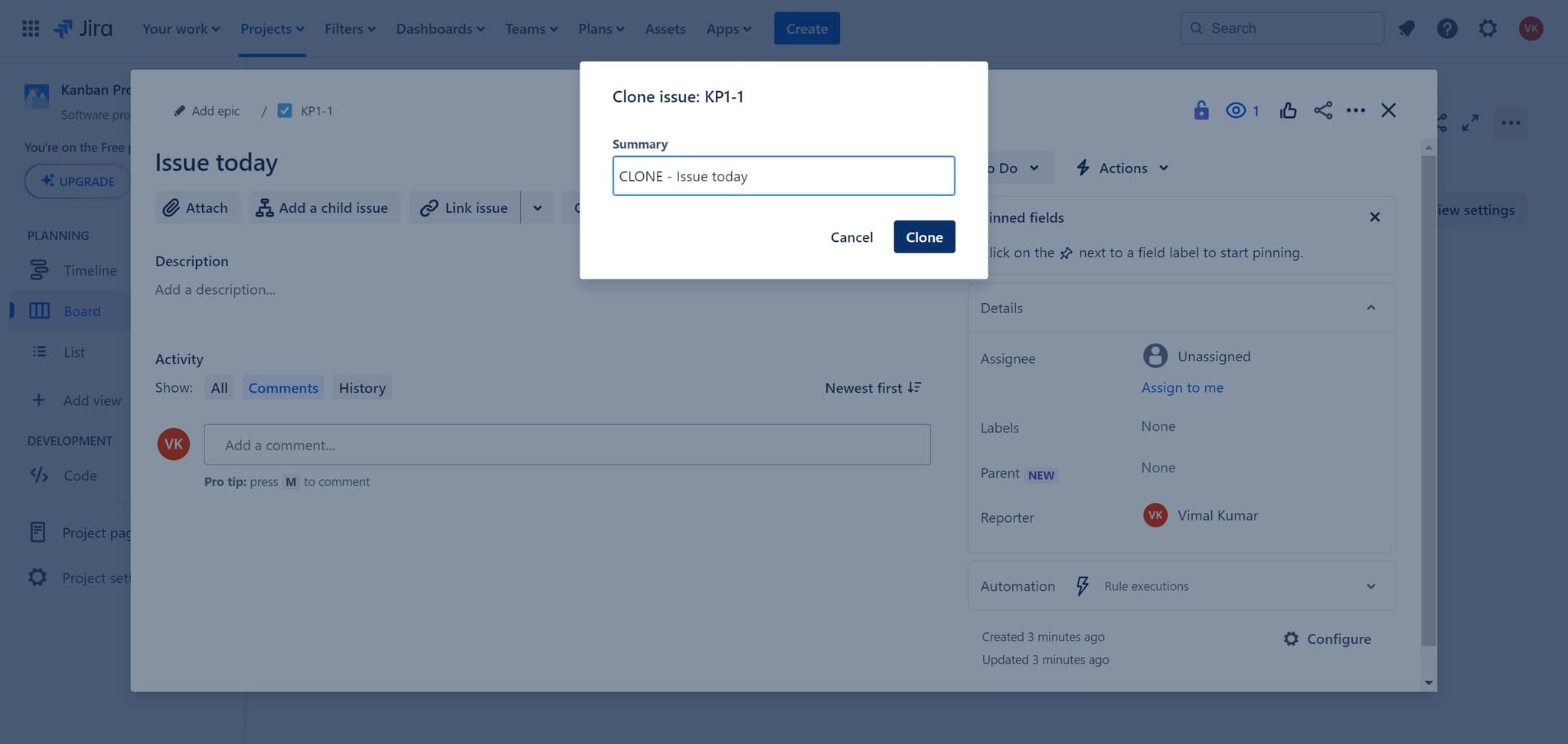
Confirm the clone action
Click Clone again to confirm and finalize the duplication. Jira will now create a new ticket with the same fields and details as the original.
- 6
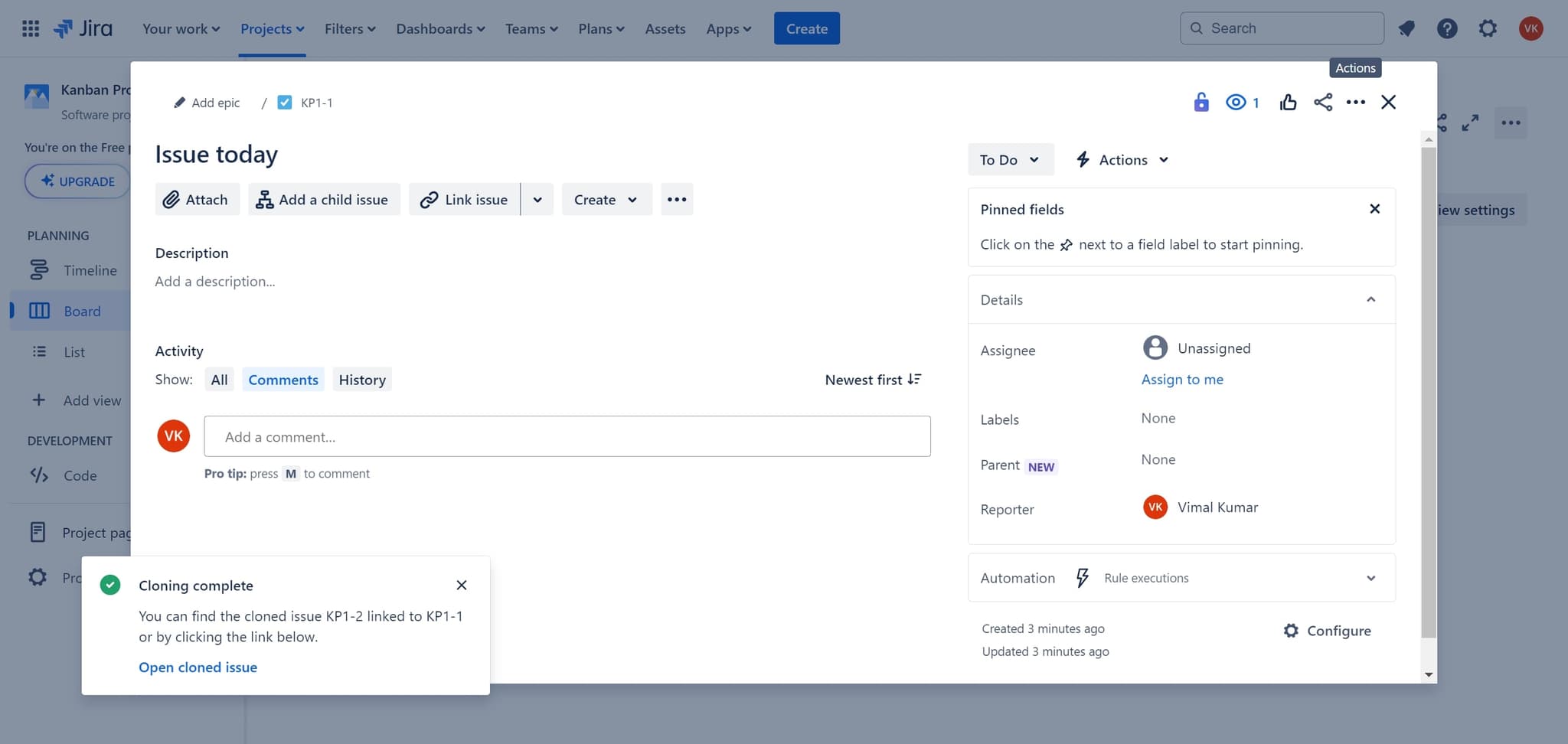
Complete the cloning process
Click the final confirmation button to complete the clone operation. Your new ticket will be created and you'll be redirected to view it.
Frequently asked questions
Common questions about how to clone a jira ticket.
When cloning a ticket, Jira copies most fields from the original issue including summary, description, issue type, priority, labels, and custom fields. However, the new ticket receives a fresh issue key and is unlinked from the original unless you specify link relationships during the clone process.
Yes, most Jira configurations allow you to modify fields in the clone dialog before confirming. You can change the summary, description, assignee, priority, and other relevant fields to suit your needs before completing the duplication.
By default, cloning a parent ticket does not automatically clone its subtasks. You'll need to clone subtasks separately if needed, or configure your Jira workflow to handle this through automation rules.
Yes, depending on your Jira configuration and permissions, you can often clone a ticket to another project. This is useful for cross-project workflows, though some fields may need adjustment if the projects use different configurations.
Standard Jira doesn't provide a built-in bulk clone feature through the UI. However, you can use Jira automation rules, scripts, or third-party apps to clone multiple tickets in bulk based on specific criteria or filters.