How to create a Label in Jira

Labels in Jira help you organize, categorize, and filter issues across your projects. By assigning labels to issues, you can create a flexible tagging system that works alongside other Jira features like components and custom fields. This guide walks you through the process of adding a label to an issue in Jira.
Quick summary
In this tutorial, you'll learn how to add labels to Jira issues step by step. You'll navigate to the label field, select or create a label, and apply it to your issue so you can better organize and track your work.
Why this matters
Labels are a powerful organizational tool that enable teams to group related issues without rigid hierarchy constraints. They're particularly useful for cross-team workflows, filtering dashboards, and identifying issues by status, priority, or team ownership across multiple projects.
Step-by-step guide
- 1
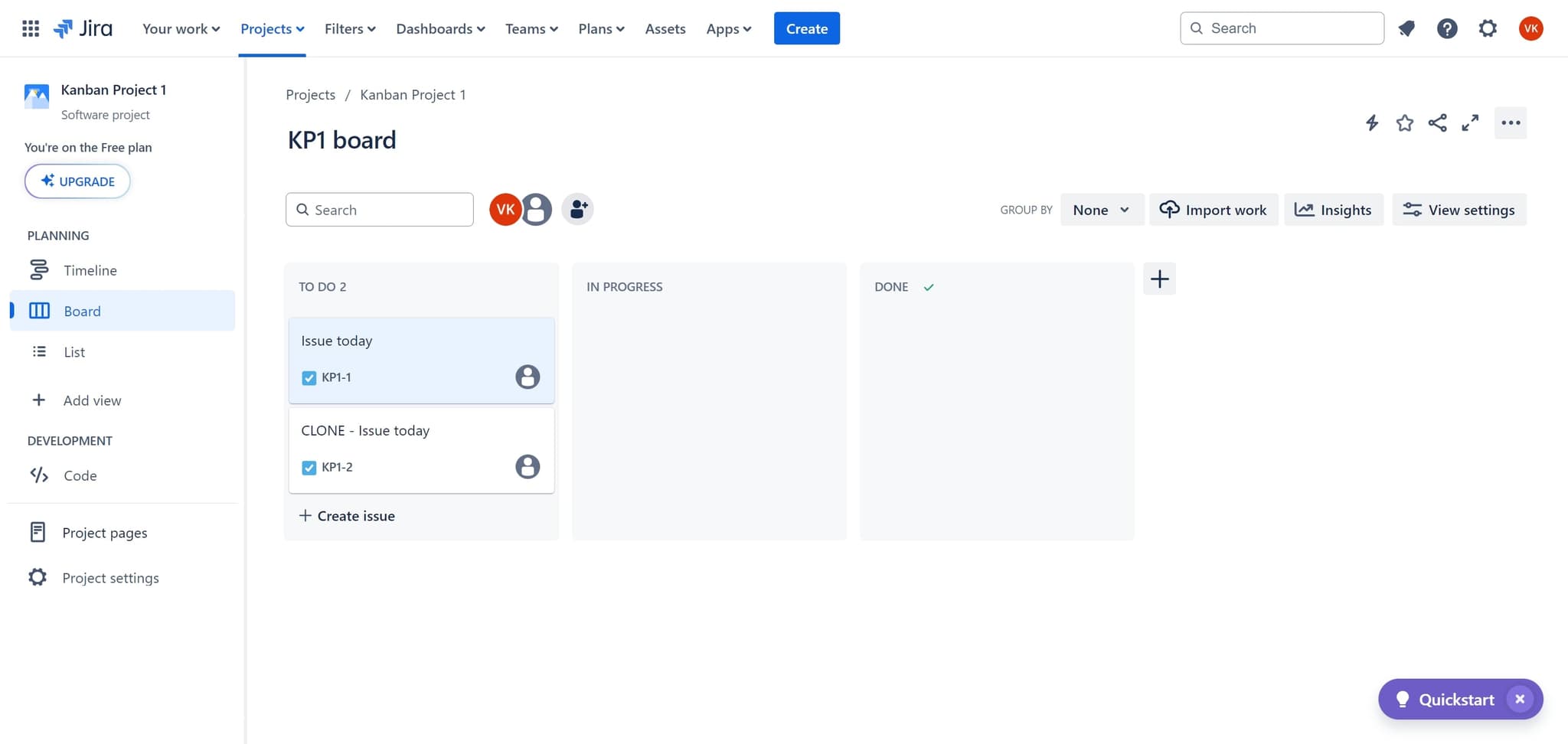
Open the issue details
Click on the issue you want to label. This opens the issue view where you can access all the issue's details and metadata.
- 2
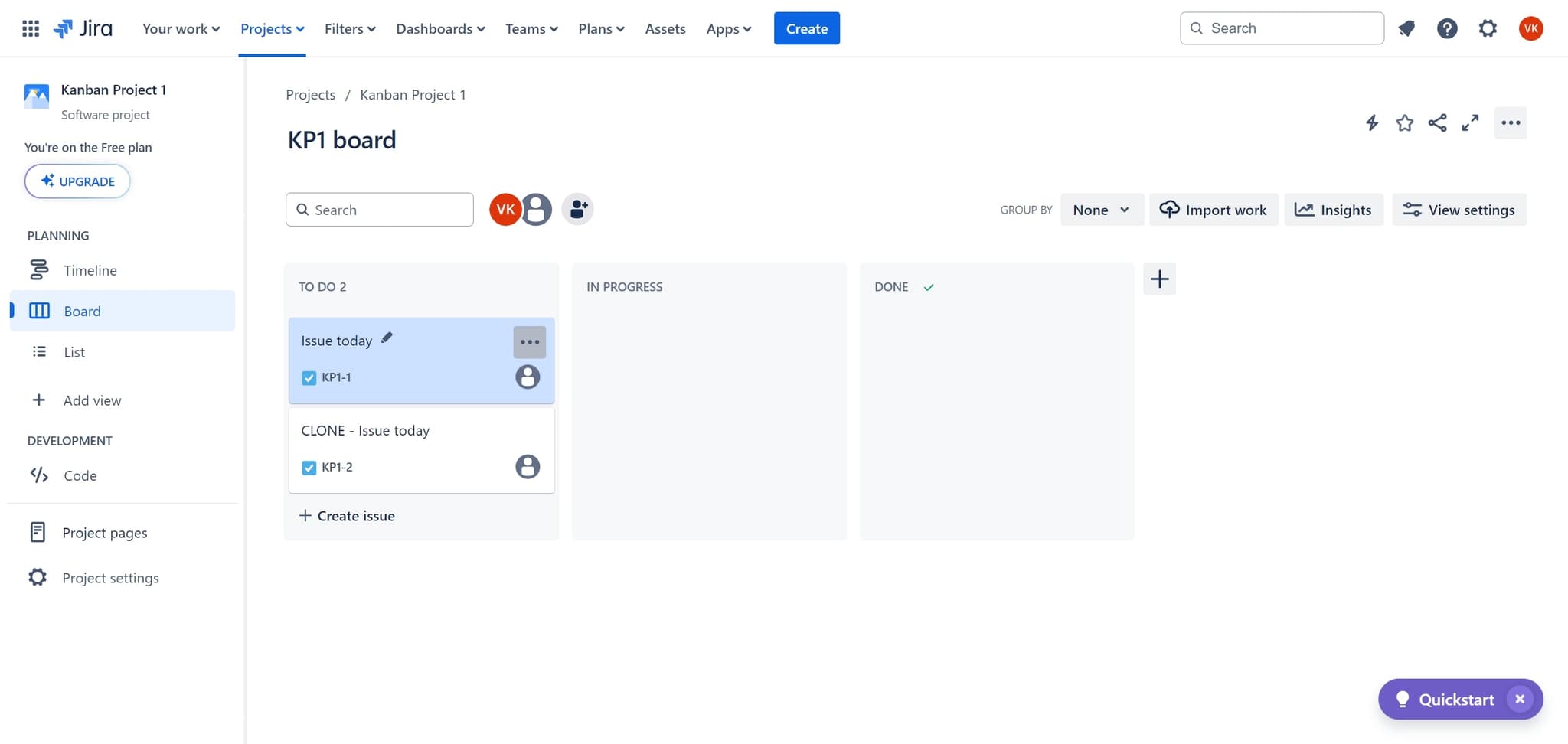
Navigate to the labels section
Click on the element to expand or access the labels area of the issue. This reveals the label management interface for the current issue.
- 3
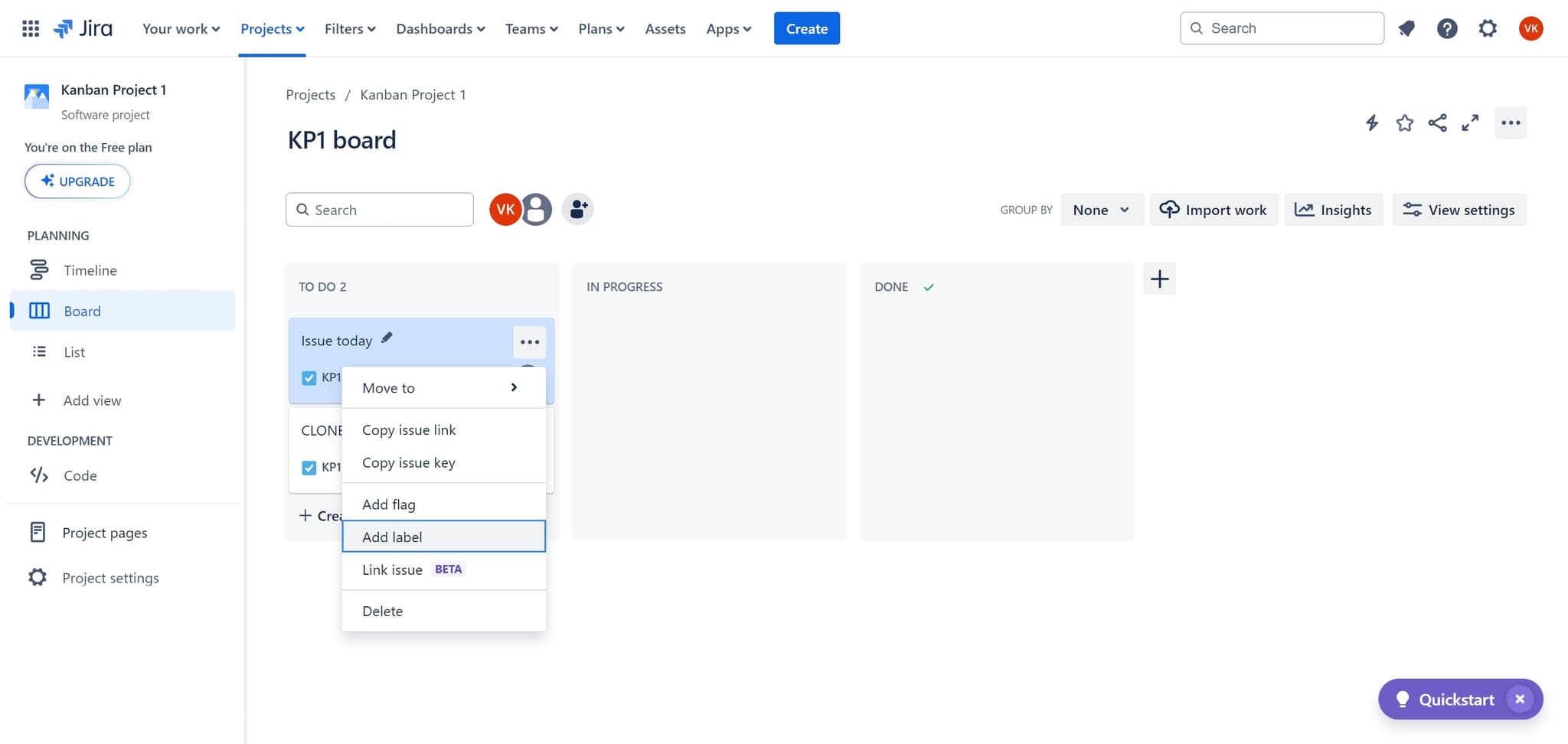
Click Add label
Select the 'Add label' option to begin the label assignment process. A dropdown or input field will appear, allowing you to choose or create labels.
- 4
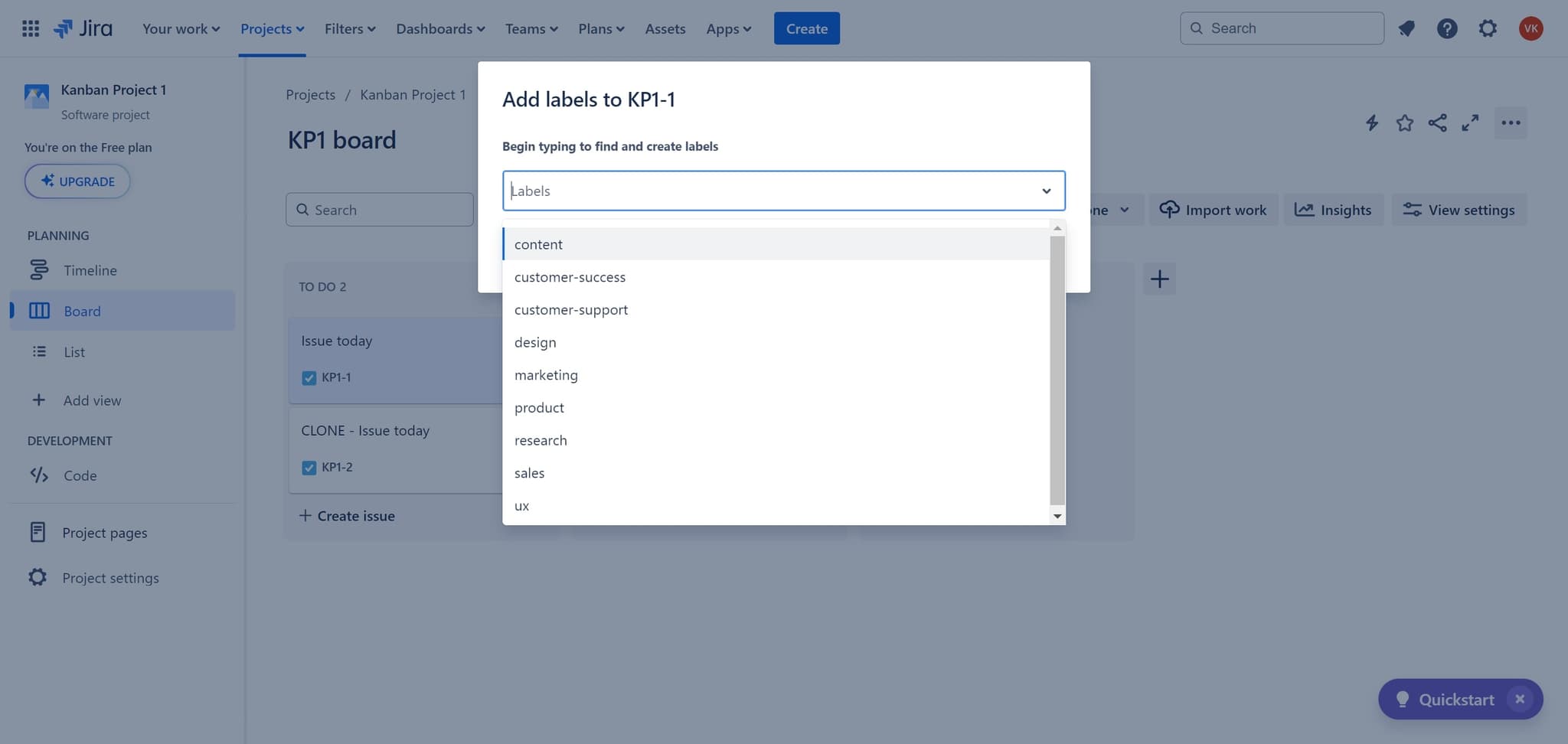
Access the label field
Click on the label input element to activate the label selection interface. This prepares the field to receive your label input or selection.
- 5
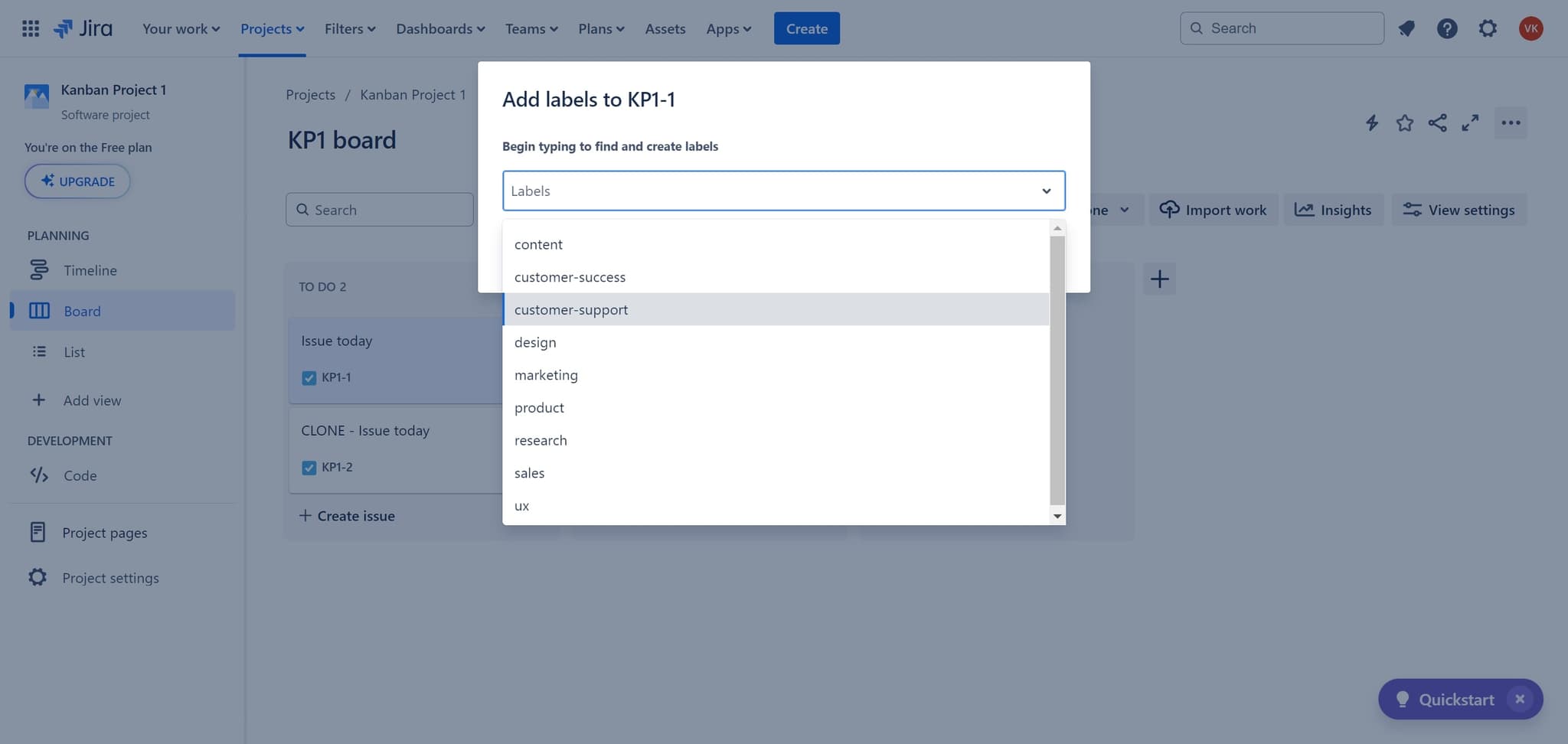
Select customer-support label
Click on 'customer-support' from the available label options. This label will be applied to the issue, helping categorize it within your project's taxonomy.
- 6
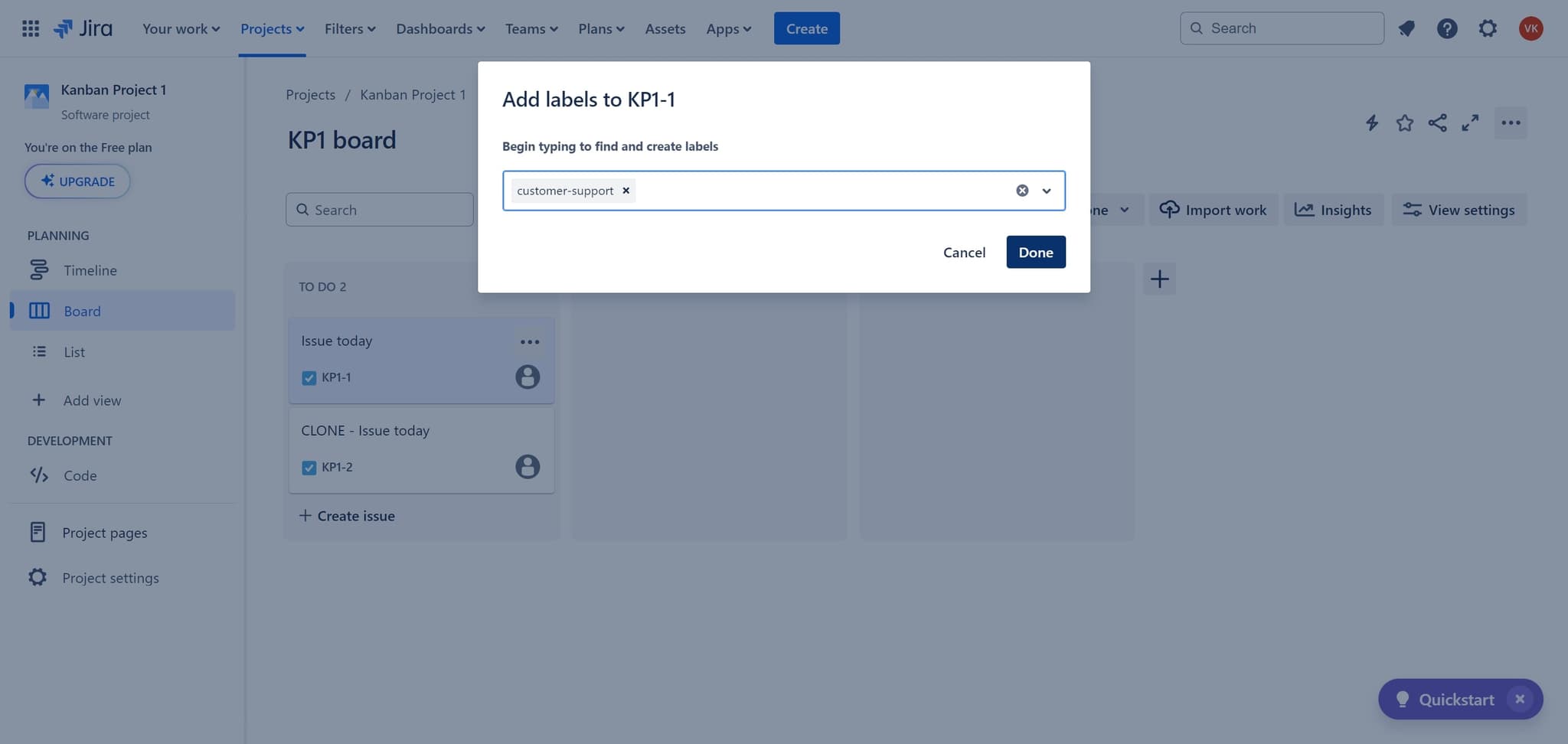
Confirm the label assignment
Click 'Done' to finalize adding the label to your issue. The label now appears on the issue and is immediately searchable and filterable.
- 7
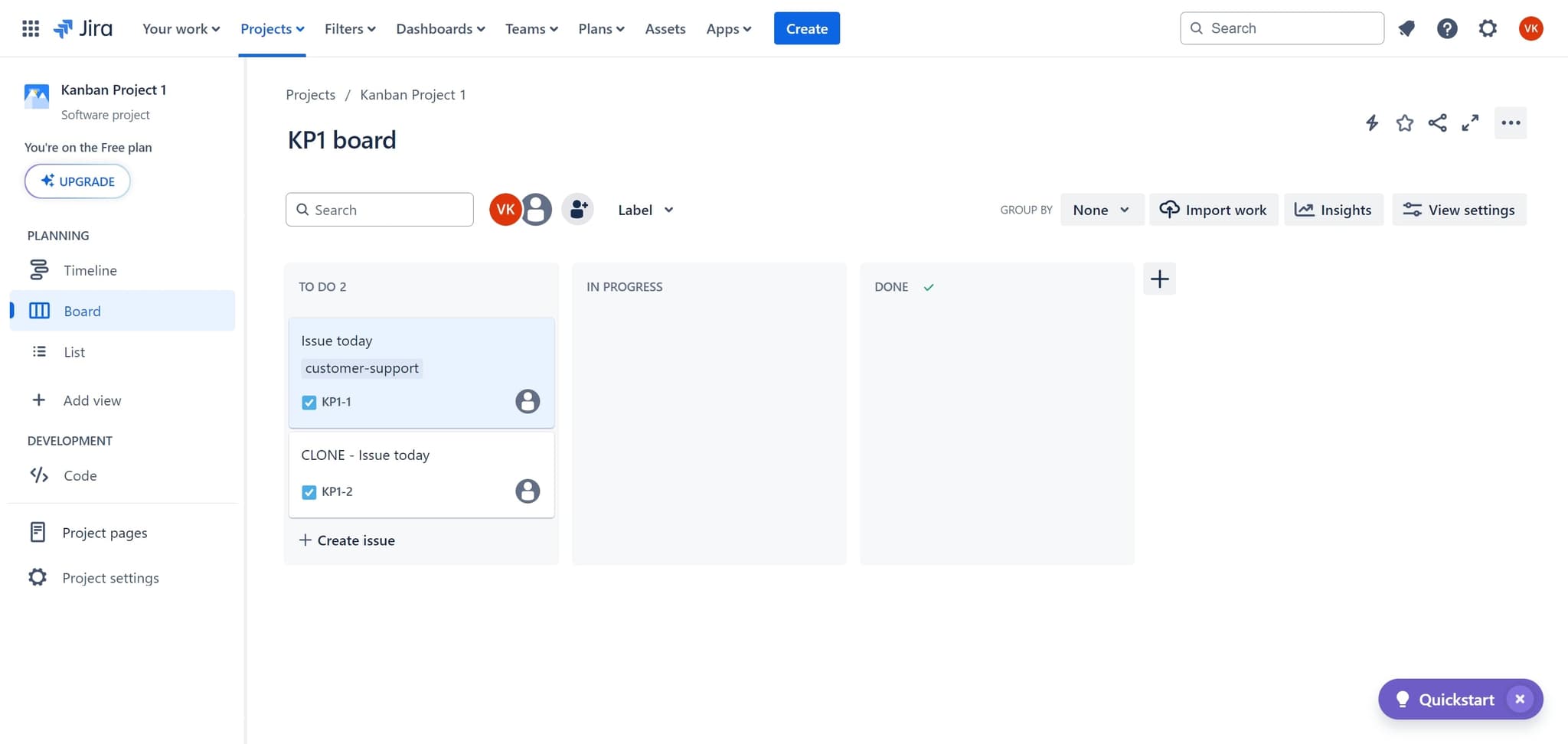
Complete the action
Click to confirm and close the label dialog. Your issue is now labeled and ready for organization and filtering within Jira.
Frequently asked questions
Common questions about how to create a label in jira.
Yes, in most Jira projects, you can type a new label name directly into the label field and it will be created automatically. Check your project permissions to ensure you have the ability to create labels, as some projects restrict this to administrators.
Jira allows you to add multiple labels to a single issue with no hard limit. However, it's best practice to keep the number reasonable for readability and filtering effectiveness.
Labels are typically project-specific in Jira, meaning labels created in one project are not automatically available in another. However, you can manually create the same label names across projects if you want consistent tagging.
Open the issue, click on the label field, and look for an X or remove icon next to the label you want to delete. Click it to remove the label from the issue.
Yes, you can use the issue navigator or filter fields in Jira to search and filter issues by specific labels. Labels also appear in dashboards and can be used in JQL queries for advanced filtering.