How to move a ticket in Jira

Moving tickets between statuses and boards is a core part of managing work in Jira. This guide walks you through the process of relocating a ticket using Jira's Move function, helping you keep your workflow organized and your team aligned.
Quick summary
In this tutorial, you'll learn how to navigate to a ticket, access the Move option, and transfer it to a new location in your Jira project. By following these steps, you'll be able to quickly reorganize tickets as your work progresses through different stages.
Why this matters
Moving tickets efficiently ensures your project board stays current and reflects the true status of your work. This skill is essential for sprint planning, backlog management, and keeping stakeholders informed about project progress without manual data entry.
Step-by-step guide
- 1
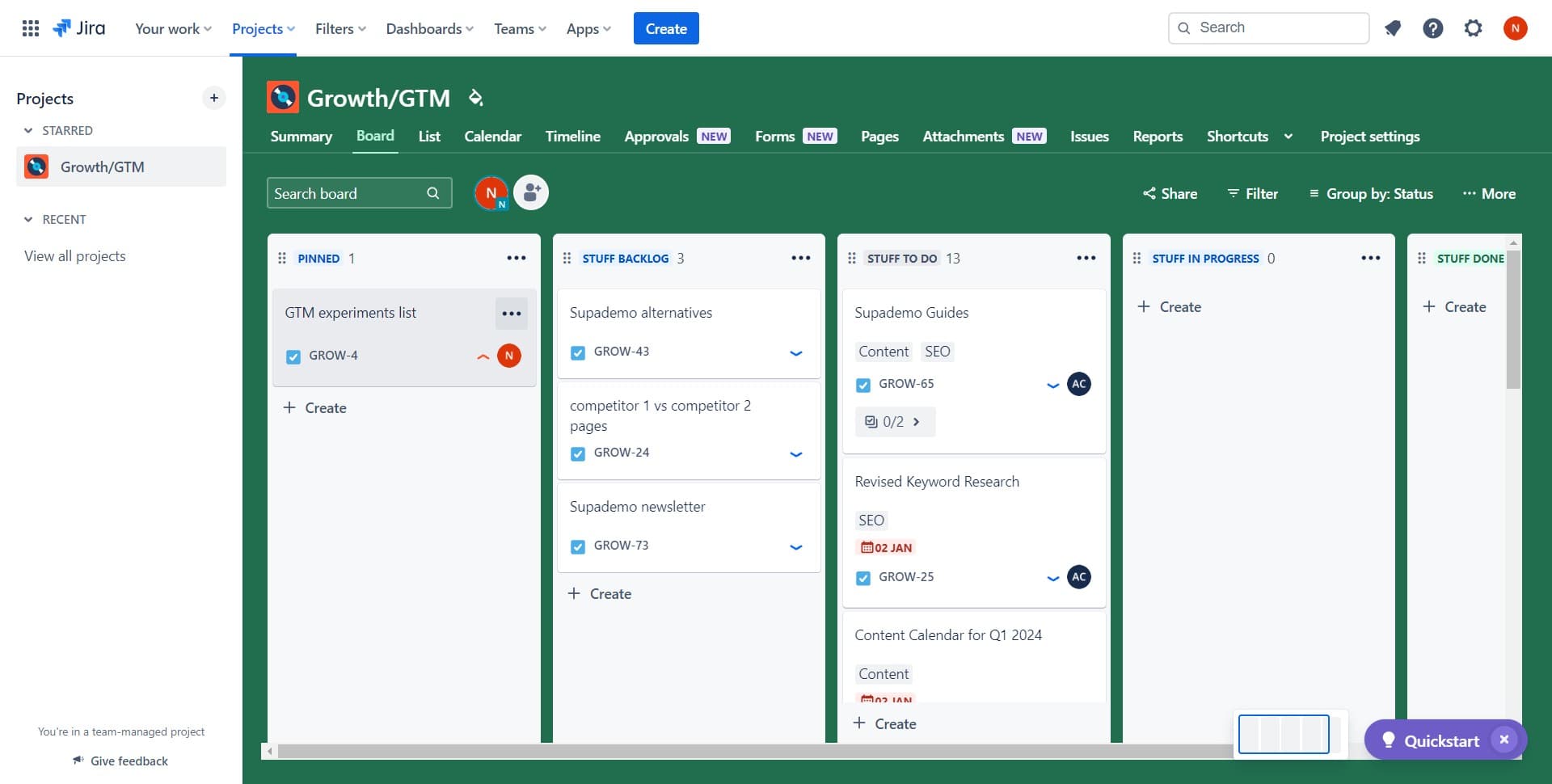
Access the GTM experiments list
Navigate to and click on the GTM experiments list to view your available tickets and projects. This opens the board or list view where you can see all relevant tickets for the GTM initiative.
- 2
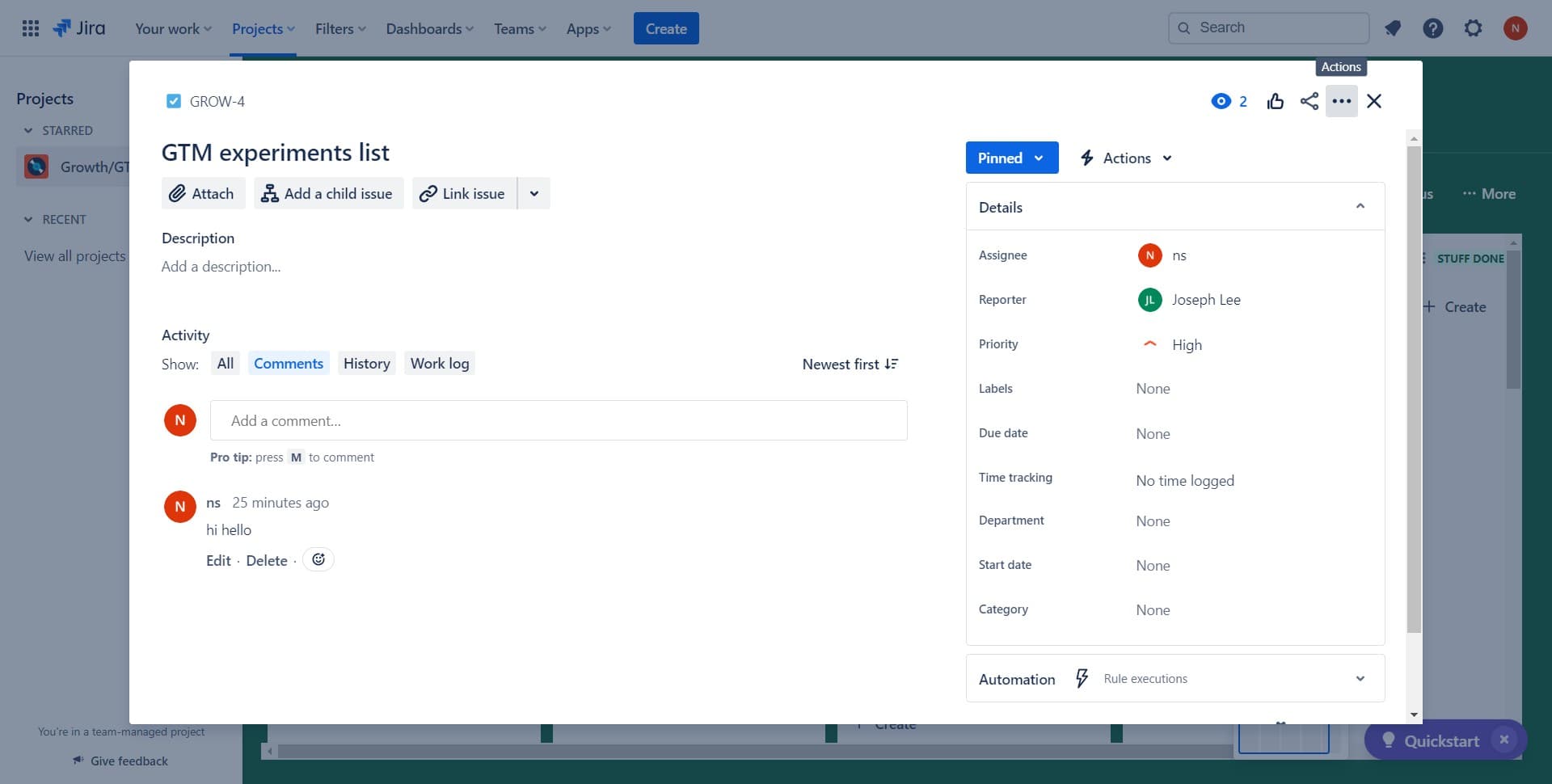
Select your target ticket
Click on the specific ticket you want to move. This opens the ticket details panel where you can access additional actions and options.
- 3
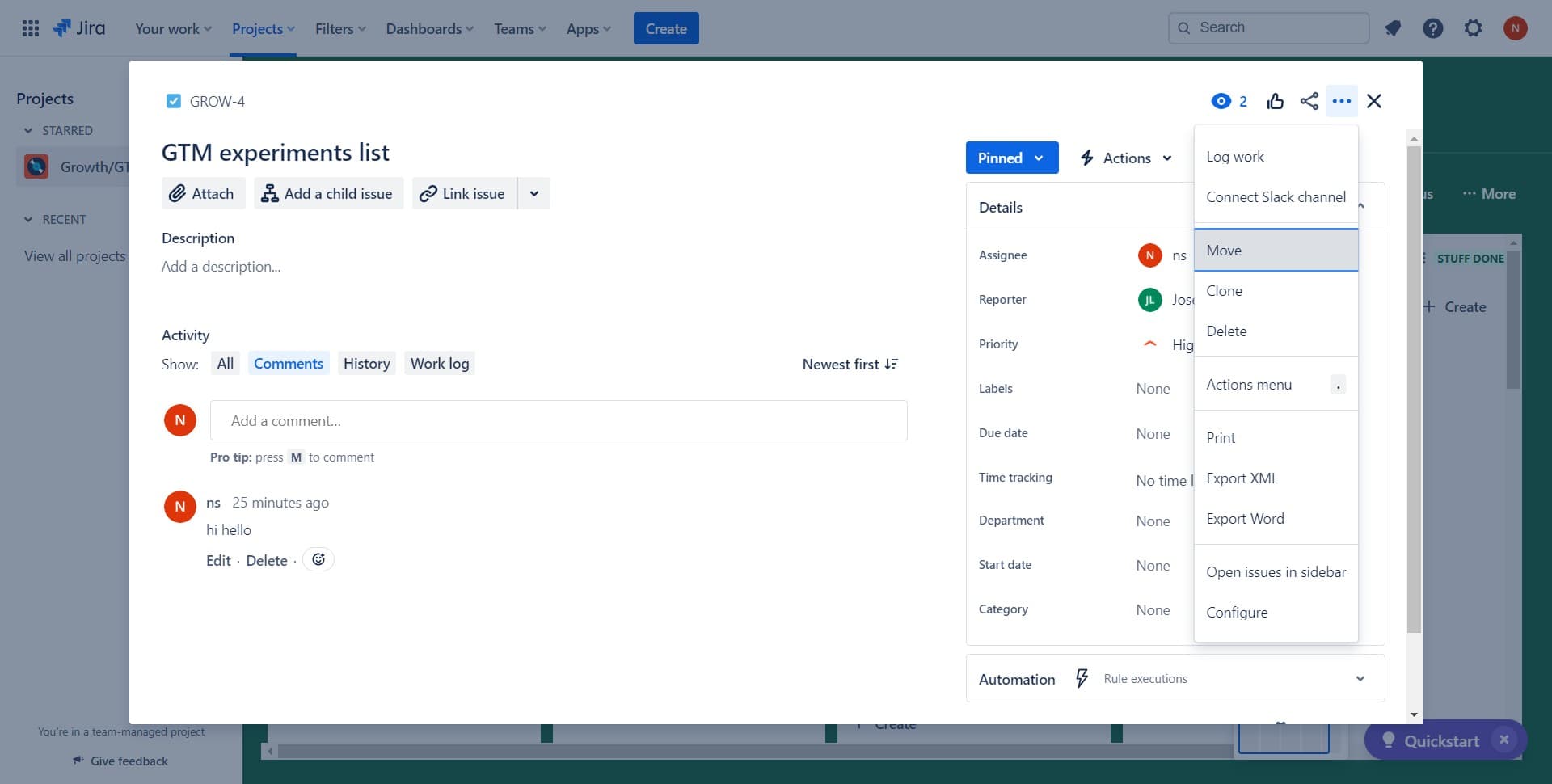
Click the Move option
Locate and click the Move button in the ticket interface. This action initiates the move workflow and opens a dialog or menu showing available destinations.
- 4
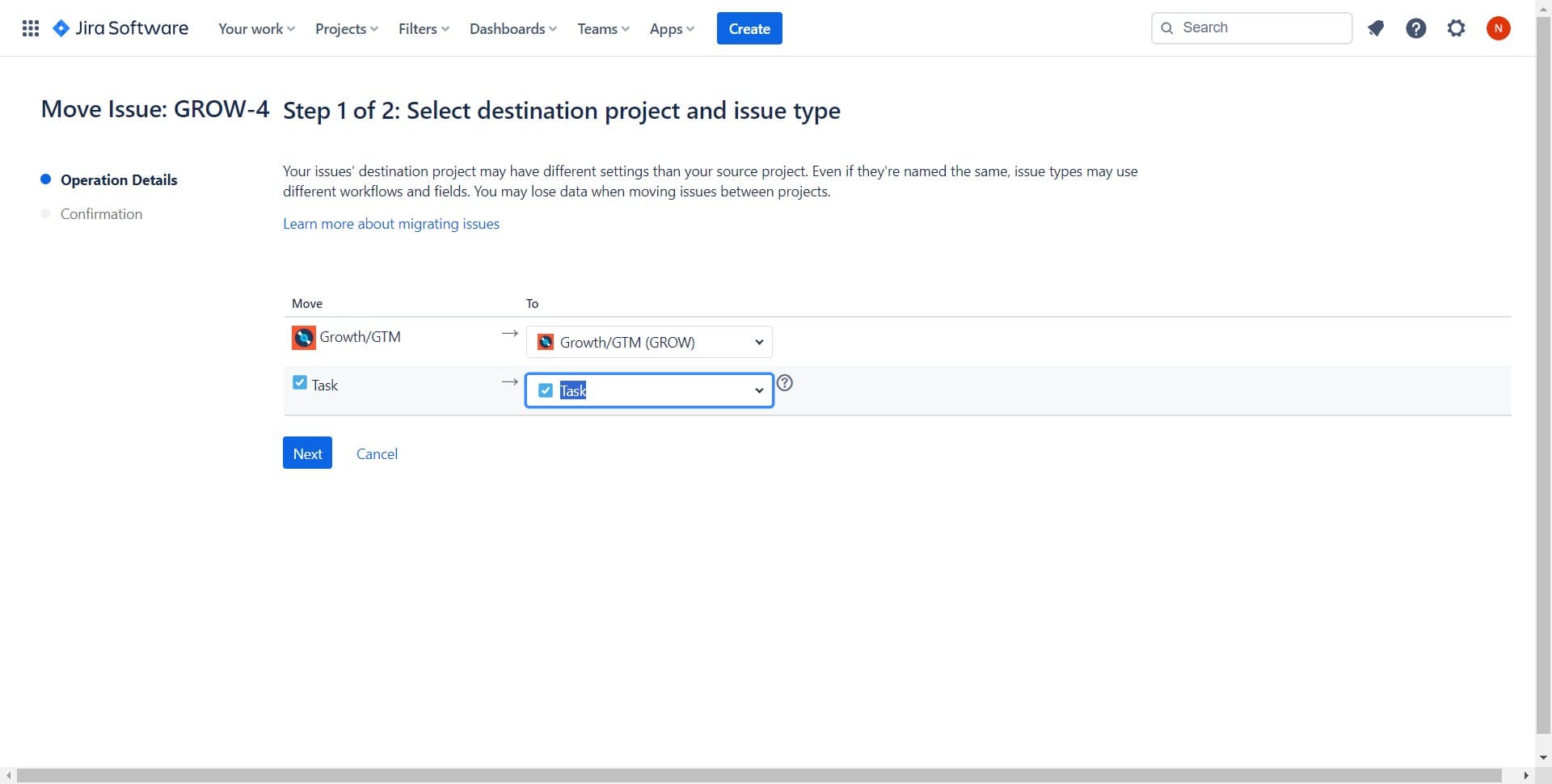
Confirm destination selection
Click to select your desired destination for the ticket. Jira will present available columns, statuses, or boards depending on your project configuration.
- 5
Verify the target status
Click to confirm or validate the status or location you've selected. This ensures the ticket is moving to the correct workflow stage.
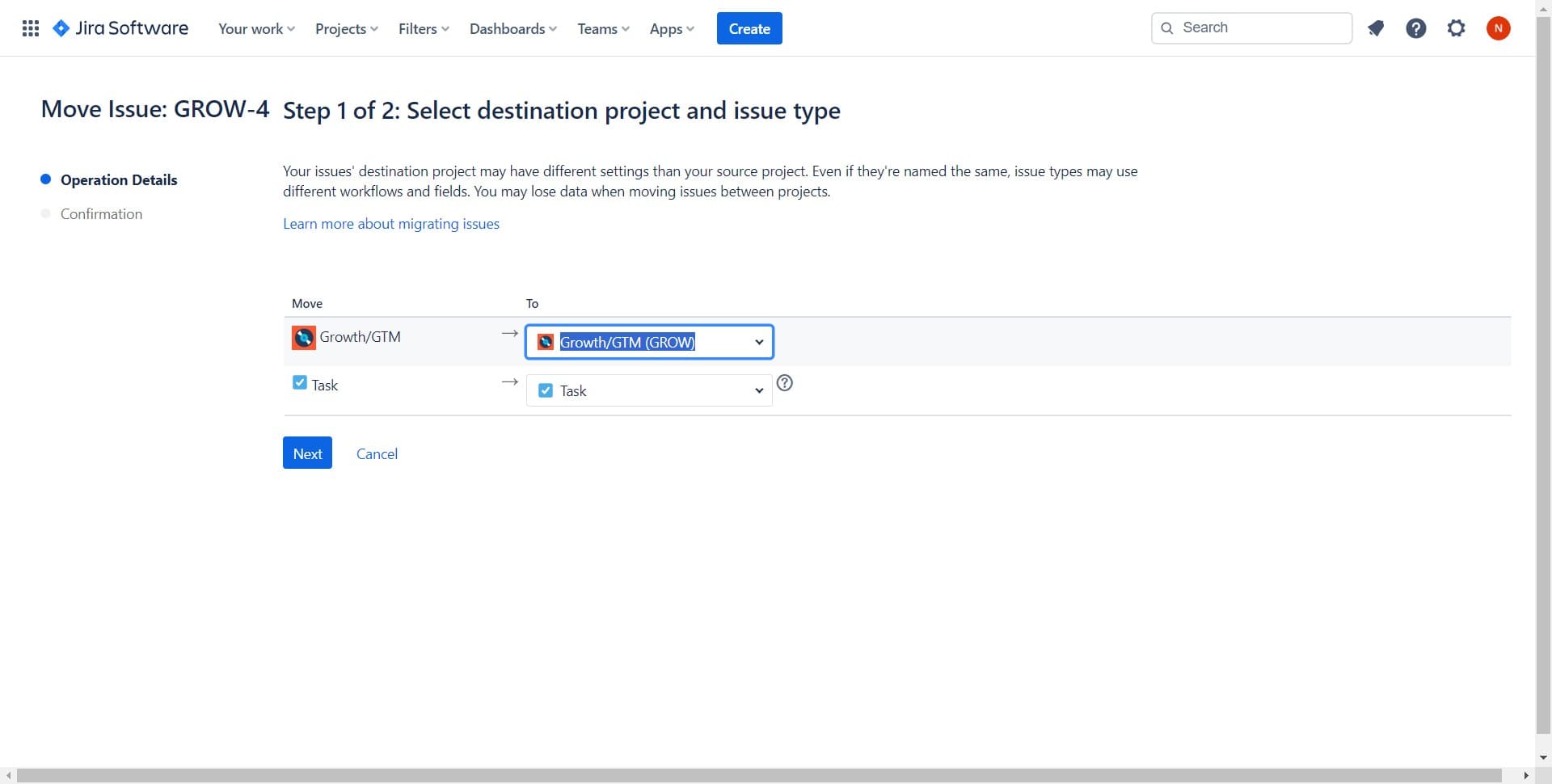
- 6
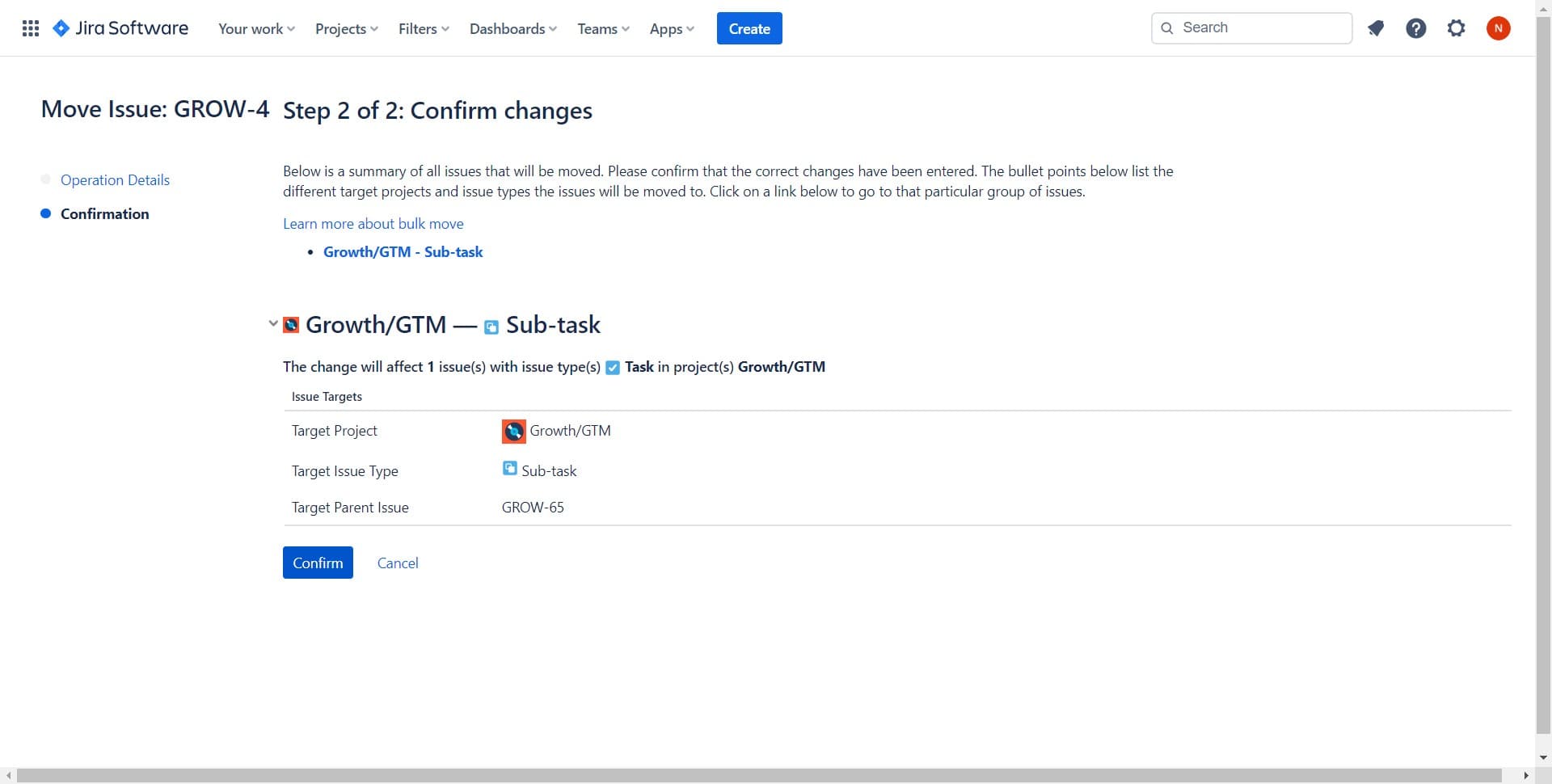
Review move details
Click to review any additional information about the move, such as affected fields or dependent tasks. This step ensures all move implications are clear before proceeding.
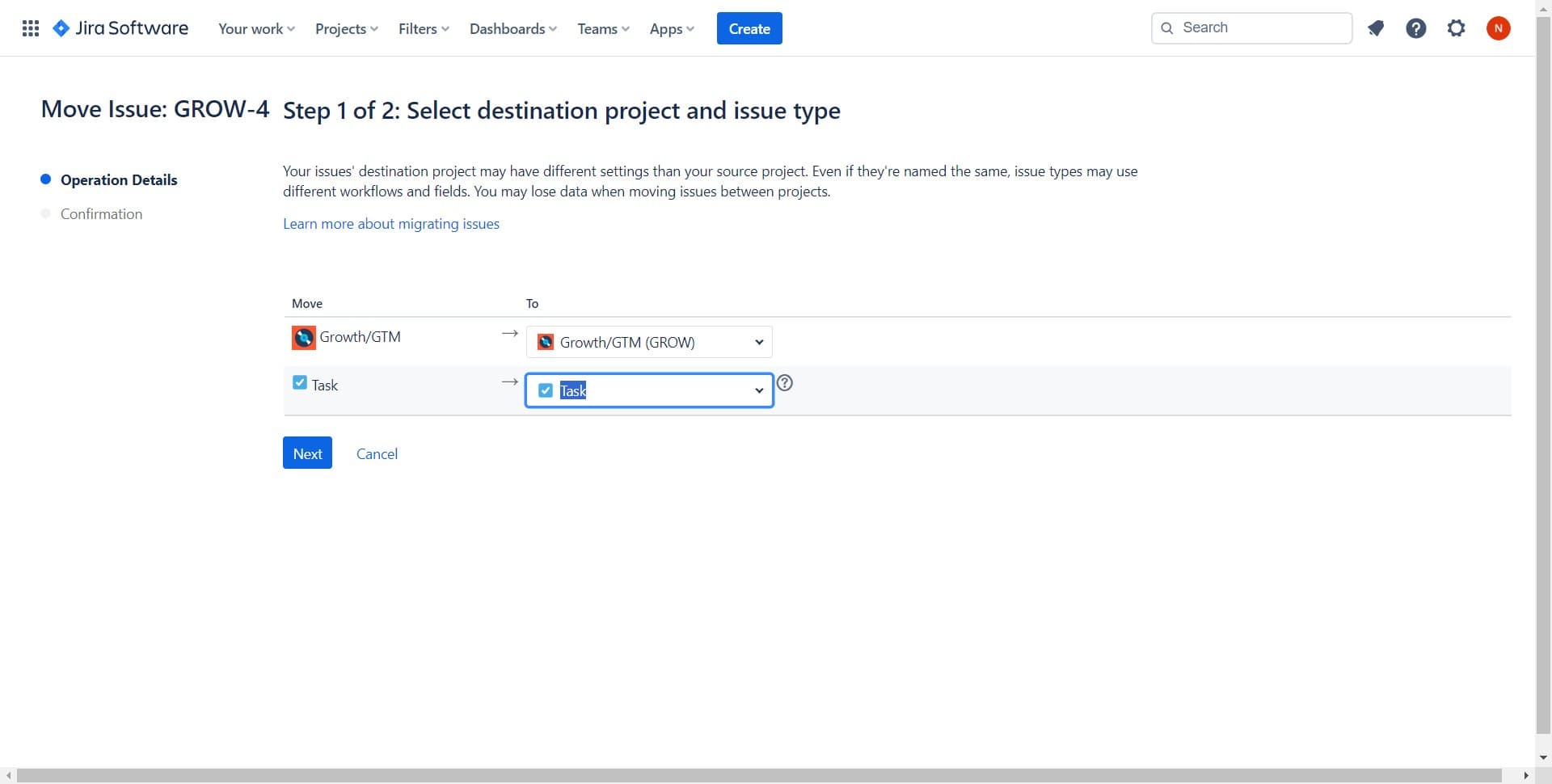
- 7
Finalize the move action
Click to execute the move command. The ticket will now transition to its new location in your Jira board.
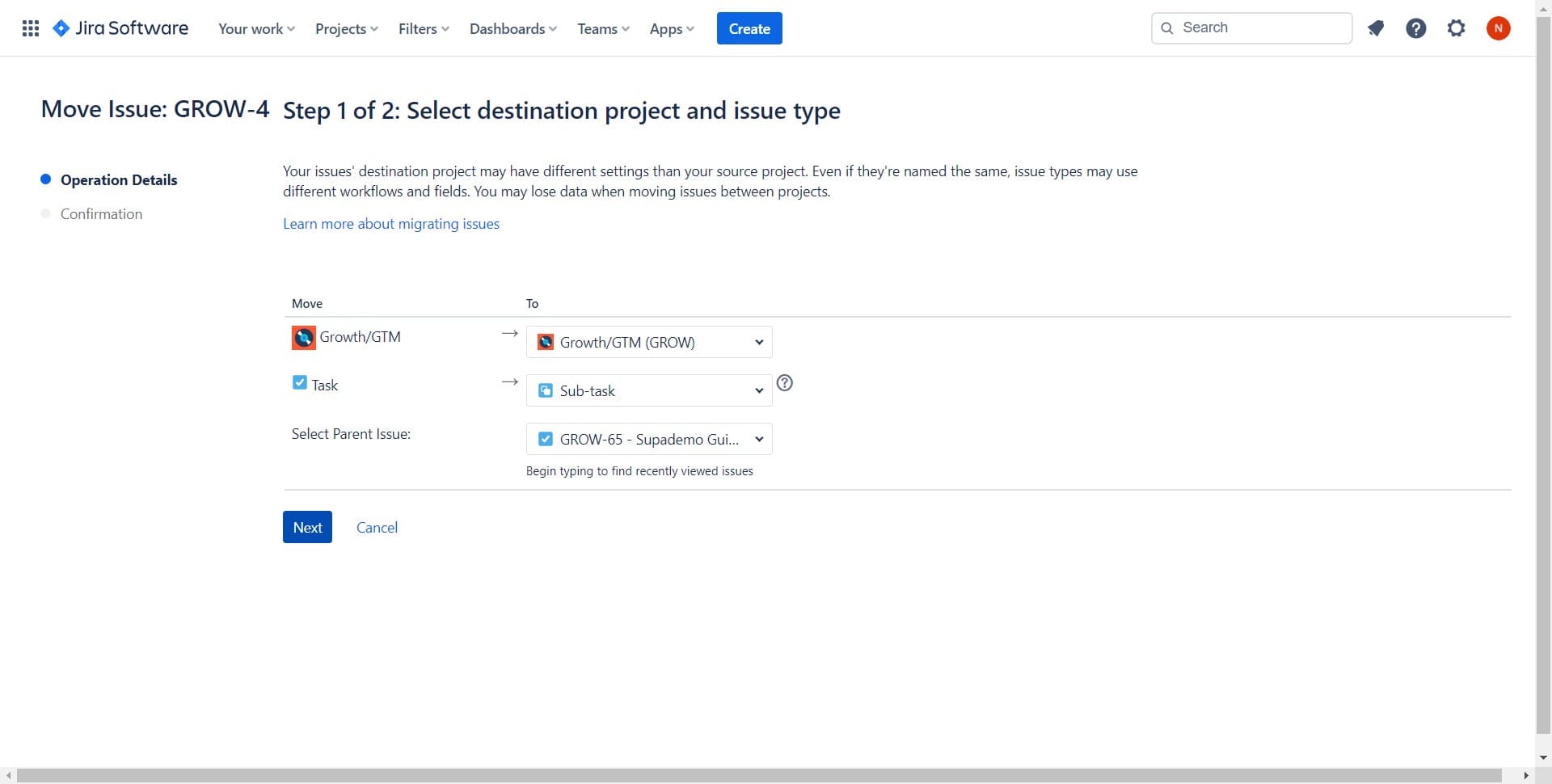
- 8
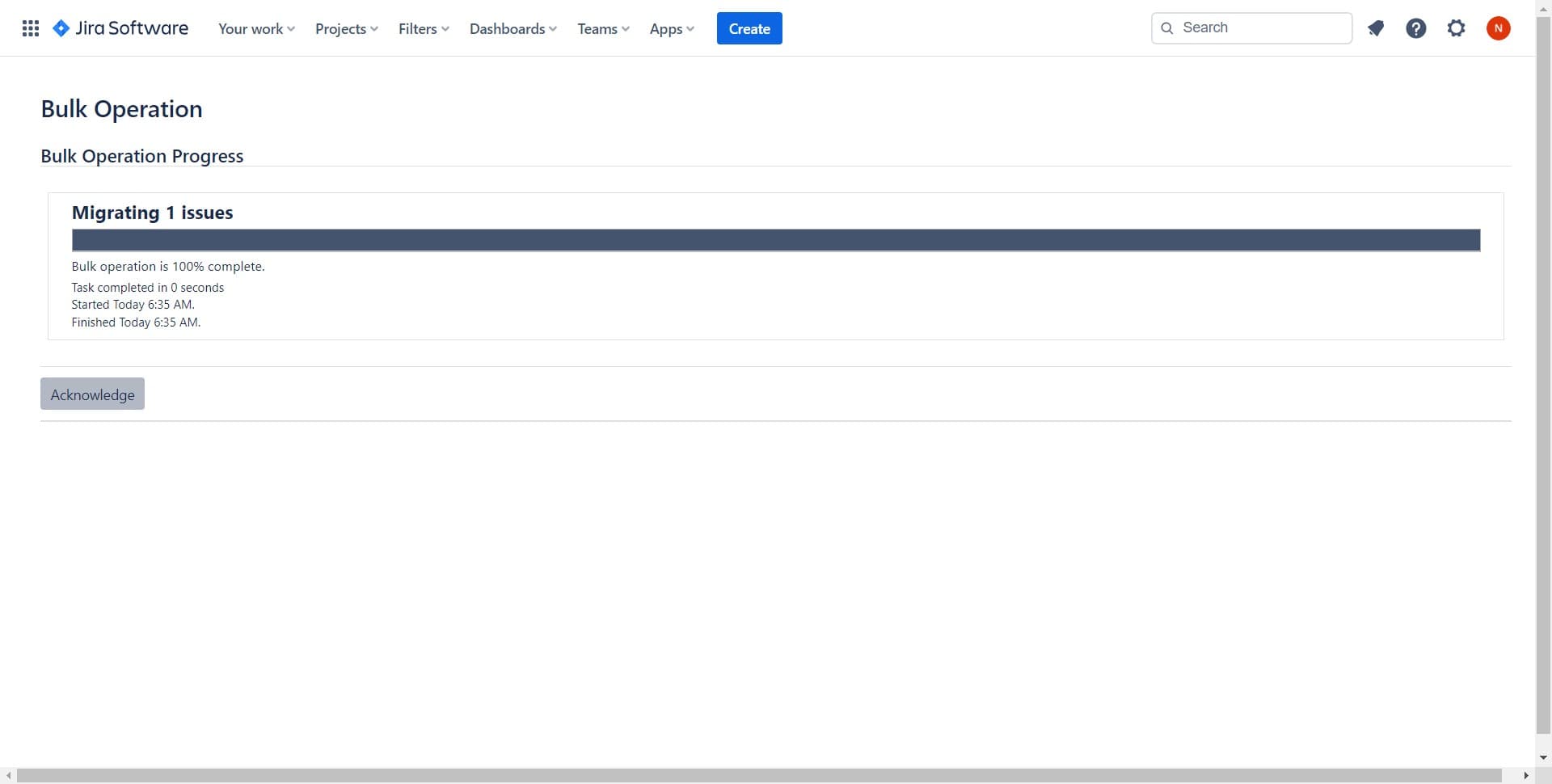
Confirm successful transition
Click to verify that the move has been completed successfully. You should see the ticket now appears in its new status or board location.
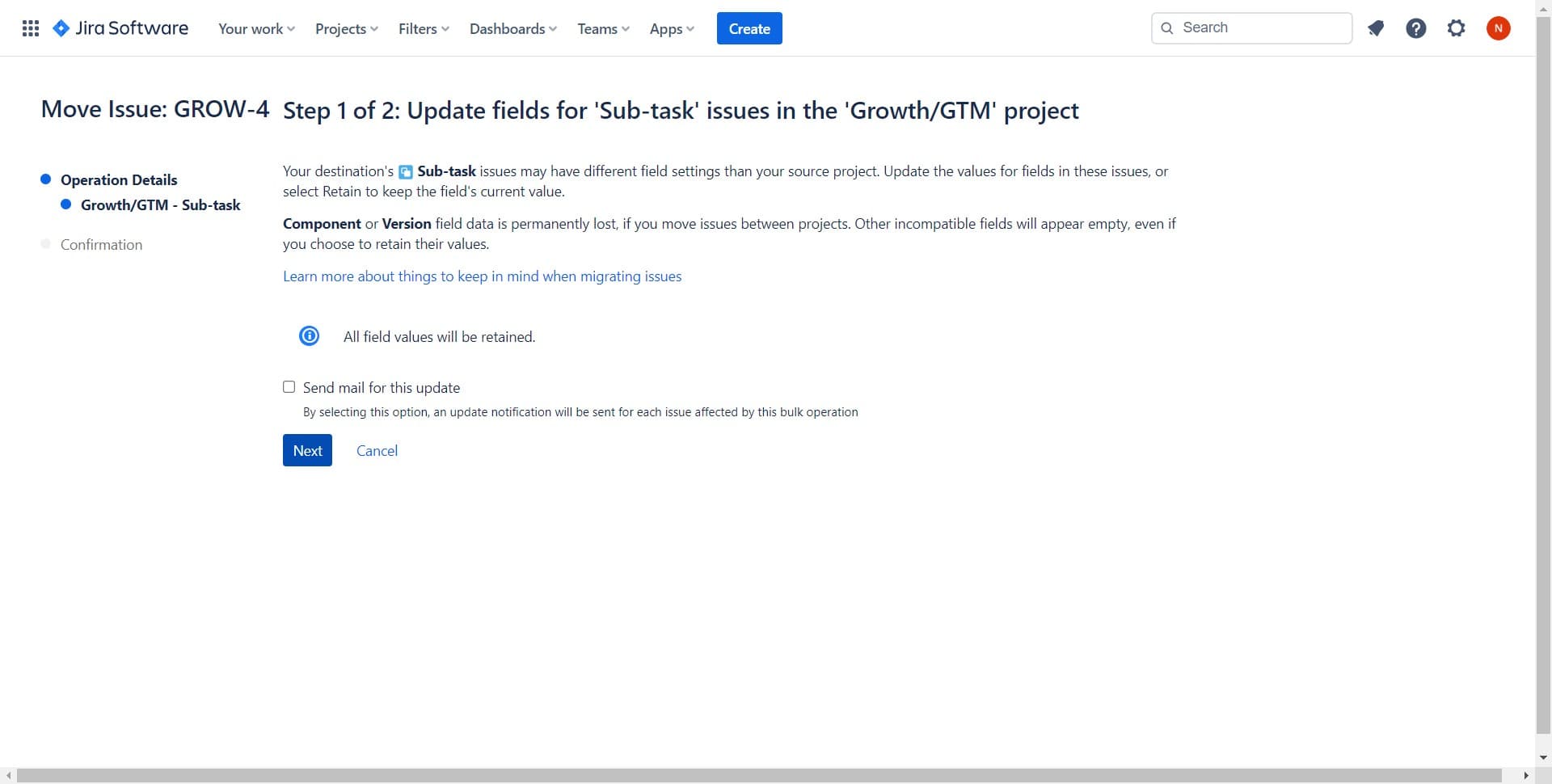
- 9
Return to board view
Click to close the details panel and return to your main board. The moved ticket should now be visible in its new column or status.
- 10
Validate ticket placement
Click to confirm the ticket appears correctly in its new location among other tickets. Your board should now reflect the updated ticket organization.
Frequently asked questions
Common questions about how to move a ticket in jira.
Yes, Jira allows you to move tickets between projects using the Move function. However, you must have the appropriate permissions in both the source and destination projects. Some custom fields may not transfer if they're not configured in the destination project.
Jira maintains a complete history of all moves in the ticket's activity log. You can see who moved the ticket, when it was moved, and what status or location it was moved to. This audit trail is valuable for tracking ticket progression.
You cannot directly undo a move, but you can manually move the ticket back to its previous location using the same Move function. Jira will record this as a separate move action in the ticket's history.
Moving a ticket typically refers to changing its workflow status within a board, while moving between projects is a structural change. Changing status updates the ticket's current stage, while moving between projects transfers it to a different project space entirely.
Yes, by default Jira sends notifications to watchers and assignees when a ticket is moved, depending on your project's notification scheme. You can configure notification settings in your Jira project to control who receives these alerts.