How to share an issue in Jira

Sharing issues in Jira enables seamless collaboration with team members and stakeholders. This guide walks you through the process of sharing a Jira issue so that others can access and review it quickly.
Quick summary
In this tutorial, you'll learn how to share a Jira issue with others by locating the share function, copying a shareable link, and sending it to your team. By the end, you'll be able to distribute issues efficiently without requiring manual access grants.
Why this matters
Sharing issues directly improves team communication and accelerates feedback cycles. Rather than forwarding screenshots or descriptions, a shared link gives recipients instant access to the most current issue details, reducing miscommunication and keeping everyone aligned.
Step-by-step guide
- 1
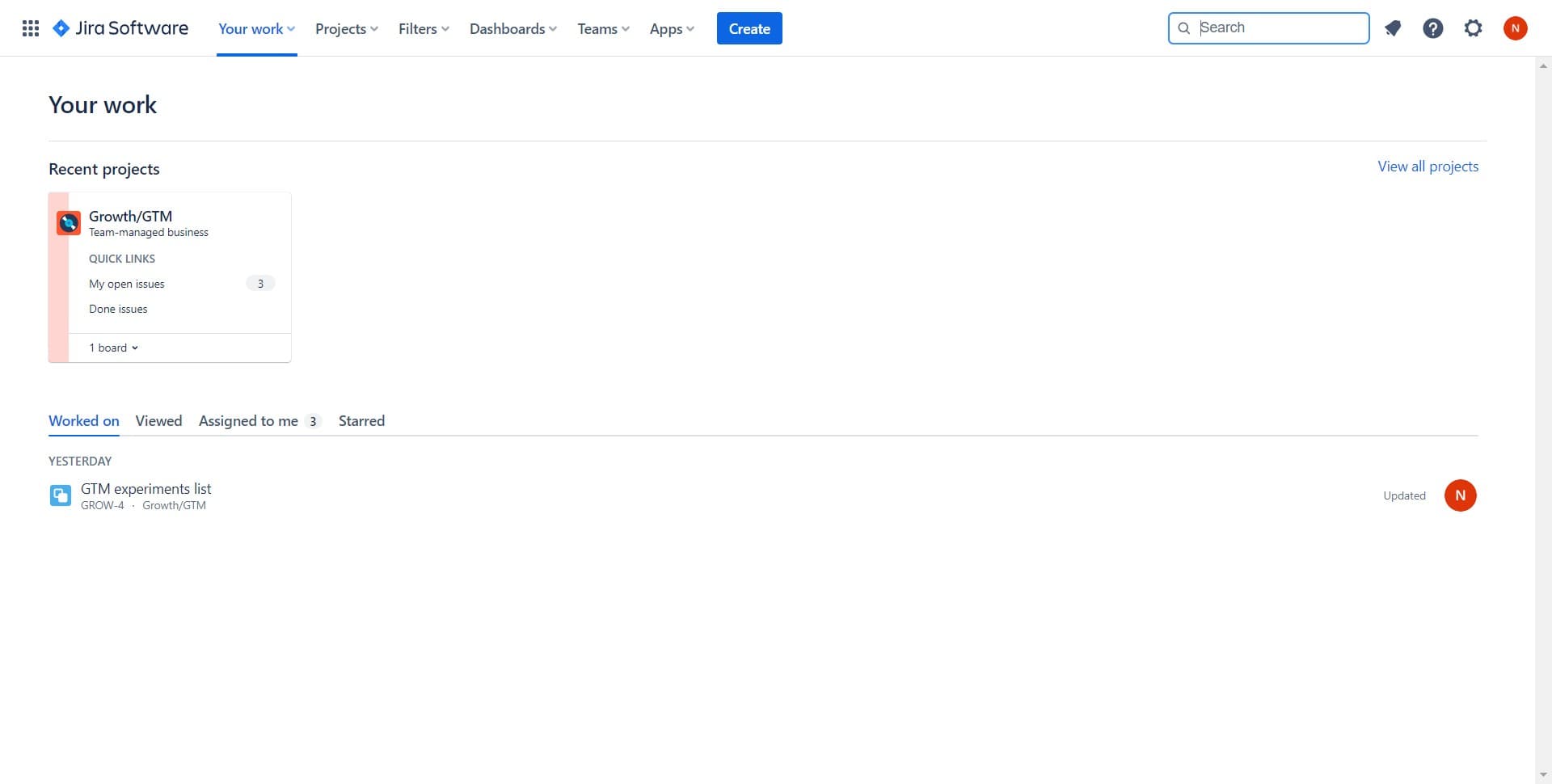
Locate the share option
Open the Jira issue you want to share. Look for the share button or option, typically found in the issue details panel or toolbar at the top of the page.
- 2
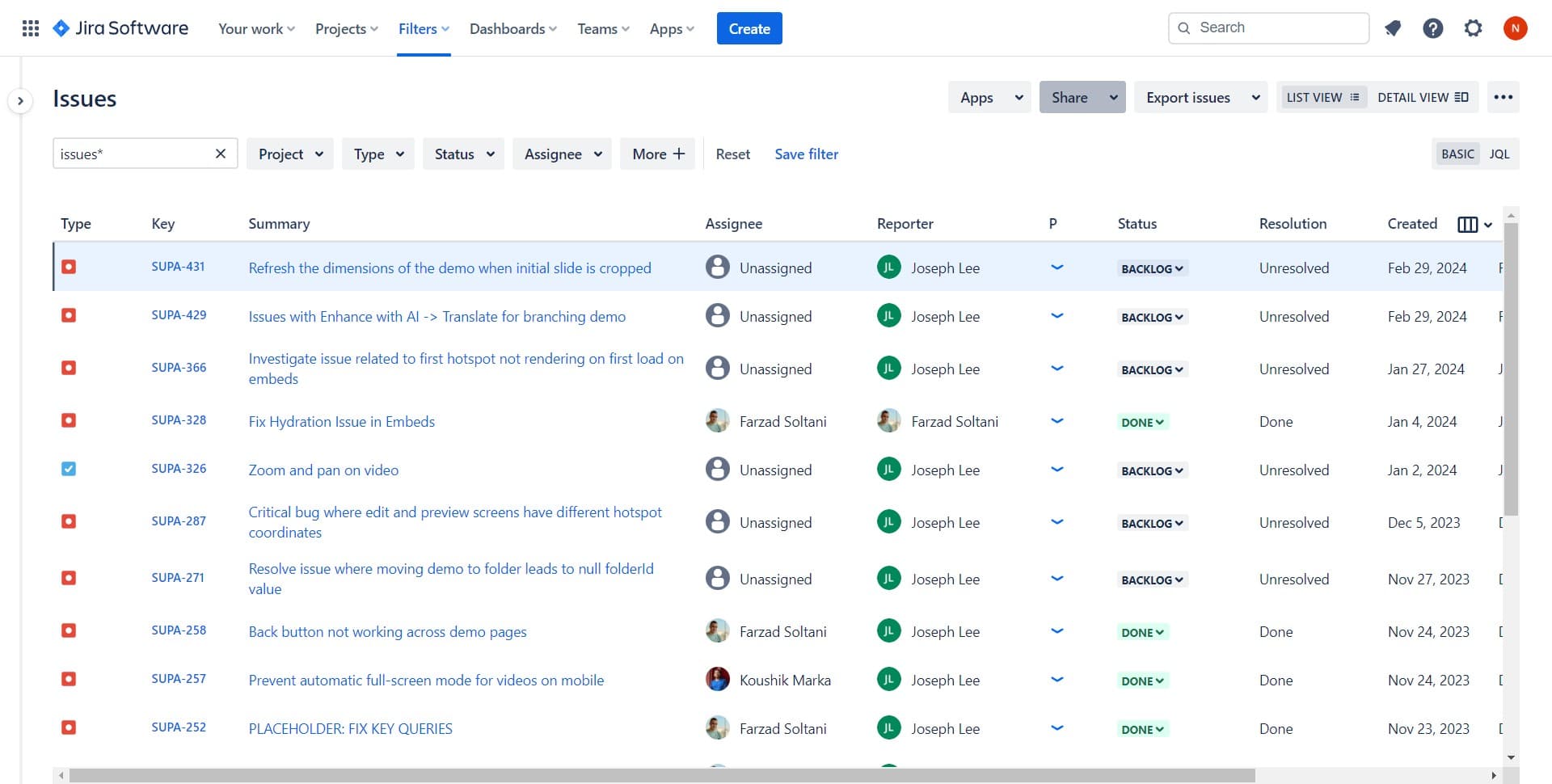
Click on Share
Select the Share option to open the sharing menu. This will reveal available sharing methods and link options for the current issue.
- 3
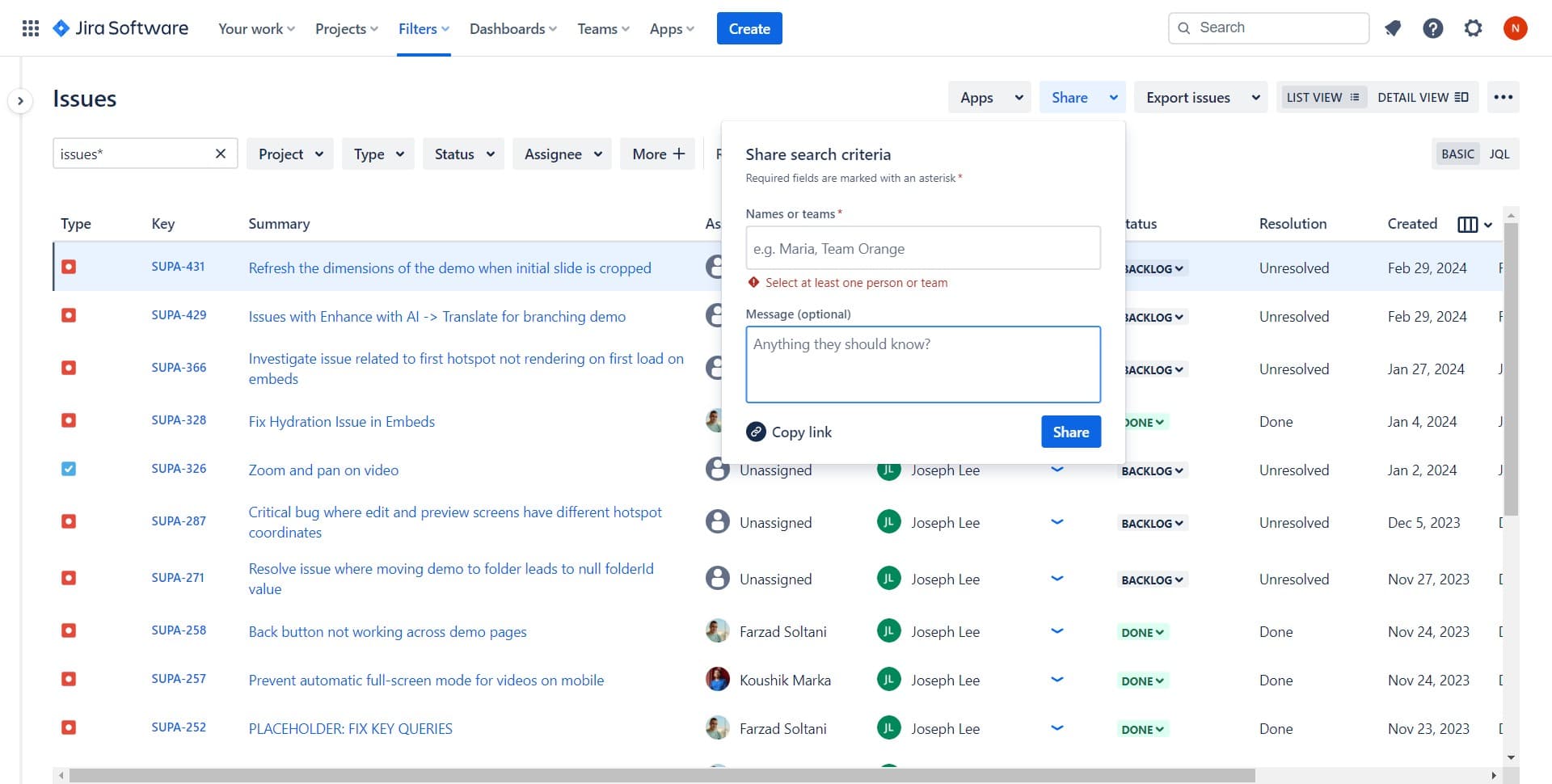
Copy the shareable link
Click on Copy link to generate and copy a direct URL to the issue. This link can be pasted into emails, chat messages, or any communication tool your team uses.
- 4
Configure share settings
Review any upload or permission settings that appear. Adjust visibility or access levels as needed to control who can view the shared issue.
- 5
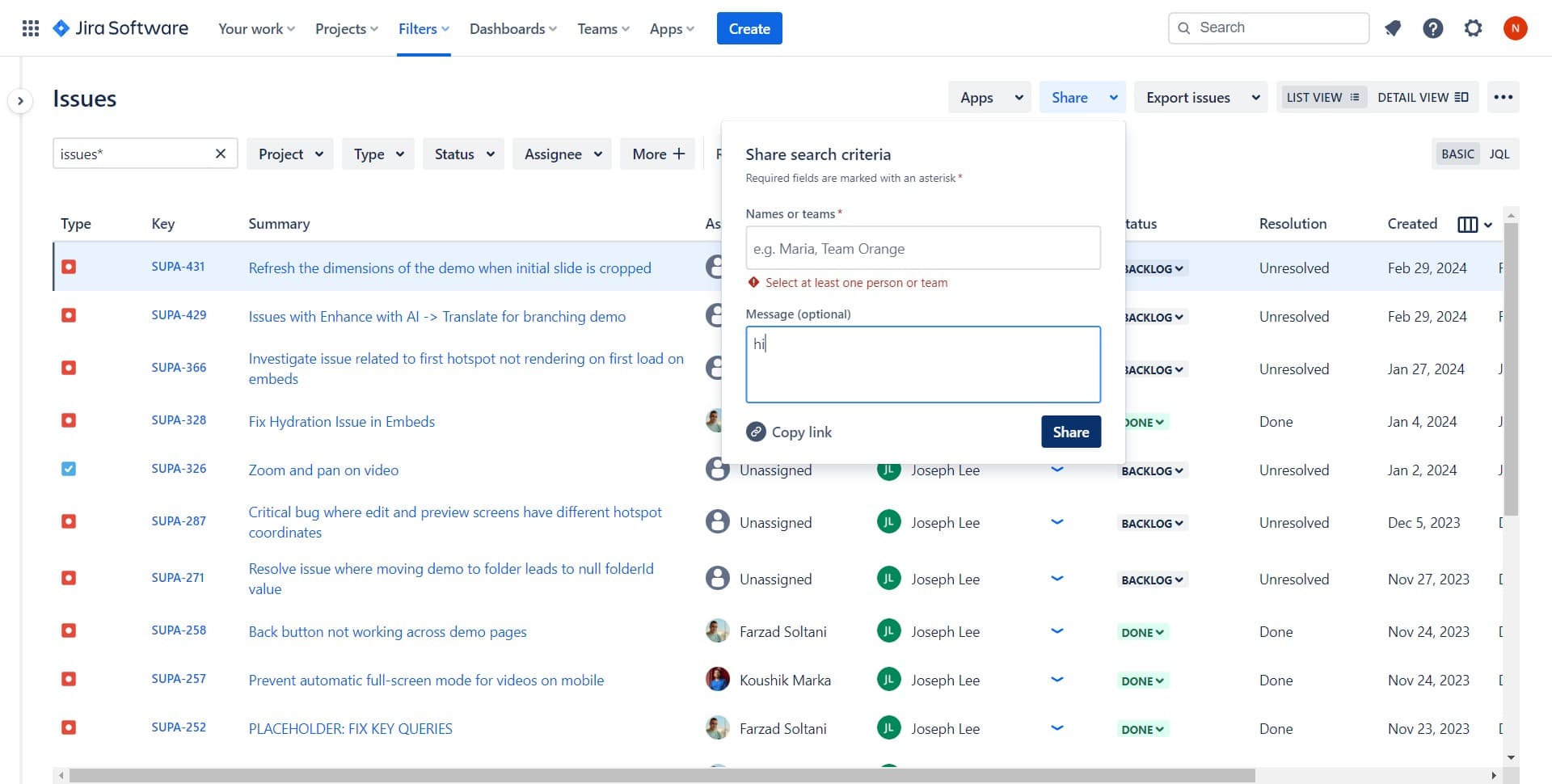
Confirm and share
Click Share to finalize the sharing action. Paste the copied link into your preferred communication channel to distribute it to team members.
Frequently asked questions
Common questions about how to share an issue in jira.
This depends on your Jira instance's sharing settings and user permissions. Check with your Jira administrator to confirm whether external sharing is enabled. Some organizations restrict sharing to internal team members only for security reasons.
Recipients typically need at least view access to the project containing the issue. If someone lacks the necessary permissions, they may see a restricted message or need approval from a project admin before viewing the issue details.
Sharing a link alone does not automatically notify recipients. You'll need to send the copied link via email, chat, or another communication method to alert them. Some Jira configurations may include notification options within the share menu.
Revoking access typically requires managing project-level permissions rather than link-specific settings. Contact your Jira administrator to adjust user access if you need to restrict someone's ability to view the issue.
Copying a link gives you a direct URL that works across any platform, while other methods may integrate directly with messaging or email tools. Link sharing is the most flexible approach for reaching team members through their preferred channels.