How to copy Miro board

Copying a Miro board is a quick way to duplicate your work and reuse templates, designs, or collaborative layouts without starting from scratch. This tutorial walks you through the process of creating an exact copy of any Miro board in just a few clicks.
Quick summary
In this tutorial, you'll learn how to duplicate a Miro board by accessing the copy function and completing the duplication process. You'll discover where to find the 'Make a copy' option and how to finalize the action to create an independent copy of your board.
Why this matters
Copying boards saves time when you're working with templates, running similar projects, or onboarding new team members who need the same starting setup. It also ensures you can experiment with designs or layouts without risking changes to your original board.
Step-by-step guide
- 1
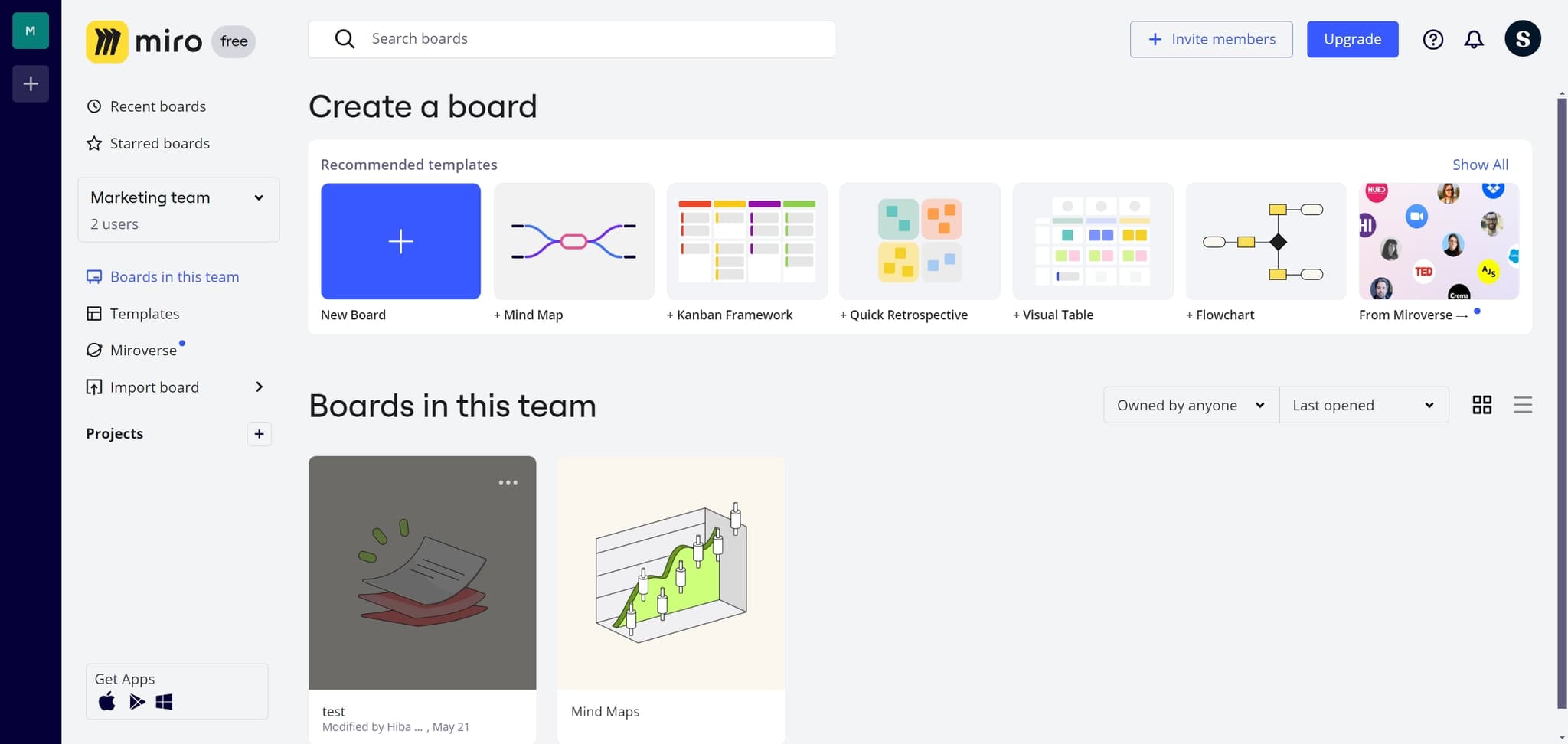
Access the board menu
Start by clicking on the designated area to open the board options menu. This action reveals the available commands for managing your Miro board.
- 2
Upload or prepare content
Upload any additional files or elements to your board if needed before copying. This ensures your copied board contains all the content you want to duplicate.
- 3
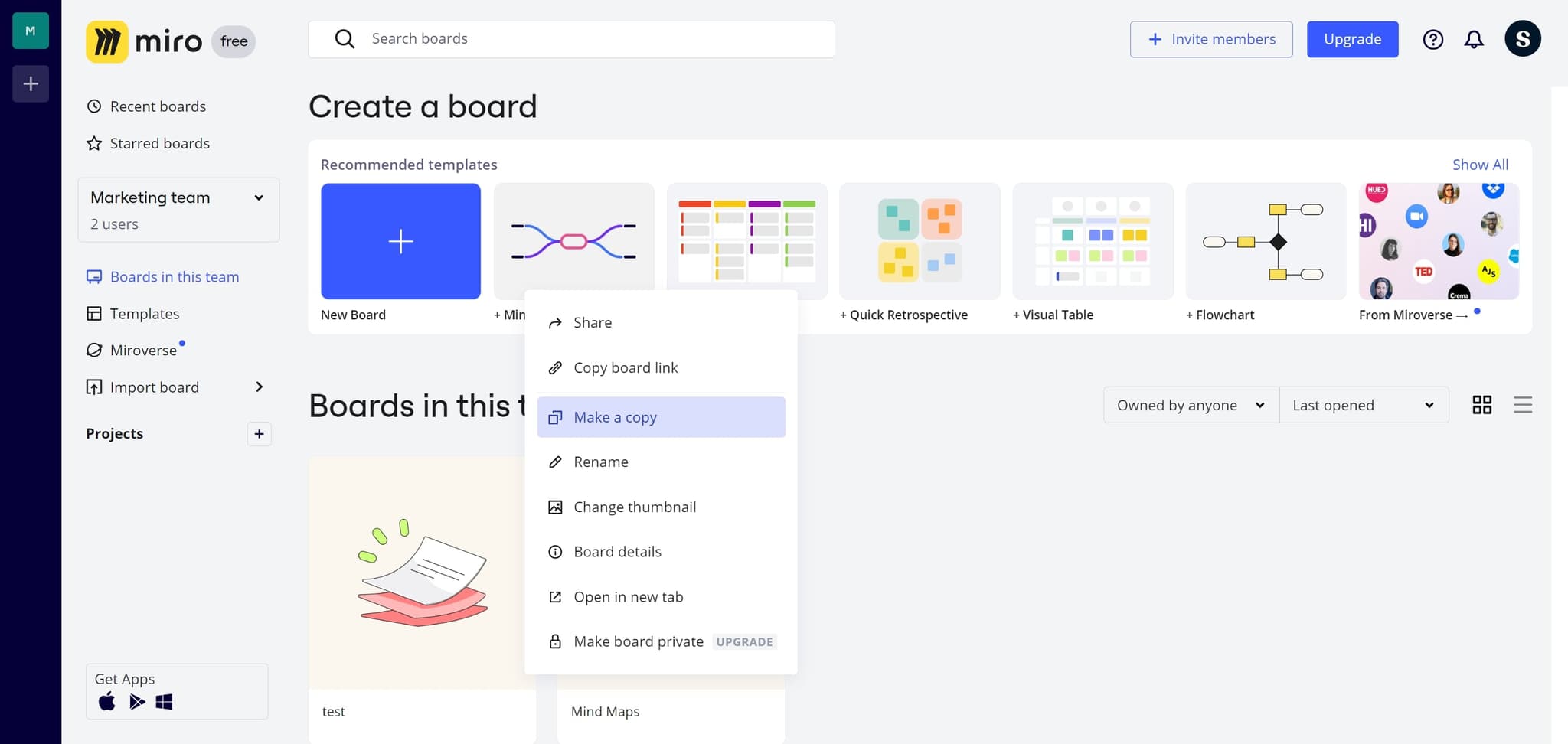
Click on Make a copy
Locate and click the 'Make a copy' option from the menu. This action initiates the board duplication process and prepares Miro to create a copy.
- 4
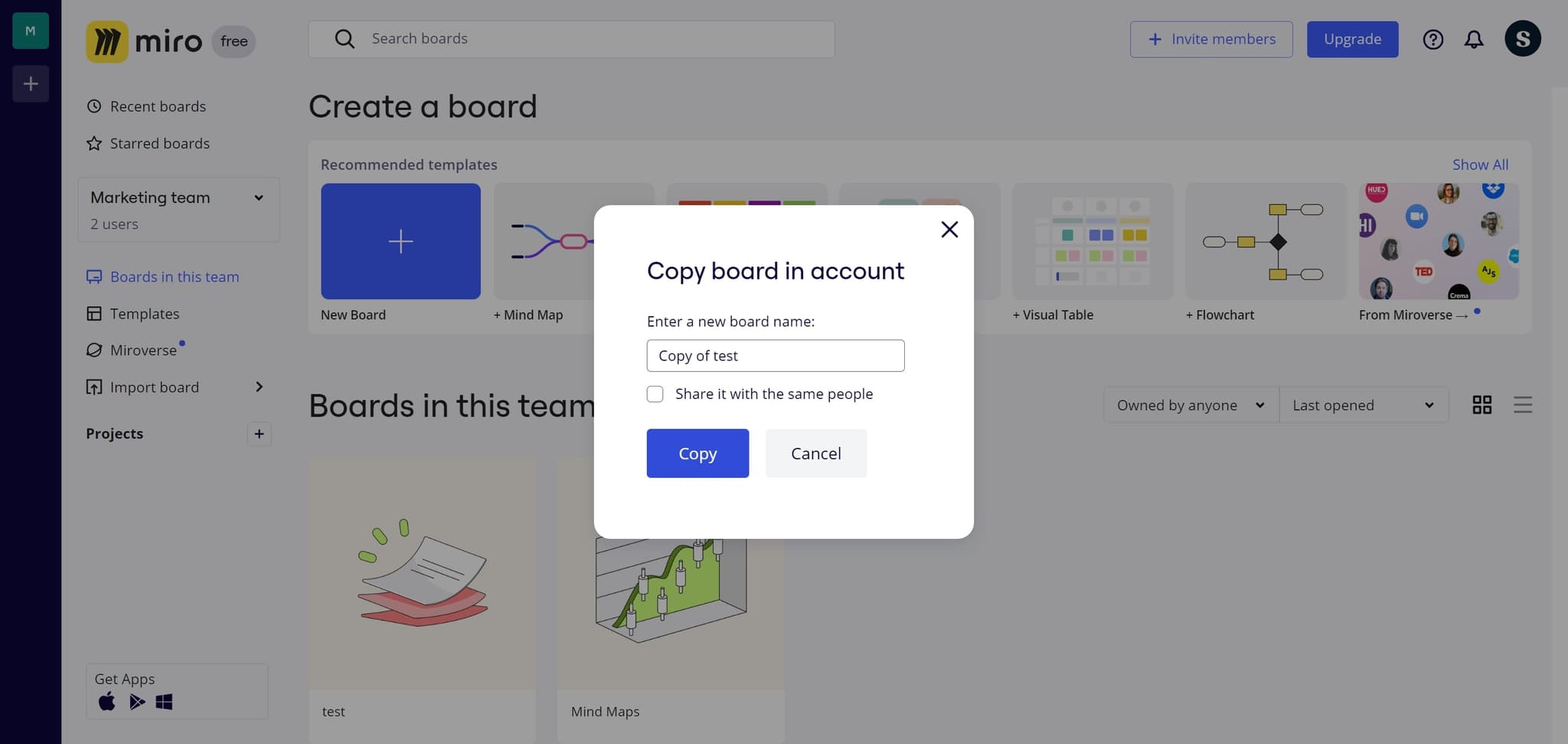
Click on Copy
Confirm the duplication by clicking the 'Copy' button. Miro will now create an exact replica of your board with all its contents and layout.
- 5
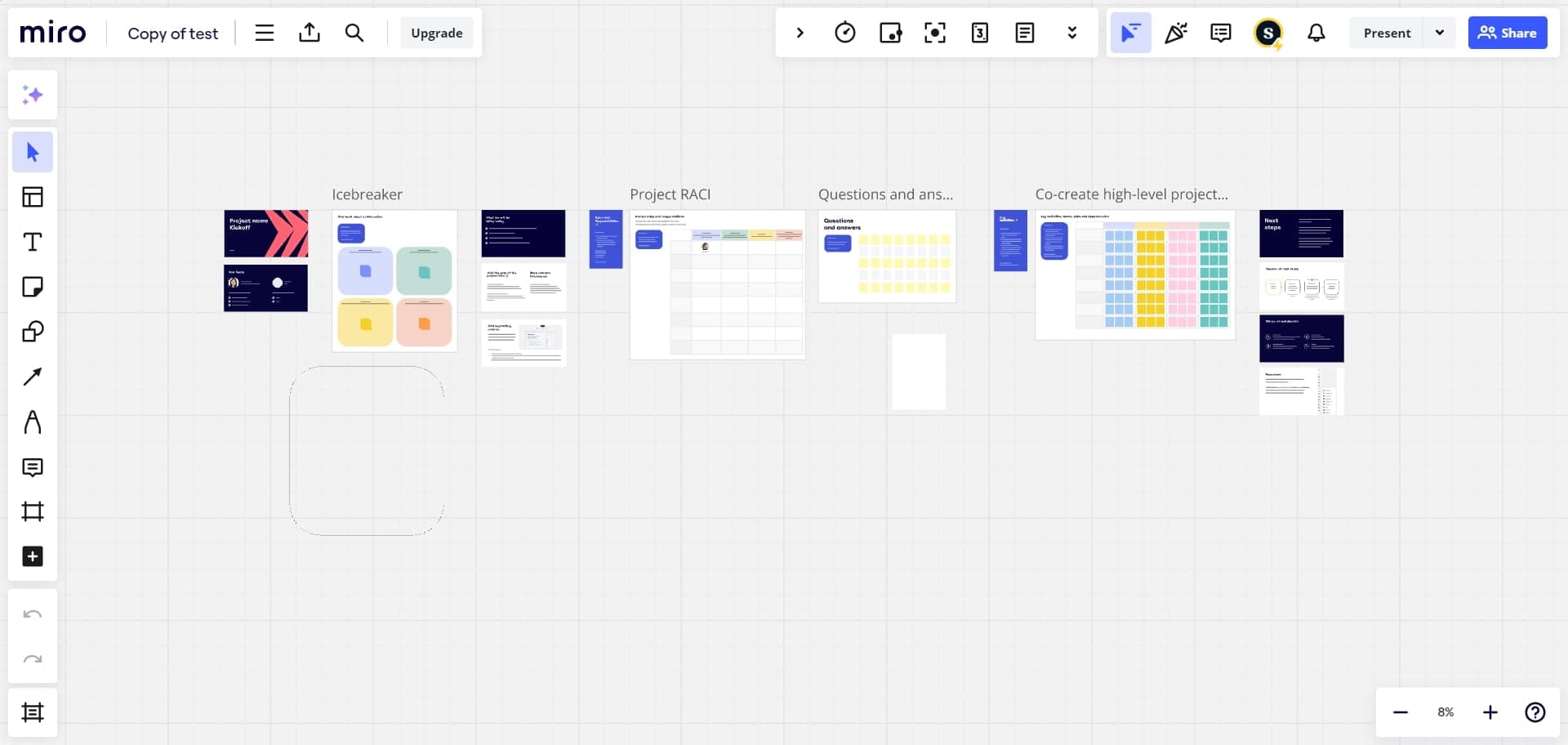
Select the copied element
Click on the newly created board element or access it from your workspace. Your copied board is now ready to use and can be modified independently from the original.
Frequently asked questions
Common questions about how to copy miro board.
Yes, copying a board creates an exact replica including all objects, text, images, shapes, and formatting from the original. The copied board maintains the same layout and design as the source board.
Absolutely. Once you copy a board, it becomes a completely independent board. Any changes you make to the copy will not impact the original board in any way.
Copying a board is typically very fast, usually taking only a few seconds depending on the size and complexity of your board. Large boards with many elements may take slightly longer but the process remains quick.
Yes, you can rename your copied board at any time after duplication. Simply access the board settings or right-click on the board name to edit it to your preference.
No, there is no limit to how many copies you can create from a single board. You can duplicate a board as many times as needed for your projects and workflows.