How to group and ungroup objects in Miro

Grouping and ungrouping objects in Miro streamlines your workflow by organizing related elements and managing complex boards efficiently. Whether you're working on wireframes, mind maps, or collaborative diagrams, mastering object grouping helps you maintain clarity and control over your design canvas.
Quick summary
In this tutorial, you'll learn how to group multiple objects together in Miro and ungroup them when needed. These fundamental techniques will help you organize your workspace, move related items as a single unit, and keep your board structured as your project evolves.
Why this matters
Grouping objects is essential for maintaining a clean, organized workspace when collaborating with teams on complex projects. By bundling related elements together, you reduce clutter, prevent accidental individual moves, and make it easier for collaborators to understand your design structure at a glance.
Step-by-step guide
- 1
Upload your content to Miro
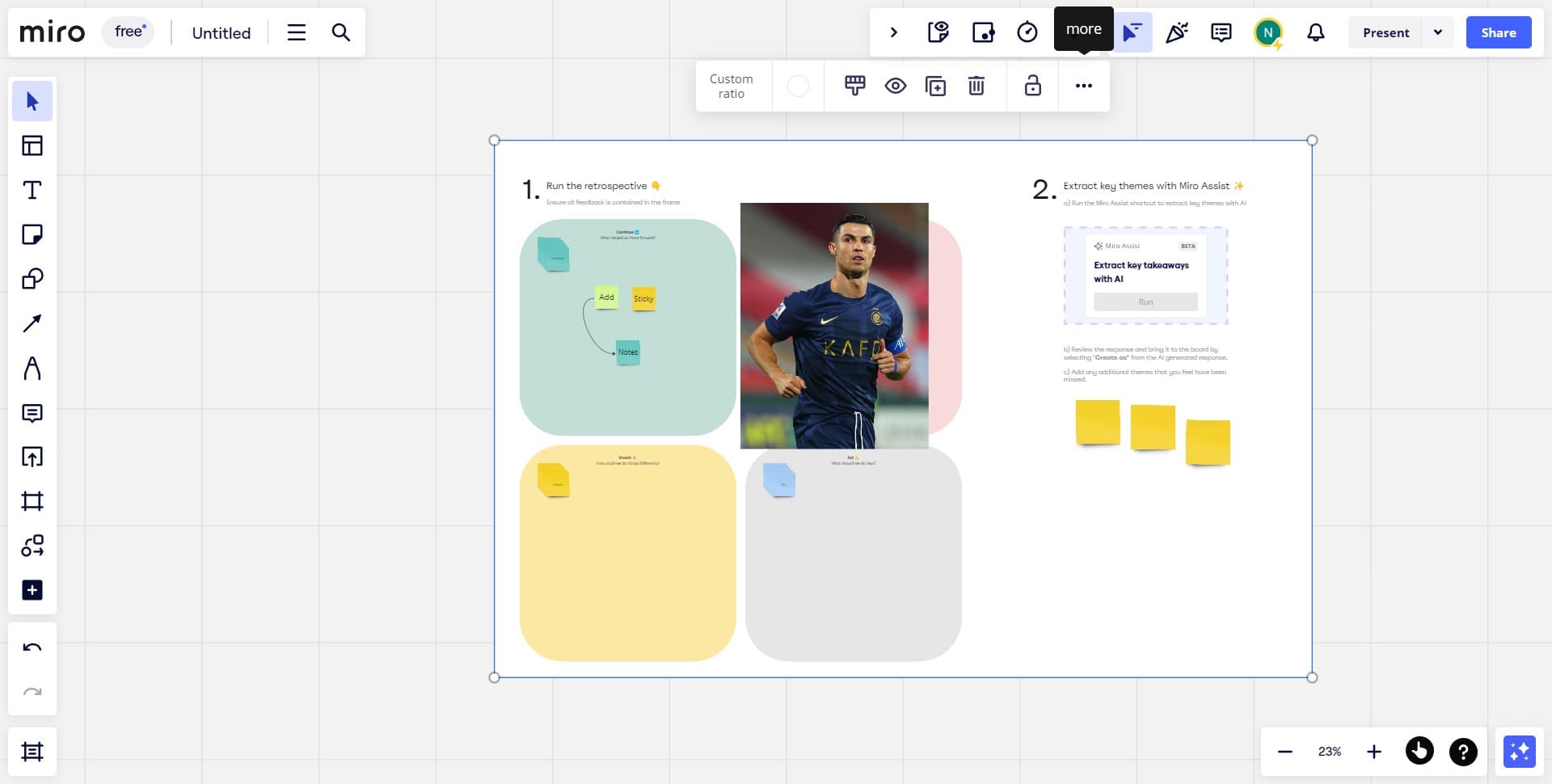
Start by uploading the files, images, or content you want to work with to your Miro board. This establishes your initial canvas and provides the objects you'll organize through grouping.
- 2
Select the objects to group
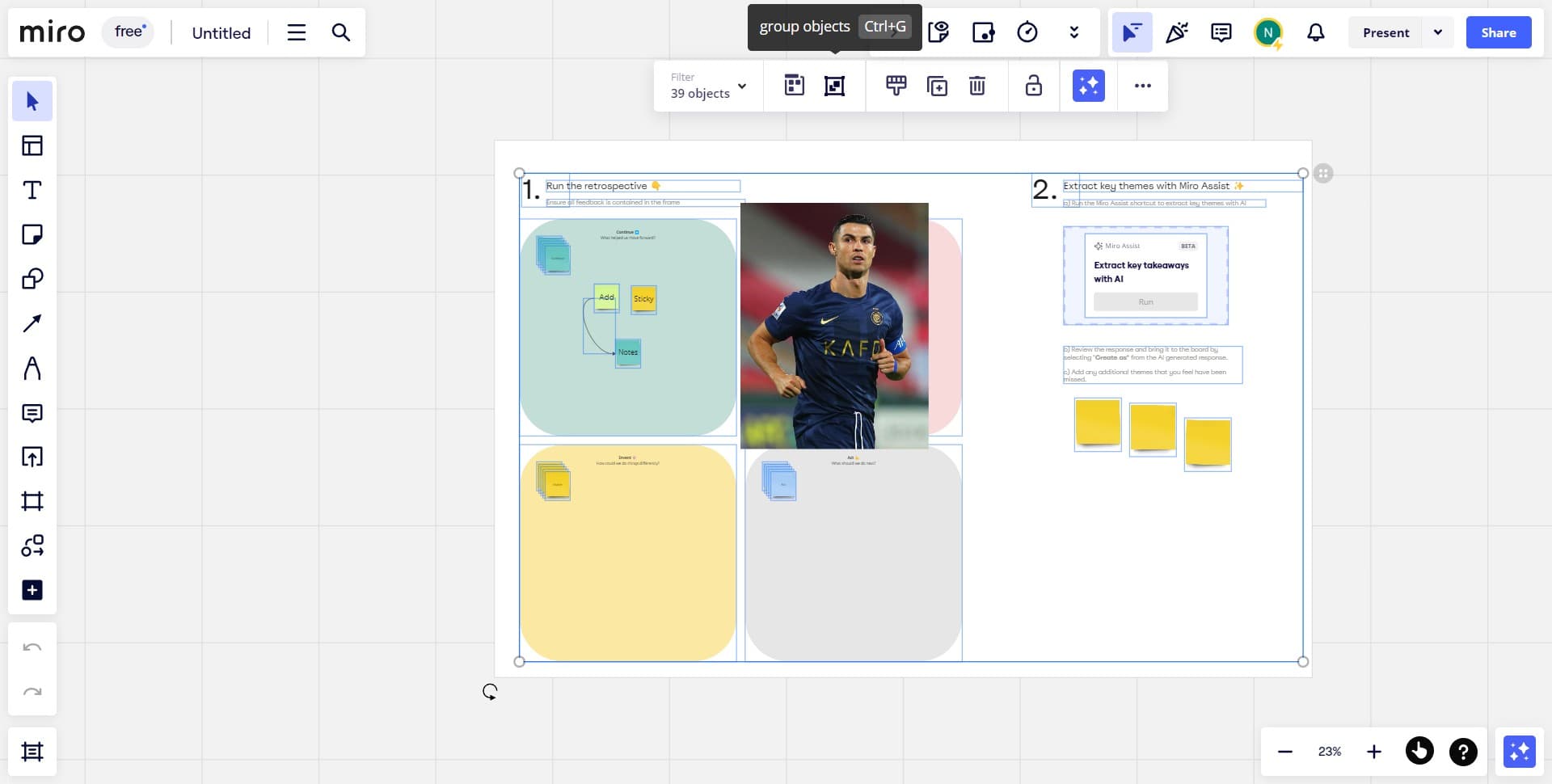
Click and drag to select multiple objects you want to group together, or hold Shift and click individual items. Once all desired objects are highlighted, you're ready to apply the grouping action.
- 3
Open the object menu
Right-click on your selection to reveal the context menu with available options. This menu provides quick access to grouping and other organizational features.
- 4
Access grouping options
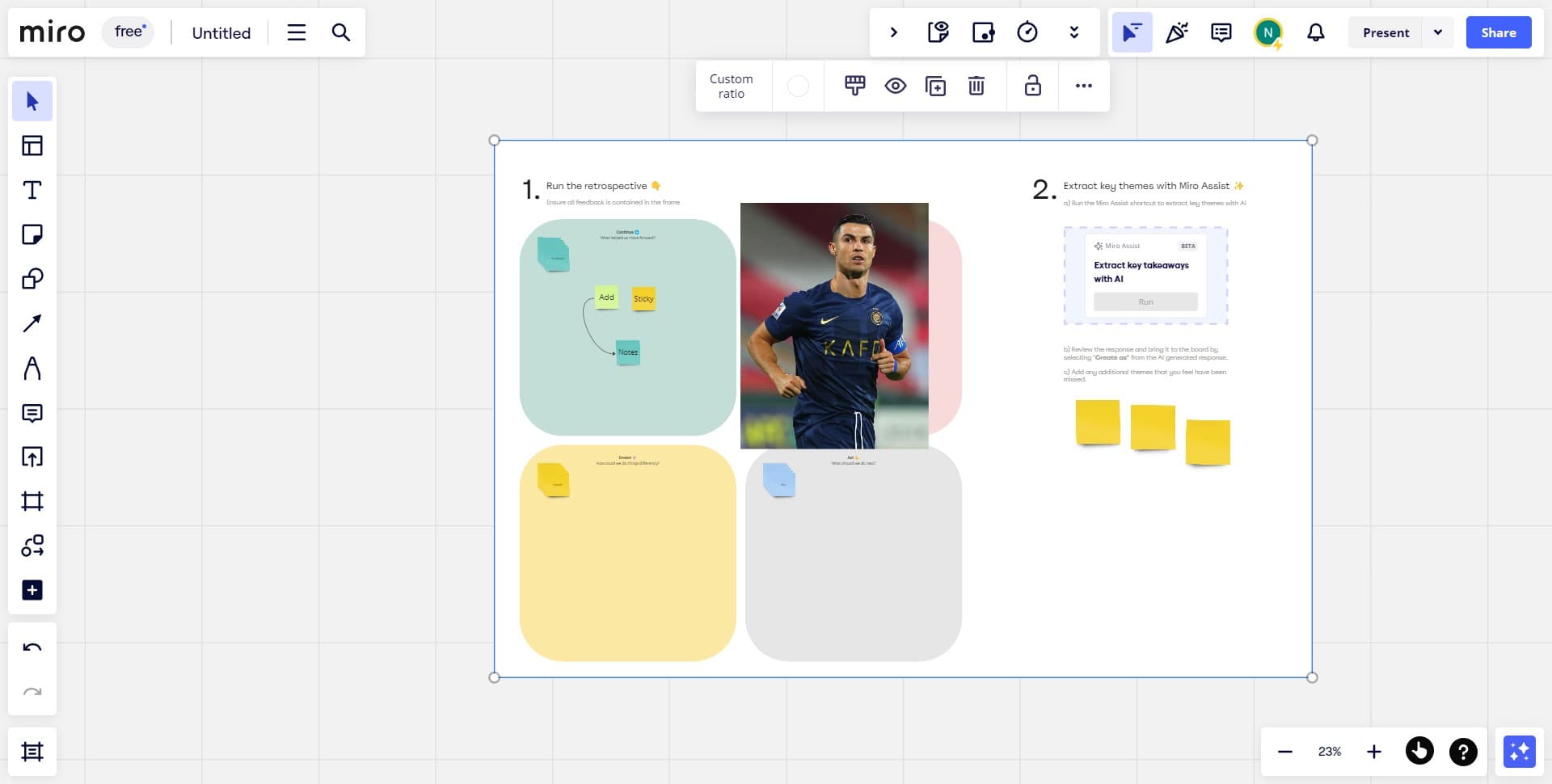
Look for and click on the 'Custom ratio' or grouping option in the menu that appears. This action will group all selected objects into a single unit that moves and resizes together.
- 5
Confirm the grouping action
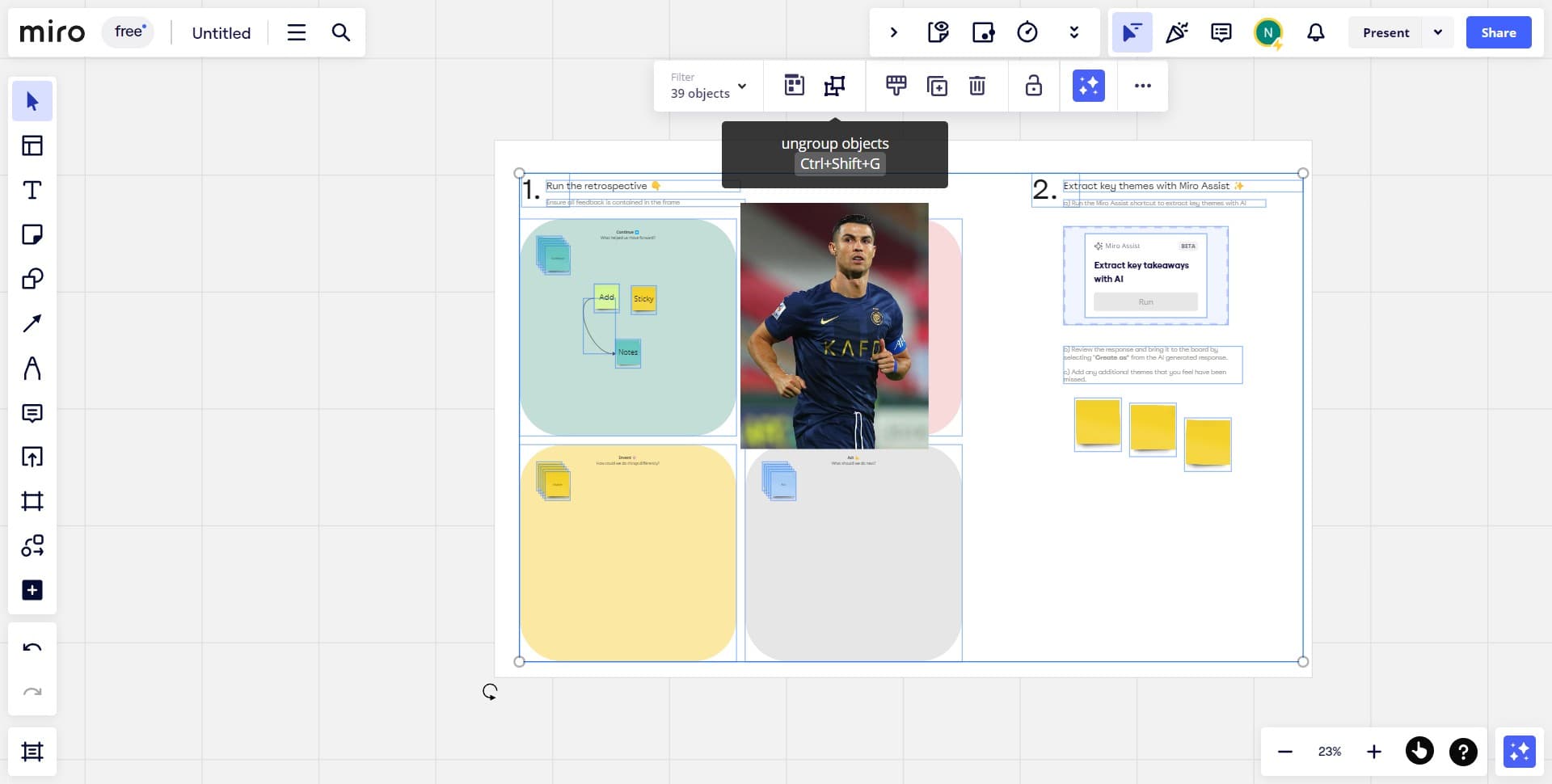
Click the confirmation button or area to finalize the grouping. Your selected objects are now linked as one group and will move as a unit on your board.
Frequently asked questions
Common questions about how to group and ungroup objects in miro.
Yes, Miro allows you to group objects of any size together. The grouped objects will maintain their individual dimensions while moving and resizing as a single unit. This flexibility is useful when combining elements like text, shapes, and images of varying scales.
To ungroup objects, right-click on the grouped element and select the ungroup option from the context menu. This separates the objects back into individual elements while keeping them in their current positions on the board.
When you move a grouped object, all elements within the group move together as a single unit, maintaining their relative positions and spacing. This prevents accidentally separating components and keeps your design organized.
Yes, you can double-click on a specific object within a group to select and edit it individually without ungrouping. This allows you to modify text, colors, or other properties while keeping the group structure intact.
Miro does not impose a strict limit on the number of objects you can group together. However, grouping very large numbers of complex objects may impact performance, so it's best to group only related elements that you need to manage as a unit.